
Hybrid Ingestion Runner
The Hybrid Ingestion Runner lets Collate trigger and manage ingestion workflows inside your own cloud infrastructure. Your Collate SaaS instance stays hosted on Collate’s cloud, while workflows run in your private environment. Collate never stores or accesses your secrets directly — only the runner retrieves them at runtime. Before you start: Contact Collate Support to have the Hybrid Runner installed in your infrastructure. Your DevOps team handles the initial Kubernetes deployment.Prerequisites
- Kubernetes cluster running version 1.28 or later
- Helm and kubectl installed
- AWS credentials provided by Collate for pulling Docker images from ECR
- Secrets manager configured in your cloud (AWS, Azure, or GCP). See Manage Secrets.
Set Up Hybrid Ingestion Runner
Follow these steps to deploy, validate, and connect your Hybrid Runner to a data source.Step 1: Get Collate Authentication Token
The Hybrid Runner authenticates to the Collate API using a JWT token from the ingestion bot. To obtain a JSON Web Token (JWT), follow these steps:- Log in to the Collate platform as an administrator.
- Navigate to Settings > Bots, then click Add Bot.
- Enter Email, Display Name, Token Expiration, and Description, then click Create.
- Assign the appropriate roles – typically DefaultBotPolicy and Ingestion Bot Policy.
- Copy the generated JWT token and save it for use in step 2 below.
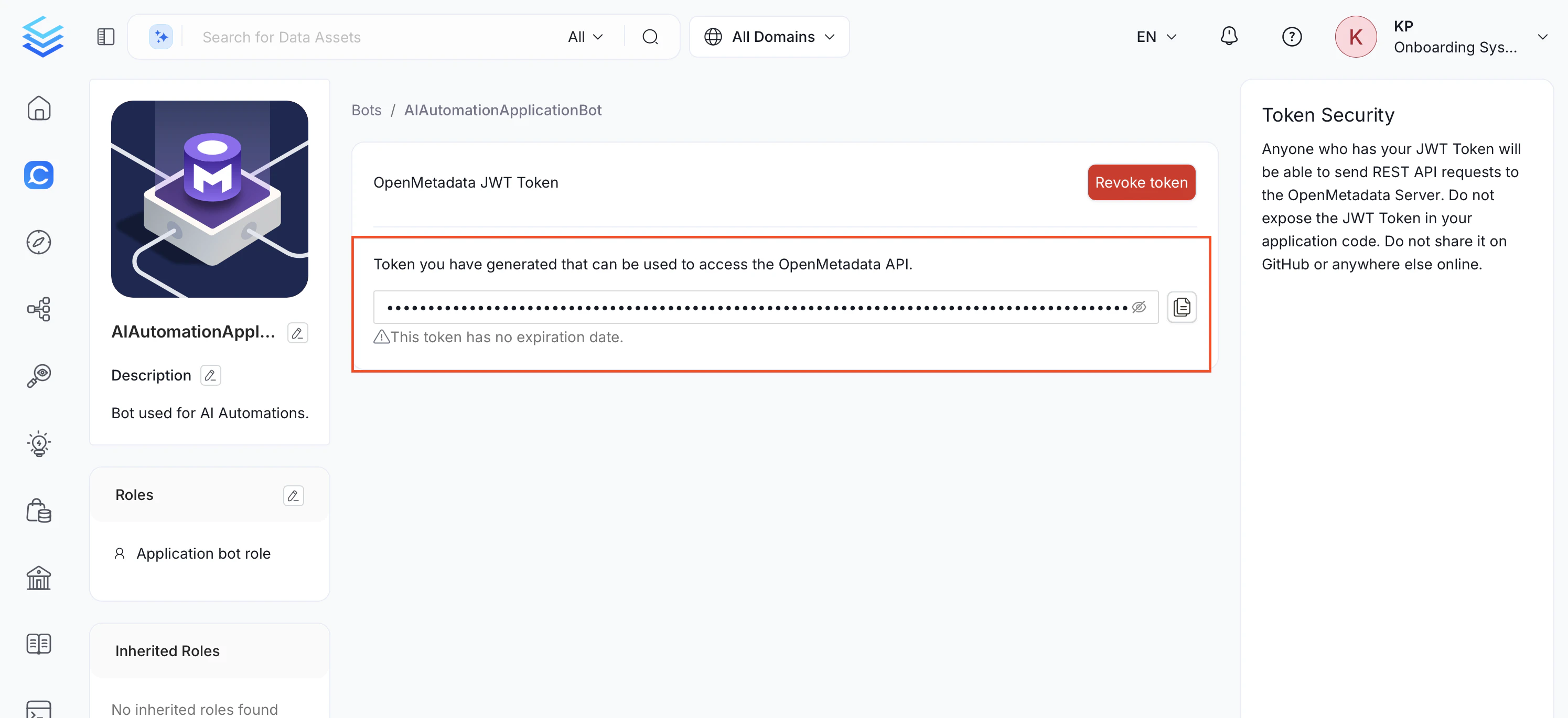
Note: This token has no expiration date. Store it securely and treat it as a secret.
Step 2: Deploy via Helm
Use Helm to install the Hybrid Runner chart into your Kubernetes cluster with your authentication token and ECR credentials.-
Create a
values.yamlfile Use the following minimal configuration: -
Install the Helm chart
Step 3: Validate the Runner
Confirm the runner is live and reachable from your Collate instance before configuring any services.-
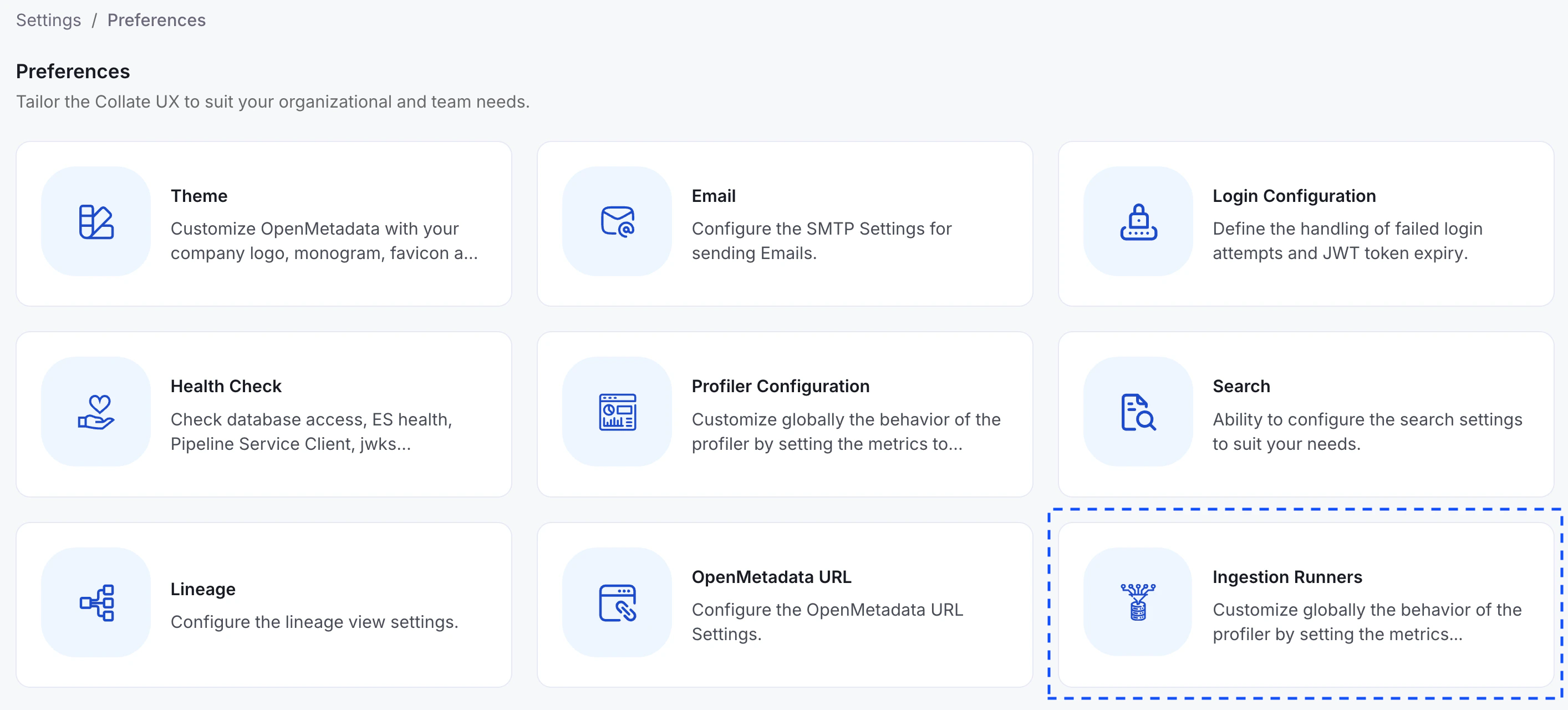
Navigate to Settings > Preferences > Ingestion Runners.
-
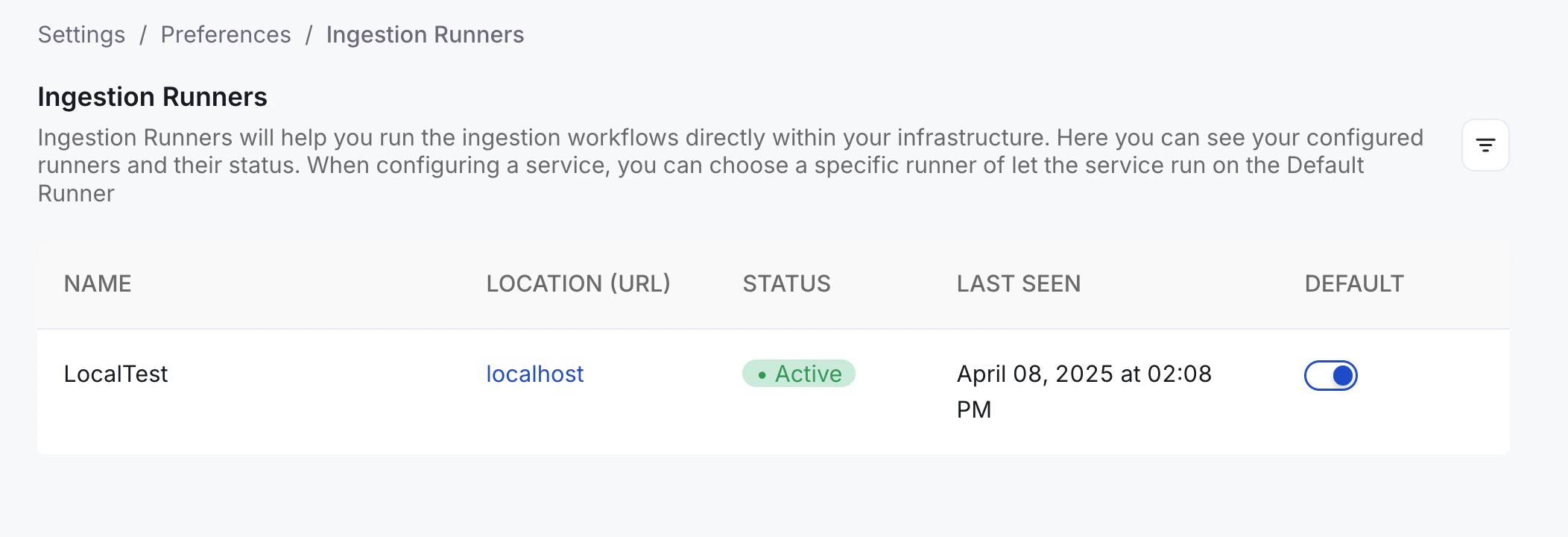
Confirm your runner appears in the list with a status of Active.
Step 4: Create a Service
Connect your first data source and route its ingestion through your Hybrid Runner. To create a service, follow these steps:- Navigate to Settings > Services and select your service type (for example, Databases).
- Click + Add New Service and choose your connector type, then click Next.
- Enter the unique Name and Description, then click Next.
-
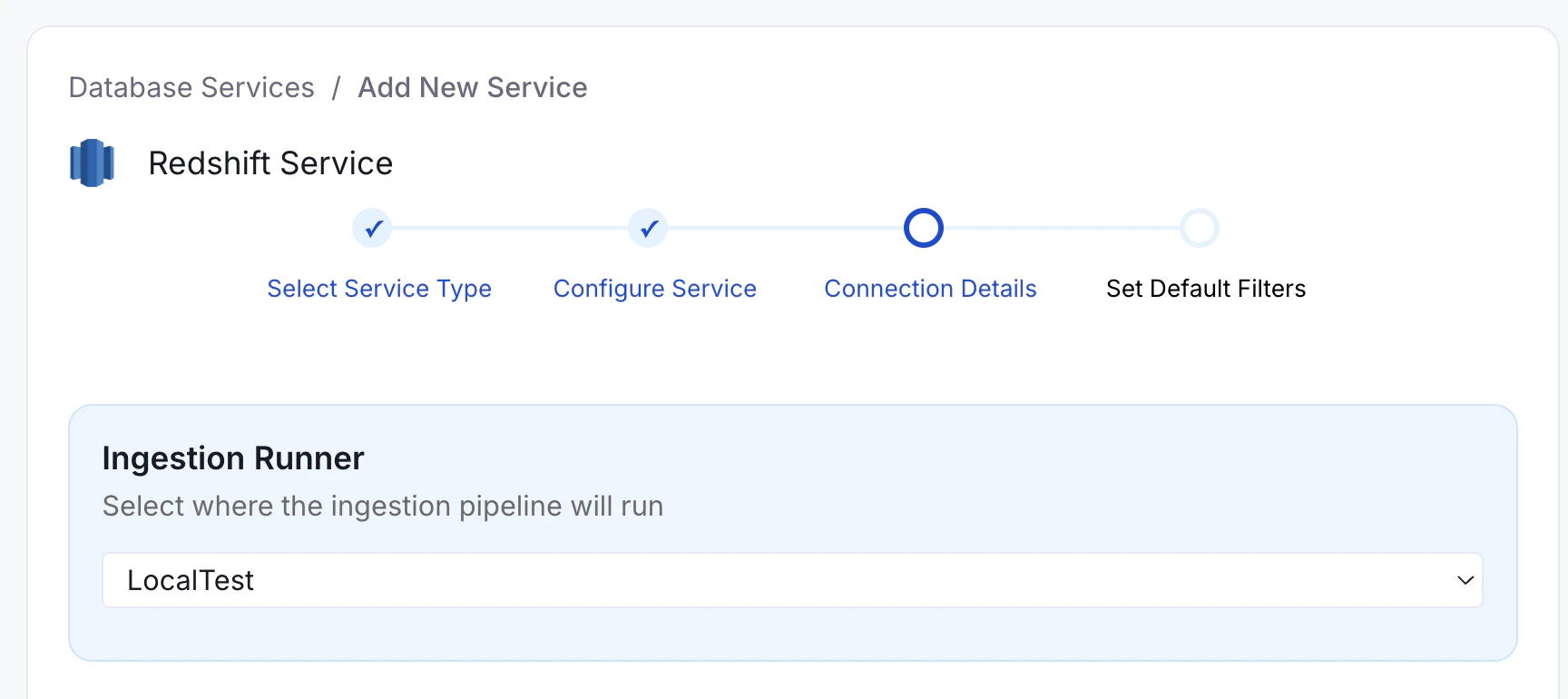
In the Ingestion Runner dropdown, select your Hybrid Runner.
-
Fill the connection details. For any credential field that shows a hide or show icon, enter the secret reference path from your secrets store instead of the actual value.
Important: The secret must be stored in your secrets store before you can reference it here. See Manage Secrets.
- Click Test Connection to verify the connection is successful.
Note: You can also select Collate SaaS Runner in the dropdown at any time to run a specific ingestion via Collate’s cloud instead of your Hybrid Runner.
Step 5: Configure Metadata Ingestion
After your runner is connected and your service is set up, proceed to Step 2 - Configure Metadata Ingestion to schedule your first ingestion pipeline.Manage Secrets
When running workflows in your hybrid environment, store sensitive credentials—like passwords or tokens—in your cloud provider’s secrets manager and reference them securely in Collate via the Hybrid Runner.Note: Collate doesn’t store or access your secrets directly. Only the Hybrid Runner retrieves them at runtime from your own infrastructure.
Kubernetes Secrets (Default)
The Helm chart uses native Kubernetes Secrets and automatically installs the required RBAC (Role-Based Access Control) permissions on your cluster. This works for most customers without any additional setup. Storing a Secret: Create a Kubernetes Secret in theargo-workflows namespace:
Cloud Secret Stores
-
Open your secrets manager of choice:
- Amazon Web Services (AWS) Secrets Manager. See AWS Secret Manager.
- Azure Key Vault. See Azure Key Vault.
- Google Cloud Platform (GCP) Secret Manager. See GCP Secret Manager.
-
Store the secret value as plain text—for example,
password123— without any formatting or encoding. The Hybrid Runner retrieves and decrypts the value at runtime. For example, in AWS Secrets Manager: select Store a new secret > Other type of secret > Plaintext, then paste the value as-is, without quotes, JSON, or other formatting.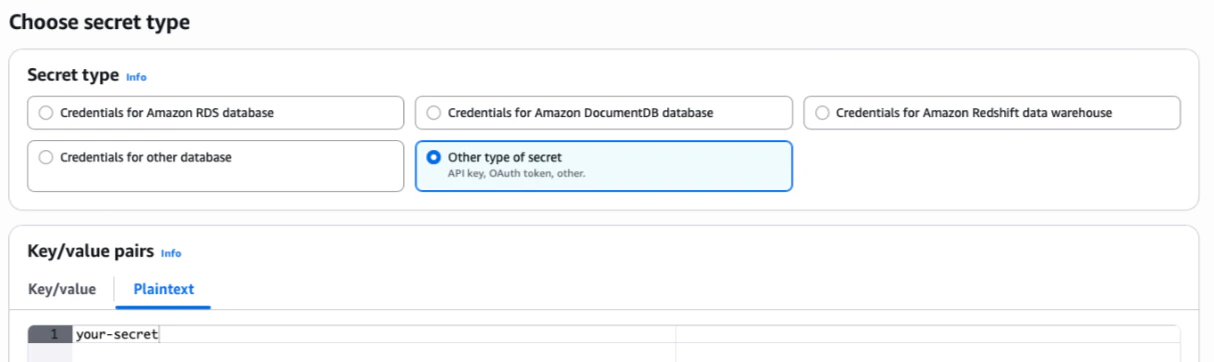
AWS (EKS Pod Identity or IRSA)
Configure Pod Identity via EKS Pod Identity or IRSA to assume an IAM role. TheserviceAccount name is ingestion by default.
Required IAM permissions:
secretsmanager:GetSecretValuesecretsmanager:DescribeSecretsecretsmanager:ListSecrets
values.yaml:
Azure (Workload Identity)
Configure Workload Identity with a User Assigned Managed Identity. The required role is Key Vault Secrets Officer.The
argoWorkflows: section above is only required when installArgoWorkflows: true. Remove it if you are using the Simple Kubernetes executor.GKE (GCP Secret Manager)
Use Workload Identity to grant ingestion pods access to GCP Secret Manager without managing service account keys. The required IAM role isroles/secretmanager.secretAccessor.
Add the following to your values.yaml:
<gcp-service-account> and <project-id> with your GCP values. You can restrict Secret Manager access to a specific path prefix, for example: projects/<project-id>/secrets/collate/*.
Storing a Secret
In the GCP Console, navigate to Secret Manager and select Create Secret. Store the raw secret value without quotes or JSON wrapping.
Reference the Secret in Collate
In the service connection form in Collate, reference the secret using thesecret: prefix followed by the full path to your secret.
/my/database/password, enter the following in the password field:
Secret references only work for masked fields—those with a hide or show icon.
Configure Node Scheduling
Ingestion pods run as independent Kubernetes pods. If your cluster uses node taints to isolate workloads, configure tolerations and node affinity so ingestion pods schedule on the correct nodes. Configuration differs by executor type — use the section that matches your setup:- Argo Workflows executor (Hybrid Runner with Argo): use
ARGO_PIPELINE_TYPE_CONFIGS - Simple Kubernetes executor (default, Hybrid Runner without Argo): use
SIMPLEK8S_PIPELINE_TYPE_CONFIGS
SIMPLEK8S_PIPELINE_TYPE_CONFIGS when using Argo has no effect, and vice versa.
The configuration value is a JSON string scoped by pipeline type: automation, metadata, profiler, and lineage.
Argo Workflows Executor
Add the following to yourvalues.yaml:
toleration accepts a single string value. The runner creates a dedicated=<value> Kubernetes toleration for all ingestion pods of that type. For full Kubernetes toleration objects (multiple taints, custom operators, or effects), use config.ingestionPods.customConfig.workflowParams instead.openmetadata-hybrid-runner with the taint value used in your cluster. Check your node taints by running:
Simple Kubernetes Executor
If you’re using the default Simple Kubernetes executor (no Argo Workflows), useSIMPLEK8S_PIPELINE_TYPE_CONFIGS instead:
Supported Configuration Fields per Pipeline Type
Each pipeline type entry (automation, metadata, profiler, lineage) supports the following fields:
Monitor the Runner
The Hybrid Runner exposes operational metrics in Prometheus-compatible format via an HTTP endpoint. These metrics provide insight into agent state, activity, and performance. Example metricConfigure Metrics Exposure
port— port on which the metrics endpoint is served (default:8989)path— HTTP path for accessing metrics (default:/metrics)
Access Metrics
Once configured, access metrics at:Additional Settings
Hosting Your Own Docker Images
To use your own Docker registry instead of Collate’s ECR, update the following Helm values. For the Hybrid Runner pod:Note: Update images for both the Hybrid Runner and ingestion pods. Updating only one will cause version mismatches.
2.0.5 maps to image tag om-2.0.5-cl-2.0.5). To manage your own tags, disable this behavior: