
How to Write and Deploy No-Code Test Cases
Collate supports data quality tests at the table and column level on all of the supported database connectors. Collate supports both business-oriented tests as well as data engineering tests. The data engineering tests are more on the technical side to ascertain a sanity check on the data. It ensures that your data meets the technical definition of the data assets, like the columns are not null, columns are unique, etc. There is no need to fill a YAML file or a JSON config file to set up data quality tests in Collate. You can simply select the options and add in the details right from the UI to set up test cases. To create a test in Collate:- Navigate to the table you would like to create a test for. Click on the Data Observability tab.
- Click on Add Test to select a
TableorColumnlevel test.
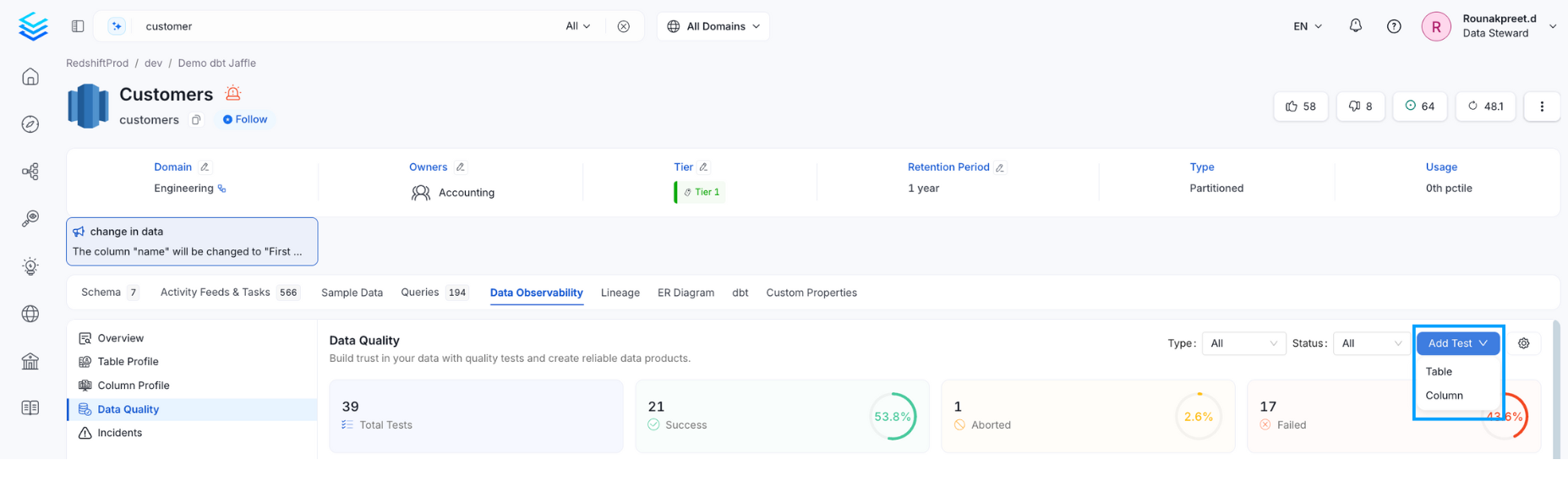
Table Level Test
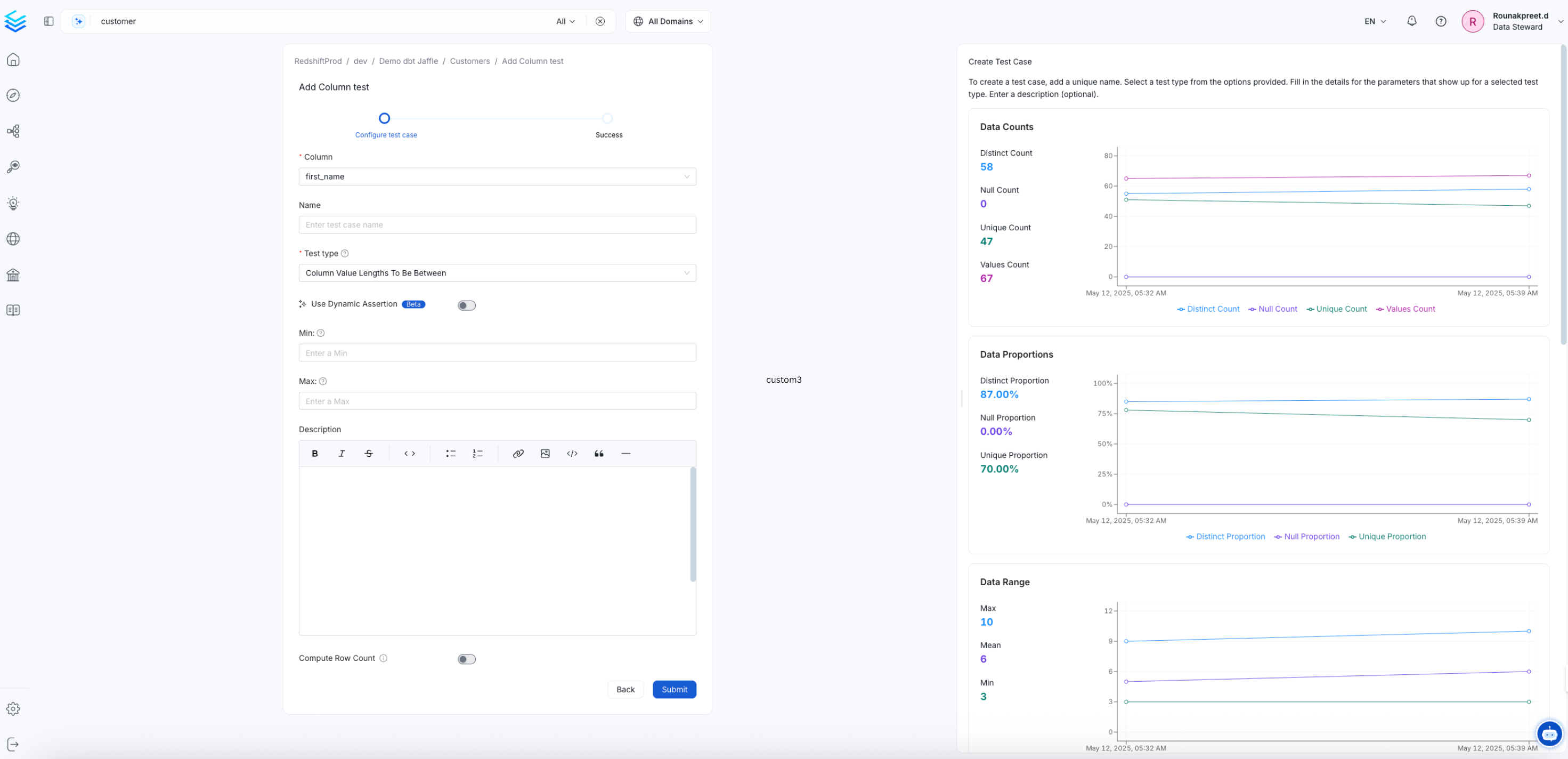
To create a Table Level Test enter the following details:- Name: Add a name that best defines your test case.
- Test Type: Based on the test type, you will have further fields to define your test.
- Description: Describe the test case. Click on Submit to set up a test.
- Table Column Count to be Between: Define the Min. and Max.
- Table Column Count to Equal: Define a number.
- Table Column Name to Exist: Define a column name.
- Table Column Names to Match Set: Add comma separated column names to match. You can also verify if the column names are in order.
- Custom SQL Query: Define a SQL expression. Select a strategy if it should apply for Rows or for Count. Define a threshold to determine if the test passes or fails.
- Table Row Count to be Between: Define the Min. and Max.
- Table Row Count to Equal: Define a number.
- Table Row Inserted Count to be Between: Define the Min. and Max. row count. This test will work for columns whose values are of the type Timestamp, Date, and Date Time field. Specify the range type in terms of Hour, Day, Month, or Year. Define the interval based on the range type selected.
- Compare 2 Tables for Differences: Compare 2 tables for differences. Allows a user to check for integrity.
- Table Data to Be Fresh: Validate the freshness of a table’s data (Collate).
Column Level Test
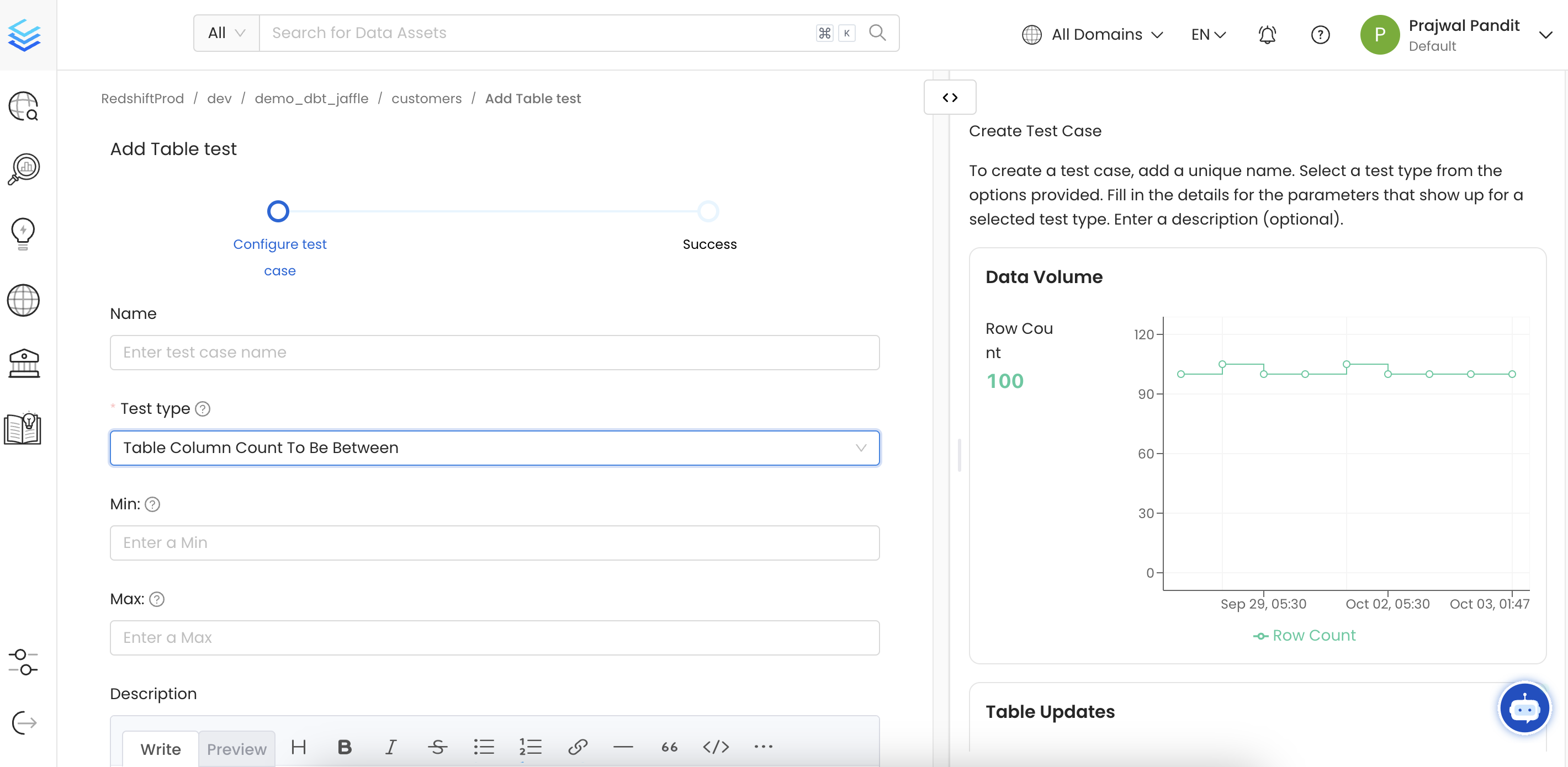
To create a Column Level Test enter the following details:- Column: Select a column. On the right hand side, you can view some context about that column.
- Name: Add a name that best defines your test case.
- Test Type: Based on the test type, you will have further fields to define your test.
- Description: Describe the test case. Click on Submit to set up a test.
- Column Value Lengths to be Between: Define the Min. and Max.
- Column Value Max. to be Between: Define the Min. and Max.
- Column Value Mean to be Between: Define the Min. and Max.
- Column Value Median to be Between: Define the Min. and Max.
- Column Value Min. to be Between: Define the Min. and Max.
- Column Values Missing Count: Define the number of missing values. You can also match all null and empty values as missing. You can also configure additional missing strings like N/A.
- Column Values Sum to be Between: Define the Min. and Max.
- Column Value Std Dev to be Between: Define the Min. and Max.
- Column Values to be Between: Define the Min. and Max.
- Column Values to be in Set: Check for the presence of allowed values. Enable
matchEnumto require every value in the column to be allowed. - Column Values to be Not in Set: You can add an array of forbidden values.
- Column Values to be Not Null
- Column Values to be Unique
- Column Values to Match Regex Pattern: Define the regular expression that the column entries should match.
- Column Values to Not Match Regex: Define the regular expression that the column entries should not match.
Set a Failure Threshold (Optional)
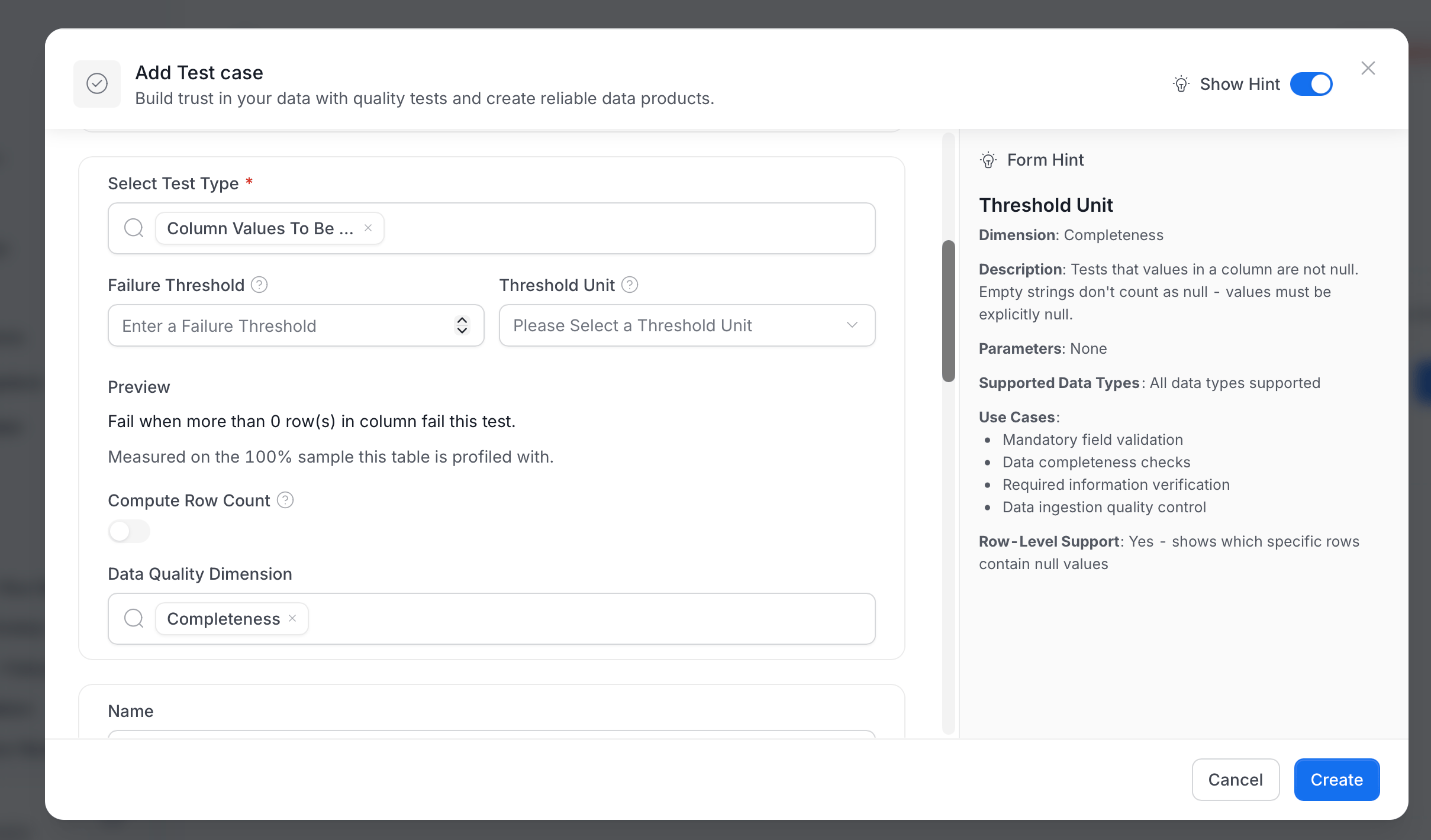
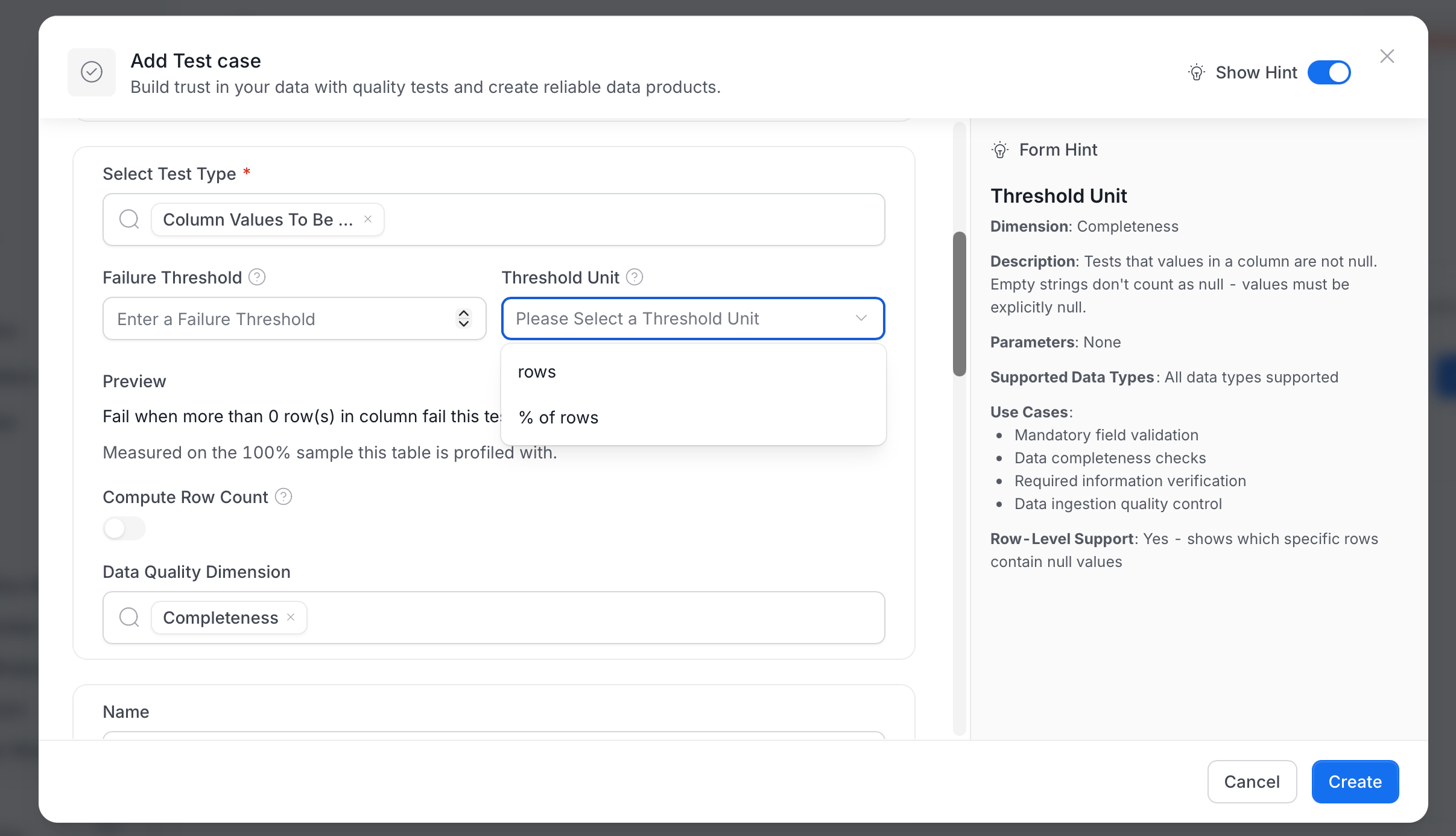
Many tests let you choose how many failures to tolerate before Collate marks the test as failed. By default Collate tolerates none, so a single failing row fails the test. The Add Test case form shows the Failure Threshold and Threshold Unit fields for the tests listed in Tests That Apply a Failure Threshold. To set a failure threshold:- In Select Test Type, select a test, for example Column Values To Be Not Null.
-
In Failure Threshold, enter the number of failures to tolerate. The value can’t be negative.
-
In Threshold Unit, select how Collate measures the threshold:
- rows: A count of failing rows. In the API, this is
ABSOLUTE. - % of rows: A share of the rows evaluated. For row-level tests, the value can’t be higher than 100. In the API, this is
PERCENTAGE.
- rows: A count of failing rows. In the API, this is
- Check the Preview. It restates your choice, for example “Fail when more than 0 row(s) in column fail this test.” A second line shows what Collate measures the test on, for example “Measured on the 100% sample this table is profiled with.”
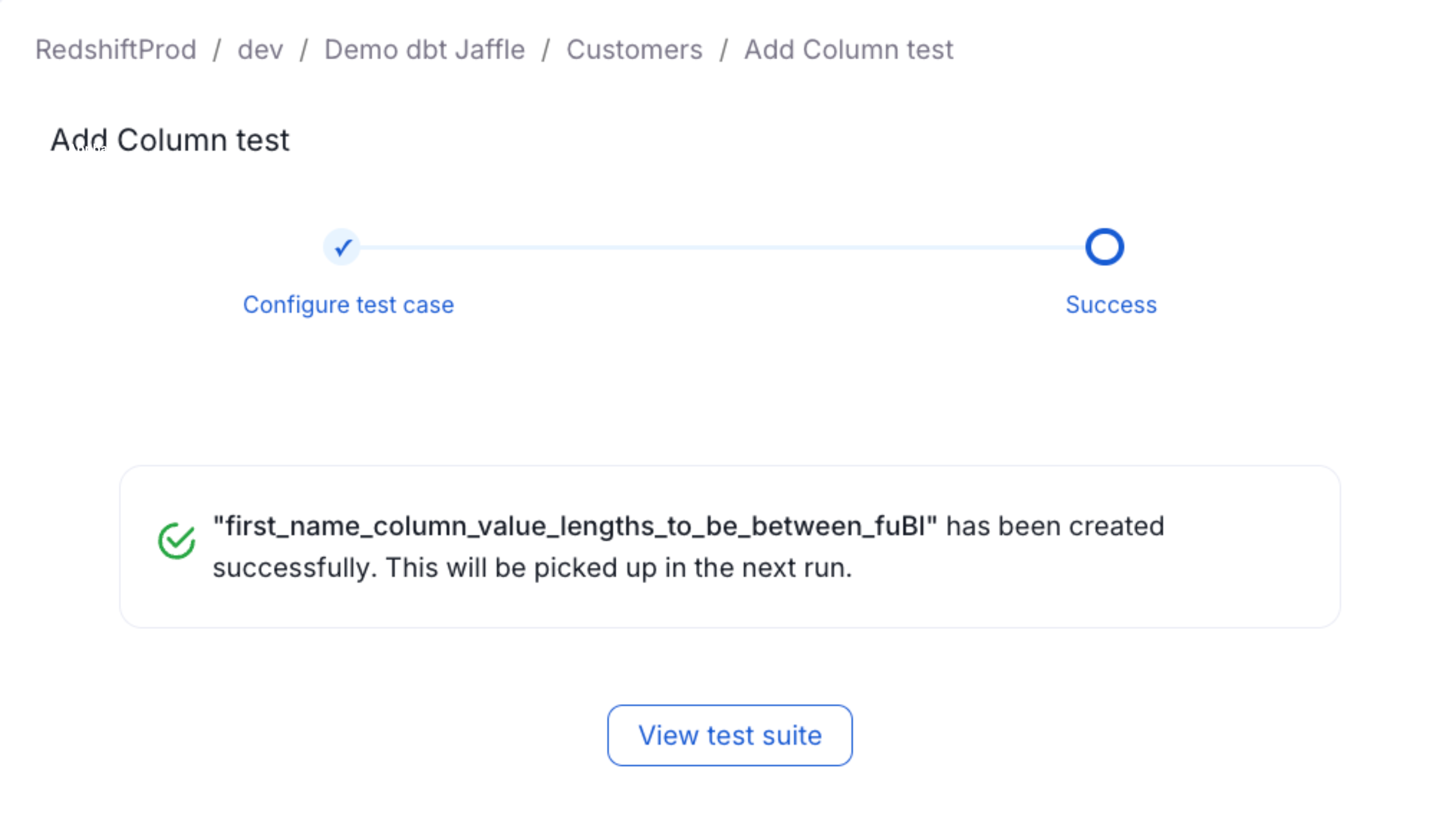
- Complete the rest of the form and select Create.
Tests That Apply a Failure Threshold
How Collate applies the threshold depends on the test:- Row-level tests: Collate counts the rows that break the rule. The test fails when that count, or its share of the rows evaluated, is above the threshold. These tests are Column Values to be Not Null, Column Values to be Unique, Column Values to be in Set, Column Values to be Not in Set, Column Values to Match Regex Pattern, Column Values to Not Match Regex, Column Values to be Between, and Column Value Lengths to be Between. For example, with a threshold of
5and % of rows selected, a Column Values to be Not Null test on 1,000 evaluated rows tolerates up to 50 null rows. - Statistical and count tests: Collate compares one measured value with the range or the expected value you set. The threshold widens the accepted range, or the allowed difference from the expected value, so small deviations don’t fail the test. These tests are Column Value Max., Min., Mean, Median, and Std Dev to be Between, Column Values Sum to be Between, Column Values Missing Count, Table Row Count to be Between, Table Row Count to Equal, Table Column Count to be Between, Table Column Count to Equal, and Table Row Inserted Count to be Between. A percentage applies to the bound you set, not to rows, so it can be higher than 100, and the unit names adapt to the test. For example, a Table Row Count to be Between test with a Min. of
100, a Max. of200, and a threshold of10as a percentage accepts row counts from 90 to 220.
- Column Values to be in Set: Collate applies a threshold only when Match enum is on. With Match enum off, the test passes as soon as one allowed value occurs, so no rows fail and Collate rejects a threshold above
0. - Custom SQL Query: This test keeps its own Threshold and Operator. Its Threshold is the value that Collate compares the query result with, not a number of failures to tolerate.
- Table Column Name to Exist, Table Column Names to Match Set, and Compare 2 Tables for Differences: These tests don’t have the failure threshold fields.
Set Up a Pipeline
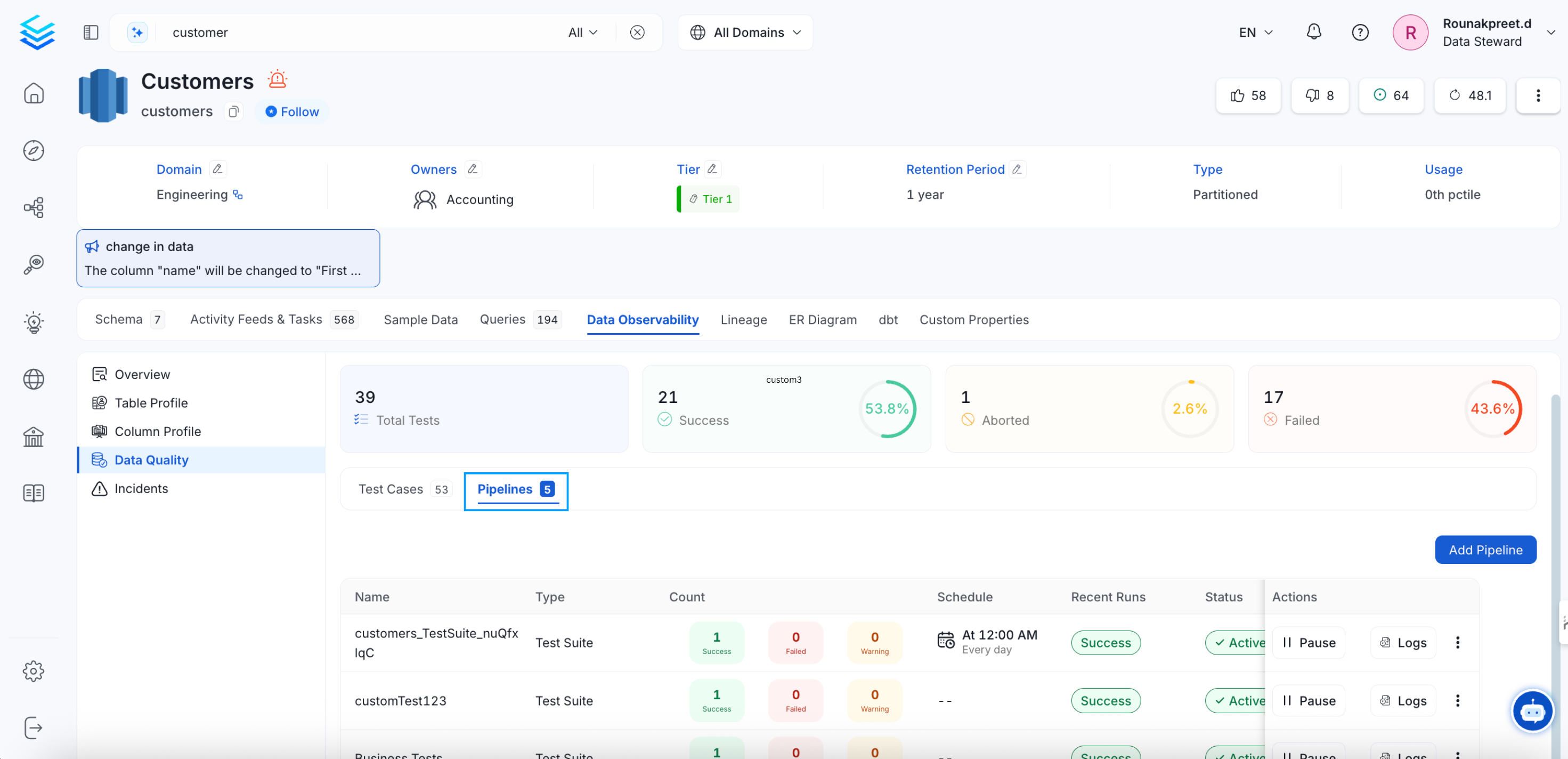
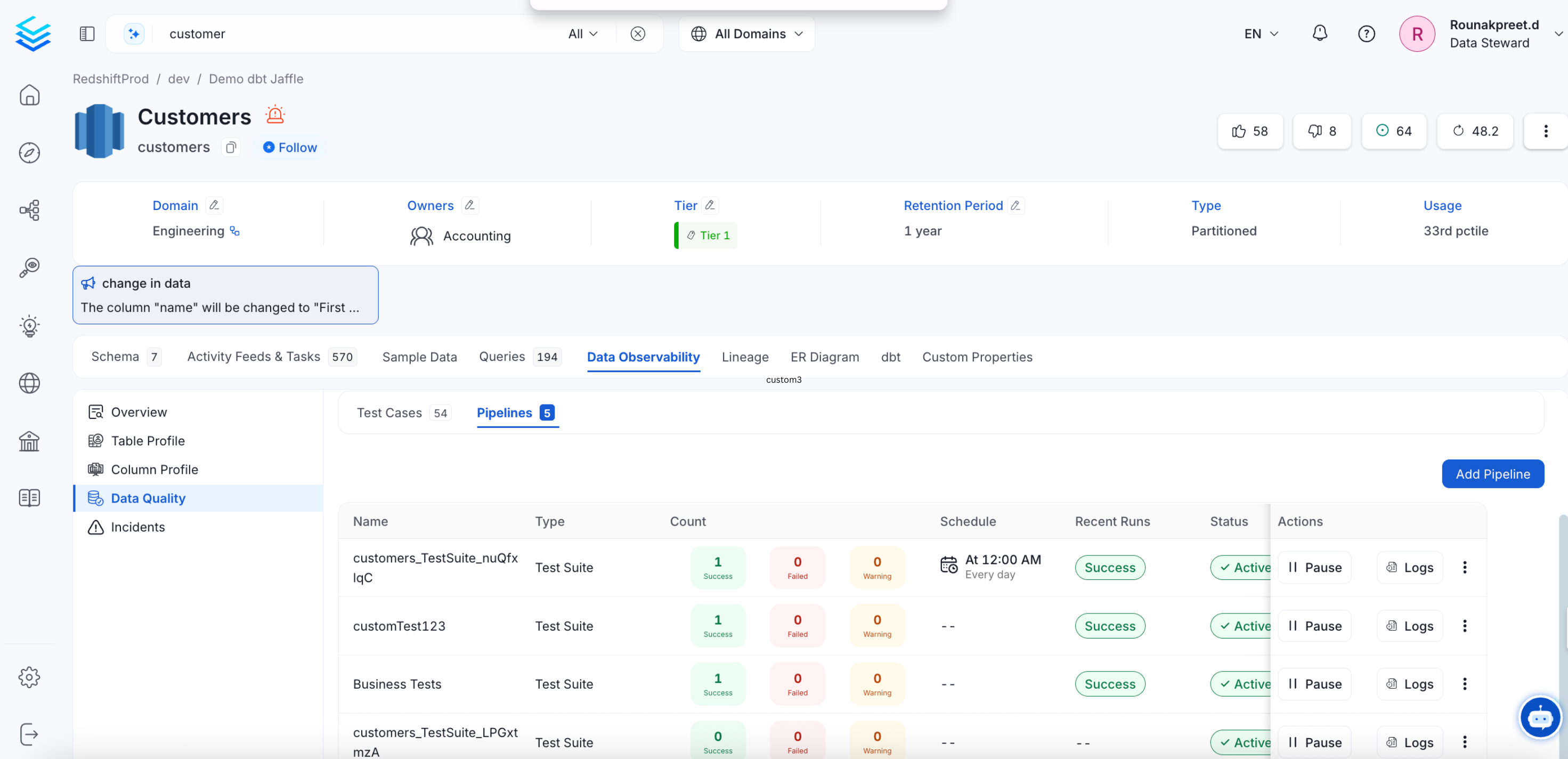
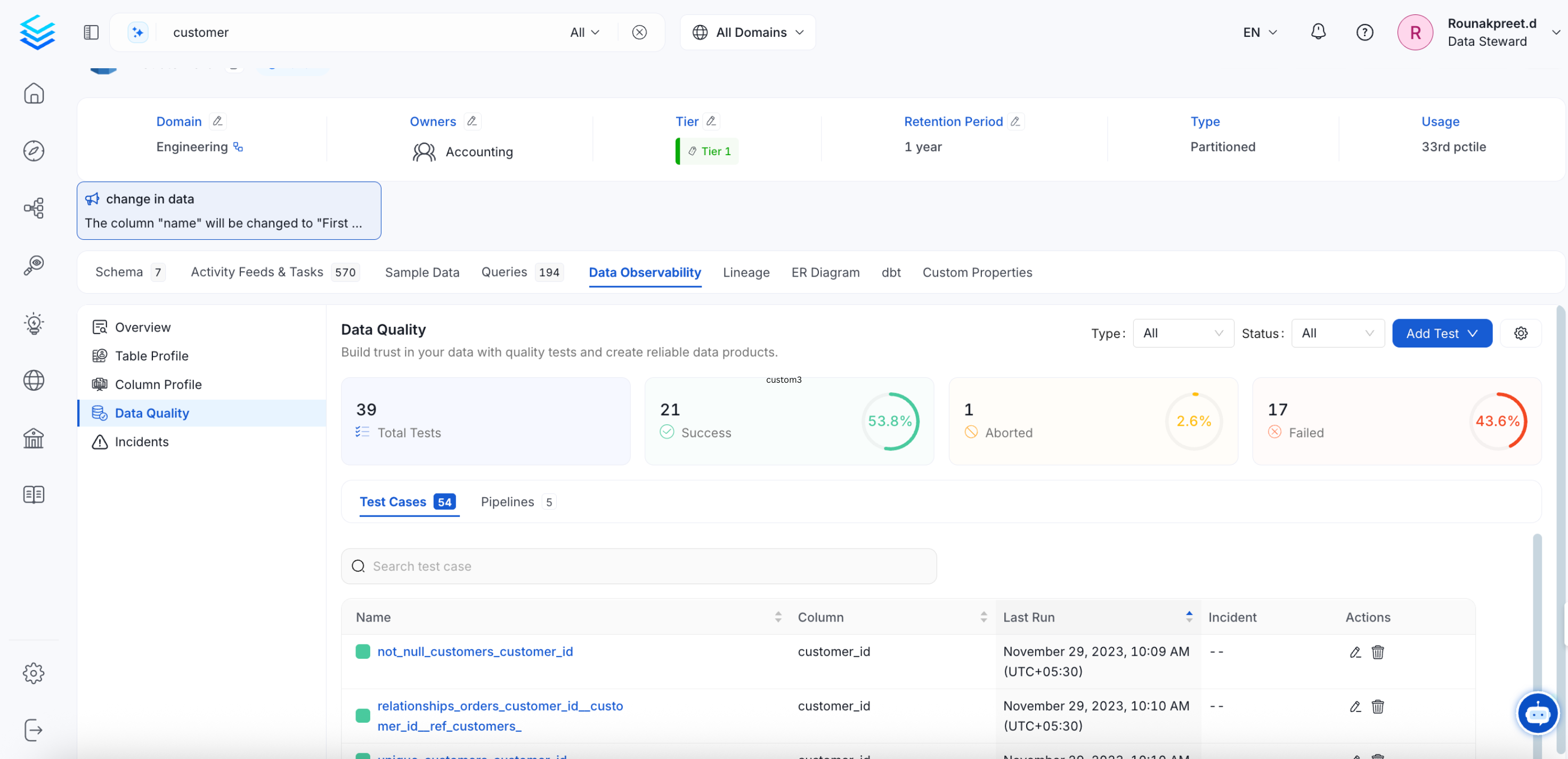
Set up a pipeline to run the tests at a regular cadence.- On the Data Quality page, select the test suite and click the Pipelines tab. Alternatively, open the table, go to Data Observability > Data Quality, and click the Pipelines tab.
-
Click Add Pipeline.
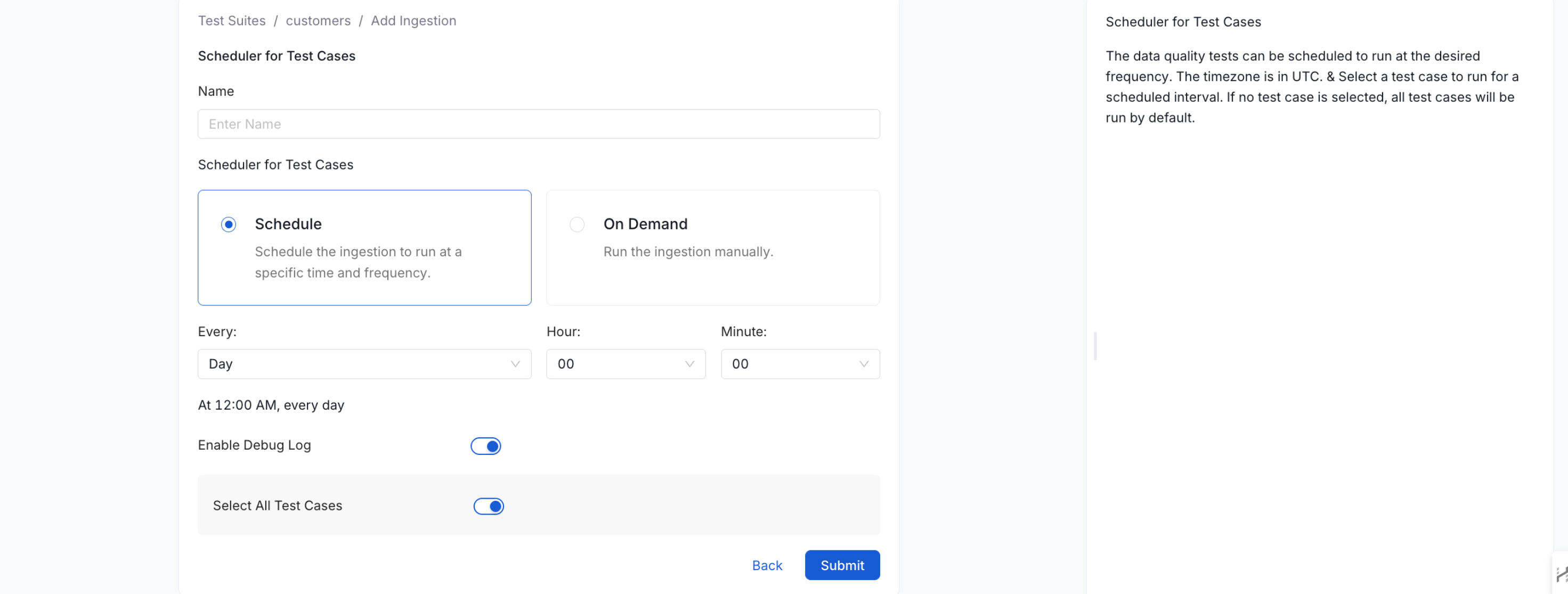
- Set up the scheduler for the desired frequency. The time zone is UTC.
-
Click Submit.
Run a Test Case On Demand
You don’t have to wait for the schedule. To run your test cases right away, run the pipeline manually:- Open the table that has the test case and go to Data Observability > Data Quality.
- Select the Pipelines tab and find the pipeline that runs your test case.
-
Click the ⋮ menu next to the pipeline and select Run.
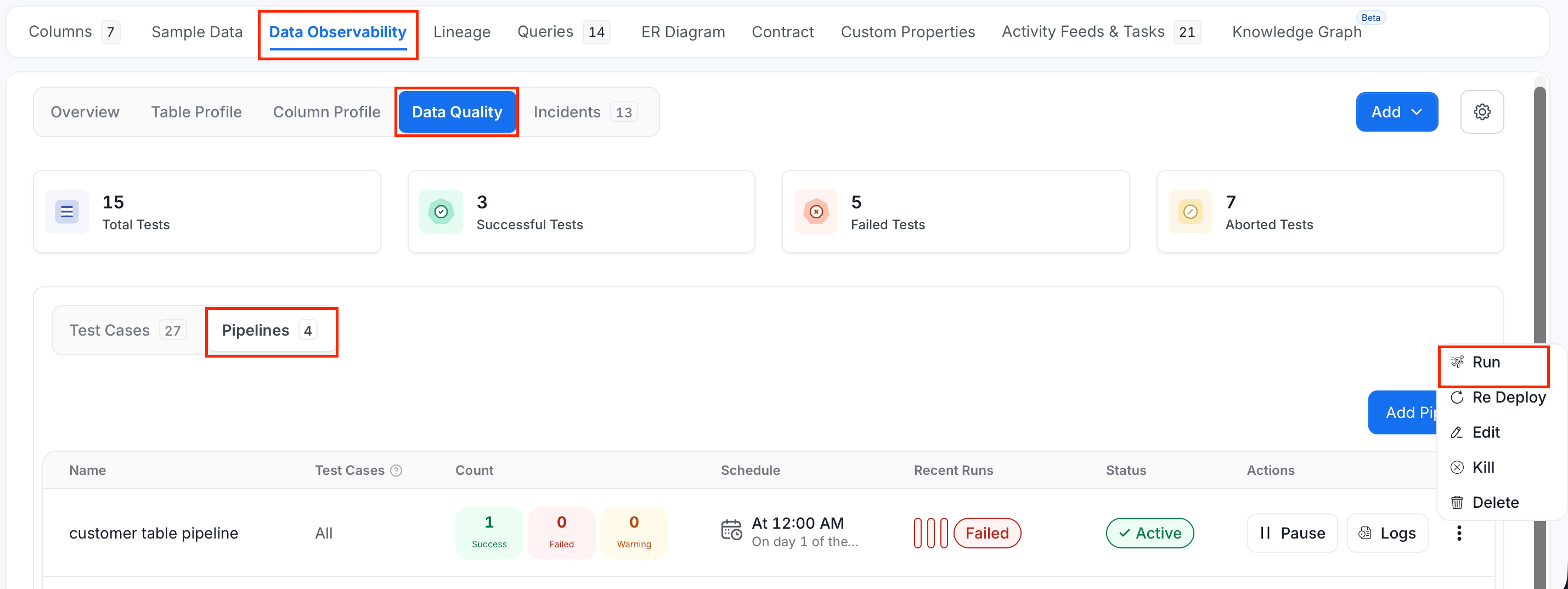
- Check the Recent Runs column for the pipeline to follow the result. The test case results update in the Data Quality tab.
Note: The Run option appears only if the pipeline is deployed and you have the
Trigger permission. For more information, see Building Blocks of Authorization - Rules, Policies, and Roles.Handle Test Failures
When a test fails, Collate creates an incident for it. If the test case has an owner, the incident is assigned to the owner automatically, so its status shows Assigned in the Incident column. If the test case has no owner, the status shows New.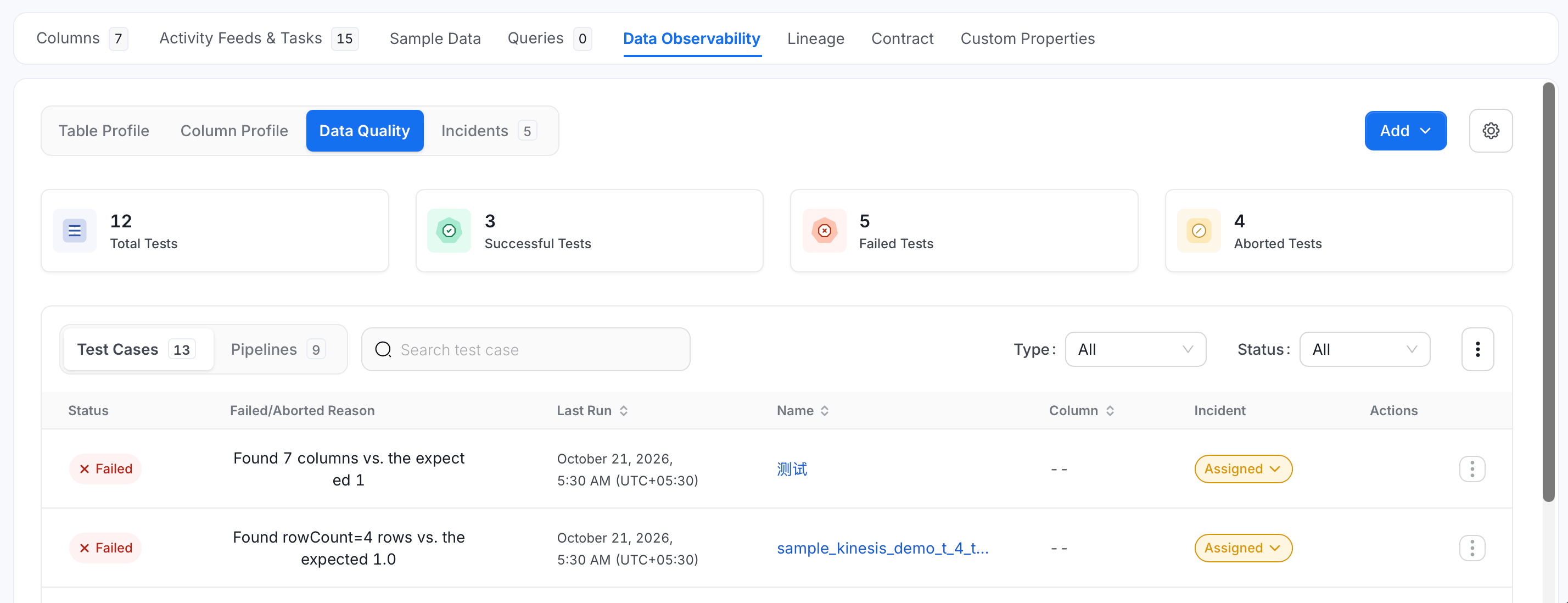
-
In the Incident column, click the status of the failed test, for example Assigned.
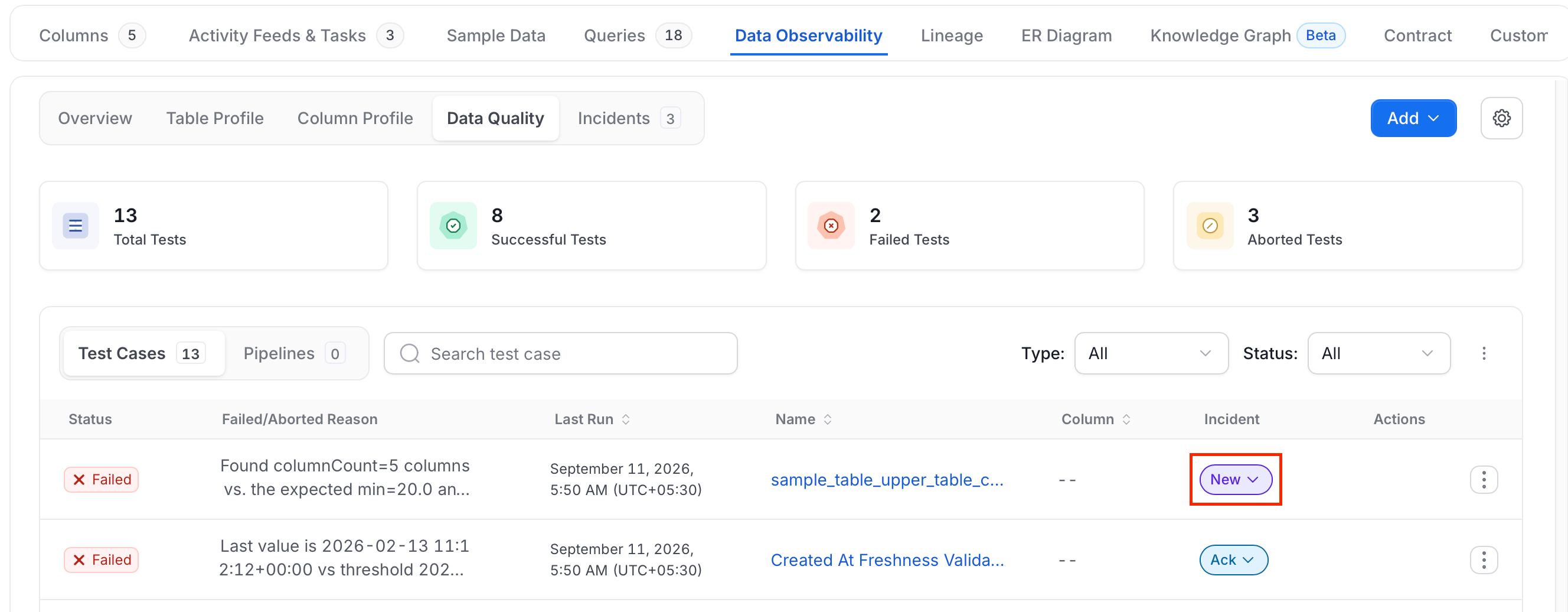
-
Select a status: Ack, Assigned, New, or Resolved.
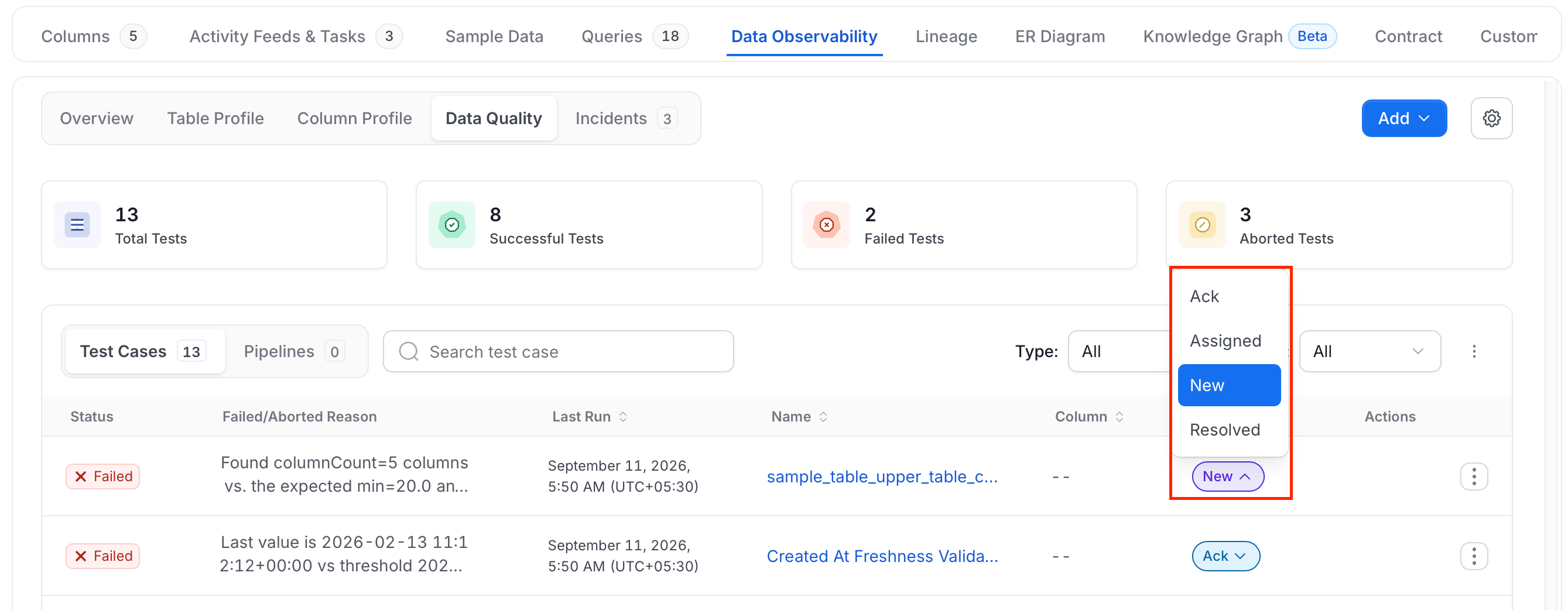
-
If you select Resolved, choose a Reason and enter a Comment. Both are required. The reasons are Duplicates, False Positive, Missing Data, Other, and Out Of Bounds.
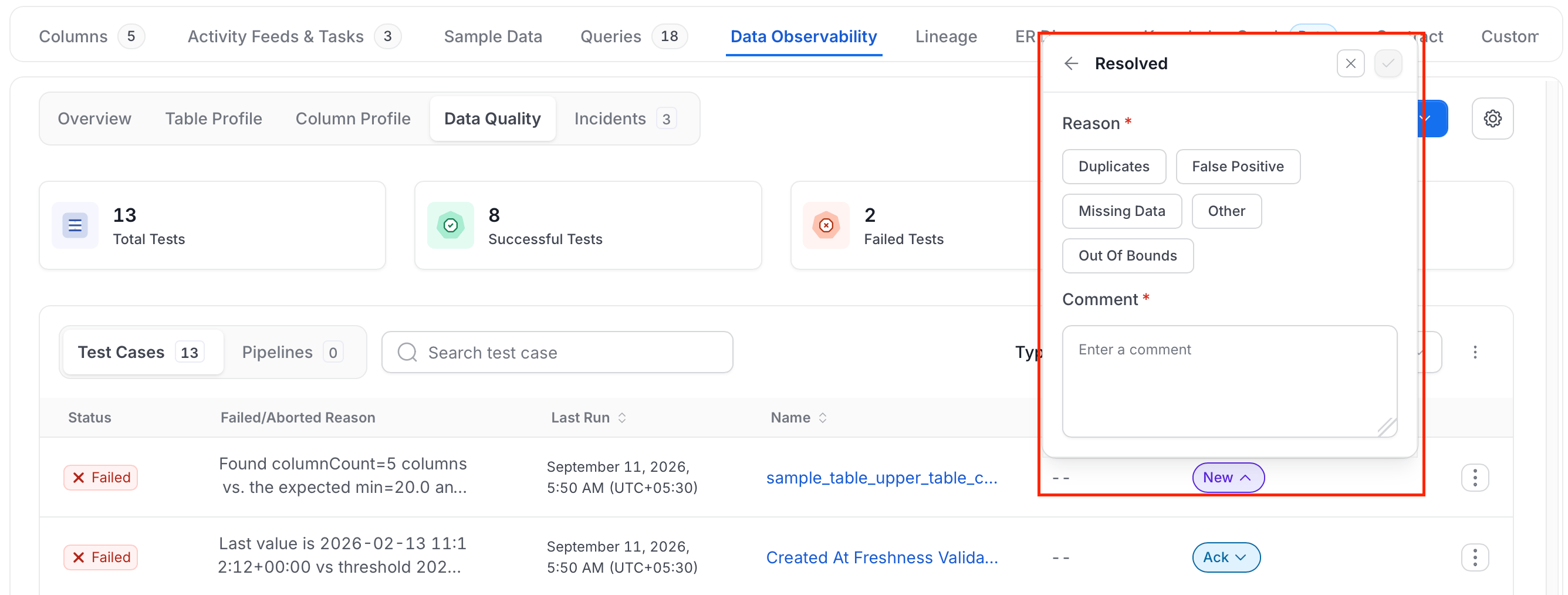
- Click the check mark to save.
How to Set Alerts for Test Case Fails
Get notified when a data quality test fails.