
How to Create Glossary Terms
Once a glossary has been created, you can add multiple Glossary Terms and Child Terms in it.- Once in the Glossary, click on Add Term.
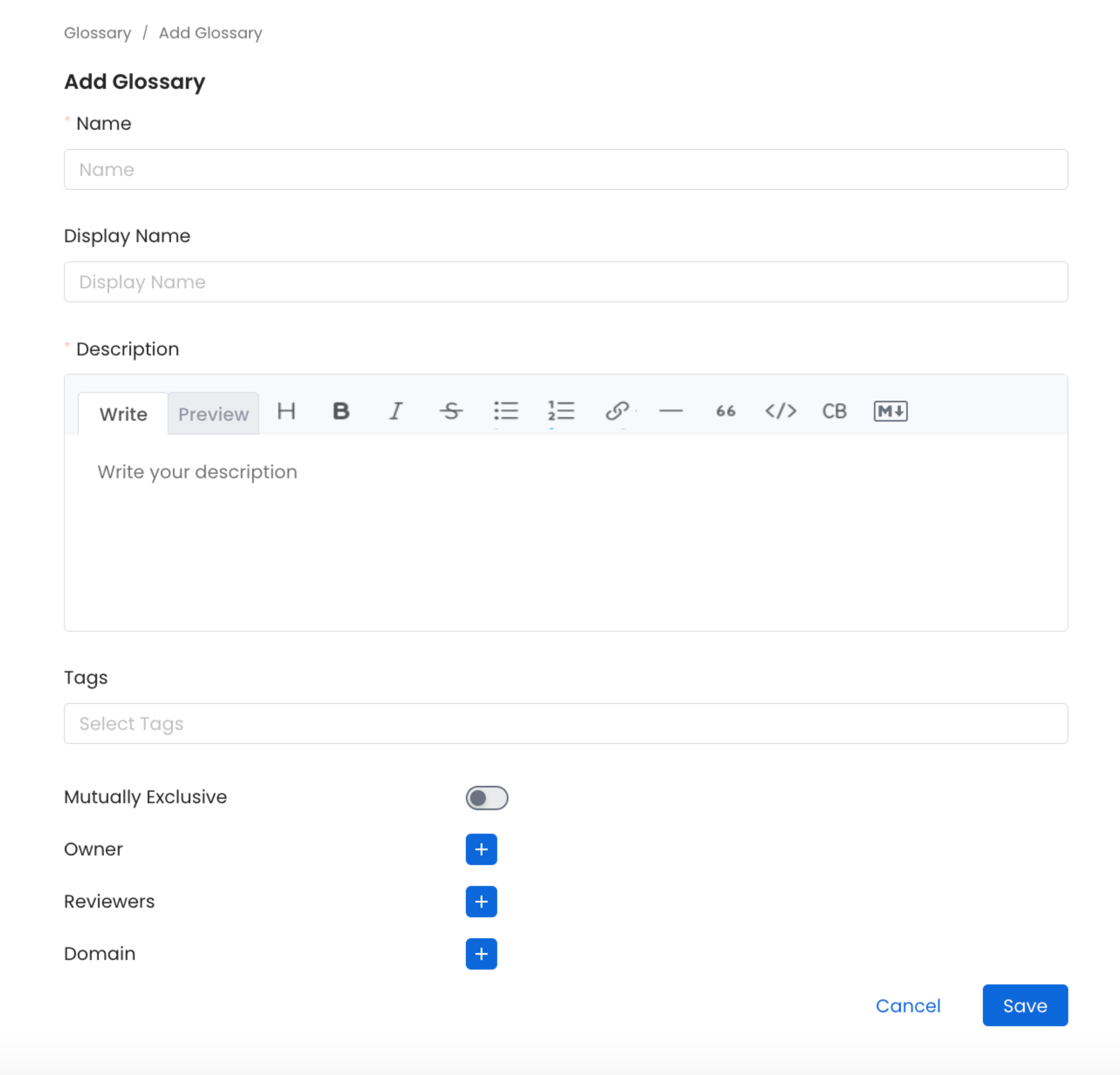
- Enter the required information:
- Name* - This contains the name of the glossary term, and is a required field.
- Display Name - This contains the Display name of the glossary term.
- Description* - A unique and clear definition to establish consistent usage and understanding of the term. This is a required field.
- Tags - Classification tags can be added to glossary terms. When adding a glossary term to assets, it will also add the associated tags to that asset. This helps to further describe and categorize the data assets.
- Synonyms - Other terms that are used for the same concept. For e.g., for a term ‘Customer’, the synonyms can be ‘Client’, ‘Shopper’, ‘Purchaser’.
- Related Terms - These terms can build a network of concepts to capture an associative relationship. For e.g., for a term ‘Customer’, the related terms can be ‘Customer LTV (LifeTime Value)’, ‘Customer Acquisition Cost (CAC)’.
- Mutually Exclusive - There are cases where only one term from a particular glossary is relevant for a data asset. For example, an asset can either be ‘PII-Sensitive’ or a ‘PII-NonSensitive’. It cannot be both. For such cases, a Glossary Term can be created where the child terms can be mutually exclusive. If this configuration is enabled, you won’t be able to assign multiple terms from the same Glossary Term to the same data asset.
- References - Add links from the internet from where you inherited the term.
- Owner - Either a Team or a User can be the Owner of a Glossary term.
- Reviewers - Multiple reviewers can be added.
How to Bulk Import a Glossary
Save time and effort by bulk uploading glossary terms using a CSV file.
How to Add Assets to Glossary Terms
Associate glossary terms to data assets making it easier for data discovery