
Metrics in Collate
The Metrics entity in Collate allows users to define, track, and manage key business and operational metrics. Metrics help organizations maintain consistency, traceability, and accuracy in data-driven decision-making.Overview of Metrics
Metrics represent calculated values based on data assets and are categorized under the Governance section in Collate. Each metric can be linked to glossary terms, data assets, and other metrics, providing comprehensive visibility into data quality and usage.Key Properties of a Metric
Metric Lineage and Dependencies
Collate allows users to trace the source and dependencies of metrics using lineage. This ensures end-to-end traceability from raw data to metric reporting. A typical lineage might look like:Creating Metrics Using the UI
To create a new metric in Collate using the user interface, follow these steps:1. Navigate to the Metrics Section
- Go to Govern > Metrics in the Collate UI.
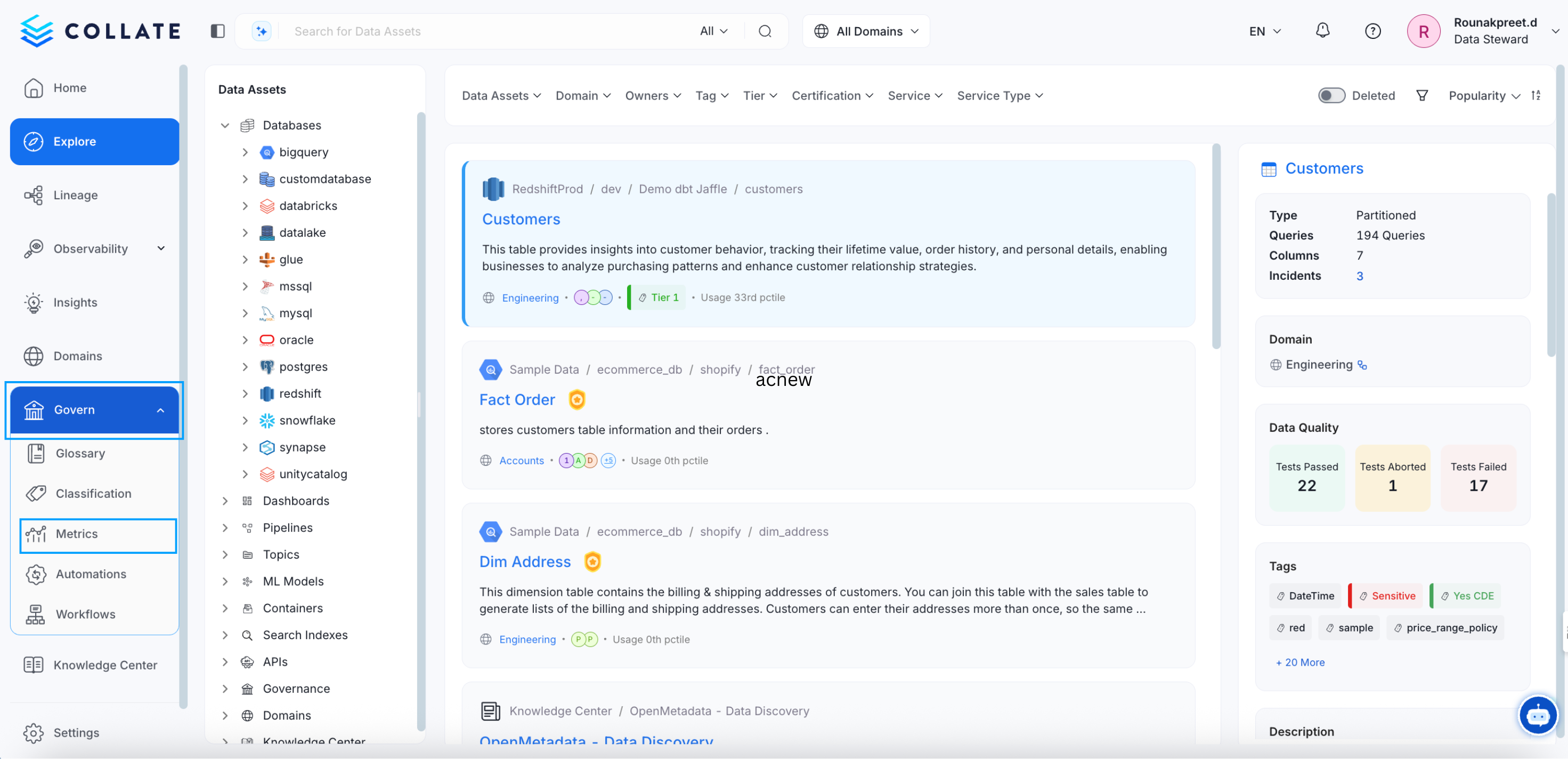
2. Add a New Metric
- Click on Add Metric to initiate the metric creation process.
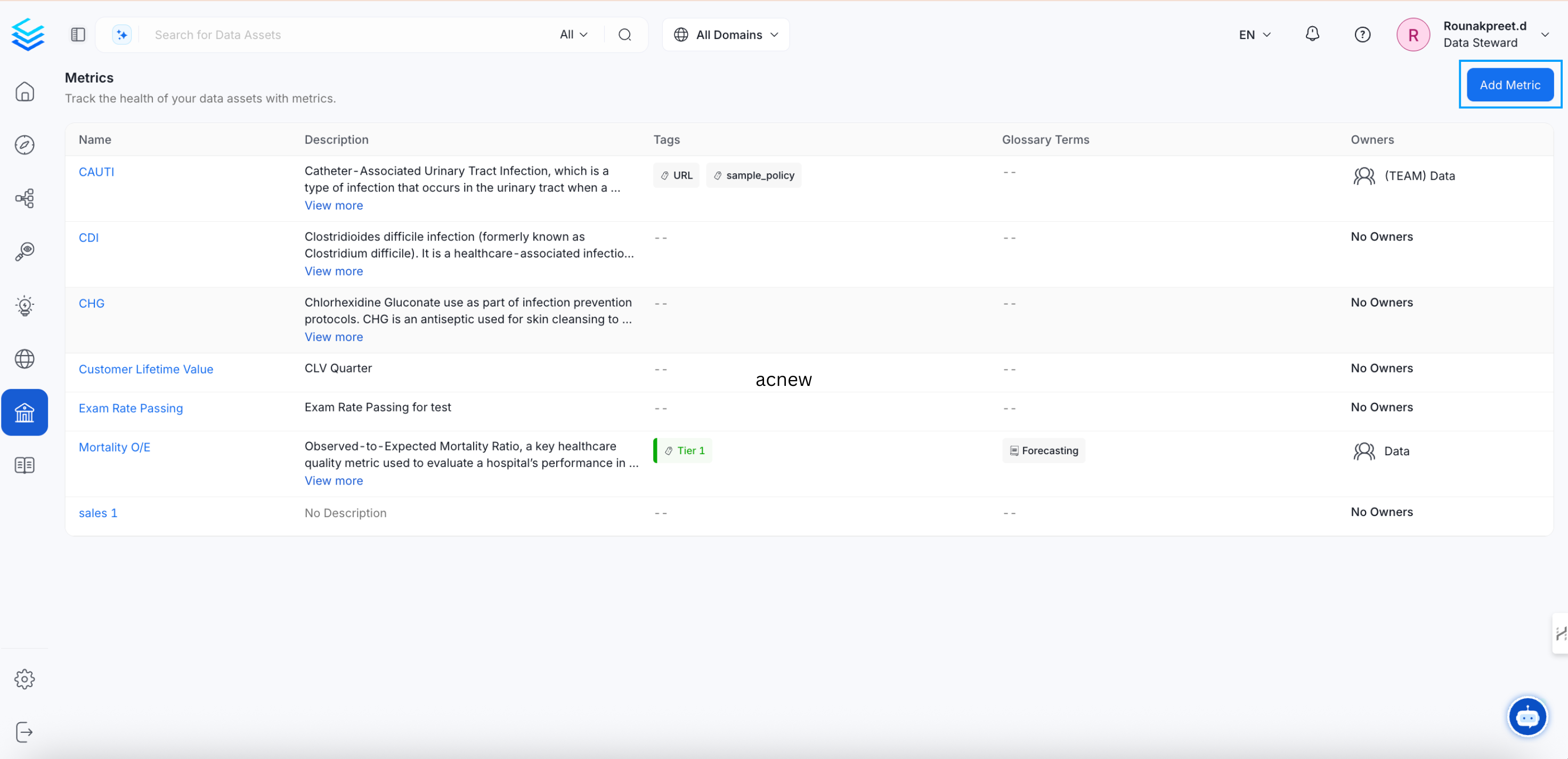
3. Enter Metric Details
Provide the required information, including:- Metric Name
- Description
- Granularity (time scale of the metric)
- Metric Type (e.g., count, average, ratio)
- Computation Code (SQL, Python, or Java) if applicable
4. Create the Metric
- After entering the details, click Create to finalize the metric.

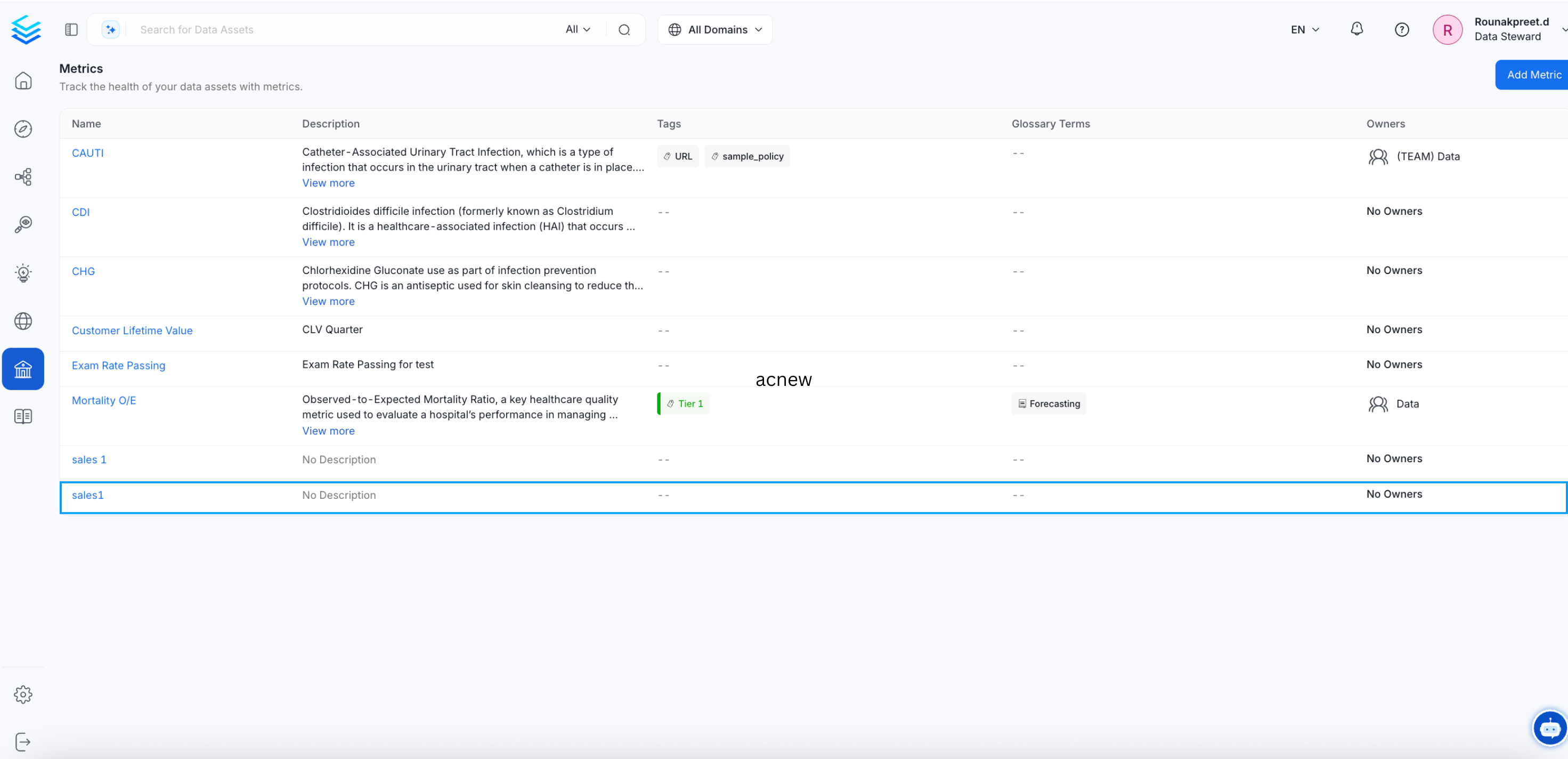
5. View the Created Metric
- The newly created metric will now be available in the Metrics page for reference and further use.
Example JSON Schema for Metric
Managing Metrics in Collate
- Versioning: Each update to a metric creates a new version, maintaining historical changes.
- Linking: Metrics can be linked to glossary terms, tables, dashboards, and pipelines for enriched context.
- Monitoring: Metrics can be monitored for value changes, enabling trend analysis over time
Best Practices for Metric Management
- Consistent Naming: Use camelCase for metric names to ensure consistency across systems.
- Clear Definitions: Provide comprehensive descriptions and units for accurate interpretation.
- Lineage Tracking: Always associate metrics with source tables and pipelines for traceability.
- Ownership: Assign metric owners for accountability and maintenance.