
Tag Feedback and Approval
When auto-classification incorrectly tags data, users can report issues through a feedback system. Approved feedback automatically adds exceptions to recognizers and removes incorrect tags, creating a continuous improvement loop for classification accuracy.Overview
The feedback workflow enables:- Users to report false positives and misclassifications
- Reviewers to approve or reject feedback through task workflows
- Automatic refinement of recognizer behavior based on approved feedback
- Transparency about why tags were applied and how to correct them
Submitting Feedback
When to Submit Feedback
Submit feedback when you encounter:- False Positive: Tag applied to non-sensitive data
- Incorrect Classification: Data is sensitive but wrong tag applied
- Overly Broad: Recognizer matches too many non-sensitive cases
- Context Specific: Valid in general but not for this specific use case
How to Submit Feedback
- Hover over the auto-applied tag on a column
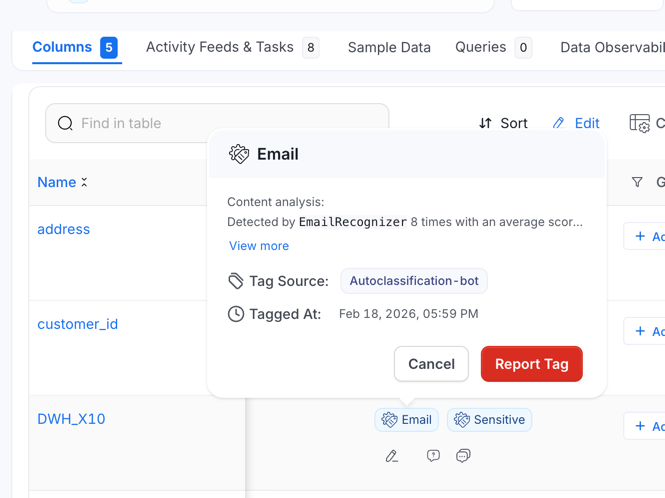
- Tag details popup appears showing:
- Tag name with “Automated” badge
- Recognizer name that applied it
- Confidence score
- Timestamp
- Click “Report” button
- Fill out feedback form:
- Feedback Type (required): Select the issue type
- User Reason (optional): Choose from preset reasons or “Other”
- Comments (optional): Provide additional context
- Suggested Tag (optional): Select correct tag if misclassified
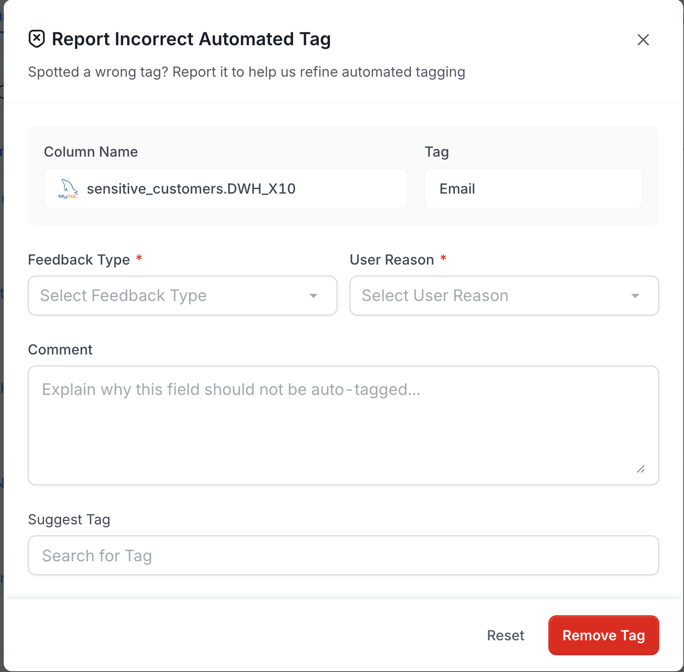
- Submit
You can only submit feedback for auto-applied tags (labeled as “Generated”). Manually assigned tags cannot be reported through this workflow.
Feedback Types
False Positive
The tag was applied to data that is not actually sensitive. Example: An email-like patternsupport@example.com appears in documentation examples, but it’s not a real email address requiring protection.
What happens: If approved, the entity is added to the recognizer’s exception list and the tag is removed.
Incorrect Classification
The data is sensitive, but the wrong tag was applied. Example: A column is tagged asGeneral.Email but actually contains phone numbers and should be tagged as General.PhoneNumber.
What happens: If approved, the incorrect tag is removed. You can manually apply the correct tag or suggest it in the feedback form.
Overly Broad
The recognizer pattern matches valid cases but also produces too many false positives. Example: A pattern designed to detect SSNs also matches internal employee IDs that follow a similar format. What happens: Use this to signal that the recognizer needs refinement. Reviewers can adjust the pattern or threshold after reviewing multiple reports.Context Specific
The recognizer is generally correct, but this specific case is an exception. Example: Test data in a non-production environment that looks like real PII but doesn’t require protection. What happens: If approved, this specific entity is excluded without changing the recognizer’s behavior elsewhere.User Reasons
When submitting feedback, you can select from these preset reasons:- Not Sensitive Data: Data is publicly available or not sensitive
- Wrong Data Type: Recognizer detected wrong data type
- Internal Identifier: Internal ID that looks like PII but isn’t
- Public Information: Data is from public sources
- Test Data: Synthetic or test data, not real
- Encrypted Data: Data is already encrypted/hashed
- Other: Custom reason (add comments to explain)
Approval Workflow
After you submit feedback:- Feedback status set to PENDING
- Approval task created for tag reviewers/owners
- Auto-approval: If you are already a reviewer for this tag, feedback is auto-approved immediately
- Reviewers notified via their task queue
- Reviewers assess feedback and approve or reject
For Reviewers: Accessing Feedback
If you are a reviewer or owner of a classification or tag:- Navigate to Activity > Tasks
- Filter by task type: Recognizer Feedback Approval
- View pending feedback submissions
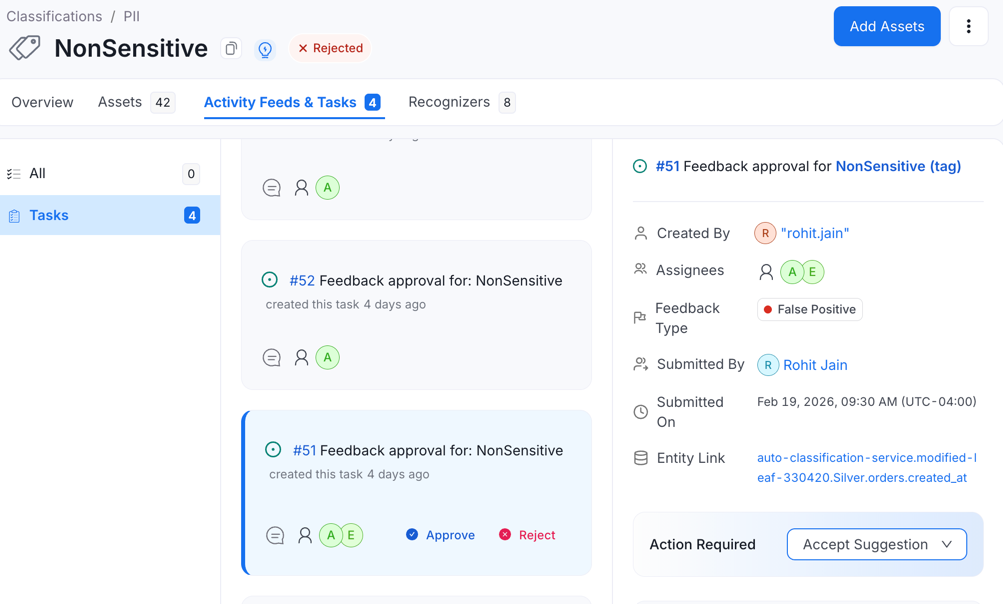
For Reviewers: Feedback Task Details
Each task displays:- Recognizer Name: Which recognizer applied the tag
- Feedback Type: False Positive, Incorrect Classification, etc.
- User Reason: Why the user reported it
- Comments: User’s explanation
- Submitted By: Who reported the issue
- Submitted On: Timestamp
- Entity Link: Link to the data entity
For Reviewers: Approving Feedback
- Review the feedback details
- Optional: Navigate to the entity to verify the issue
- Click Approve button
- System automatically:
- Adds entity to recognizer’s exception list
- Removes the auto-applied tag from the entity
- Marks feedback as APPLIED
For Reviewers: Rejecting Feedback
- Review the feedback details
- Determine the feedback is not valid
- Optional: Add rejection comment
- Click Reject button
- Feedback marked as REJECTED (no changes to recognizer or tags)
- The tag was correctly applied
- The user misunderstood the data sensitivity
- The classification is required for compliance
What Happens After Approval
When feedback is approved:- Entity added to exception list: The recognizer will not analyze this entity in future runs
- Tag removed: The auto-applied tag is removed from the entity immediately
- Feedback status updated: Status changes to APPLIED
- User notified: The submitter can see the feedback was applied
Approved feedback creates an exception for that specific entity only. It does not modify the recognizer’s patterns or disable it for other entities. If you notice many similar false positives, consider adjusting the recognizer’s configuration or confidence threshold.
What Happens After Rejection
When feedback is rejected:- No changes made: Recognizer and tags remain unchanged
- Feedback status updated: Status changes to REJECTED
- Tag remains: The auto-applied tag stays on the entity
- Record kept: Feedback is preserved for audit purposes
Best Practices
For Users
- Be specific in comments: Explain why the tag is incorrect with concrete examples
- Suggest correct tags: If it’s an incorrect classification, suggest the right tag
- Report consistently: Don’t ignore false positives - report them to improve accuracy
- Provide context: Explain domain-specific reasons reviewers might not know
For Reviewers
- Review regularly: Check pending feedback tasks weekly
- Investigate thoroughly: Navigate to entities to verify issues before approving
- Trust domain expertise: Users often have knowledge about data sensitivity you don’t
- Look for patterns: If many similar reports come in, consider adjusting the recognizer
- Add comments: When rejecting, explain why to help users understand
For Administrators
- Monitor exception lists: Periodically audit exception lists for validity
- Review auto-approvals: Check auto-approved feedback (when submitter is also reviewer)
- Adjust recognizers: Use feedback patterns to refine recognizer configurations
- Limit reviewers: Only grant reviewer permissions to trusted users
- Track metrics: Monitor feedback volume to identify problematic recognizers
Troubleshooting
Cannot Submit Feedback
Issue: “Report” button not available or grayed out Possible causes:- Tag was manually applied (not auto-applied) - feedback only works for automated tags
- You don’t have permission to submit feedback
- Tag is from a glossary term (not a classification tag)
Feedback Not Being Reviewed
Check:- Tag has assigned reviewers or owners
- Reviewers have proper permissions
- Task is appearing in reviewer’s task queue
Tag Not Removed After Approval
Check:- Tag was applied as “Generated” (auto-applied), not “Assigned” (manual)
- Feedback status shows APPLIED (not still PENDING)
- Refresh the page to clear cache
- Check entity history to see when tag was removed
Many False Positives from One Recognizer
Solution:- Don’t just report them all individually
- Report a few examples, then notify an administrator
- Administrator should adjust the recognizer’s confidence threshold or pattern
- Use the Custom recognizers guide to refine the configuration
Managing Exceptions
View Exceptions
As a reviewer or administrator:- Navigate to Settings > Tags & Classification
- Select the classification and tag
- Go to recognizers tab
- Click the Exceptions count on any recognizer
- View list of excluded entities
Remove Exceptions
If an exception is no longer valid (e.g., test data is now production data):- View exceptions list
- Click Delete on the exception
- Confirm removal
- Entity will be analyzed by the recognizer in future runs
Next Steps
Custom Recognizers
Learn how to create and configure recognizers to improve detection accuracy
Auto-Classification Workflow
Understand the complete auto-classification process