1. Create a Glossary at Collate or Select a previously added glossary
A Glossary Term is a preferred terminology for a concept. In a Glossary term, you can add tags, synonyms, related terms to build a conceptual semantic graph, and also add reference links.For details on creating glossary terms, refer to the Collate documentationTo view created Glossary Terms, navigate to the Glossary section within Collate govern->glossary->glossary_name->glossary_term_nameCollate also supports creating nested Glossary Terms, allowing you to organize them hierarchically and seamlessly ingest them into dbt.
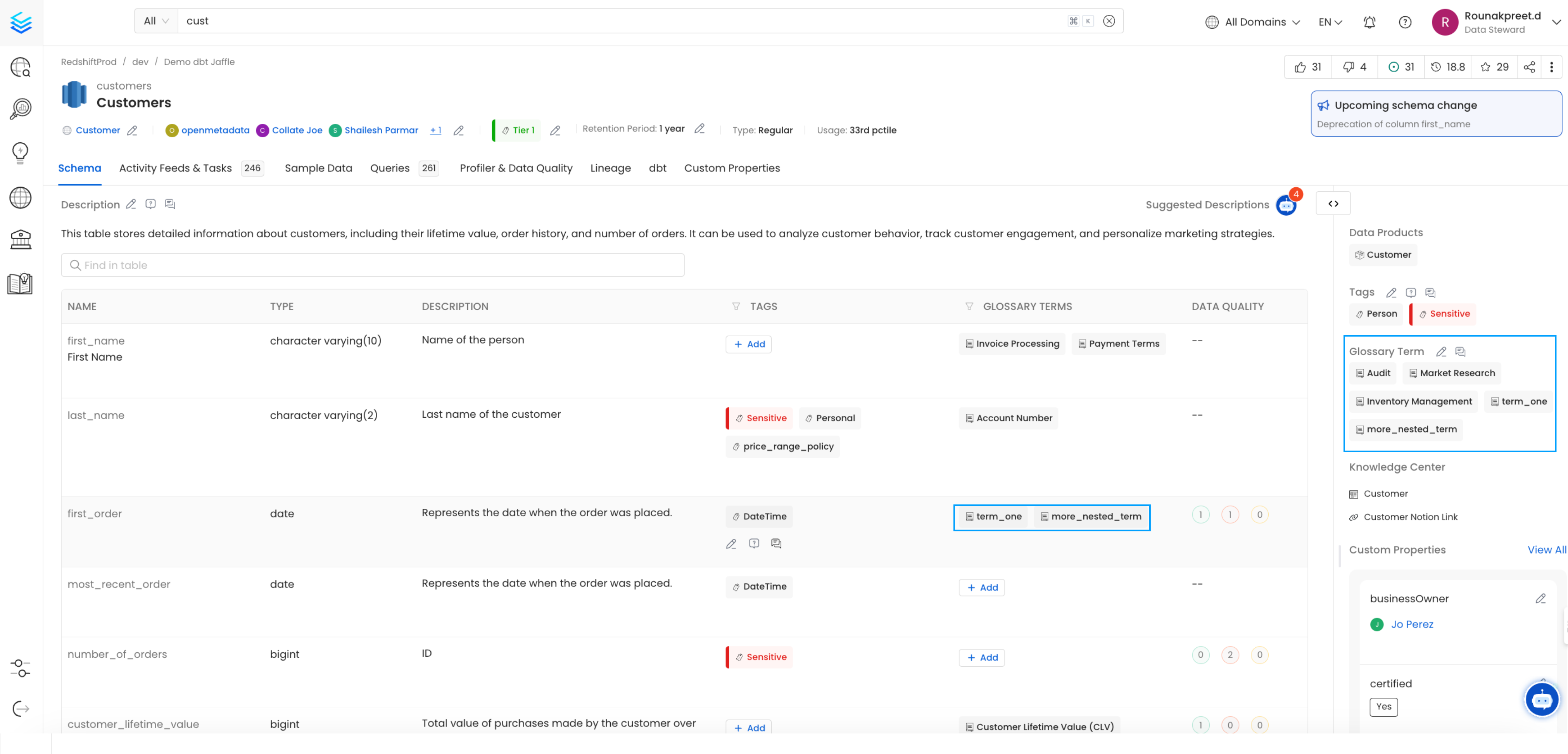
Suppose you want to add the glossary terms term_one (FQN: Test_Glossary.term_one) and more_nested_term (FQN: Test_Glossary.term_two.nested_term.more_nested_term) to the customers table in your dbt model.To get FQN for term_one (Test_Glossary.term_one), navigate to govern->glossary->Test_Glossary->term_one.And for more_nested_term (Test_Glossary.term_two.nested_term.more_nested_term), navigate to govern->glossary->Test_Glossary->term_two->nested_term->more_nested_term.you can see the current URL containing the glossary term FQNs as https://localhost:8585/glossary/Test_Glossary.term_two.nested_term.more_nested_termIn your dbt schema.yml file for the customers table model, add the Glossary Term FQNs under model->name->meta->openmetadata->glossary
The format should be a list of strings, like this: [ 'Test_Glossary.term_one', 'Test_Glossary.term_two.nested_term.more_nested_term' ].For details on dbt meta follow the link here
models:
  - name: customers
    meta:
      openmetadata:
        glossary: [
          'Test_Glossary.term_one',
          'Test_Glossary.term_two.nested_term.more_nested_term',
        ]
    description: This table has basic information about a customer, as well as some derived facts based on a customer's orders

    columns:
      - name: customer_id
        description: This is a unique identifier for a customer
        tests:
          - unique
          - not_null
After adding the Glossary term information to your schema.yml file, run your dbt workflow.
The generated manifest.json file will then include the FQNs under node_name->meta->openmetadata->glossary as [ 'Test_Glossary.term_one', 'Test_Glossary.term_two.nested_term.more_nested_term' ]
3. Add Column-Level Glossary term information in schema.yml file
To associate a glossary term with a specific column in your dbt model, follow these steps:
Locate the customer_id column within the customers table model in your schema.yml file.
Under the customer_id column definition, add the glossary term FQNs under model->name->columns->column_name->meta->openmetadata->glossary as [ 'Test_Glossary.term_two.nested_term' ].
models:
  - name: customers
    meta:
      openmetadata:
        glossary: [
          'Test_Glossary.term_one',
          'Test_Glossary.term_two.nested_term.more_nested_term',
        ]
    description: This table has basic information about a customer, as well as some derived facts based on a customer's orders

    columns:
      - name: customer_id
        description: This is a unique identifier for a customer
        meta:
          openmetadata:
            glossary: [
              'Test_Glossary.term_two.nested_term'
            ]
        tests:
          - unique
          - not_null
After adding the Glossary term information to your schema.yml file, run your dbt workflow.
The generated manifest.json file will then include the FQNs under node_name->columns->column_name->meta->openmetadata->glossary as [ 'Test_Glossary.term_two.nested_term' ]