Configure dbt workflow
Learn how to configure the dbt workflow to ingest dbt data from your data sources.Prerequisites for dbt Core: Before configuring the workflow, ensure you have set up artifact storage. dbt Core requires artifacts (manifest.json, catalog.json) to be accessible to Collate.See the Storage Configuration Overview for setup guides:This step is not required for dbt Cloud - artifacts are managed automatically via API.
Configuration
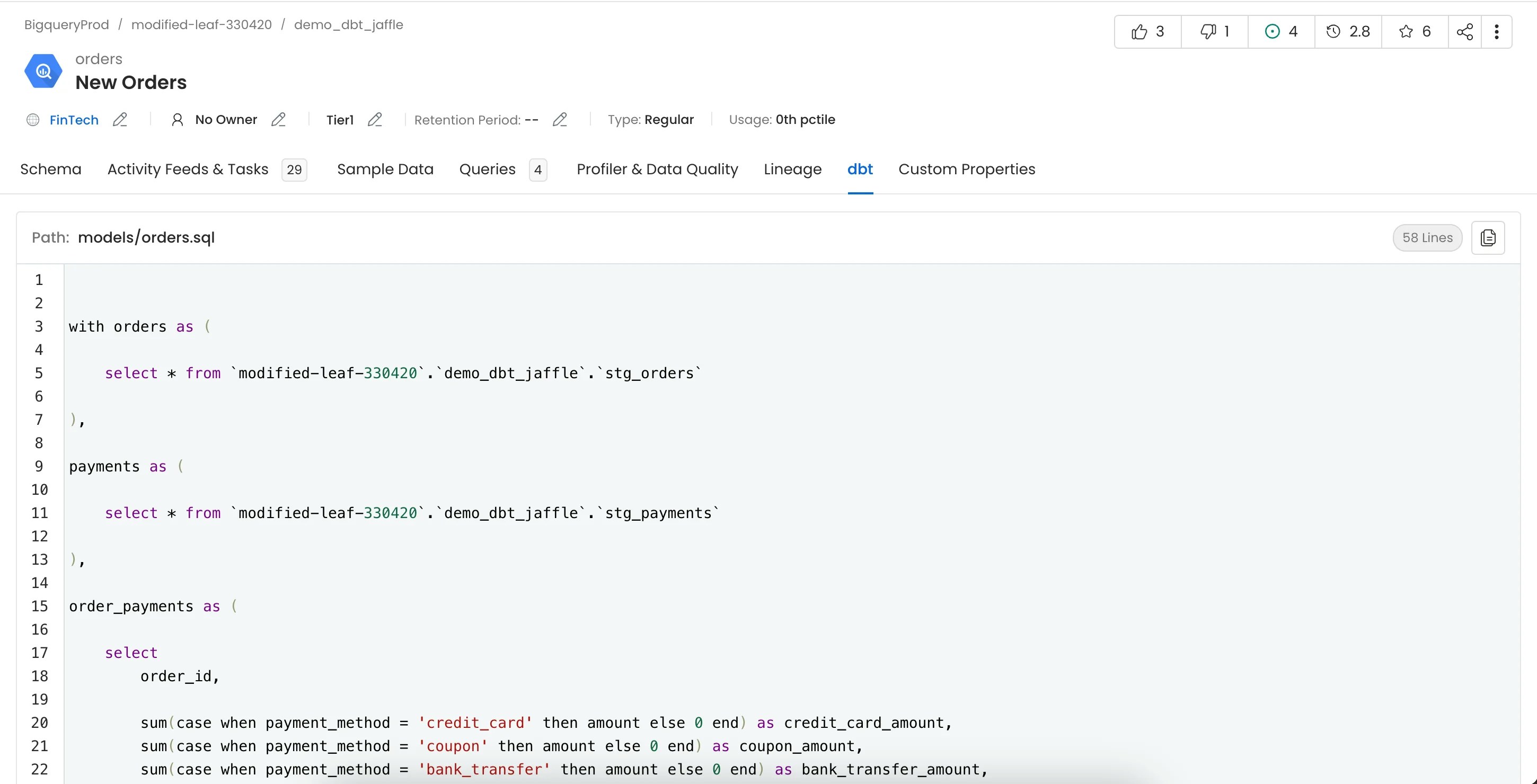
Once the dbt metadata ingestion pipeline runs successfully and the service entities are available in Collate, dbt metadata is automatically ingested and associated with the corresponding data assets. As part of dbt ingestion, Collate can ingest and apply the following metadata from dbt:- dbt models and their relationships
- Model and source lineage
- dbt tests and test execution results
- dbt tags
- dbt owners
- dbt descriptions
- dbt tiers
- dbt glossary terms
No additional manual configuration is required in the UI after a successful dbt ingestion run.
1. Add a dbt Ingestion
From the Service Page, go to the Ingestions tab to add a new ingestion and click on Add dbt Ingestion.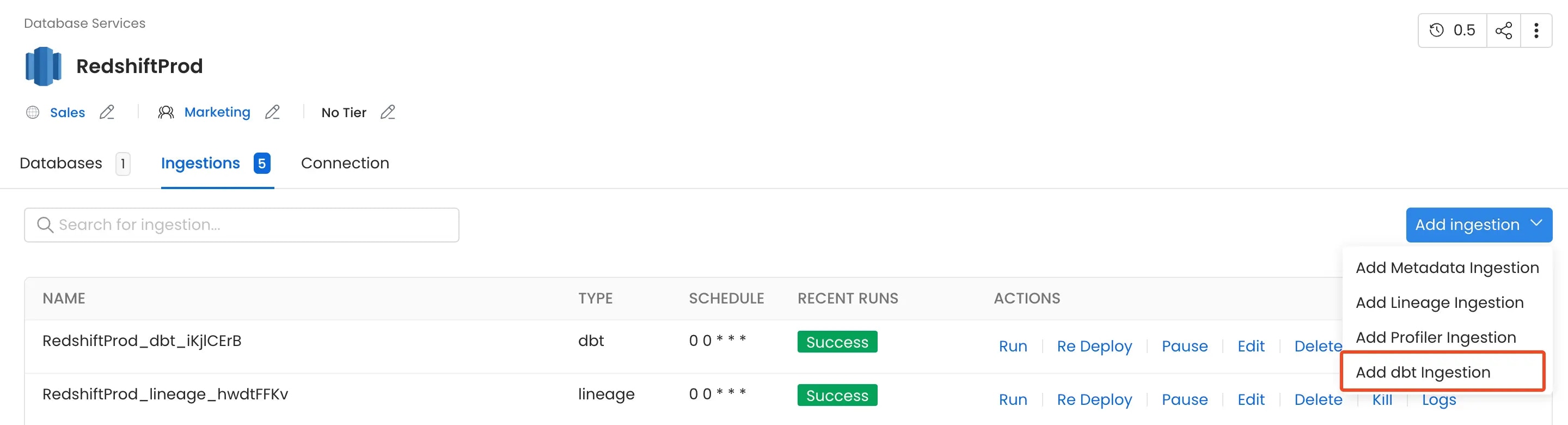
2. Configure the dbt Ingestion
Here you can enter the configuration required for Collate to get the dbt files (manifest.json, catalog.json and run_results.json) required to extract the dbt metadata. Select any one of the source from below from where the dbt files can be fetched:dbt Core
AWS S3 Buckets
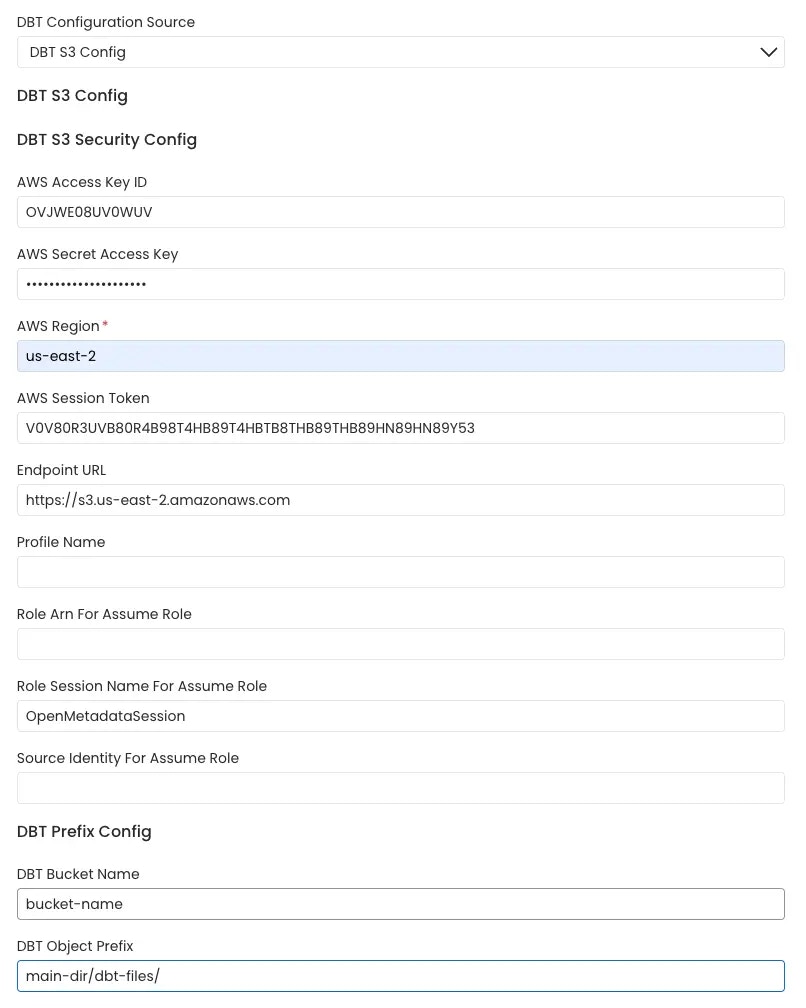
Collate connects to the AWS s3 bucket via the credentials provided and scans the AWS s3 buckets formanifest.json, catalog.json and run_results.json files.
The name of the s3 bucket and prefix path to the folder in which the dbt files are stored can be provided. In the case where these parameters are not provided all the buckets are scanned for the files.
Follow the link here for instructions on setting up multiple dbt projects.
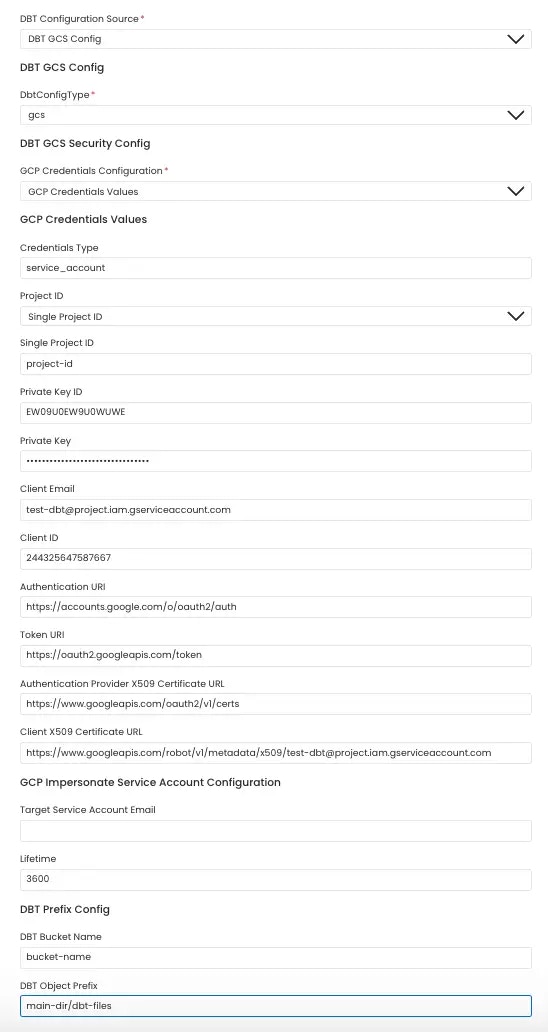
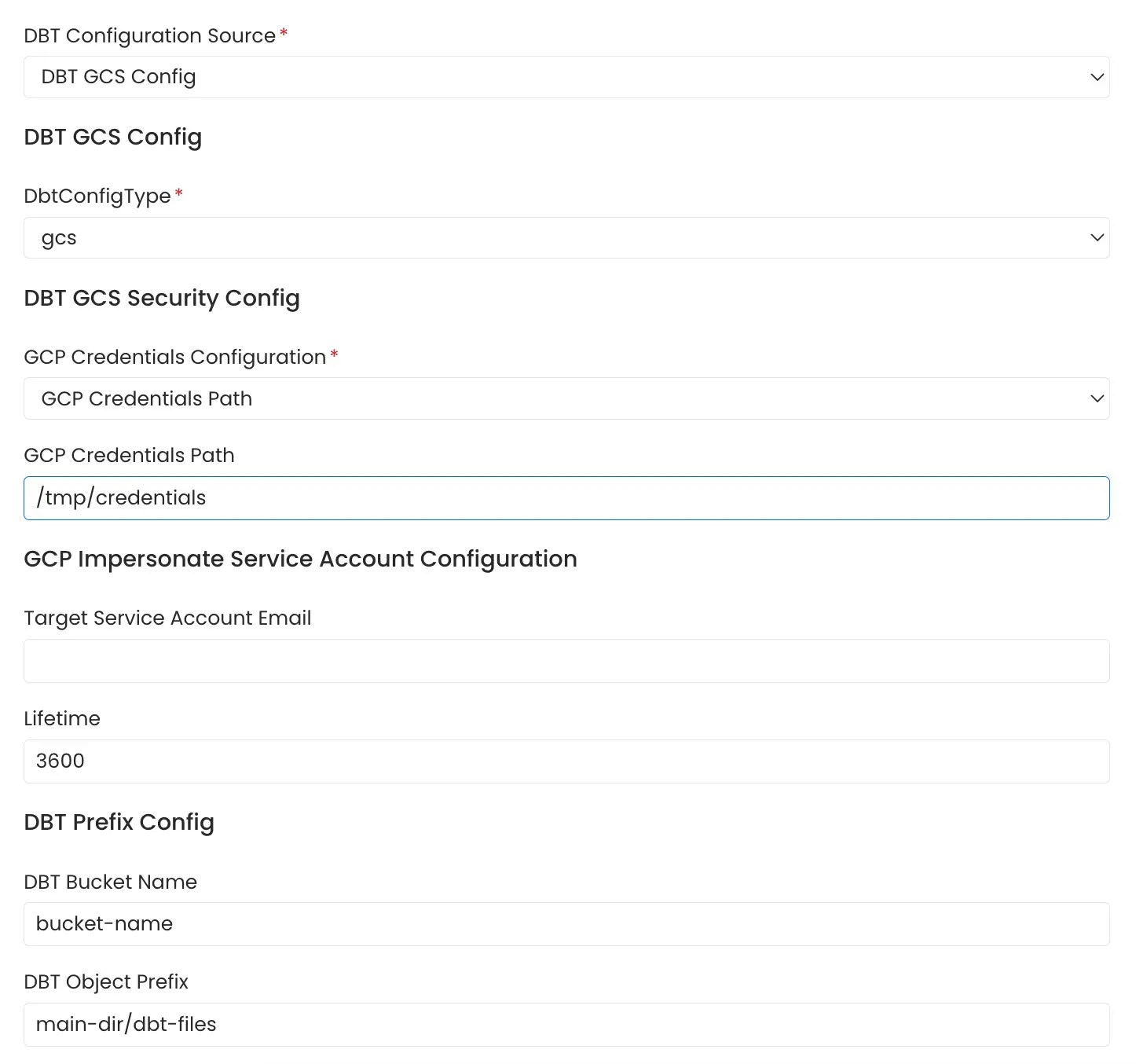
Google Cloud Storage Buckets
Collate connects to the GCS bucket via the credentials provided and scans the gcp buckets formanifest.json, catalog.json and run_results.json files.
The name of the GCS bucket and prefix path to the folder in which the dbt files are stored can be provided. In the case where these parameters are not provided all the buckets are scanned for the files.
GCS credentials can be stored in two ways:
1. Entering the credentials directly into the form
Follow the link here for instructions on setting up multiple dbt projects.
Azure Storage Buckets
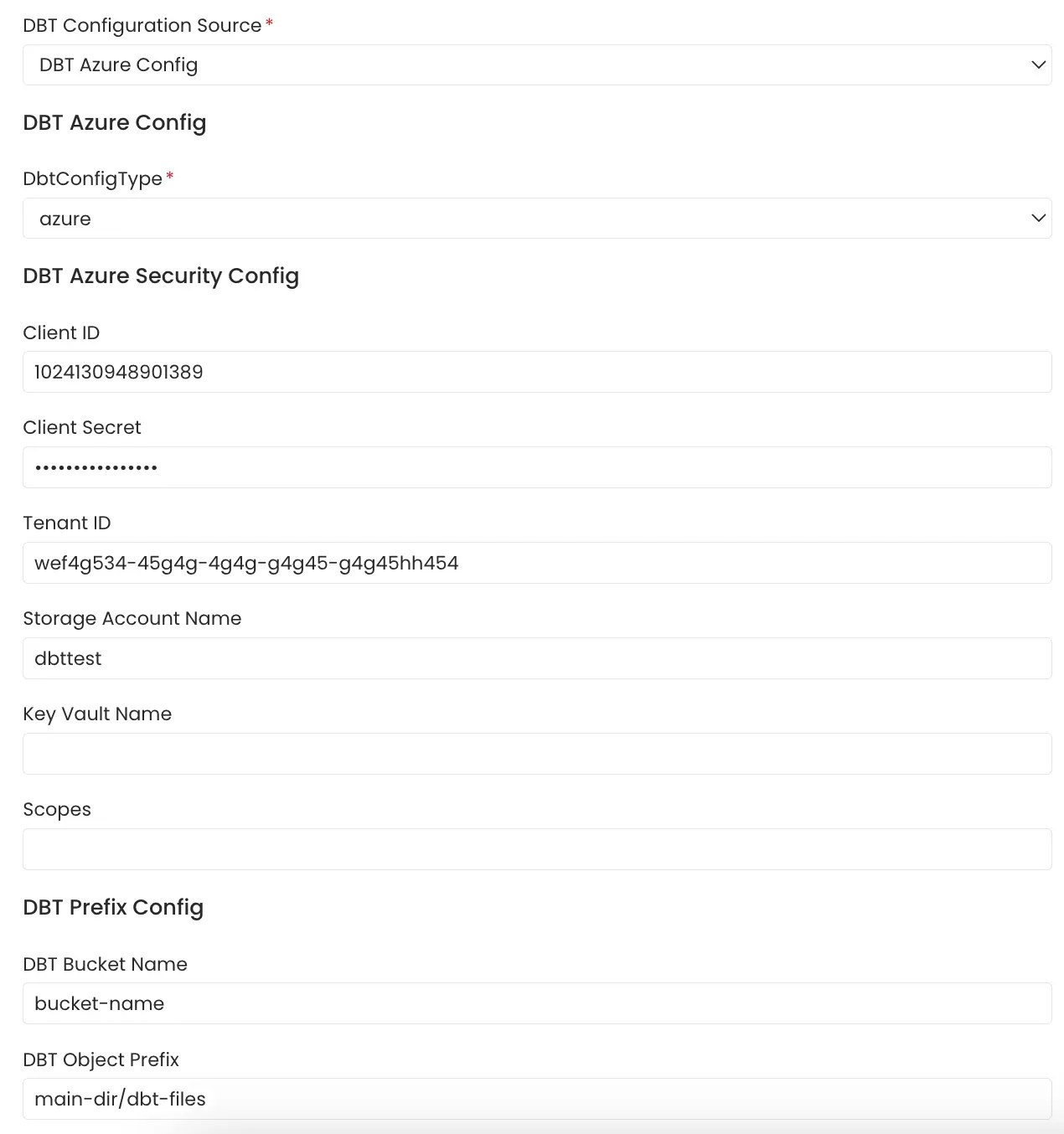
Collate connects to Azure Storage using the credentials provided and scans the configured storage containers formanifest.json, catalog.json and run_results.json files.
The Azure Storage account, container name, and optional folder (prefix) path where the dbt files are stored can be provided. If these parameters are not provided, all accessible containers in the storage account are scanned for the files.
Follow the link here for instructions on setting up multiple dbt projects.
Local Storage
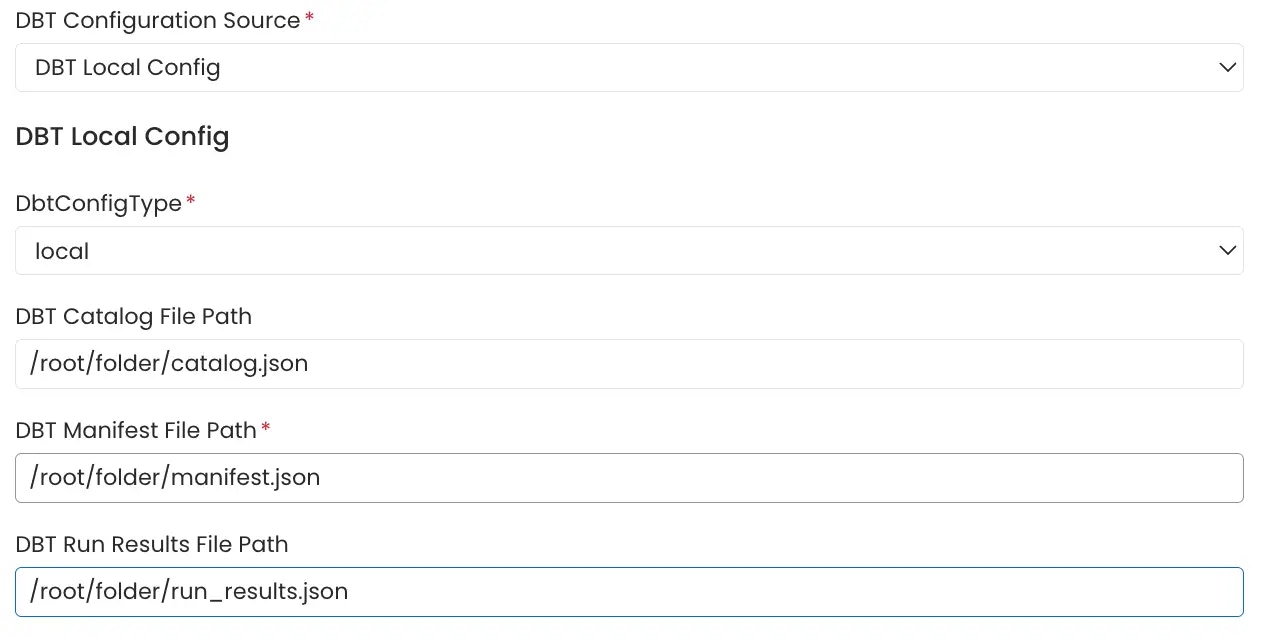
Path of themanifest.json, catalog.json and run_results.json files stored in the local system or in the container in which Collate server is running can be directly provided.
File Server
File server path of themanifest.json, catalog.json and run_results.json files stored on a file server directly provided.
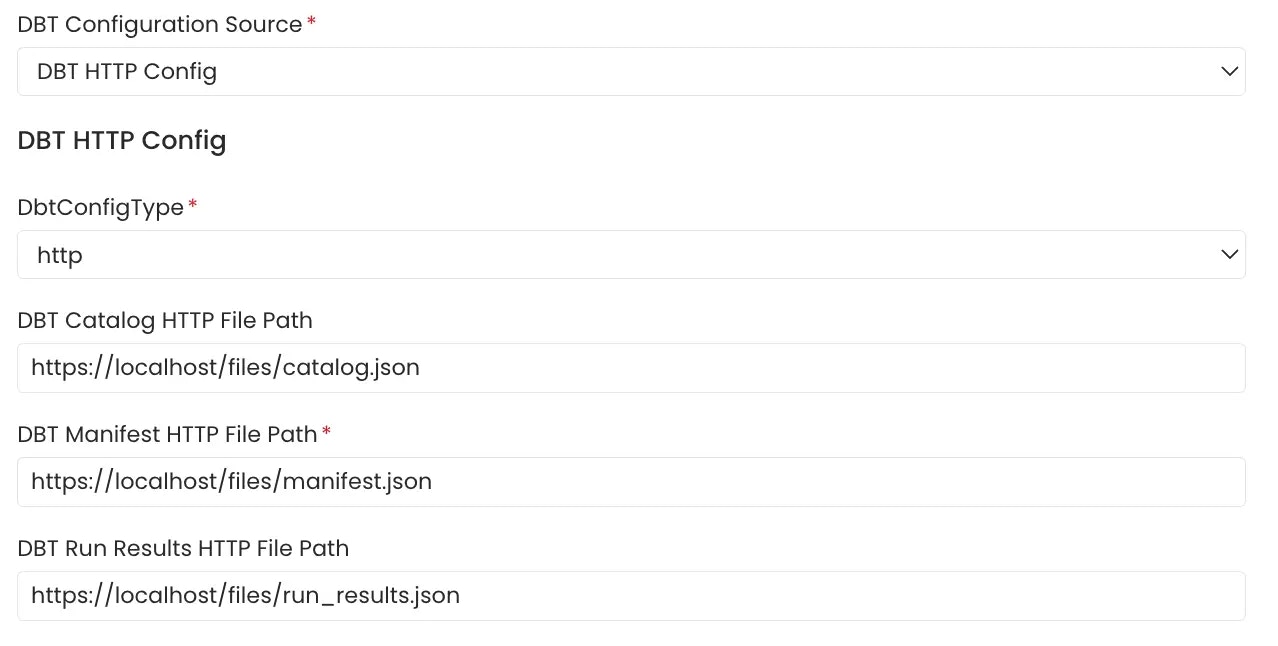
dbt Cloud
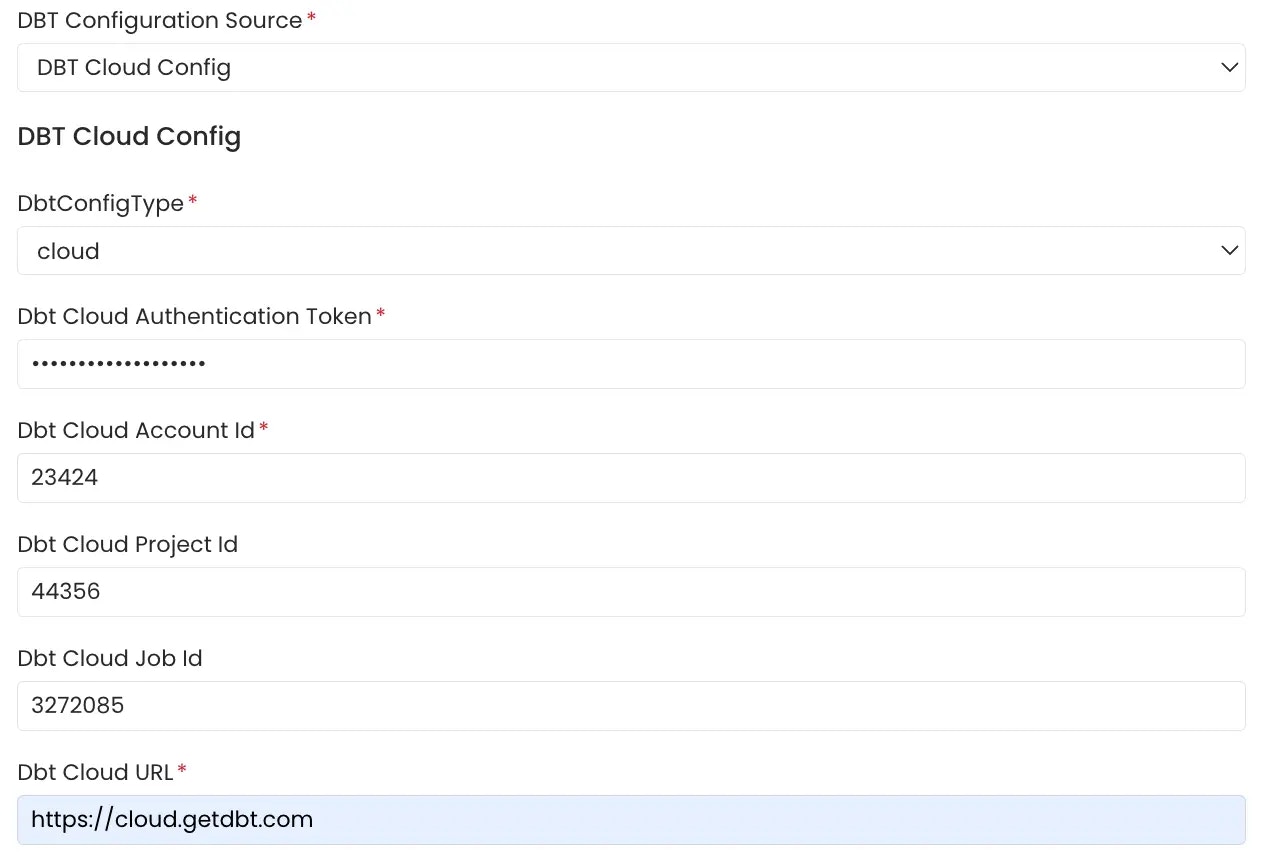
Click here to get started with dbt Cloud account setup if you have not done so already. The APIs need to be authenticated using an Authentication Token. Follow the link here to generate an authentication token for your dbt cloud account. TheAccount Viewer permission is the minimum requirement for the dbt cloud token.
3. Schedule and Deploy
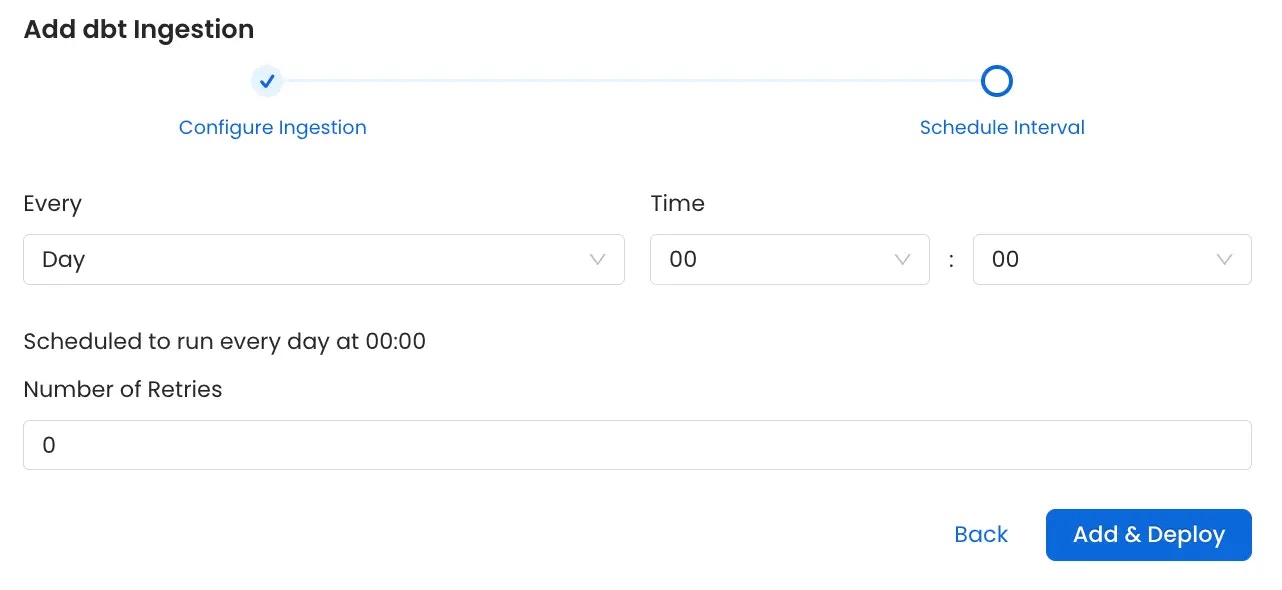
After clicking Next, you will be redirected to the Scheduling form. This will be the same as the Metadata Ingestion. Select your desired schedule and click on Deploy to find the lineage pipeline being added to the Service Ingestions.