
Overview of the Incident Manager
Using Incident Manager, managing data quality issues becomes streamlined and efficient. By centralizing the resolution process, assigning tasks, and logging root causes, your team can quickly address and resolve failures. The historical record of past incidents serves as a comprehensive guide, aiding your team in troubleshooting and resolving issues more effectively. All the necessary context is readily available, making it easier to maintain high data quality standards.Opening and Triaging Incidents
When a test case fails, Collate automatically opens a new incident and marks it as New. If enough context is available, Collate assigns a severity automatically — you can override this at any time.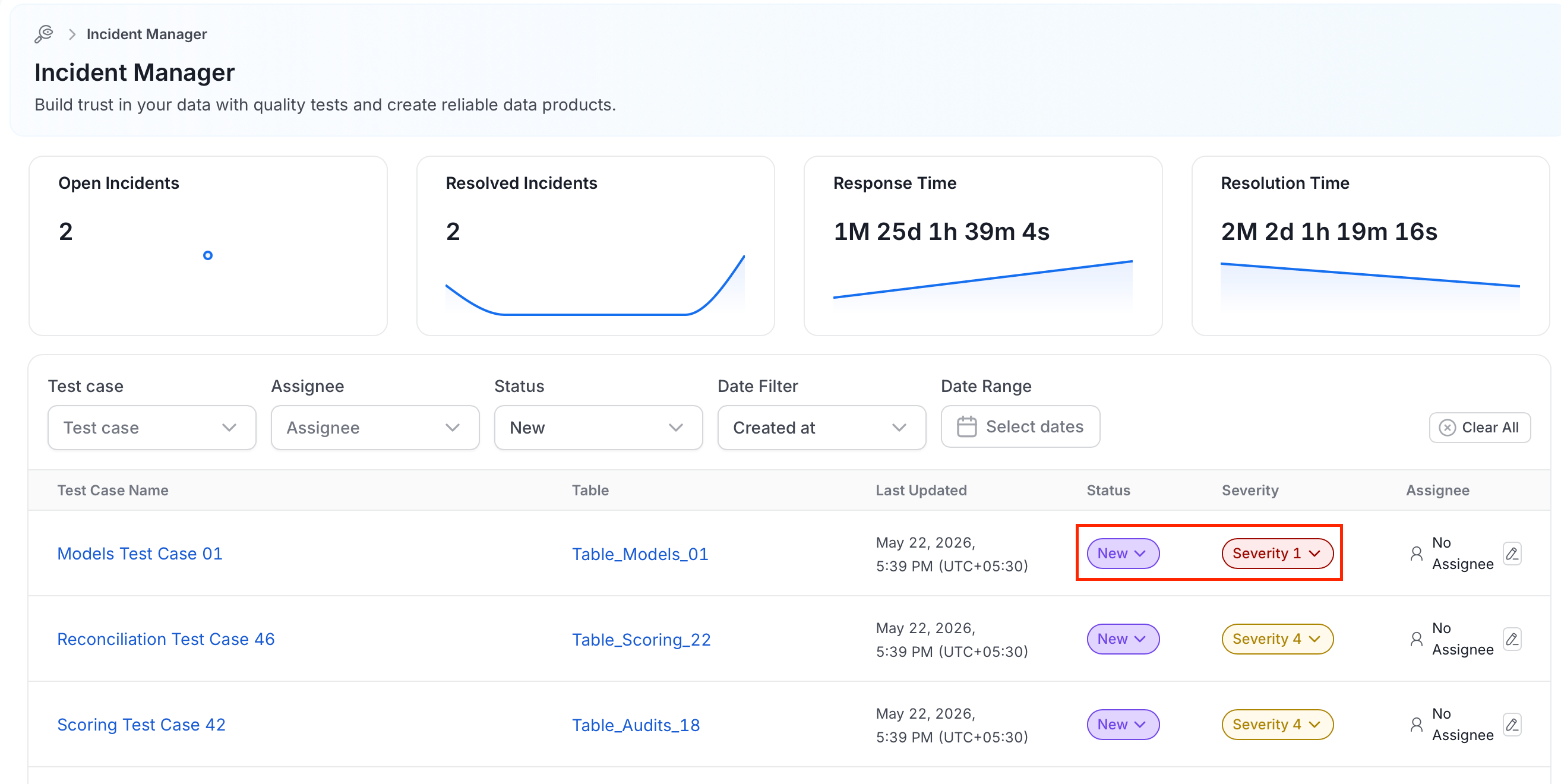
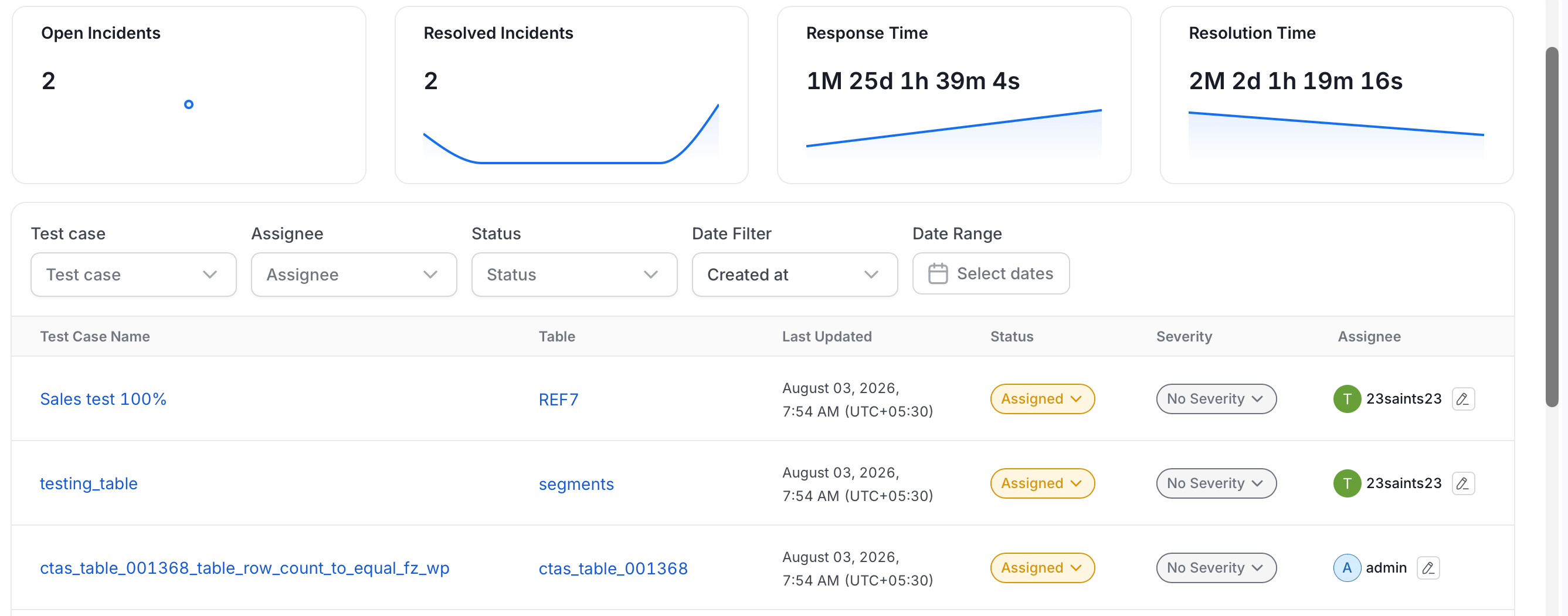
- Acknowledge the Issue: Mark the incident with
ackto signal that someone is aware of the problem and it is being investigated. - Assign Responsibility: Mark the incident with
assignto open a task for a specific person or team to address. - Log the Root Cause: Document the underlying cause of the failure for future reference.
- Mark Resolved: Mark the incident as
resolvedonce the issue is addressed. Add a reason and a comment to provide context for what went wrong and how it was fixed.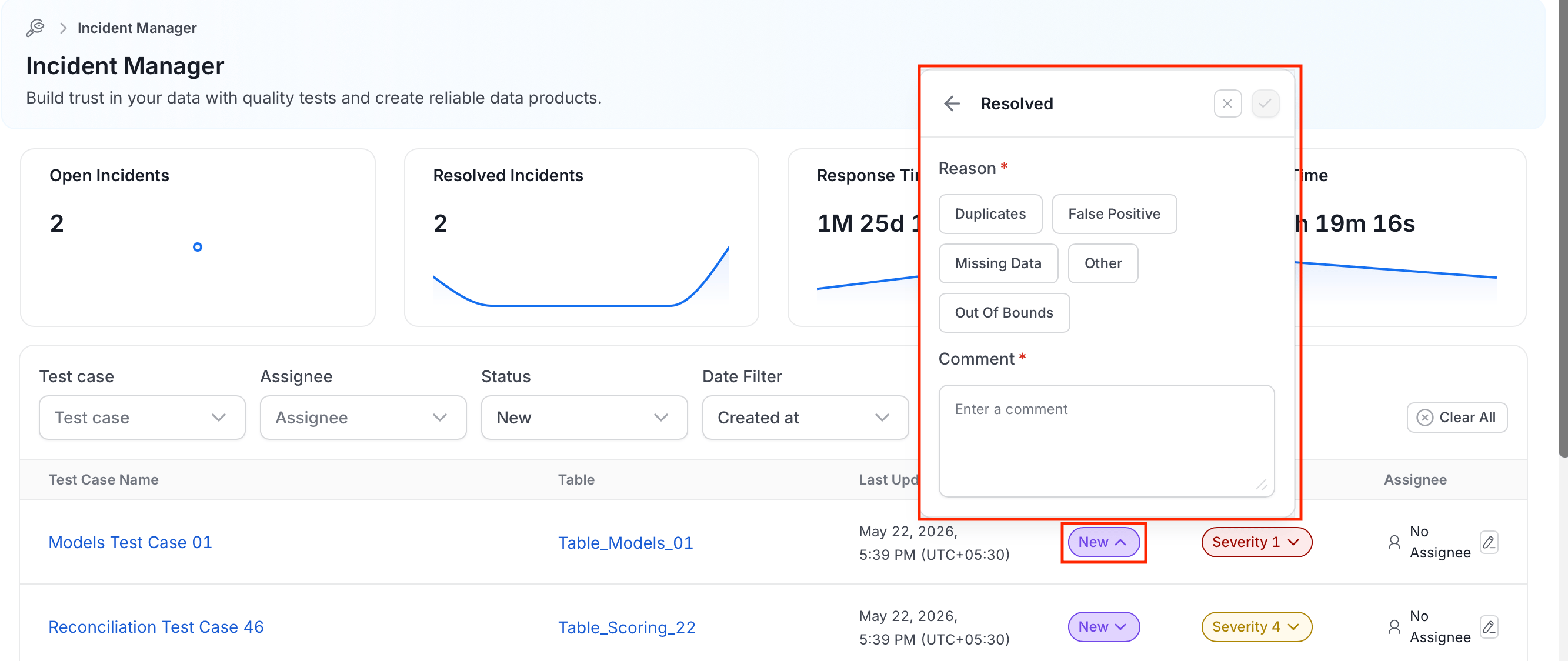
Using the Test Resolution Flow
The Test Resolution flow is a critical feature of the Incident Manager. Here’s how it works:- Failure Notification: When a Data Quality Test fails, the system generates a notification.
- Acknowledge the Failure: The designated user acknowledges the issue within the Incident Manager.
- Assignment: The issue is then assigned to a knowledgeable user or team responsible for resolving it.
- Status Updates: The assigned user can update the status of the issue, keeping the organization informed about progress and any developments.
- Sharing Updates: All impacted users receive updates, ensuring everyone stays informed about the resolution process.
Incident Context and History
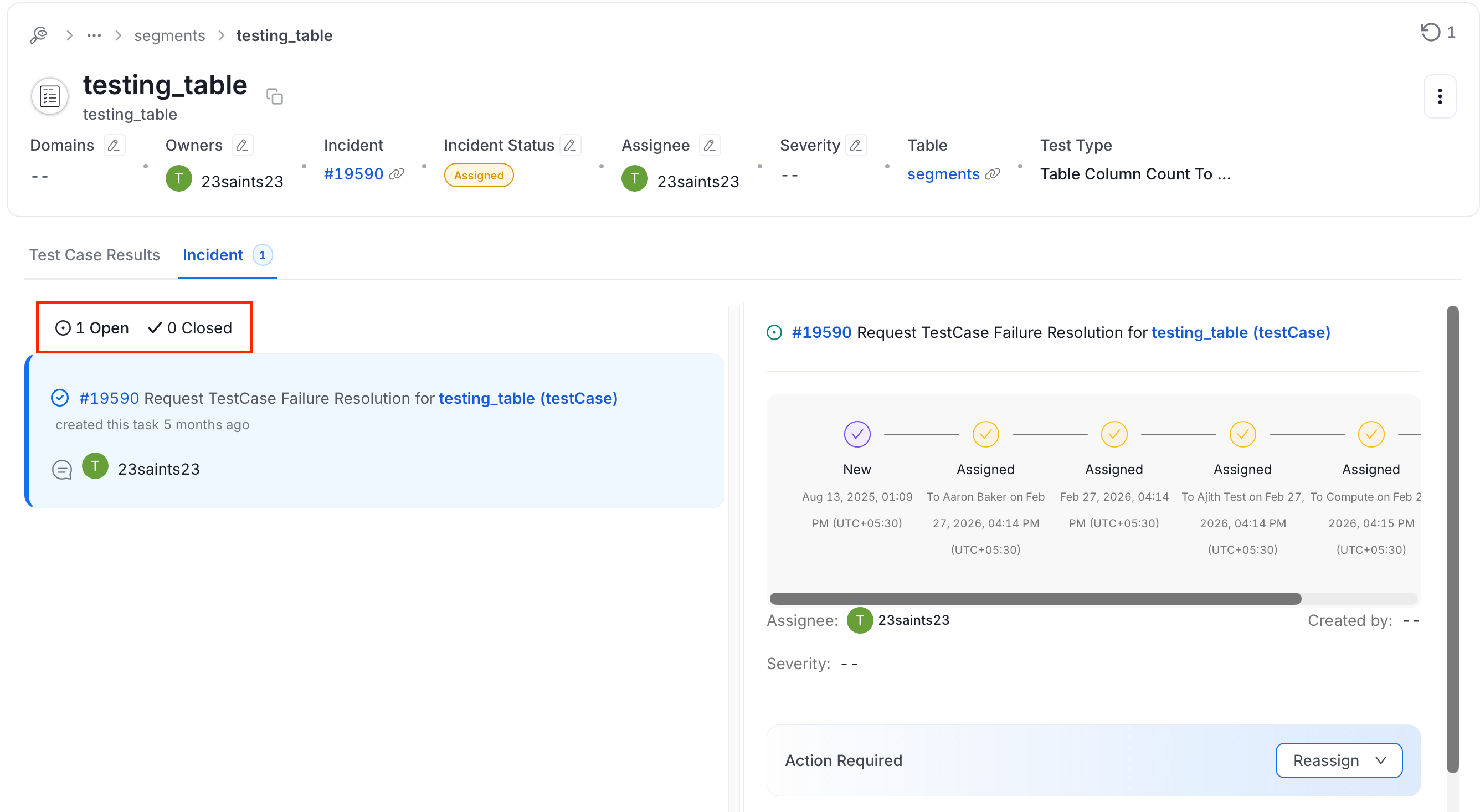
Select an open incident to view its details and navigate to the Incident tab. Each incident shows two sections:- Open Incident: Timeline of activity, comments, and collaboration on the current incident.
- Closed Incidents: History of past resolved incidents, including their resolution reasons, timelines, and any comments from the investigation.
Building a Troubleshooting Handbook
One of the powerful features of the Incident Manager is its ability to store all past failures. This historical data becomes a valuable troubleshooting handbook for your team. Here’s how you can leverage it:- Explore Similar Scenarios: Review previous incidents to understand how similar issues were resolved.
- Contextual Information: Access all necessary context directly within Collate, including previous resolutions, root causes, and responsible teams.
- Continuous Improvement: Use historical data to improve data quality tests and prevent future failures.
Steps to Get Started
- Access the Incident Manager: Navigate to the Incident Manager within the Collate platform.
- Monitor Data Quality Tests: Keep an eye on your data quality tests to quickly identify any failures.
- Acknowledge and Assign: Acknowledge any issues promptly and assign them to the appropriate team members.
- Log and Learn: Document the root cause of each failure and use the stored information to learn and improve.
Managing Incidents
Set up the Incident Manager workflow.
Root Cause Analysis (Collate)
Understand the nature of the failure and take corrective actions.