
System & Governance Notifications
Stay informed about metadata changes, governance events, and collaboration activities across your data catalog.Create a new Alert
- Navigate to Settings > Notifications > Alerts.
-
Click Add Notification.

-
Enter a unique alert Name and Description (optional) for quick identification.
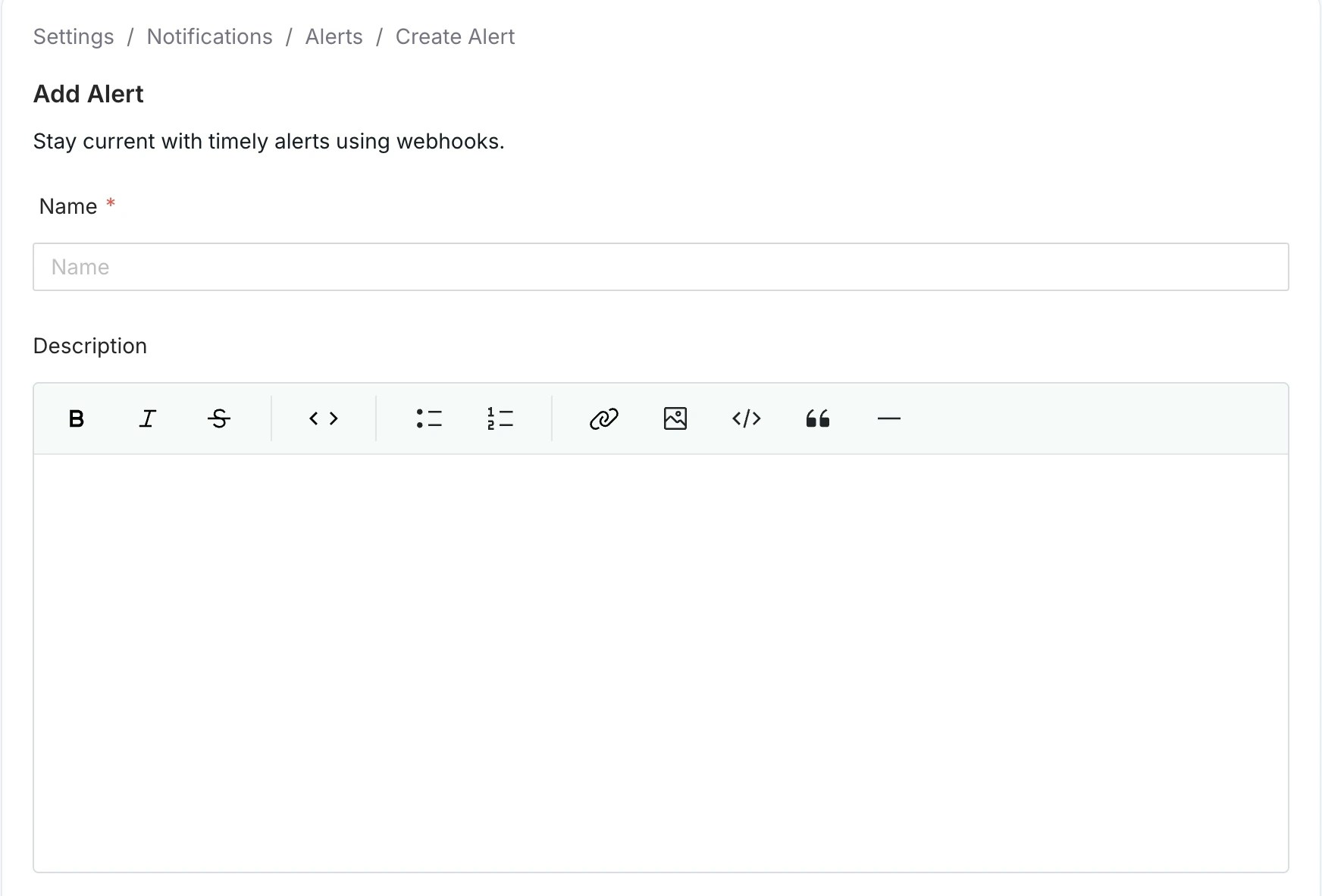
-
Select one or more sources to trigger this alert.
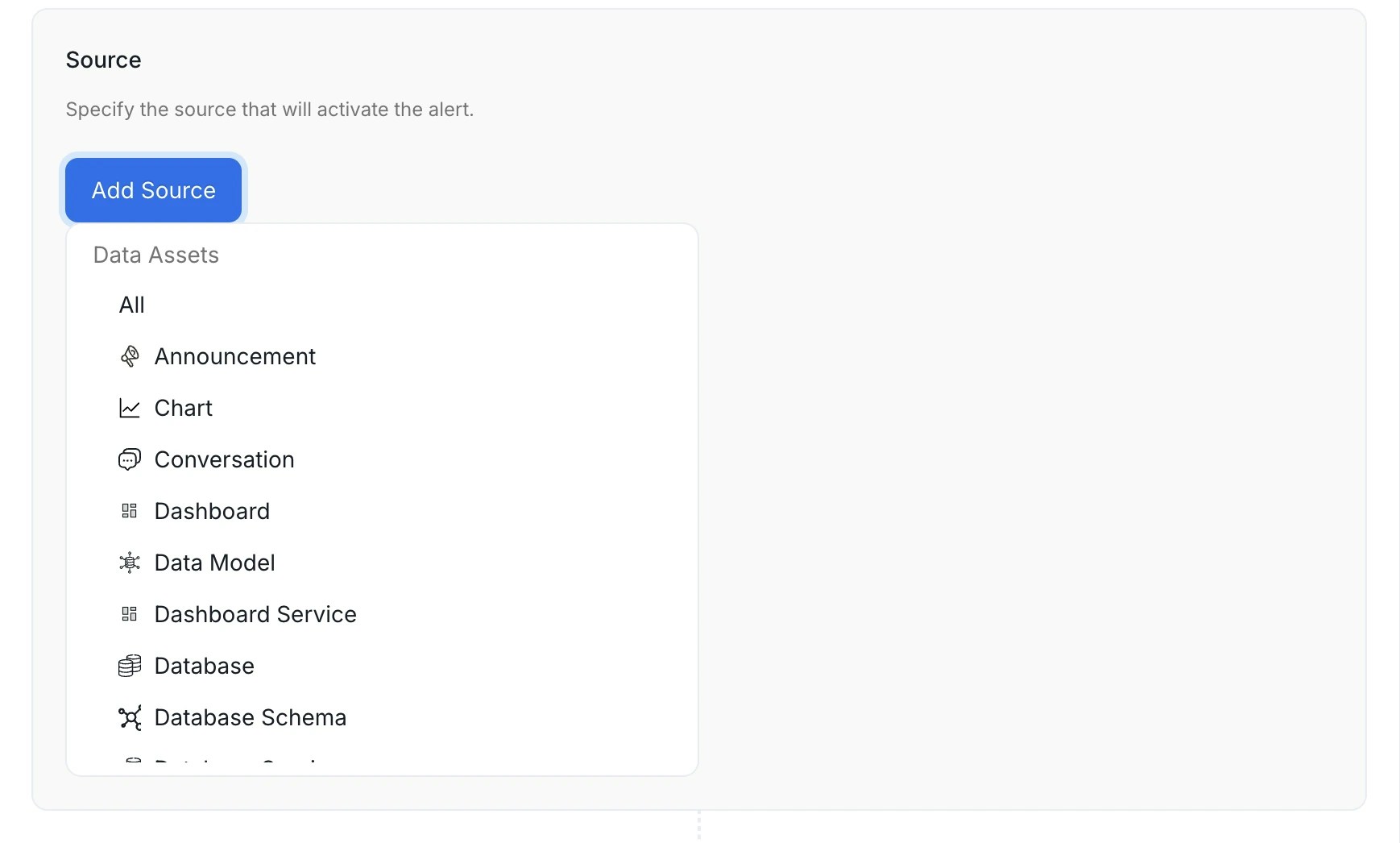
 Service connectionsGovernanceCollaboration These three sources all relate to threads posted on data assets, but each covers a distinct thread type. Choosing the wrong one is a common source of misconfigured alerts.The Task source covers the following task types:The only filter available for Task and Conversation is Mentioned User or Team: narrow the alert to threads where a specific person or team is @-mentioned. You can’t filter tasks by task type (for example, incidents only) in the alert UI.Note: An alert scoped to one asset (for example, a single table) now only notifies about conversations and replies on that asset, not on every table or glossary term. If an alert on conversations seems too quiet, its scope may be narrower than you expect. Widen it if needed.
 -
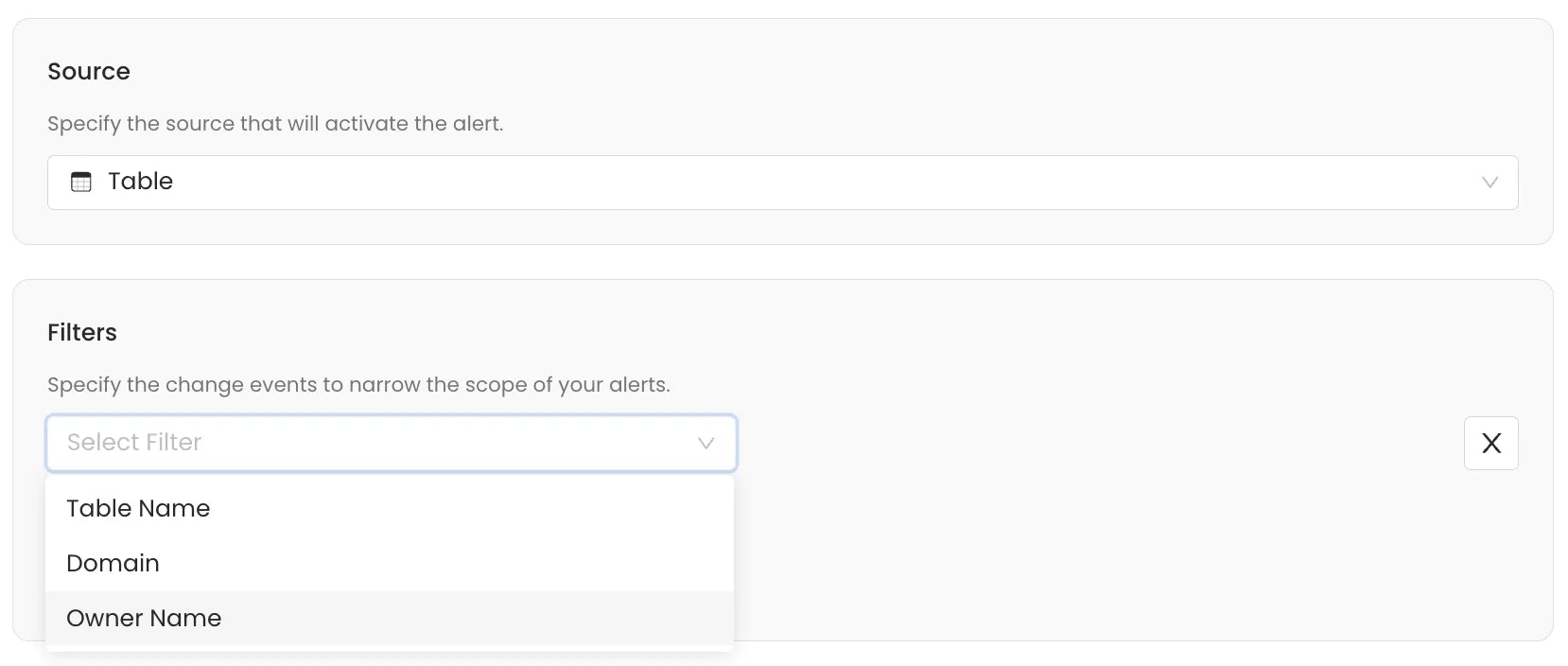
Add filters to narrow the alert scope and trigger notifications for specific events.
Use filters to narrow the alert to relevant changes. The available criteria depend on the sources selected. With several sources, only the filters that every chosen source supports are available. Filter events by:Note: If you don’t set any filter, the alert applies to all events over the selected source entity type.
- Owner: Filter events based on the designated owner of the asset.
- Entity FQN: Filter by the Fully Qualified Name of the entity.
- Event Type: Filter by the specific action that occurred. For more details about the various event types, see the table below.
- Updater Name: Filter based on the user or service that executed the change.
- Domain: Filter events based on the Data Domain the entity belongs to.
- Filter By Updater Is Bot: Filter to include or exclude changes made by automated ingestion or system processes.
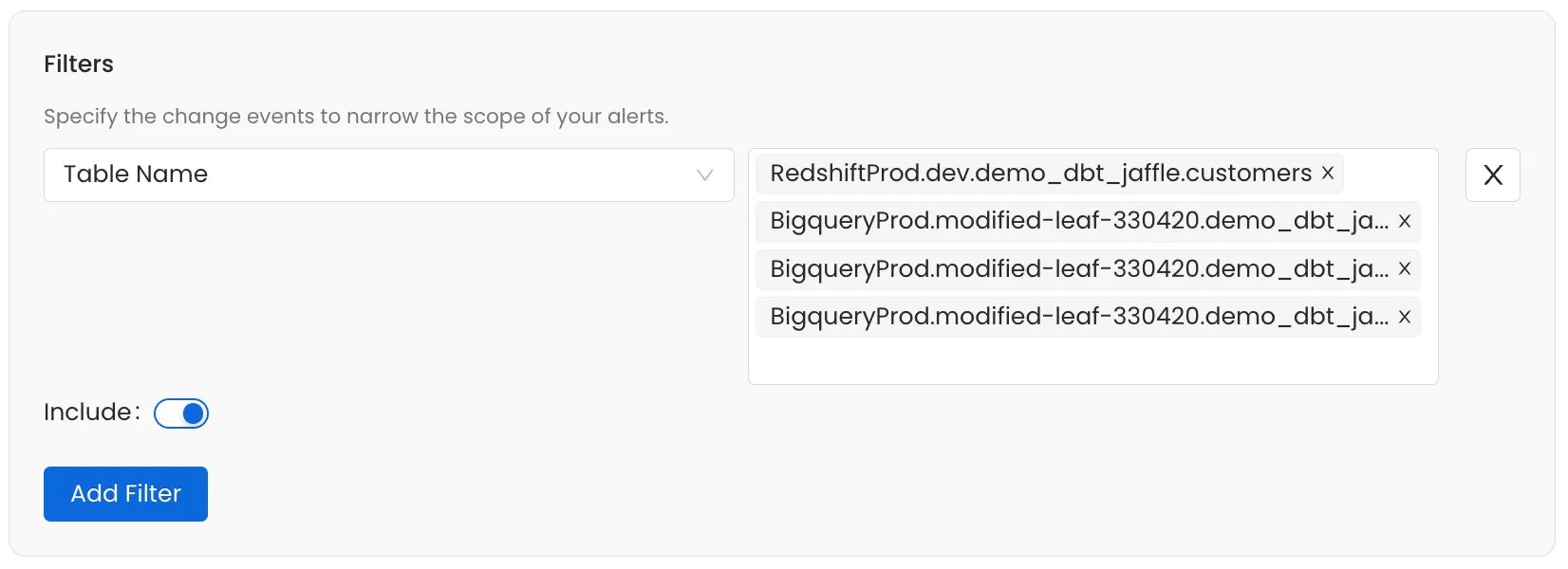
Use the Include toggle to define the logic for the filter condition:- Include (Toggle ON): If the event meets the filter condition, the alert is sent.
- Exclude (Toggle OFF): If the event meets the filter condition, the alert is silenced (not sent).
-
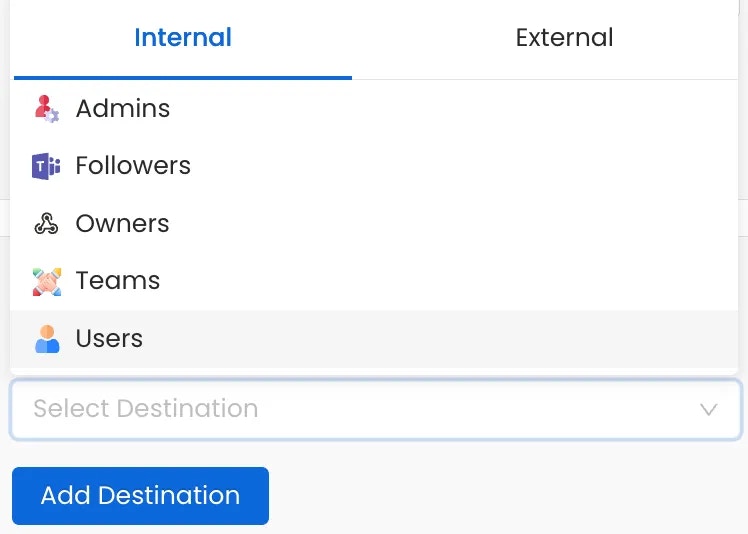
Add destinations where you want to deliver alerts. Select Add Destination to add one or more notification targets.
Internal:
- Admins - Notify all platform administrators
- Assignees - Notify users assigned to the asset
- Followers - Notify users following the asset
- Mentions - Notify users mentioned on the asset
- Owners - Notify the owners of the asset
- Teams - Notify a specific team
- Users - Notify specific individual users
- G Chat
- Ms Teams
- Slack
- Webhook

-
Select a Notification Template to control the wording of the message this alert sends — its subject line and body. Choose from:
- System Default Template — the built-in wording, used when nothing else is selected.
- A saved template — a reusable template created in Notification Templates.
- Create Custom Template — wording written here and belonging to this alert alone.