
Notify Downstream
Notify Downstream extends an alert destination so that it also reaches the stakeholders of assets that consume data from the asset that changed. Collate follows lineage from the changed asset and resolves the destination’s recipients for every downstream asset it finds. Use it when the people affected by a change are not the people who own the changed asset. For example, you can tell the owners of a dashboard that an upstream table changed its schema.How It Works
When an event matches the alert, Collate resolves recipients in this order:- The changed asset: recipients for the asset that triggered the event, based on the destination category (for example, its owners).
- Downstream assets: Collate walks lineage downstream from the changed asset, up to the configured depth. For each downstream asset it resolves the same category (for example, that asset’s owners).
- Deduplication: recipients are merged. A team or user that owns several of these assets receives one notification.
The owners of the changed asset are always included, because step 1 runs first. You can’t exclude them. In the example below, Team B, which owns the upstream table, receives the alert as well as Team A.
Supported Destinations
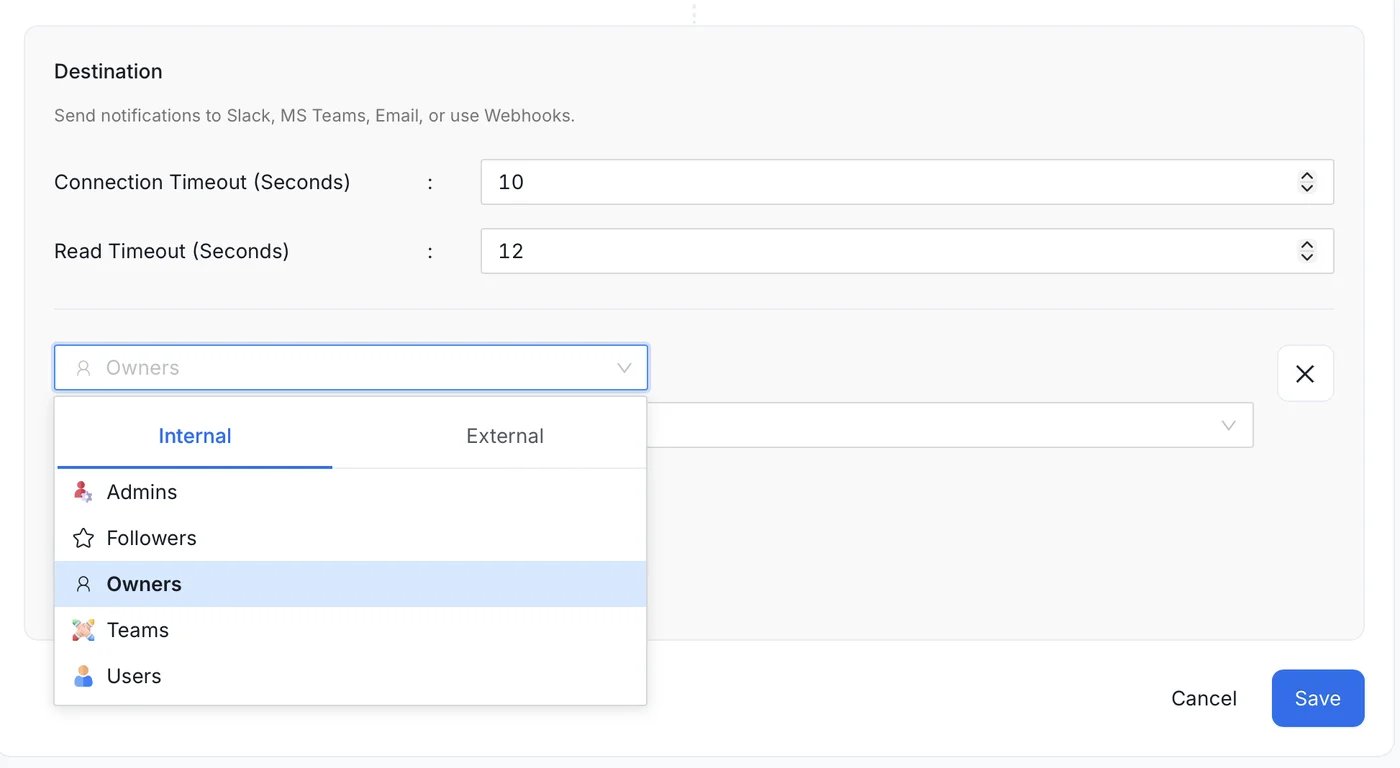
Notify Downstream works with the internal destination categories:- Admins
- Followers
- Owners
- Teams
- Users
Configure Notify Downstream
- Create or edit an alert, from Observability > Alerts for Observability alerts or Settings > Notifications for Notification alerts.
-
In Destination, select an internal category, such as Owners.
-
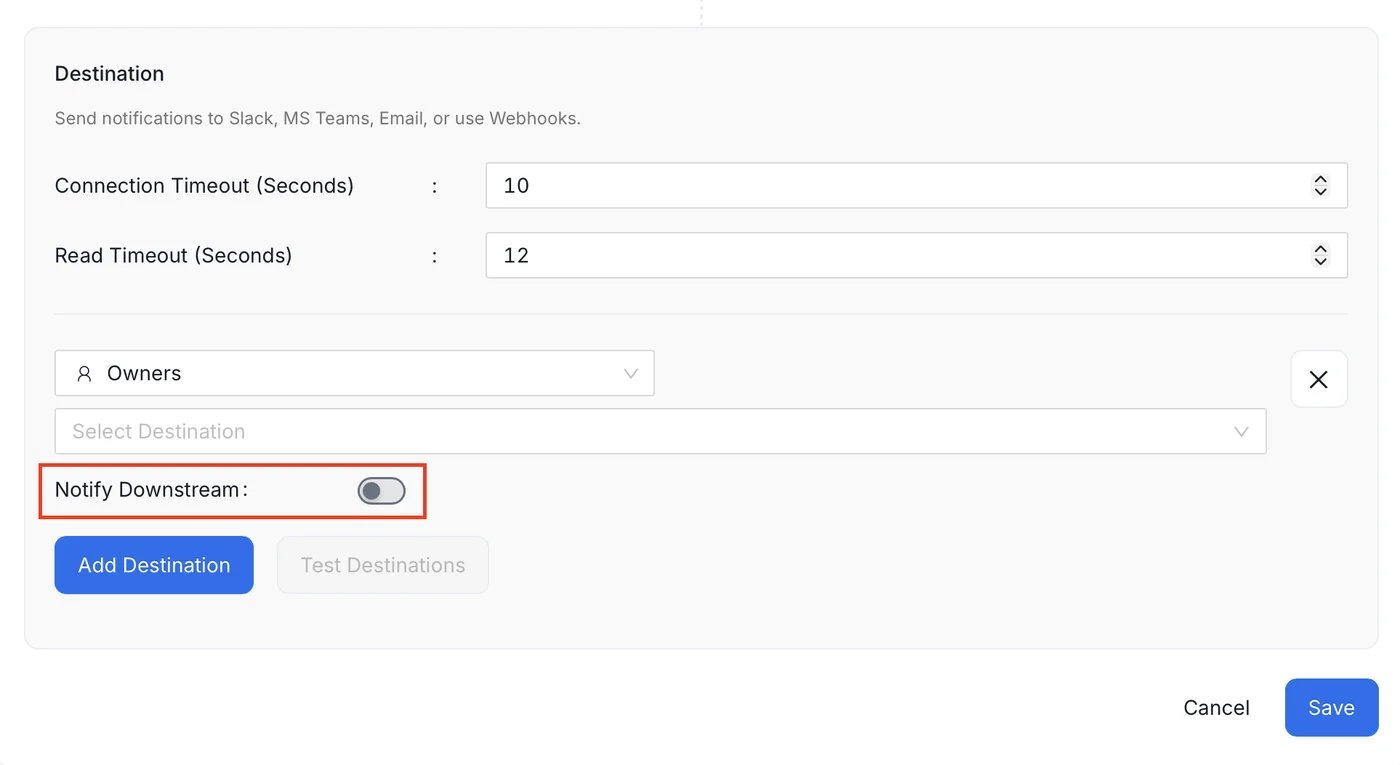
Turn on Notify Downstream.
-
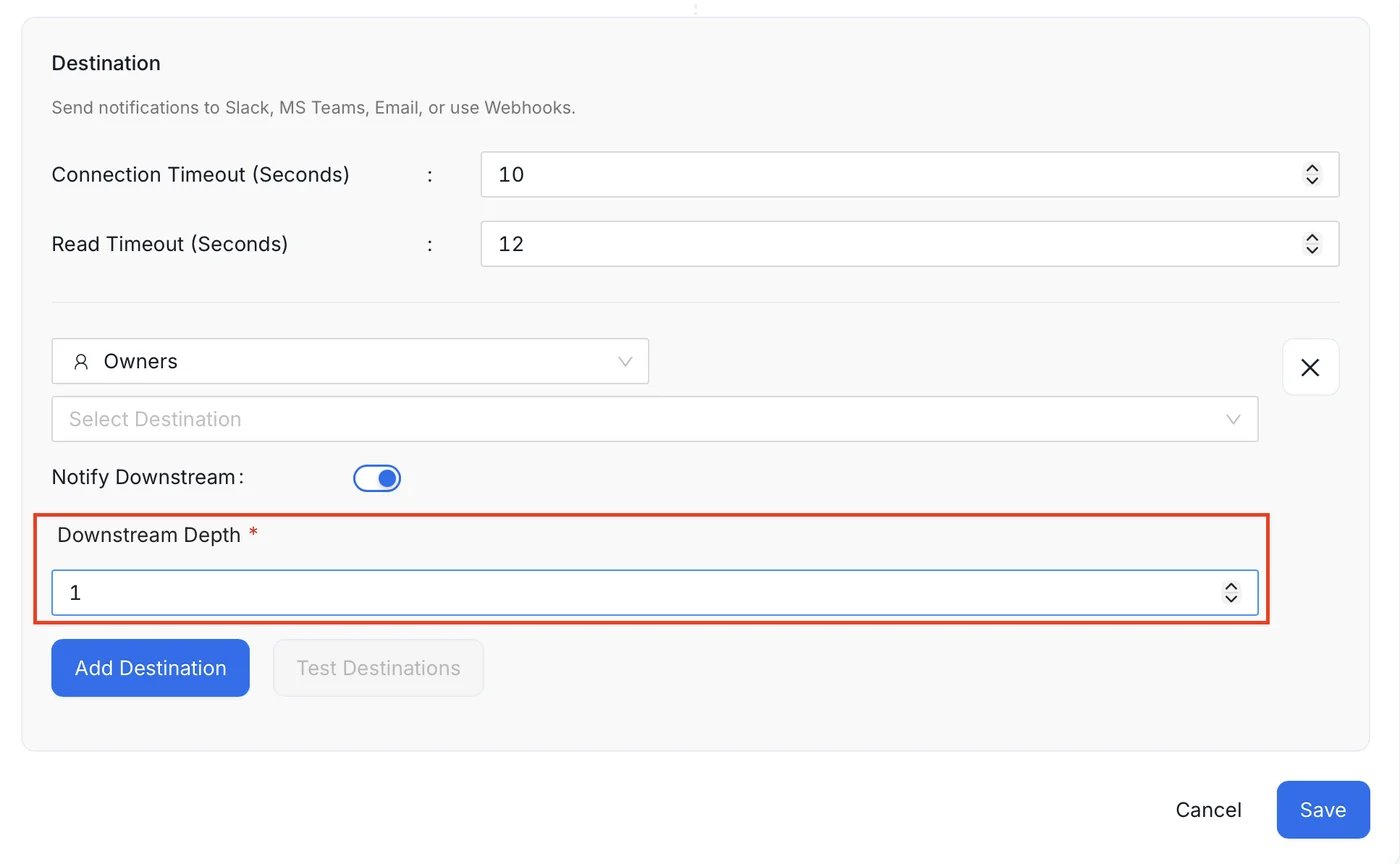
In Downstream Depth, enter how many lineage levels to follow. The field is required once the toggle is on, and the value must be greater than 0.
- Save the alert.
Turning Notify Downstream off clears the depth.
Lineage can be wide. A high or unlimited depth on a source asset with many consumers can notify many owners. Start with a small depth.
Set a Channel on a Team
For Owners routing to a chat tool or webhook, each owning team needs an endpoint for that tool. Set it on the team’s Subscription:- Open the team: Settings > Team & User Management > Teams, then select the team.
-
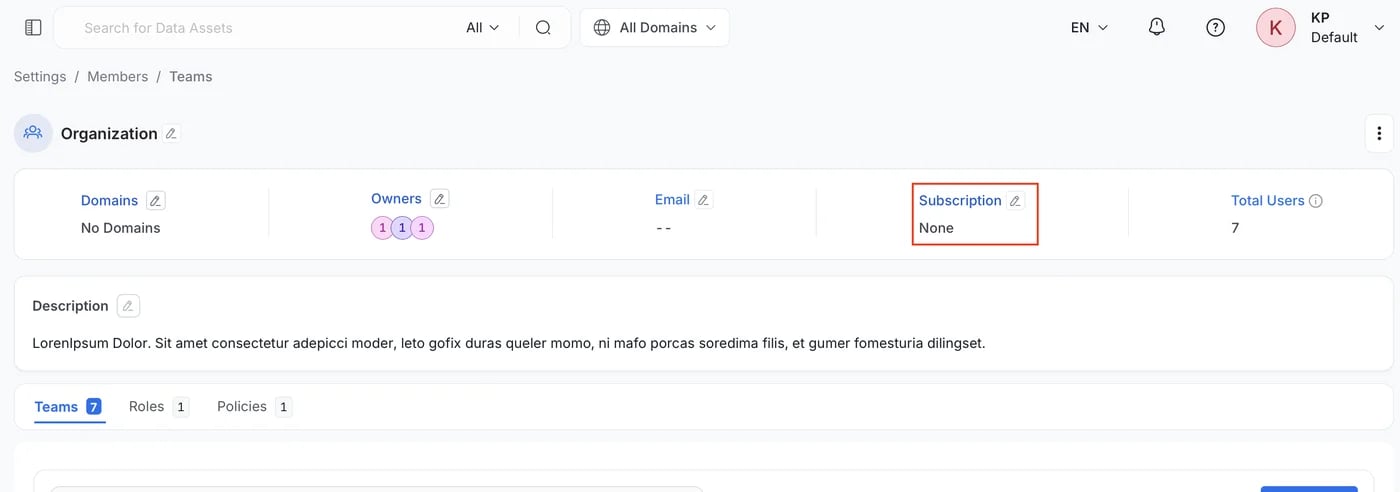
In the team header, find Subscription and click the Edit icon.
-
In Webhook, select Slack, MS Teams, G Chat, or Webhook (generic).
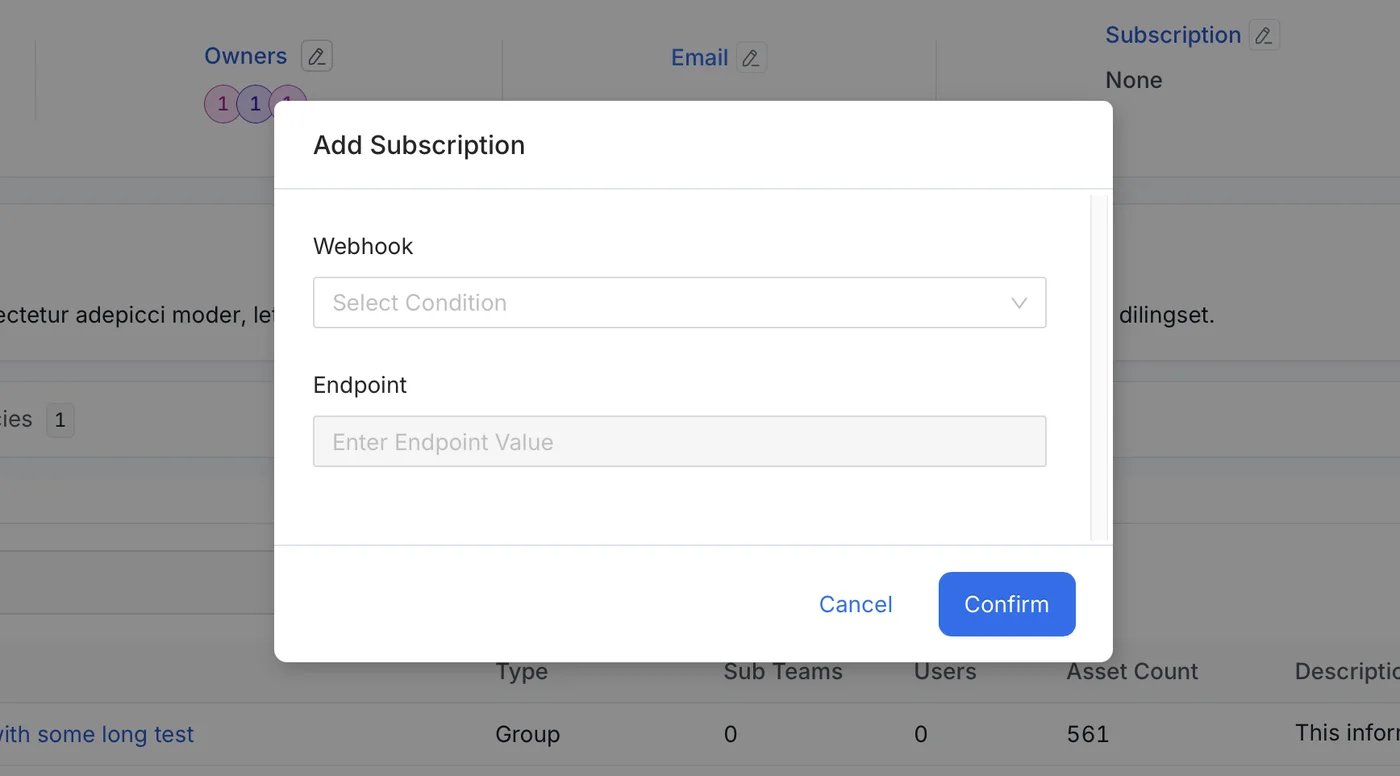
- In Endpoint, enter the incoming webhook URL, such as a Slack incoming webhook URL.
- Click Confirm.
subscription setting exists on a user profile through the API.
For how to create a webhook for each tool, see Slack, Microsoft Teams, and Google Chat.
For Email, Collate uses the email address set on the owning team or user.
Example
Team A owns Table A1, which reads from Table B2. Team B owns Table B2. You want Team A to be told when B2 changes.- Add lineage from B2 to A1. This is usually done by ingestion.
- Set a Slack Subscription on both teams, each with its own webhook.
- Create a Notification alert on the Table source. Filter on
B2with Entity FQN or Owner Name so that only B2 events match. - Add a destination: category Owners, type Slack. Turn on Notify Downstream with a depth of
1.
Data Products
Notify Downstream follows lineage between data products as well as between assets:- Data products as the source: a data product can be the source of a Notification alert, so a change to a data product can notify the owners of downstream data products.
- Derived edges: when two assets that belong to different data products are connected by lineage, Collate also records lineage between those data products. This happens however the lineage was created (ingestion, the UI, or the API), and also when an asset is added to a data product after the lineage exists.
Related Reference
- Alert Behavior Reference: sources, triggers, filters, and when each alert fires.
- Data Observability Alerts: create and configure alerts.