
Domains
Domains group related data assets under a common area of ownership. Use them to organize your data catalog by business area, assign accountability, and control access.Add a Domain
Follow these steps to create a new domain in Collate.Step 1: Access Domains
-
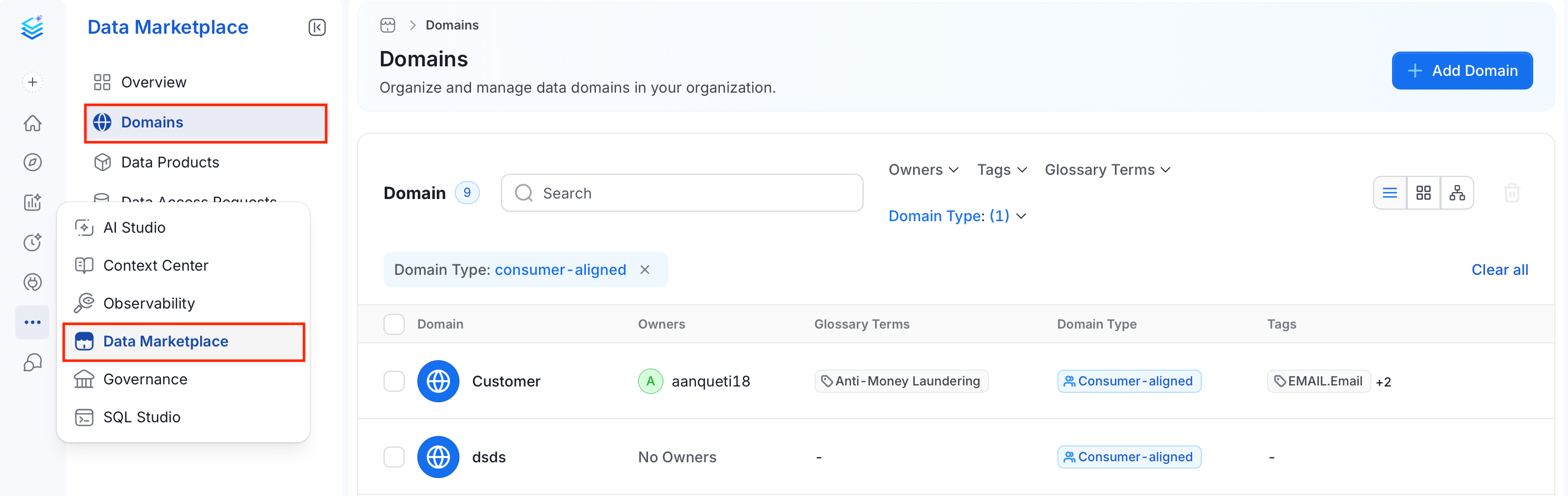
In the left navigation bar, click Data Marketplace > Domains.
-
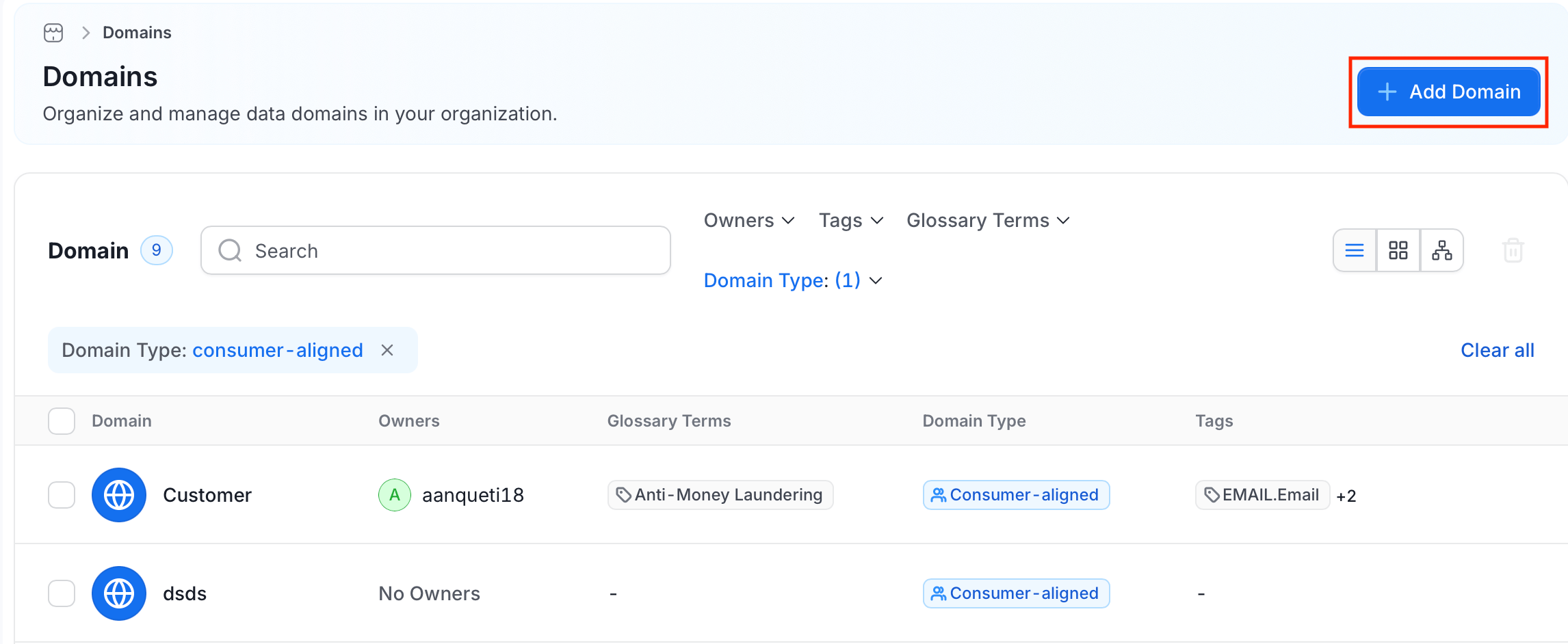
Click Add Domain. The Add Domain panel opens.
Step 2: Enter Domain Details
- Name (required): Enter a unique identifier for the domain. Letters, numbers, hyphens, and underscores only; maximum 128 characters.
- Display Name: Enter a human-readable label shown throughout the Collate UI.
- Description (required): Write a description that explains the domain’s purpose, the types of data it contains, and any relevant context for other users.
- Optionally, upload a Cover Image as a banner for the domain page, and select an Icon and Color to visually distinguish the domain in the catalog.
Step 3: Add Tags and Glossary Terms
- Tags: Select classification tags to categorize the domain.
- Glossary Terms: Link the domain to relevant glossary terms.
Step 4: Select a Domain Type
Choose the type that best describes the domain’s role in your data architecture:Step 5: Assign Owners and Experts
- Owners: Select users or teams responsible for managing the domain.
- Experts: Select individual users with deep domain knowledge who can answer questions from other users.
Step 6: Save Domain
Click Save. The domain appears in the Domains list. Watch the following video to learn how to add a domain:Add Data Assets to a Domain
-
From Domain Details Page:
- On the Domains page, select the domain.
-
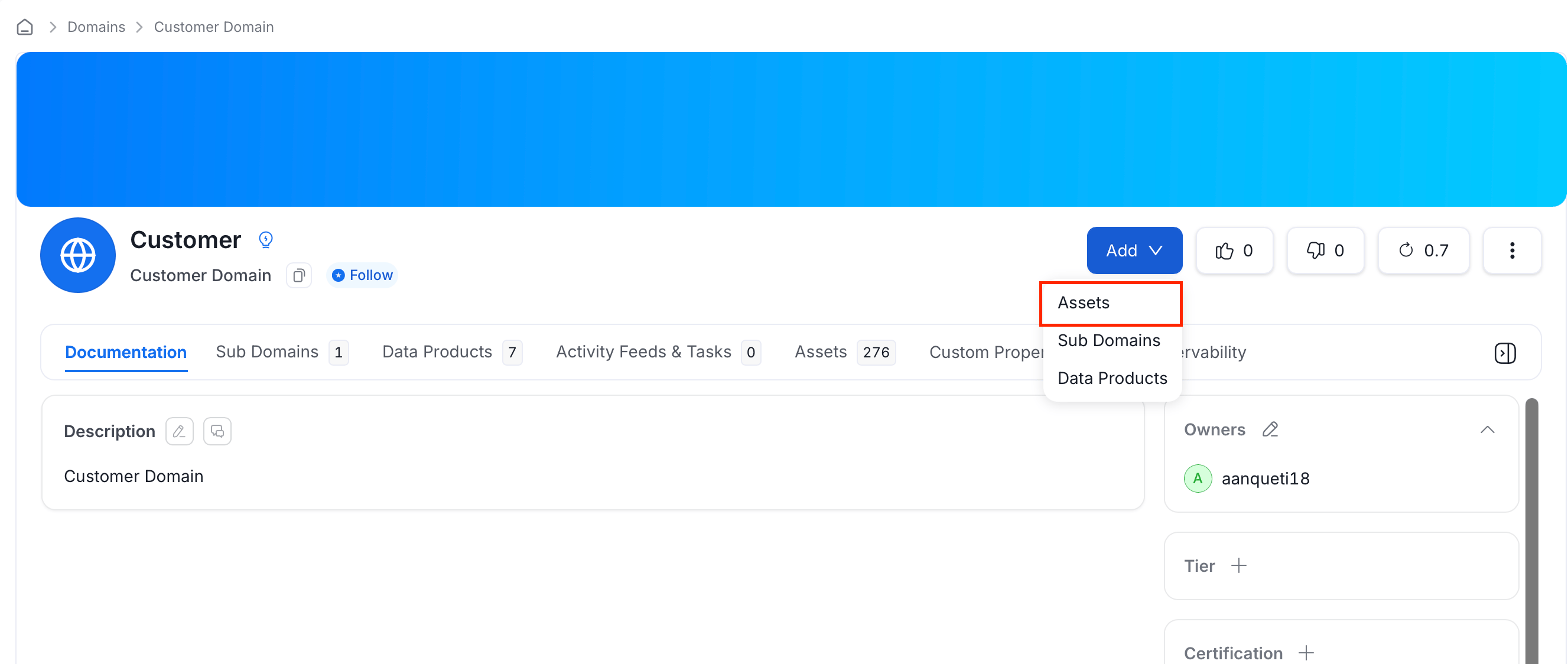
Click Add, then select Assets.
-
Search for assets, or use the filters (entity type, owner, tag, tier, service, service type) to narrow the results.
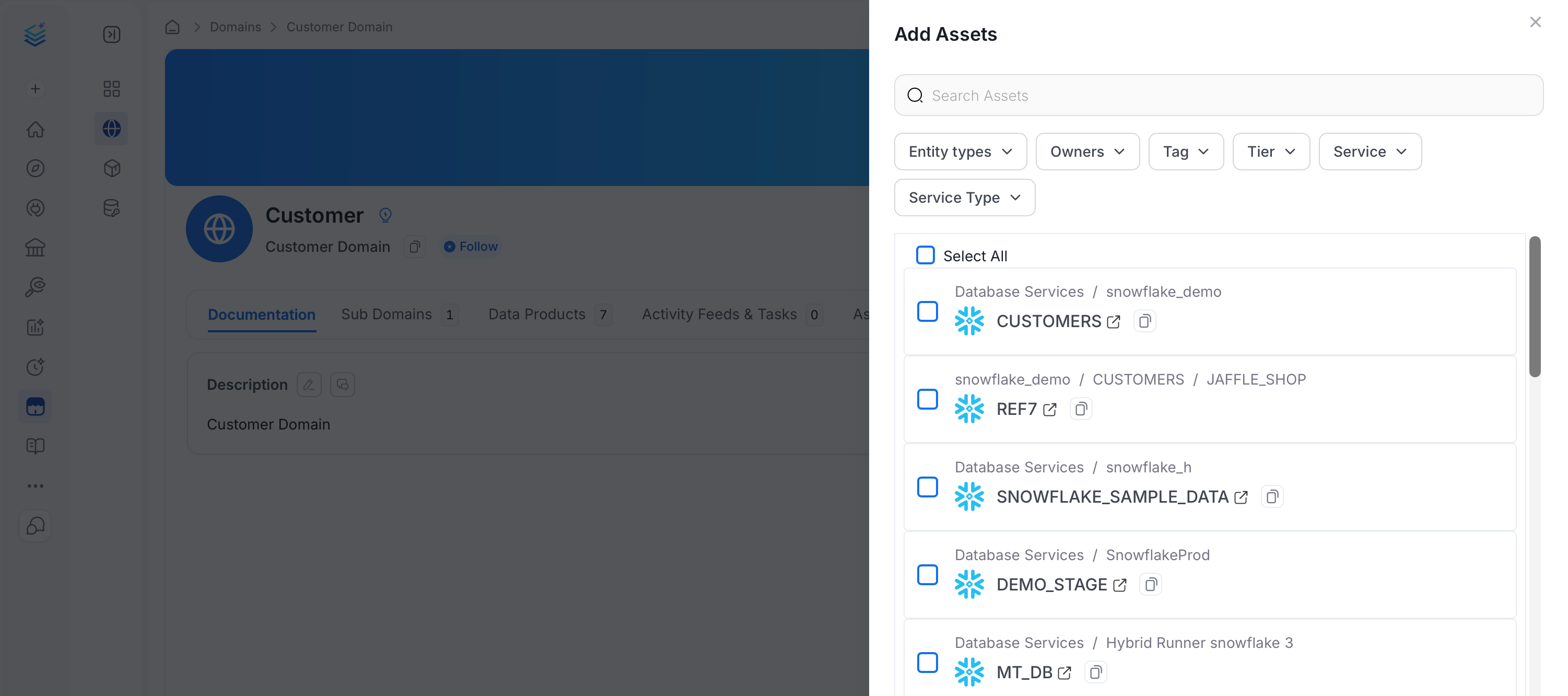
- Select the assets to include, then click Save.
-
From Data Assets Details Page:
After creating the domain, navigate to any data asset and assign it to the domain from its details page.
- In the left navigation bar, click Explore.
- On the Explore Assets page, find and open the asset to which you want to set the domains.
-
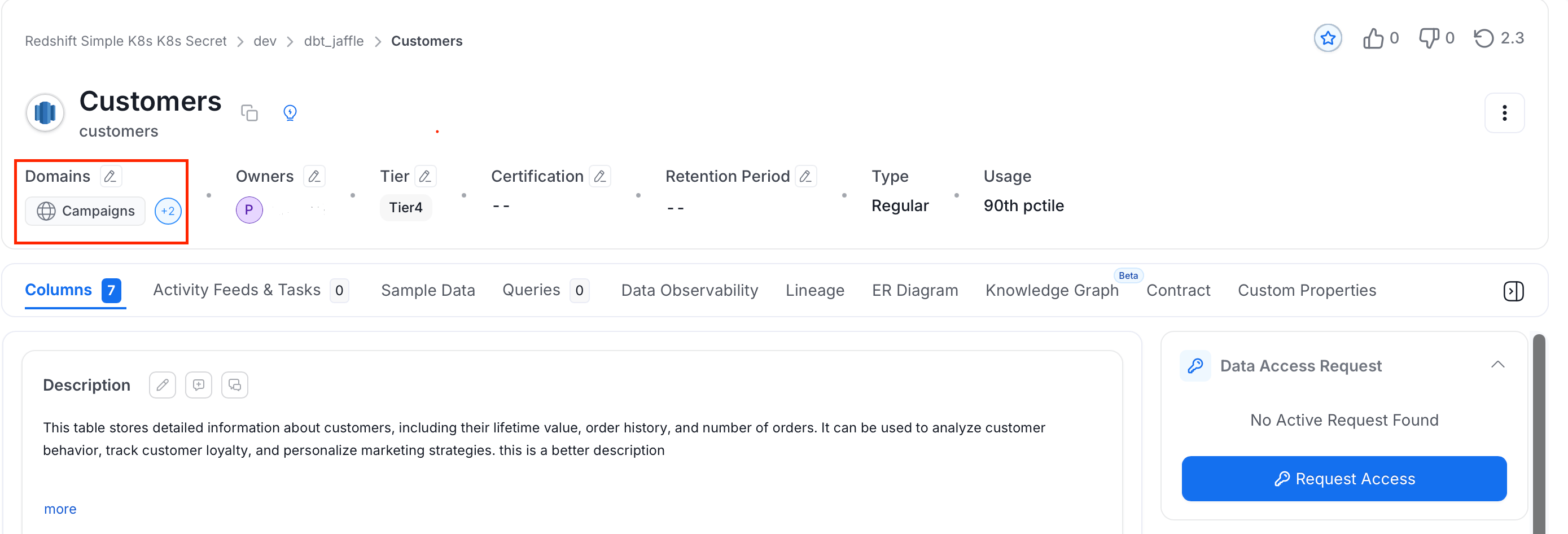
Click the Edit icon next to the Domain header.
-
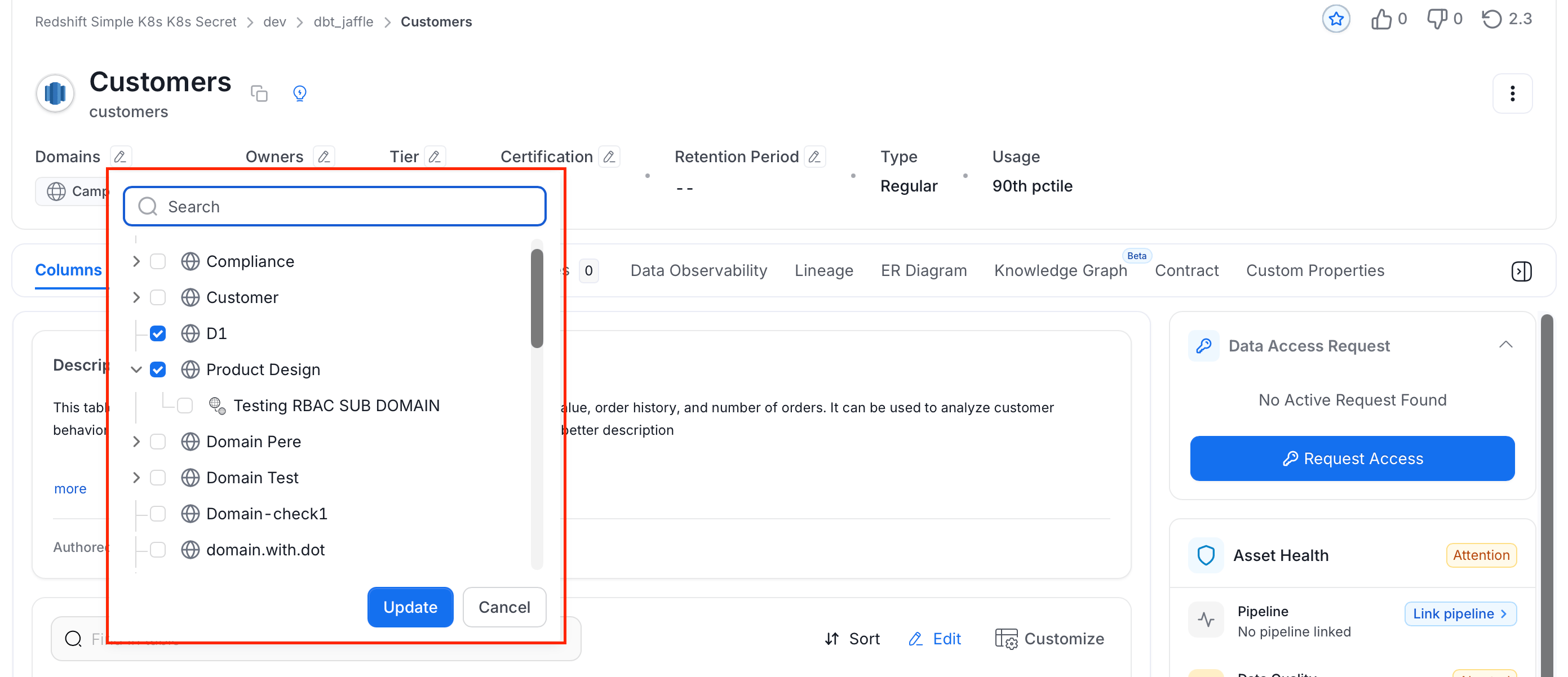
Select the domains and click Update.
Domain Details Page
Open a domain from the Domains page to view its details, manage its assets, and track changes.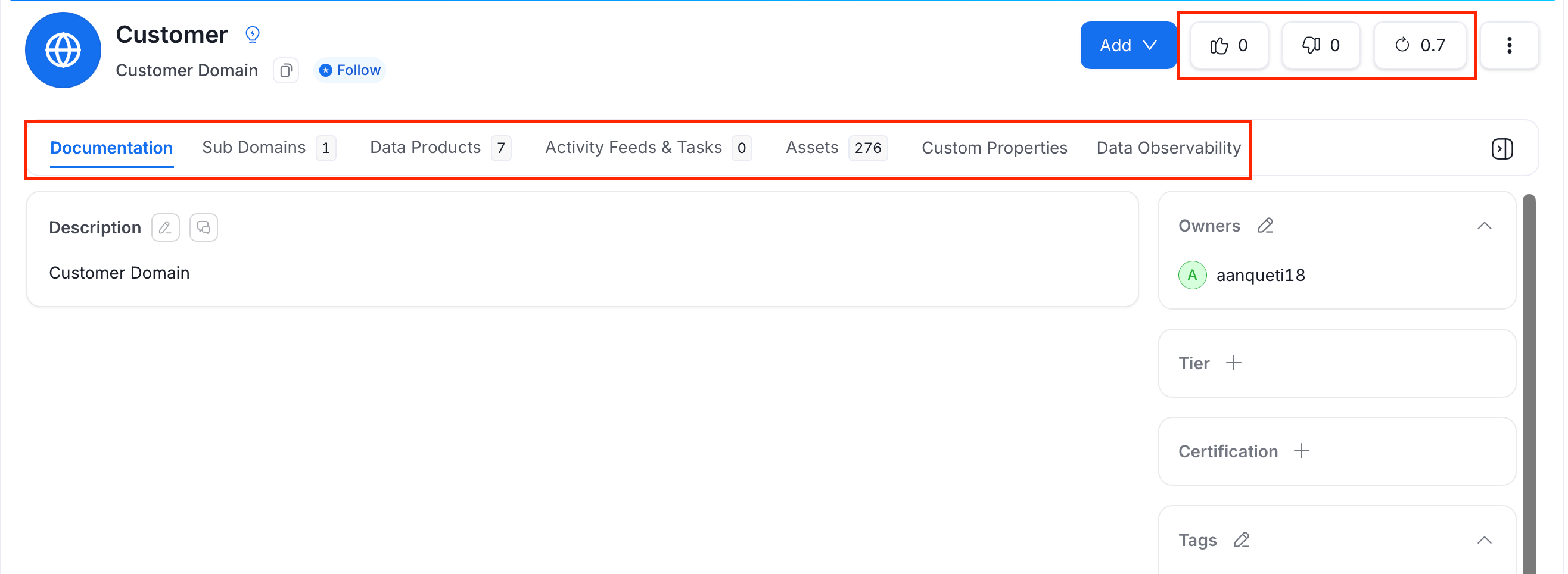
Domain Tabs
A domain’s detail page organizes its information into tabs:- Documentation: The default tab. View and edit the domain’s description, and manage its Owners, Experts, Domain Type, Tags, and Tier from the side panel.
- Sub Domains: Lists the domains nested under this one. Add a sub domain directly from this tab.
- Data Products: Lists the data products that belong to this domain. Add a data product directly from this tab.
- Activity Feeds & Tasks: Shows conversations, tasks, and activity history related to the domain.
- Assets: Lists the data assets assigned to this domain.
- Custom Properties: Shows any administrator-configured custom property fields for the domain.
- Data Observability: Displays data quality and incident information for the data product’s assets.
Domains Actions
- Votes: The thumbs-up and thumbs-down icons let users upvote or downvote the data product, helping the team signal its quality and trustworthiness at a glance.
- Version: Shows the data product’s current version number. Click it to open the Version History panel. See Data Asset Versioning for details.
Manage a Domain
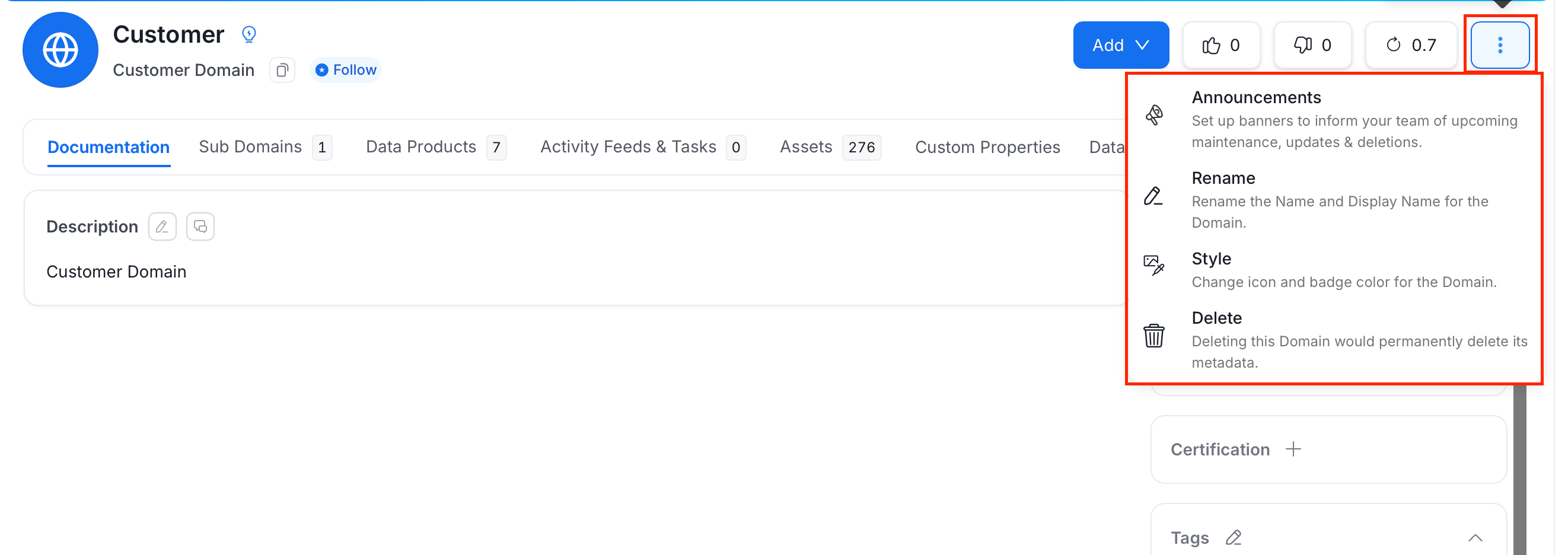
To rename, restyle, delete, or set up announcements for a domain, click the ⋮ menu next to Add:- Announcements: Set up banners to inform your team of upcoming maintenance, updates, or deletions.
- Rename: Rename the domain’s Name and Display Name.
- Style: Change the domain’s icon and badge color.
- Delete: Permanently delete the domain and its metadata.
Filter Data Assets by Domain on the Explore Page
On the Explore Assets page, use the domain filter in the left panel to view all assets assigned to a specific domain.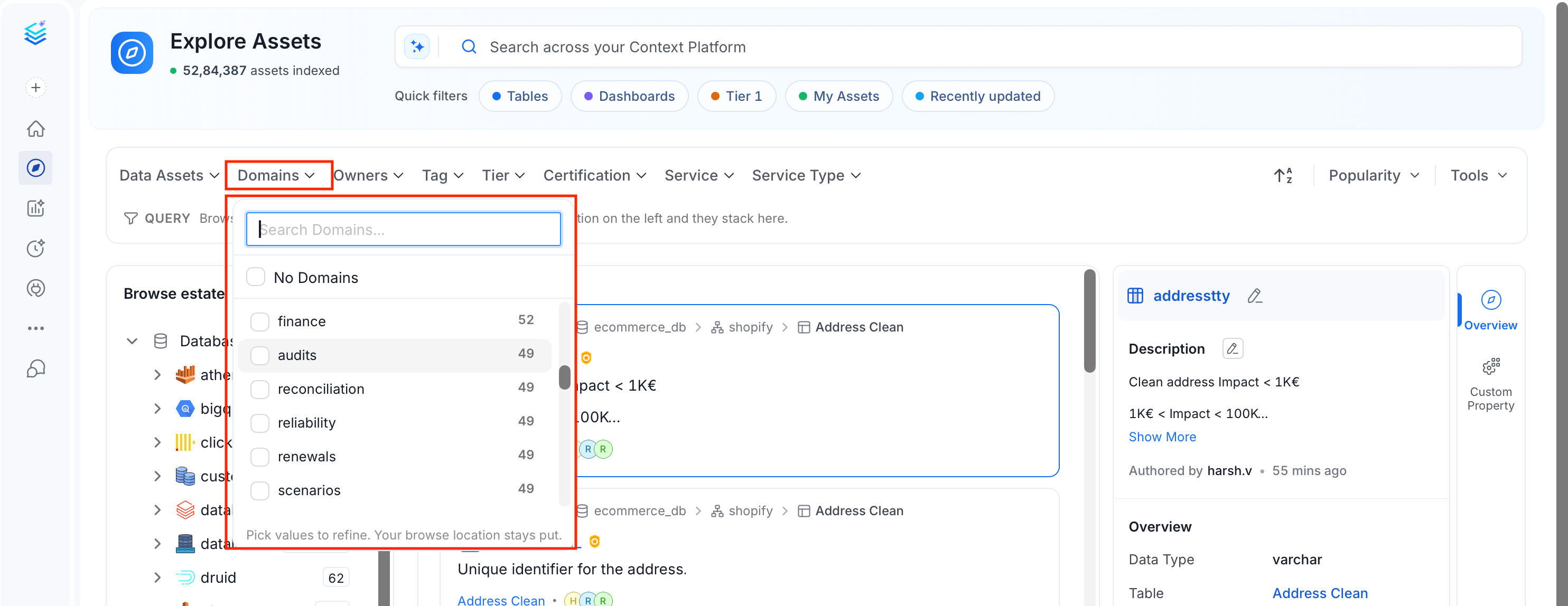
How to Use Data Products
Learn about the Data Products.