
Data Access Requests
Data Access Requests let users request access to governed data assets directly from the Data Marketplace. When a request is submitted, the data product owner receives a notification and approves or rejects it from within Collate. All requests are tracked and auditable for governance and compliance.Create a Data Access Request
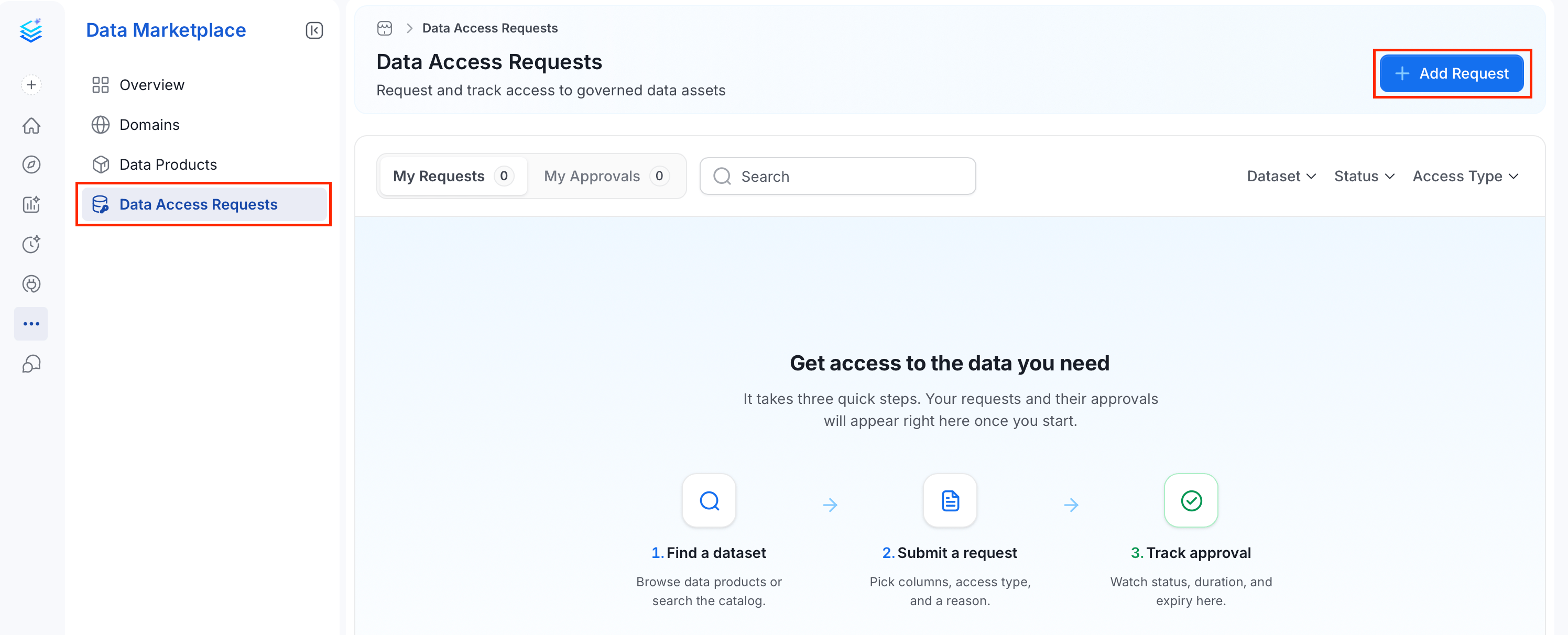
- In the left navigation bar, click Data Marketplace > Data Access Requests.
-
Click Add Request. The Request Data Access panel opens.
-
Fill in the request form:
- Dataset (required): Search for and select the table or data product you need access to.
-
Access Type (required): Choose the scope of access:
- Permission Level (required): Select Read, Write, or Admin.
- Access period (required): Set the expiration date. Defaults to 14 days from today.
-
Reason for Access (required): Provide a business justification for the request.
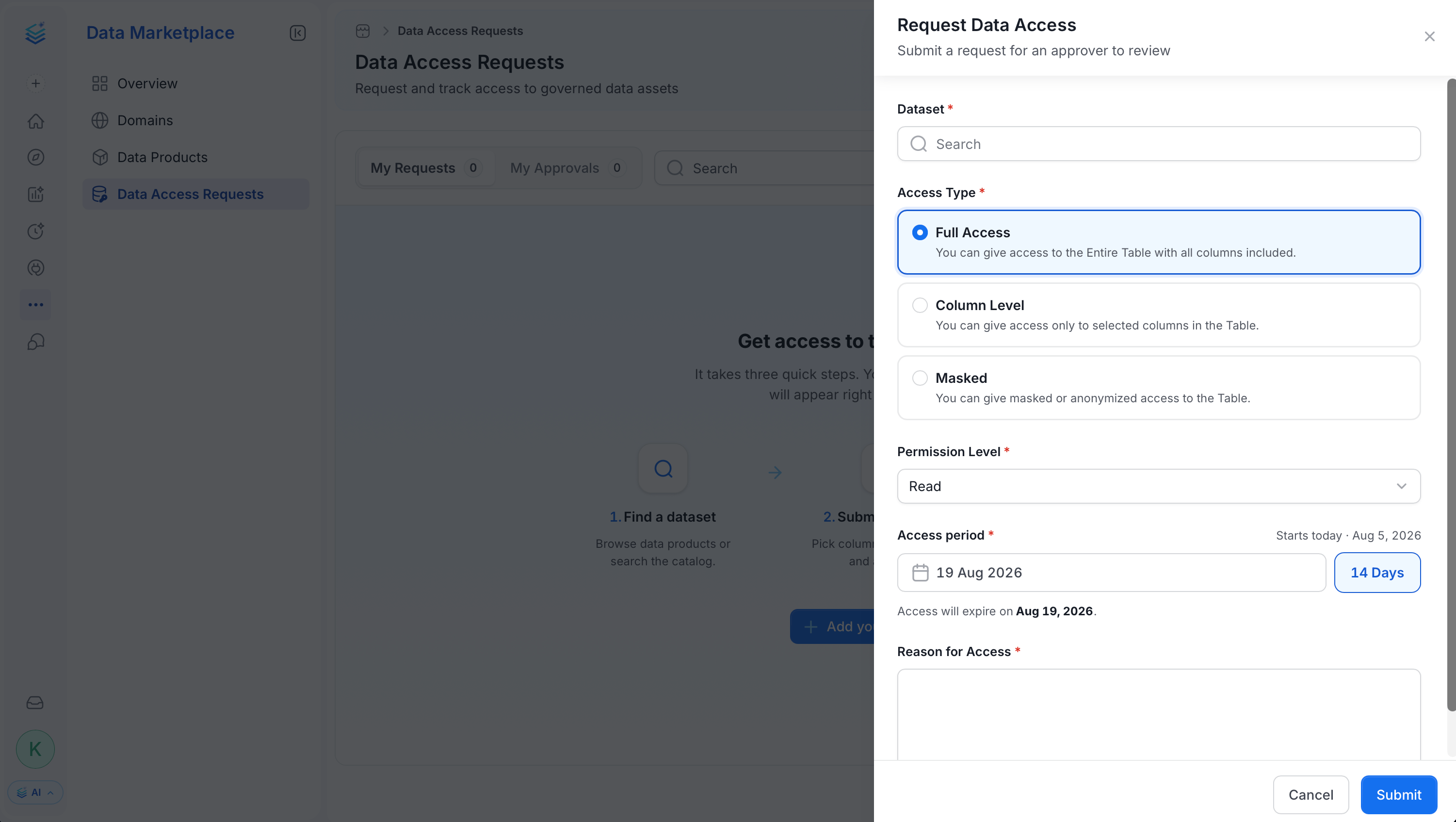
- Click Submit. The request is routed to the data product owner for approval.
Request Access From Data Assset Details Page
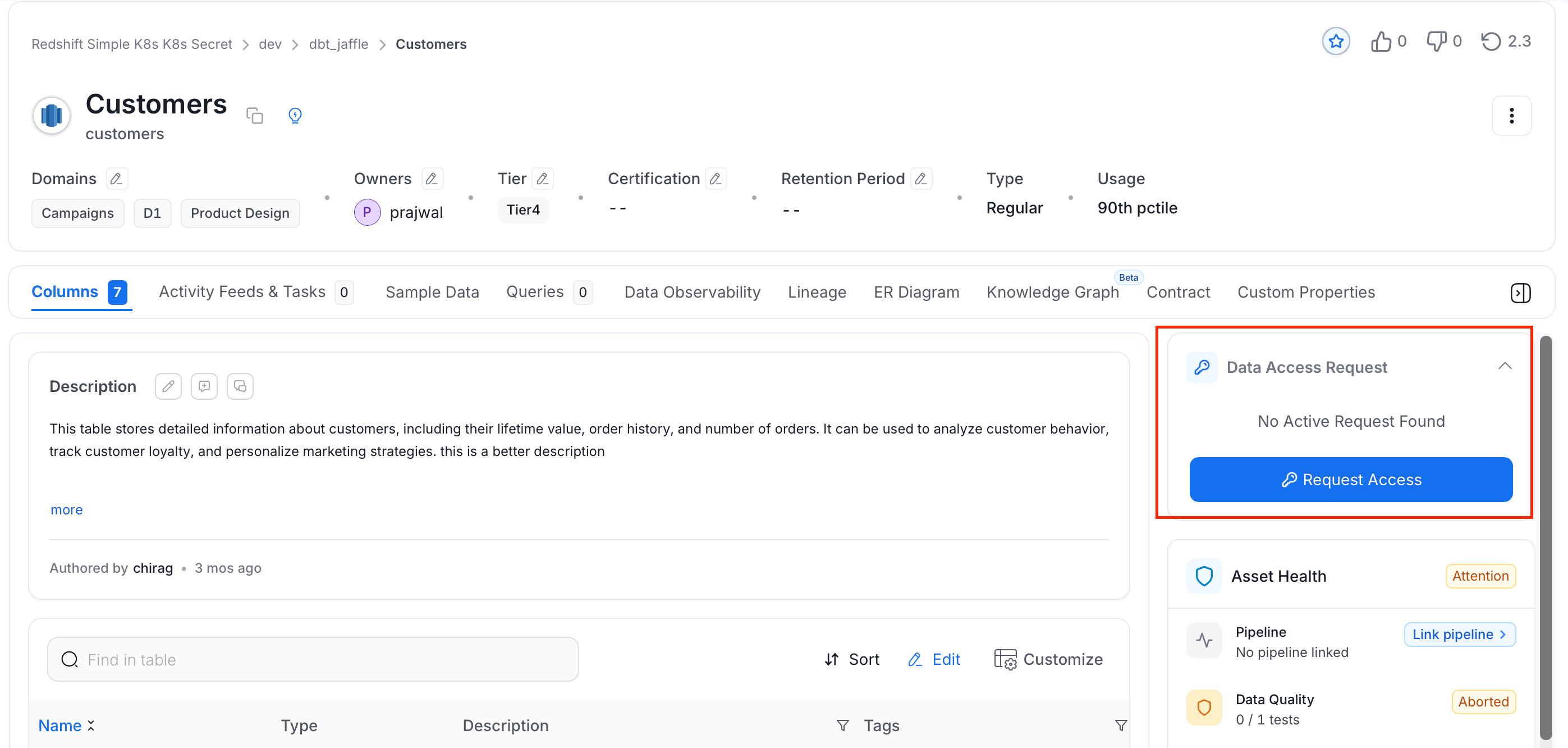
You can request access to specific data from data assets details page. To request access, follow these steps:- In the left navigation menu, click Connections and select the data asset whose access you need.
-
On the data asset details page, click Request Access.
-
Fill the following details:
-
Access Type (required): Choose the scope of access:
- Permission Level (required): Select Read, Write, or Admin.
- Access period (required): Set the expiration date. Defaults to 14 days from today.
- Reason for Access (required): Provide a business justification for the request.
-
Access Type (required): Choose the scope of access:
- Click Submit. The request is routed to the data product owner for approval.
Track Your Requests
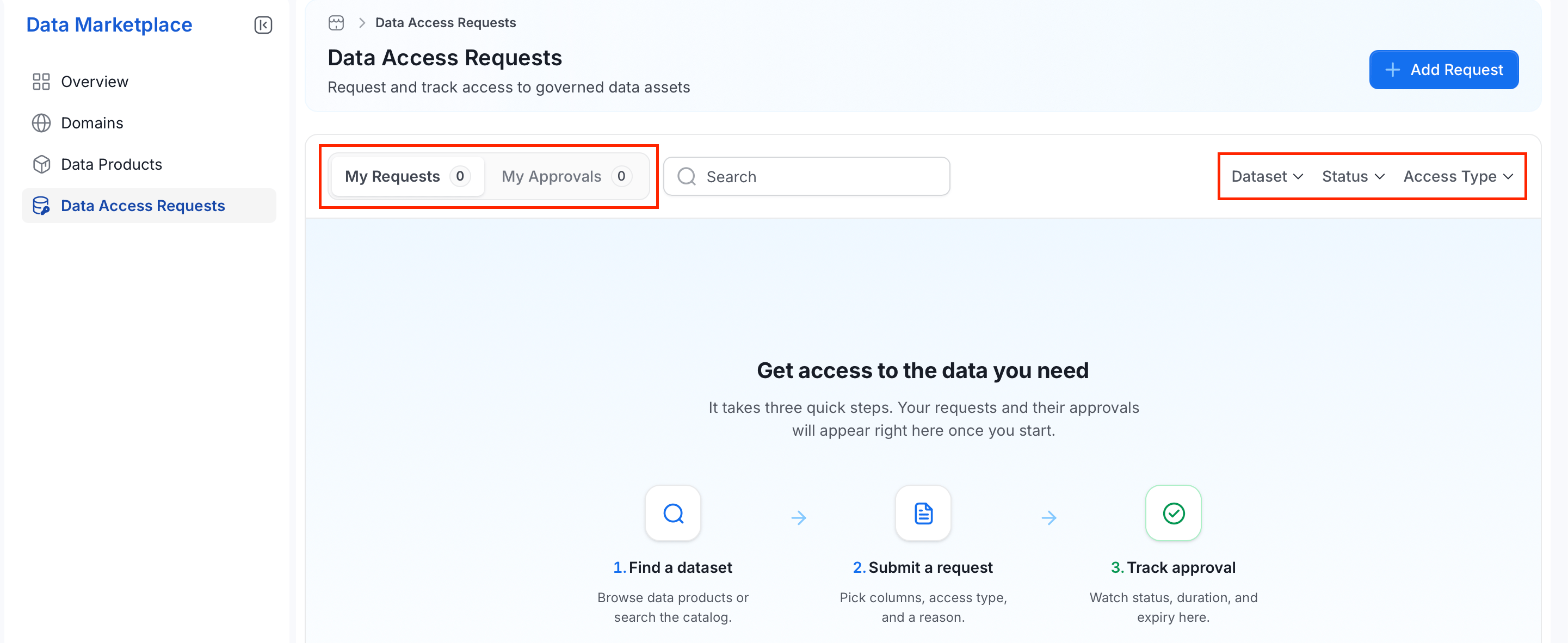
After submitting, track the status of your requests from the Data Access Requests page.- My Requests: Lists all requests you have submitted.
-
My Approvals: Lists requests assigned to you for review (visible to data product owners).
Filter Options
Use the Search bar to filter by dataset name or request reason. Use the dropdown filters to narrow results further:- Dataset — filter by a specific dataset.
-
Status — filter by request state:
- Access Type — filter by Full Access, Column Level, or Masked.
Review and Approve a Request
Data product and table owners (or configured reviewers) receive requests for their assets under My Approvals. If an asset has no owner or reviewer configured, the request routes to platform admins instead.- Go to Data Access Requests > My Approvals.
- Open a pending request to review the dataset, access type, permission level, access period, and reason for access.
- Click Approve to move the request forward, or Reject and provide a required comment explaining why.
How Access Is Granted
Once approved, Collate attempts to provision access automatically:- Automated: If the target service has a Policy Agent configured, Collate grants the requested access directly on the source system — no further action needed. The request moves straight to Granted.
- Manual: If no Policy Agent is configured, or automated provisioning couldn’t complete, the request moves to Approved (“awaiting grant”). An owner or reviewer provisions access outside Collate, then clicks Mark as Granted.
Revoking Access
Owners and reviewers can revoke a Granted request at any time:- Open the request and click Revoke Access.
- Provide a required comment explaining why.
Access Expiration
Every request has an access period that defaults to 14 days but can be extended when creating the request. What happens at expiration depends on the request’s stage:- Not yet granted (still Approved): the request closes automatically as Expired — no access was ever provisioned, so nothing needs to be torn down.
- Already granted: expiration triggers the same process as a manual revoke. If Collate can remove access automatically, the request closes as Revoked; otherwise it moves to Awaiting Manual Revoke.
If Automatic Provisioning Fails
If Collate can’t fully grant or revoke access automatically — for example, the source system rejects the change, or the request spans multiple assets and only some succeed — the request falls back to the manual Approved or Awaiting Manual Revoke stage instead of failing silently. The request detail view shows the reason so an owner knows exactly what to finish by hand.Audit Trail
Every request keeps a running history for compliance and troubleshooting:- Activity timeline: who submitted the request and when, who approved or rejected it, and who ultimately granted or revoked access.
- Comments: requesters and approvers can leave comments on a request, which stay attached to it as a discussion record.