
Collate Desktop
Collate Desktop is a dedicated app for macOS and Windows that puts your whole Collate workspace, Home, Explore, Governance, AI Analytics, and more, on your desktop, no browser tab required. It opens your hosted Collate instance directly and adds native touches like deep links, a global command palette, and desktop notifications.Download Collate Desktop
Get the macOS or Windows installer.
Key Features
Collate Desktop opens your hosted Collate instance in a native window, so every area of the product looks and works the same as it does in the browser.Home
Your home dashboard surfaces platform health, pending approvals, announcements, and recommended improvements as soon as you open the app.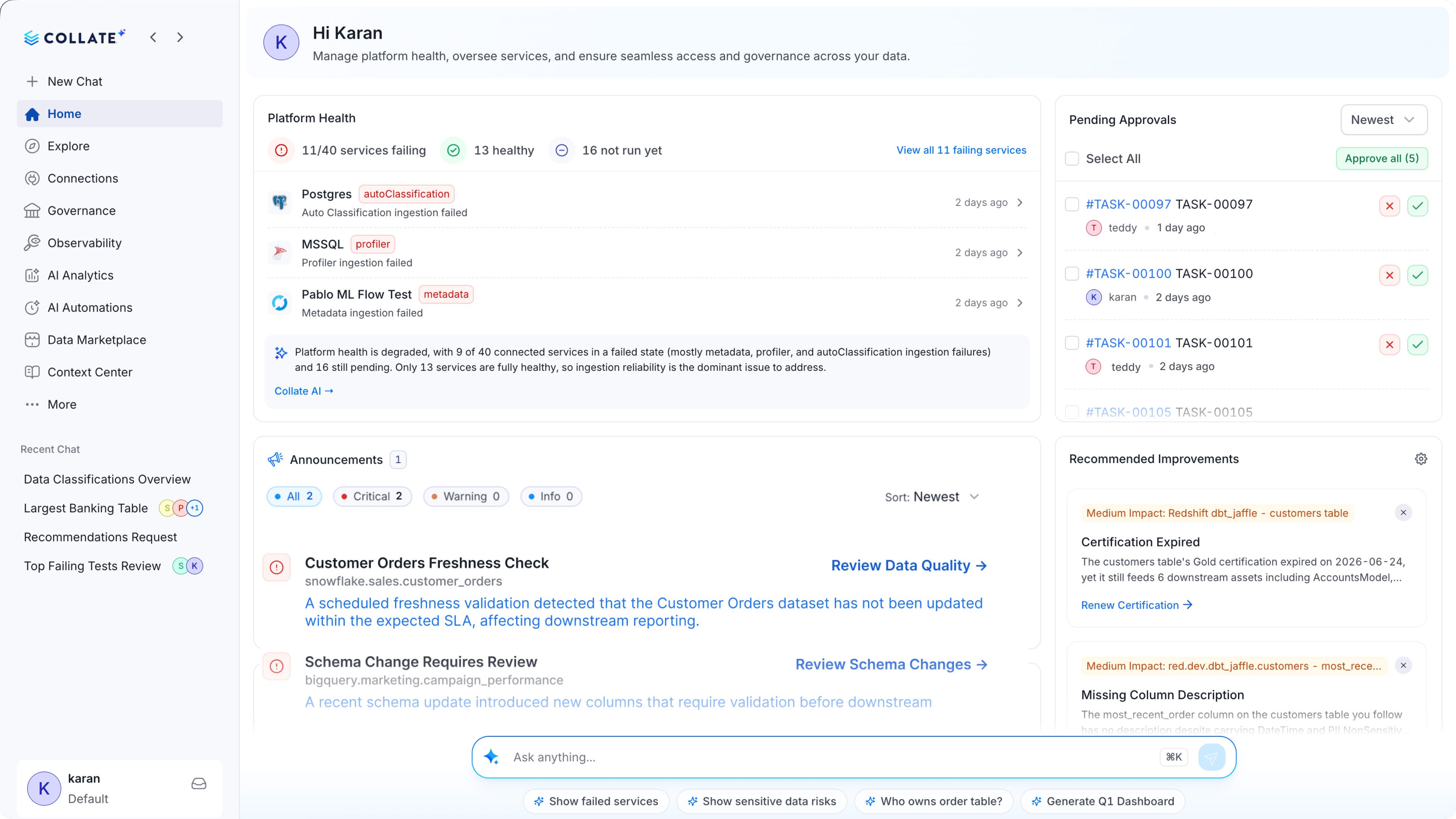
Explore Your Catalog
Browse databases, dashboards, pipelines, and every other asset in your data estate, with filters for domain, owner, tag, and tier.
Connections
View and manage every connected service across your data platform from one screen.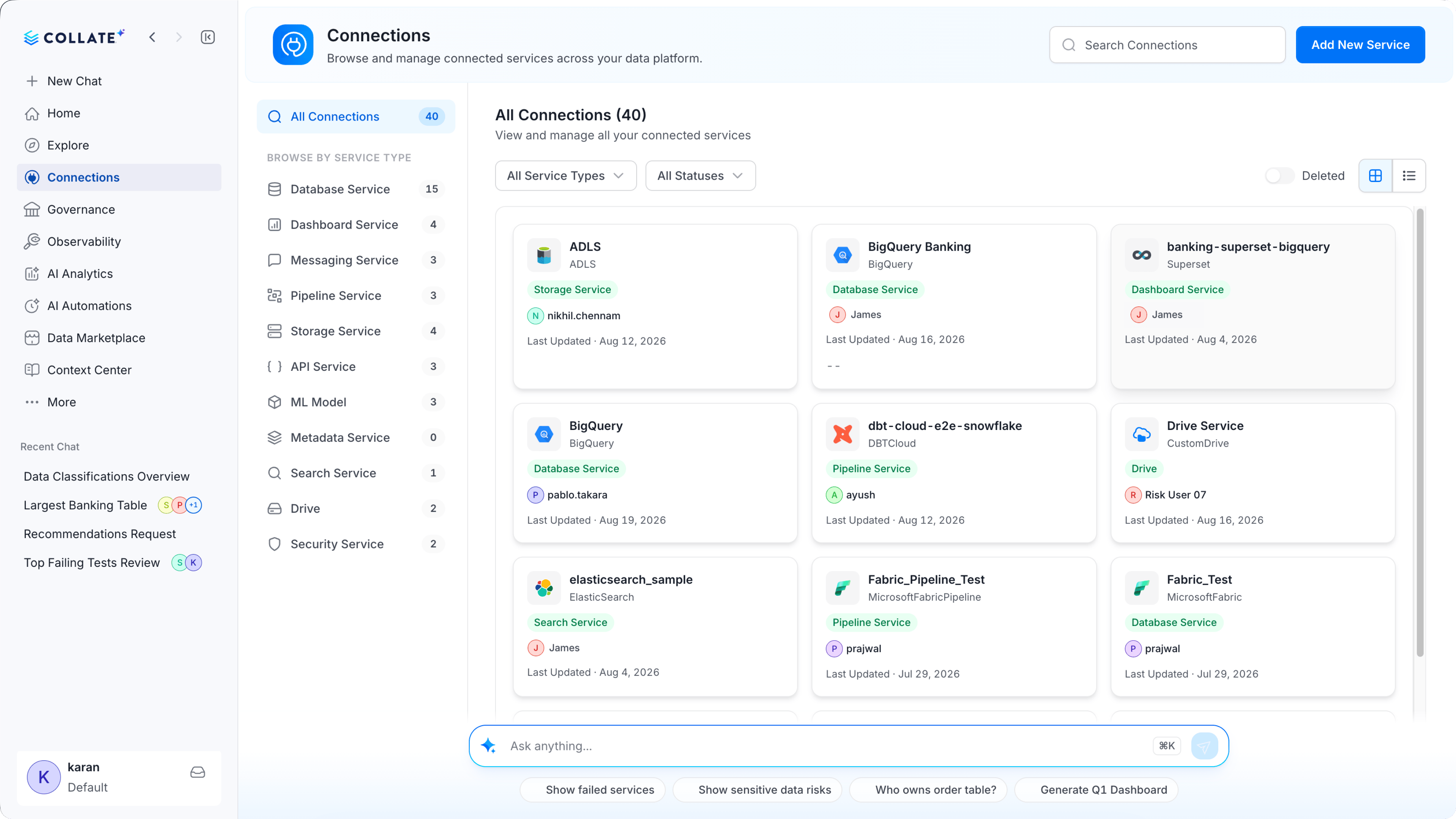
Governance
Manage glossary terms, classifications, and metrics that keep your data estate consistent and compliant.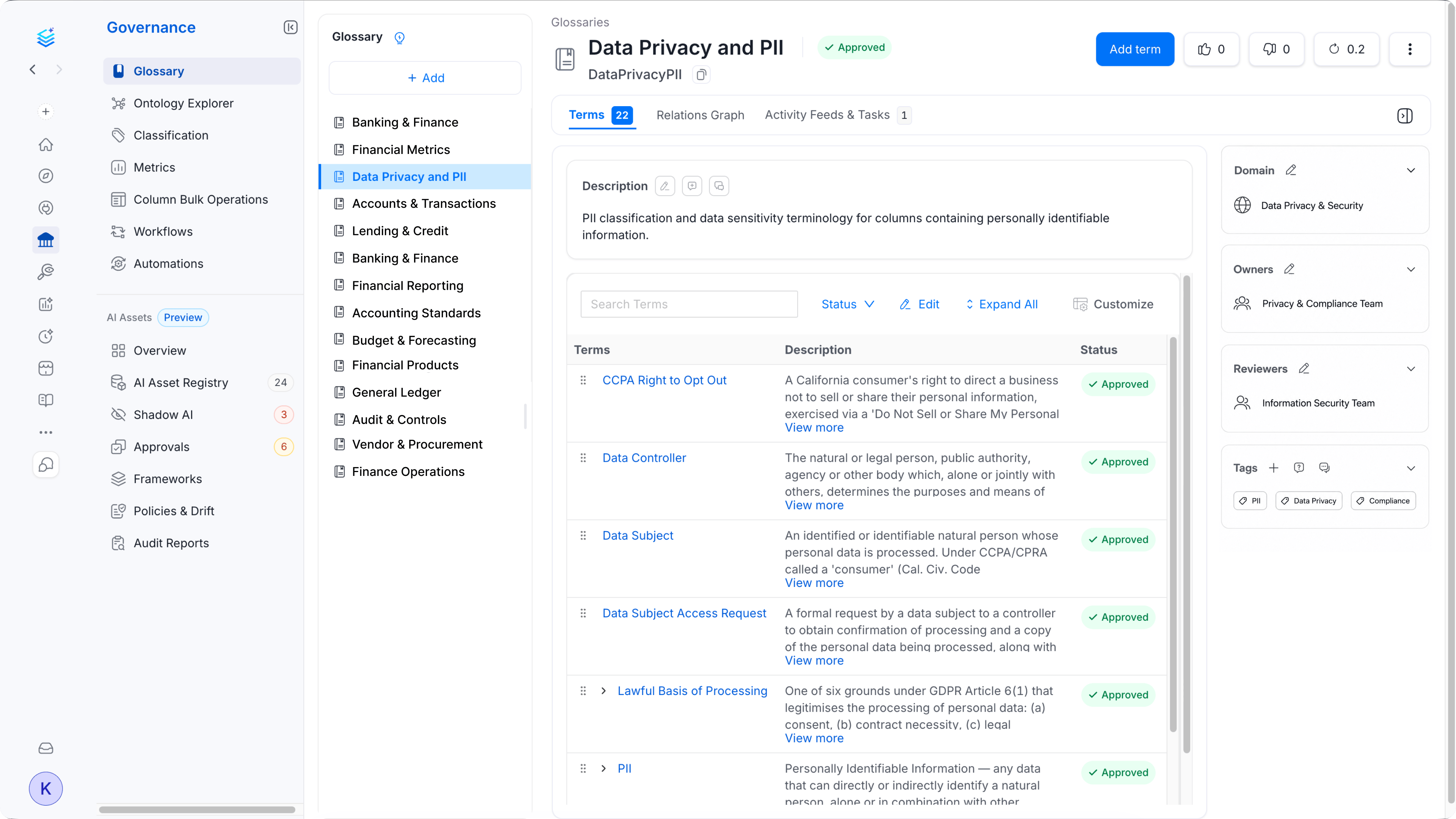
Observability
Monitor data quality with test case results, data health scores, and dimension-level breakdowns like accuracy and completeness.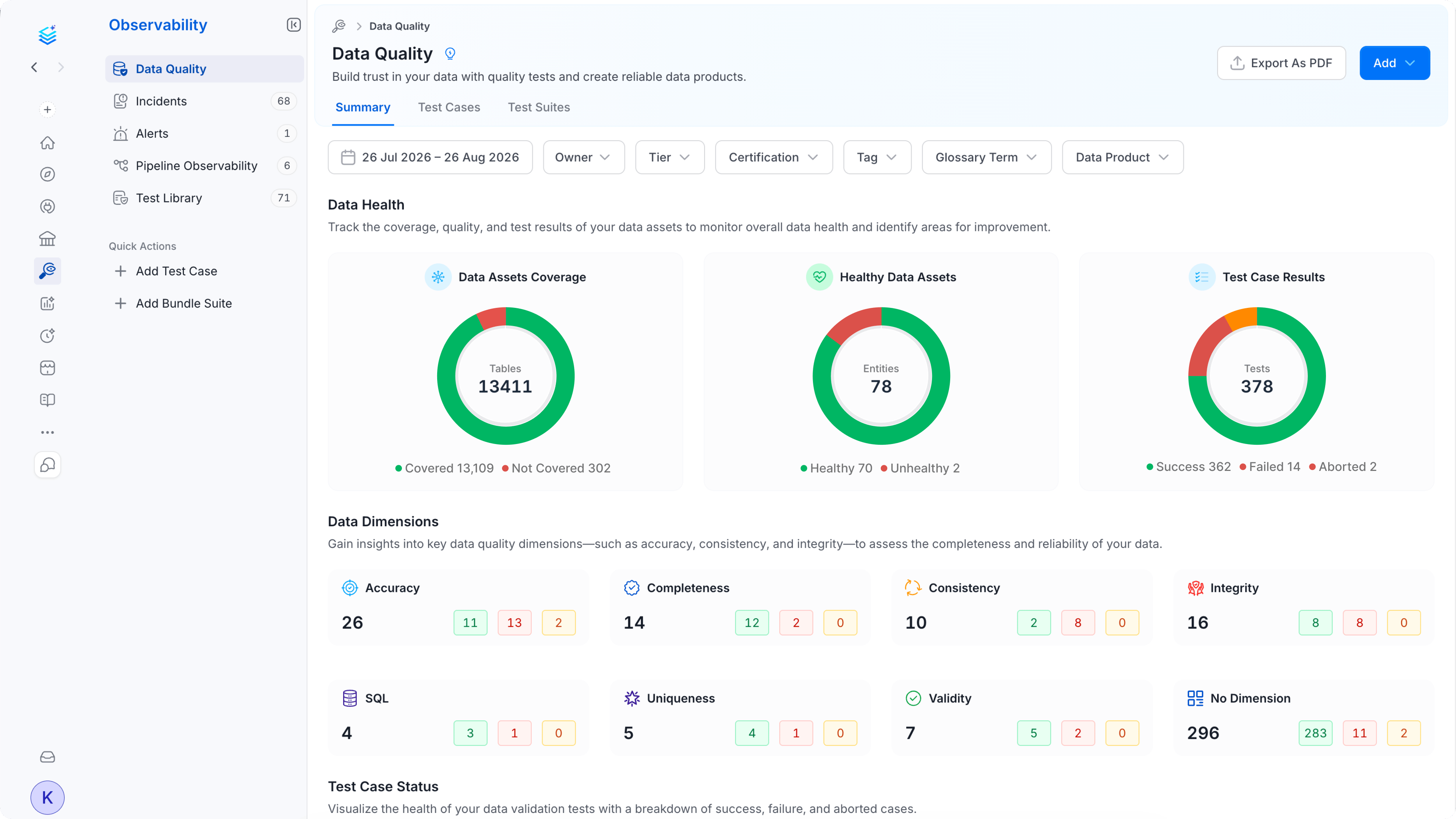
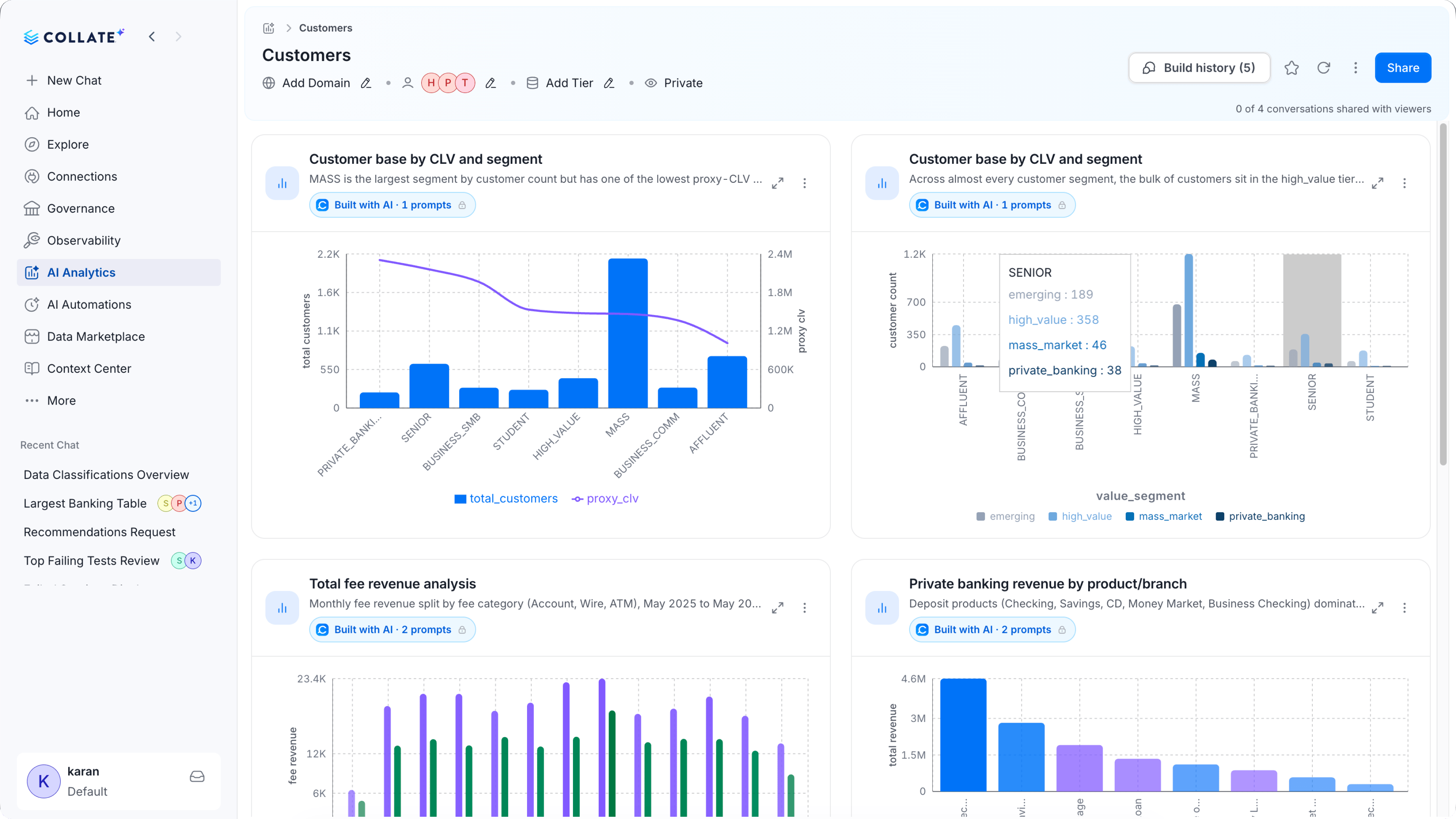
AI Analytics
Create and browse dashboards built with Collate AI, from high-level summaries down to chart-level detail.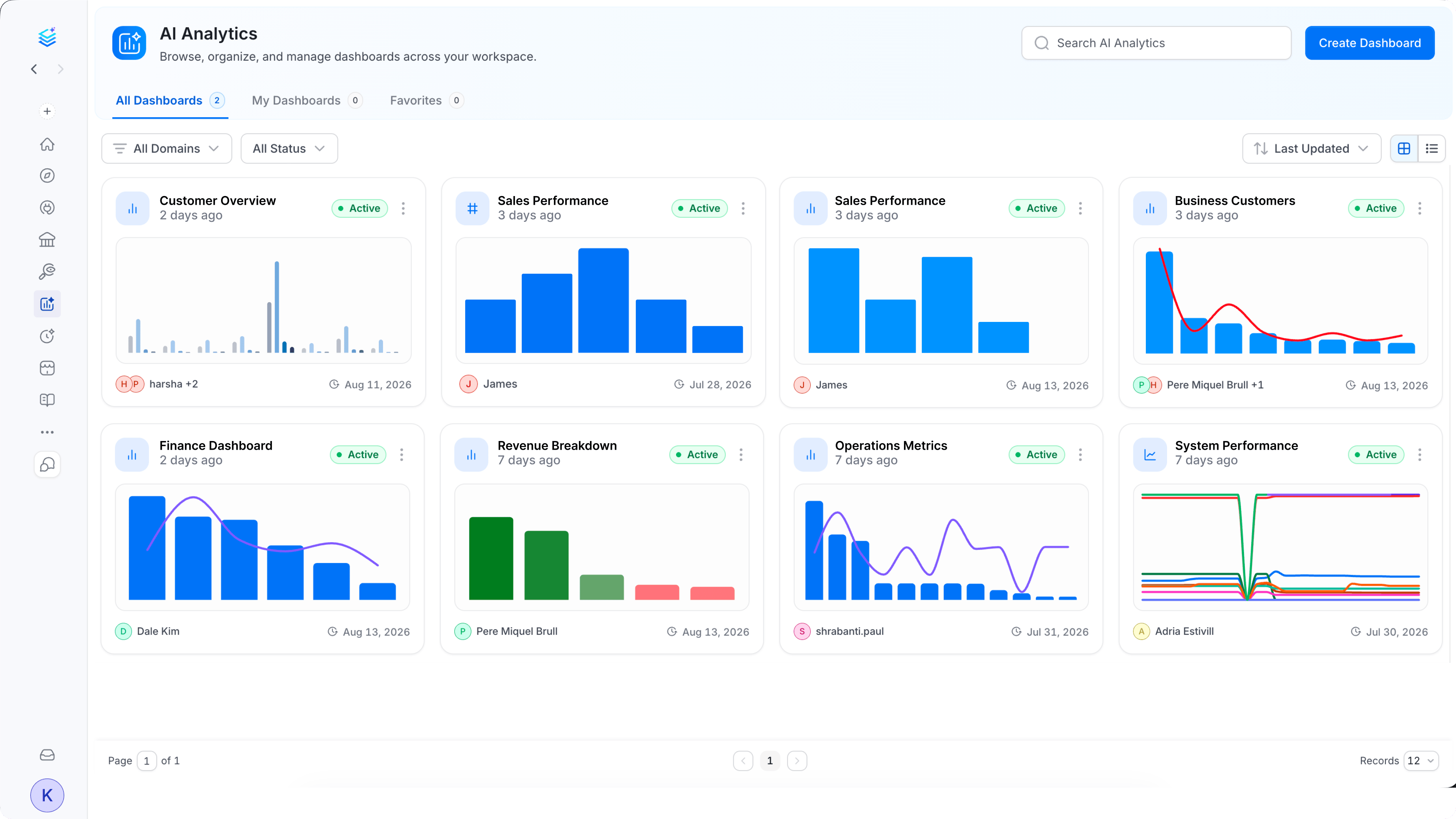
AI Automations
Automate routine data work with agents that document, test, and classify your data on a schedule.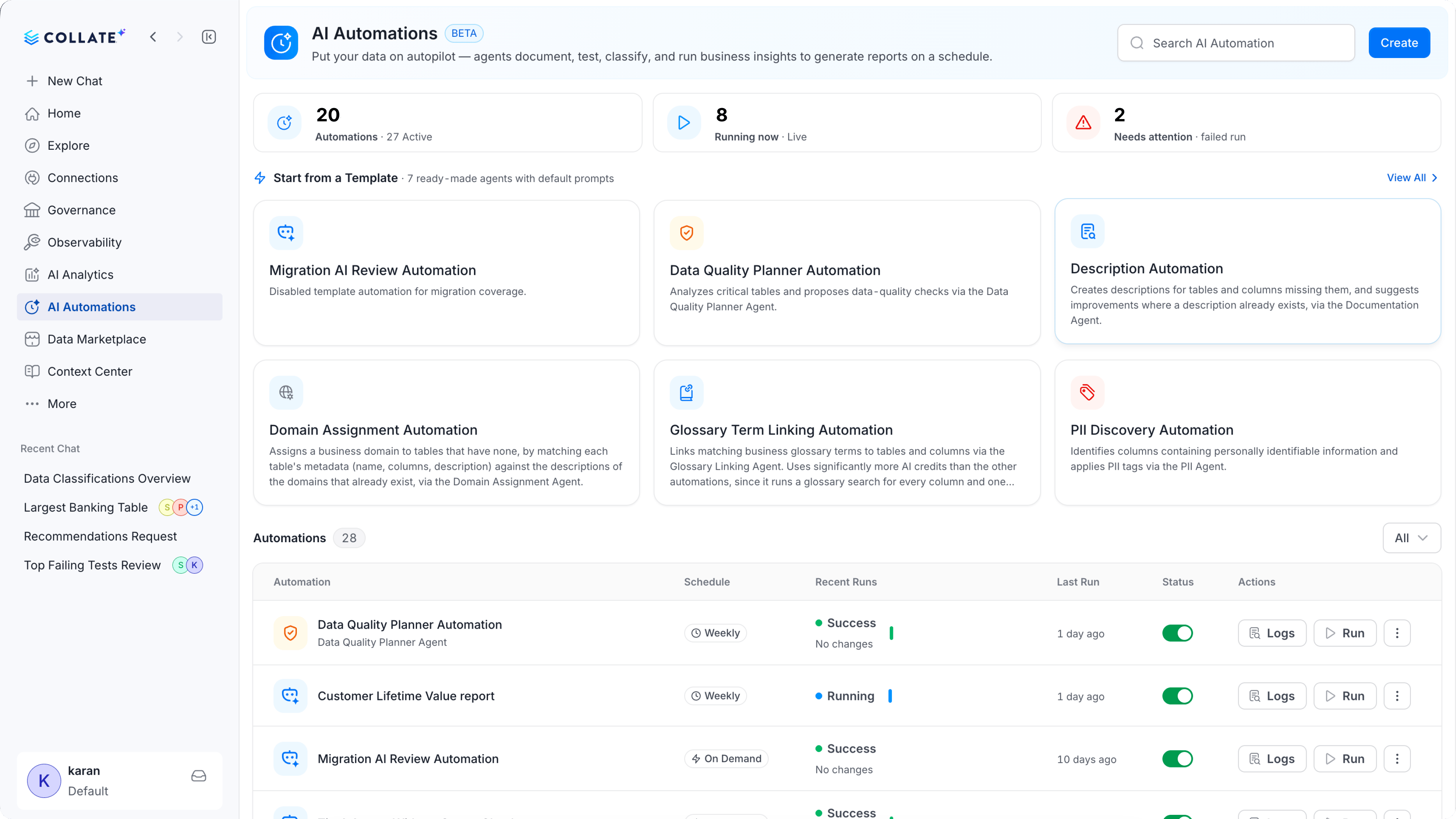
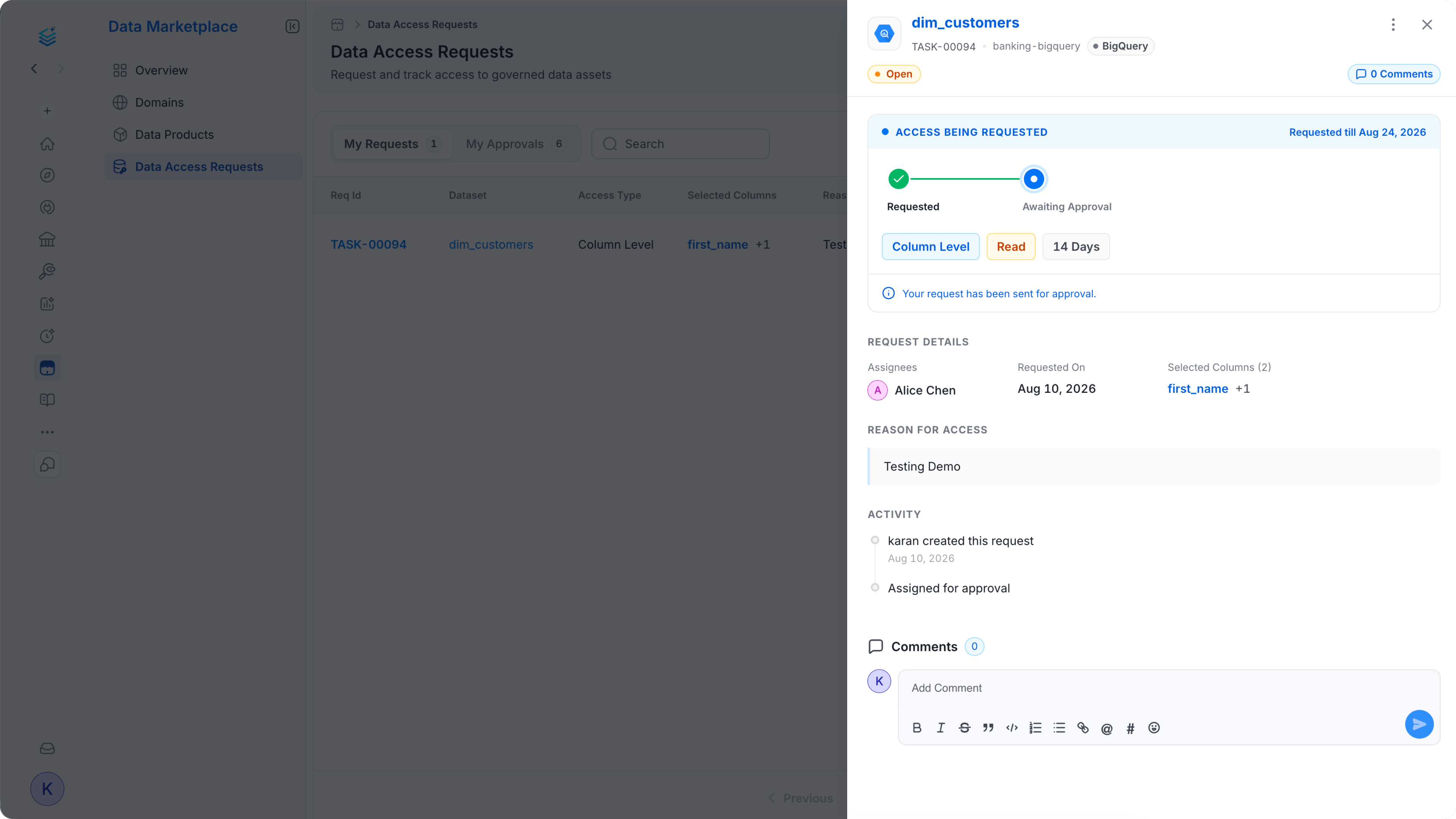
Data Marketplace
Discover trusted data products and domains, and track data access requests from one place.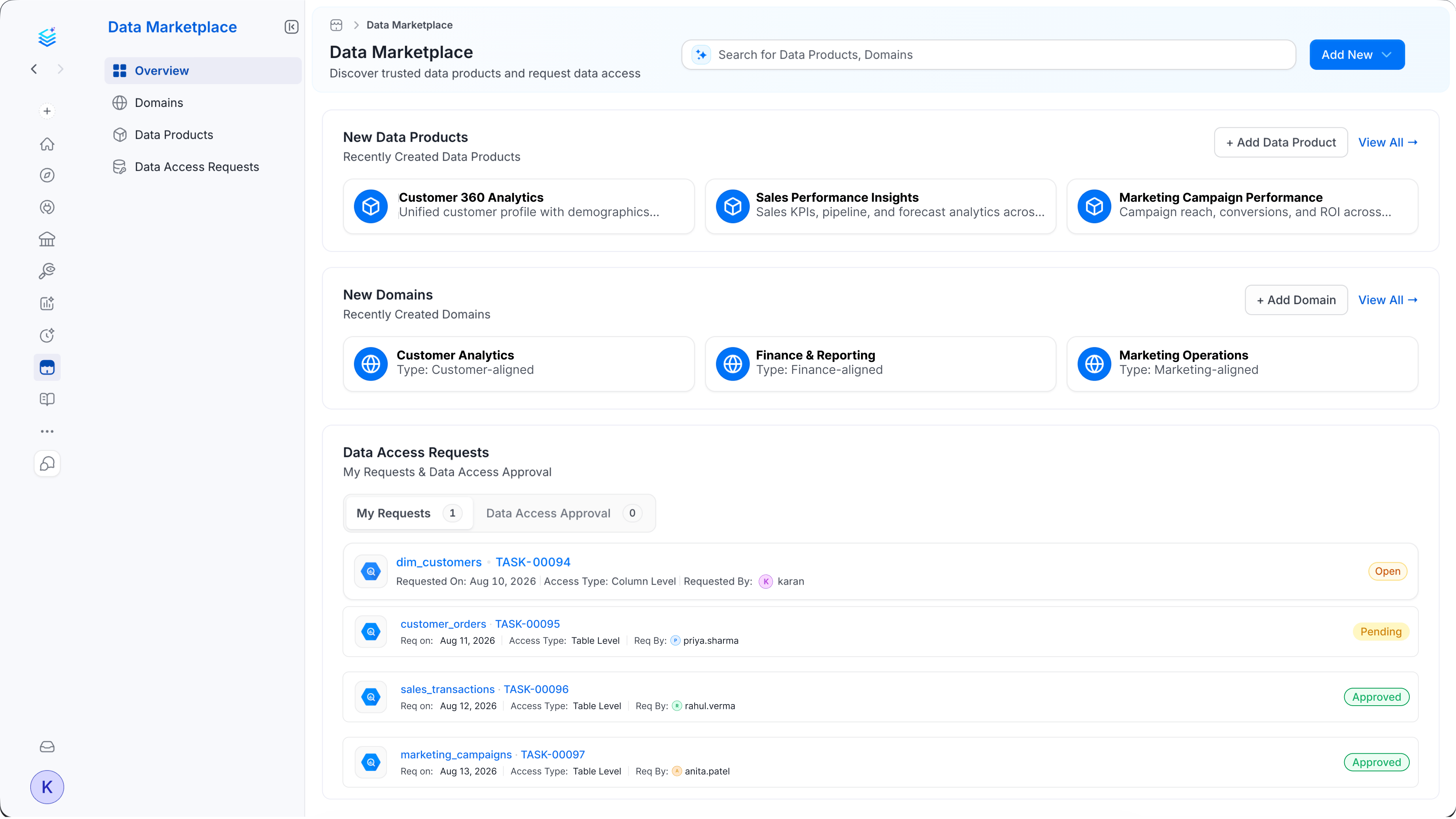
Context Center
Keep your knowledge base close at hand, with articles, documents, and memories the AI can reference.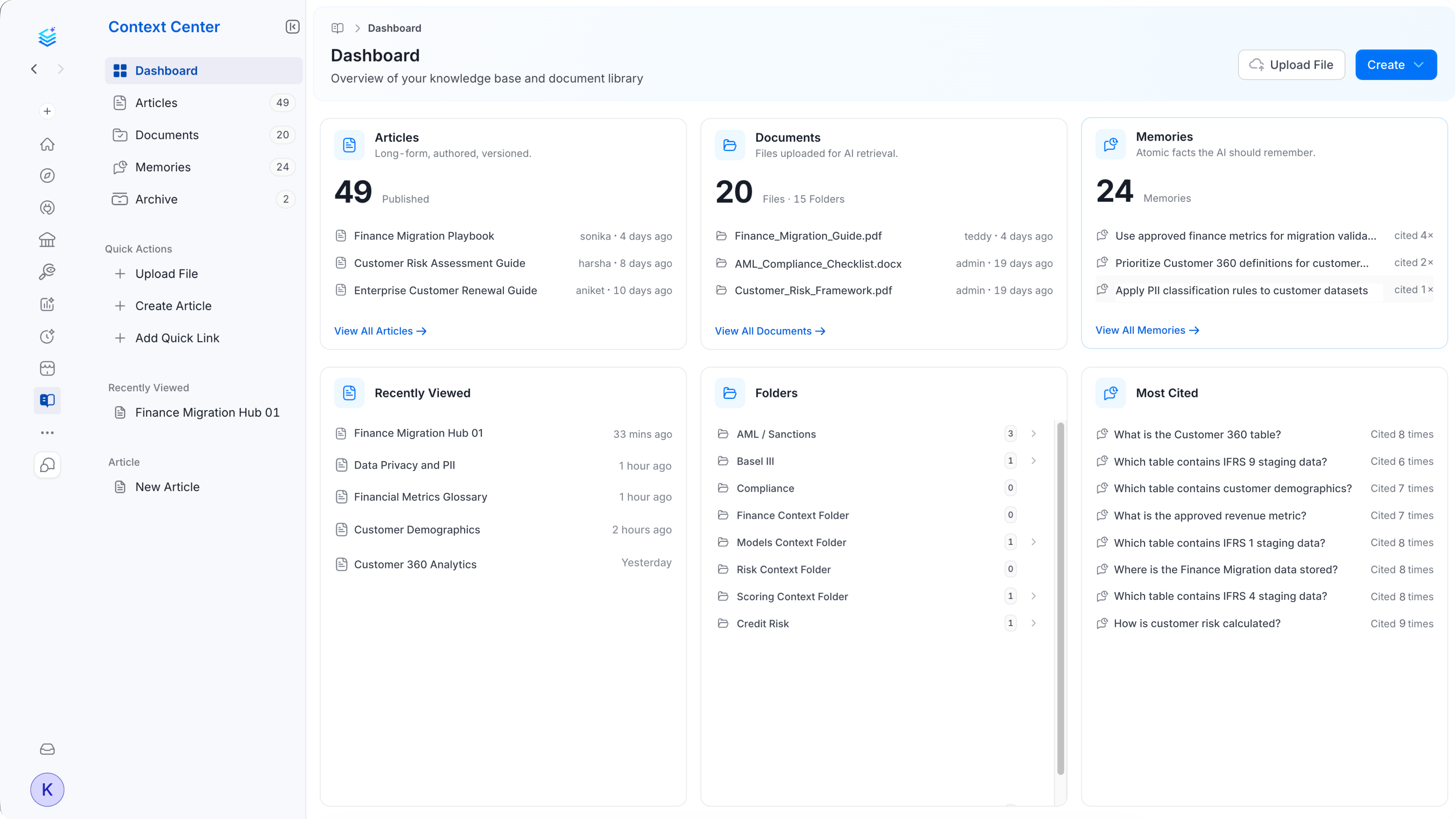
AI Studio
Build and manage the AI agents that power your automations and AI chat experience.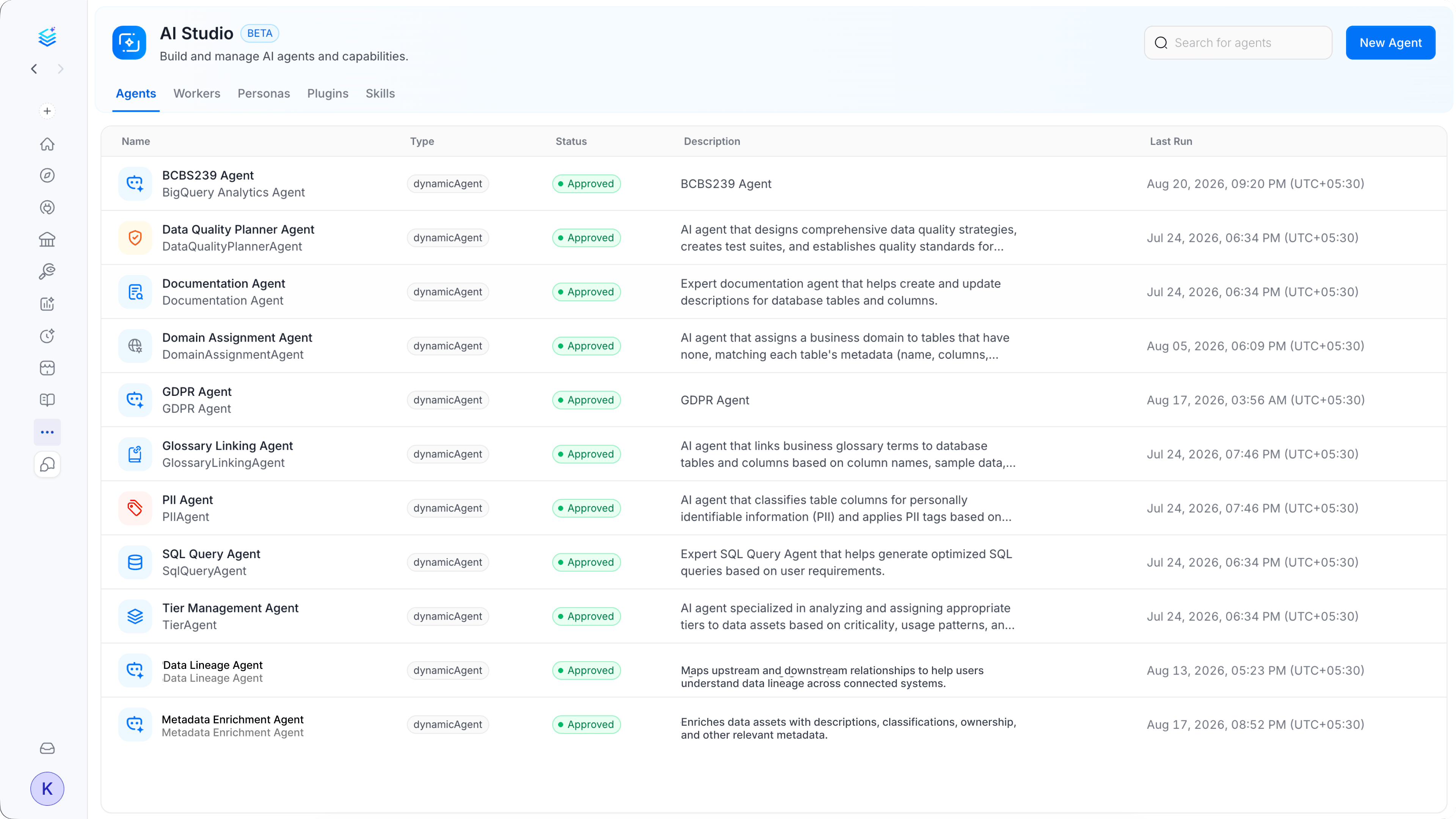
Key Capabilities
Deep-Link Protocol (collate://)
Collate Desktop registers the collate:// link type on your computer. Deep links let any app, notification, or message open a specific view in Collate Desktop with a single click. Supported deep-link actions include:
- Chat prompts:
collate://chat?prompt=<your-question>opens Collate AI Chat with a question already filled in. - Asset FQNs:
collate://asset?type=table&fqn=<fqn>opens the detail page for any data asset by its Fully Qualified Name. - Search:
collate://search?query=<query>opens the Explore page with a search term already filled in. - Notifications:
collate://notifylets the web app send native desktop notifications that link back to the relevant activity or task. - Auth callbacks: SSO redirects route through
collate://auth-callback?url=<encoded-url>so browser-based SSO flows finish inside the app.
Global Command Palette
PressCmd+Shift+Space (macOS) or Ctrl+Shift+Space (Windows) from anywhere on your desktop to open the Collate AI Chat command palette. Enter a question, paste an asset name, or enter a collate:// deep link. No window switching or browser tab required.
Native Menus and System Tray
Collate Desktop includes a native menu bar (macOS) and system tray icon (Windows and macOS) for quick access to common actions, recent searches, and notification summaries.File Associations
Collate Desktop registers as the default handler for the following file types:Automatic Updates
Collate Desktop checks for updates automatically in the background. When a new version is available, an in-app prompt appears at the bottom of the window. Select Install Update to apply the update and restart the app. Updates are silent and do not require you to sign in again.Native Browser-Based SSO
Collate Desktop handles SSO by opening your organization’s login page in the system browser. After sign-in, the browser redirects tocollate://auth-callback, which hands control back to the desktop app and stores the session securely.
Installation
Download Collate Desktop from collate-desktop.getcollate.io. Installers are available for both macOS and Windows.macOS
- Download the
.dmgfile. - Open the
.dmgand drag the Collate app to your Applications folder. - Launch Collate from Applications or Spotlight.
Windows
- Download the
.exeinstaller. - Run the installer and follow the prompts.
- Collate Desktop appears in your Start Menu and system tray after installation.
Connecting to Your Collate Instance
On first launch, Collate Desktop prompts you to enter your organization’s Collate workspace URL.- Enter your workspace URL in the format
https://<your-org>.getcollate.io. - Select Connect.
- Sign in using your organization’s SSO provider. The login page opens inside the app.
- After you sign in, Collate Desktop takes you to your home screen.
Using the Command Palette
The global command palette is the fastest way to use Collate AI Chat from anywhere on your desktop.- Press
Cmd+Shift+Space(macOS) orCtrl+Shift+Space(Windows) from any application. - The Collate AI Chat command palette appears in the foreground.
- Enter a question (for example, “What is the customers table used for?”), paste an asset name, or paste a
collate://deep link. - Press Enter to submit.
Deep Links
Usecollate:// deep links to navigate directly to specific views in Collate Desktop from external sources such as Slack messages, emails, Jira tickets, or CI/CD notifications.
Open a Collate URL
url parameter.
Open a Chat with a Pre-Filled Prompt
+ or %20.
Open an Asset by Fully Qualified Name
table, dashboard, or pipeline) and its Fully Qualified Name as query parameters.
Open a Search
Open Preferences
Cmd+, on macOS.