Collate SaaS is the simplest way to connect a data source. Collate connects directly to your data source from its cloud — no local agent or additional infrastructure required.
Tip:
When to use this: Use Collate SaaS when your data source is accessible from the internet or you’re able to allowlist an IP address in your data source’s firewall settings.
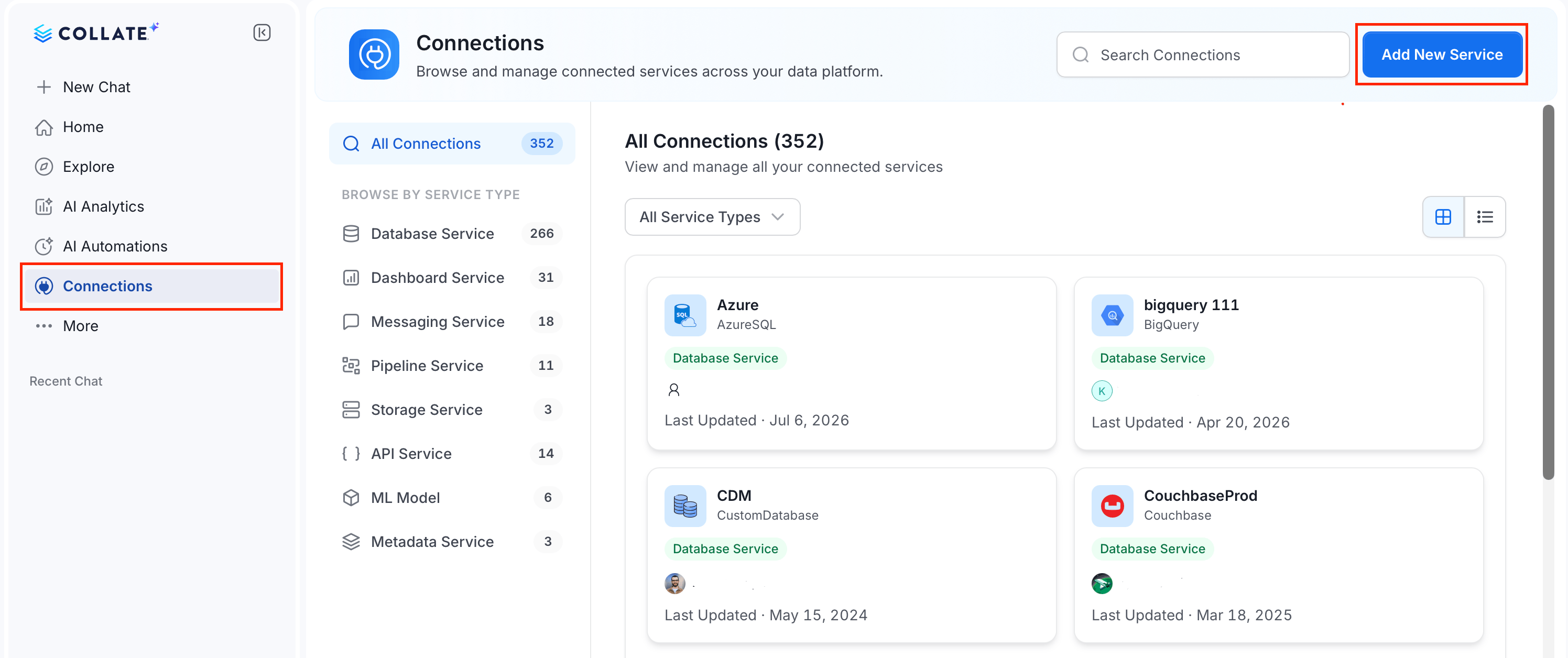
In the left navigation bar, select Connections and click Add New Service.
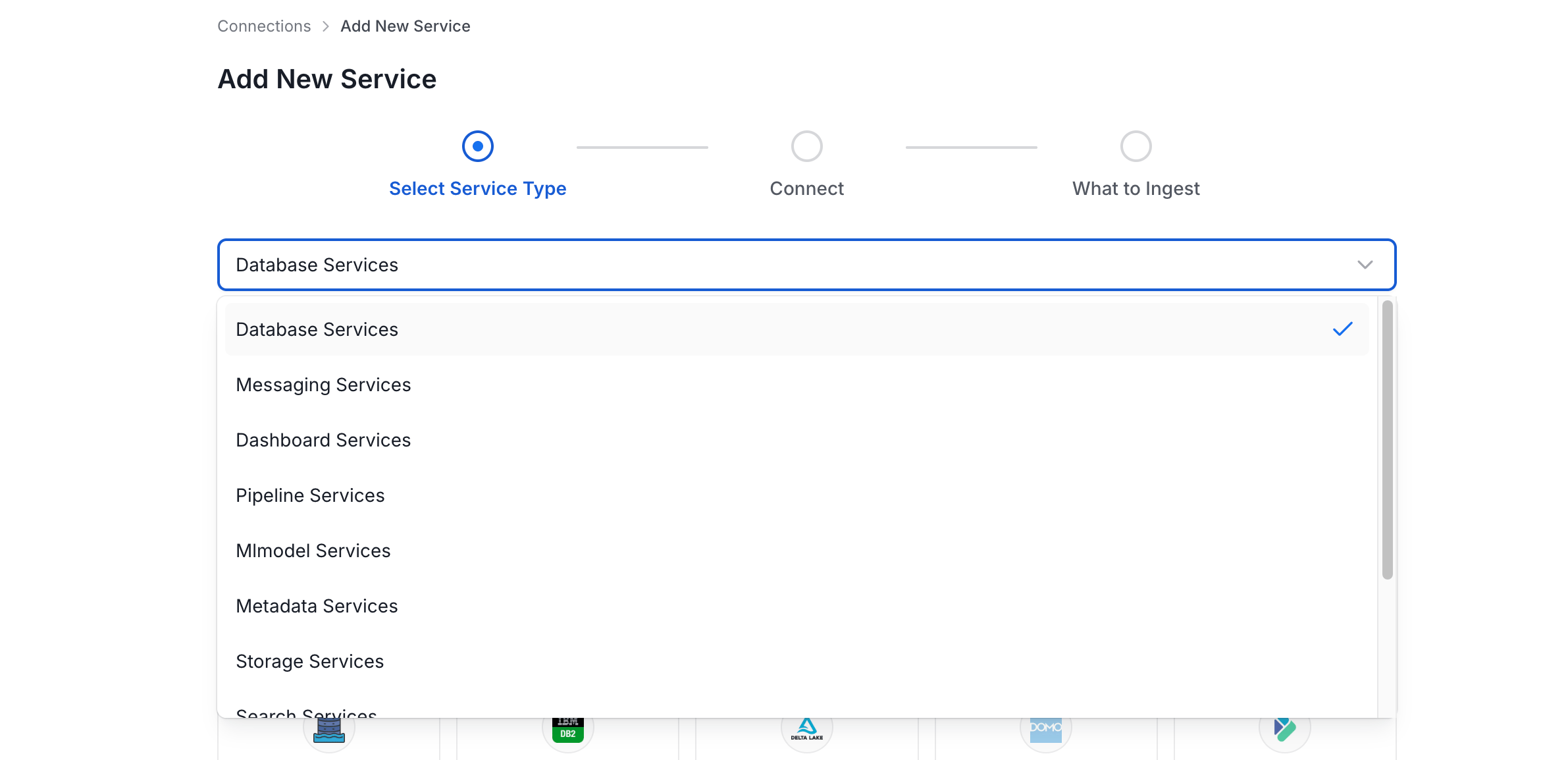
On the Add New Service page, select the service type and click the connector you want to add.
Enter a unique Service Name. Optionally, add a description.
In the Ingestion Runner drop-down, select Collate SaaS Agent.
Enter the Connection Details.
Note: The connection details vary based on the selected service type and connector.
For more information about configuring each connector, see Connector.
In the Connection Details, you will see the IP Address unique to your cluster. Add this IP to your data source’s allowlist so Collate can access your data source.
Note: This step applies to Collate SaaS only. If you’re using the Hybrid Runner, no IP allowlist is needed — the runner connects from inside your own infrastructure.
Click Test Connection. The test confirms the service is reachable and the credentials are valid.After connection test is successful, click Next: What to Ingest.
Set the filter patterns to control which assets Collate ingests from your database service. Filter patterns use regular expressions applied to asset names.
Click Create & Deploy. Collate saves the service configuration and immediately begins pulling metadata from the source.When you click Create & Deploy the services, Collate automatically deploys a Metadata Agent for this service and triggers the first ingestion run. You can view its status and run history from the Agents tab on the service detail page.