Invite Users
Collate 2.0 is built for collaboration. Invite your data engineers, analysts, and governance leads so they can discover data, review lineage, and participate in governance workflows.Invite a user
-
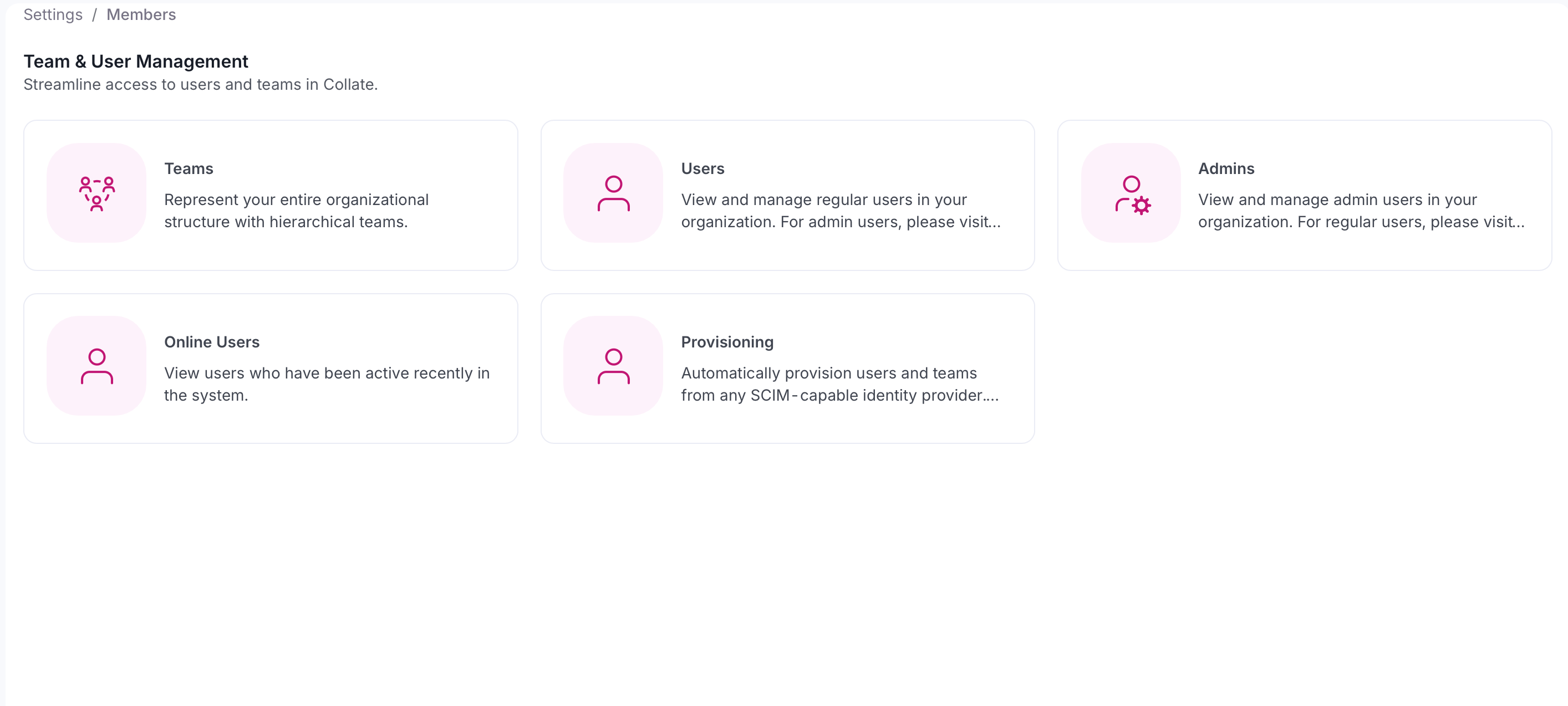
Select the Profile icon and navigate to Settings > Team & User Management > Users.
-
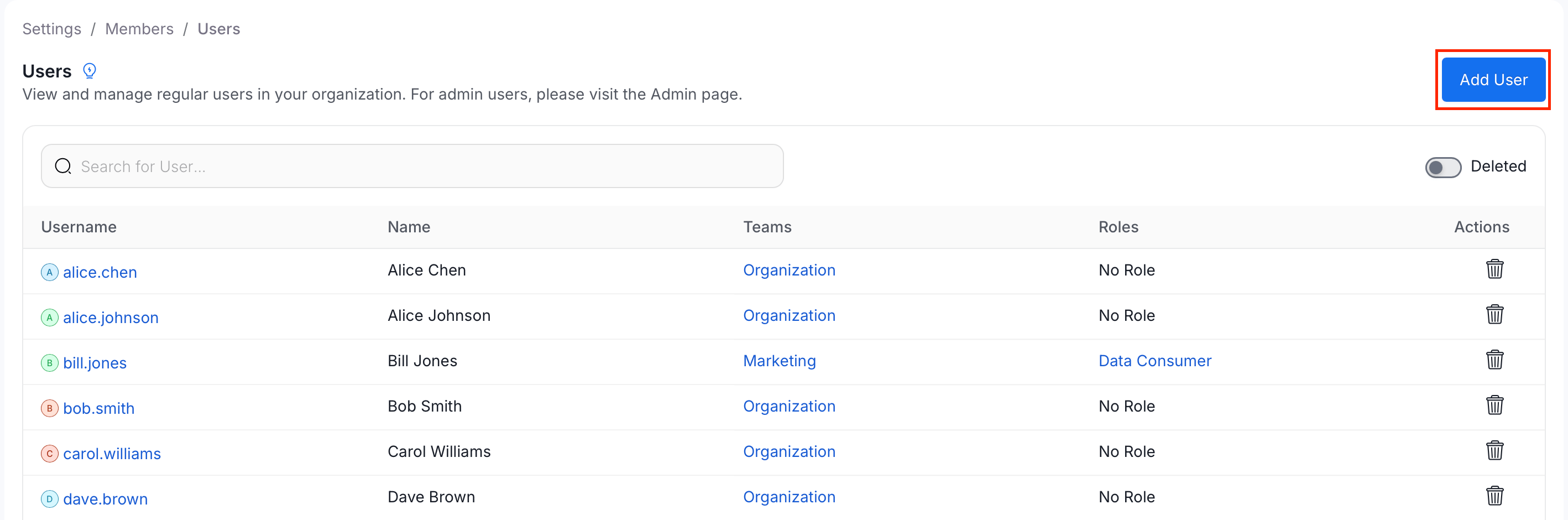
Click Add User.
-
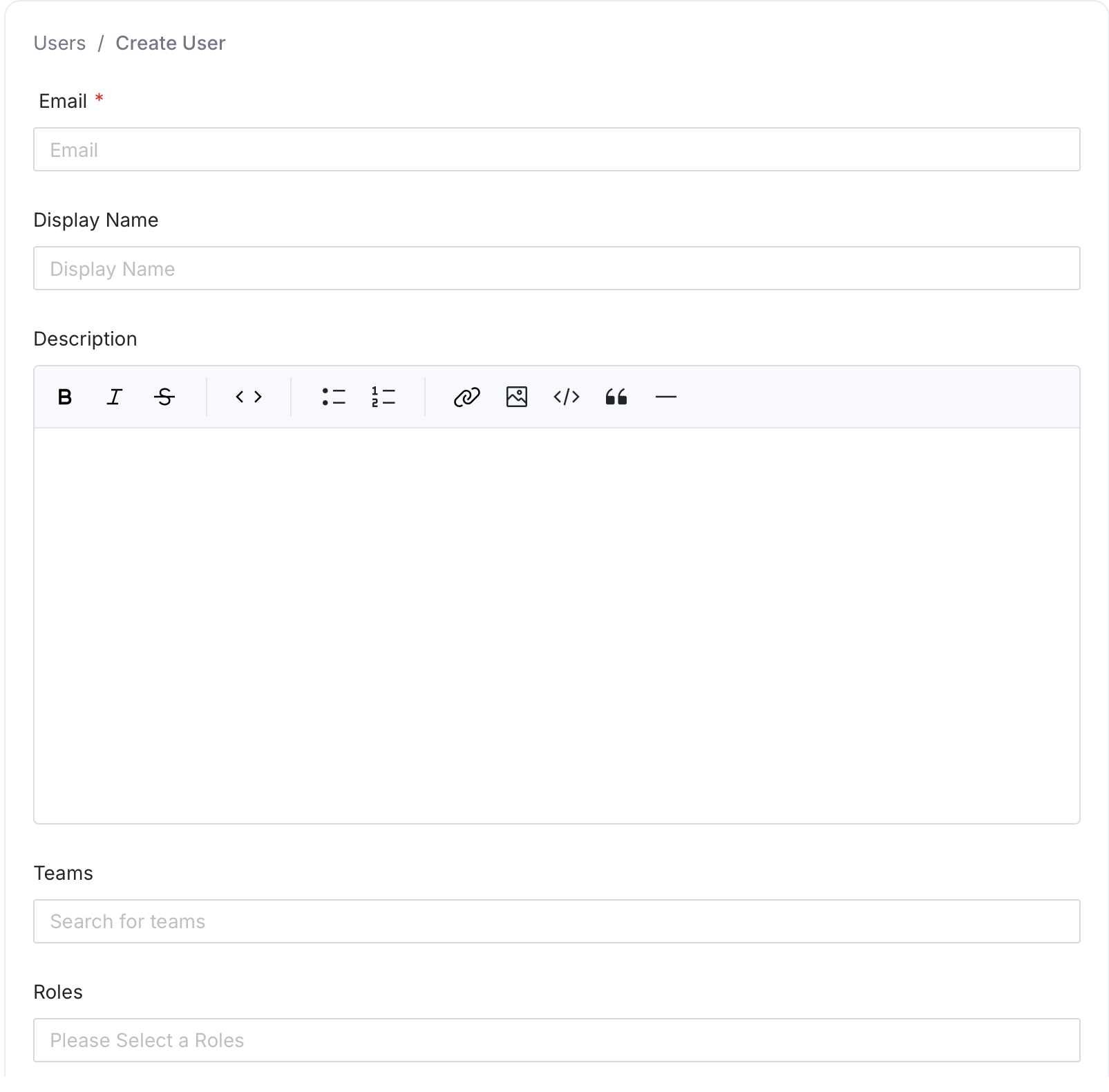
Fill in the following details and click Create:
- Email (required) — The user’s email address.
- Display Name (optional) — The name shown in the Collate UI.
- Description (optional) — Add context about the user’s role or responsibilities.
- Teams (optional) — Search and select one or more teams to assign the user to.
- Roles (optional) — Select one or more roles to assign directly to the user.
- Admin (optional) — Toggle on to grant the user full admin access.
Note: If you were invited by email, you need to finish setting up your account before you can log in. If your company uses SSO (single sign-on), your account is created automatically the first time you log in.
Roles
Collate uses role-based access control (RBAC). The built-in roles are:
You can also create custom roles with fine-grained permissions under Settings > Roles & Policies.
Teams
Teams let you group users by function such as Data Engineering, Analytics, and Finance. Teams can own data assets, be assigned governance tasks, and receive notifications.-
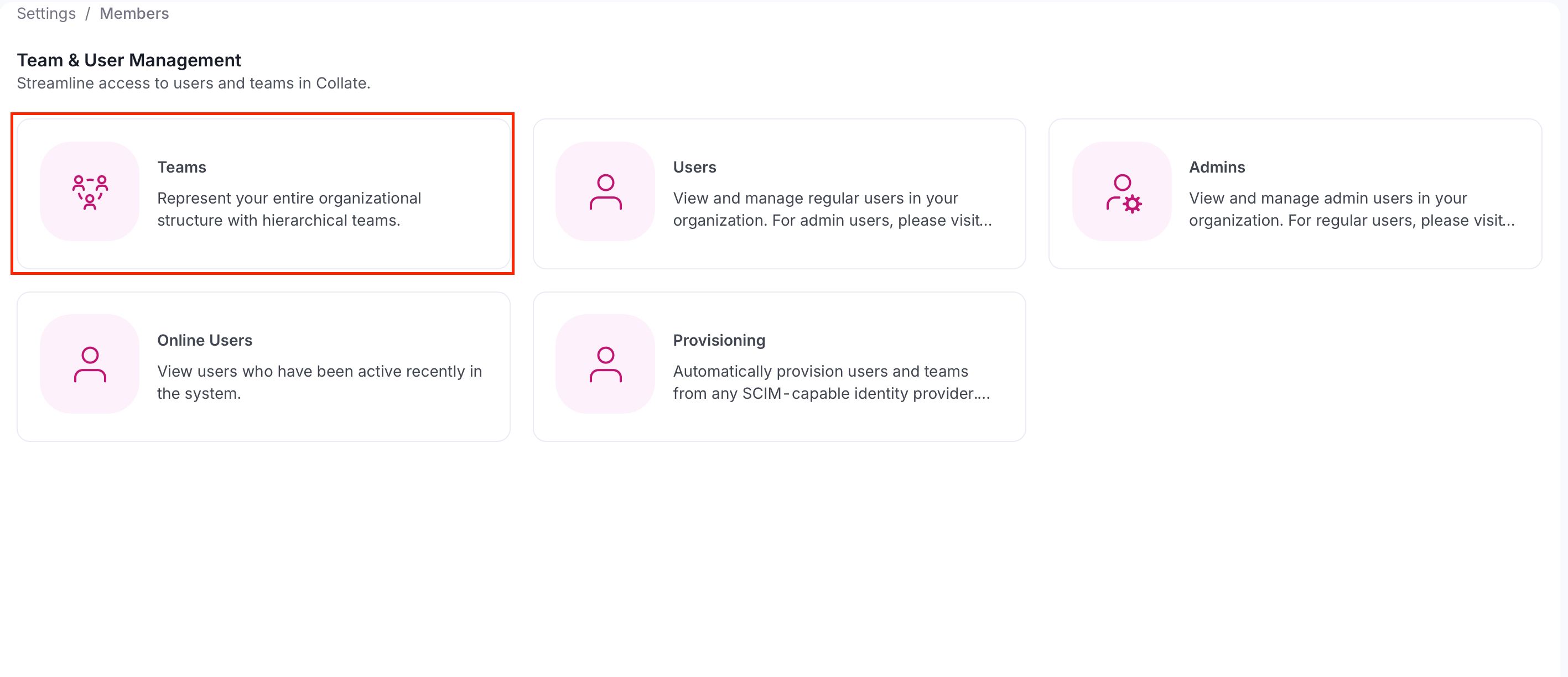
Select the Profile icon and navigate to Settings > Team & User Management > Teams.
-
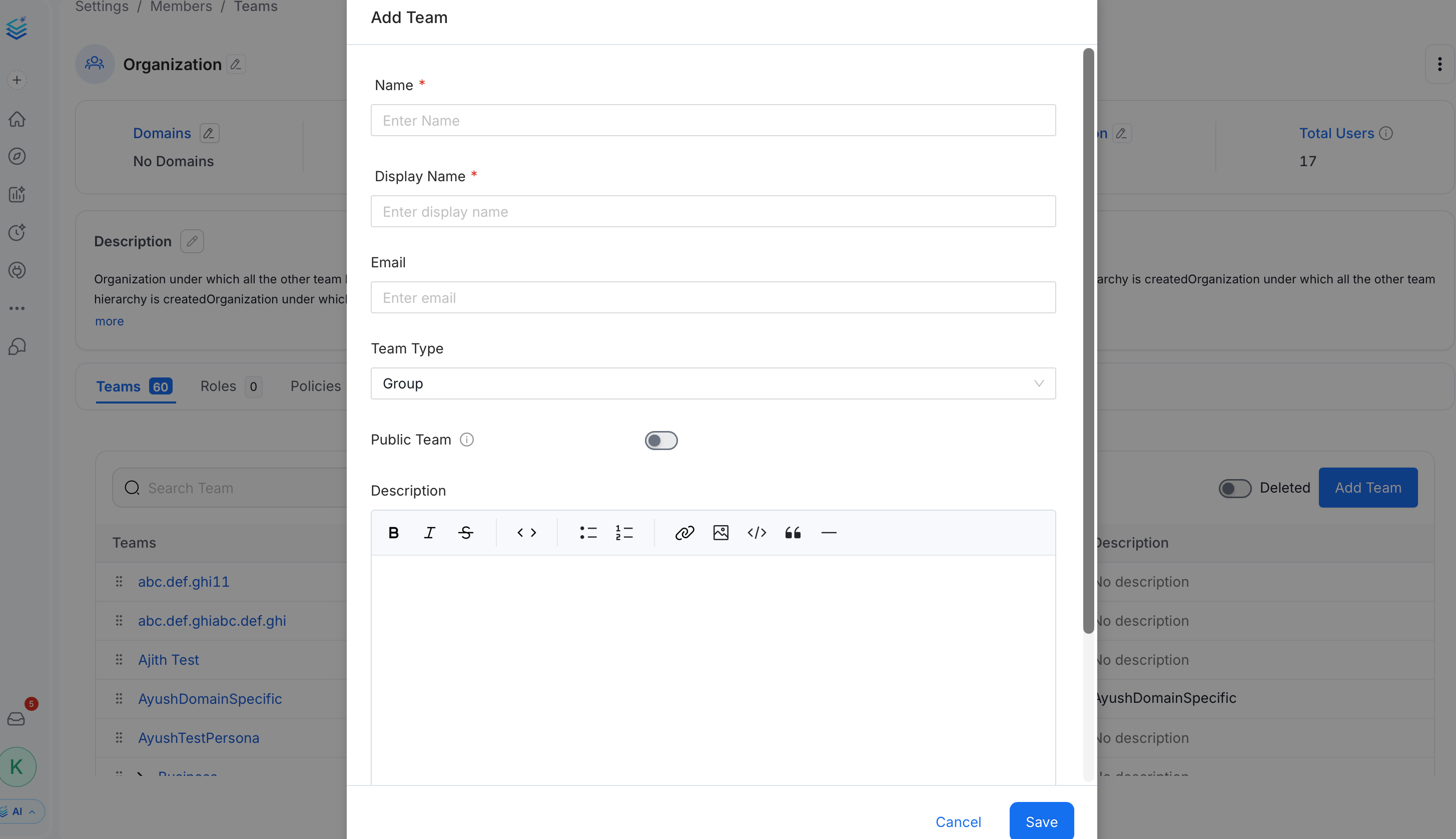
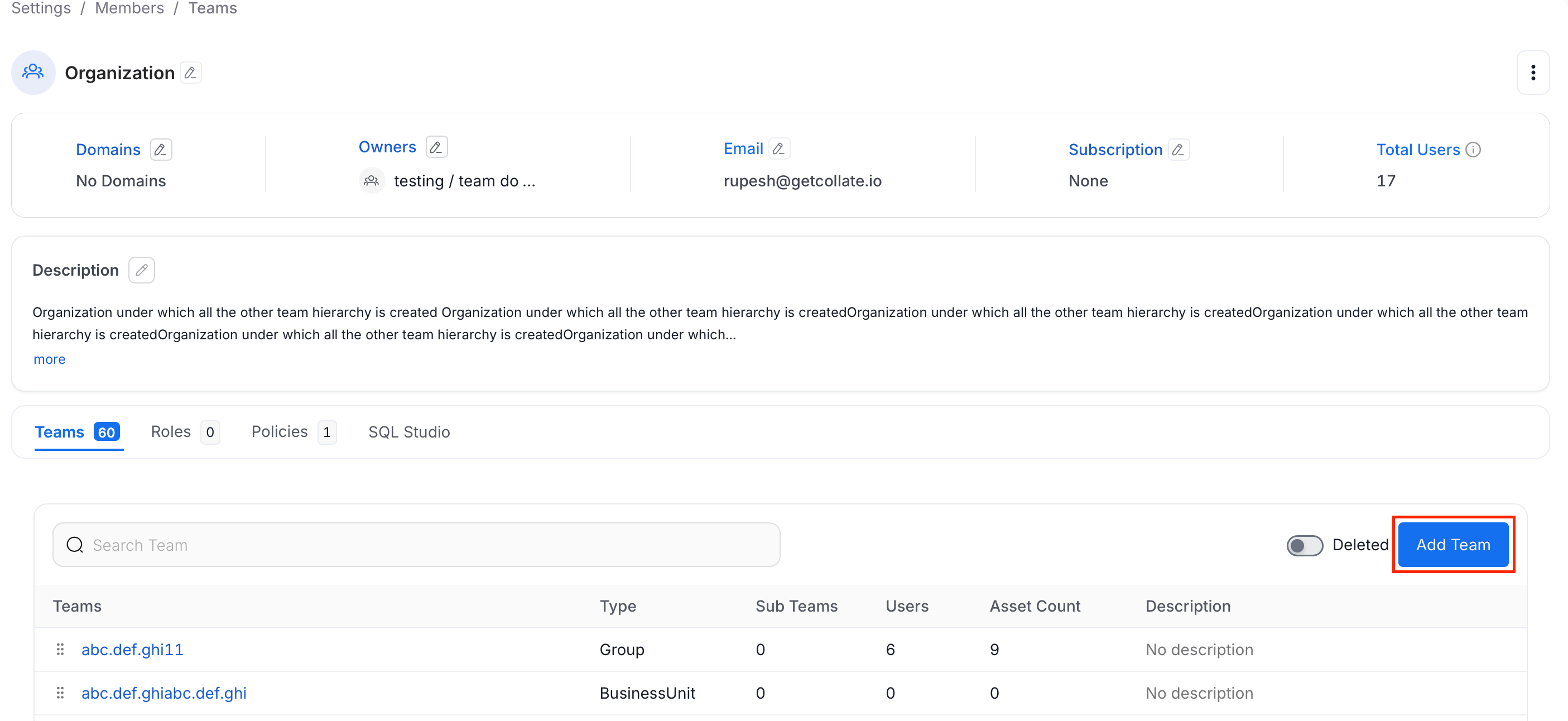
Click Add Team.
-
In the Add Team panel, fill the following details and click Save:
- Name (required) — A unique identifier for the team.
- Display Name (required) — The human-readable name shown in the Collate UI.
- Email (optional) — A contact email address for the team.
- Team Type — Select the type that matches this team’s role in your hierarchy. The available options depend on the parent team’s type. See Team Structure in Collate.
- Public Team — Toggle on to allow anyone in the organization to join, view data, and collaborate without an explicit invitation.
- Description (optional) — Add context about the team’s purpose.