
Google SSO
Follow the sections in this guide to set up Google SSO.Create Server Credentials
Step 1: Create the Account
- Go to Create Google Cloud Account
- Click on
Create Project
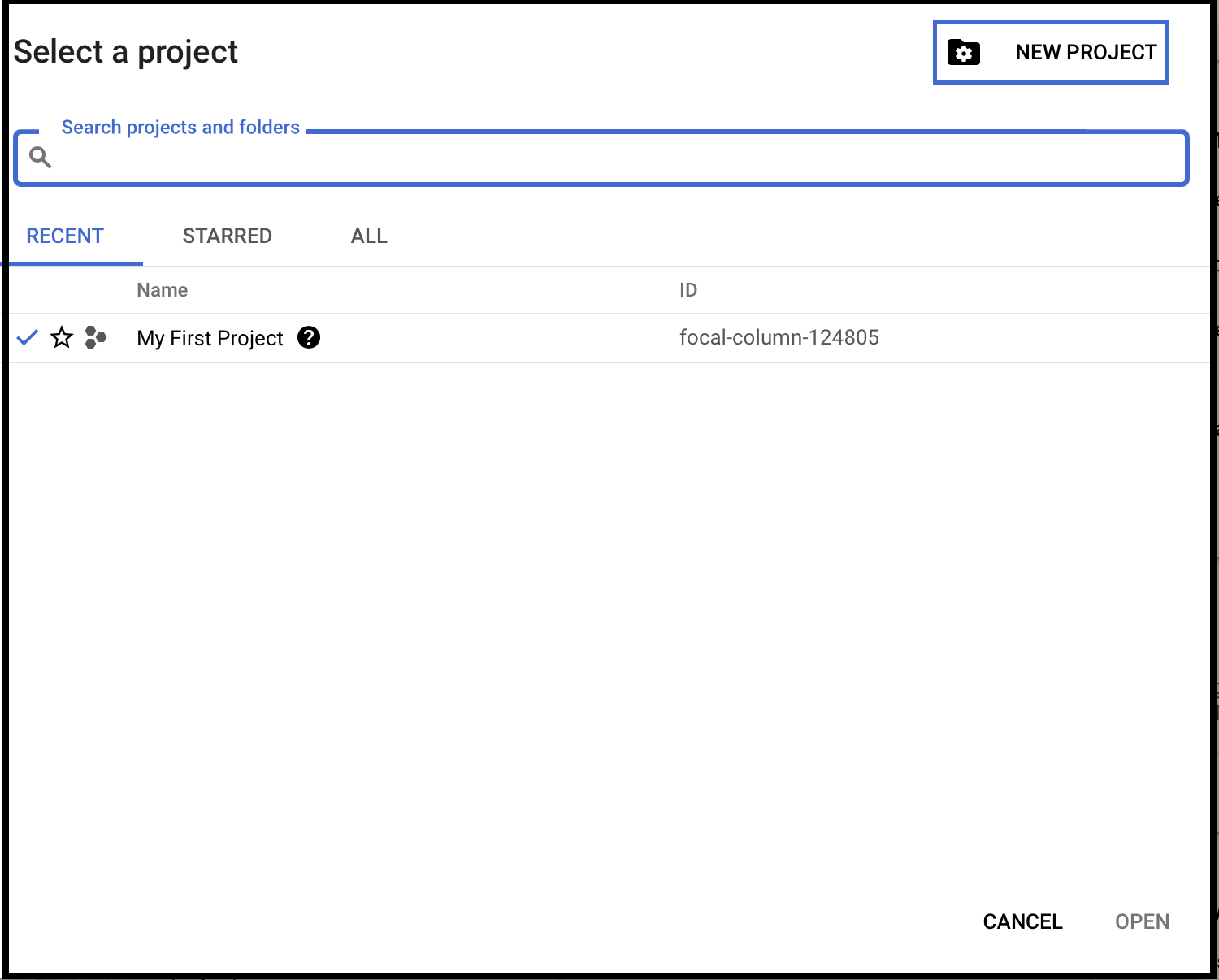
Step 2: Create a New Project
Enter the Project name. Enter the parent organization or folder in the Location box. That resource will be the hierarchical parent of the new project. Click Create.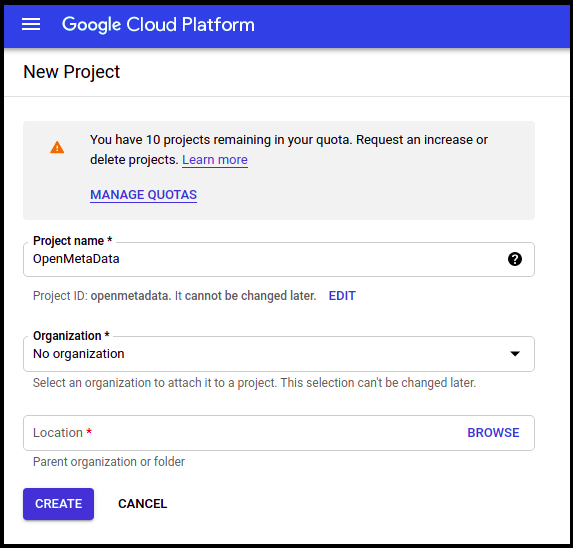
Step 3: How to Configure OAuth Consent
- Select the project you created above and click on APIs & Services on the left-side panel.
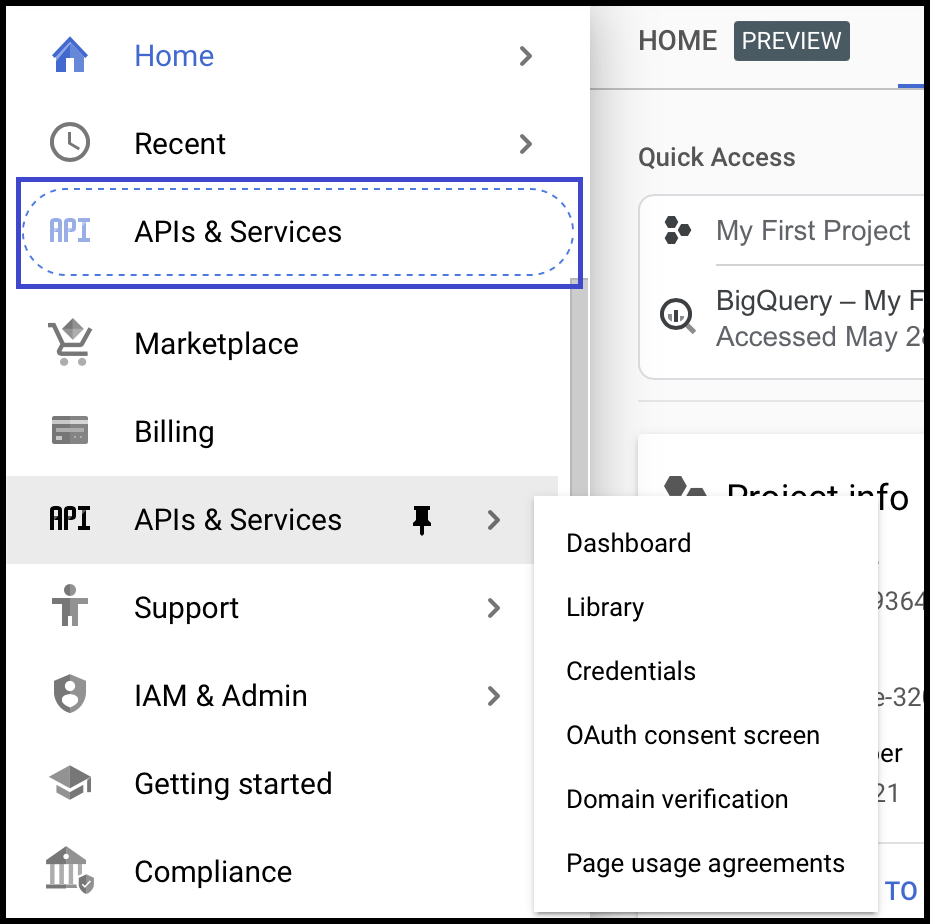
- Click on the OAuth Consent Screen available on the left-hand side panel.
- Choose User Type Internal.
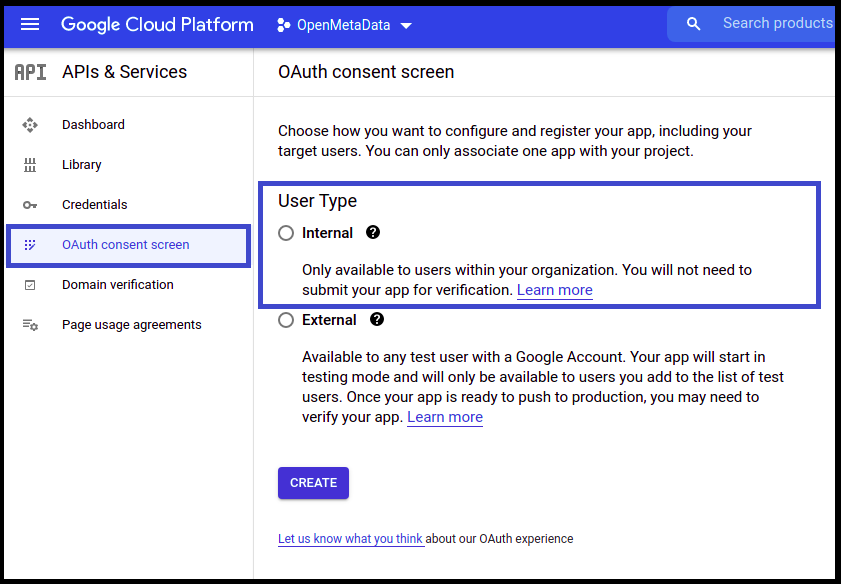
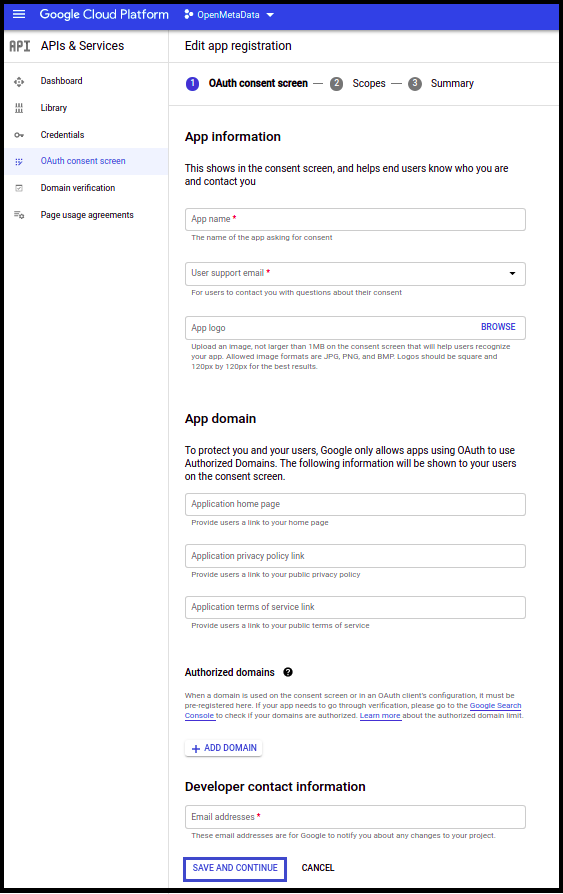
- Once the user type is selected, provide the App Information and other details.
- Click Save and Continue.
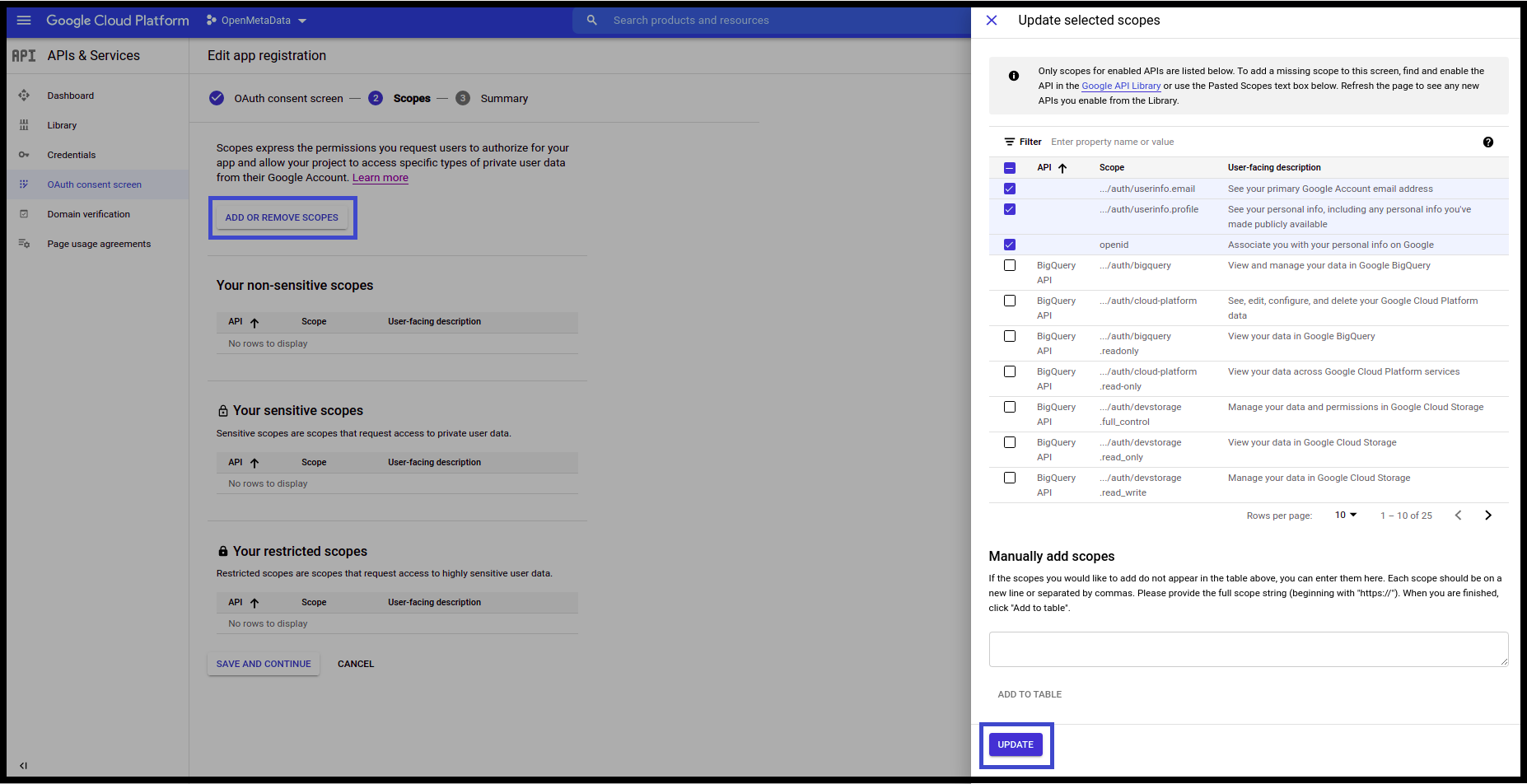
- On the Scopes Screen, Click on ADD OR REMOVE SCOPES and select the scopes.
- Once done click on Update.
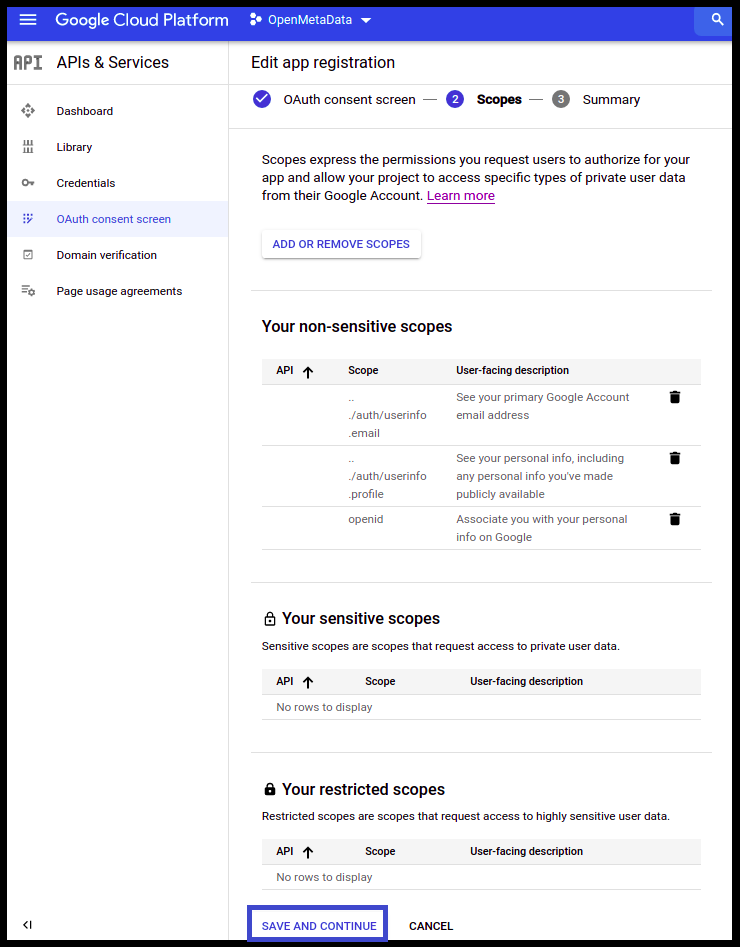
- Click Save and Continue.
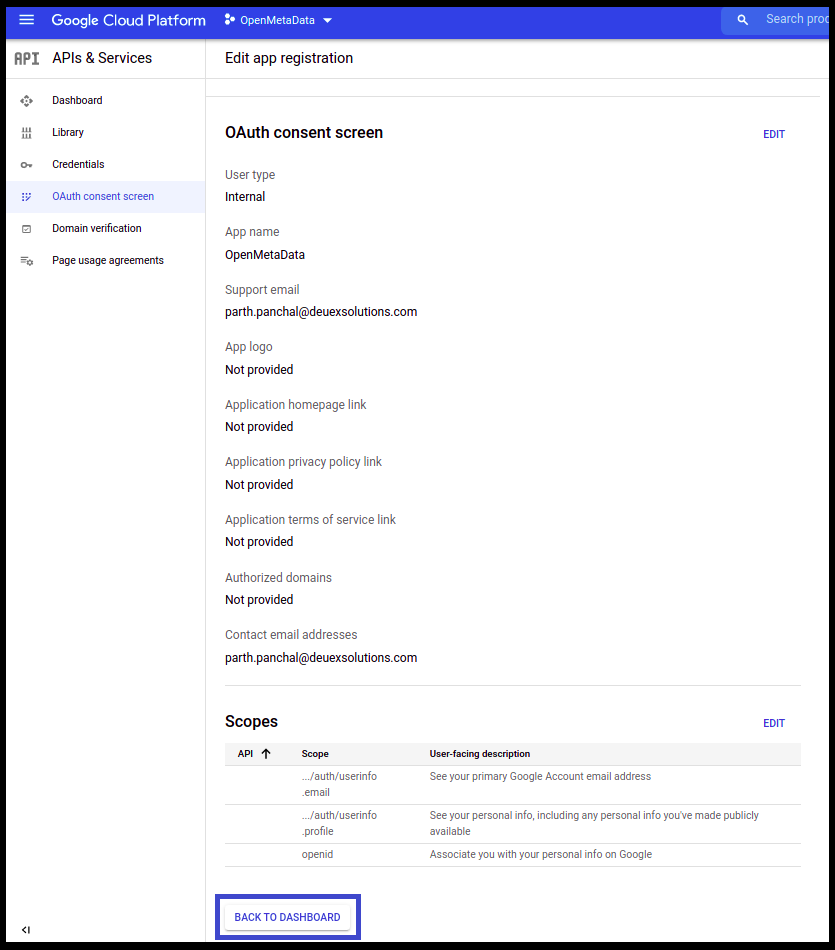
- Click on Back to Dashboard.
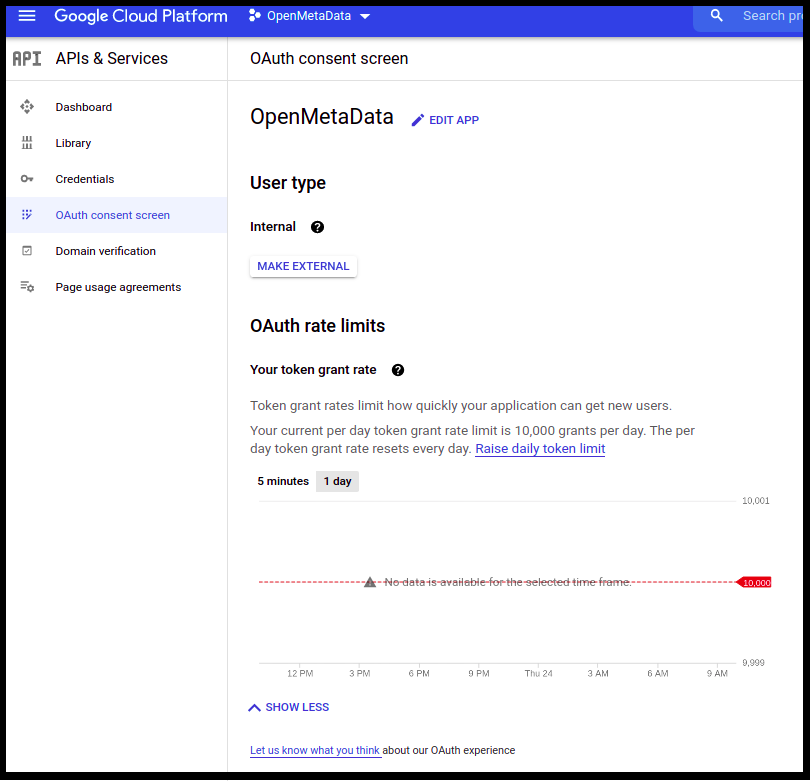
Step 4: Create Credentials for the Project
- Once the OAuth Consent is configured, click on Credentials available on the left-hand side panel.
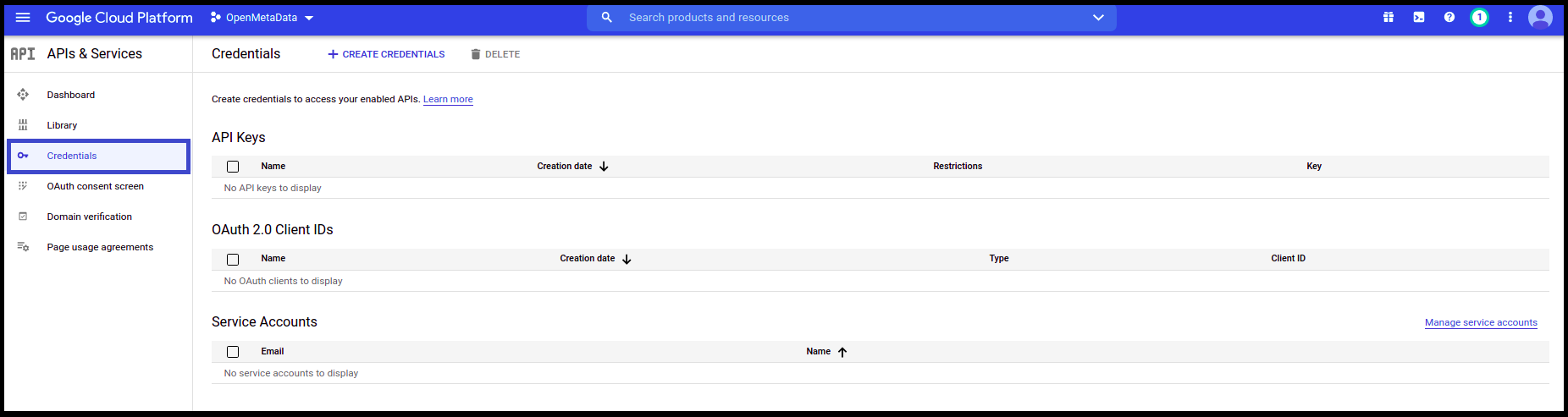
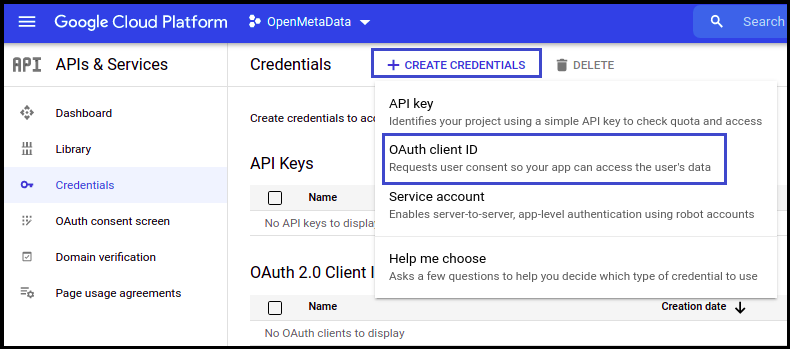
- Click on Create Credentials
- Select OAuth client ID from the dropdown.
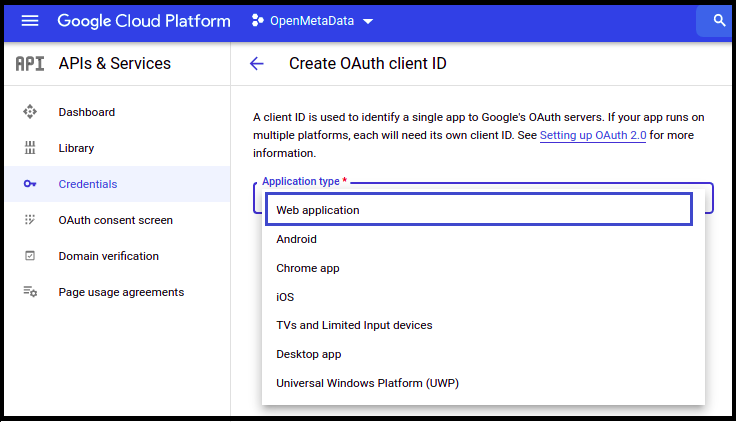
- Once selected, you will be asked to select the Application type. Select Web application.
- domain/callback
- domain/silent-callback
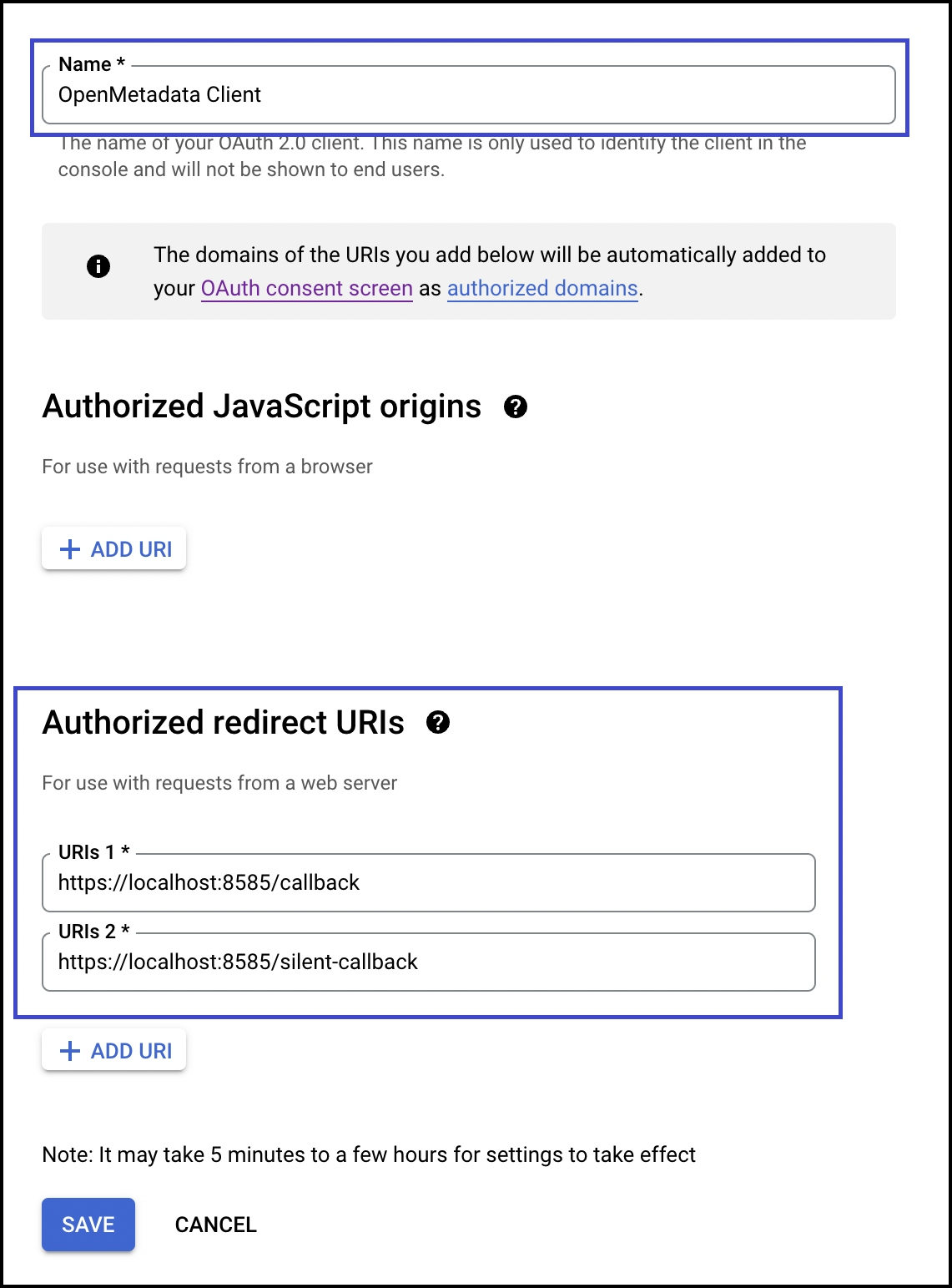
- Click Create
- You will get the credentials
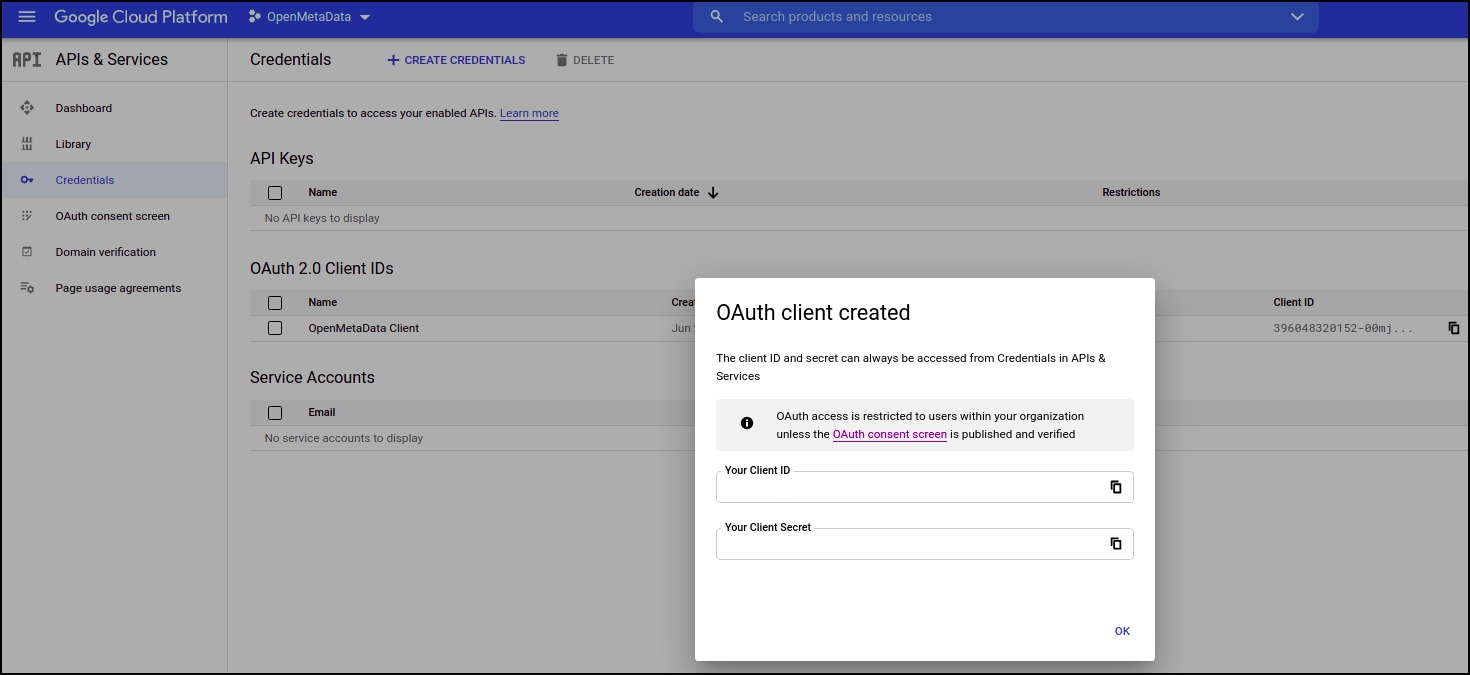
Step 5: Where to Find the Credentials
- Go to Credentials
- Click on the pencil icon (Edit OAuth Client) on the right side of the screen
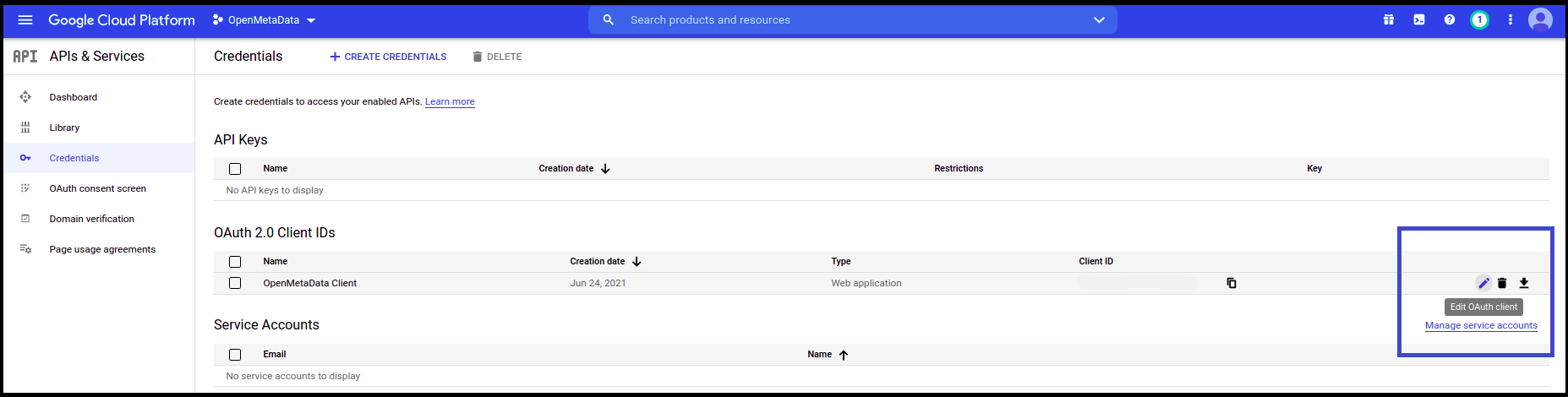
- You will find the Client ID in the top right corner
