
Managing Incidents
1. Incident Dashboard
The Incident Dashboard gives a real-time overview of incident health and lists all active and resolved incidents in one place.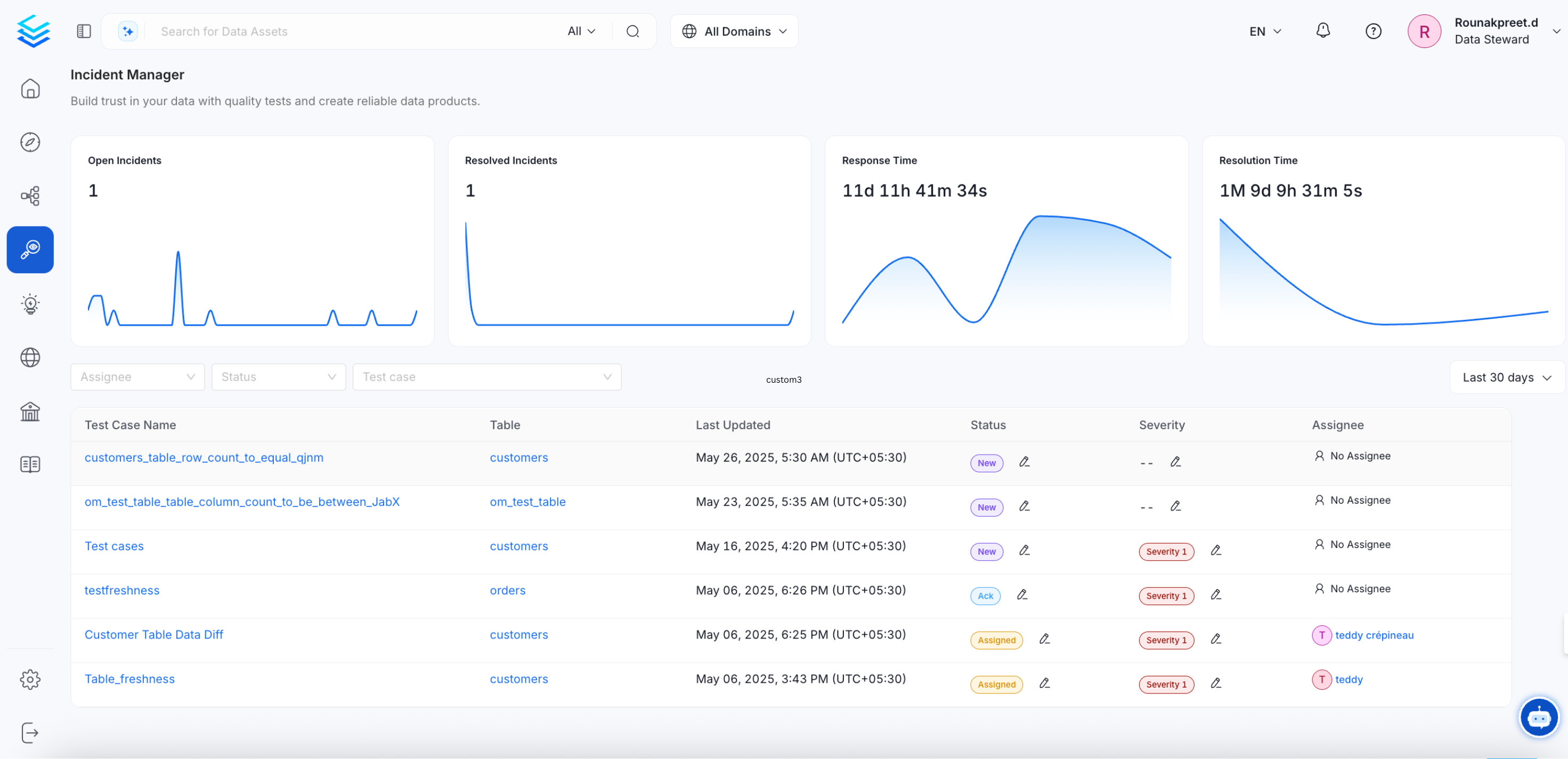
Summary Metrics
Four cards at the top of the dashboard show key incident statistics at a glance:- Open Incidents: Total number of currently active incidents.
- Resolved Incidents: Total number of closed incidents.
- Response Time: Average time from incident creation to first acknowledgement.
- Resolution Time: Average time from incident creation to resolution.
Filters
Use the filter bar to narrow the incident list:- Test Case: Filter by a specific test case name.
- Assignee: Filter by the team member assigned to the incident.
- Status: Filter by current status (New, ACK, Assigned, Resolved).
- Date Filter: Choose the date field to filter by (for example, Created at).
- Date Range: Set a custom date range.
Incident List
Each row in the table represents one incident and shows:- Test Case Name: The test case that triggered the incident.
- Table: The data asset associated with the test case.
- Last Updated: Date and time of the most recent activity.
- Status: Current stage of the incident (New, ACK, Assigned, Resolved).
- Severity: Severity level assigned to the incident.
- Assignee: The team member responsible for resolution.
2. Incident Status Change
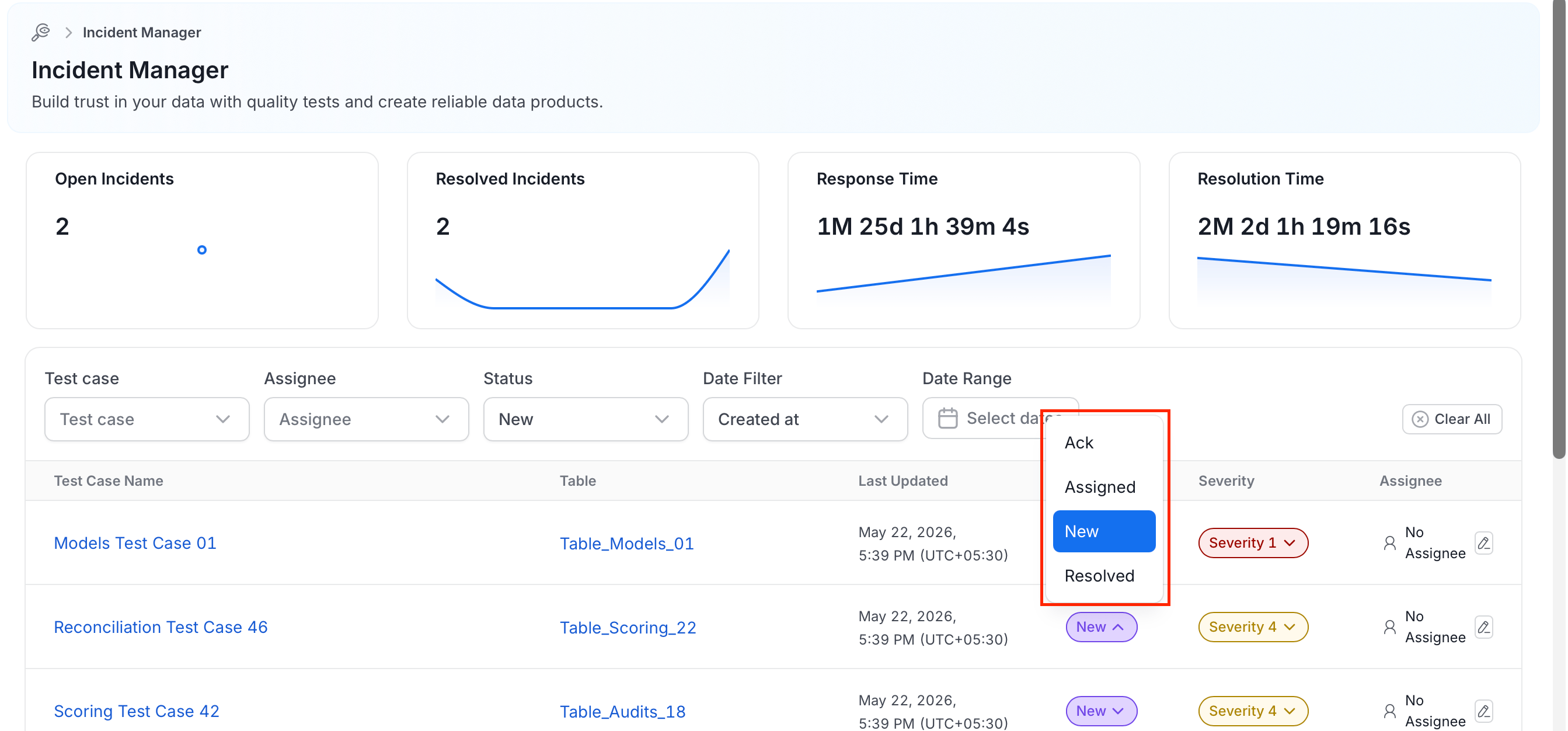
Update the incident status to reflect the current stage of the resolution process. The incident owner assigns it to a team member for resolution.Steps to Change Incident Status
- Navigate to the Incident Dashboard.
- In the Status column, click the status dropdown next to the incident whose status you want to change.
- Select a status.
3. Incident Resolution
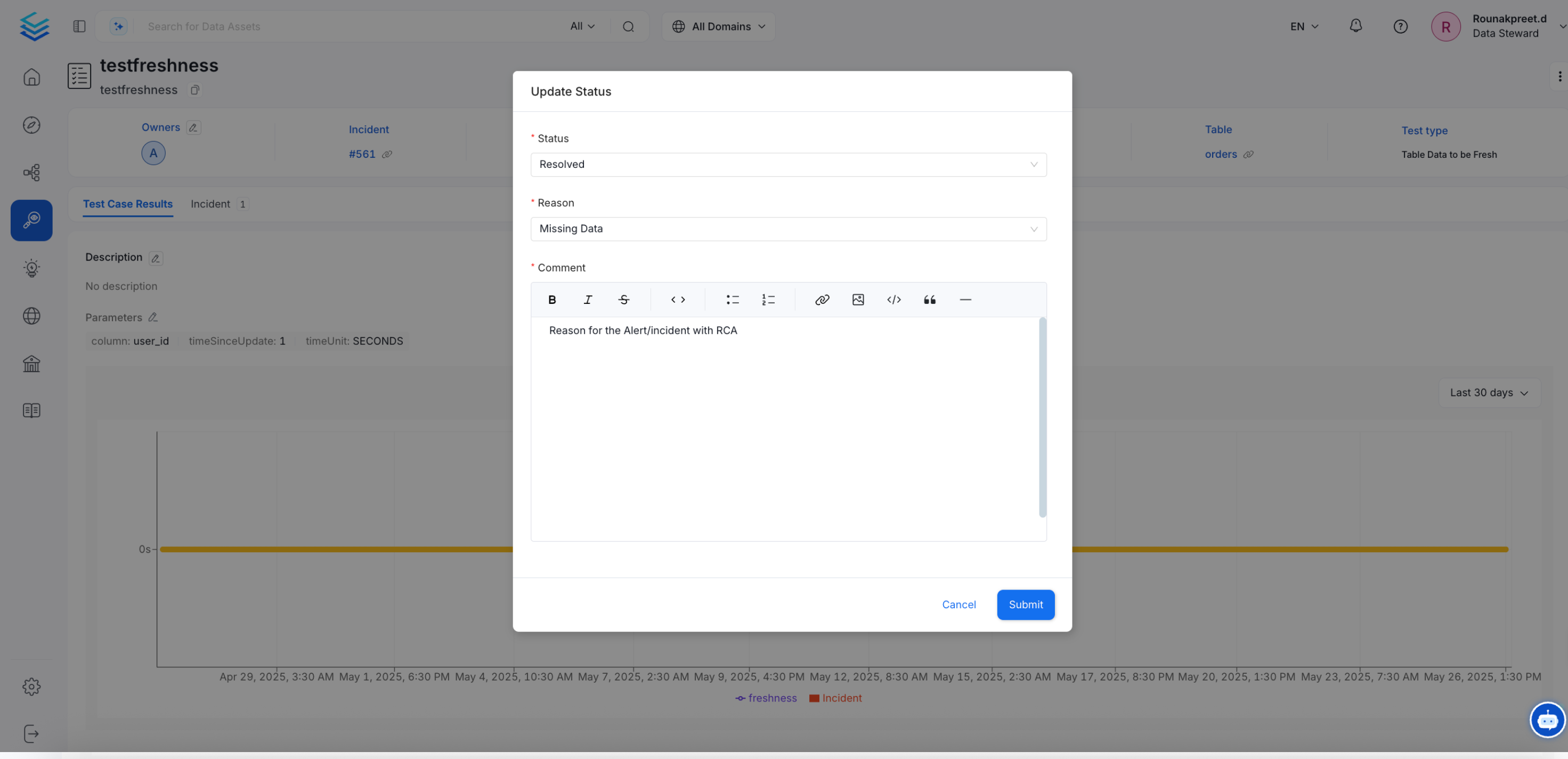
Once an incident has been resolved, it can be officially closed. Ensure to describe a Root Cause Analysis (RCA) in the comments to provide context and understanding of the resolution process.Steps to Resolve and Close an Incident:
- Verify that all necessary steps to resolve the incident have been completed.
- Describe the RCA in the resolution comments.
- Change the status of the incident to ‘Resolved’.
- Confirm the closure to update the incident in the dashboard.
4. Incident Activities
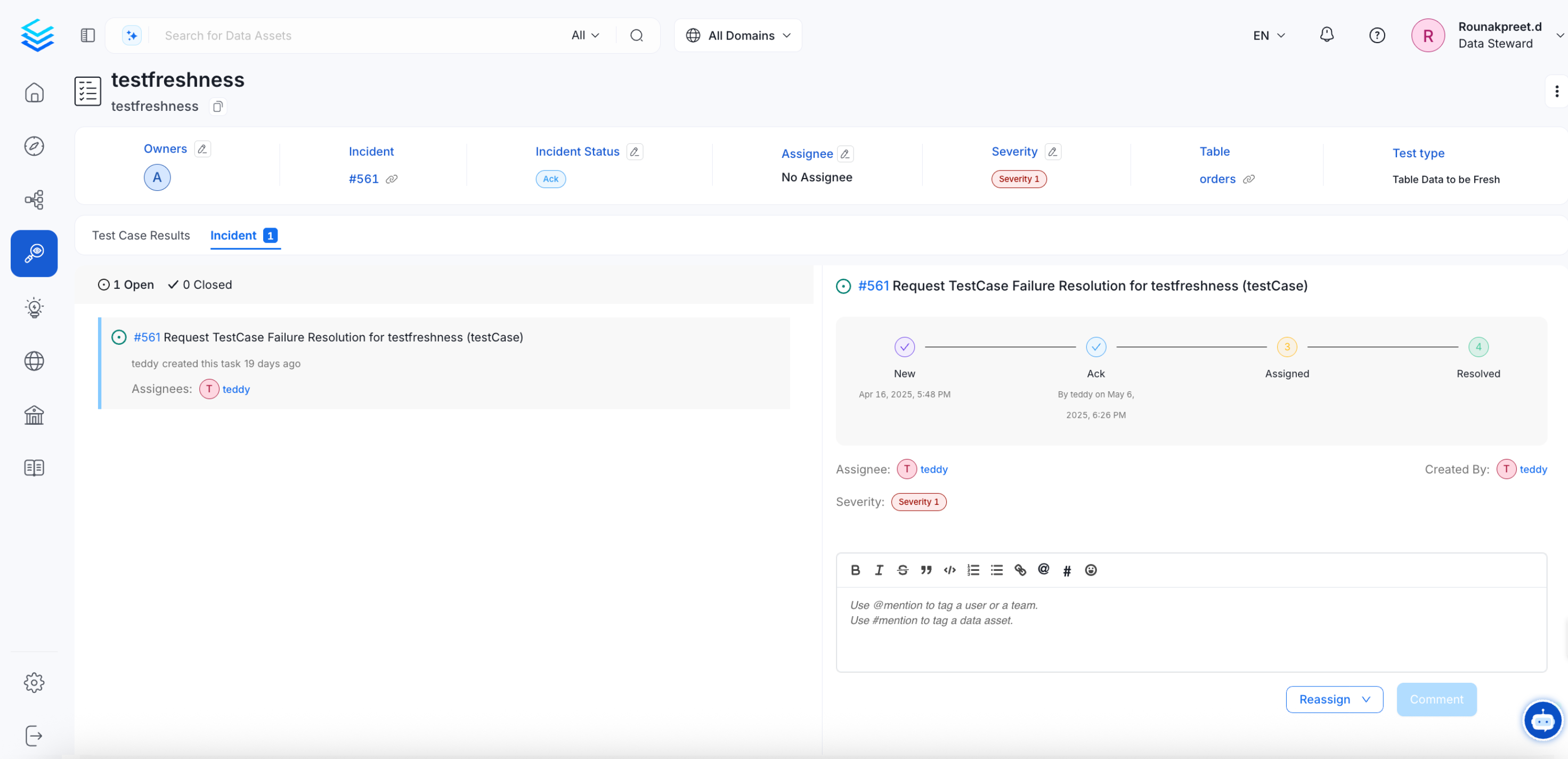
Each incident includes a detailed timeline where all relevant information is consolidated. This timeline provides a comprehensive view of the incident’s lifecycle, including key events, RCA documentation, and closure updates.How to View Incident Activities:
- Open the incident from the Incident Dashboard.
- Navigate to the ‘Incident’ tab within the incident details.
- Review the chronological events, RCA, and closure updates associated with the incident.
5. Set Up Alerts for Incident Activity
To receive notifications when an incident is created, updated, commented on, or assigned, configure an alert with Source = Task. Incidents in Collate are Task threads with task typeRequestTestCaseFailureResolution. Alert sources are matched by thread type, not task type — so if you configure an alert with Source = Conversation, it will never fire for incidents.
Steps to Create an Incident Alert
- Navigate to Settings > Notifications > System.
- Click Add Notification.
- Set Source to Task.
- (Optional) Add a Mentioned User or Team filter to limit alerts to incidents where a specific person or team is @-mentioned.
- Select your Destination — Slack, MS Teams, email, or internal Collate users.
- Save the alert.
The Task source covers all structured workflow tasks — incidents, description requests, tag requests, and approval workflows. There is currently no filter to restrict to incidents only. If you only want incident notifications, configure a dedicated alert and instruct your team to use that alert’s destination channel for incident discussions.