
Overview
Collate 1.12 introduces Git Sink, a workflow capability that allows metadata changes in Collate to be automatically synchronized to a Git repository. Many organizations are adopting a metadata as code approach. Just like application code, metadata benefits from version control, review workflows, and historical tracking. Git Sink captures metadata updates in Collate and commits them to GitHub. This allows teams to maintain version history, review governance changes, and integrate metadata management with existing engineering workflows. Collate remains the main interface for managing metadata while Git stores the version history.Why Git Sink Matters
Metadata changes frequently as data platforms evolve. Tables are documented, tags are added, test cases are created, and governance classifications change. Without version control these updates are difficult to track. Git Sink helps organizations:- Track metadata history
- Review governance updates through Git workflows
- Integrate metadata with DevOps processes
- Manage metadata using version control
How Git Sink Works
Git Sink is implemented through the Collate workflow engine. A workflow listens for metadata events and writes those changes to a Git repository. Examples of events include:- Creating a test case
- Updating a table description
- Adding tags or tiers
- Updating glossary assignments
Creating a Git Sink Workflow
Navigate to Governance → Workflows to create a workflow that captures metadata events and syncs them to Git.Limitation: Currently, Git Sink workflows only support Start and End nodes. You cannot add additional intermediate nodes beyond the Git Sink node itself.
Steps
- Open Governance
- Select Workflows
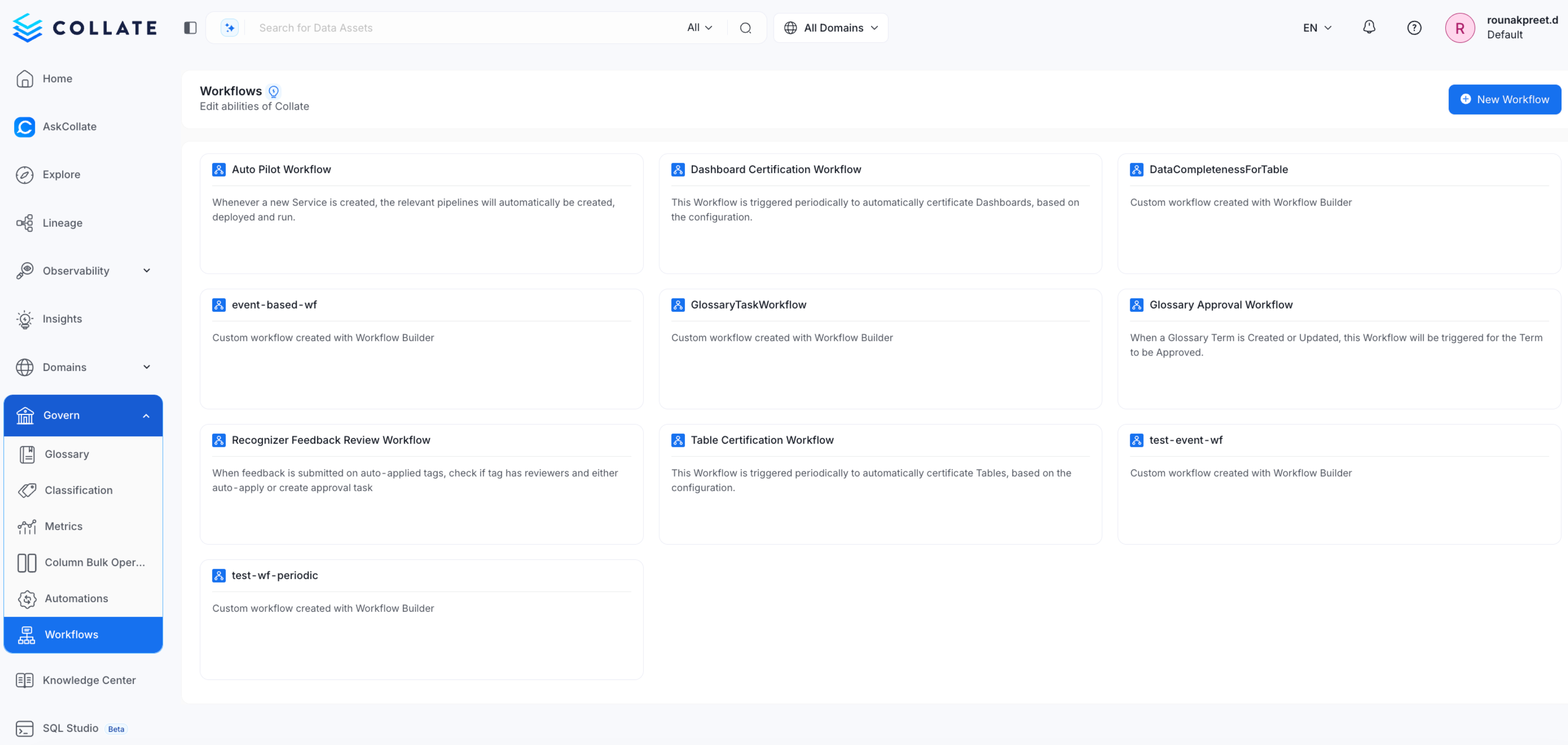
- Click Create Workflow
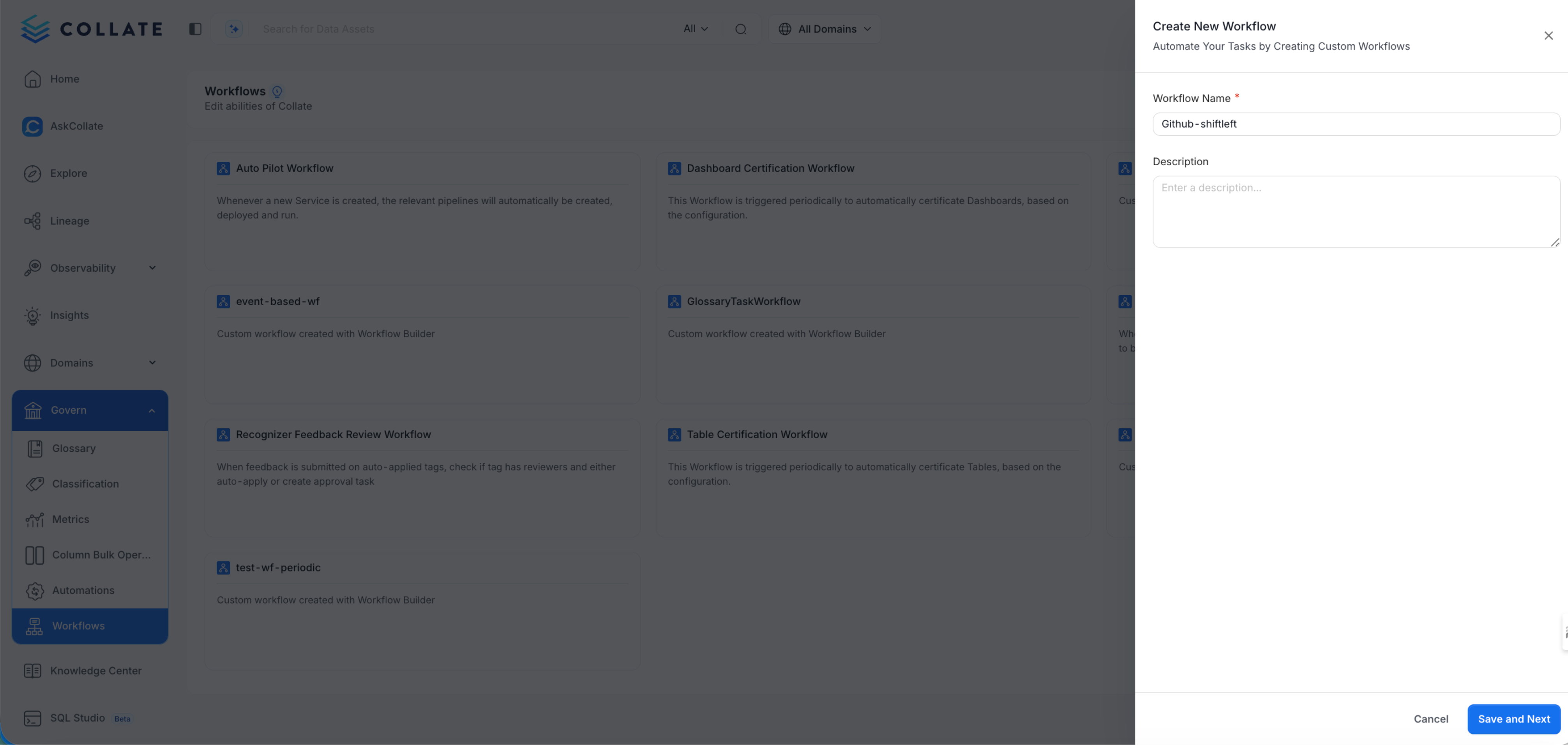
- Add a Start node by dragging and dropping the Node
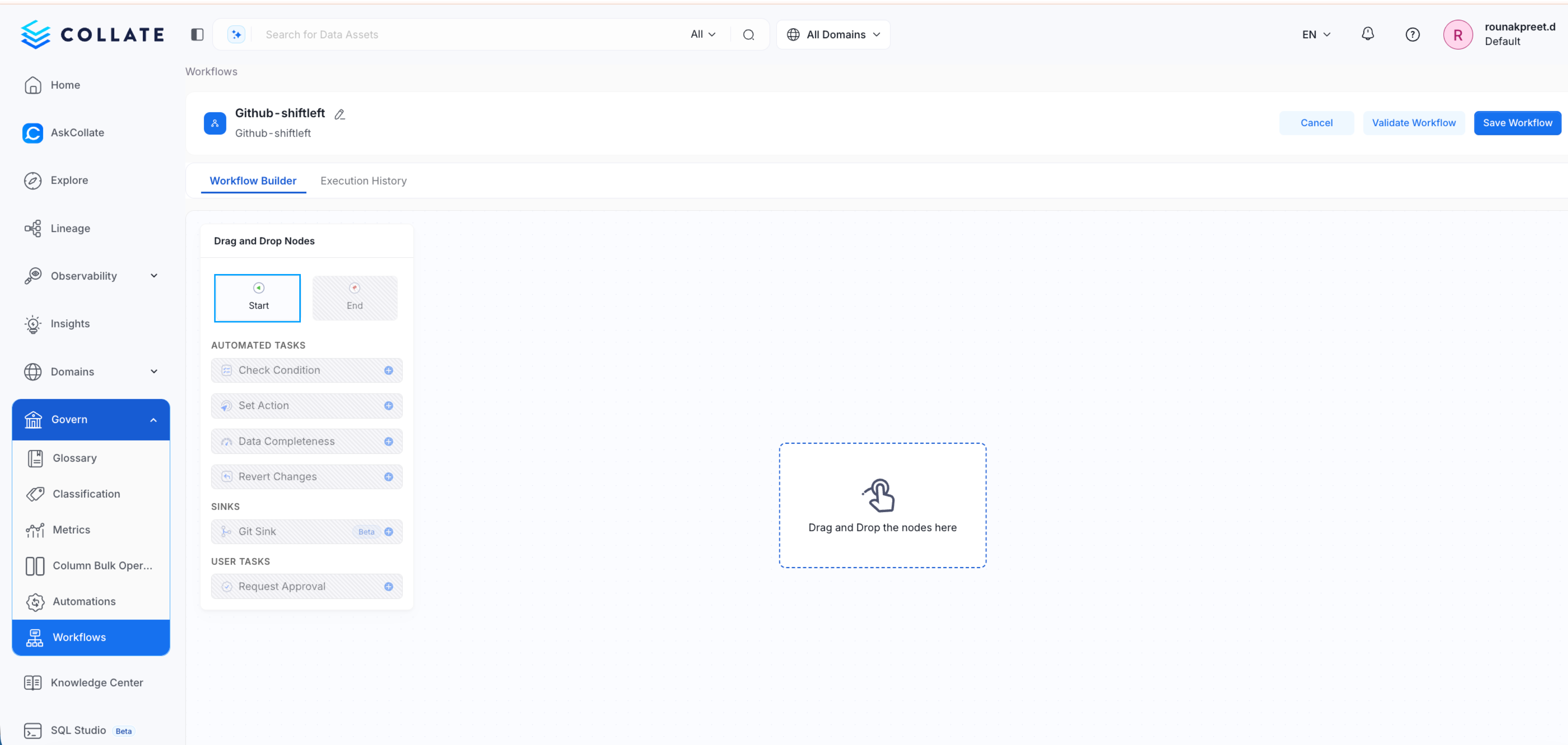
- Select assets to monitor
- Choose Event based trigger or Periodic Batch. In Periodic batch one can schedule the running of the workflow.
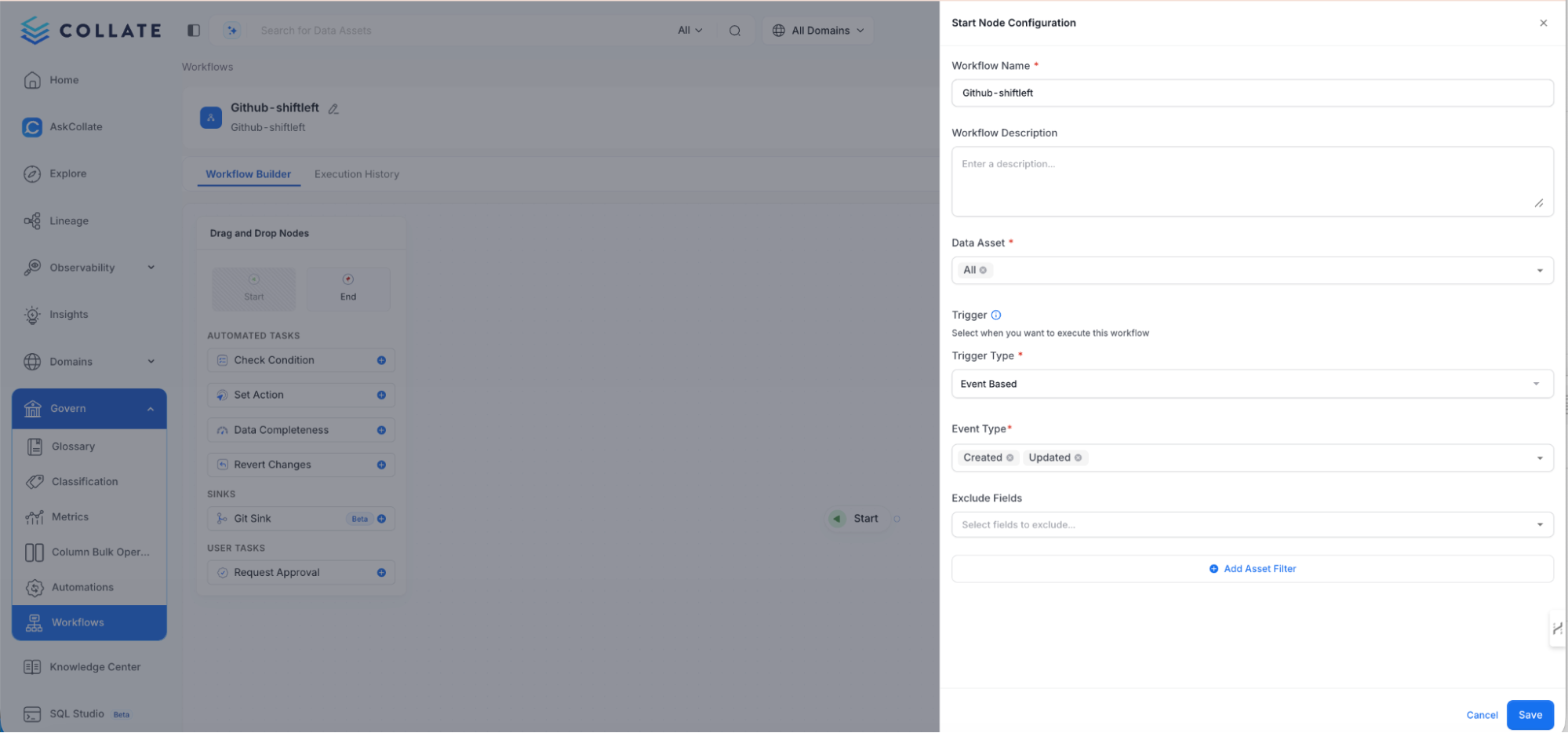
- Add the Git Sink node
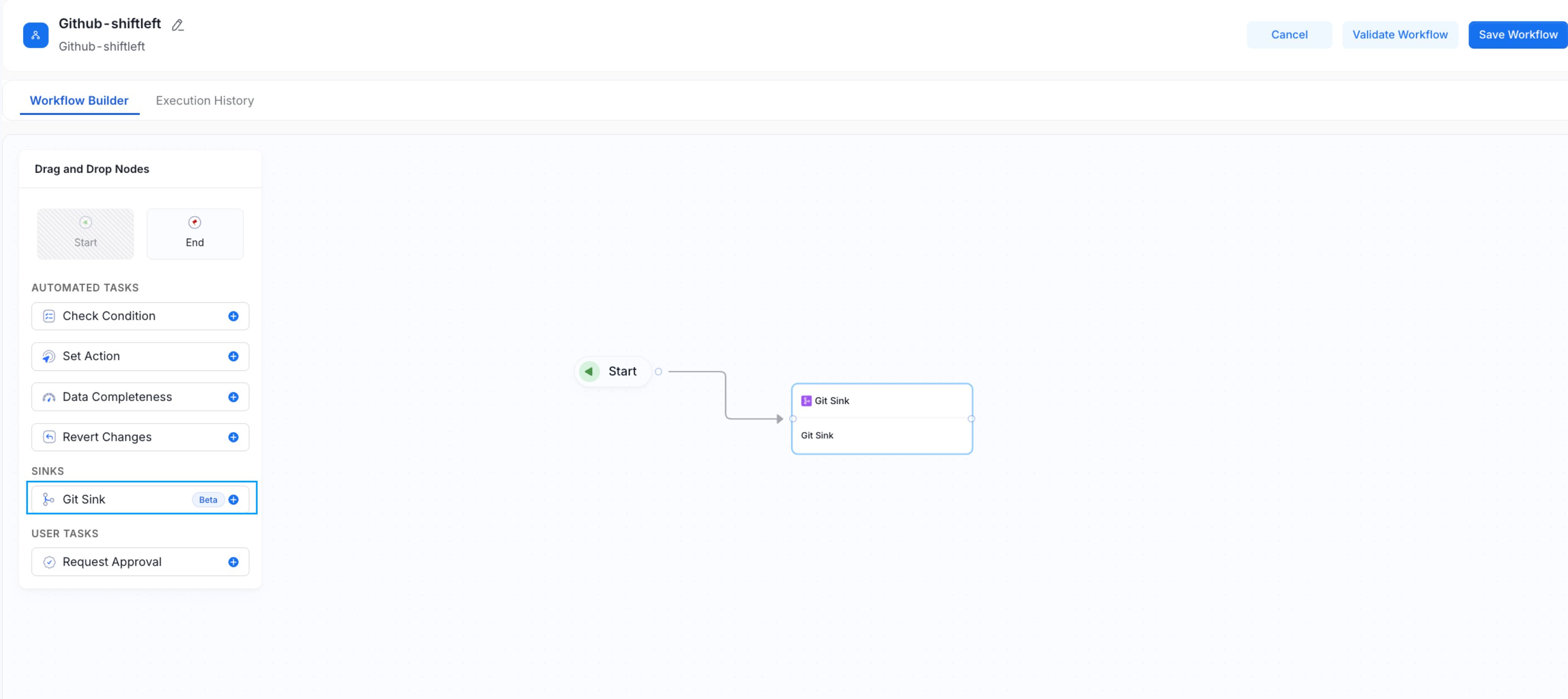
- Configure GitHub connection details
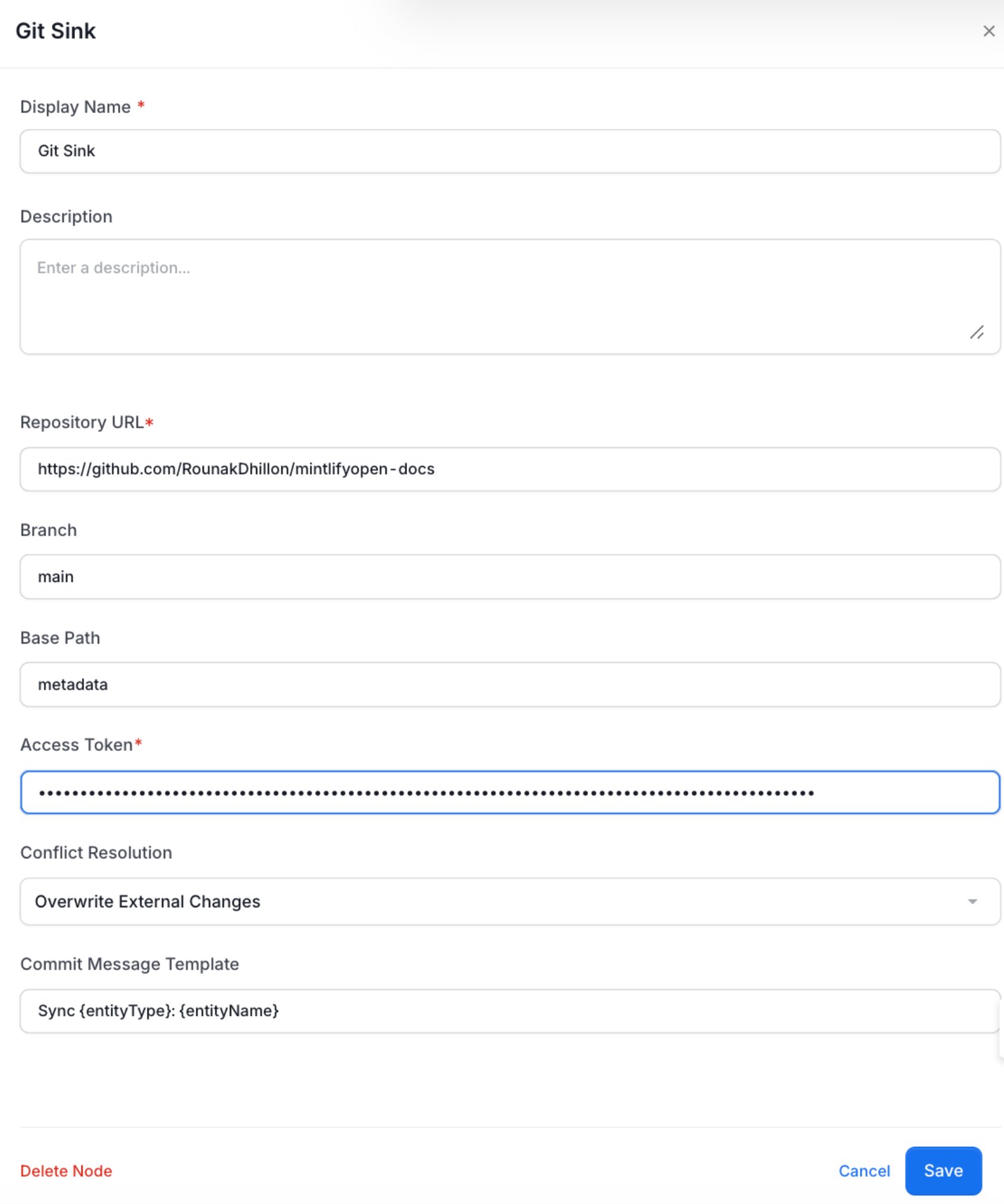
- Add an End node
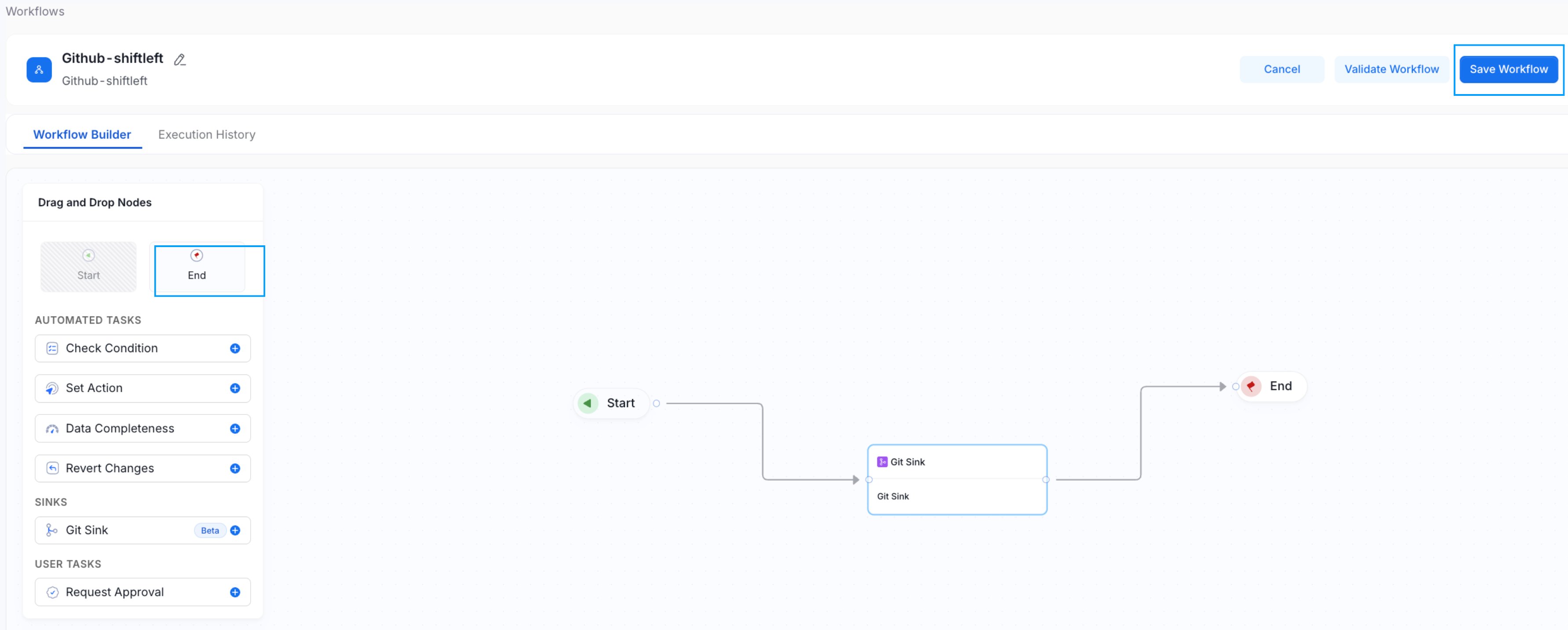
- Save and activate the workflow
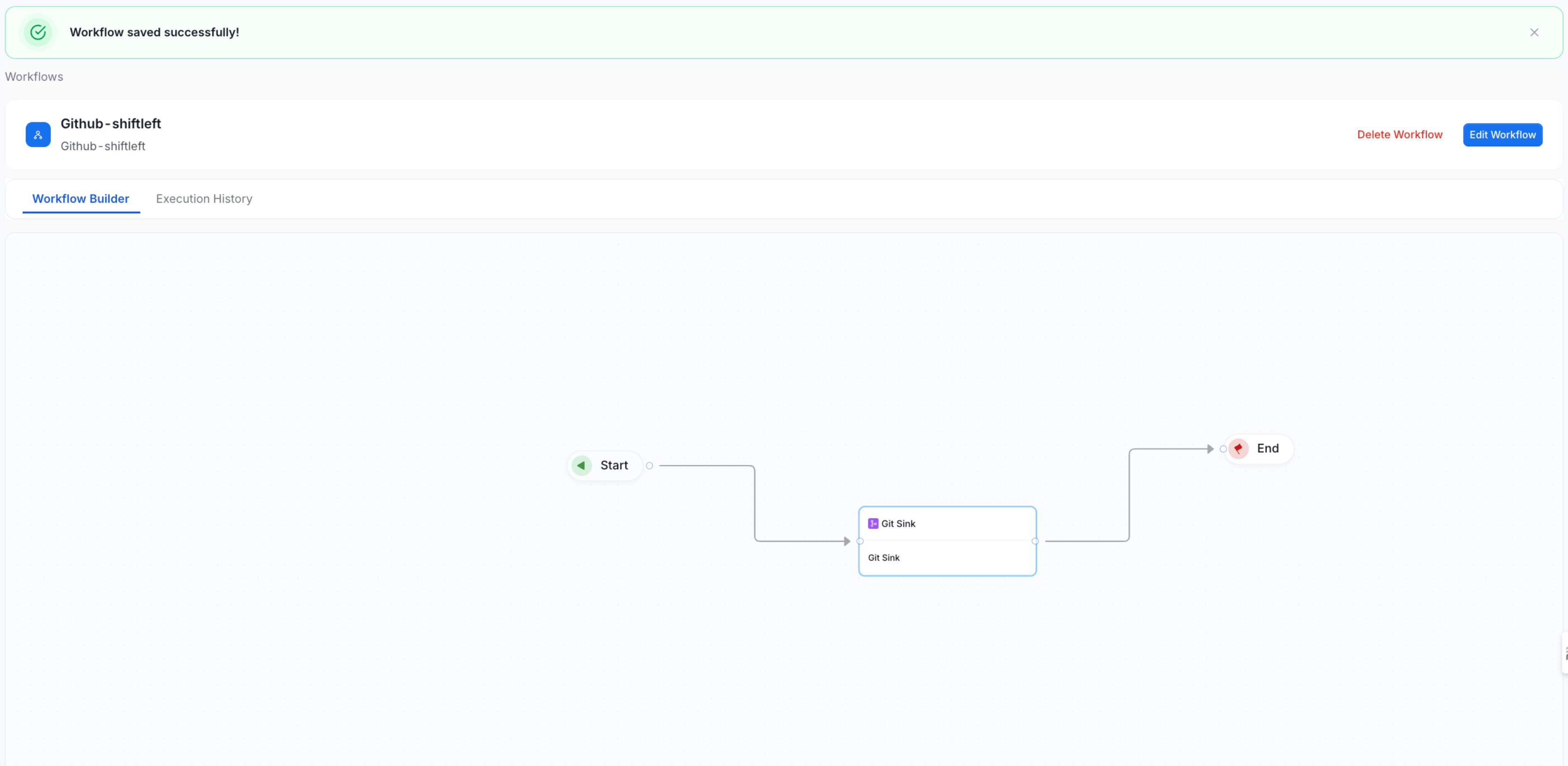
GitHub Configuration
- Overwrite external changes
- Preserve existing changes
- Fail on conflict
Repository Structure
Metadata synced to GitHub is stored as YAML files. The structure reflects the hierarchy of the data platform. Example- Fully qualified name
- Columns
- Tags and classifications
- Descriptions
- Timestamps and user information
Example Workflow
- A Git Sink workflow is active.
- A user updates a table in Collate.
- The update triggers a metadata event.
- The workflow commits the change to GitHub.
- The repository stores the updated metadata in YAML format.