
Creating the “Set Tags to ML Model Workflow”
The following steps walk you through building the SetTagsToMLModelWorkflow from start to finish. Each screenshot corresponds to a specific action you take while creating the workflow.Step 1: Create a New Workflow
Begin by navigating to: Govern → Workflows → New Workflow This opens the initial workflow creation screen.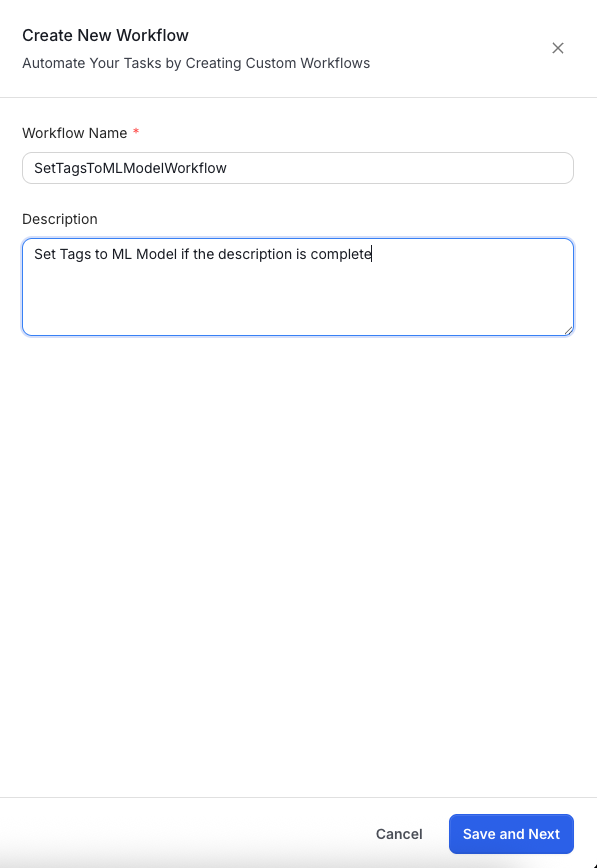
- Workflow Name – A unique identifier without spaces (e.g.,
SetTagsToMLModelWorkflow) - Description – A short summary of the workflow purpose Example: “Set Tags to ML Model if the description is complete.”
Step 2: Configure the Start Node
After creating the workflow, you must configure the Start node. This determines which assets the workflow applies to and when it runs.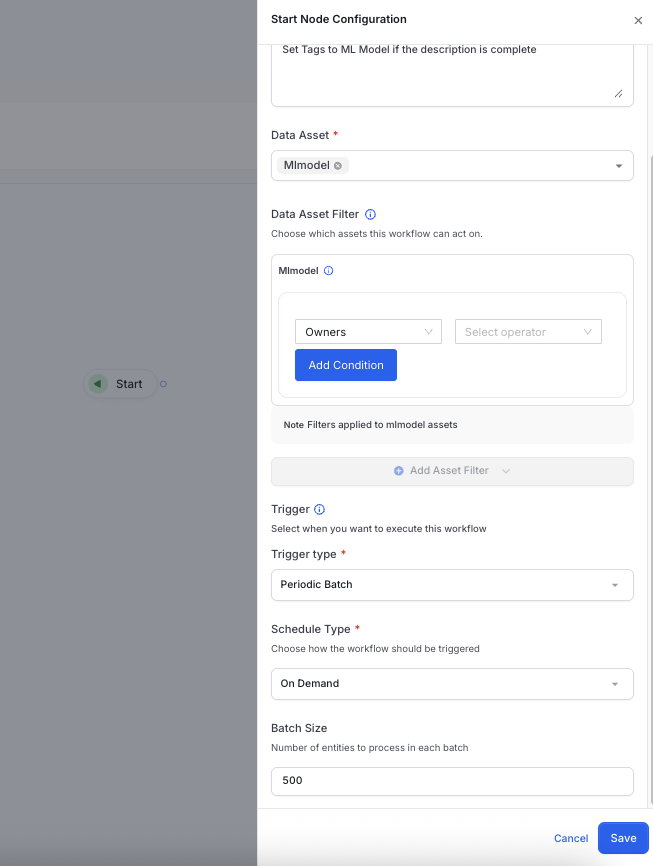
- Data Asset: Select
Mlmodel - Data Asset Filter: (Optional) Add filters such as owner or domain
- Trigger Type: Choose Periodic Batch or Event Based
- Schedule Type: Choose On Demand or set a recurring schedule
- Batch Size: Number of ML models processed per run
Step 3: Add a Condition Check
Next, add a Check Condition node to verify whether the ML model has a description.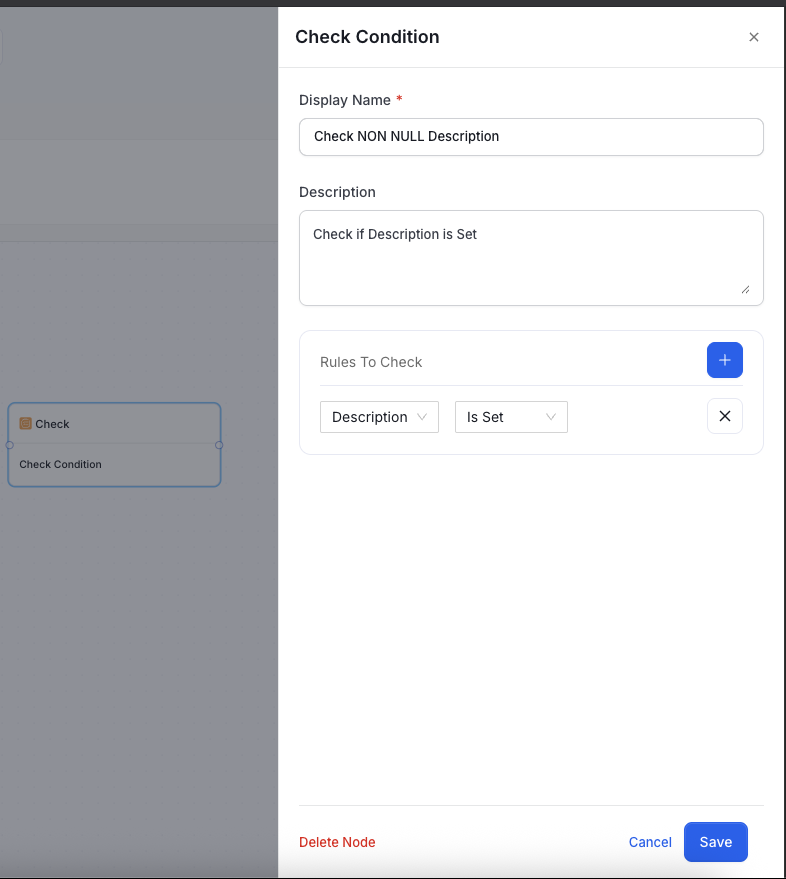
- Display Name – Check NON NULL Description
- Description – Check if Description is Set
- Rules To Check –
- Field:
Description - Operator:
Is Set
- Field:
Step 4: Configure the TRUE Condition Path
If the description is present, the workflow should assign a Complete tag. Connect the TRUE branch of the condition check to a Set Action node.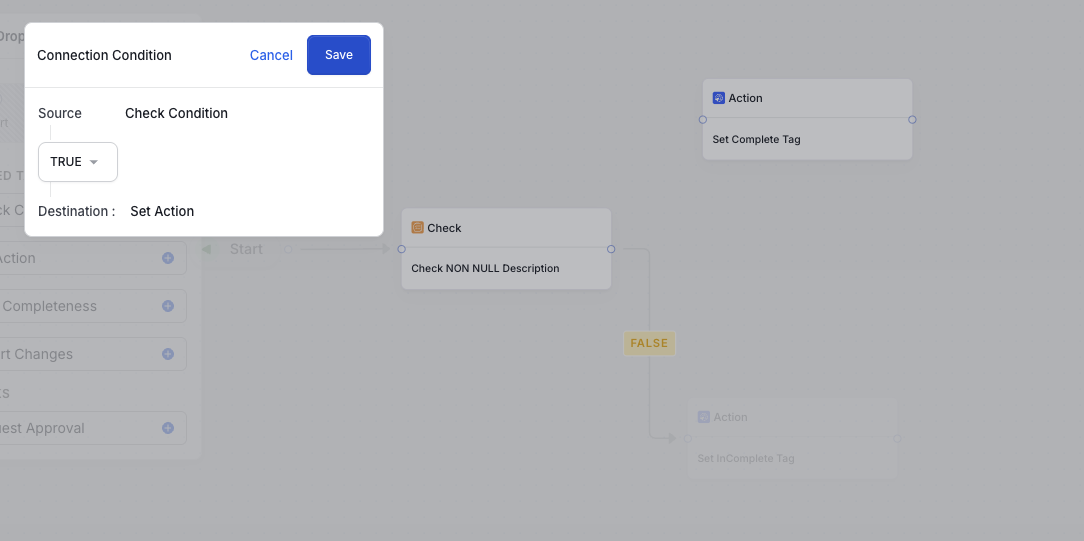
- Source – Check Condition
- Result – TRUE
- Destination – The “Set Complete Tag” action node
TRUE Path Action: Set Complete Tag
Now configure the action that applies theMachineLearning.Complete tag.
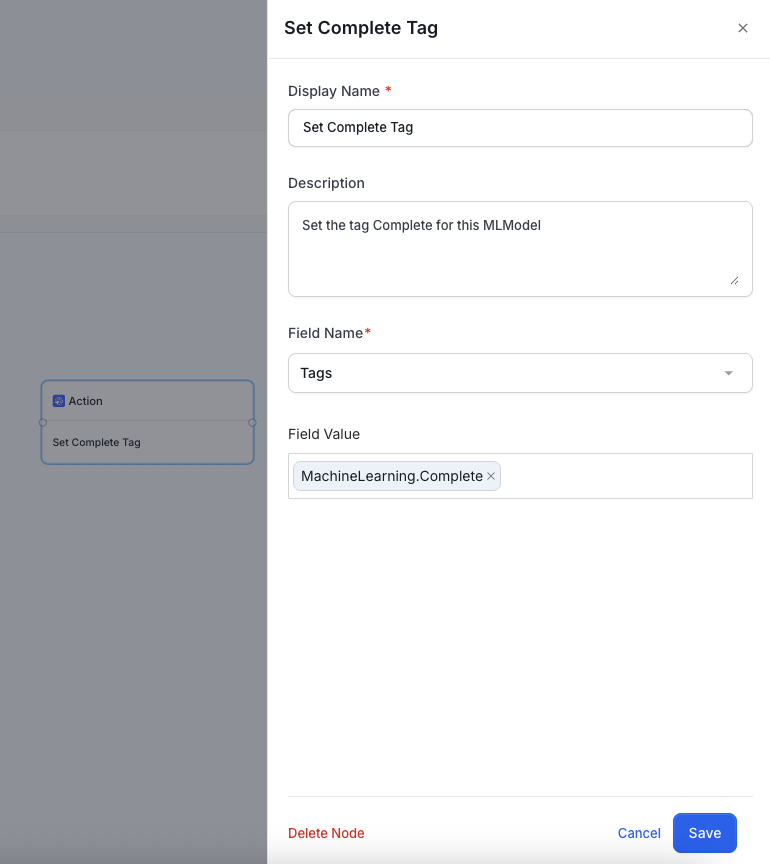
- Display Name – Set Complete Tag
- Description – Explanation of the action
- Field Name –
Tags - Field Value –
MachineLearning.Complete
Step 5: Configure the FALSE Condition Path
If the description is missing, tag the ML model as Incomplete.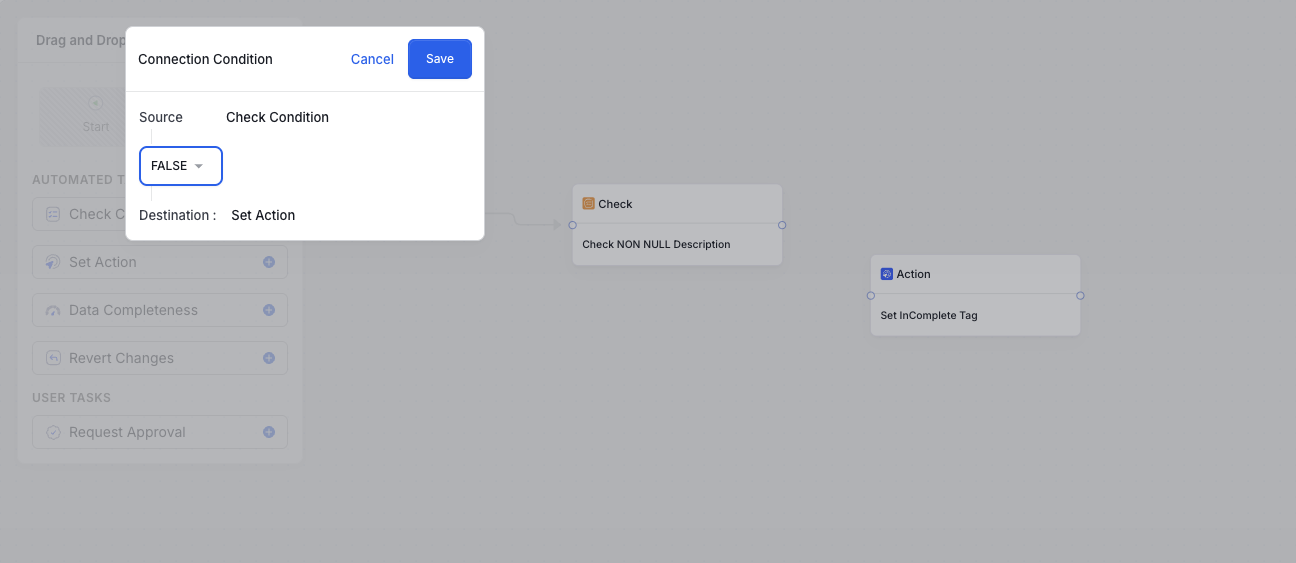
- Result – FALSE
- Destination – The “Set InComplete Tag” action node
FALSE Path Action: Set Incomplete Tag
Configure the action to apply theMachineLearning.InComplete tag.
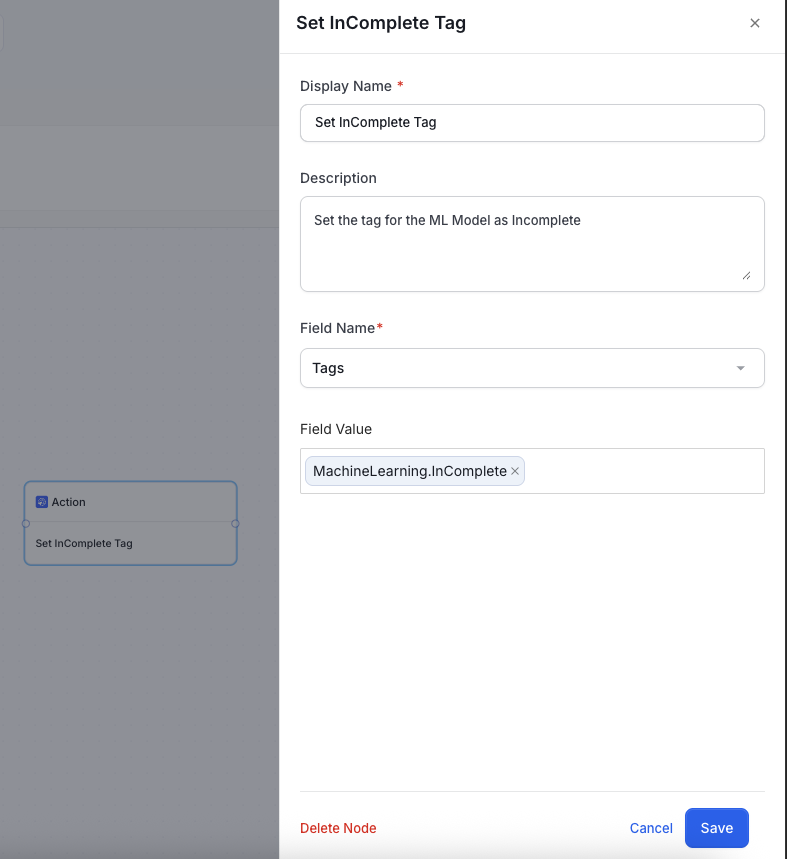
- Display Name – Set InComplete Tag
- Description – Explain why this tag is used
- Field Name –
Tags - Field Value –
MachineLearning.InComplete
Step 6: End the Workflow
Both the TRUE and FALSE action nodes should connect to an End node, marking workflow completion.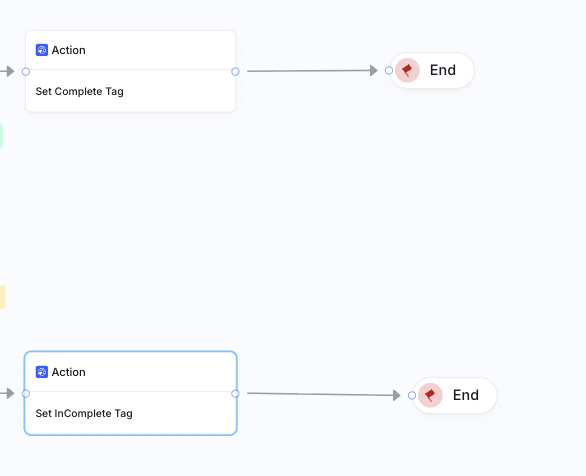
Final Workflow Overview
Once all nodes and connections are in place, your workflow should look like this: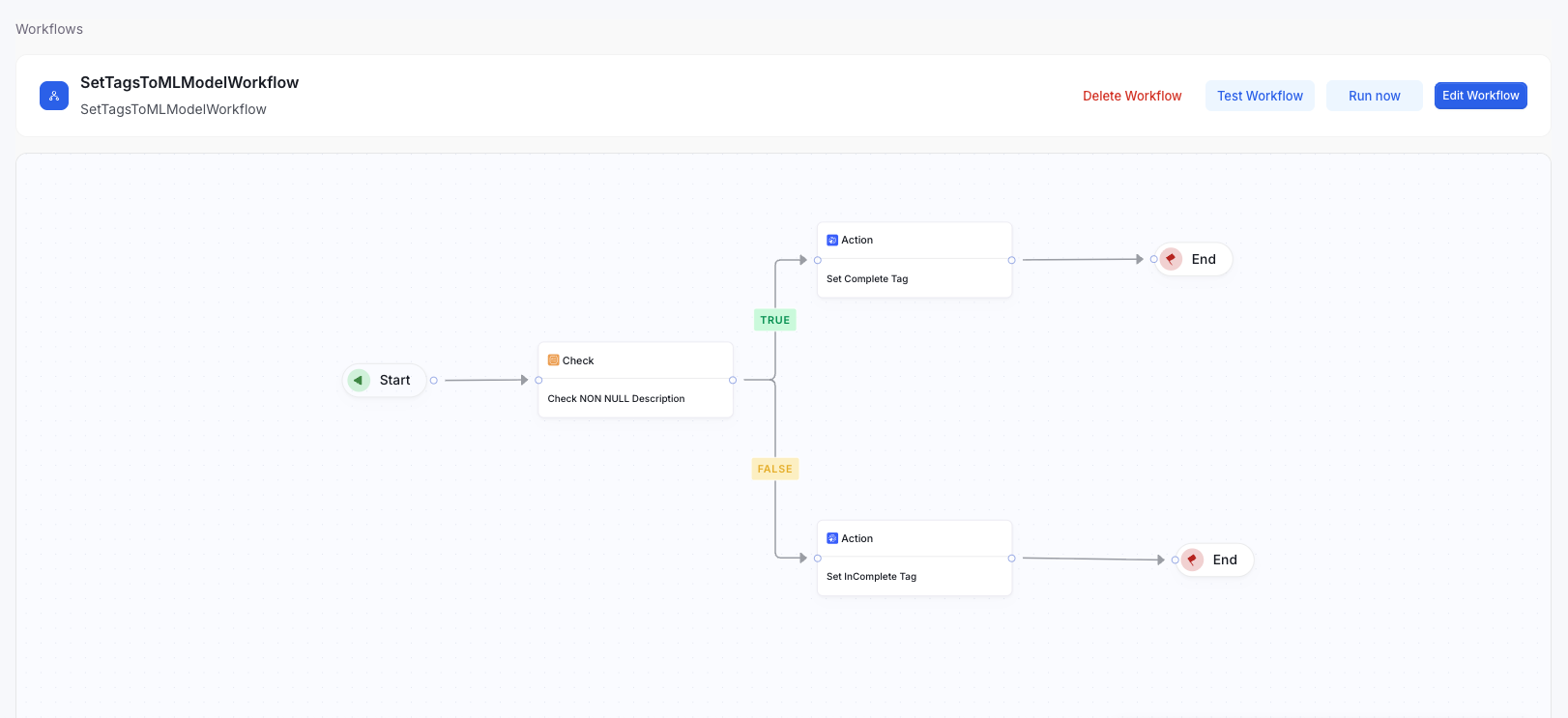
- TRUE → Apply Complete Tag
- FALSE → Apply Incomplete Tag
Running a Periodic Batch Workflow
To execute an on-demand workflow, click Run Now This immediately triggers the workflow based on its configuration.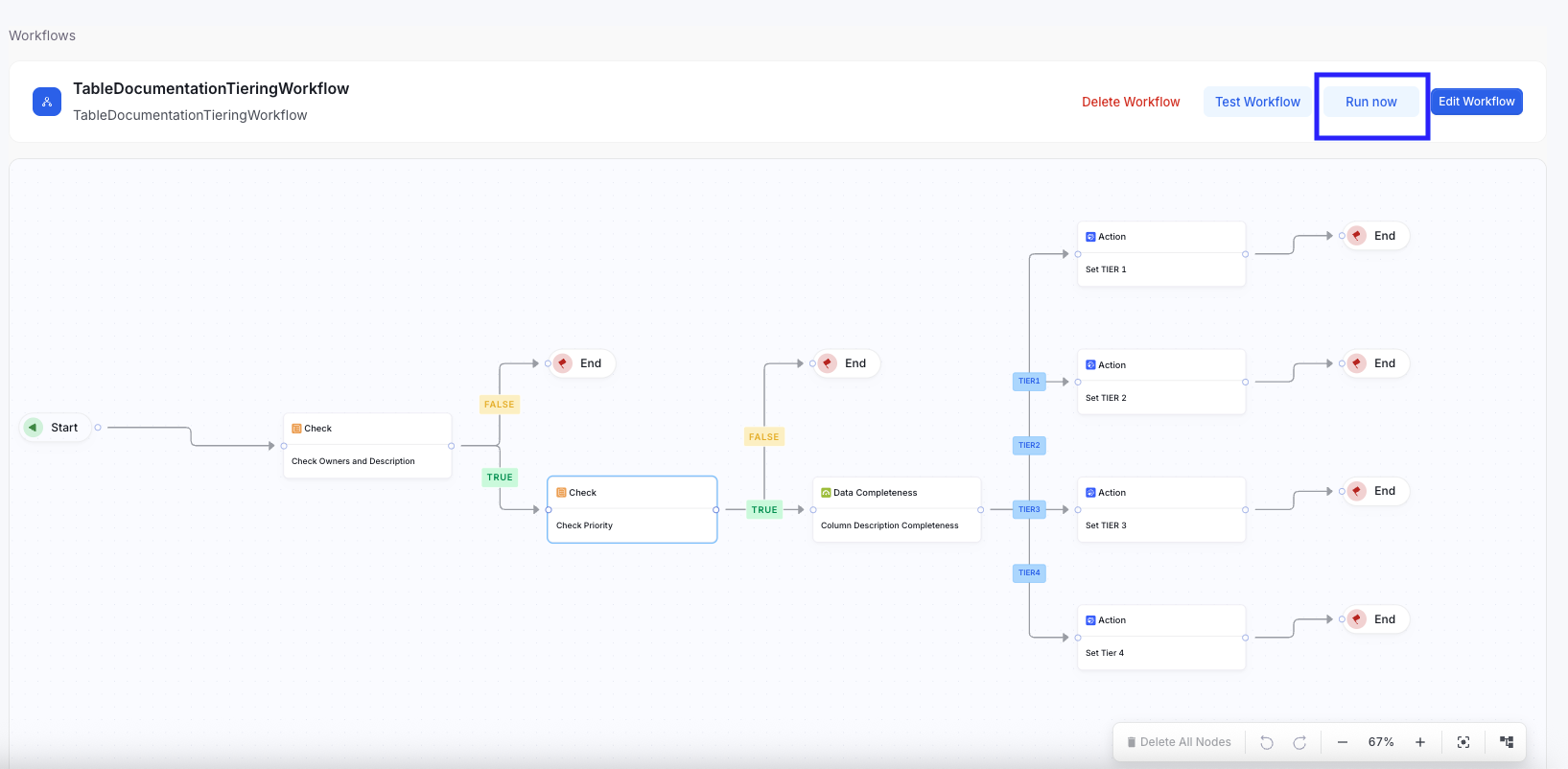
Best Practices
-
Use the Right Type of Trigger
- Event-Based Entity Triggers are ideal when specific fields must be automatically updated in response to a change. Example: When any attribute of a Glossary Term is modified, its status should automatically update to IN REVIEW.
- Periodic Batch Triggers are best suited for bulk updates across many entities, especially for classification or enrichment workflows. Example: Tables or Dashboards can be classified as Tier 1, Tier 2, or Tier 3 based on the completeness of their column descriptions.
-
Use a Single Event-Based Workflow per Data Asset
- Configure only one event-based entity workflow for each data asset. Having multiple workflows attempting to update the same field (such as the status of a Glossary Term) can result in unpredictable behavior, as one workflow’s changes may override another’s.
-
Optimize Batch Size for Periodic Workflows
- Tune the batch size based on the number of data assets to ensure optimal performance.
- Avoid running periodic workflows across all entities without filtering. Instead, apply an inclusion filter to limit the result set and prevent performance degradation.
-
Use User Approval Tasks Only in Event-Based Workflows
- User Approval Tasks should be used exclusively in event-driven workflows. Using them in periodic workflows would generate multiple approval tasks simultaneously, overloading system resources.
- If an approval step is needed in a periodic batch workflow, ensure the workflow scope is limited to a small, controlled set of entities.
Limitations
-
User Approval Tasks Are Limited to Assets with Reviewer Support
- User Approval Tasks can only be used for data assets that support assigning reviewers. Reviewer support for additional asset types will be introduced in future releases.
-
Fallback Behavior for Entities Without Reviewers
- For entities that do not have any reviewers configured, User Approval Tasks automatically follow the TRUE path as a graceful fallback. Example: A Metric without a reviewer will automatically pass the approval step.