
Relation Types
Every edge in the Ontology Explorer graph—and every option in its Relationship Type filter—is backed by a relation type definition. Collate ships with a set of system-defined types (for example Related To, Parent Of, Part Of, Synonym) and lets admins add their own custom types to model relationships specific to their domain.Accessing Relation Type Settings
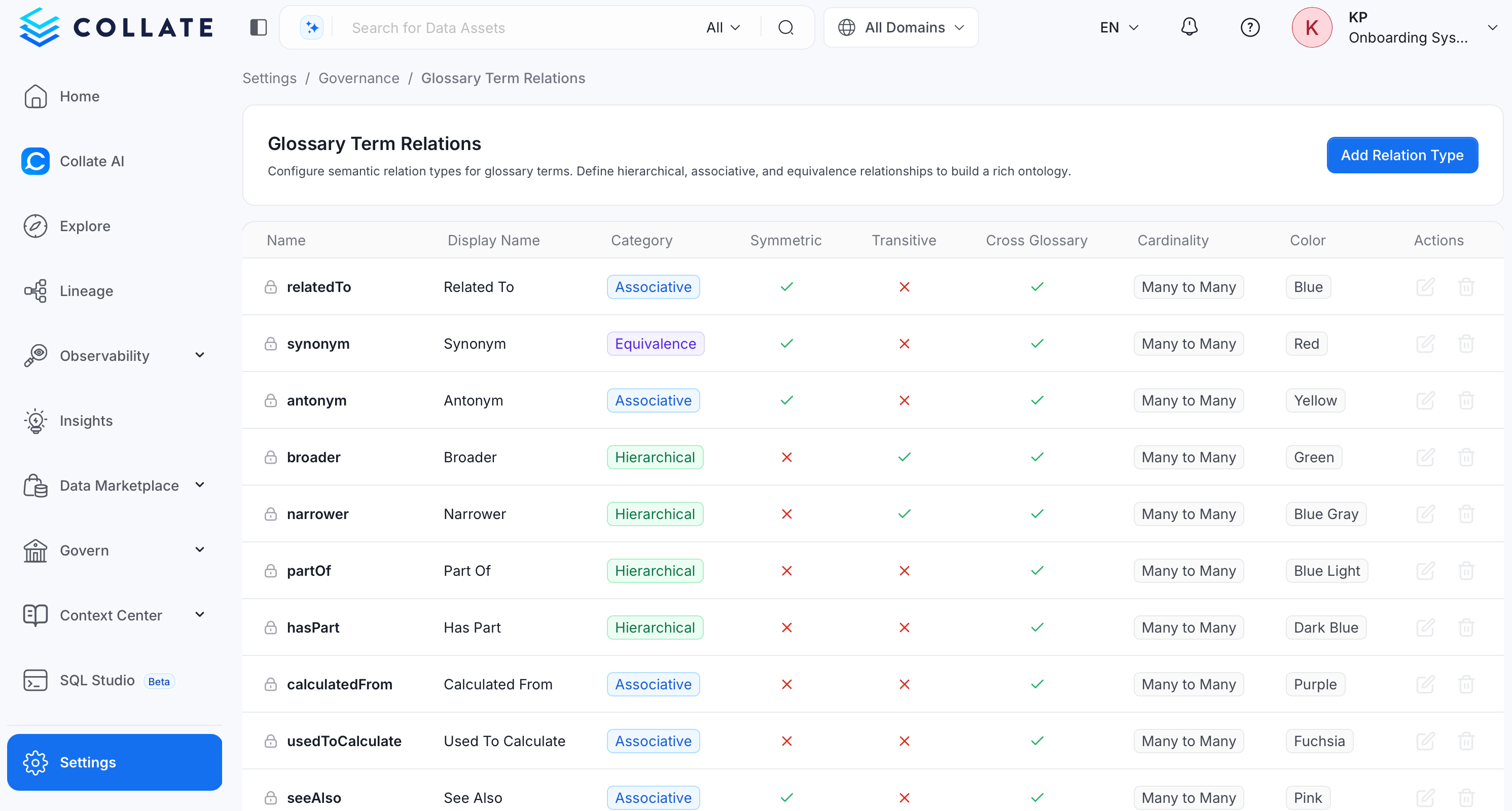
- To access relation type settings, navigate to Settings > Governance > Glossary Term Relations. This page is only visible to admin users.
-
The page lists every relation type available in your instance as a table, with a column for each of the following:
- Name: The unique, system-facing identifier for the relation type.
- Display Name: The human-readable label shown in the Ontology Explorer graph and filters.
- Category: Groups the type as Hierarchical, Associative, or Equivalence.
- Symmetric: Whether the relationship applies equally in both directions (for example, Related To).
- Transitive: Whether the relationship chains across terms (if A relates to B, and B relates to C, A also relates to C).
- Cross-Glossary: Whether the relation type can connect terms that belong to different glossaries.
- Cardinality: The allowed number of source and target terms the relationship can connect.
- Color: The color used for the type’s edges and badges in the graph.
- System-defined relation types show a lock icon next to their name and can’t be edited or deleted. Custom relation types—added by an admin—can be edited or removed using the icons in the Actions column.
Adding a Custom Relation Type
-
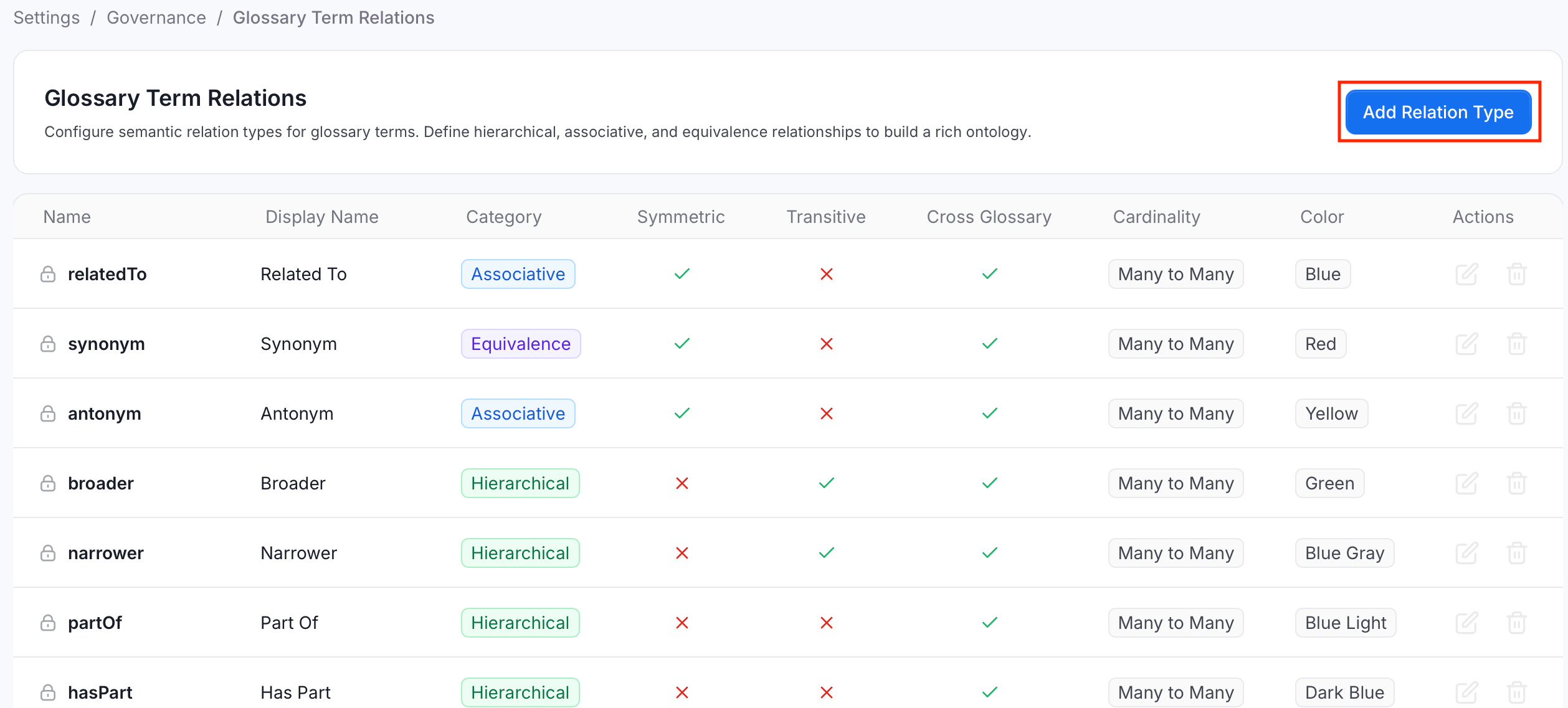
On the Glossary Term Relations page, click Add Relation Type.
-
On the right panel that appears, configure the following options:
Basic details:
- Name: A required, unique identifier. Must start with a letter and contain only letters and numbers.
- Display Name: A required, human-readable label.
- Optional: Description — Add context on what the relationship represents and when to use it.
- Category: Groups the type alongside similar relationships:
- Hierarchical: Parent/child style relationships that build a ranked structure, such as Parent Of or Broader.
- Associative: General related-to style relationships between terms that don’t imply a hierarchy, such as Related To or See Also.
- Equivalence: Same-as style relationships that mark two terms as interchangeable, such as Synonym.
- Cardinality: Constrains how many terms can be connected on each side of the relationship:
- One-to-One: Each source term can connect to exactly one target term, and each target term to exactly one source term.
- One-to-Many: Each source term can connect to multiple target terms, but each target term connects back to only one source term.
- Many-to-One: Multiple source terms can connect to a single target term, but each source term connects to only one target term.
- Many-to-Many: Any number of source terms can connect to any number of target terms, with no limit on either side.
- Custom: Set explicit Source Max and Target Max values instead of using one of the presets above—leave either field blank for unlimited.
- Symmetric: Toggle on if the relationship applies equally in both directions. For example, Related To.
- Transitive: Toggle on if the relationship chains across terms. For example, if A relates to B, and B relates to C, A also relates to C.
- Cross-Glossary: Toggle on to allow the relation type to connect terms that belong to different glossaries.
- Inverse Relation: The name of the relation type that represents this one in reverse. For example, an inverse of Broader would be Narrower.
- RDF Predicate: The RDF (Resource Description Framework) / OWL (Web Ontology Language) predicate URI this relation type maps to when RDF indexing is enabled. For example,
http://www.w3.org/2004/02/skos/core#broader. Collate warns you if a predicate is already used by another relation type. - Color: Pick a color to distinguish the relation type’s edges and badges in the Ontology Explorer.
- Click Add to save the relation type.
Editing or Deleting a Custom Relation Type
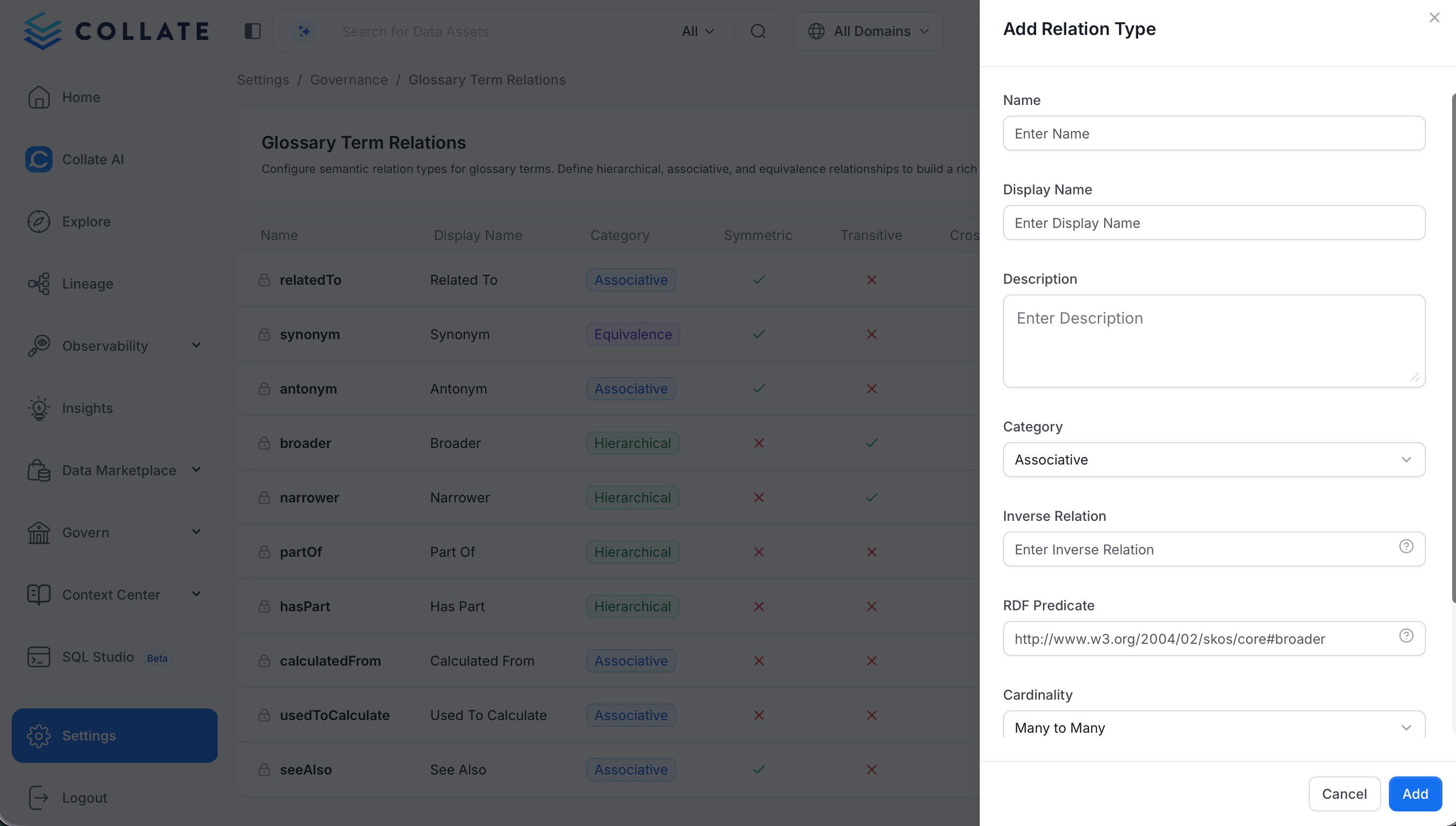
- To edit the relation type, in the Actions column, click the Edit icon and modify the details.
- To delete the relation type, in the Actions column, click the Delete icon.
Related Reading
Ontology Explorer
Visualize your glossary as an interactive graph using these relation types.
RDF Indexing
Enable RDF indexing to map relation types to RDF predicates.