
How to Set Up Automations in Collate
Step 1: Access the Automations Section
In the Collate UI, navigate to Govern>Automations. This will take you to the Automations page where you can view and manage your existing automations.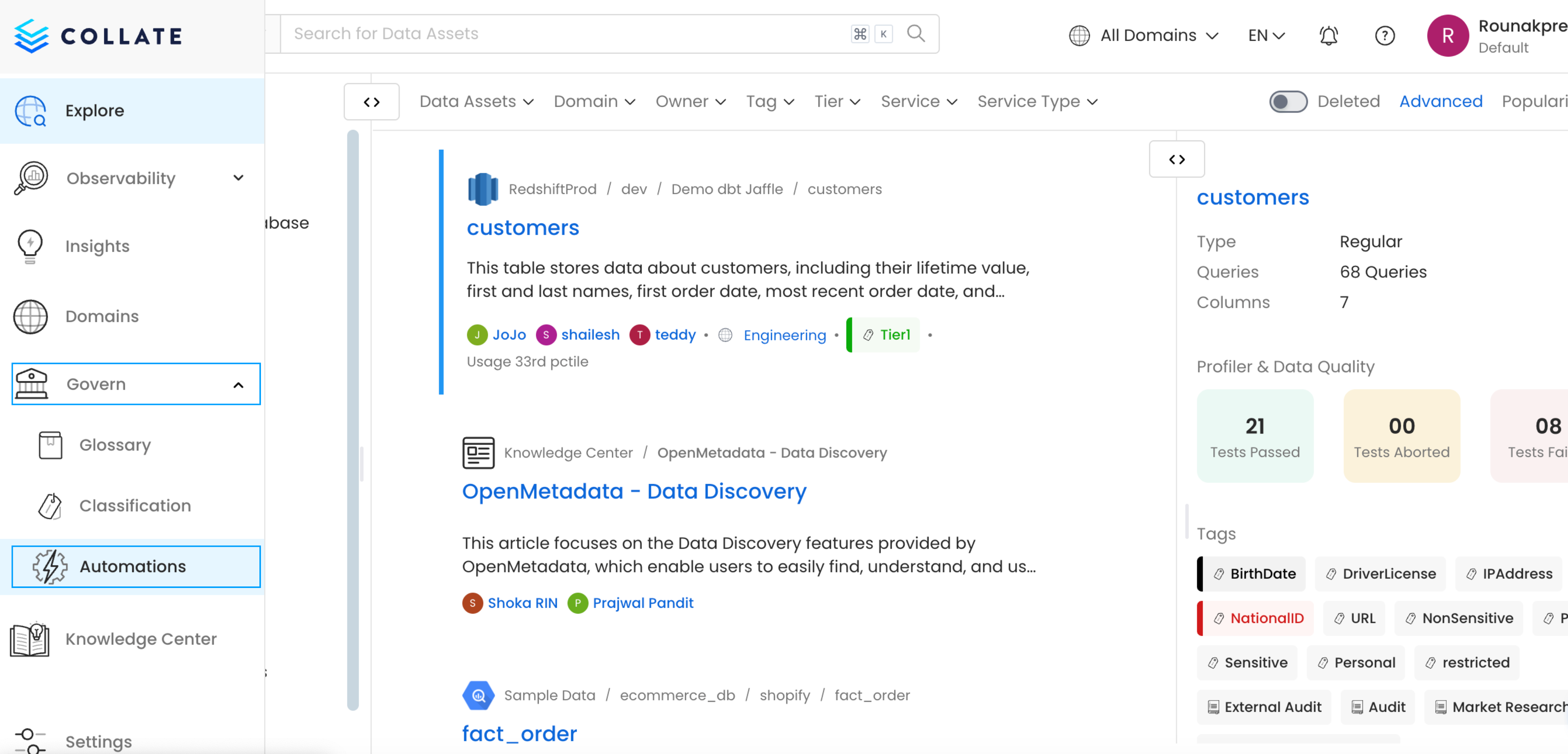
Step 2: Add a New Automation
In the Automations page, click the Add Automation button located at the top right of the page. A pop-up window will appear to begin the process of adding a new automation.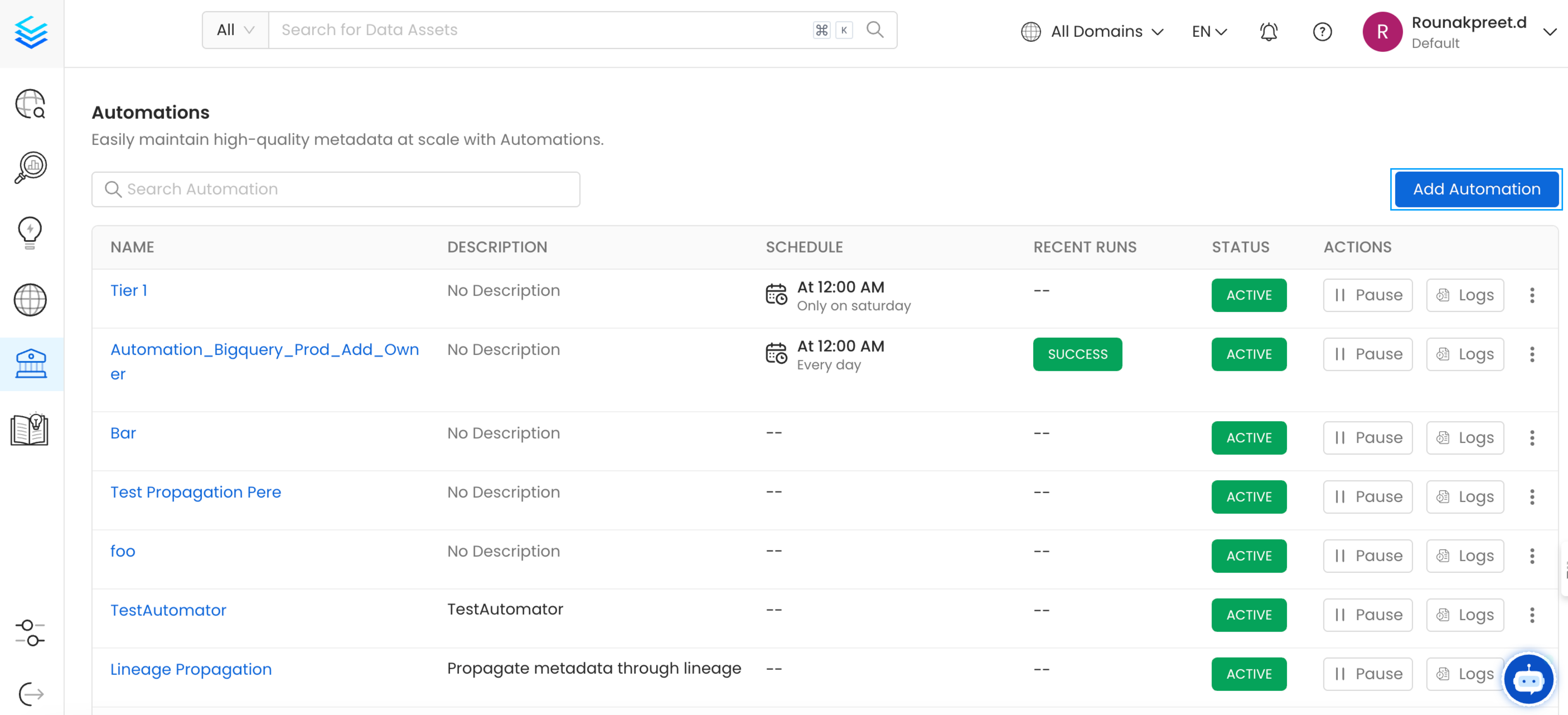
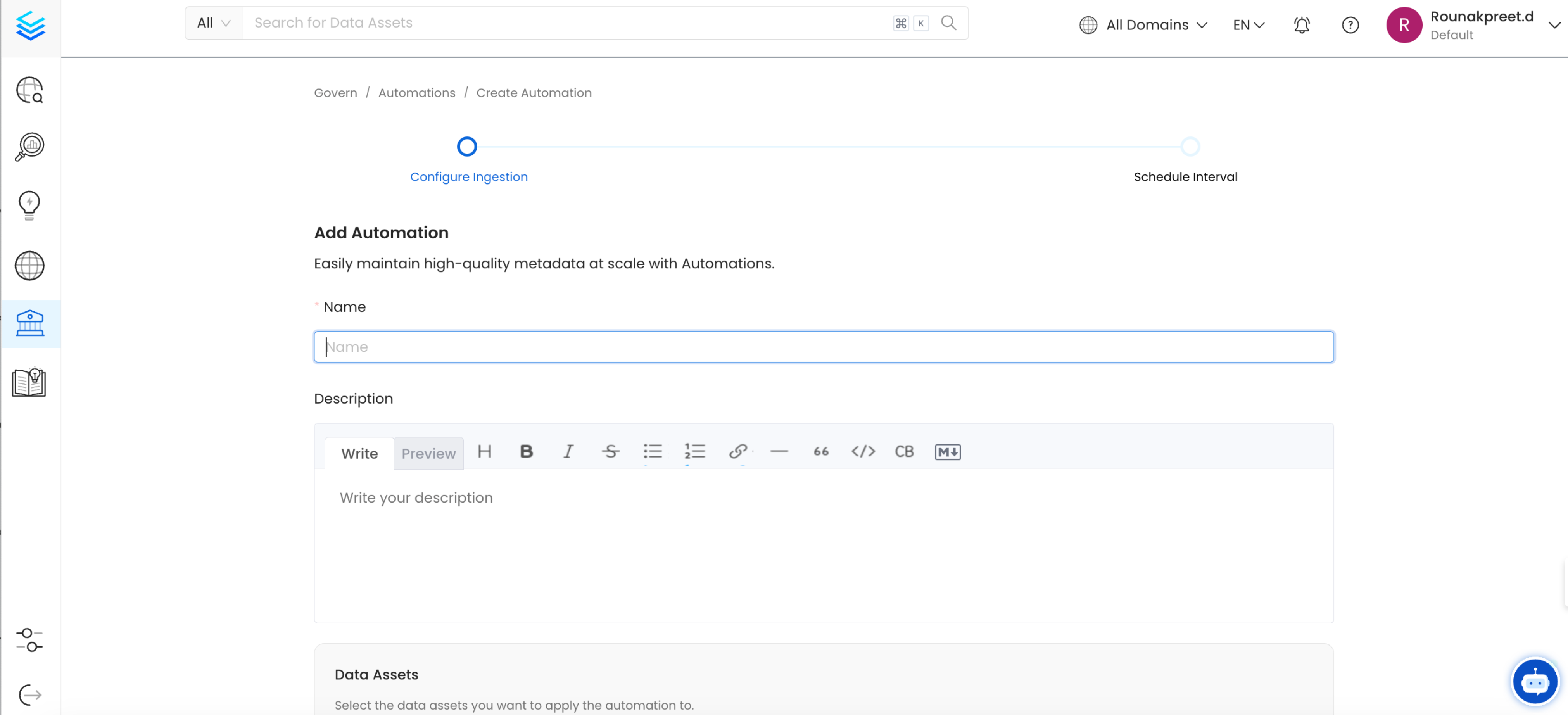
Step 3: Fill in Automation Details
In the pop-up window, provide the necessary information to set up the automation:- Automation Name: Give a meaningful name to the automation for easy identification.
- Description: Add a brief description explaining what this automation will do (e.g., “Daily metadata ingestion for database XYZ”).
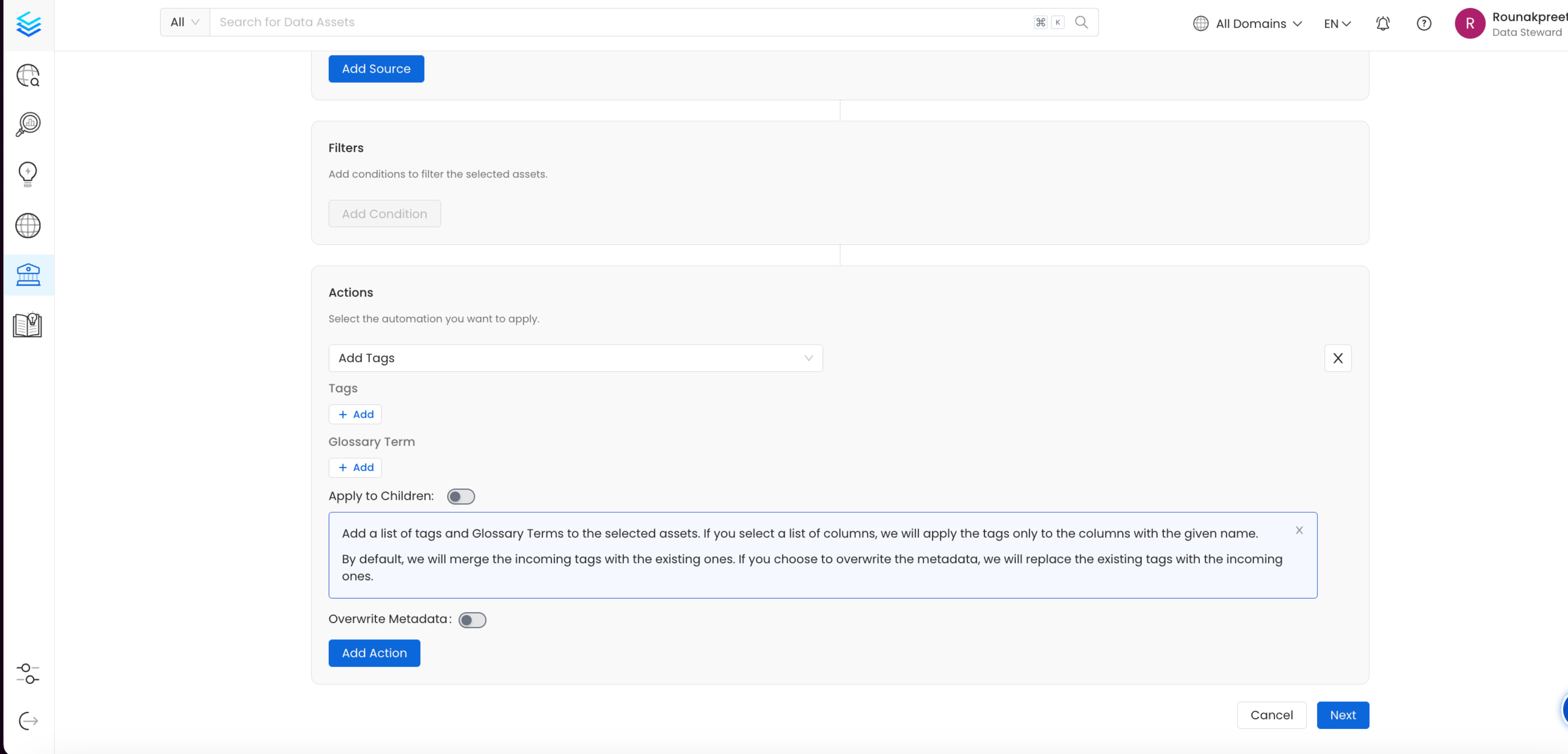
- Logic/Conditions: Define any conditions or specific criteria needed for this automation to work (e.g., specific tables or columns to be included). Ensure that the logic is set up as per your specific requirements to make the automation effective for your workflows.
- If a list of columns is specified, tags will only be applied to columns with matching names.
- By default, incoming tags will merge with existing tags.
- To overwrite existing tags with the new list, select the Overwrite Metadata option, replacing any previous tags with the incoming ones.
Step 4: Configure Automation Interval
Once you’ve filled in the required details, click Next. On the next page, you’ll be prompted to select the interval for the automation. This defines how frequently the automation should run (e.g., daily, weekly, or custom intervals). Review your settings and click Automate once you are satisfied with the configuration.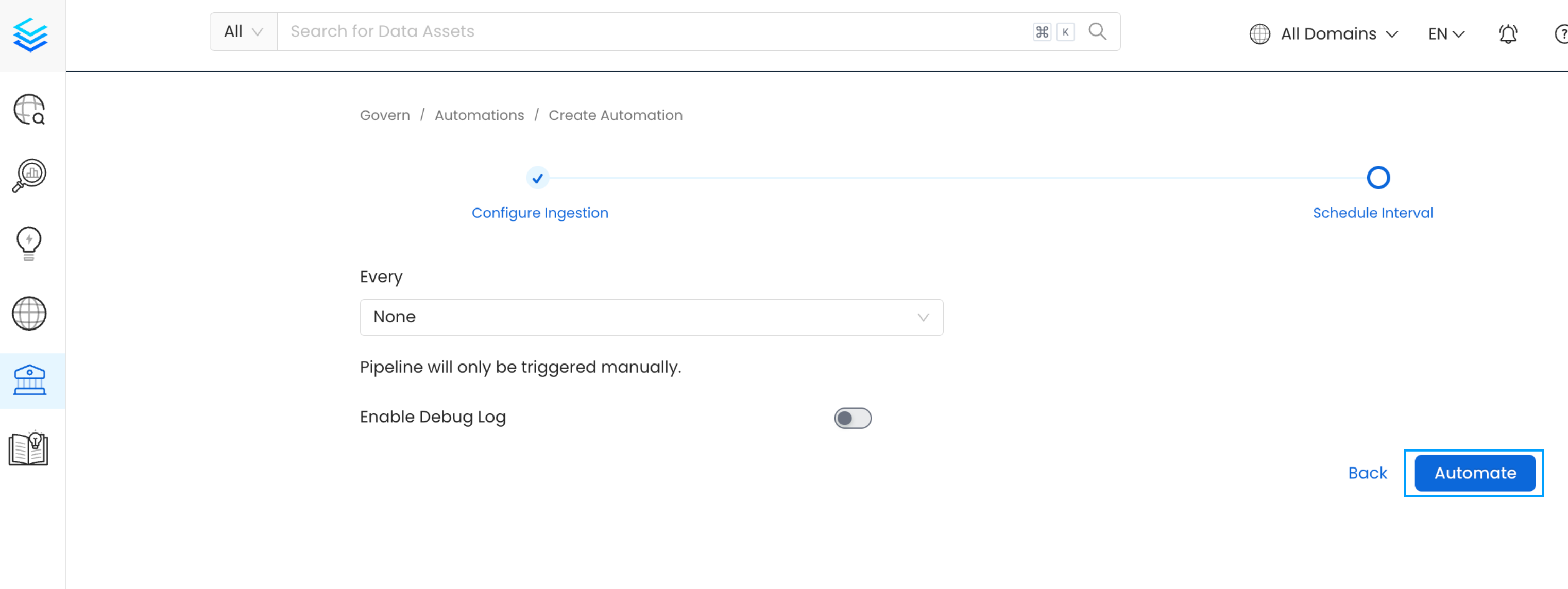
Step 5: Manage Your Automation
After completing the setup, your automation will appear in the Automations list. To manage the automation, click on the three dots next to the automation entry. From here, you can edit, re-deploy, delete, etc.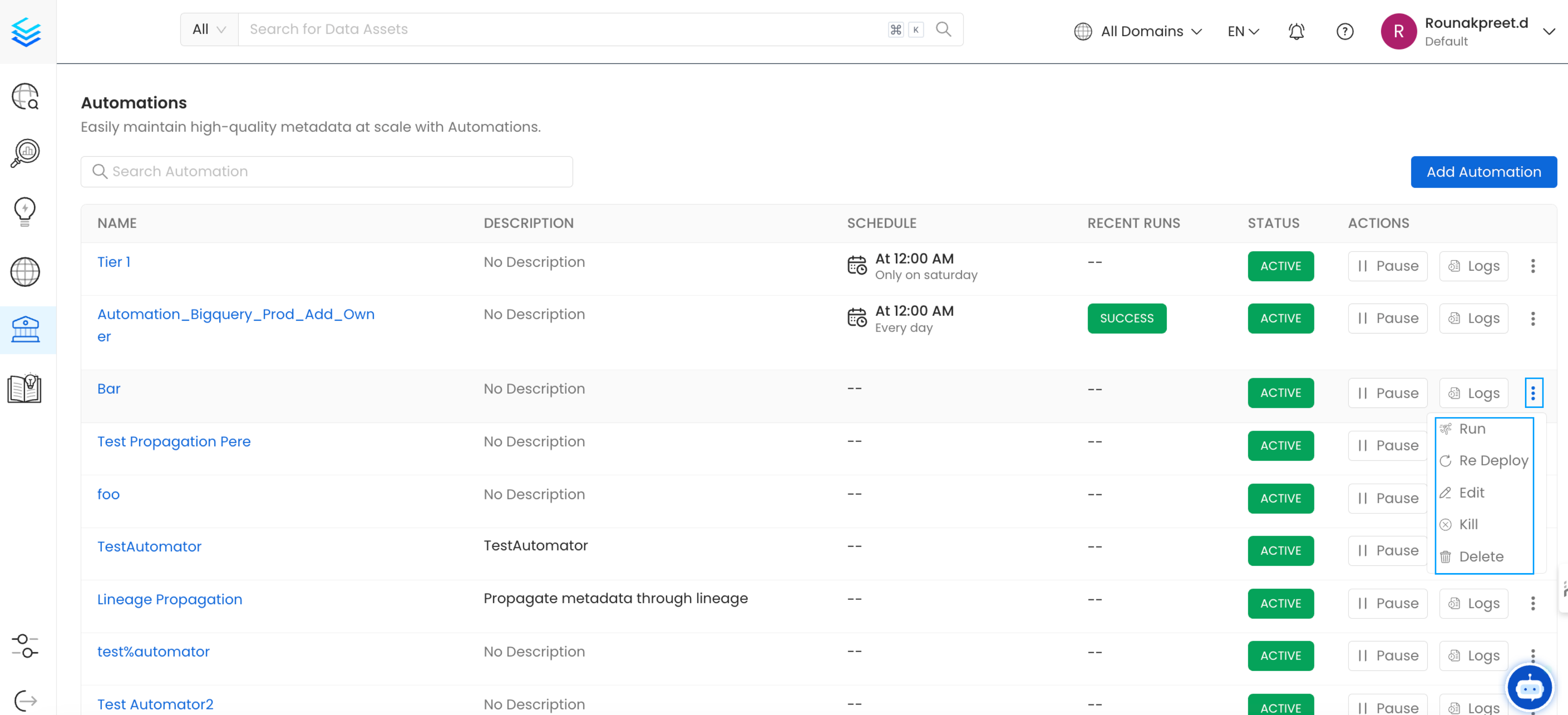
Tag Columns by Name Using Governance Automations
Use Governance Automations when you want to deterministically apply a tag to all columns matching a specific name — for example, all columns namedemail or person_id — without relying on sample data.
Example: Apply PII.Sensitive to all columns named email or person_id
- Go to Govern > Automations and click Add Automation.
- Enter a Name (for example,
PII column name tagging) and an optional Description. - Under Data Assets, click Add Source and select target sources.
- Under Actions, click Add Action and select Add Tags.
- Click + next to Tags and select
PII.Sensitive. - Enable the Apply to Children toggle. A Select Children field appears — enter the column names to match (for example,
email,person_id,customer_email). Tags will only be applied to columns whose names match this list. - Click Next, configure the schedule interval, and click Automate.