
How to Grant Temporary Access to Collate Support Team Members
This guide outlines the steps required to give temporary support access in the Collate platform for the support team.Steps to Grant Access
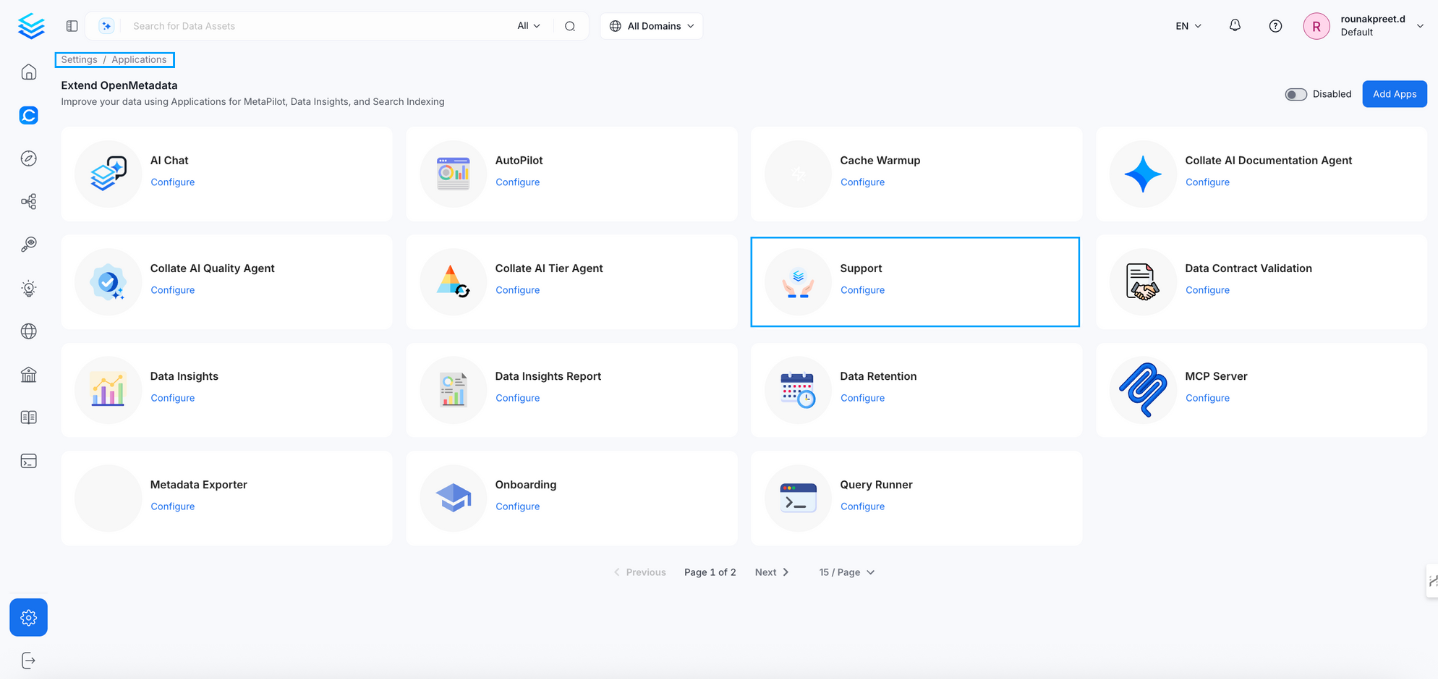
1. Navigate to the Support Application
- Go to Settings → Applications → Support
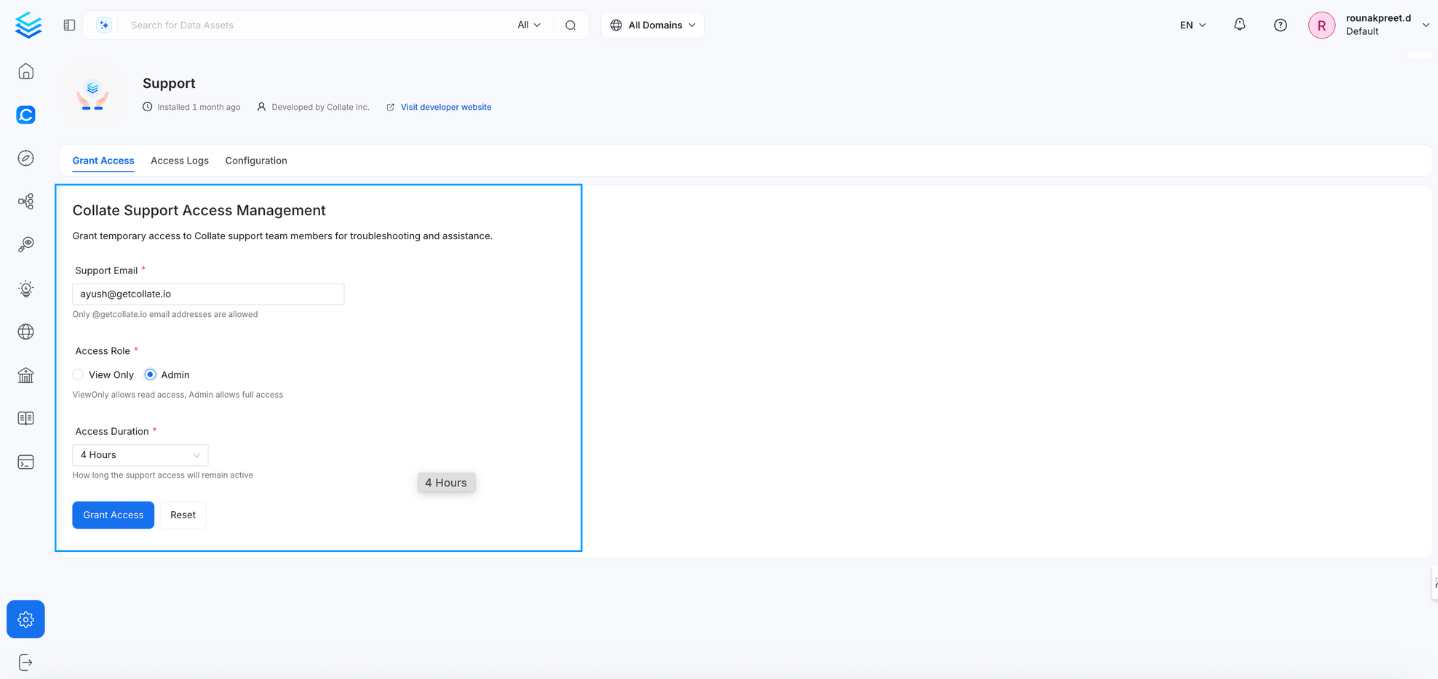
2. Add the Collate Support Access
- In the Add Support section:
- Enter the support email, for example
ayush@getcollate.io - Set Access Role to
view onlyorAdmin. - Set the Access Duration to
1 hour,2 hours, or4 hours
- Enter the support email, for example
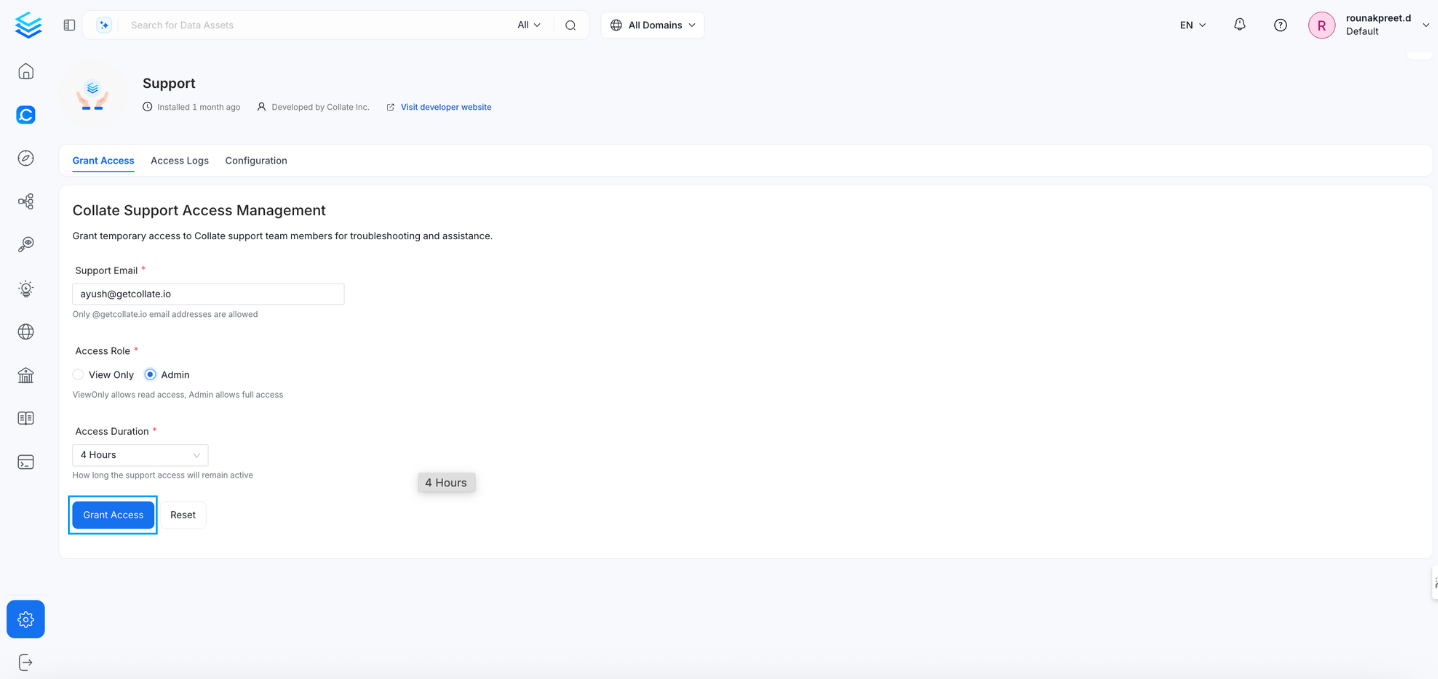
3. Grant Access
- Click the Grant Access button.
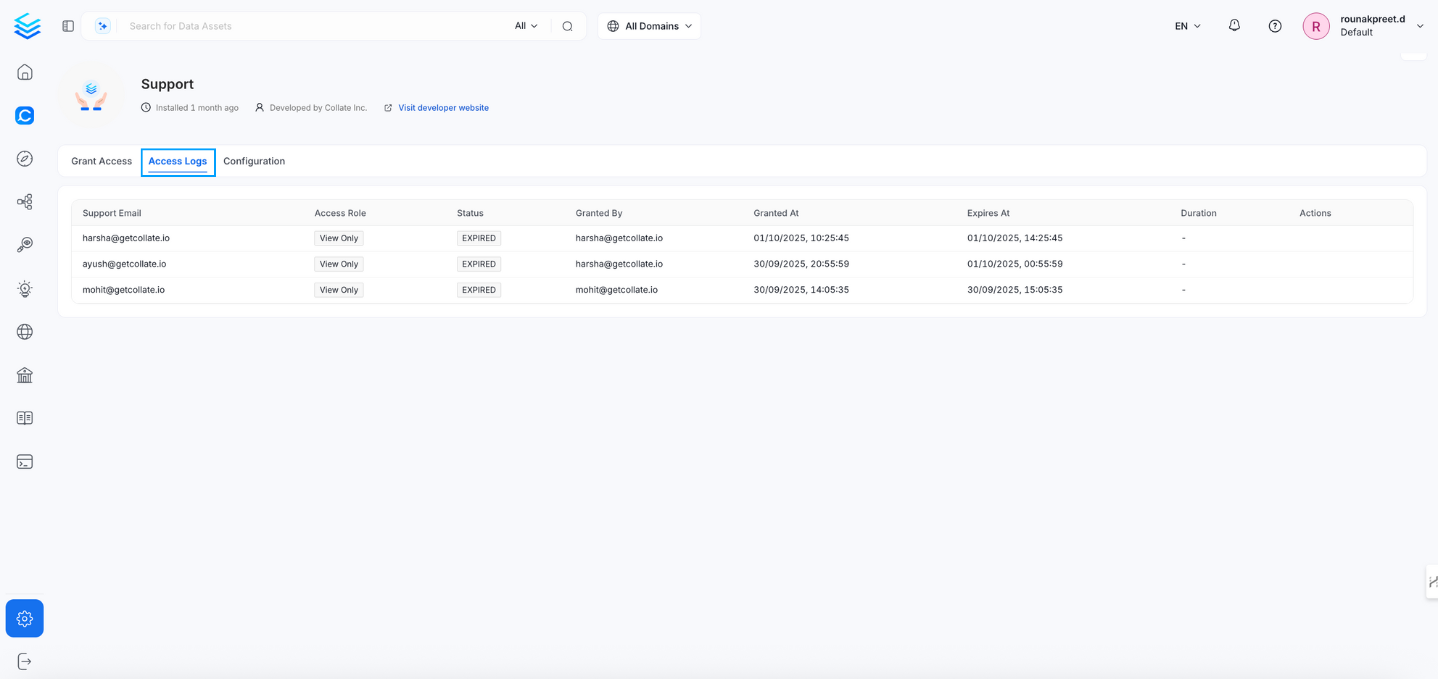
- Access will be granted to the specified support email address with the configured role and duration. This can be verified in the access logs.
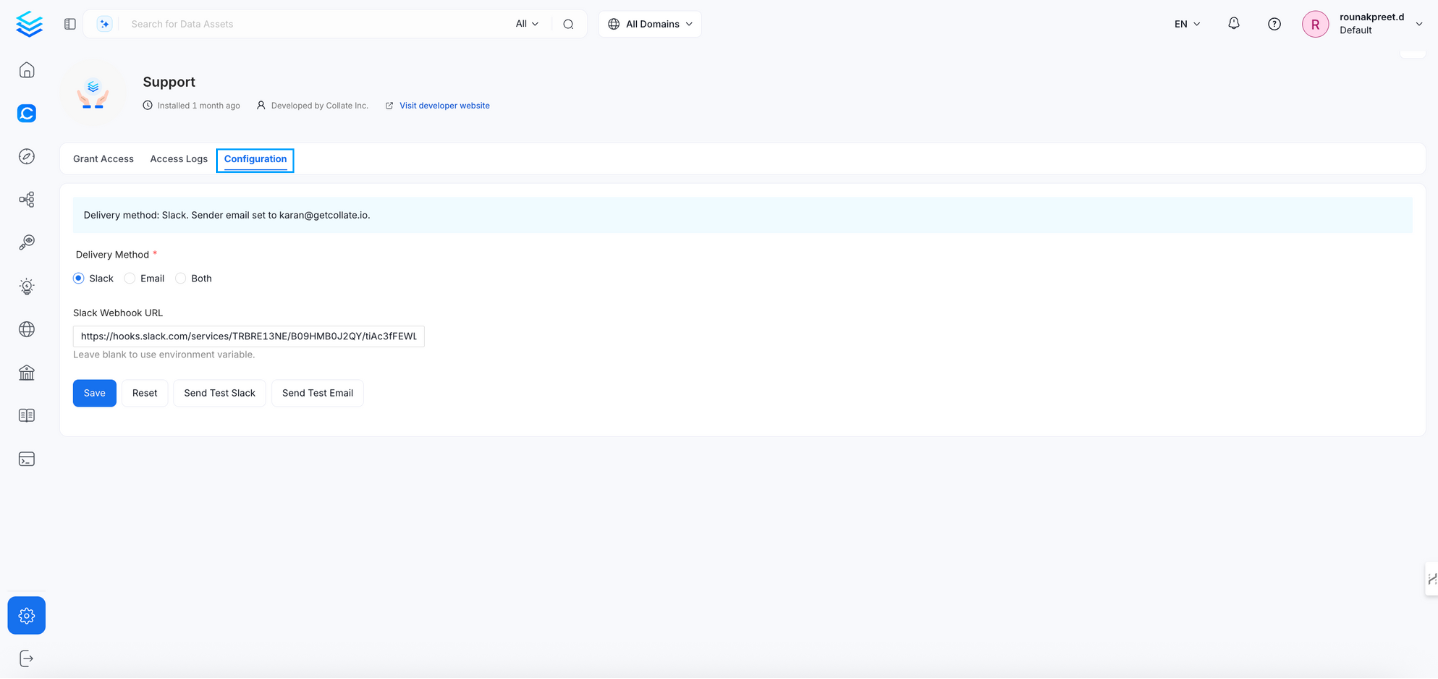
- In the configuration section, you can select the delivery method as Email, Slack, or both.
If your organization uses Single Sign-On (SSO), you must disable the Enforce Principal Domain to allow access for emails from other domains (e.g., 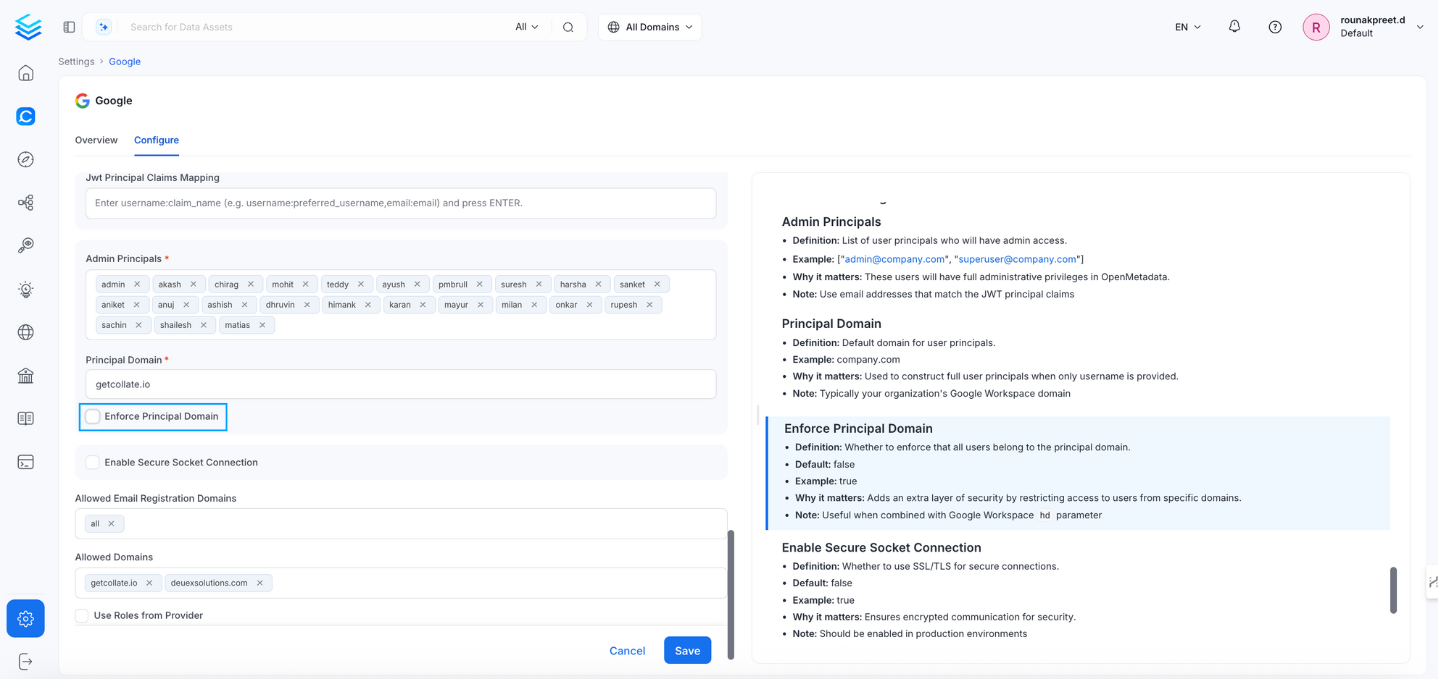
gmail.com). Navigate to Settings → SSO → Configure to disable the Enforce Principal Domain setting.