
- Remote Connection
- Requirements
- Metadata Ingestion
- Query Usage
- Data Profiler
- Data Quality
- Lineage
- dbt Integration
- Troubleshooting
- Reverse Metadata
Requirements
The MSSQL user must be granted theSELECT privilege to fetch the metadata of tables and views.
View Definitions
Usage and Lineage Considerations
To perform the query analysis for Usage and Lineage computation, the connector reads query history from SQL Server’s Query Store when it is enabled on a database. Query Store exposes this history throughsys.query_store_query, sys.query_store_query_text, sys.query_store_plan, and sys.query_store_runtime_stats. Query Store keeps a durable, on-disk record of executed queries. The plan-cache Dynamic Management Views (DMVs) (sys.dm_exec_cached_plans, sys.dm_exec_query_stats, and sys.dm_exec_sql_text) are evicted on server restart, memory pressure, or plan recompilation, and can silently return incomplete history.
Query Store is auto-detected per database. No configuration is needed. When ingestAllDatabases is enabled, each database is read from its own best source independently: databases with Query Store use it, and the rest fall back to the plan-cache DMVs, so one database without Query Store never downgrades the others.
To check whether Query Store is enabled on a database, and how it is currently operating:
QUERY_CAPTURE_MODE on SQL Server 2019 and later is AUTO, which can skip queries that only run a few times, such as a one-off data migration statement. Setting it to ALL ensures every query is captured for lineage. Set STALE_QUERY_THRESHOLD_DAYS to cover at least your ingestion lookback window, so queries are not purged before they are read. Query Store’s default SIZE_BASED_CLEANUP_MODE purges the oldest queries to stay within MAX_STORAGE_SIZE_MB, which reduces the risk of Query Store switching to read-only. Under heavy write load, cleanup can still fall behind, and Query Store can switch to read-only temporarily until it catches up.
Database-level, for Query Store metadata: VIEW DATABASE STATE (SQL Server 2016–2019) or VIEW DATABASE PERFORMANCE STATE (SQL Server 2022 and later).
VIEW SERVER STATE (SQL Server 2019 and earlier) or VIEW SERVER PERFORMANCE STATE (SQL Server 2022 and later).
sys.database_query_store_options and the Microsoft documentation for your instance.
For Remote Connection
1. Confirm SQL Server Is Running
Confirm that the SQL Server instance you want to connect to is running.2. Allow Remote Connection in Microsoft SQL Server Management Studio (SSMS)
This step allows SQL Server to accept remote connection requests.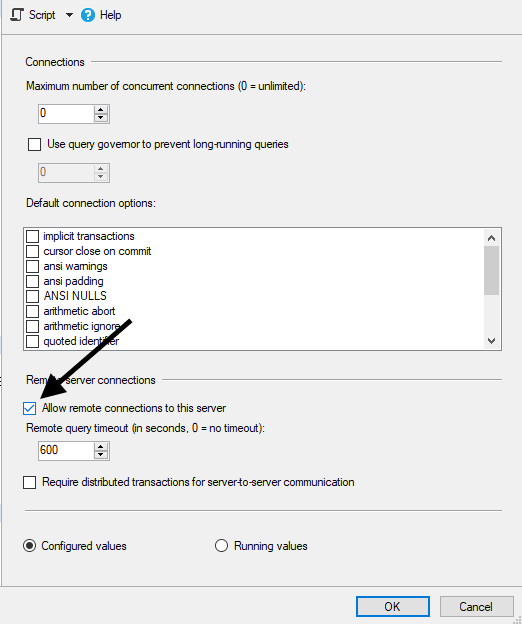
3. Configure Windows Firewall
If using SQL Server on Windows, configure the firewall on the computer running SQL Server to allow access.- On the Start menu, select Run.
- Enter
WF.msc, then select OK. - In Windows Firewall with Advanced Security, in the left pane, right-click Inbound Rules.
- Select New Rule in the action pane.
- In the Rule Type dialog box, select Port, then select Next.
- In the Protocol and Ports dialog box, select TCP.
- Select Specific local ports, then enter the port number of the Database Engine instance, such as
1433for the default instance. - Select Next.
- In the Action dialog box, select Allow the connection, then select Next.
- In the Profile dialog box, select the profiles that describe the computer connection environment for when you want to connect to the Database Engine, then select Next.
- In the Name dialog box, enter a name and description for this rule, then select Finish.
Metadata Ingestion
To ingest metadata from MSSQL, you need to create a service connection. The service connects MSSQL with Collate. Once you create a service, Collate automatically starts ingesting metadata.Step 1: Add New Service
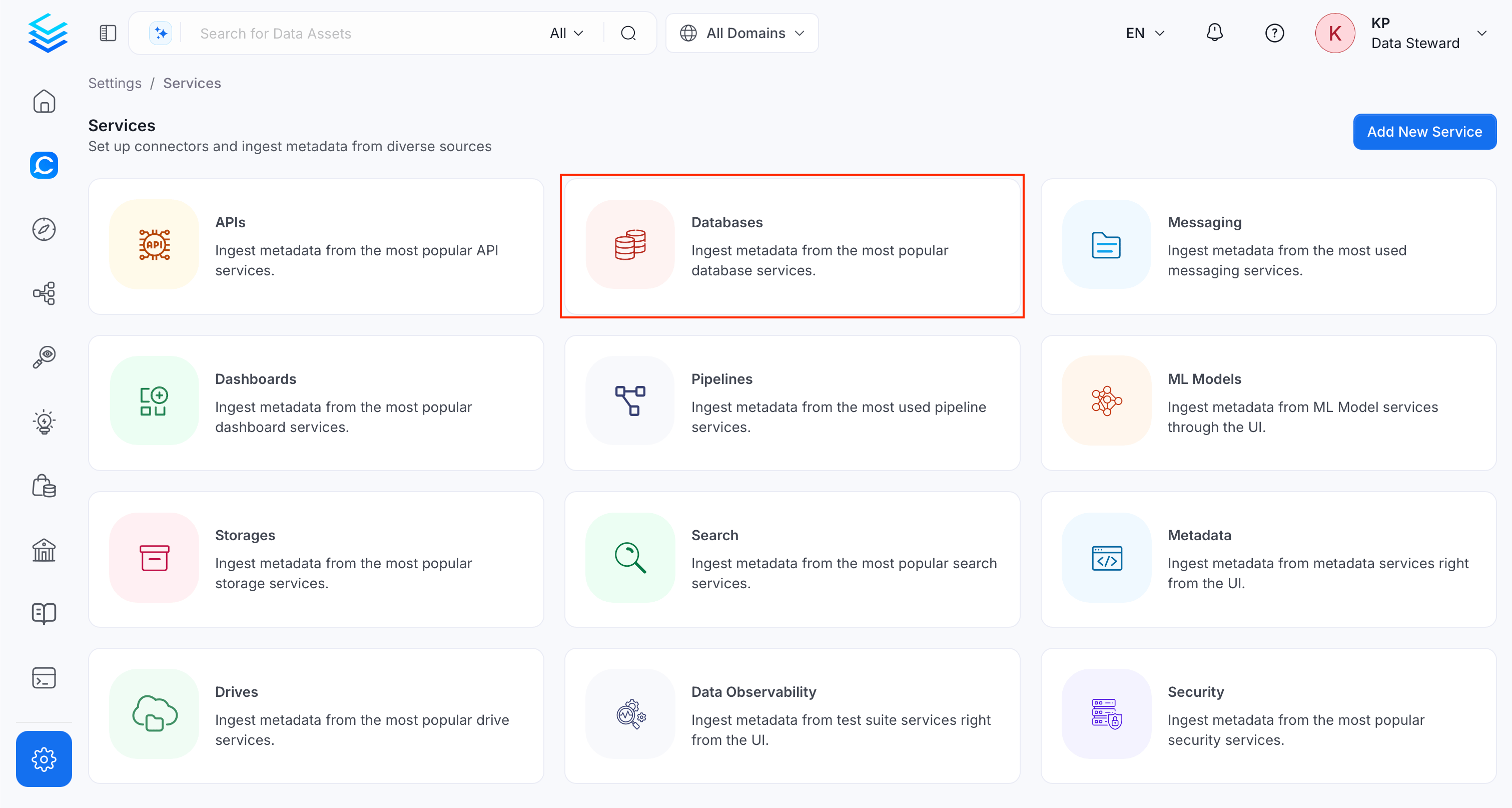
Open the Services page and start a new service.-
Navigate to Settings > Services and select Database Services.
-
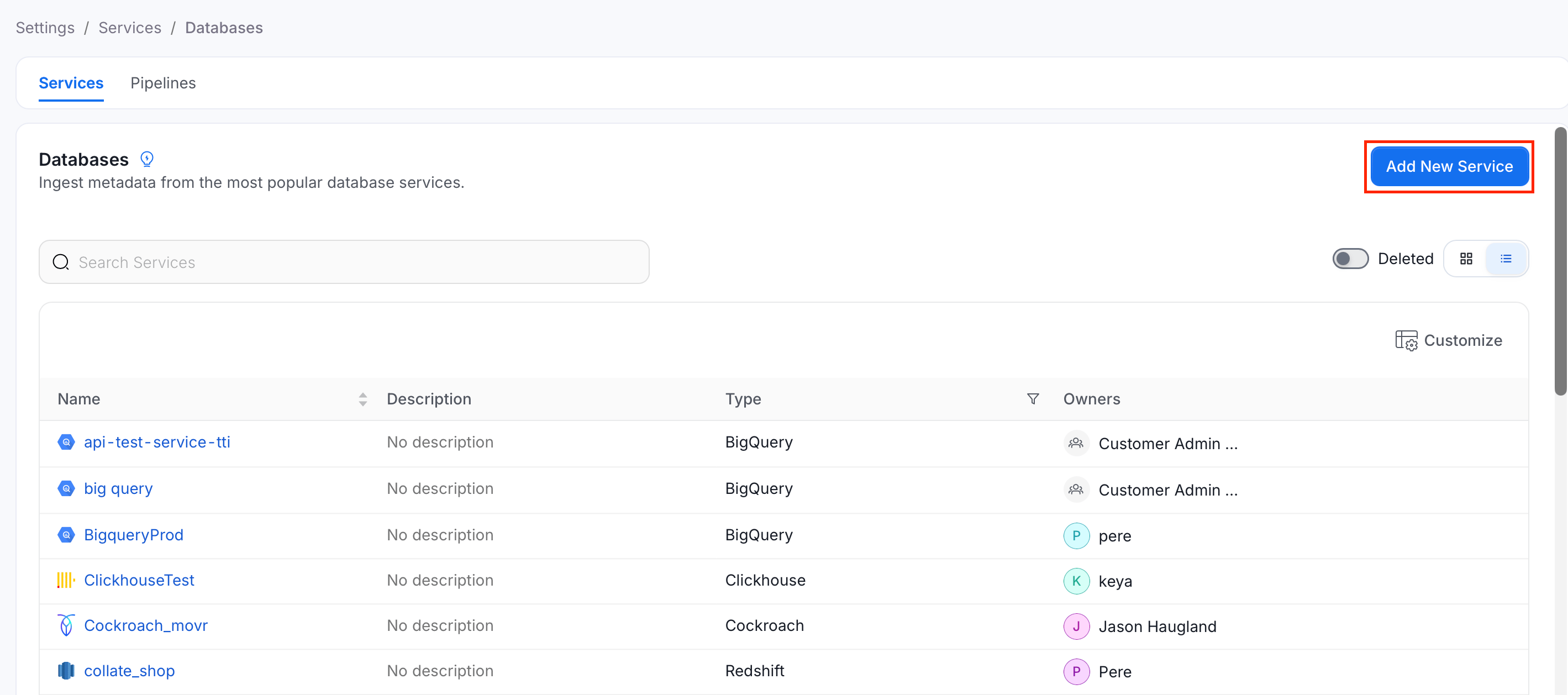
Click Add New Service.
Step 2: Select a Service and Connector
From the service type dropdown, select Database Services, then click the MSSQL connector tile.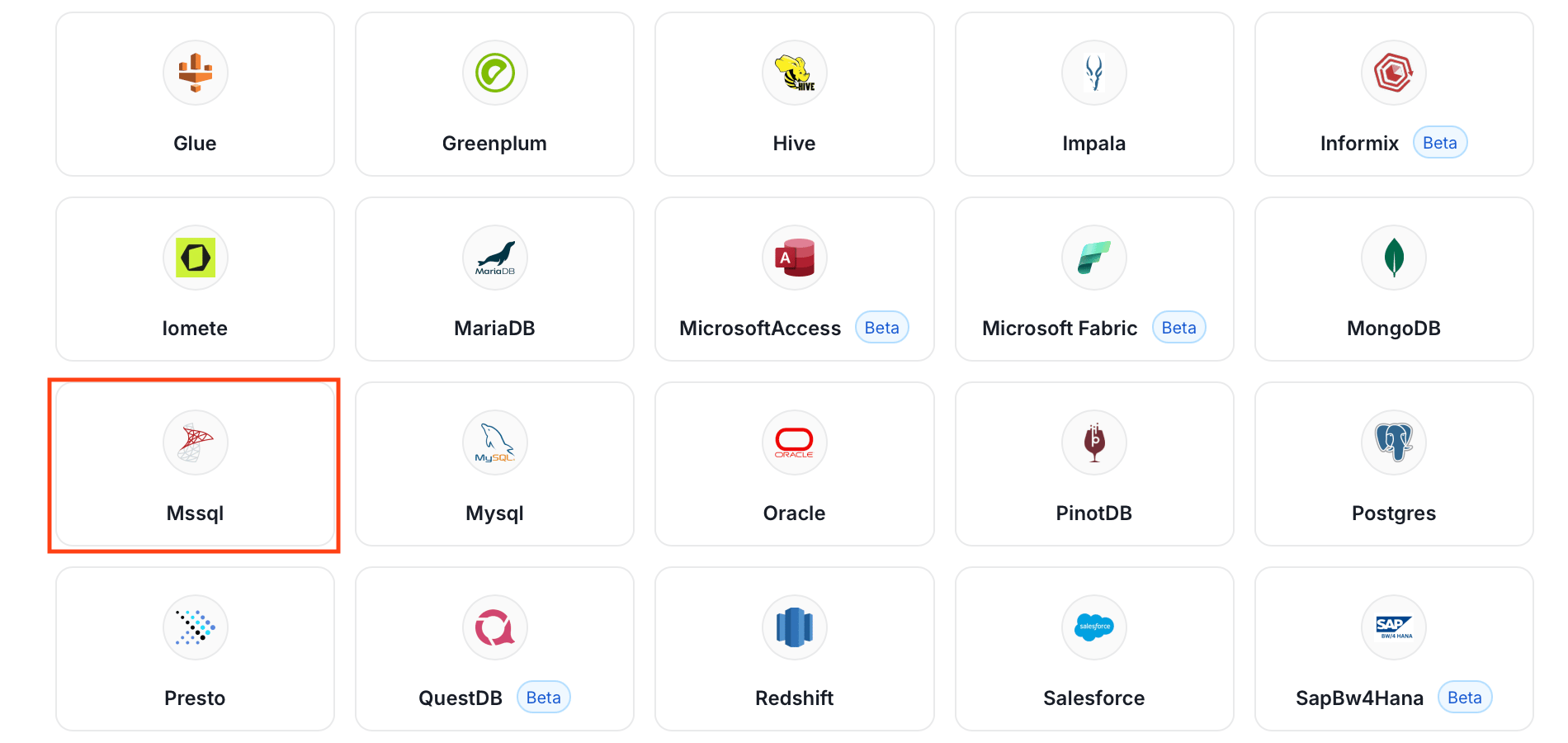
Step 3: Add Service Name and Description
- Enter a unique, descriptive Service Name. Collate identifies services by their service name. Enter a name that distinguishes this deployment from other MSSQL services you are ingesting metadata from.
- Optional: Enter a Description for the service.
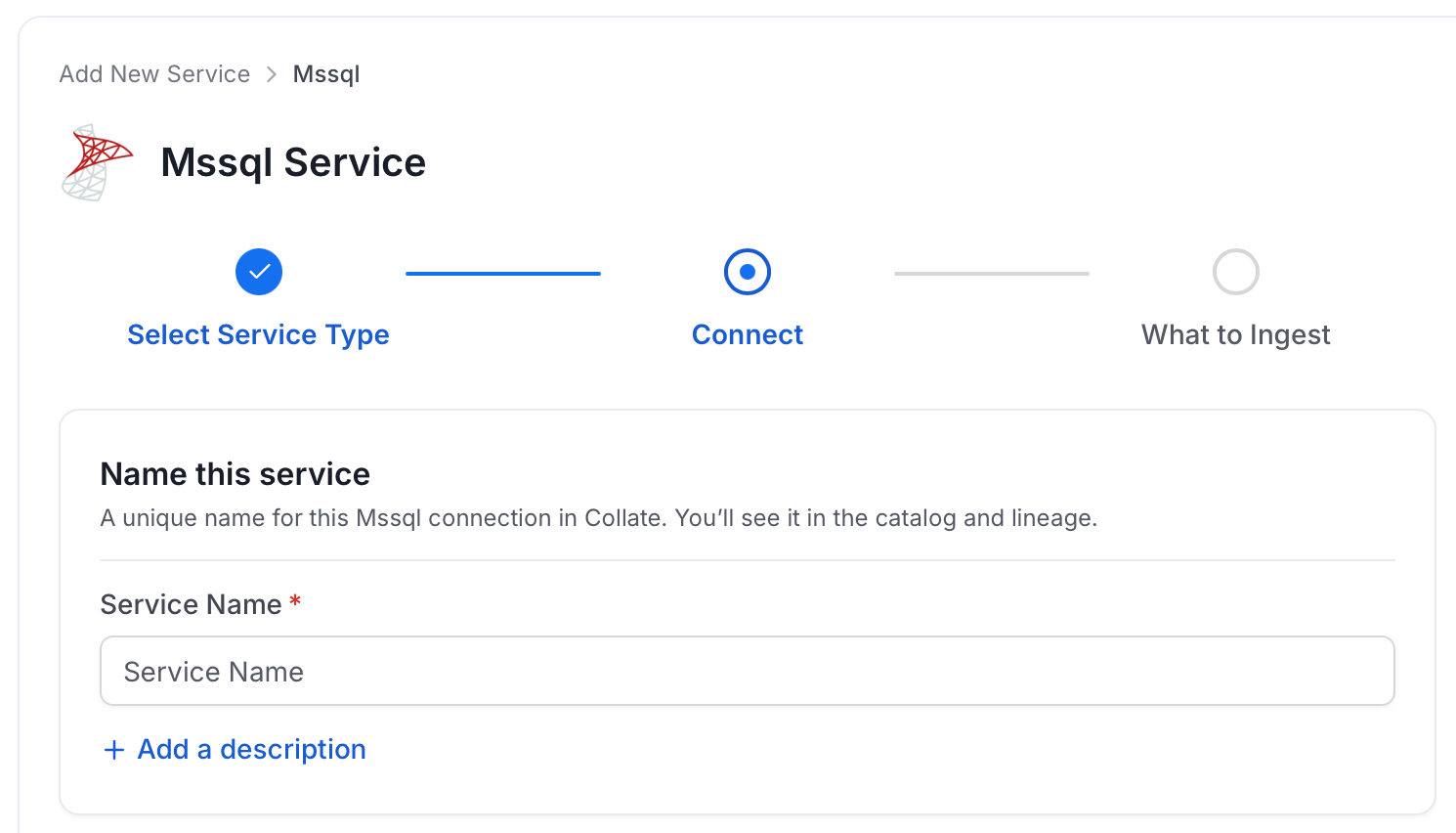
Note: The service name can’t be changed after you set it.
Step 4: Configure Connection Options
Specify where ingestion runs, provide your source credentials, and verify the connection.Select Ingestion Runner
Select an Ingestion Runner: the runner where the ingestion pipeline will execute.
Enter Connection Details
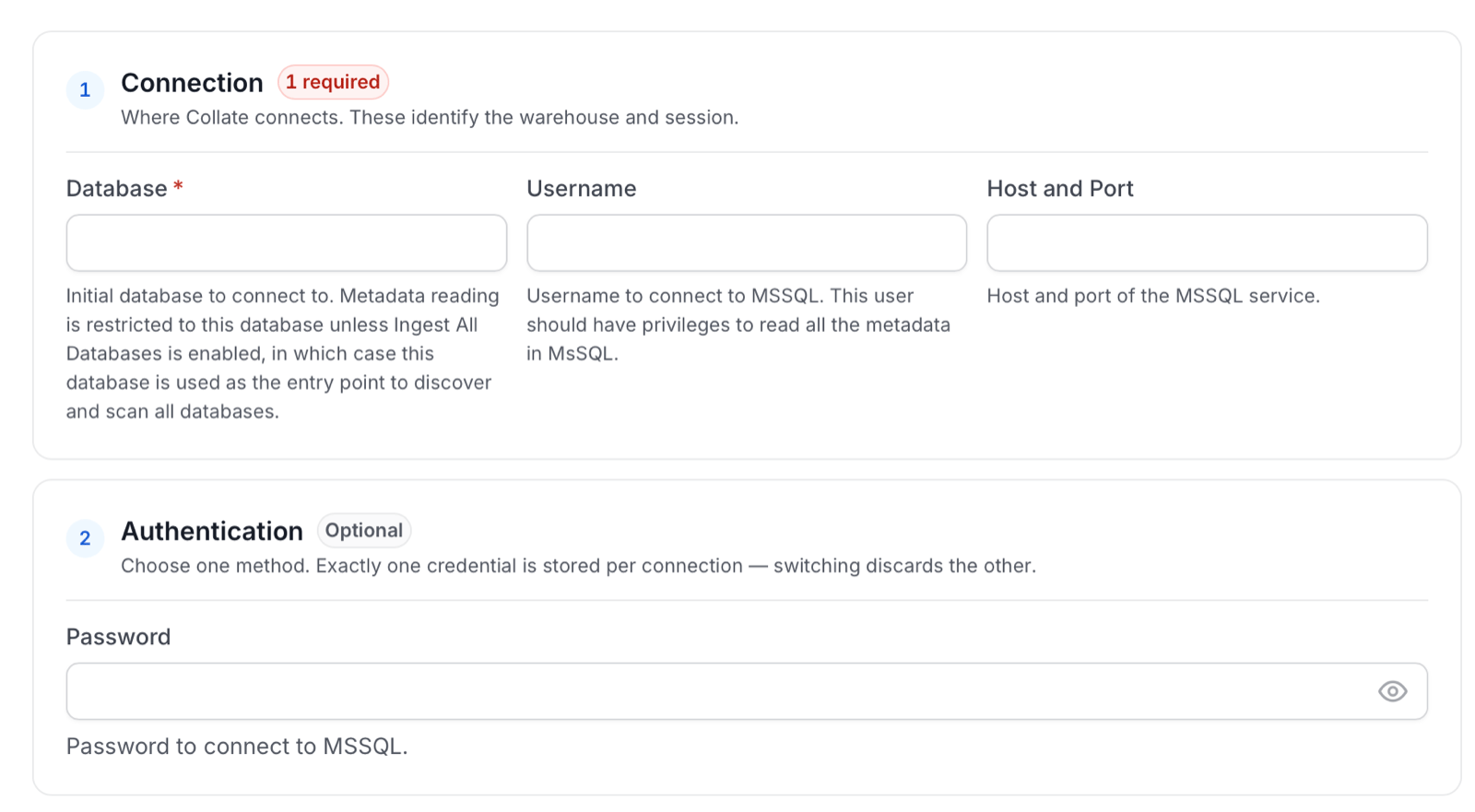
Enter the connection details for MSSQL. The connection form is divided into the following sections. The right-hand panel in the UI displays inline help for each field.-
Connection
- Database (required): The initial database to connect to. Metadata reading is restricted to this database unless Ingest All Databases is enabled. In that case, Collate uses this database as the entry point to discover and scan all databases.
- Username: The user to connect to MSSQL. This user should have privileges to read all the metadata in MSSQL.
- Host and Port: The fully qualified hostname and port number of your MSSQL deployment.
-
Authentication (optional): Enter the Password to connect to MSSQL.
-
Scope & Options (optional)
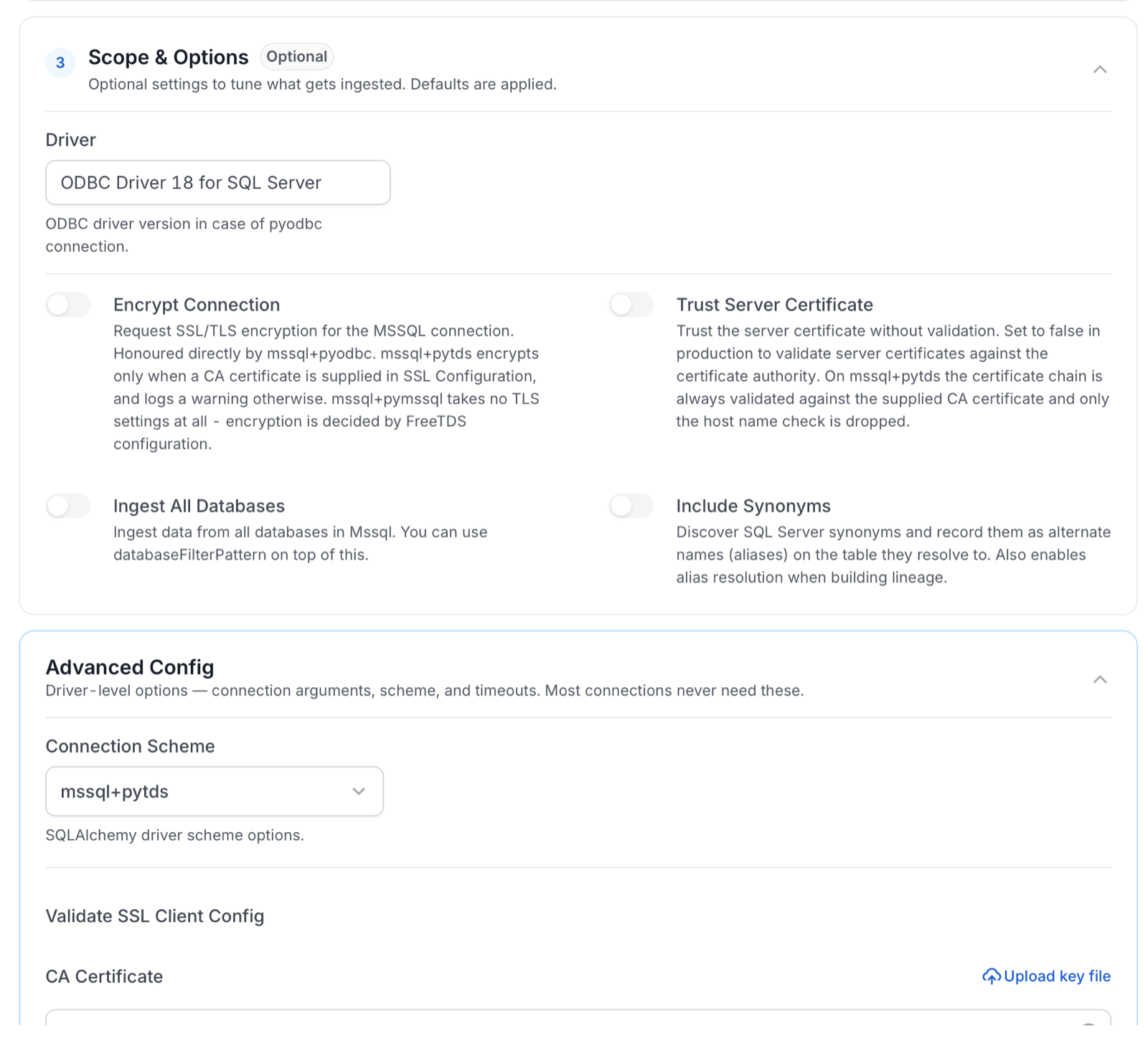
Use these settings to tune what Collate ingests. Collate applies default values.
- Driver: The Open Database Connectivity (ODBC) driver version for a
pyodbcconnection. The default isODBC Driver 18 for SQL Server. - Encrypt Connection: Requests Secure Sockets Layer (SSL) or Transport Layer Security (TLS) encryption for the MSSQL connection. How the setting applies depends on the connection scheme:
mssql+pyodbchonors it directly.mssql+pytdsencrypts only when you supply a certificate authority (CA) certificate in the SSL configuration. Otherwise, it logs a warning.mssql+pymssqltakes no TLS settings. FreeTDS, the library thatmssql+pymssqluses to connect, decides encryption through its own configuration.
- Trust Server Certificate: Trusts the server certificate without validation. Turn this off in production so Collate validates server certificates against the certificate authority. On
mssql+pytds, Collate always validates the certificate chain against the supplied CA certificate and drops only the host name check. - Ingest All Databases: Ingests data from all databases in MSSQL, in addition to the database specified in Database. You can use the database filter pattern on top of this option.
- Include Synonyms: Discovers SQL Server synonyms and records them as alternate names (aliases) on the table they resolve to. Collate also uses the aliases to resolve lineage. This option is off by default.
- Driver: The Open Database Connectivity (ODBC) driver version for a
Advanced Configuration
The Advanced Config section holds driver-level options such as connection arguments, the connection scheme, and SSL settings. Most connections don’t need these settings. Use this section only for advanced connectivity scenarios or customizations.- Connection Scheme: Defines how to connect to MSSQL. Collate supports
mssql+pytds(the default),mssql+pyodbc, andmssql+pymssql. If you use Windows Authentication from a Linux deployment, usemssql+pymssql. - Validate SSL Client Config and CA Certificate: Provide the CA certificate that Collate uses to validate the server certificate. Click Upload key file to upload it.
- URI String: The connection URI, in case of a
pyodbcconnection. - Connection Options (Optional): Additional connection options to send to the database during the connection. Add these details as key-value pairs.
- Connection Arguments (Optional): Additional connection arguments, such as security or protocol configs, to send during the connection. Add these details as key-value pairs.
Test Connection
- Click Test Connection to verify the credentials.
- After the test succeeds, click Save.

Step 5: Configure Ingestion Options
In the What to Ingest step, use filter patterns to control which assets Collate ingests from your database service. Filter rules match asset names using the following match types.How Filter Patterns Work
- Include: Add one or more comma-separated values. Each value uses one of the following match types. Collate ingests only assets whose names match at least one rule. Leave blank to include all assets.
- Exclude: Add one or more comma-separated values. Each value uses one of the following match types. Collate skips any asset whose name matches a rule. Leave blank to exclude nothing.
- contains: matches any name containing the value. For example,
salesmatchesmy_sales_dataandsales_2024. - starts with: matches names beginning with the value. For example,
prod_matchesprod_dbandprod_schema. - ends with: matches names ending with the value. For example,
_rawmatchesevents_rawandlogs_raw. - is exactly: matches the exact name only. For example,
analyticsmatches onlyanalytics. - matches regex: matches names using a regular expression. For example,
^prod_.*_v\d+$matchesprod_events_v1.
Filter Options
The Database, Schema, Table, and Stored Procedure sections each include the following filter options:- Database: Controls which databases Collate ingests from the source.
- Schema: Controls which schemas within the ingested databases are included.
- Table: Controls which tables and views within the ingested schemas are included.
- Stored Procedure: Controls which stored procedures are included in metadata ingestion.
- Scan Mode: Choose one of the following scan modes:
- Scan all: Ingests every asset of that type the connector can access. This is the default.
- Only specific: Enables include rules so only assets matching at least one rule are ingested.
- Exclude system toggle: Use this toggle to filter out system-reserved names defined by the connector for that asset type.
- Always exclude: Add permanent exclusion rules (shown in red). Assets matching these rules are never ingested, regardless of include rules.
- Preview: Shows a real-time summary of what will be in scope based on your current rules.
- Include rules: In Only specific mode, click + Add to define a rule. Added rules appear as chips. An asset is included if it matches any rule.
Step 6: Create & Deploy
Click Create & Deploy to deploy the agent and start the first metadata ingestion run. Collate saves the service configuration and immediately begins pulling metadata from the source. To monitor ingestion progress or view the service you just added, go to Settings > Services and select your service.Configure Metadata Agent and Schedule Ingestion
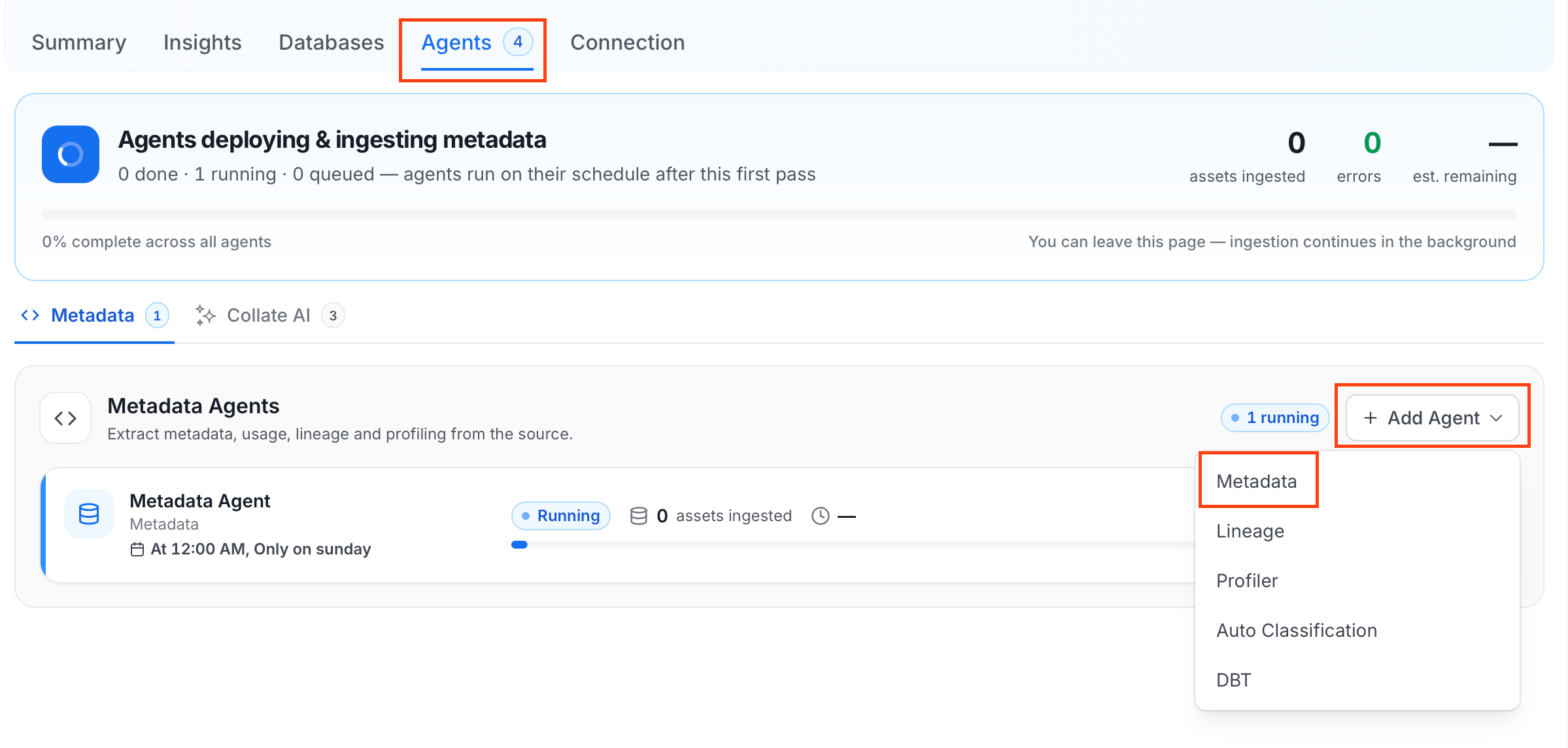
The Metadata Agent extracts schemas, tables, columns, and other structural metadata from your source and keeps your Collate catalog in sync. It powers discovery, lineage, and governance across your data assets. When you click Create & Deploy, Collate automatically deploys a Metadata Agent for this service and triggers the first ingestion run. View its status and run history from the Agents tab on the service detail page. To configure the additional Metadata Agent and schedule ingestion, follow these steps:- Navigate to Settings > Services and select the Databases service.
- Select your service and click the Agents tab.
-
Click Add Agent and select Metadata from the dropdown.
-
On the Configure Ingestion page, do the following and click Next.
-
Name this Ingestion: Enter a unique, recognizable name for this ingestion pipeline.

-
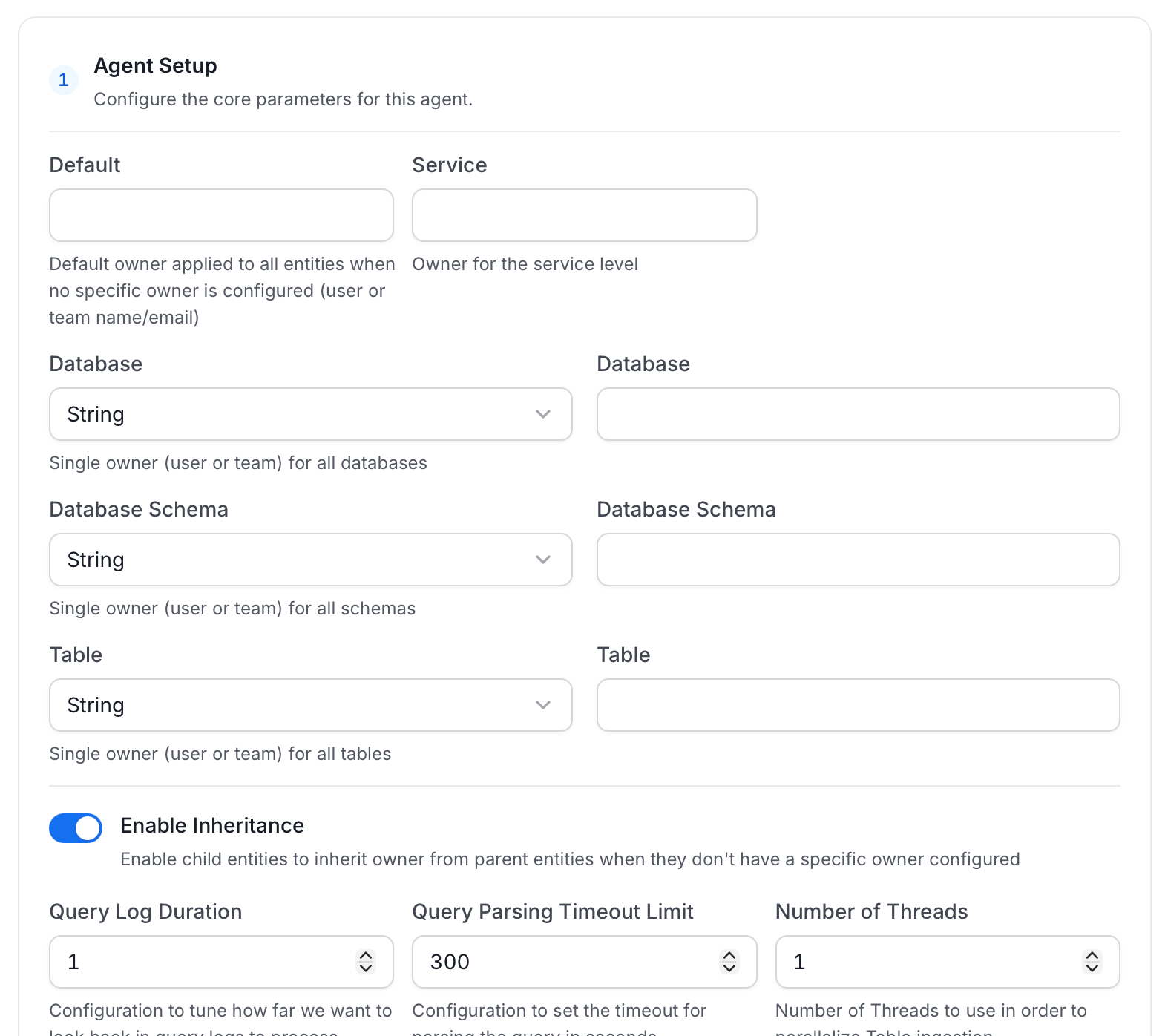
Agent Setup: Configure core parameters for metadata extraction. The following fields are available:
For more information, see Hierarchical Owner Configuration.
-
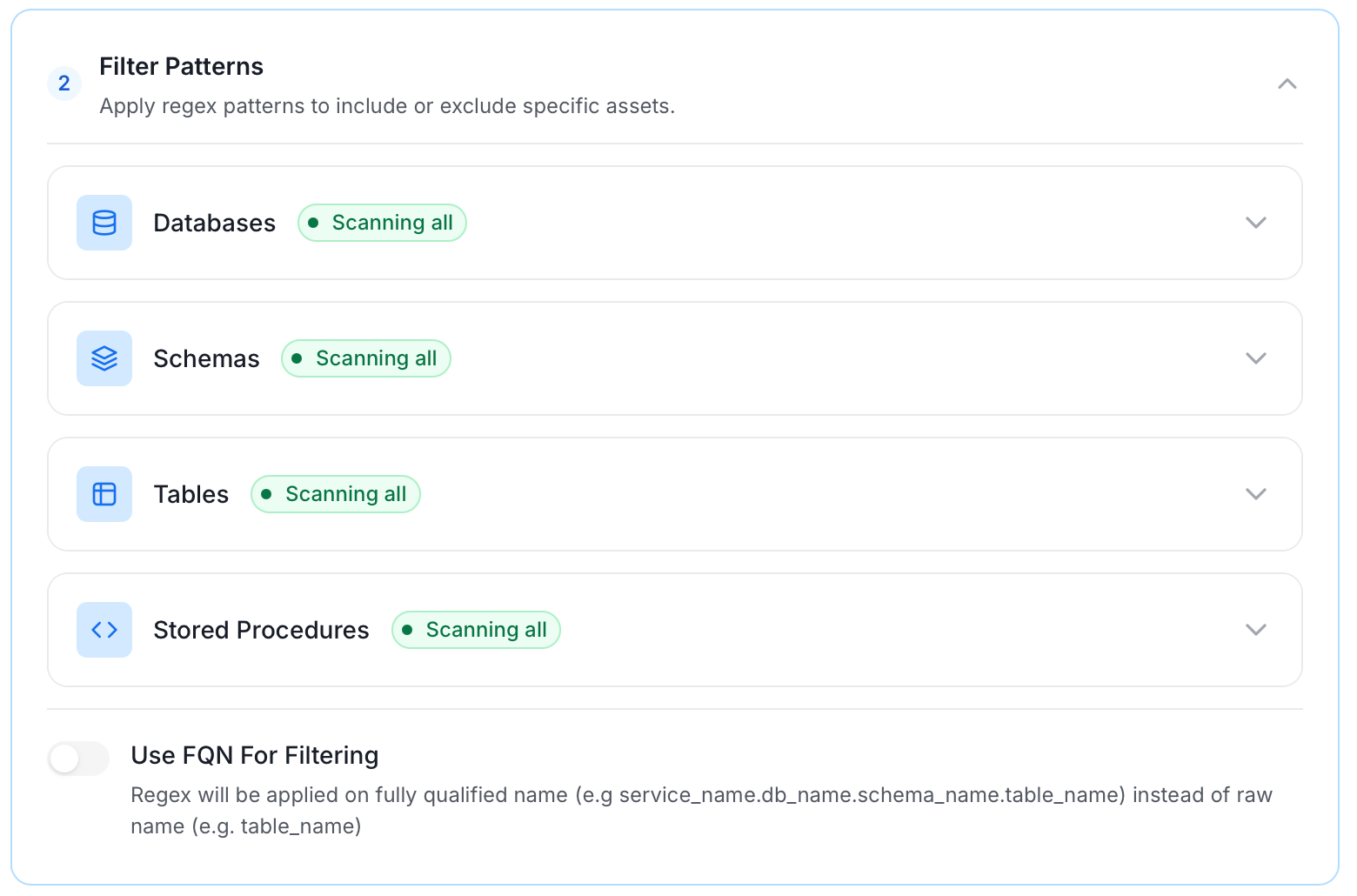
Filter Patterns: Apply include or exclude rules to scope which databases, schemas, tables, and stored procedures this agent ingests. These follow the same filter options described in Step 5.
-
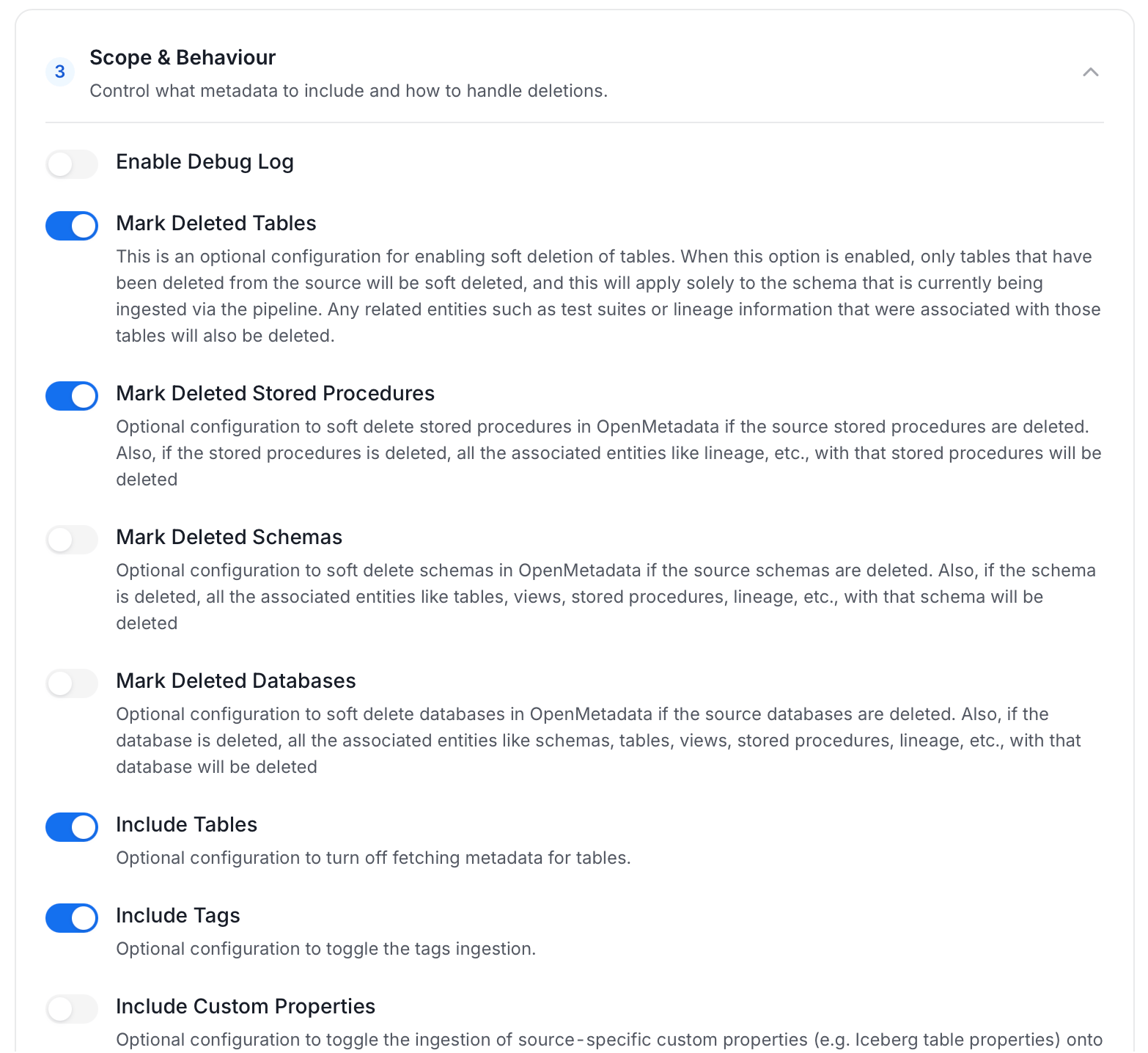
Scope & Behaviour: Control how the agent handles metadata during ingestion. Toggle each option on or off based on your needs:
Note: Available toggles vary by connector. Stored procedure options only appear for connectors that support stored procedures.
-
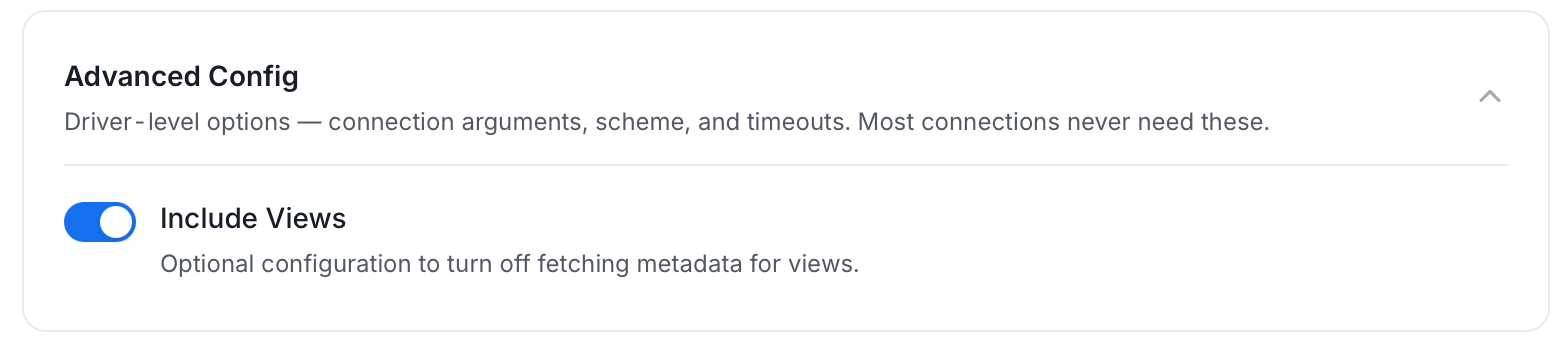
Advanced Config: Driver-level options (connection arguments, scheme, and timeouts). Most connections never need these, and they vary by connector. This section also has one ingestion-scope toggle:
-
Name this Ingestion: Enter a unique, recognizable name for this ingestion pipeline.
-
On the Schedule Interval page, set when the agent runs:
- Schedule: Choose a preset interval (Hourly, Daily, Weekly, Monthly) or enter a custom cron expression.
- On-Demand: No automatic schedule. Trigger the agent manually when needed.
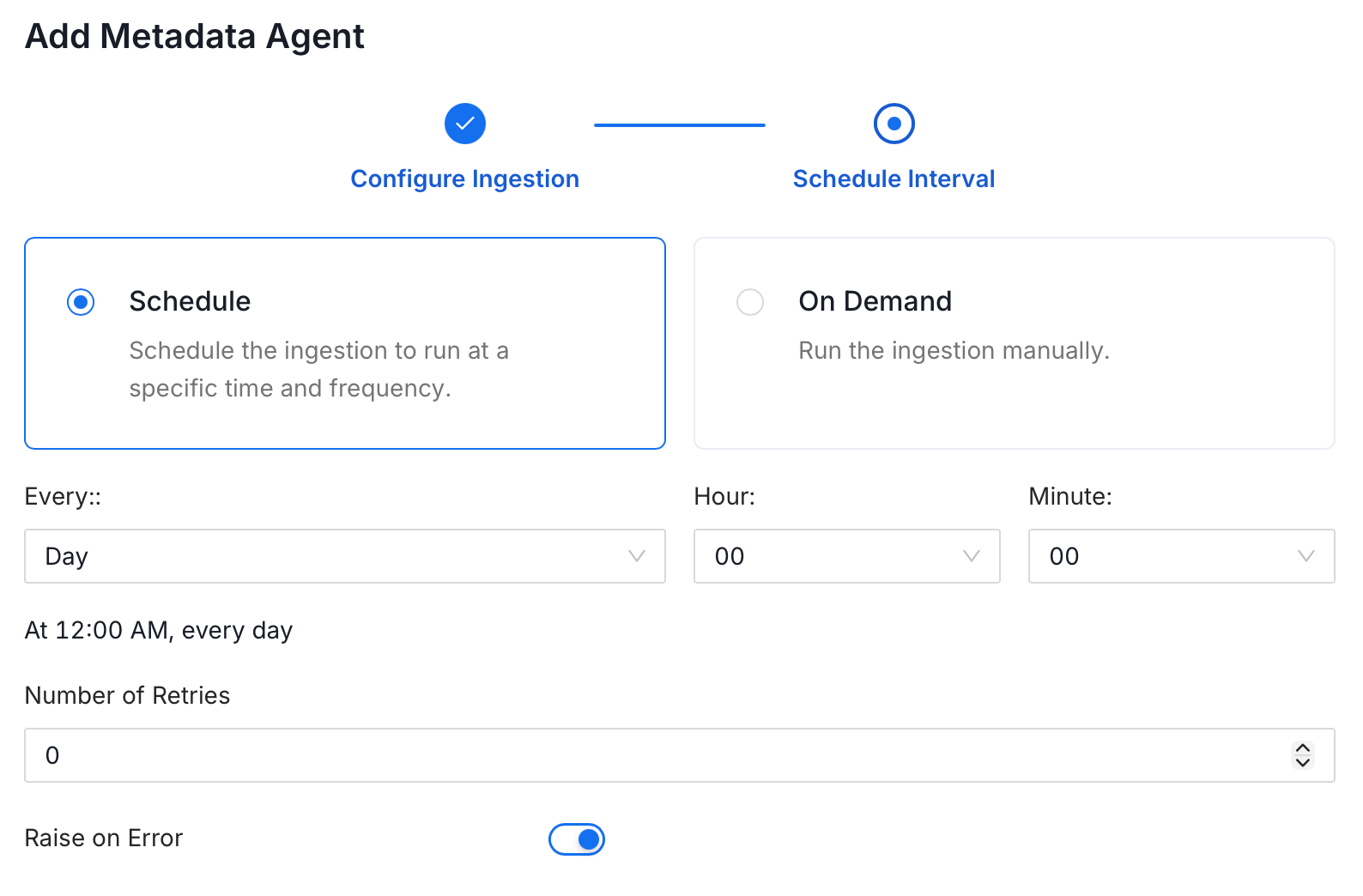
- Click Add to deploy the agent.
Reverse Metadata
1
Reverse Metadata
Description Management
MSSQL supports description updates at the following levels:- Schema level
- Table level
- Column level
Owner Management
MSSQL supports owner management at the following levels:- Database level
- Schema level
Tag Management
❌ Tag management is not supported for MSSQL.Custom SQL Template
MSSQL supports custom SQL templates for metadata changes. The template is interpreted using python f-strings.Here are examples of custom SQL queries for metadata changes:Troubleshooting
MSSQL Troubleshooting
Learn more about how to troubleshoot common MSSQL connector issues and resolve configuration or ingestion errors.