
- Requirements
- Metadata Ingestion
- Query Usage
- Data Profiler
- Data Quality
- Lineage
- dbt Integration
- Troubleshooting
- Reverse Metadata
How to Run the Connector Externally
To run the Ingestion via the UI you’ll need to use the OpenMetadata Ingestion Container, which comes shipped with custom Airflow plugins to handle the workflow deployment. If, instead, you want to manage your workflows externally on your preferred orchestrator, you can check the following docs to run the Ingestion Framework anywhere.Requirements
You need to create an service account in order to ingest metadata from bigquery refer this guide on how to create service account.Partitioned Tables
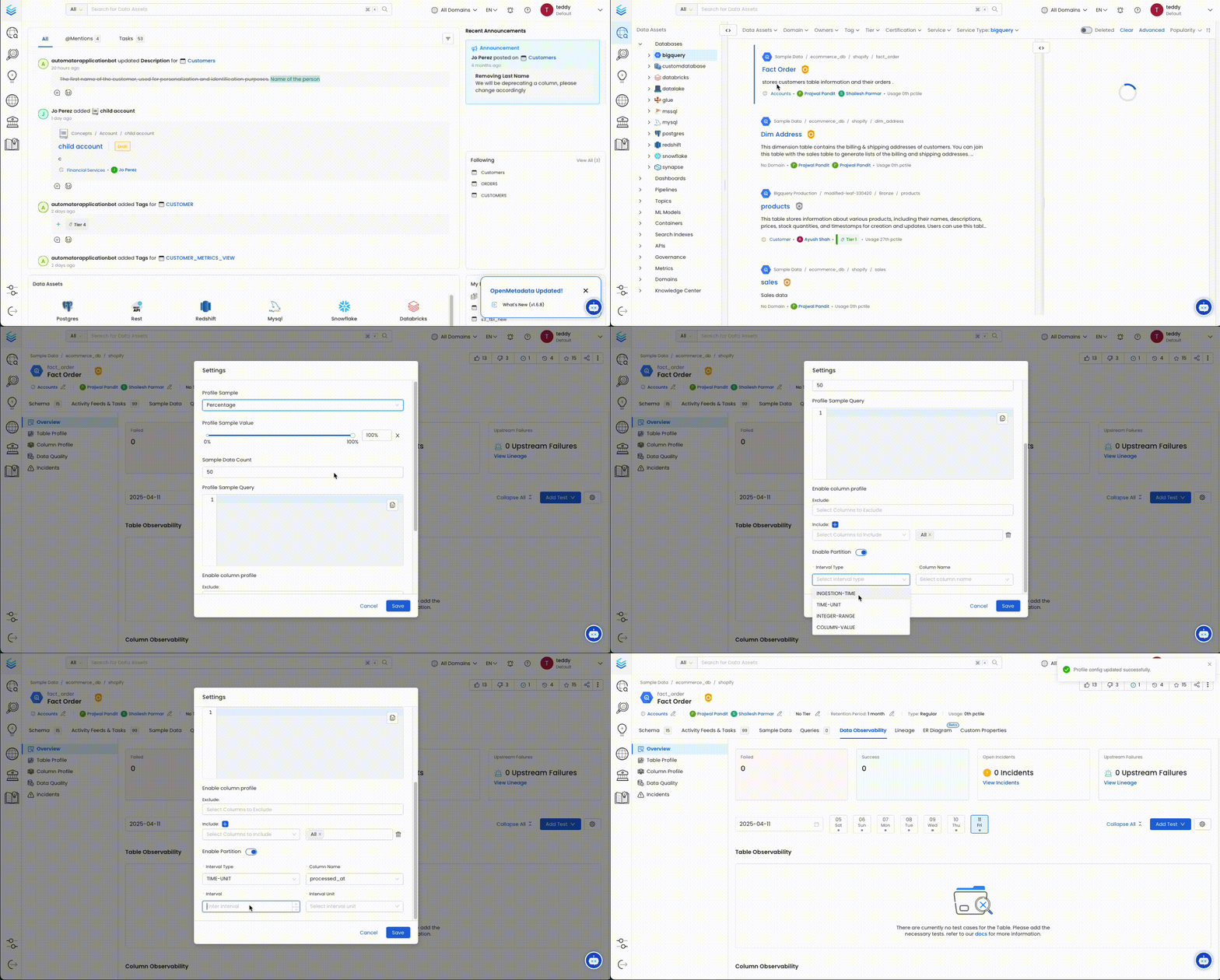
When profiling partitioned tables in BigQuery, OpenMetadata applies a default partition query duration of 1 day for time-based partitions. This conservative setting prevents excessive data scans but may result in no Sample Data or Column Profile Metrics if no data falls within the default window.Resolution
You can adjust this behavior directly from the UI:- Navigate to the table’s detail page.
- Edit the profiler configuration.
- Update the
partitionQueryDurationunder Partition Config to a wider window (e.g., 30 days) as needed.
Data Catalog API Permissions
- Go to https://console.cloud.google.com/apis/library/datacatalog.googleapis.com
- Select the
GCP Project IDthat you want to enable theData Catalog APIon. - Click on
Enable APIwhich will enable the data catalog api on the respective project.
GCP Permissions
To execute metadata extraction and usage workflow successfully the user or the service account should have enough access to fetch required data. Following table describes the minimum required permissions| # | GCP Permission | Required For |
|---|---|---|
| 1 | bigquery.datasets.get | Metadata Ingestion |
| 2 | bigquery.tables.get | Metadata Ingestion |
| 3 | bigquery.tables.getData | Metadata Ingestion |
| 4 | bigquery.tables.list | Metadata Ingestion |
| 5 | resourcemanager.projects.get | Metadata Ingestion |
| 6 | bigquery.jobs.create | Metadata Ingestion |
| 7 | bigquery.jobs.listAll | Metadata Ingestion |
| 8 | bigquery.routines.get | Stored Procedure |
| 9 | bigquery.routines.list | Stored Procedure |
| 10 | datacatalog.taxonomies.get | Fetch Policy Tags |
| 11 | datacatalog.taxonomies.list | Fetch Policy Tags |
| 12 | bigquery.readsessions.create | Bigquery Usage & Lineage Workflow |
| 13 | bigquery.readsessions.getData | Bigquery Usage & Lineage Workflow |
| 14 | logging.operations.list | Incremental Metadata Ingestion |
Metadata Ingestion
Connection Options
Connection Options
Host and Port: BigQuery APIs URL. By default, the API URL is
bigquery.googleapis.com you can modify this if you have custom implementation of BigQuery.
GCP Credentials:
You can authenticate with your bigquery instance using either GCP Credentials Path where you can specify the file path of the service account key or you can pass the values directly by choosing the GCP Credentials Values from the service account key file.
You can check out this documentation on how to create the service account keys and download it.
GCP Credentials Values: Passing the raw credential values provided by BigQuery. This requires us to provide the following information, all provided by BigQuery:- Credentials type: Credentials Type is the type of the account, for a service account the value of this field is
service_account. To fetch this key, look for the value associated with thetypekey in the service account key file. - Billing Project ID (Optional): A billing project ID is a unique string used to identify and authorize your project for billing in Google Cloud.
- Project ID: A project ID is a unique string used to differentiate your project from all others in Google Cloud. To fetch this key, look for the value associated with the
project_idkey in the service account key file. You can also pass multiple project id to ingest metadata from different BigQuery projects into one service. - Private Key ID: This is a unique identifier for the private key associated with the service account. To fetch this key, look for the value associated with the
private_key_idkey in the service account file. - Private Key: This is the private key associated with the service account that is used to authenticate and authorize access to BigQuery. To fetch this key, look for the value associated with the
private_keykey in the service account file. - Client Email: This is the email address associated with the service account. To fetch this key, look for the value associated with the
client_emailkey in the service account key file. - Client ID: This is a unique identifier for the service account. To fetch this key, look for the value associated with the
client_idkey in the service account key file. - Auth URI: This is the URI for the authorization server. To fetch this key, look for the value associated with the
auth_urikey in the service account key file. The default value to Auth URI is https://accounts.google.com/o/oauth2/auth. - Token URI: The Google Cloud Token URI is a specific endpoint used to obtain an OAuth 2.0 access token from the Google Cloud IAM service. This token allows you to authenticate and access various Google Cloud resources and APIs that require authorization. To fetch this key, look for the value associated with the
token_urikey in the service account credentials file. Default Value to Token URI is https://oauth2.googleapis.com/token. - Authentication Provider X509 Certificate URL: This is the URL of the certificate that verifies the authenticity of the authorization server. To fetch this key, look for the value associated with the
auth_provider_x509_cert_urlkey in the service account key file. The Default value for Auth Provider X509Cert URL is https://www.googleapis.com/oauth2/v1/certs - Client X509Cert URL: This is the URL of the certificate that verifies the authenticity of the service account. To fetch this key, look for the value associated with the
client_x509_cert_urlkey in the service account key file. GCP Credentials Path: Passing a local file path that contains the credentials. Taxonomy Project ID (Optional): Bigquery uses taxonomies to create hierarchical groups of policy tags. To apply access controls to BigQuery columns, tag the columns with policy tags. Learn more about how yo can create policy tags and set up column-level access control here If you have attached policy tags to the columns of table available in Bigquery, then OpenMetadata will fetch those tags and attach it to the respective columns. In this field you need to specify the id of project in which the taxonomy was created. Taxonomy Location (Optional): Bigquery uses taxonomies to create hierarchical groups of policy tags. To apply access controls to BigQuery columns, tag the columns with policy tags. Learn more about how yo can create policy tags and set up column-level access control here If you have attached policy tags to the columns of table available in Bigquery, then OpenMetadata will fetch those tags and attach it to the respective columns. In this field you need to specify the location/region in which the taxonomy was created. Usage Location (Optional): Location used to queryINFORMATION_SCHEMA.JOBS_BY_PROJECTto fetch usage data. You can pass multi-regions, such asusoreu, or your specific region such asus-east1. Australia and Asia multi-regions are not yet supported. Cost Per TiB (Optional): The cost (in USD) per tebibyte (TiB) of data processed during BigQuery usage analysis. This value is used to estimate query costs when analyzing usage metrics fromINFORMATION_SCHEMA.JOBS_BY_PROJECT. This setting does not affect actual billing—it is only used for internal reporting and visualization of estimated costs. The default value, if not set, may assume the standard on-demand BigQuery pricing (e.g., $5.00 per TiB), but you should adjust it according to your organization’s negotiated rates or flat-rate pricing model.
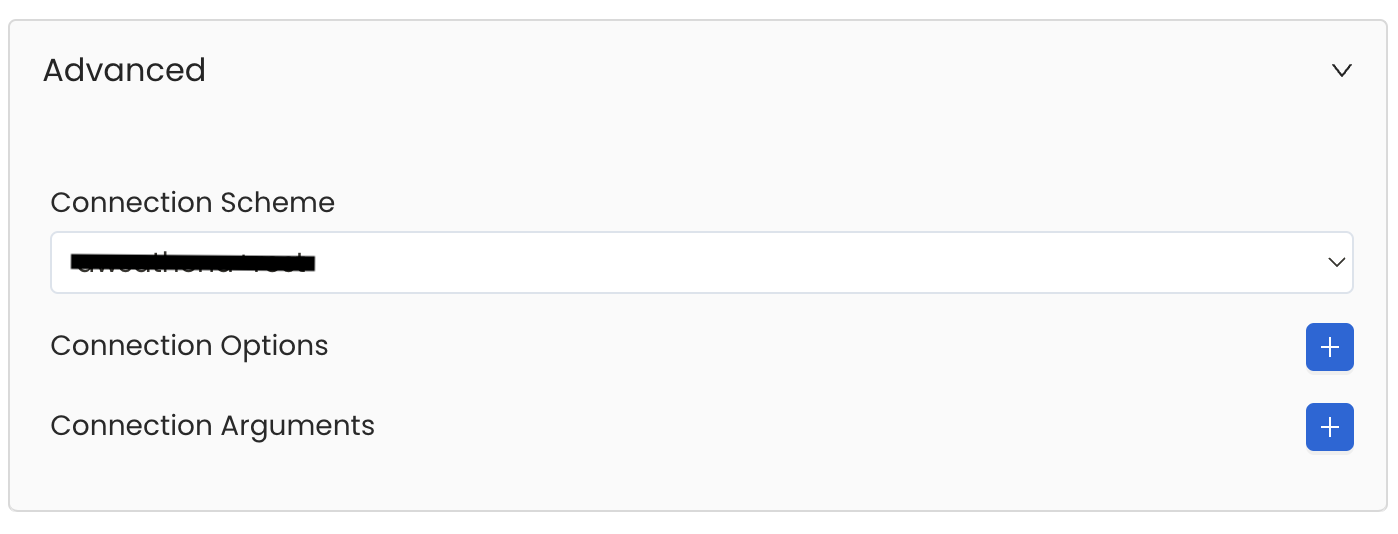
Advanced Configuration
Database Services have an Advanced Configuration section, where you can pass extra arguments to the connector
and, if needed, change the connection Scheme.This would only be required to handle advanced connectivity scenarios or customizations.
- Connection Options (Optional): Enter the details for any additional connection options that can be sent to database during the connection. These details must be added as Key-Value pairs.
-
Connection Arguments (Optional): Enter the details for any additional connection arguments such as security or protocol configs that can be sent during the connection. These details must be added as Key-Value pairs.
Test the Connection
Once the credentials have been added, click on Test Connection and Save the changes.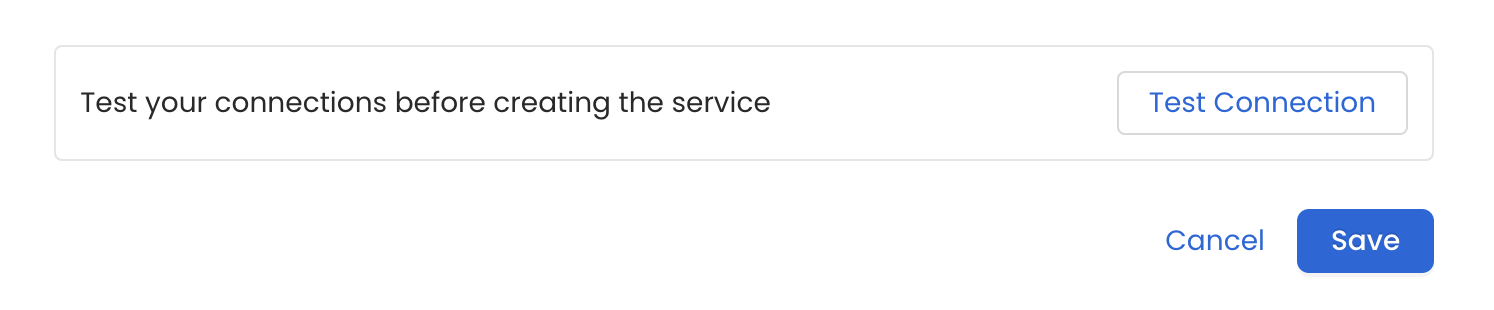
Configure Metadata Ingestion
In this step we will configure the metadata ingestion pipeline,
Please follow the instructions below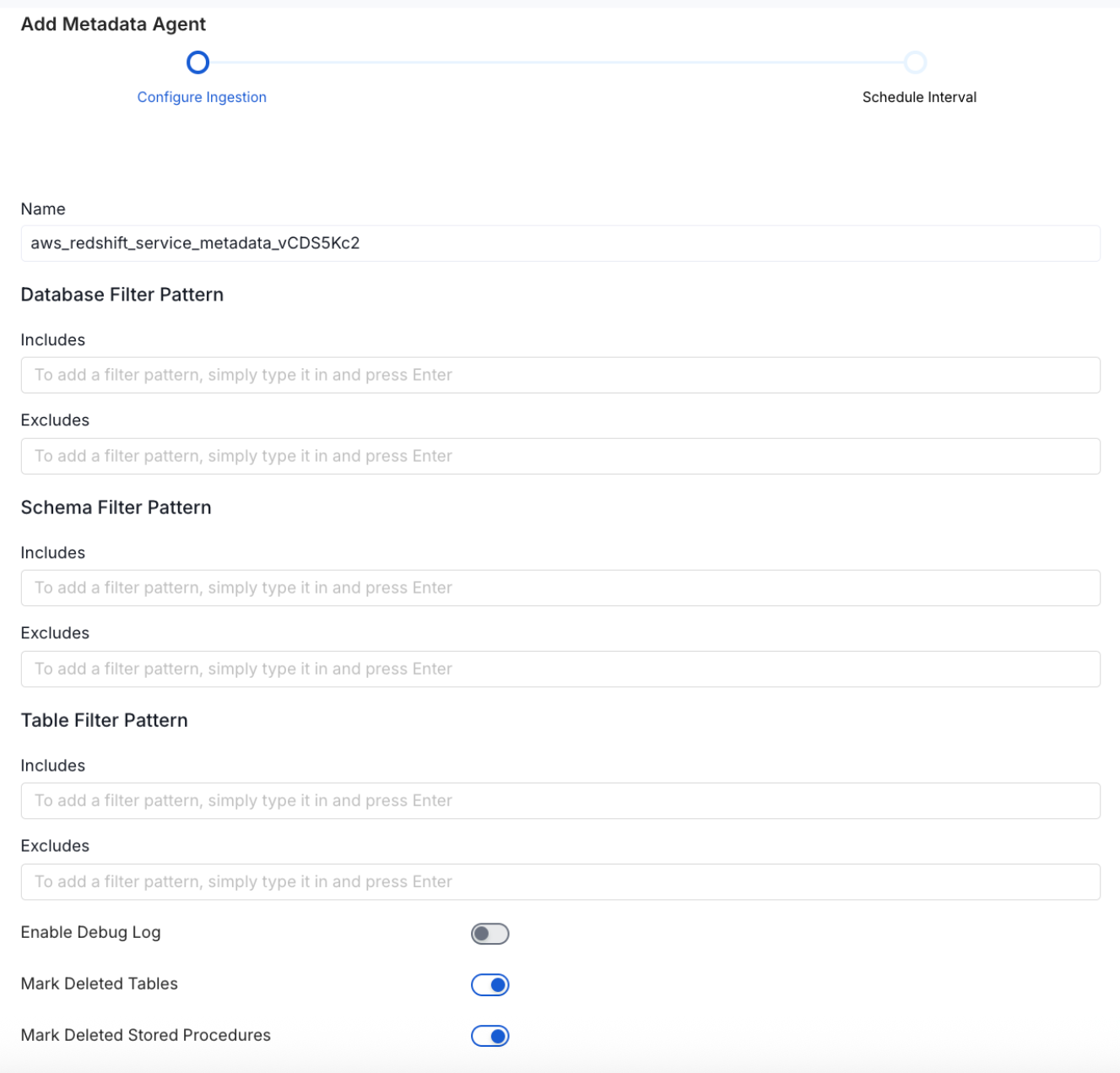
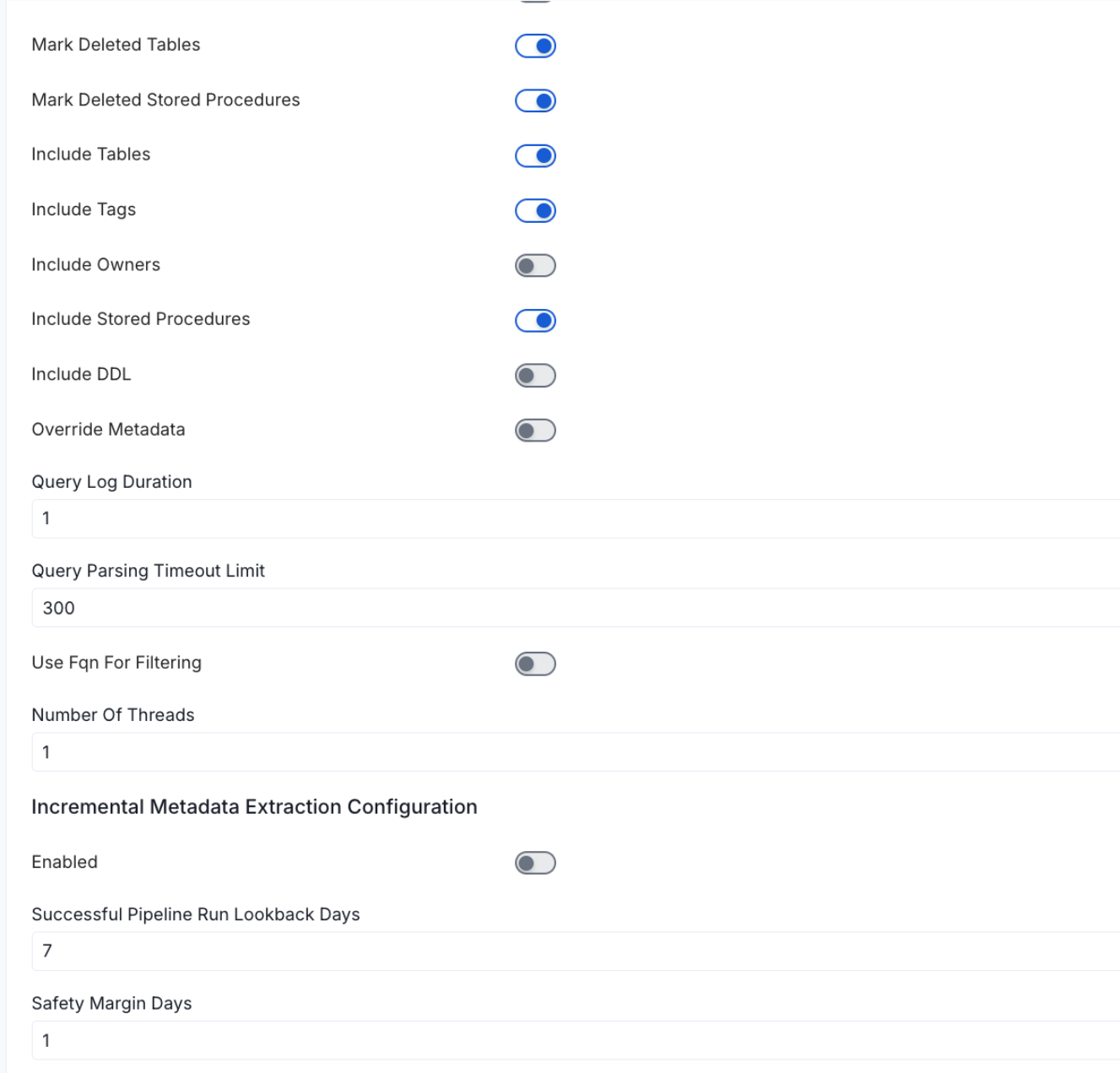
Metadata Ingestion Options
- Name: This field refers to the name of ingestion pipeline, you can customize the name or use the generated name.
-
Database Filter Pattern (Optional): Use to database filter patterns to control whether or not to include database as part of metadata ingestion.
- Include: Explicitly include databases by adding a list of comma-separated regular expressions to the Include field. OpenMetadata will include all databases with names matching one or more of the supplied regular expressions. All other databases will be excluded.
- Exclude: Explicitly exclude databases by adding a list of comma-separated regular expressions to the Exclude field. OpenMetadata will exclude all databases with names matching one or more of the supplied regular expressions. All other databases will be included.
-
Schema Filter Pattern (Optional): Use to schema filter patterns to control whether to include schemas as part of metadata ingestion.
- Include: Explicitly include schemas by adding a list of comma-separated regular expressions to the Include field. OpenMetadata will include all schemas with names matching one or more of the supplied regular expressions. All other schemas will be excluded.
- Exclude: Explicitly exclude schemas by adding a list of comma-separated regular expressions to the Exclude field. OpenMetadata will exclude all schemas with names matching one or more of the supplied regular expressions. All other schemas will be included.
-
Table Filter Pattern (Optional): Use to table filter patterns to control whether to include tables as part of metadata ingestion.
- Include: Explicitly include tables by adding a list of comma-separated regular expressions to the Include field. OpenMetadata will include all tables with names matching one or more of the supplied regular expressions. All other tables will be excluded.
- Exclude: Explicitly exclude tables by adding a list of comma-separated regular expressions to the Exclude field. OpenMetadata will exclude all tables with names matching one or more of the supplied regular expressions. All other tables will be included.
- Enable Debug Log (toggle): Set the Enable Debug Log toggle to set the default log level to debug.
- Mark Deleted Tables (toggle): Set the Mark Deleted Tables toggle to flag tables as soft-deleted if they are not present anymore in the source system.
- Mark Deleted Tables from Filter Only (toggle): Set the Mark Deleted Tables from Filter Only toggle to flag tables as soft-deleted if they are not present anymore within the filtered schema or database only. This flag is useful when you have more than one ingestion pipelines. For example if you have a schema
- includeTables (toggle): Optional configuration to turn off fetching metadata for tables.
- includeViews (toggle): Set the Include views toggle to control whether to include views as part of metadata ingestion.
- includeTags (toggle): Set the ‘Include Tags’ toggle to control whether to include tags as part of metadata ingestion.
- includeOwners (toggle): Set the ‘Include Owners’ toggle to control whether to include owners to the ingested entity if the owner email matches with a user stored in the OM server as part of metadata ingestion. If the ingested entity already exists and has an owner, the owner will not be overwritten.
- includeStoredProcedures (toggle): Optional configuration to toggle the Stored Procedures ingestion.
- includeDDL (toggle): Optional configuration to toggle the DDL Statements ingestion.
- queryLogDuration (Optional): Configuration to tune how far we want to look back in query logs to process Stored Procedures results.
- queryParsingTimeoutLimit (Optional): Configuration to set the timeout for parsing the query in seconds.
- useFqnForFiltering (toggle): Regex will be applied on fully qualified name (e.g service_name.db_name.schema_name.table_name) instead of raw name (e.g. table_name).
-
Incremental (Beta): Use Incremental Metadata Extraction after the first execution. This is done by getting the changed tables instead of all of them. Only Available for BigQuery, Redshift and Snowflake
- Enabled: If
True, enables Metadata Extraction to be Incremental. - lookback Days: Number of days to search back for a successful pipeline run. The timestamp of the last found successful pipeline run will be used as a base to search for updated entities.
- Safety Margin Days: Number of days to add to the last successful pipeline run timestamp to search for updated entities.
- Enabled: If
- Threads (Beta): Use a Multithread approach for Metadata Extraction. You can define here the number of threads you would like to run concurrently.
Schedule the Ingestion and Deploy
Scheduling can be set up at an hourly, daily, weekly, or manual cadence. The
timezone is in UTC. Select a Start Date to schedule for ingestion. It is
optional to add an End Date.Review your configuration settings. If they match what you intended,
click Deploy to create the service and schedule metadata ingestion.If something doesn’t look right, click the Back button to return to the
appropriate step and change the settings as needed.After configuring the workflow, you can click on Deploy to create the
pipeline.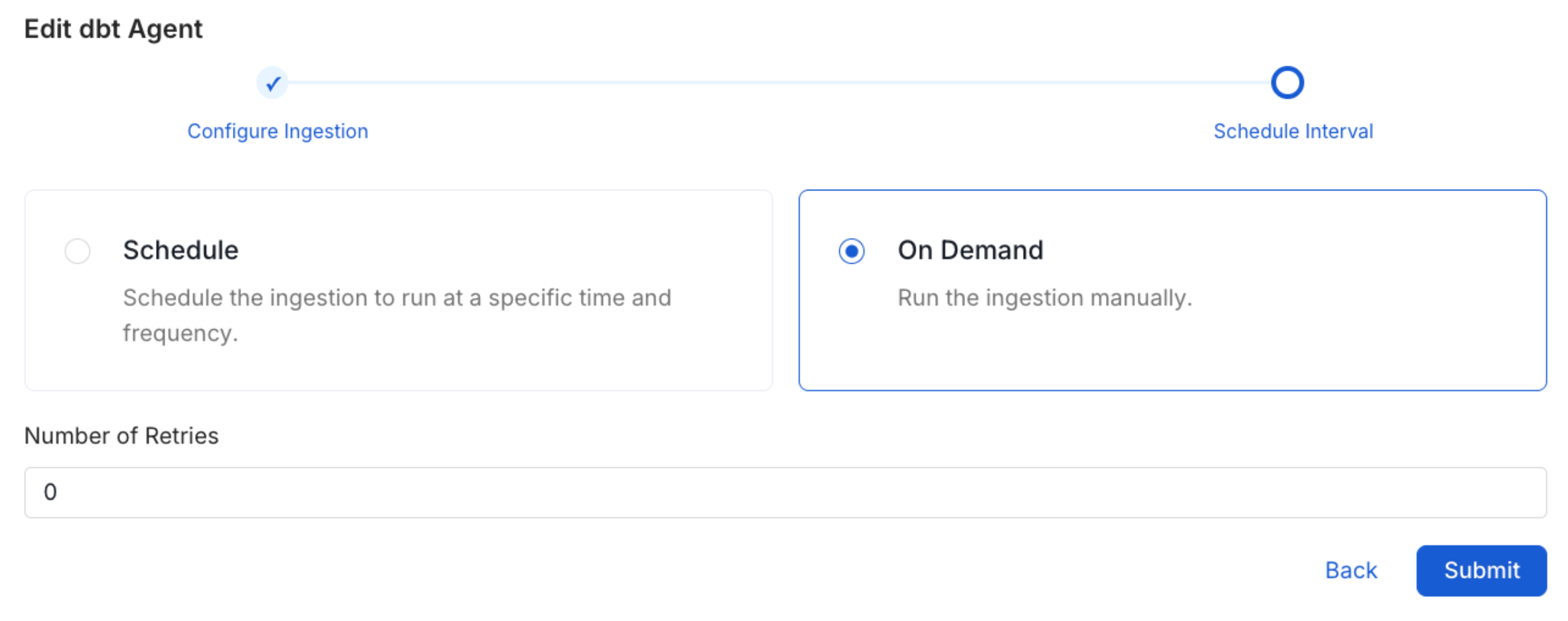
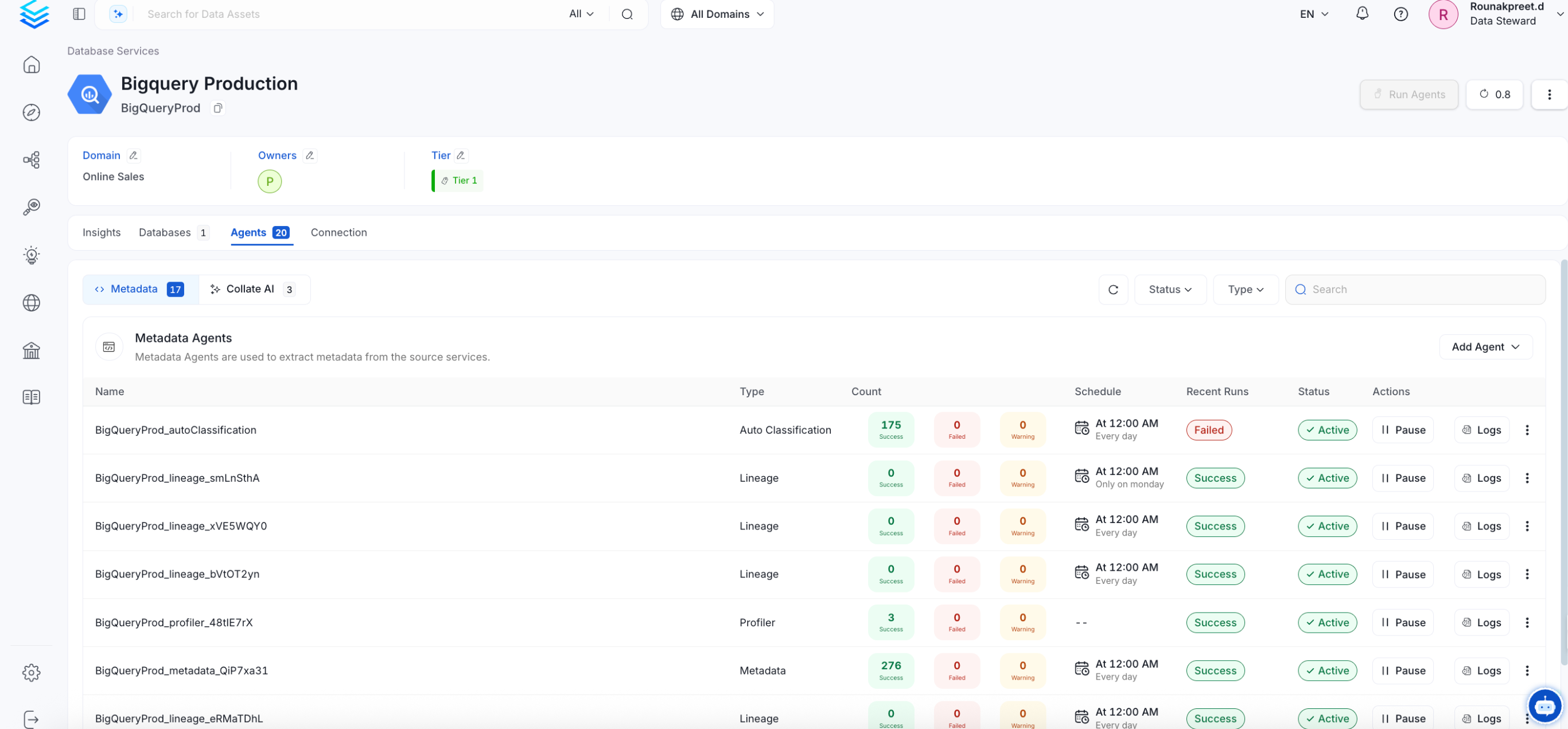
Cross Project Lineage
We support cross-project lineage, but the data must be ingested within a single service. This means you need to perform lineage ingestion for just one service while including multiple projects.Reverse Metadata
Description Management
BigQuery supports description updates at the following levels:- Schema level
- Table level
Owner Management
❌ Owner management is not supported for BigQuery.Tag Management
BigQuery supports tag management at the following levels:- Schema level
- Table level
Custom SQL Template
BigQuery supports custom SQL templates for metadata changes. The template is interpreted using python f-strings.Here are examples of custom SQL queries for metadata changes:Requirements for Reverse Metadata
In addition to the basic ingestion requirements, for reverse metadata ingestion the user needs:| # | GCP Permission | Required For |
|---|---|---|
| 1 | bigquery.datasets.update | Update dataset description & labels |
| 2 | bigquery.tables.update | Update table description & labels |
Troubleshooting
Related
Usage Workflow
Learn more about how to configure the Usage Workflow to ingest Query information from the UI.
Lineage Workflow
Learn more about how to configure the Lineage from the UI.
Profiler Workflow
Learn more about how to configure the Data Profiler from the UI.
Data Quality Workflow
Learn more about how to configure the Data Quality tests from the UI.
dbt Integration
Learn more about how to ingest dbt models’ definitions and their lineage.