Create Credentials for BigQuery Ingestion

This documentation provides a step-by-step guide on how to create a custom role in Google Cloud Platform (GCP) with the necessary permissions to ingest BigQuery in OpenMetadata. It covers the process of navigating to the Roles section in the GCP console, creating a role, adding permissions, and creating a service account with credentials. By following these instructions, you will be able to set up the required role and credentials to access and ingest BigQuery metadata in OpenMetadata. Let’s get started!

1. Create custom role in GCP

Step 1: Navigate to Roles

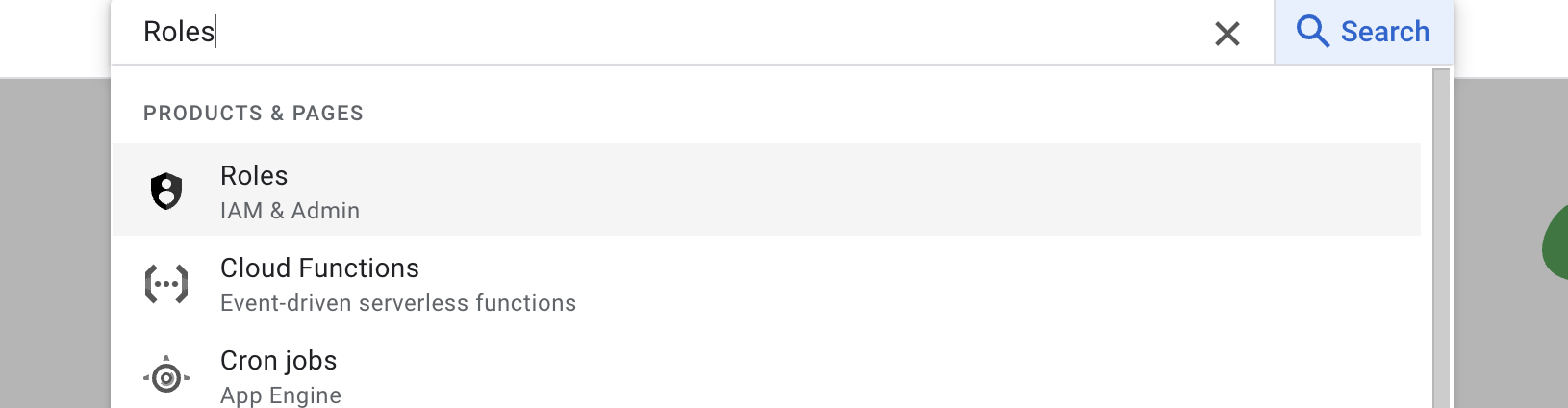
Search for Roles in your GCP console and select the first result under IAM & Roles section. Navigate to Roles
Step 2: Create Role & Add Permissions

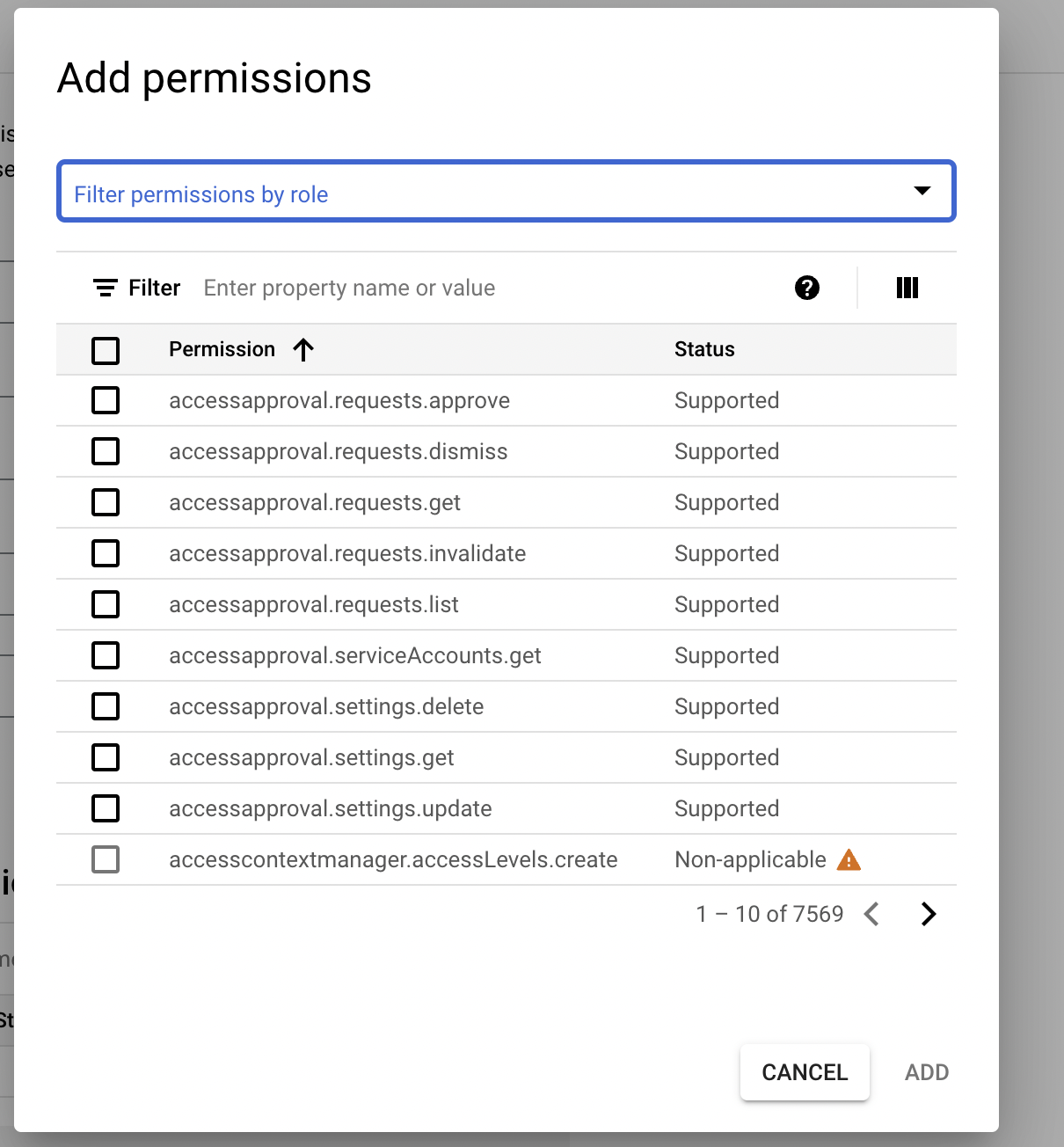
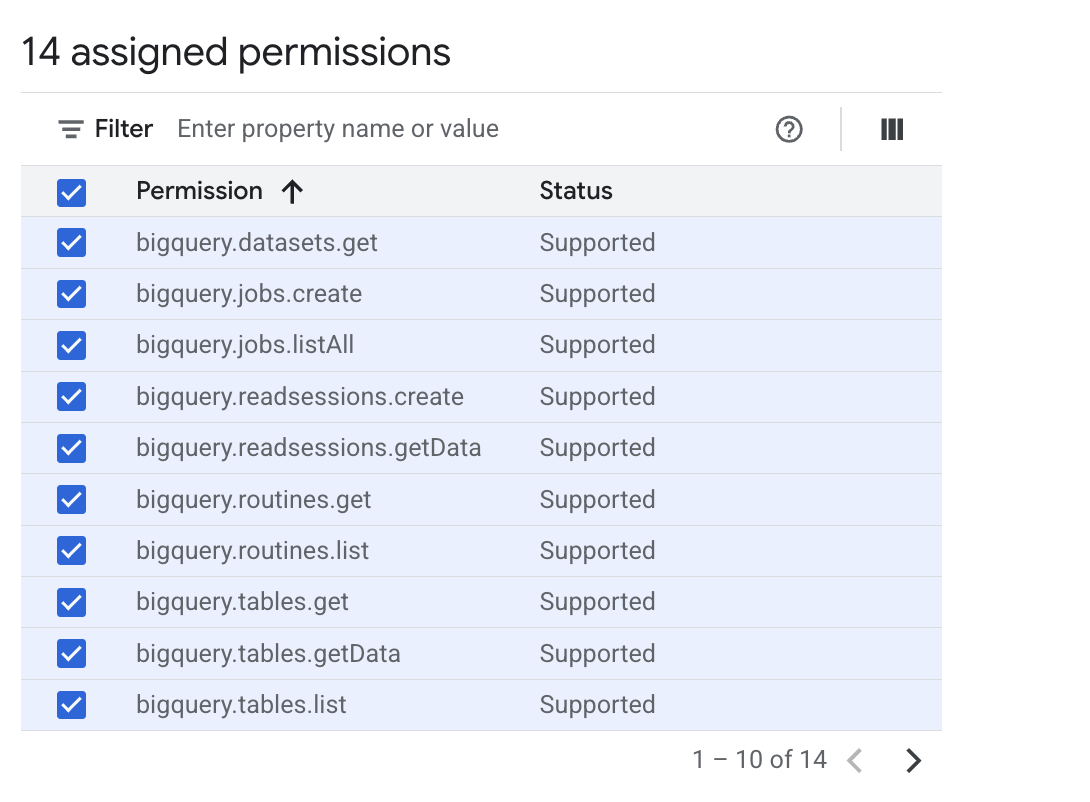
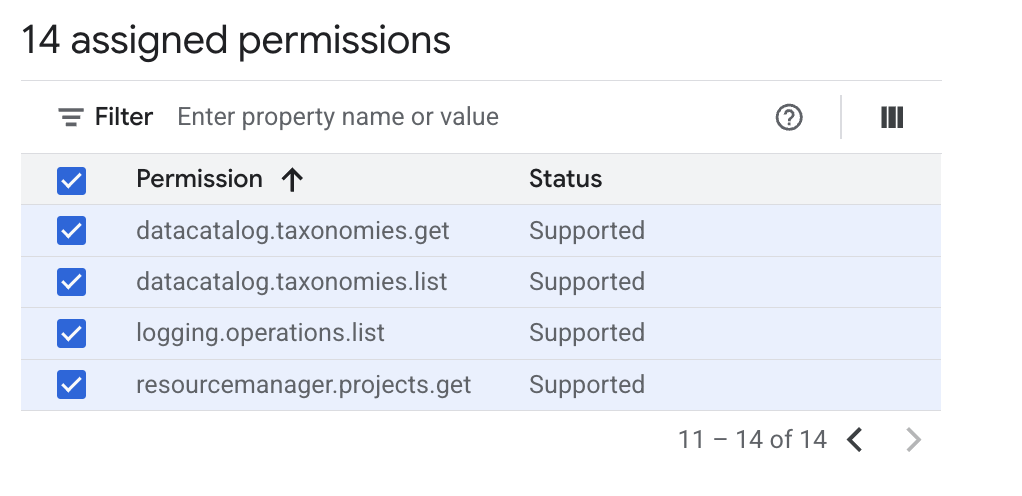
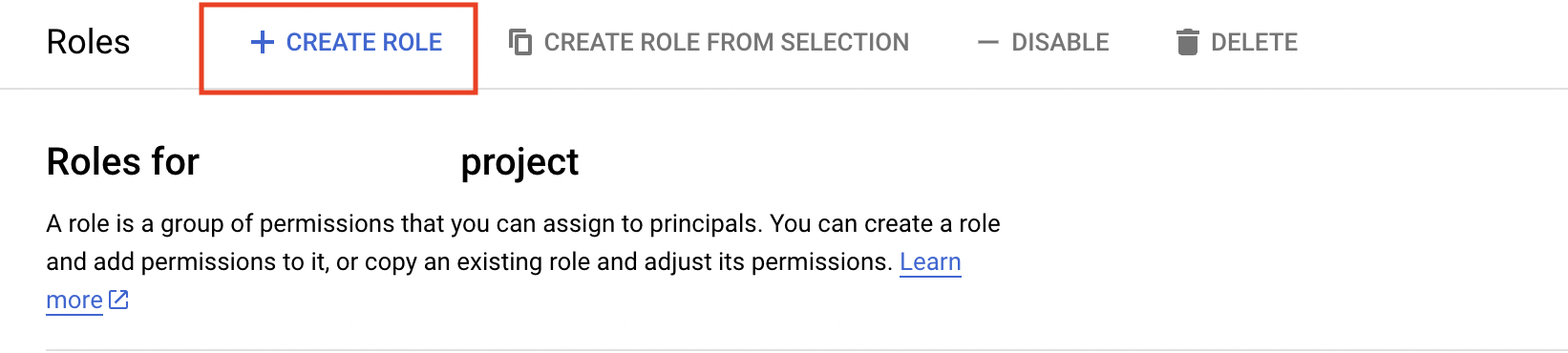
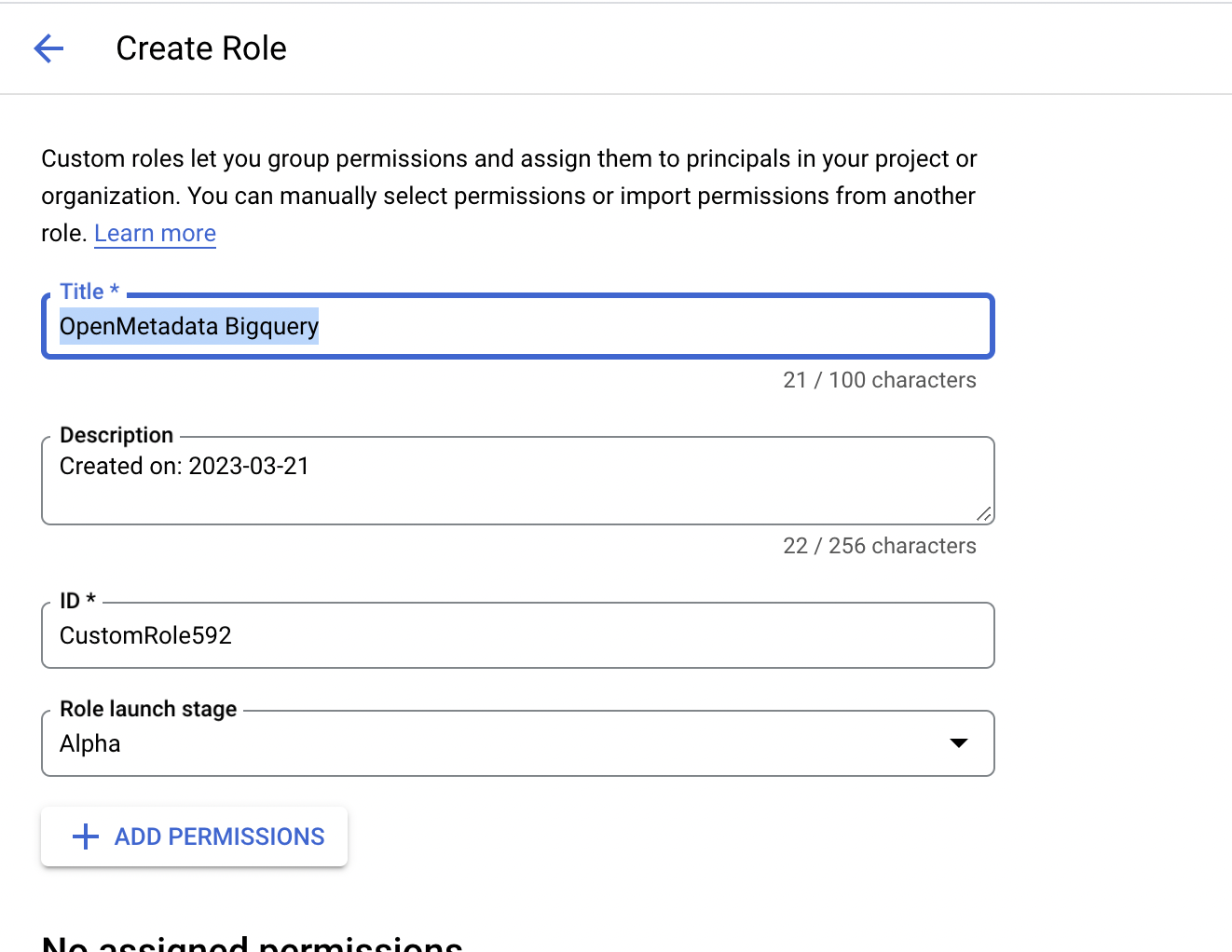
Below the search bar you should see a Create Role button click on that & navigate to create role page. Create Role Button Once You are on the create role page, you can edit the description & title of the role and finally you can click on add permissions to grant permissions to role. Create Role You can search for the required permissions in the filter box and add them accordingly. To ingest metadata from BigQuery you need to grant the following permissions to the user.
#GCP PermissionRequired For
1bigquery.datasets.getMetadata Ingestion
2bigquery.tables.getMetadata Ingestion
3bigquery.tables.getDataMetadata Ingestion
4bigquery.tables.listMetadata Ingestion
5resourcemanager.projects.getMetadata Ingestion
6bigquery.jobs.createMetadata Ingestion
7bigquery.jobs.listAllMetadata Ingestion
8bigquery.routines.getStored Procedure
9bigquery.routines.listStored Procedure
10datacatalog.taxonomies.getFetch Policy Tags
11datacatalog.taxonomies.listFetch Policy Tags
12bigquery.readsessions.createBigquery Usage & Lineage Workflow
13bigquery.readsessions.getDataBigquery Usage & Lineage Workflow
14logging.operations.listIncremental Metadata Ingestion
Add Permissions Once you have added all the required permissions, you can create the role by clicking on the create button. Add Permissions

2. Create Service Account

Step 1: Navigate to Service Accounts

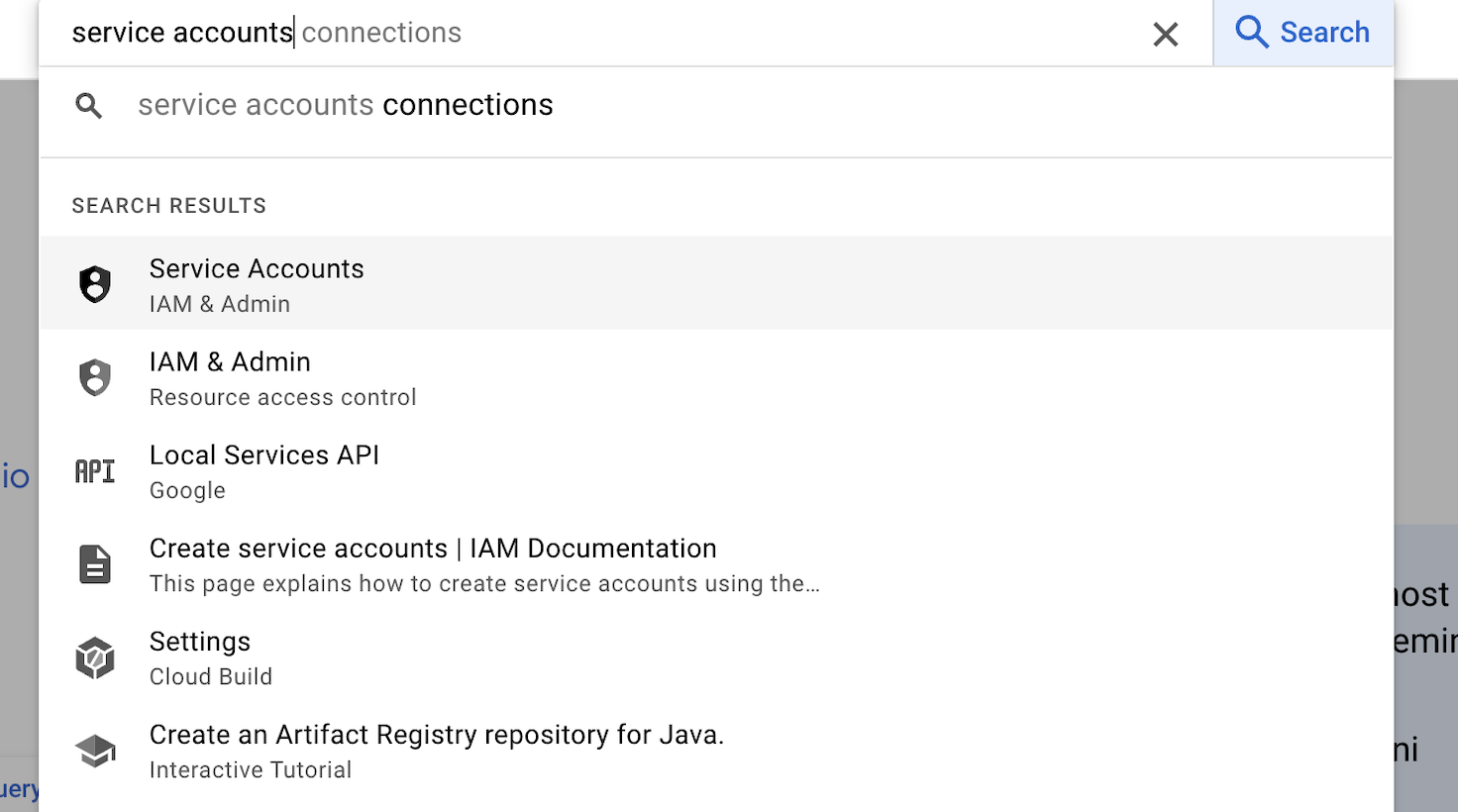
Login to your GCP console and navigate to service accounts page. Navigate to Service Accounts
Step 2: Create Service Account & Grant Role

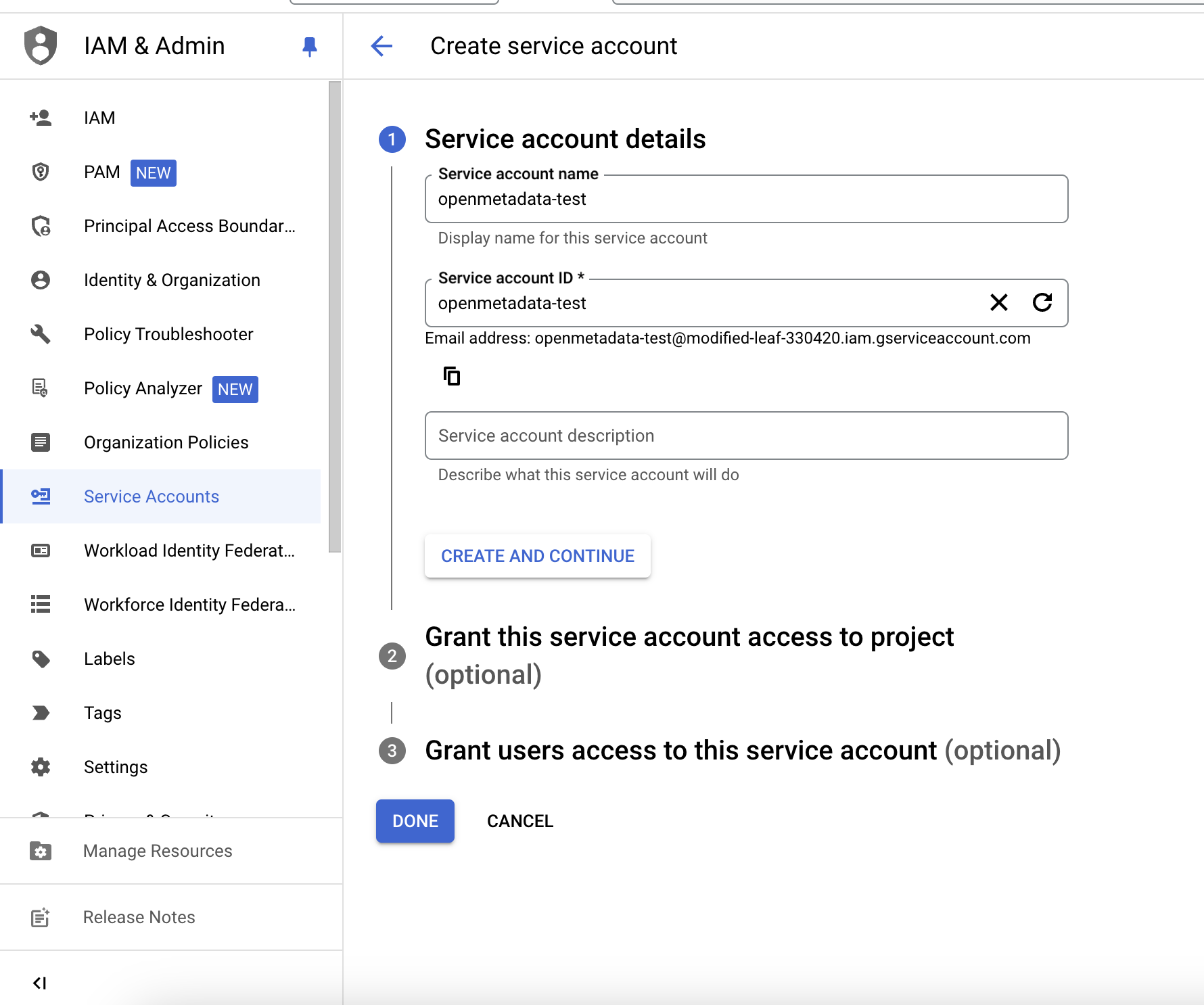
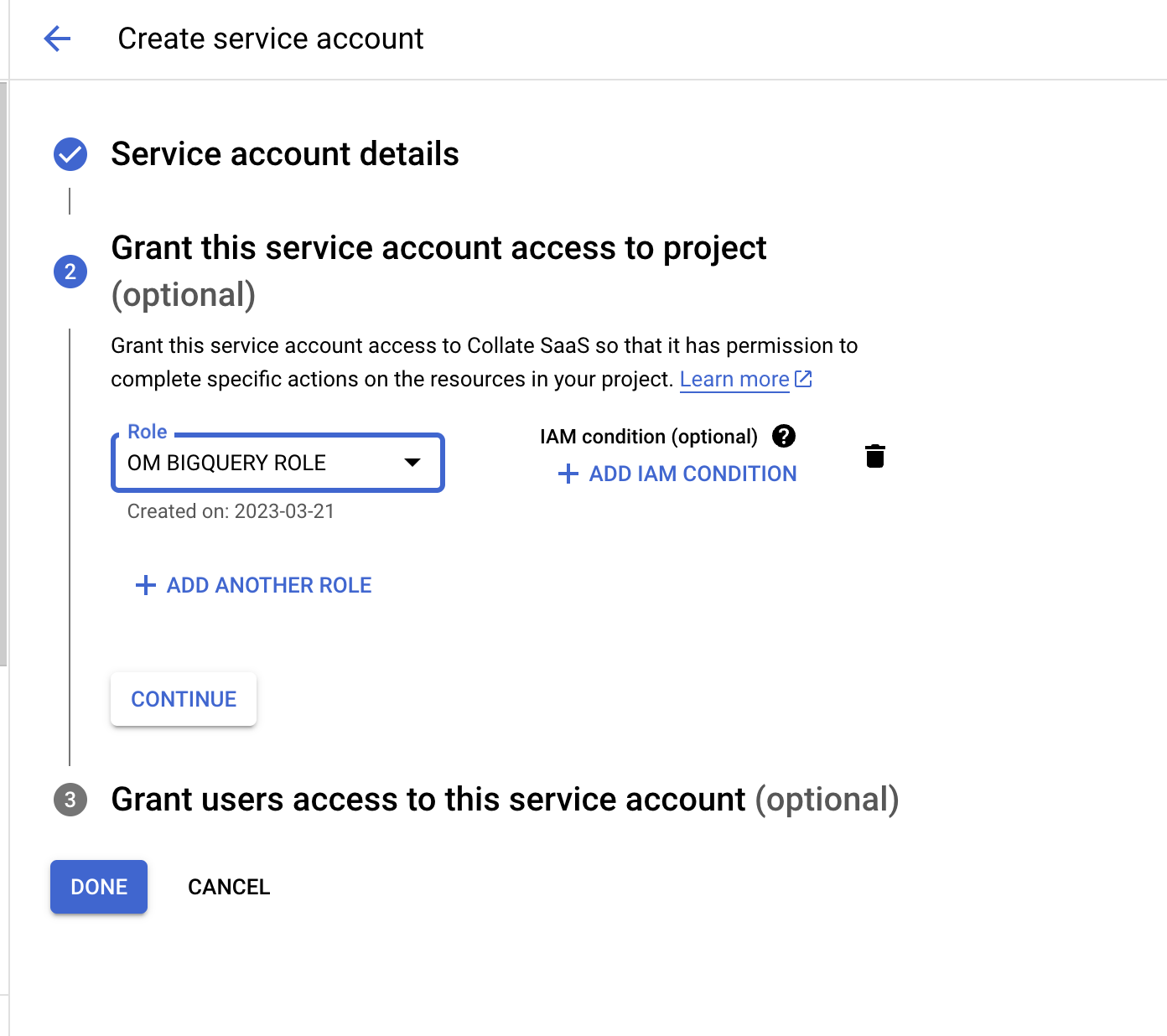
Once you are on service account page, click on Create Service Account button. Create Service Accounts Fill the service account details Create Service Accounts Grant a role to service account which has all the required permission to ingest BigQuery metadata in OpenMetadata. Grant Role to Service Account

3. Create & Download Key Credentials

Step 1: Navigate to Service Accounts

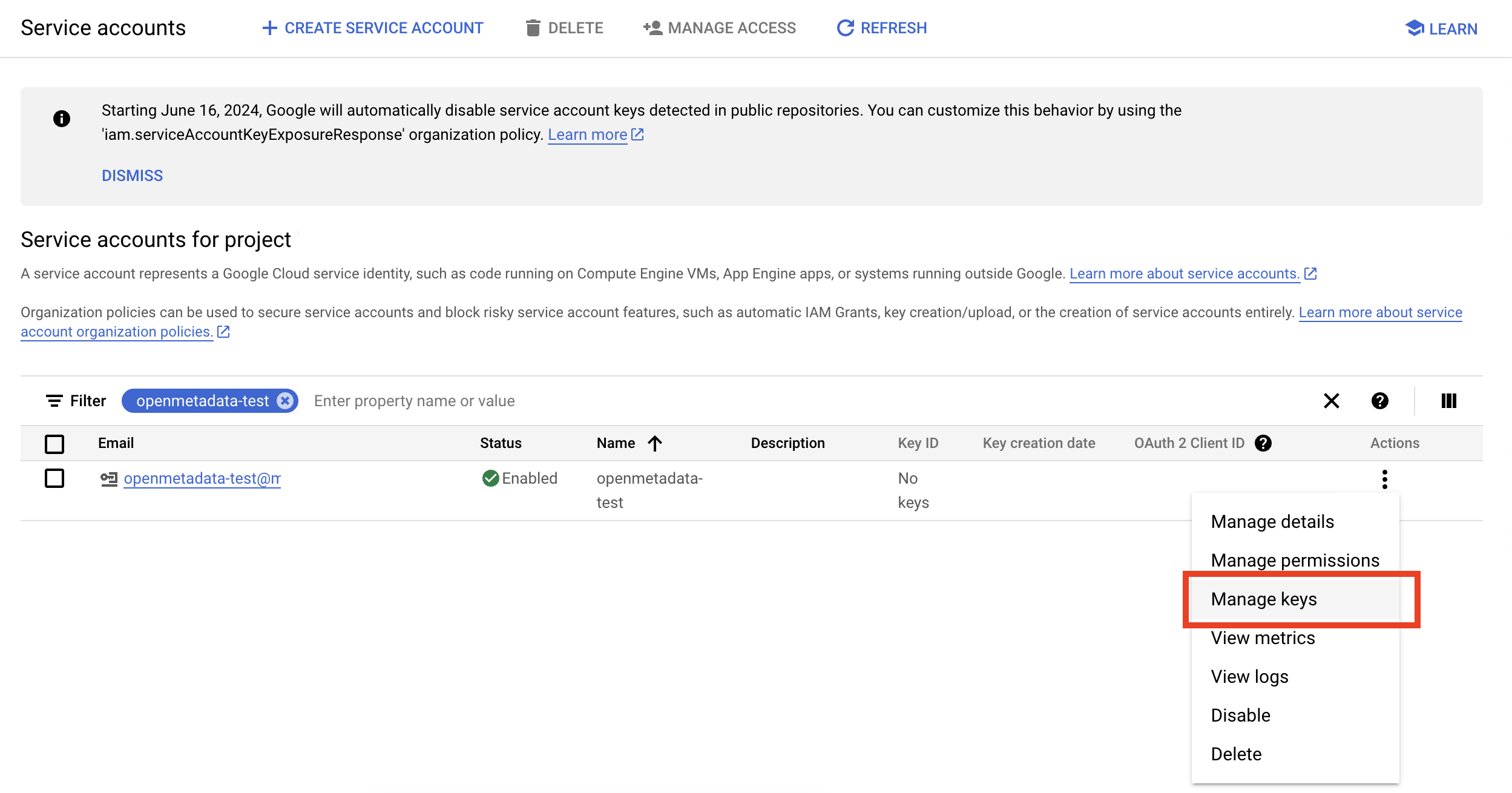
On service accounts page, look for the service account that you just created, click on the three dots menu and go to manage keys Service Account Manage Keys
Step 2: Download Key Credentials

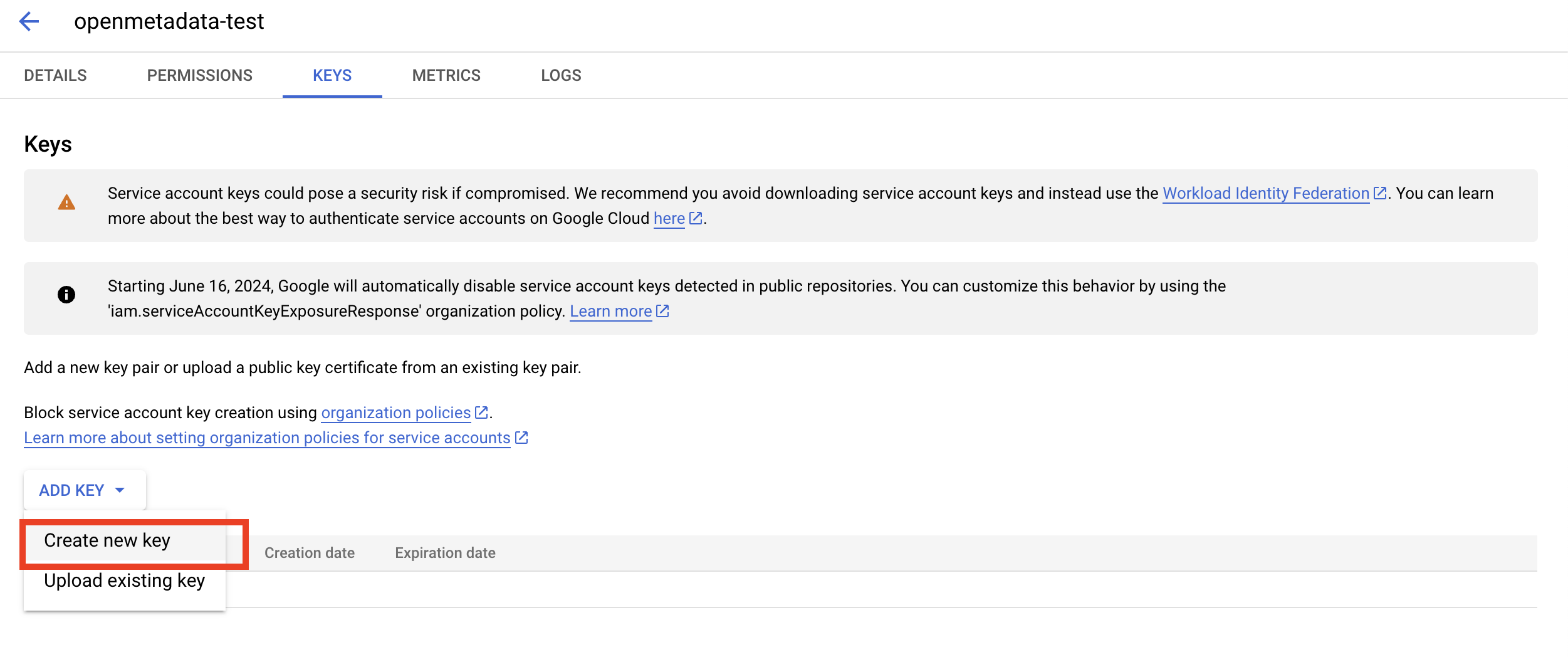
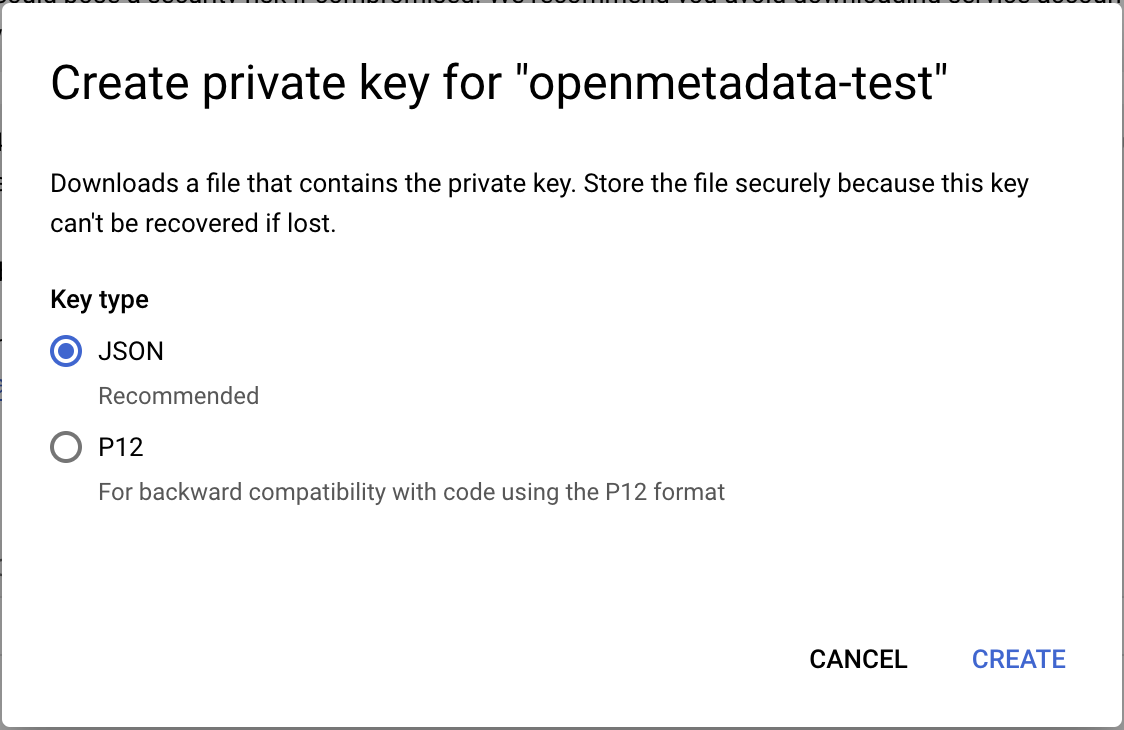
Click on Add Key > New Key > Select Json and download the key. Create New Key Download json Key Open this downloaded key and you will get all the required credentials details to fetch metadata from Bigquery.