
Requirements
To access the ThoughtSpot APIs and import liveboards, charts, and data models from ThoughtSpot into Collate, you need appropriate permissions on your ThoughtSpot instance.ThoughtSpot Account Setup and Permissions
- Authentication Setup
ThoughtSpot supports multiple authentication methods:
- Basic Authentication: Username and password authentication. The user should have appropriate permissions to read metadata from ThoughtSpot.
- API Token Authentication: Use ThoughtSpot API tokens for authentication. Generate API tokens from your ThoughtSpot instance.
- API Permissions
Ensure your ThoughtSpot user or service account has the following permissions:
- Read access to liveboards and answers
- Read access to worksheets and data models
- Access to metadata APIs
- Export permissions for TML (ThoughtSpot Modeling Language) data
- Multi-tenant Configuration (Optional)
If you’re using ThoughtSpot Cloud with multiple organizations:
- Set the
Organization IDparameter to specify which organization to connect to (only for ThoughtSpot Cloud).
- Set the
Metadata Ingestion
To ingest metadata from ThoughtSpot, you need to create a service connection. The service connects ThoughtSpot with Collate. Once you create a service, Collate automatically starts ingesting metadata.Step 1: Add New Service
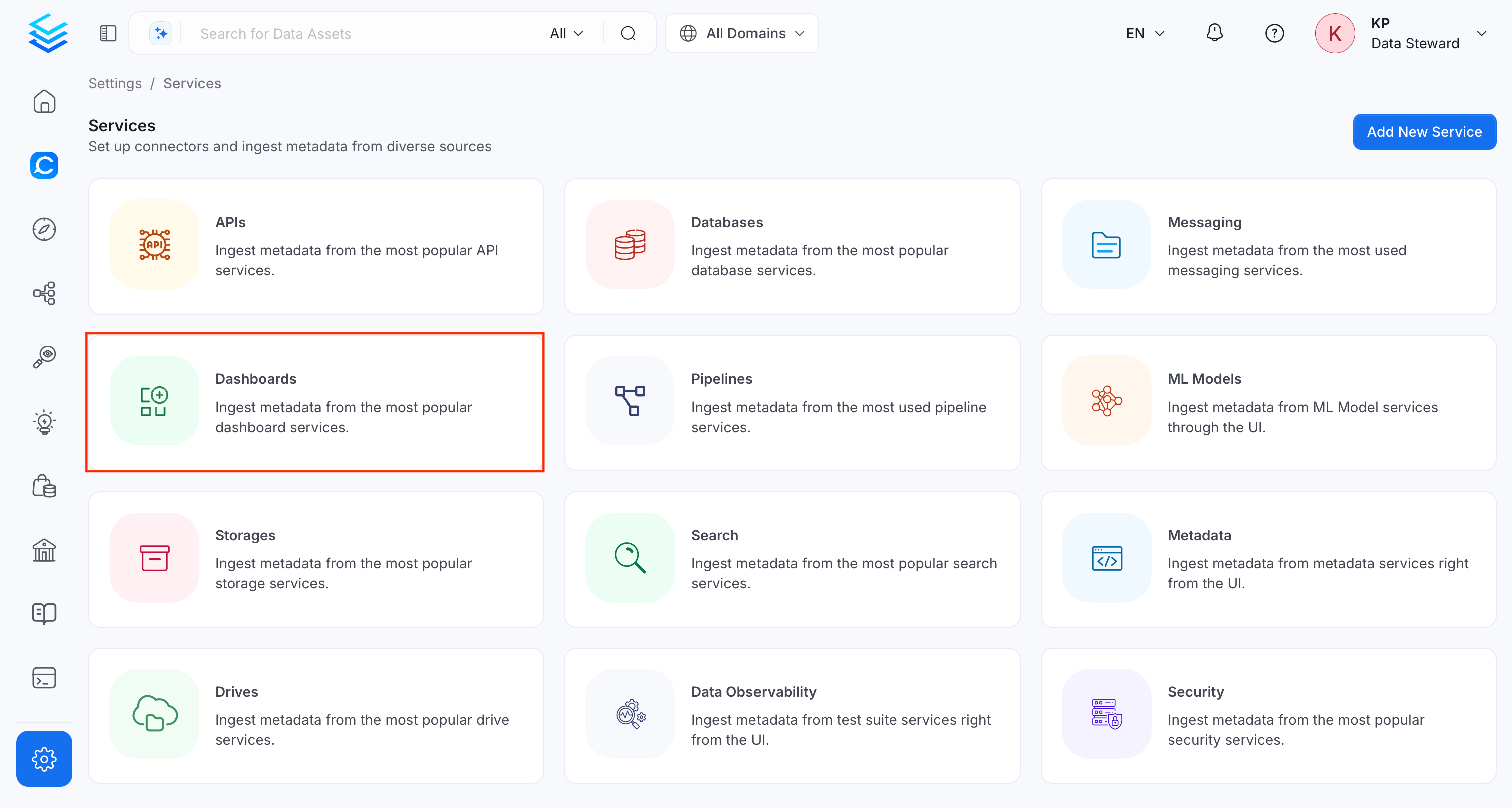
Open the Services page and start a new service.-
Navigate to Settings > Services and select Dashboard Services.
-
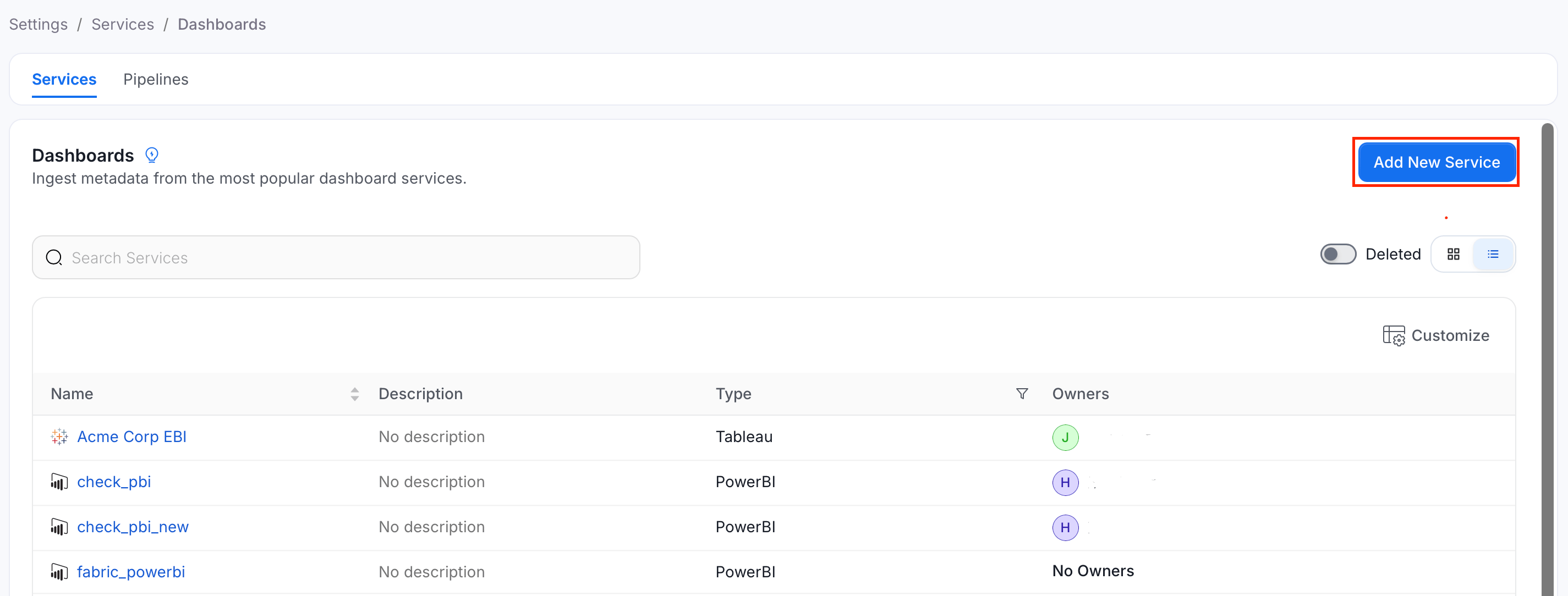
Click Add New Service.
Step 2: Select a Service and Connector
From the service type dropdown, select Dashboard Services, then click the ThoughtSpot connector tile.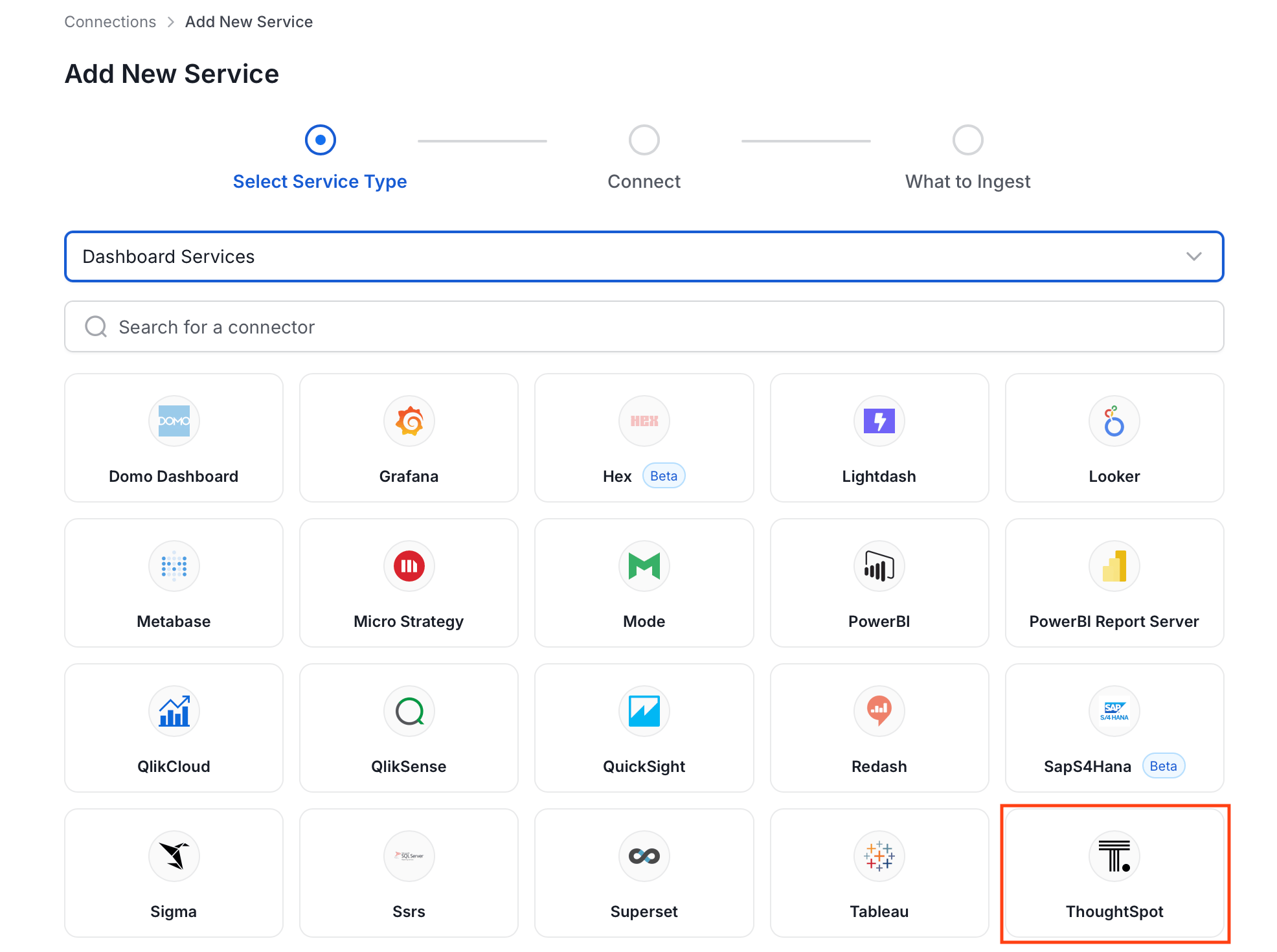
Step 3: Add Service Name and Description
- Enter a unique, descriptive Service Name. Collate identifies services by their service name. Enter a name that distinguishes this deployment from other ThoughtSpot services you are ingesting metadata from.
- Optional: Enter a Description for the service.

Note: The service name can’t be changed after you set it.
Step 4: Configure Connection Options
Specify where ingestion runs, provide your source credentials, and verify the connection.Select Ingestion Runner
Select an Ingestion Runner: the runner where the ingestion pipeline will execute.
Enter Connection Details
Enter the connection details for ThoughtSpot. The right-hand panel in the UI displays inline help for each field.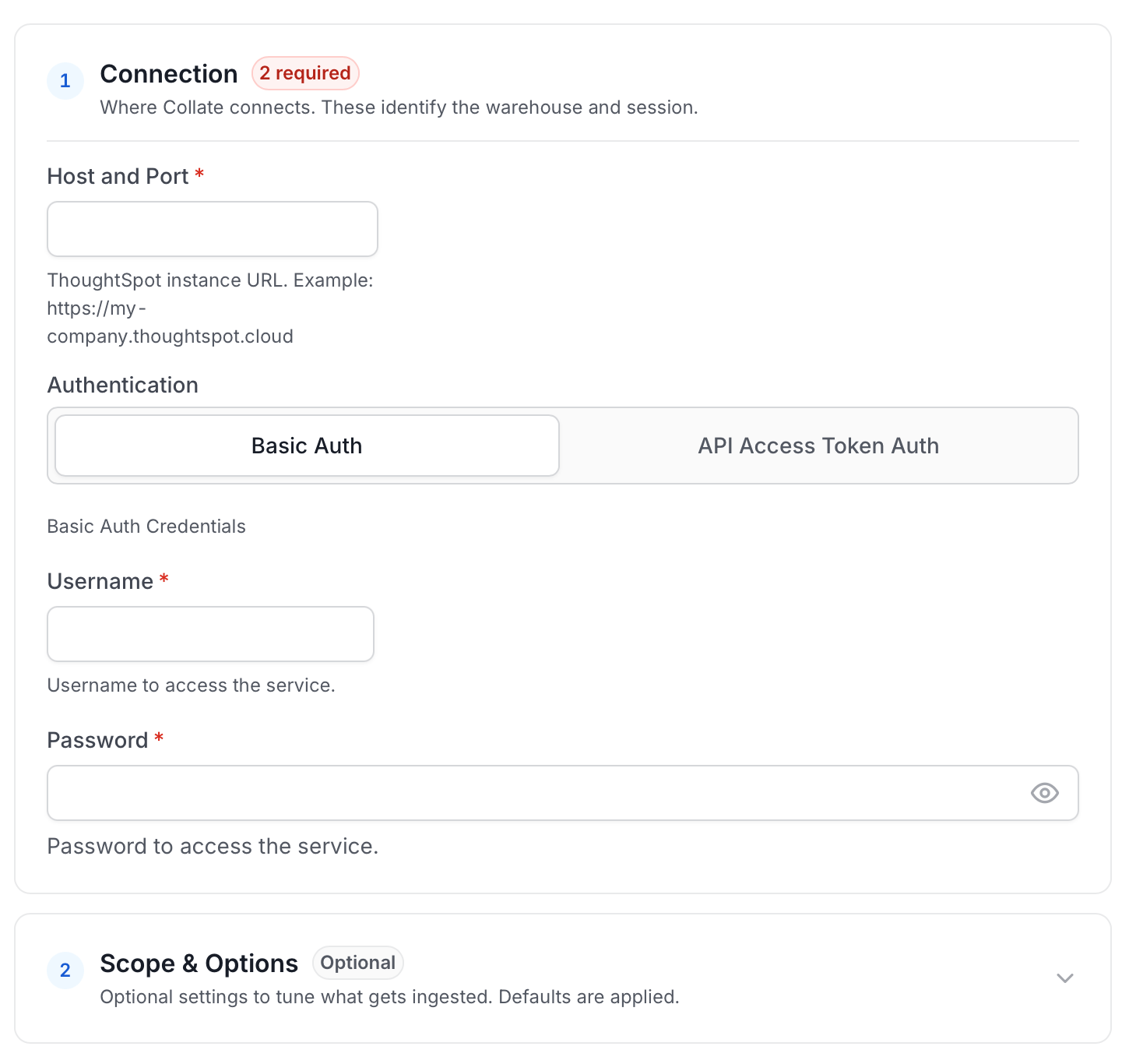
- Host and Port:
The URL of your ThoughtSpot instance.
Examples:
- Cloud:
https://my-company.thoughtspot.cloud - On-premise:
https://thoughtspot.company.com - Local:
https://localhostIf running ingestion in Docker and ThoughtSpot is onlocalhost, usehost.docker.internal.
- Cloud:
- Authentication:
Choose one of the following:
- Basic Authentication:
- Username: Your ThoughtSpot username
- Password: Your ThoughtSpot password
- API Token Authentication:
- API Token: Your ThoughtSpot API token
- Basic Authentication:
- API Version:
The ThoughtSpot API version to use for metadata extraction.
v1: Legacy API version (callosum endpoints)v2: Current API version (recommended, default)
- Organization ID:
For multi-tenant ThoughtSpot Cloud deployments.
- Leave empty for single-tenant
- Set to your org ID for multi-tenant
Test Connection
- Click Test Connection to verify the credentials.
- After the test succeeds, click Save.

Step 5: Configure Ingestion Options
In the What to Ingest step, use filter patterns to control which assets Collate ingests from your dashboard service. Filter rules match asset names using the following match types.How Filter Patterns Work
- Include: Add one or more comma-separated values. Each value uses one of the following match types. Collate ingests only assets whose names match at least one rule. Leave blank to include all assets.
- Exclude: Add one or more comma-separated values. Each value uses one of the following match types. Collate skips any asset whose name matches a rule. Leave blank to exclude nothing.
- contains: matches any name containing the value. For example,
salesmatchesmy_sales_dataandsales_2024. - starts with: matches names beginning with the value. For example,
prod_matchesprod_dbandprod_schema. - ends with: matches names ending with the value. For example,
_rawmatchesevents_rawandlogs_raw. - is exactly: matches the exact name only. For example,
analyticsmatches onlyanalytics. - matches regex: matches names using a regular expression. For example,
^prod_.*_v\d+$matchesprod_events_v1.
Filter Options
The Dashboard and Chart sections each include the following filter options:- Dashboard: Controls which dashboards Collate ingests from the source.
- Chart: Controls which charts within the ingested dashboards are included.
- Scan Mode: Choose between the following scan modes:
- Scan all: Ingests every asset of that type the connector can access. This is the default.
- Only specific: Enables include rules so only assets matching at least one rule are ingested.
- Exclude system toggle: Use this toggle to filter out system-reserved names defined by the connector for that asset type.
- Always exclude: Add permanent exclusion rules (shown in red). Assets matching these rules are never ingested, regardless of include rules.
- Preview: Shows a real-time summary of what will be in scope based on your current rules.
- Include rules: In Only specific mode, click + Add to define a rule. Added rules appear as chips. An asset is included if it matches any rule.
Step 6: Create & Deploy
Click Create & Deploy to deploy the agent and start the first metadata ingestion run. Collate saves the service configuration and immediately begins pulling metadata from the source. To monitor ingestion progress or view the service you just added, go to Settings > Services and select your service.Configure Metadata Agent and Schedule Ingestion
The Metadata Agent extracts dashboards, charts, data models, and other structural metadata from your source and keeps your Collate catalog in sync. It powers discovery, lineage, and governance across your data assets. When you click Create & Deploy, Collate automatically deploys a Metadata Agent for this service and triggers the first ingestion run. View its status and run history from the Agents tab on the service detail page. To configure the additional Metadata Agent and schedule ingestion, follow these steps:- Navigate to Settings > Services and select the Dashboards service.
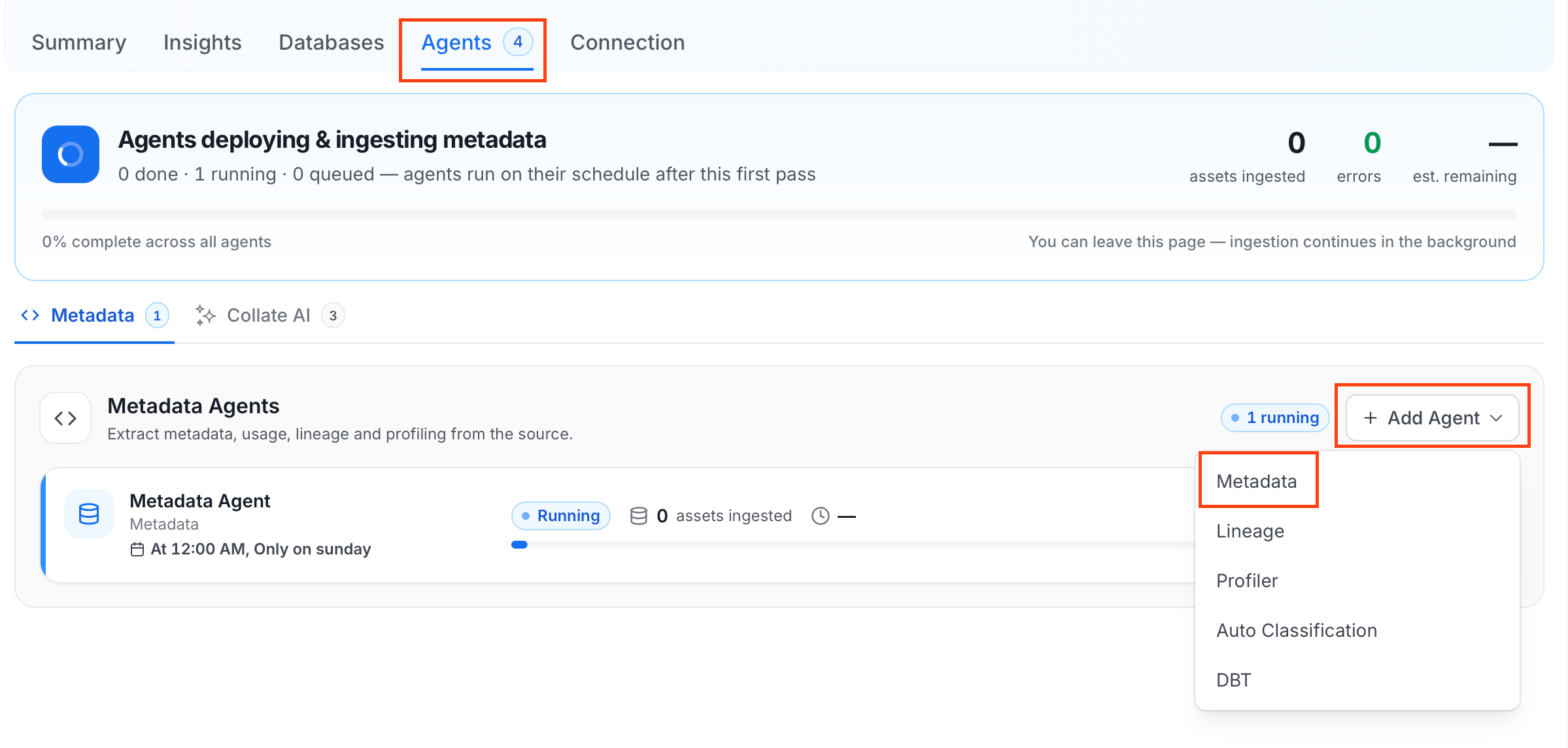
- Select your service and click the Agents tab.
-
Click Add Agent and select Metadata from the dropdown.
-
On the Configure Ingestion page, do the following and click Next.
-
Name this Ingestion: Enter a unique, recognizable name for this ingestion pipeline.

-
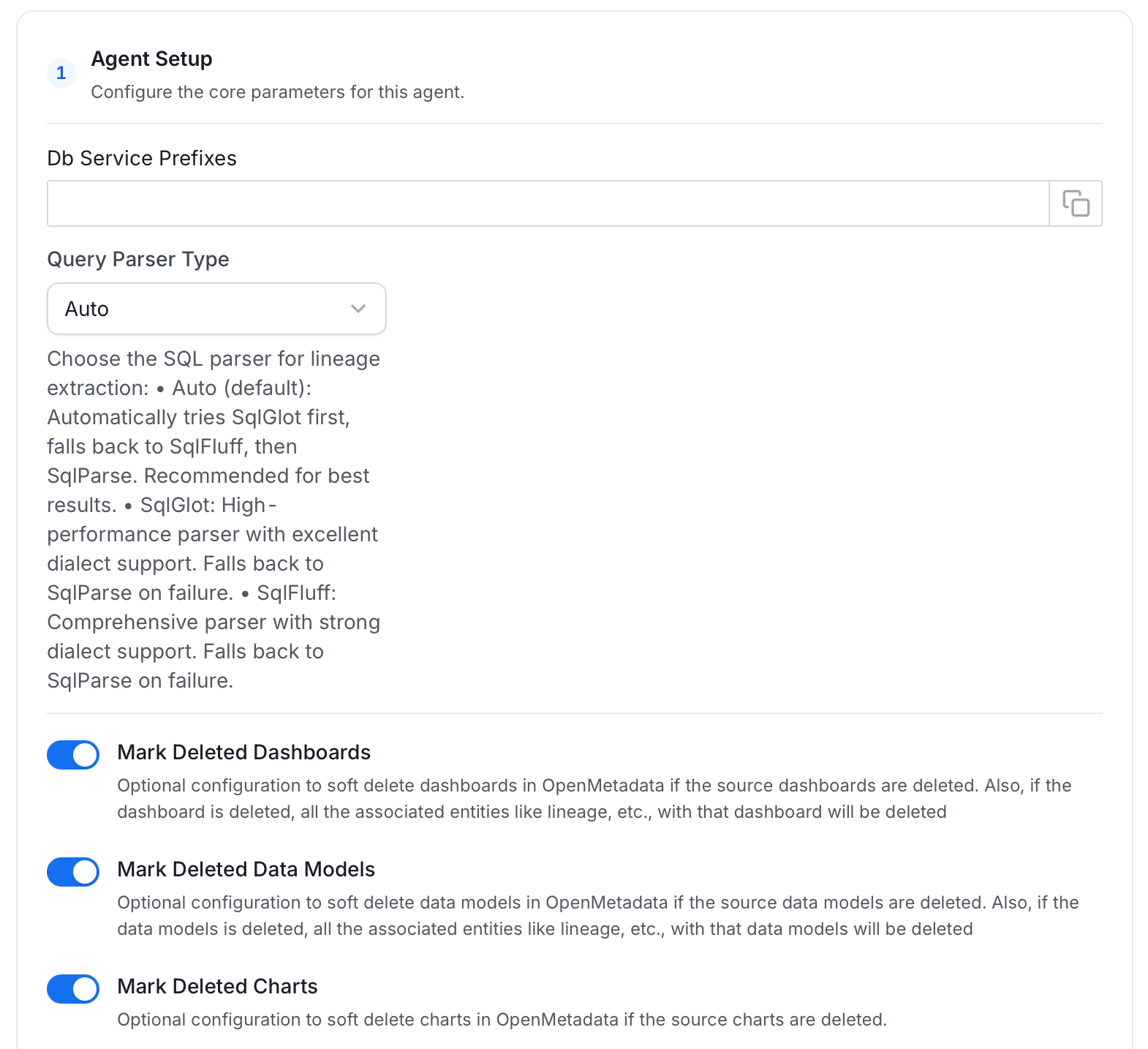
Agent Setup: Configure ingestion parameters. The following fields are available:
-
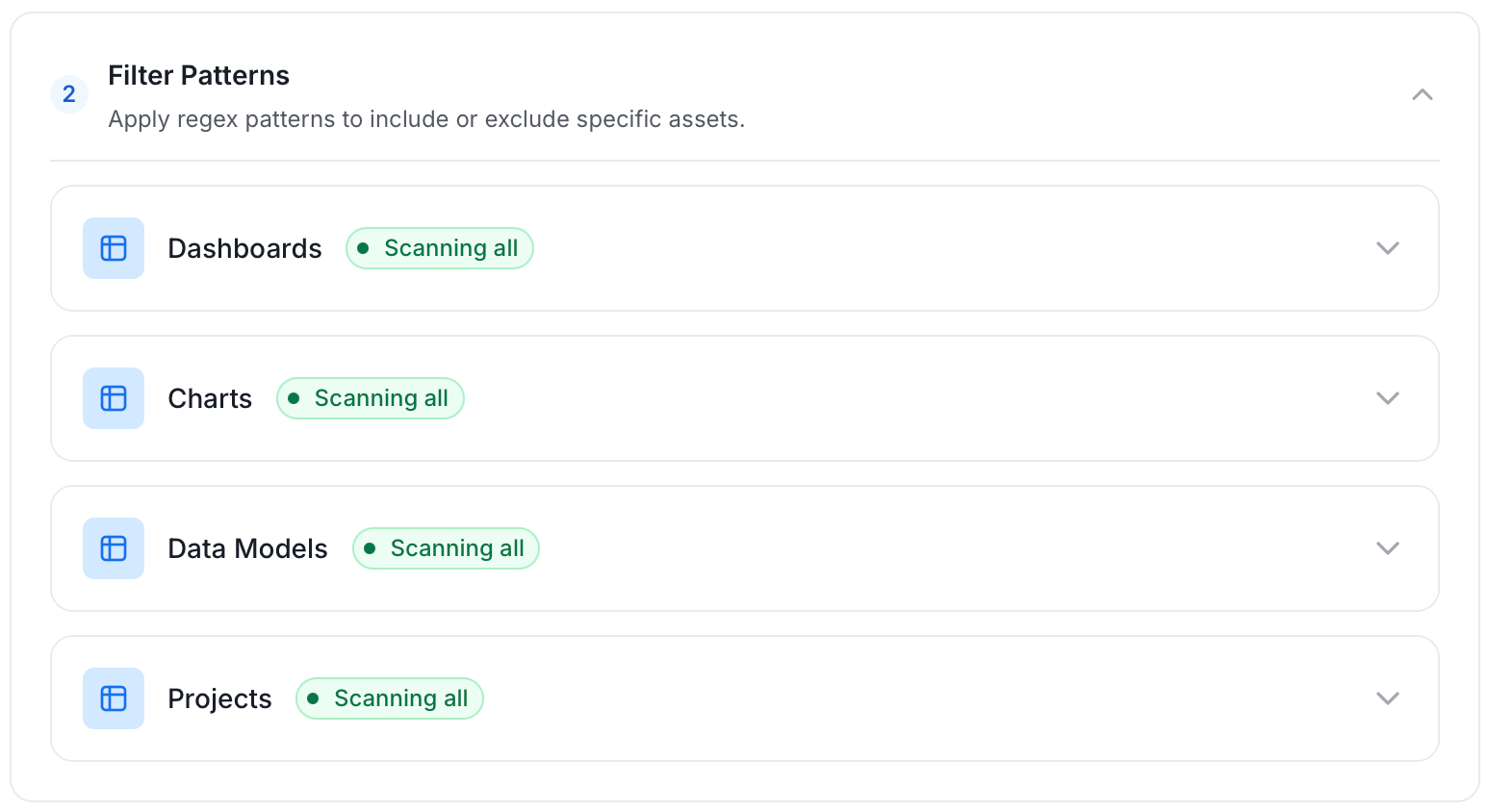
Filter Patterns: Apply include or exclude rules to scope which dashboards, charts, data models, and projects this agent ingests. These follow the same filter options described in Step 5.
-
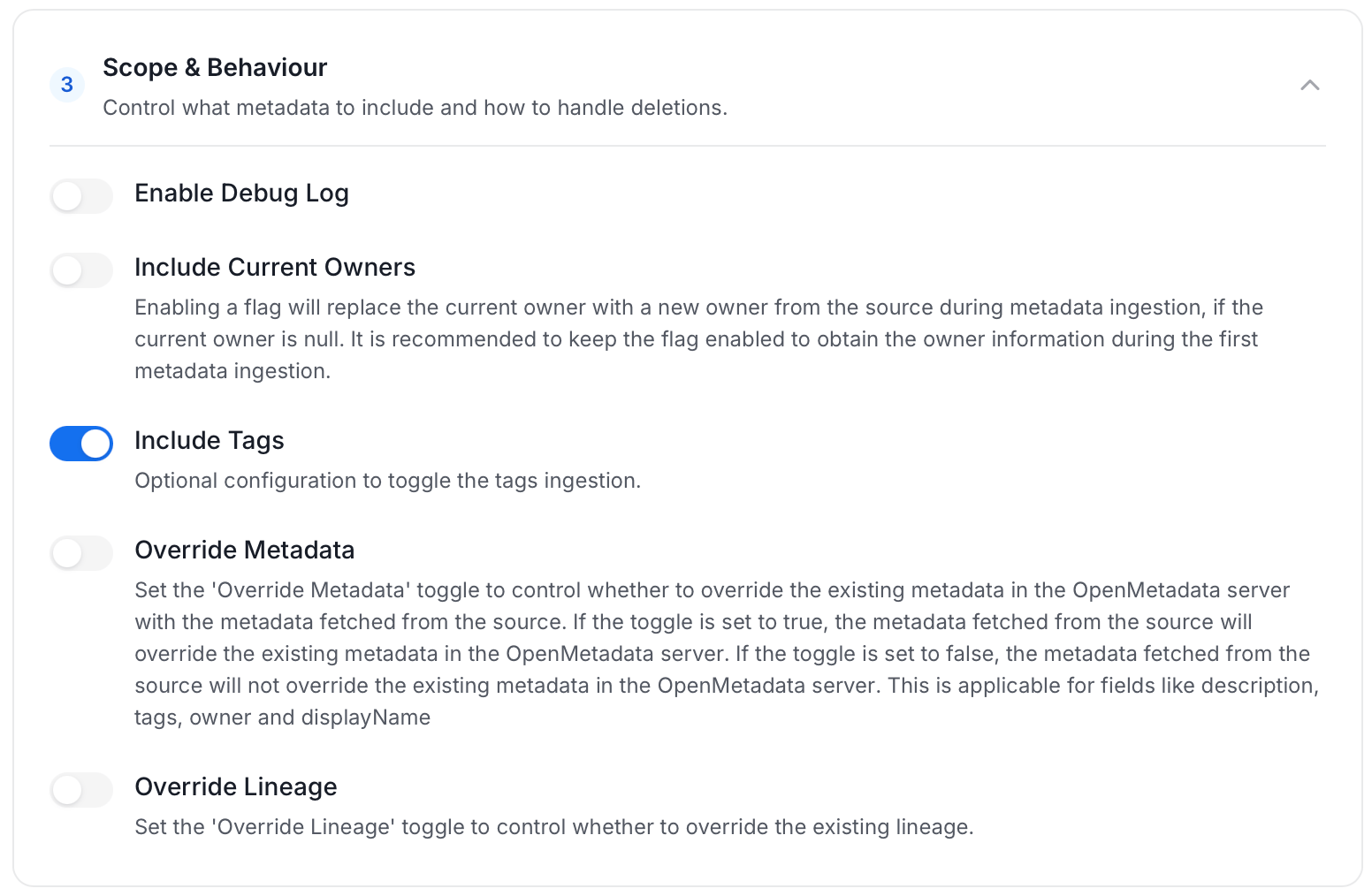
Scope & Behaviour: Control what metadata to include and how to handle deletions. Toggle each option on or off based on your needs:
-
Name this Ingestion: Enter a unique, recognizable name for this ingestion pipeline.
-
On the Schedule Interval page, set when the agent runs:
- Schedule: Choose a preset interval (Hourly, Daily, Weekly, Monthly) or enter a custom cron expression.
- On-Demand: No automatic schedule. Trigger the agent manually when needed.
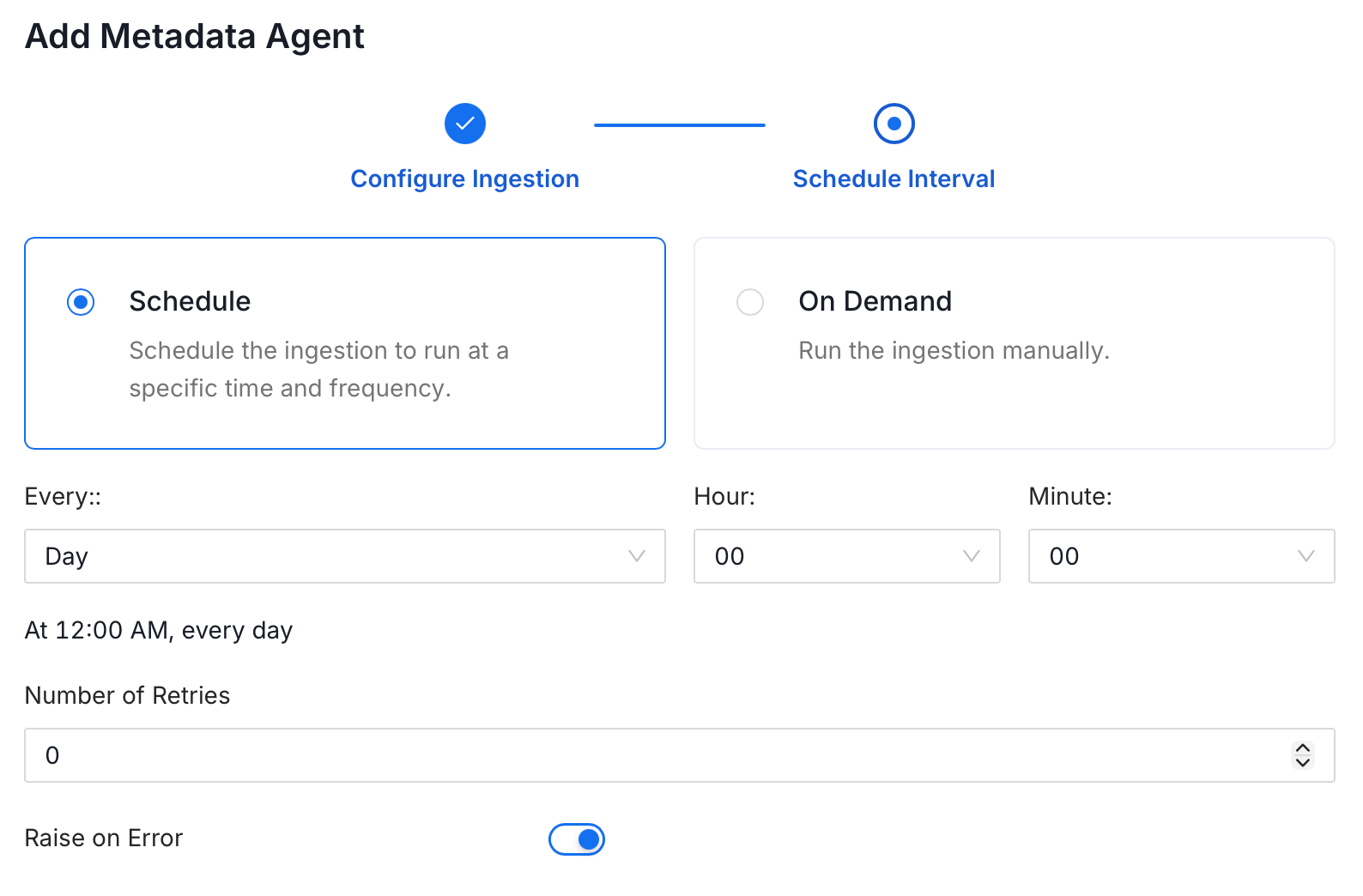
- Click Add to deploy the agent.
Lineage
Lineage
Lineage in Collate shows you which database tables power each dashboard. When lineage is set up, you can trace any dashboard back to the exact source tables in your database. There is no separate lineage agent or lineage pipeline—lineage is collected as part of the same metadata ingestion workflow. Configuring the Db Service Prefixes field (covered below) is optional but recommended — it restricts table matching to specific database services. If left blank, Collate attempts to match source tables across all ingested database services.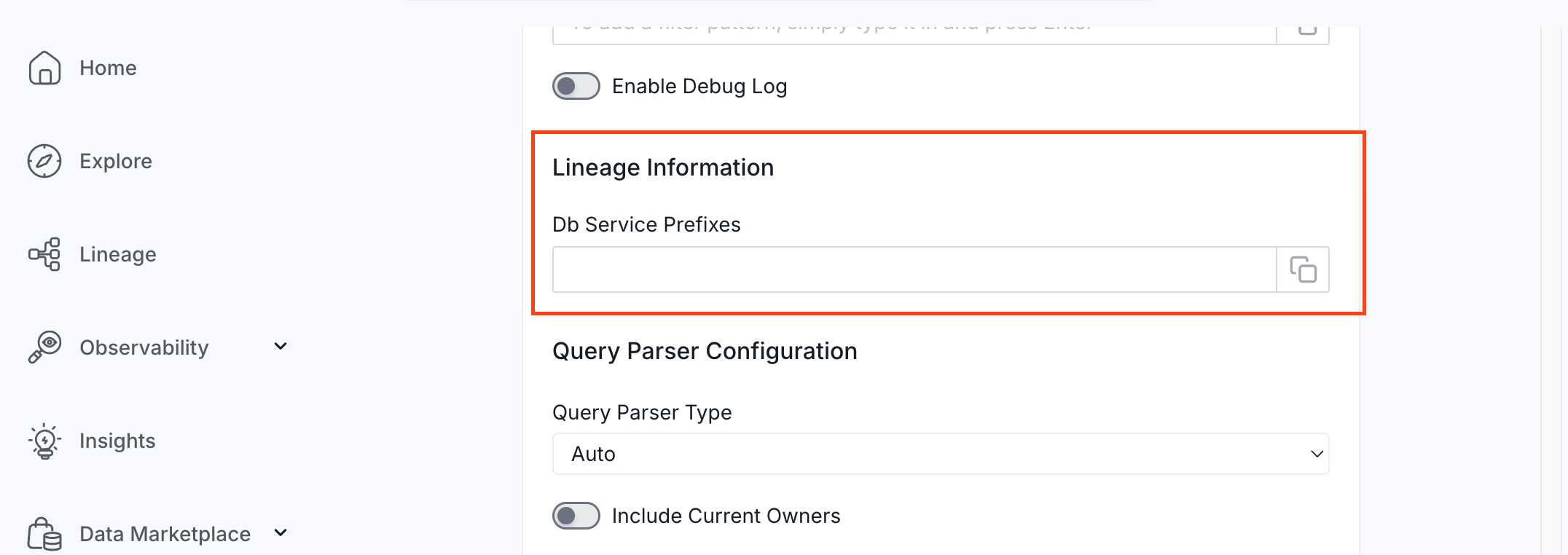
How to Set Up Lineage
- Go to Settings > Services > Dashboards.
- Click the dashboard service you’ve added.
- Go to the Agents tab, then select Add Agent > Add Metadata Agent. If a metadata agent already exists, select the three-dot context menu (⋮) next to it and select Edit.
- In the Configure Ingestion step, scroll down to the Lineage Information section.
- Optionally enter one or more database service names in the Db Service Prefixes field to restrict table matching to specific services. If left blank, Collate searches across all ingested database services.
Troubleshooting
ThoughtSpot Troubleshooting
Learn more about how to troubleshoot common ThoughtSpot connector issues and resolve configuration or ingestion errors.