
- Requirements
- Entity Mapping
- Metadata Ingestion
- Enable Security
- Lineage
- Troubleshooting
- Reverse Metadata
Requirements
To ingest tableau metadata, minimumSite Role: Viewer is required for the tableau user.
To create lineage between tableau dashboard and any database service via the queries provided from Tableau Metadata API, please enable the Tableau Metadata API for your tableau server.
For more information on enabling the Tableau Metadata APIs follow the link here
Source Tables and Lineage
Grant the ingestion account View on the affected external assets in Tableau Catalog, or use an account that already holds it. A Viewer or Explorer site role alone is not enough for Collate to build table lineage. For the steps, see Manage Permissions for External Assets in the Tableau documentation.Entity Mapping
The Tableau connector maps Tableau assets to Collate entities as follows:Example Structure
Tableau Structure:- Tableau workbooks appear as Collate dashboards
- All views (worksheets, dashboard views, stories) appear as charts under that dashboard
- Tableau project names are preserved in the project field
- URLs point directly to the specific views
Metadata Ingestion
Connection Details
1
Connection Details
- Host and Port: URL or IP address of your installation of Tableau Server.
- Authentication Types:
- Basic Authentication
- Username: The name of the user whose credentials will be used to sign in.
- Password: The password of the user.
- Access Token Authentication
- API Version: Tableau API version. A lists versions of Tableau Server and of the corresponding REST API and REST API schema versions can be found here.
- Site Name: This corresponds to the
contentUrlattribute in the Tableau REST API. Thesite_nameis the portion of the URL that follows the/site/in the URL. - Site URL: If it is empty, the default Tableau site name will be used.
- Environment: The config object can have multiple environments. The default environment is defined as
tableau_prod, and you can change this if needed by specifying anenvparameter. - Pagination Limit: The pagination limit will be used while querying the Tableau Graphql endpoint to get the data source information.
Site Name and Site URL
1. Service Connection for Tableau Cloud
If you’re connecting to a cloud Tableau instance, add theSite Name and Site URL with your site name.2. Service Connection for a default tableau site
For a default tableau siteSite Name and Site URL fields should be kept empty.3. Service Connection for a non-default tableau site
For a non-default tableau siteSite Name and Site URL fields are required.Authentication Type
1. Basic Authentication
We need the name of the user whose credentials will be used to sign in and the password of the user.2. Access Token Authentication
In this case, the personal access token name and the personal access token value are required. For more information to get a Personal Access Token please visit this link.2
Test the Connection
Once the credentials have been added, click on Test Connection and Save the changes.
3
Configure Metadata Ingestion
After adding and testing the dashboard service, configure the metadata ingestion pipeline. To configure, follow the steps below: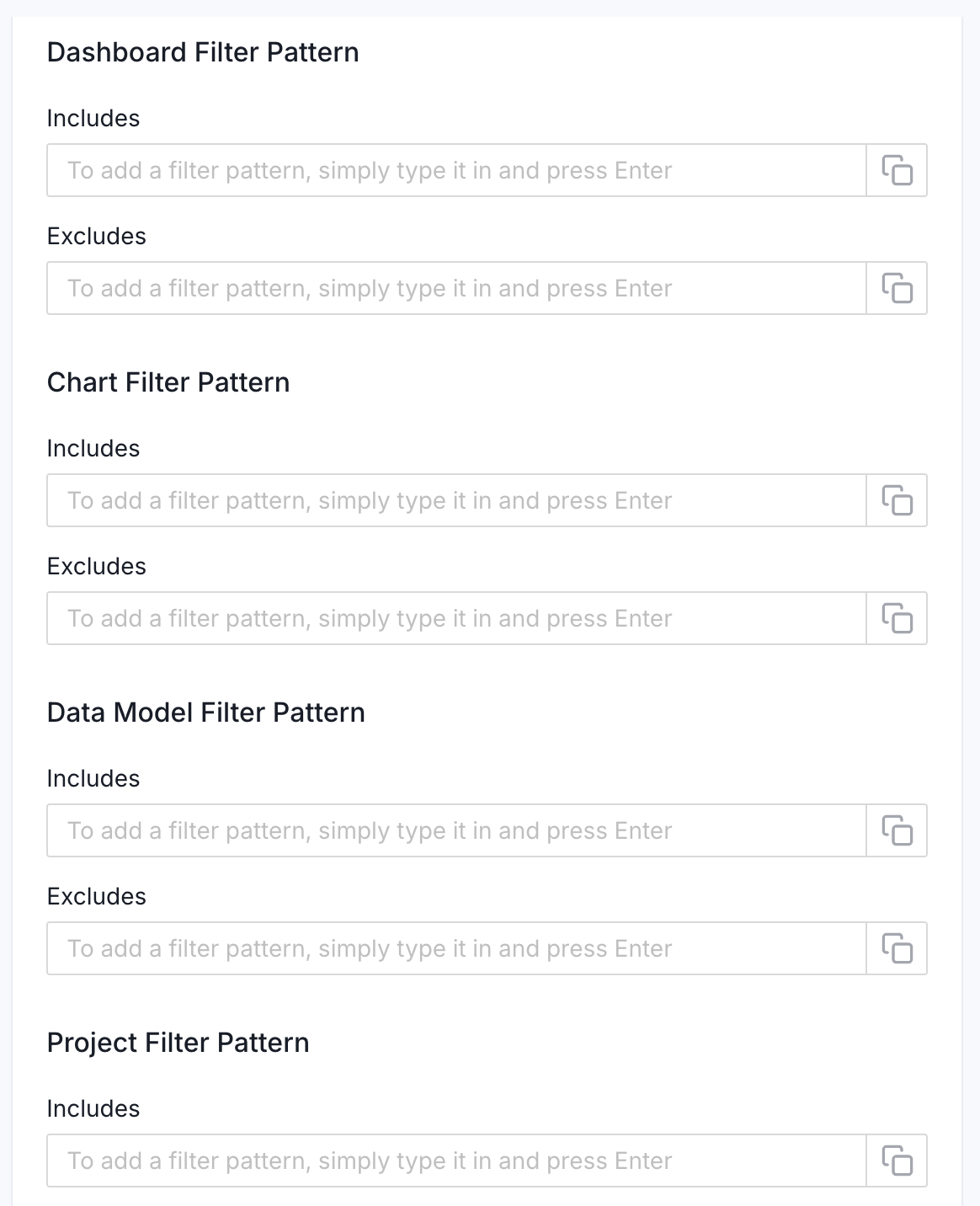
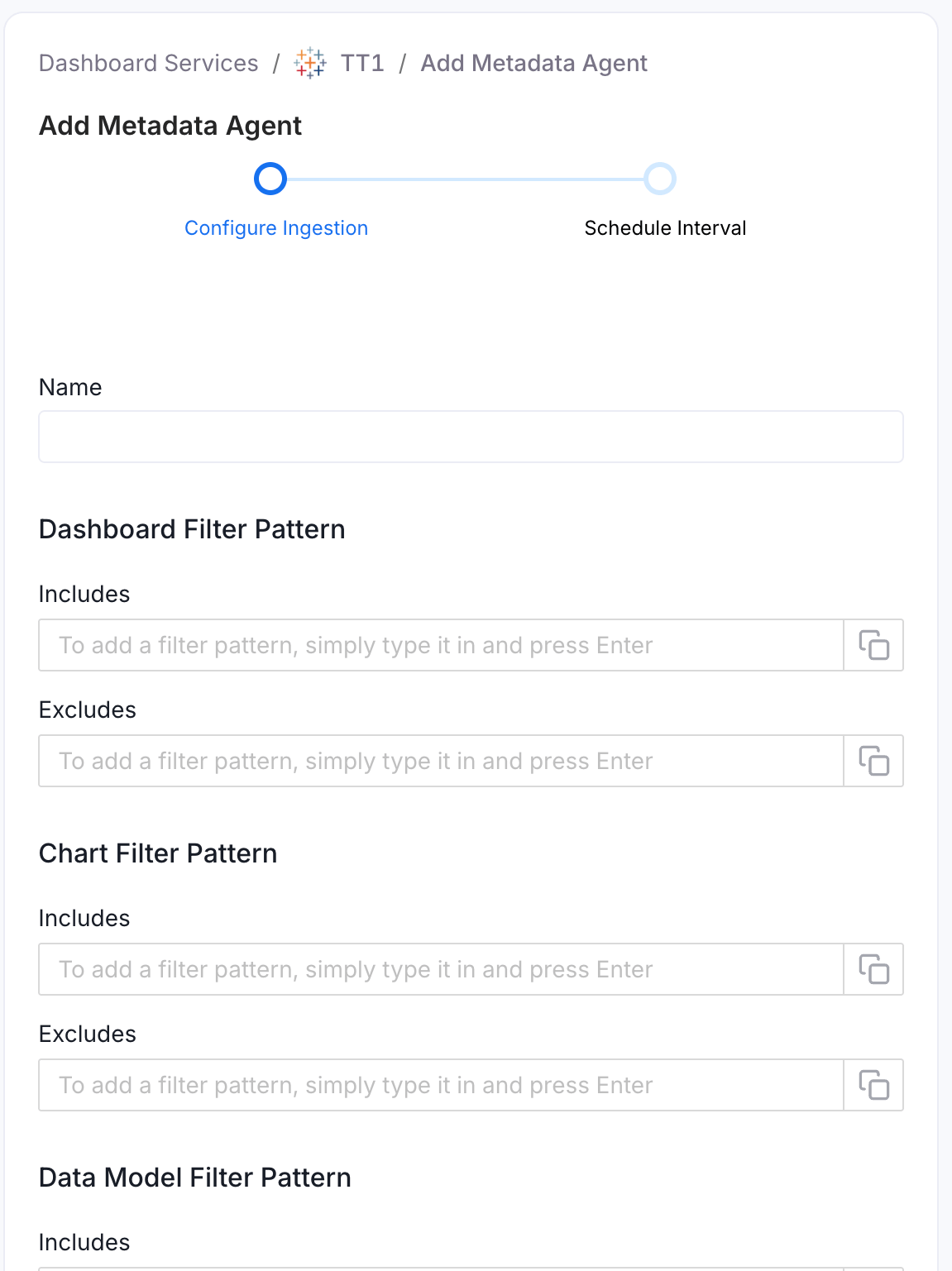
- Navigate to Settings > Services > Dashboards.
- On the Dashboards services page, click the service you’ve added.
- Go to the Agents tab, and then click Add Agent > Add Metadata Agent.
- Configure the ingestion details. See Metadata Ingestion Options.
Metadata Ingestion Options
- Name: This field is the name of the ingestion pipeline. Customize it or use the generated name.
- Dashboard Filter Pattern (Optional): Use it to control whether to include dashboards as part of metadata ingestion.
- Include: Explicitly include dashboards by adding comma-separated regular expressions to the ‘Include’ field. OpenMetadata will include all dashboards with names matching one or more of the supplied regular expressions. All other dashboards will be excluded.
- Exclude: Explicitly exclude dashboards by adding comma-separated regular expressions to the ‘Exclude’ field. OpenMetadata will exclude all dashboards with names matching one or more of the supplied regular expressions. All other dashboards will be included.
- Chart Filter Pattern (Optional): Use it to control whether to include charts as part of metadata ingestion.
- Include: Explicitly include charts by adding comma-separated regular expressions to the ‘Include’ field. OpenMetadata will include all charts with names matching one or more of the supplied regular expressions. All other charts will be excluded.
- Exclude: Explicitly exclude charts by adding comma-separated regular expressions to the ‘Exclude’ field. OpenMetadata will exclude all charts with names matching one or more of the supplied regular expressions. All other charts will be included.
- Data Model Filter Pattern (Optional): Use it to control whether to include data models as part of metadata ingestion.
- Include: Explicitly include data models by adding comma-separated regular expressions to the ‘Include’ field. OpenMetadata will include all data models with names matching one or more of the supplied regular expressions. All other data models will be excluded.
- Exclude: Explicitly exclude data models by adding comma-separated regular expressions to the ‘Exclude’ field. OpenMetadata will exclude all data models with names matching one or more of the supplied regular expressions. All other data models will be included.
- Project Filter Pattern: Filter the dashboards, charts, and data sources by projects. Note that all of them support regex as include or exclude. For example, “My project, My proj.*, .*Project”.
- Enable Debug Log: Enable this toggle to use debug-level logging.
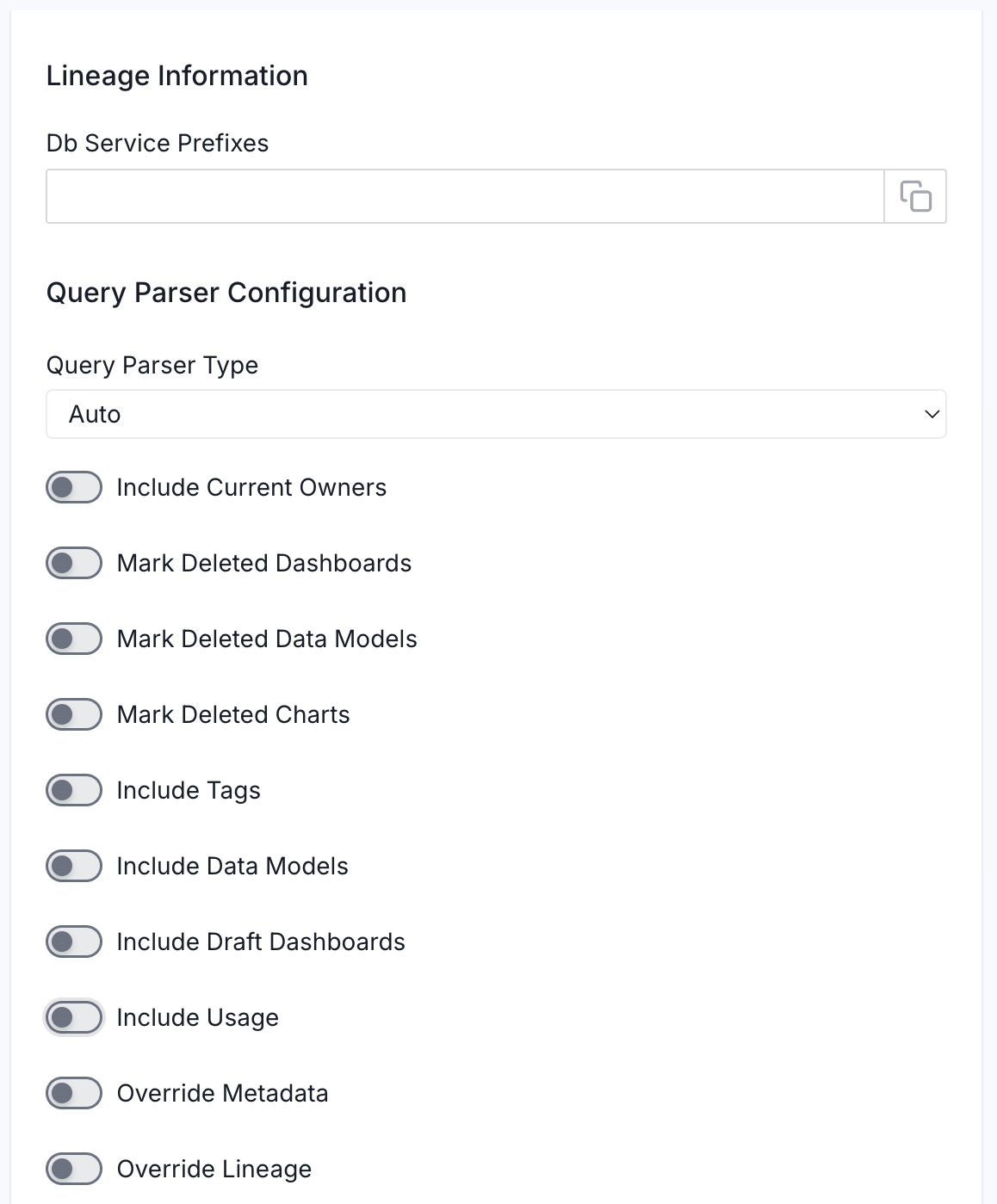
- Lineage Information (Optional): Configure this section to enable lineage between your dashboards and the database tables they are built on. OpenMetadata uses the database service name to match and draw the lineage path from table to dashboard.
- Db Service Prefixes: Enter one or more service path prefixes to tell OpenMetadata where to look for the source tables used by your dashboards. Supported formats:
DBServiceName—matches all tables in the serviceDBServiceName.DatabaseName—matches tables in a specific databaseDBServiceName.DatabaseName.SchemaName—matches tables in a specific schemaDBServiceName.DatabaseName.SchemaName.TableName—matches a specific table
- Db Service Prefixes: Enter one or more service path prefixes to tell OpenMetadata where to look for the source tables used by your dashboards. Supported formats:
- Query Parser Configuration: Controls how OpenMetadata parses SQL queries to extract lineage. Use this to select the SQL parser that best fits your data source’s dialect.
- Query Parser Type: Choose the SQL parser for lineage extraction:
- Auto (default): Automatically tries SqlGlot first, falls back to SqlFluff, then SqlParse. Recommended for best results.
- SqlGlot: High-performance parser with good dialect support. Falls back to SqlParse on failure.
- SqlFluff: Comprehensive but slower parser with strong dialect support. Falls back to SqlParse on failure.
- Query Parser Type: Choose the SQL parser for lineage extraction:
- Include Current Owners: Enable this toggle to control whether to include owners for the ingested entity if the owner email matches a user stored in the Collate server as part of metadata ingestion. If the ingested entity already exists and has an owner, the owner will not be overwritten.
- Mark Deleted Dashboards: Optional configuration to soft delete dashboards in OpenMetadata if the source dashboards are deleted. After deleting, all associated entities like lineage and other related data for that dashboard will be deleted.
- Mark Deleted Data Models: Optional configuration to soft delete data models in OpenMetadata if the source data models are deleted. After deleting, all associated entities with that data model will be deleted.
- Mark Deleted Charts: Optional configuration to soft delete charts in OpenMetadata if the source charts are deleted. After deleting, all associated entities with that chart will be deleted.
- Include Tags: Enable this toggle to control whether to include tags in metadata ingestion.
- Include Data Models: Enable this toggle to control whether to include data models as part of metadata ingestion.
- Include Draft Dashboard: Enable this toggle to include draft dashboards. By default, this is enabled.
- Include Usage: Enable this toggle to control whether to include usage data as part of metadata ingestion.
- Override Metadata: Enable this toggle to control whether to override the existing metadata in the Collate server with the metadata fetched from the source. If enabled, the metadata fetched from the source will override the existing metadata in OpenMetadata. If disabled, only fields that have no value in OpenMetadata will be updated. This is applicable for fields like description, tags, owner, and displayName.
- Override Lineage: Enable this toggle to control whether to override the existing lineage in OpenMetadata with the lineage fetched from the source. If enabled, existing lineage will be replaced. If disabled, new lineage edges will be added without removing existing ones.
4
Schedule the Ingestion and Deploy
Scheduling can be set up at an hourly, daily, weekly, or manual cadence. The
timezone is in UTC. Select a Start Date to schedule for ingestion. It is
optional to add an End Date.Review your configuration settings. If they match what you intended,
click Deploy to create the service and schedule metadata ingestion.If something doesn’t look right, click the Back button to return to the
appropriate step and change the settings as needed.After configuring the workflow, you can click on Deploy to create the
pipeline.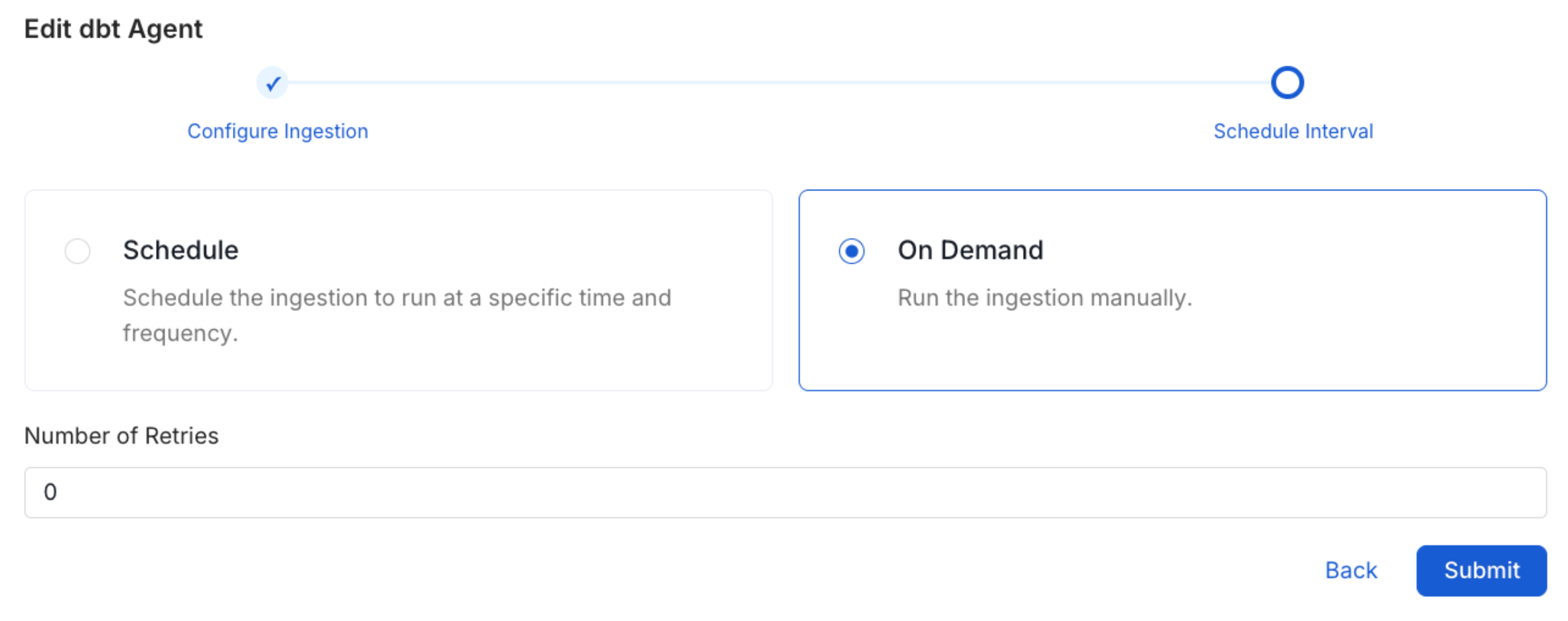
5
View the Ingestion Pipeline
Once the workflow has been successfully deployed, you can view the
Ingestion Pipeline running from the Service Page.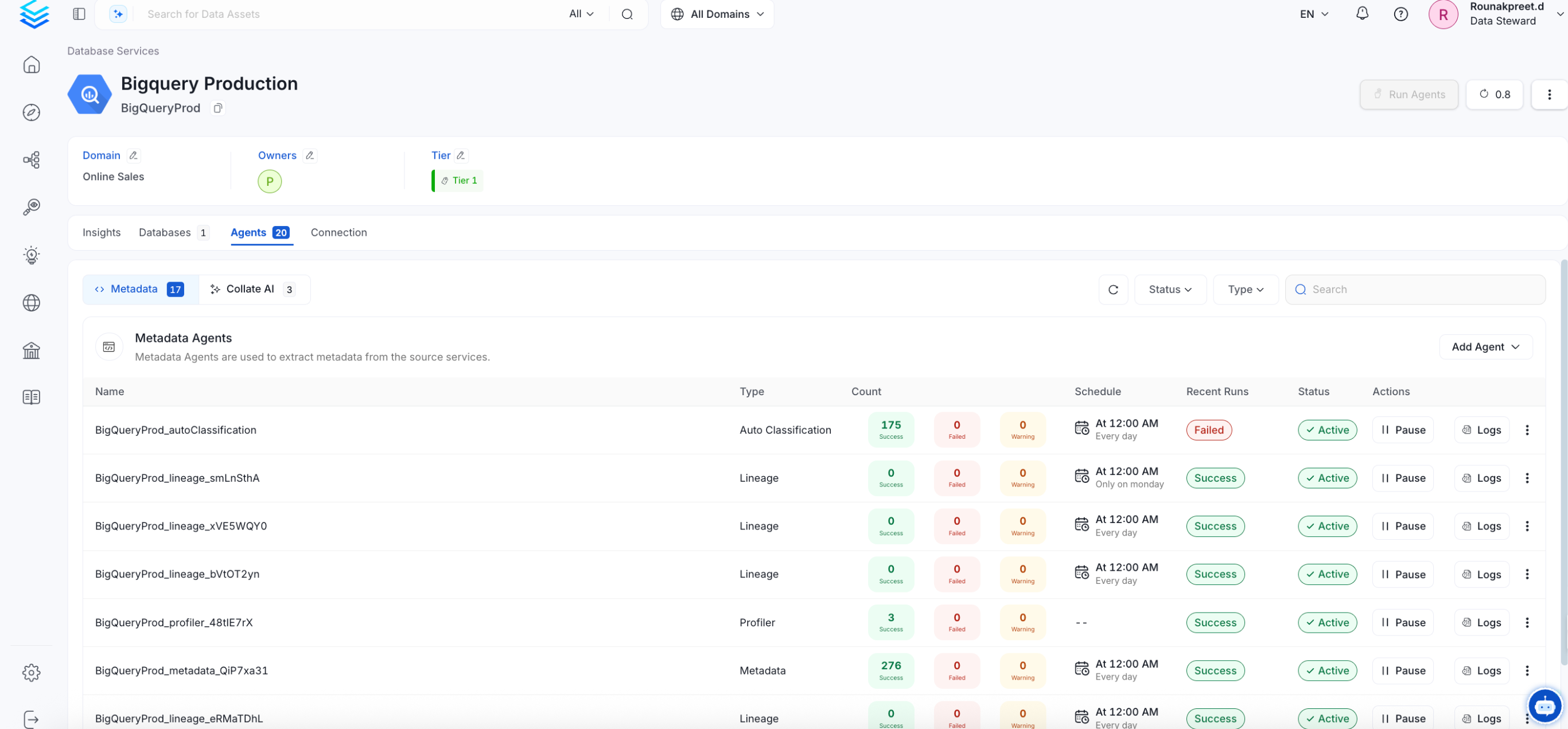
Securing Tableau Connection with SSL in Collate
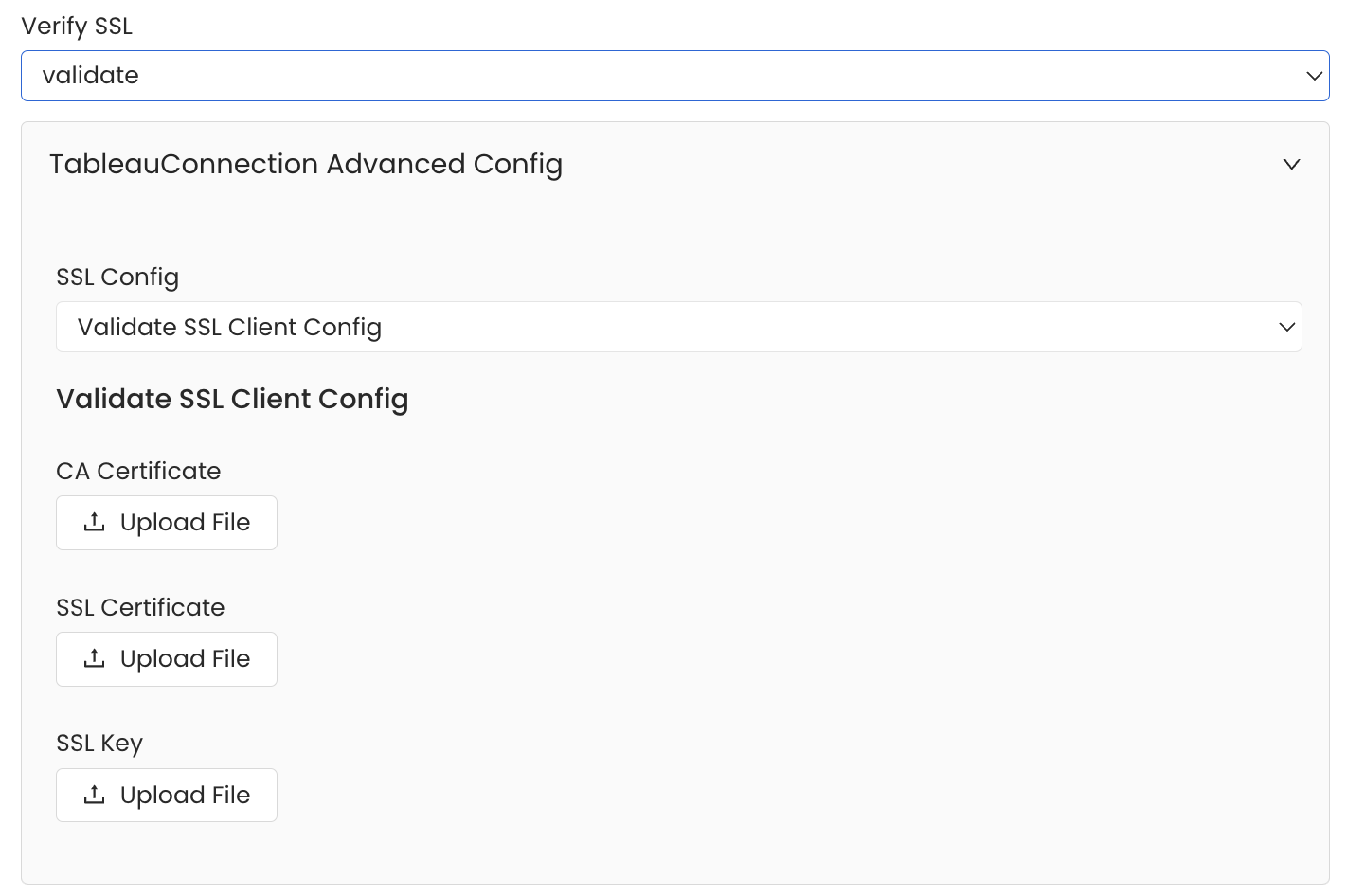
To establish secure connections between Collate and Tableau, navigate to theAdvanced Config section. Here, you can provide the CA certificate used for SSL validation by specifying the caCertificate. Alternatively, if both client and server require mutual authentication, you’ll need to use all three parameters: ssl_key, ssl_cert, and caCertificate. In this case, ssl_cert is used for the client’s SSL certificate, ssl_key for the private key associated with the SSL certificate, and caCertificate for the CA certificate to validate the server’s certificate.
Lineage
Lineage in Collate shows you which database tables power each dashboard. When lineage is set up, you can trace any dashboard back to the exact source tables in your database. There is no separate lineage agent or lineage pipeline—lineage is collected as part of the same metadata ingestion workflow. Configuring the Db Service Prefixes field (covered below) is optional but recommended — it restricts table matching to specific database services. If left blank, Collate attempts to match source tables across all ingested database services.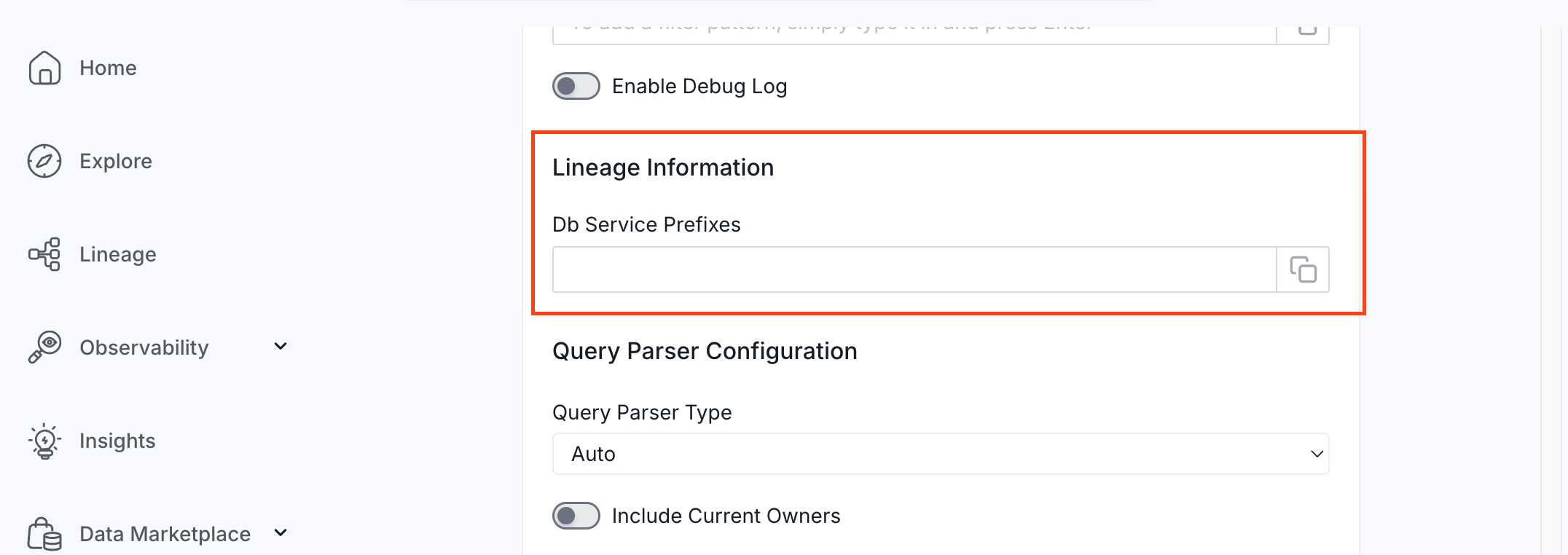
How to Set Up Lineage
- Go to Settings > Services > Dashboards.
- Click the dashboard service you’ve added.
- Go to the Agents tab, then select Add Agent > Add Metadata Agent. If a metadata agent already exists, select the three-dot context menu (⋮) next to it and select Edit.
- In the Configure Ingestion step, scroll down to the Lineage Information section.
- Optionally enter one or more database service names in the Db Service Prefixes field to restrict table matching to specific services. If left blank, Collate searches across all ingested database services.
Tableau Metadata API requirement
Make sure the Tableau Metadata API is enabled on your Tableau server. Collate uses this API to find out which database tables each dashboard is built on. Without it, lineage will not be collected.- To enable the Tableau Metadata API, see Enable the Tableau Metadata API for Tableau Server.
Troubleshooting
Tableau Troubleshooting
Learn more about how to troubleshoot common Tableau connector issues and resolve configuration or ingestion errors.
Reverse Metadata
Description Management
Tableau supports description updates at the following levels:- Dashboard level
- Chart level
Owner Management
Tableau supports owner management at the following levels:- Dashboard level
Tag Management
Tableau supports tag management at the following levels:- Dashboard level
- Chart level