
Overview
Collate’s MCP Server gives technical or non-technical users the ability to interact with your organization’s metadata through natural language conversations via systems such as ChatGPT or Claude.What is MCP?
The Model Context Protocol (MCP) is an emerging open standard (spearheaded by Anthropic and embraced by many industry leaders) that helps AI systems interact with external tools and data in a uniform, secure way. MCP works as a “universal translator” between AI assistants (or any LLM-driven application) and the myriad of systems where data and knowledge reside. Instead of building one-off integrations or brittle scripts for each data source, MCP provides a common interface. In technical terms, MCP lets systems expose their capabilities – the data they hold and the actions they can perform – in a machine-readable schema that AI models can understand. For example, through MCP a data platform could advertise tools (functions an AI can call, like lookup_customer_by_email), resources (datasets or knowledge bases an AI can query), or even prompt templates that guide interactions. An AI assistant connected via MCP can then securely retrieve information or trigger actions by invoking these standardized functions, with proper authorization. For organizations, MCP promises to bridge the gap between powerful AI reasoning and real-world data context. With a single, consistent protocol, an AI assistant can maintain awareness of business-specific context as it moves between different tools and datasets. Just as HTTP standardized how clients talk to servers, MCP is standardizing how AI models connect with data sources. It’s a simpler, more scalable way to give AI access to the knowledge it needs to produce relevant, accurate results.Adding an MCP Server to Collate
Even the best LLMs need context in order to operate effectively. We added an MCP Server to Collate to unlock a new level of value from its unified knowledge graph. By embedding an MCP server directly into Collate, the platform can now expose rich metadata context to AI assistants and other MCP clients in real time. This means an AI tool like ChatGPT or Claude can query Collate to ask such questions as, “What is the definition of this metric?”, “Show me the lineage of data feeding this dashboard”, or “Who is the owner of this dataset and when was it last updated?” – and get answers based on live organizational metadata. All the relationships and context captured in Collate’s graph become available to augment AI-driven analyses and automations. What makes this particularly powerful is that Collate’s implementation of MCP is enterprise-ready by design.Installing MCP Server
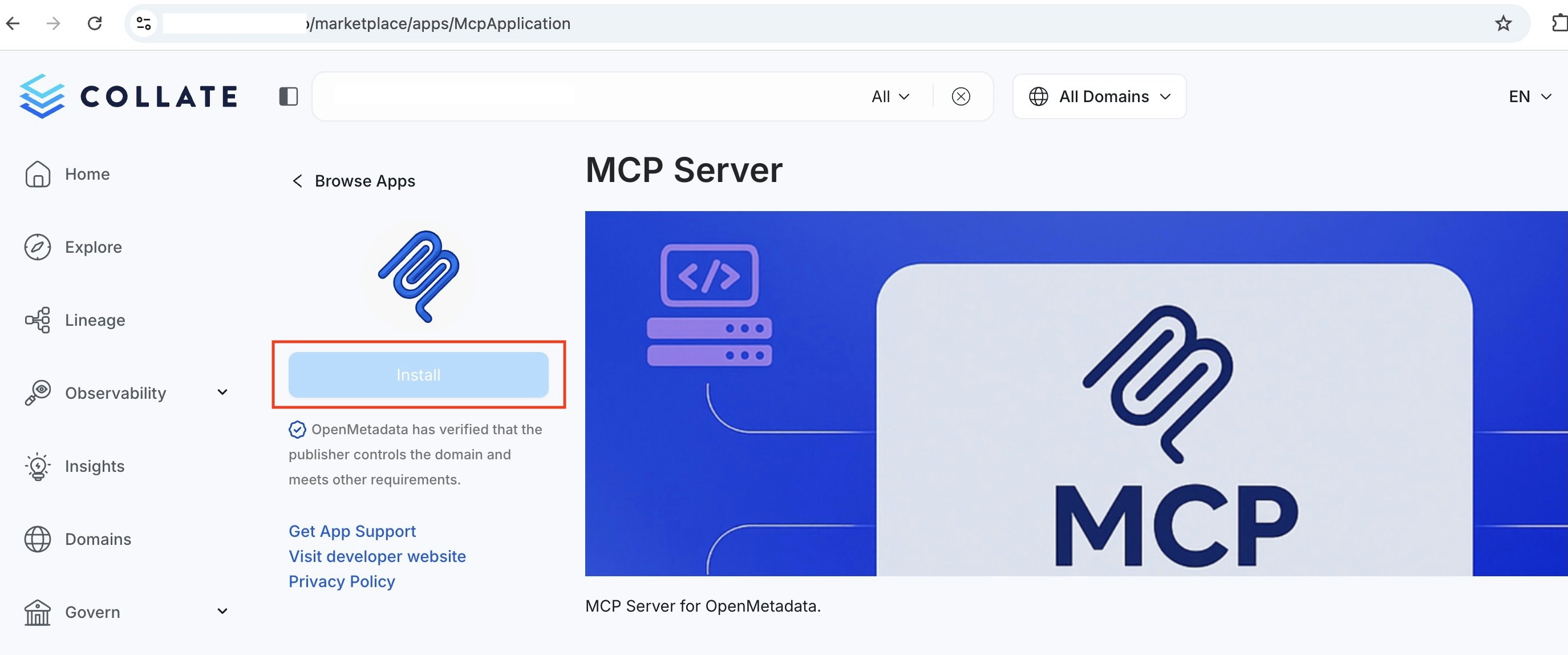
MCP is an Collate application that is installed by default, if it is not downloaded:- Go to
<YOUR-Collate-SERVER>/marketplace/apps/McpApplicationand select Install
Authentication
Collate’s MCP Server supports two authentication methods:OAuth 2.0 (Recommended)
Connect using your existing Collate login – the same way you sign in to the Collate UI. No tokens to generate or manage. OAuth works with all supported SSO providers (Google, Azure, Okta, Auth0, LDAP, SAML, and more). Learn more about OAuth 2.0 Authentication.Personal Access Token (PAT)
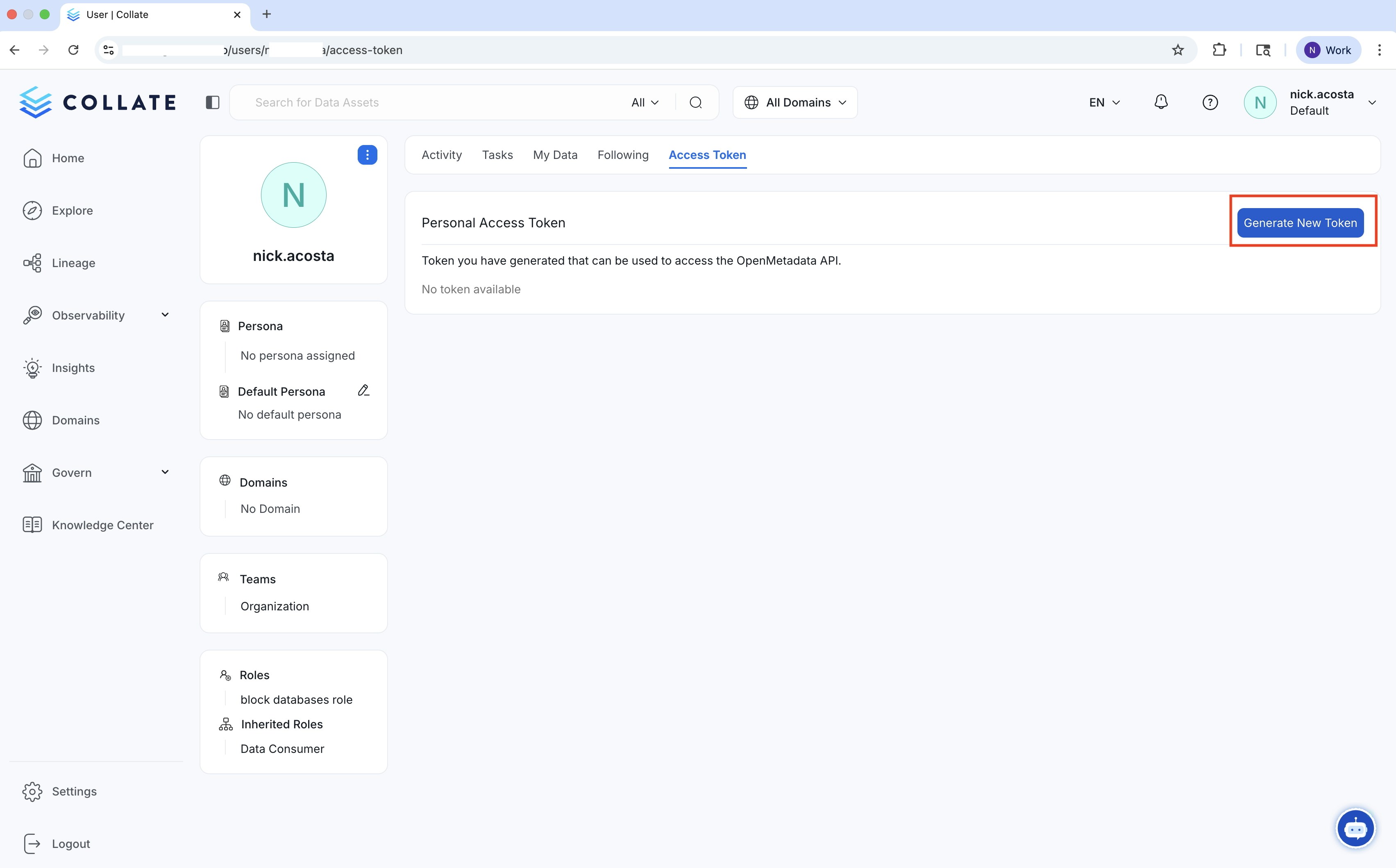
For environments where browser-based login is not available, you can use a Personal Access Token.- Go to
<YOUR-Collate-SERVER>/users/<YOUR-USERNAME>/access-tokenand select Generate New Token. This will give your AI agent the same role and access policy that is assigned to you in Collate. If you would like it to have different role-based access controls, create a new user.
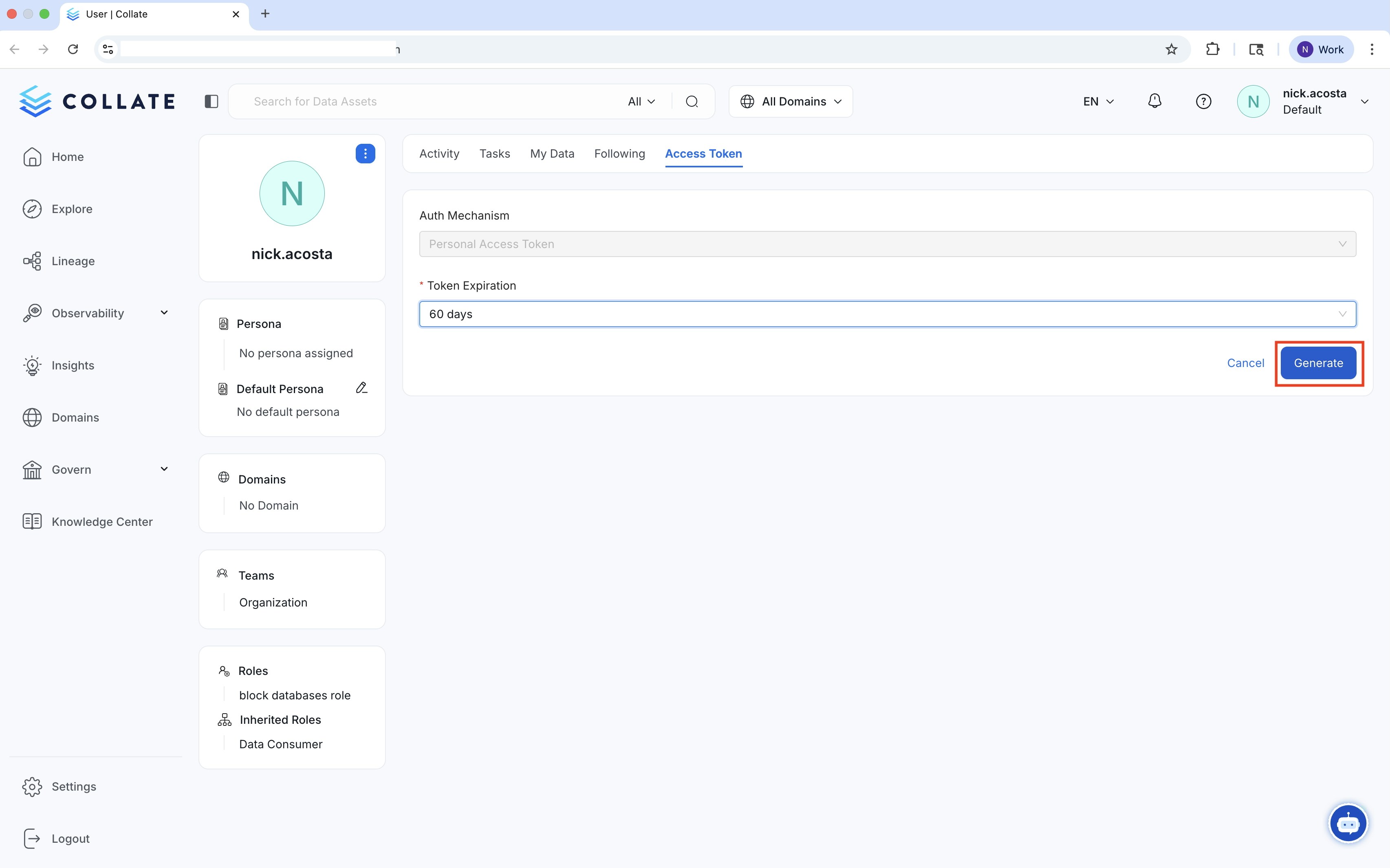
- Set your Token Expiration. Once your new token is created copy it.
Monitoring MCP Usage
Collate tracks every Model Context Protocol (MCP) tool call made on your platform. Use the MCP Requests page to monitor how MCP tools are being used, identify any failed calls, and understand how usage is contributing to your bill. To access the page, navigate to Settings > Billing and select MCP Requests.Summary Metrics
The top of the page shows four at-a-glance metrics that give you a quick picture of your MCP activity:- Total MCP Calls: The total number of MCP tool calls made across all connected clients and tools. Use this to understand overall platform activity at a glance.
- Successful Calls: The number of calls that completed without error. A high success rate generally indicates that your MCP clients and tools are configured correctly.
- Failed Calls: The number of calls that didn’t complete due to issues such as authentication errors, rate limits, or invalid input. Review failed calls to identify misconfigured clients or tools. Failed calls aren’t billed.
-
Avg Latency: The average response time per tool call, measured in milliseconds. Use this to spot tools that may be responding slowly.
Note: Avg Latency isn’t active yet and will be available in a future release.
Usage Summaries
Below the summary metrics, the page breaks down MCP activity across three views to help you understand usage patterns in more detail:- Daily MCP Calls (Last 30 Days): A day-by-day view of all MCP requests across all clients and tools. Use this to spot spikes in activity or identify periods of unexpectedly high or low usage.
- MCP Calls by Tool: A breakdown of how many requests each individual tool has received. Use this to identify which tools are most frequently used and which may not be providing value.
- MCP Calls by User: A breakdown of MCP requests by user. Use this to understand which users or teams are driving the most MCP activity.
Connect Your MCP Client
With MCP installed, connect your preferred AI assistant to start prompting with Collate:OAuth 2.0 Authentication
Secure, token-free authentication using your existing SSO login.
MCP Server Connection Guide
Connect to your MCP Server.
MCP Tools Reference
Detailed examples and usage patterns for all available Collate MCP tools.
Getting Started with Claude Desktop
Connect Collate to Anthropic’s popular AI assistant.
Getting Started with Cursor
Connect Collate to Cursor IDE.
Getting Started with VS Code
Connect Collate to Visual Studio Code.
Getting Started with Claude Code
Connect Collate to Claude Code CLI.
Getting Started with Goose
Connect Collate to Block’s open-source AI assistant.