How to Grant Temporary Access to Collate Support Team Members
This guide outlines the steps required to give temporary support access in the Collate platform for the support team.Steps to Grant Access
1. Navigate to the Support Application
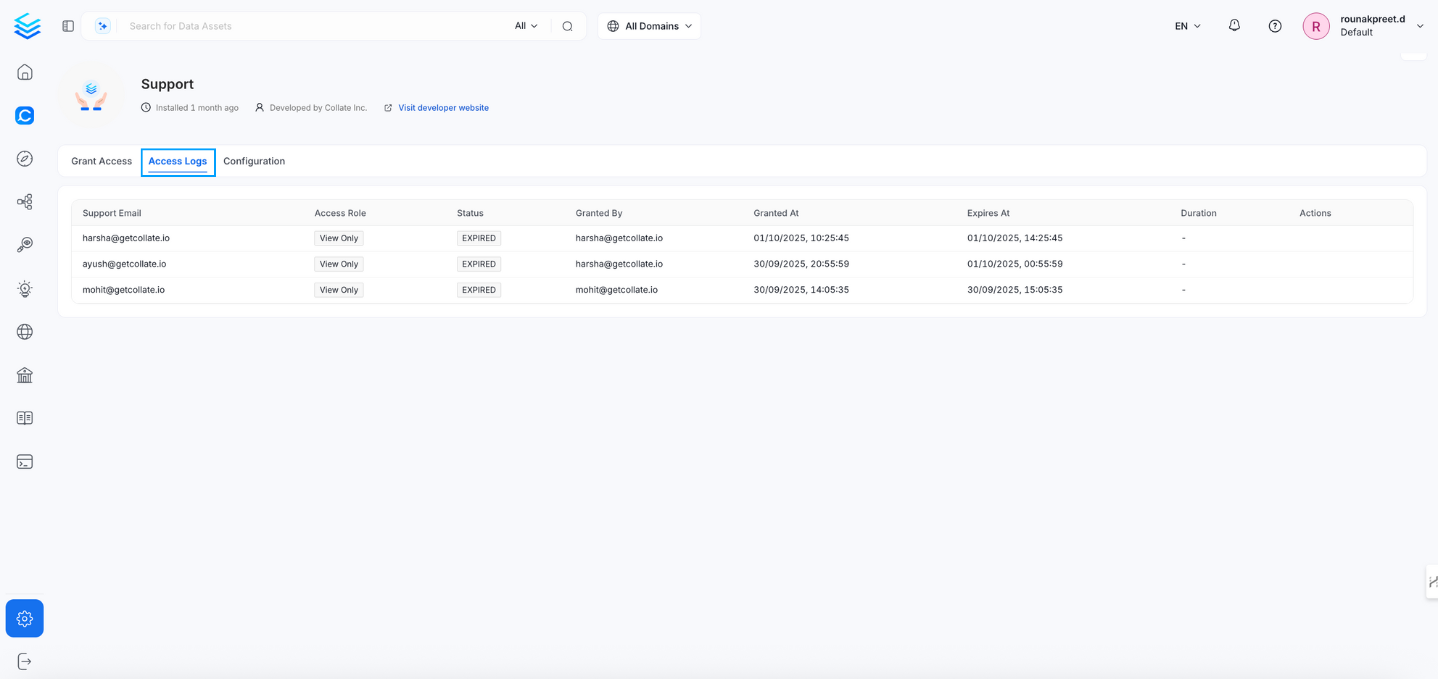
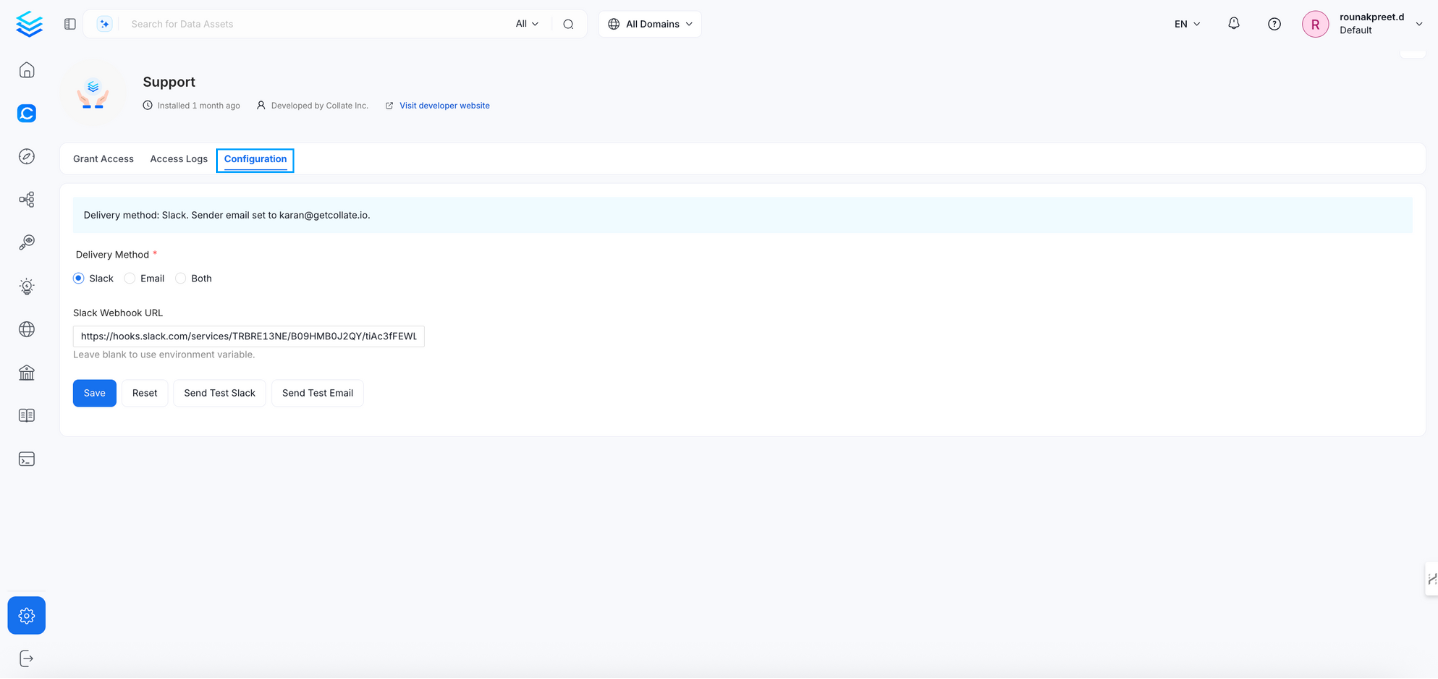
Go to Settings > Applications > Support.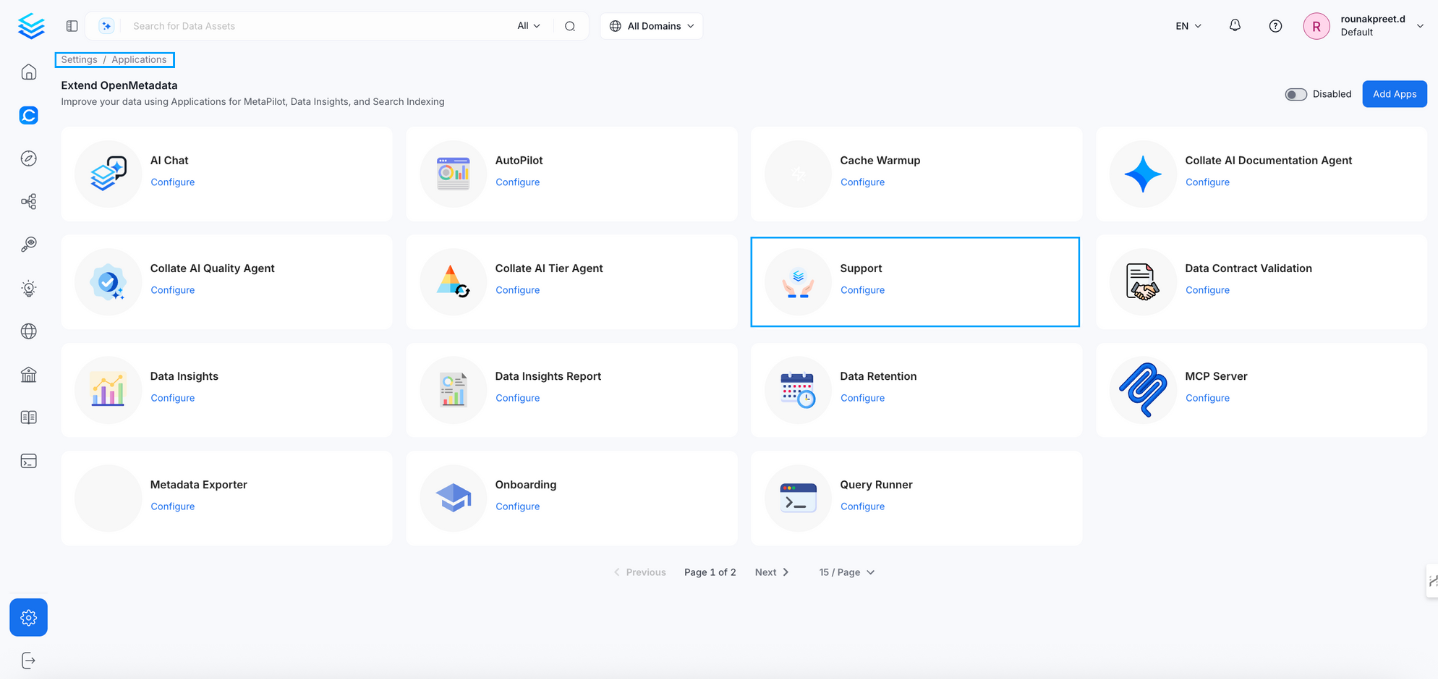
2. Add the Collate Support Access
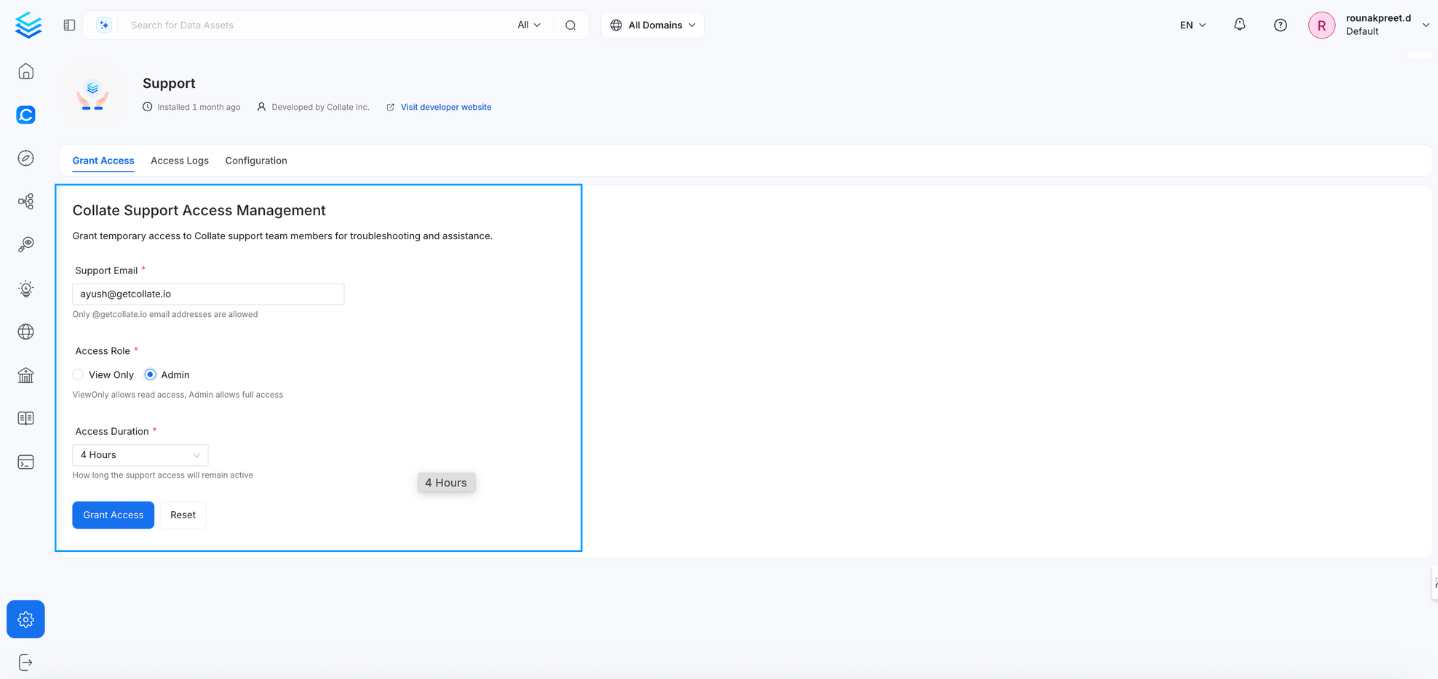
In the Add Support section:- Enter the support email, for example
ayush@getcollate.io. - Set Access Role to
View OnlyorAdmin. - Set the Access Duration to
1 hour,2 hours, or4 hours.
3. Grant Access
Click the Grant Access button.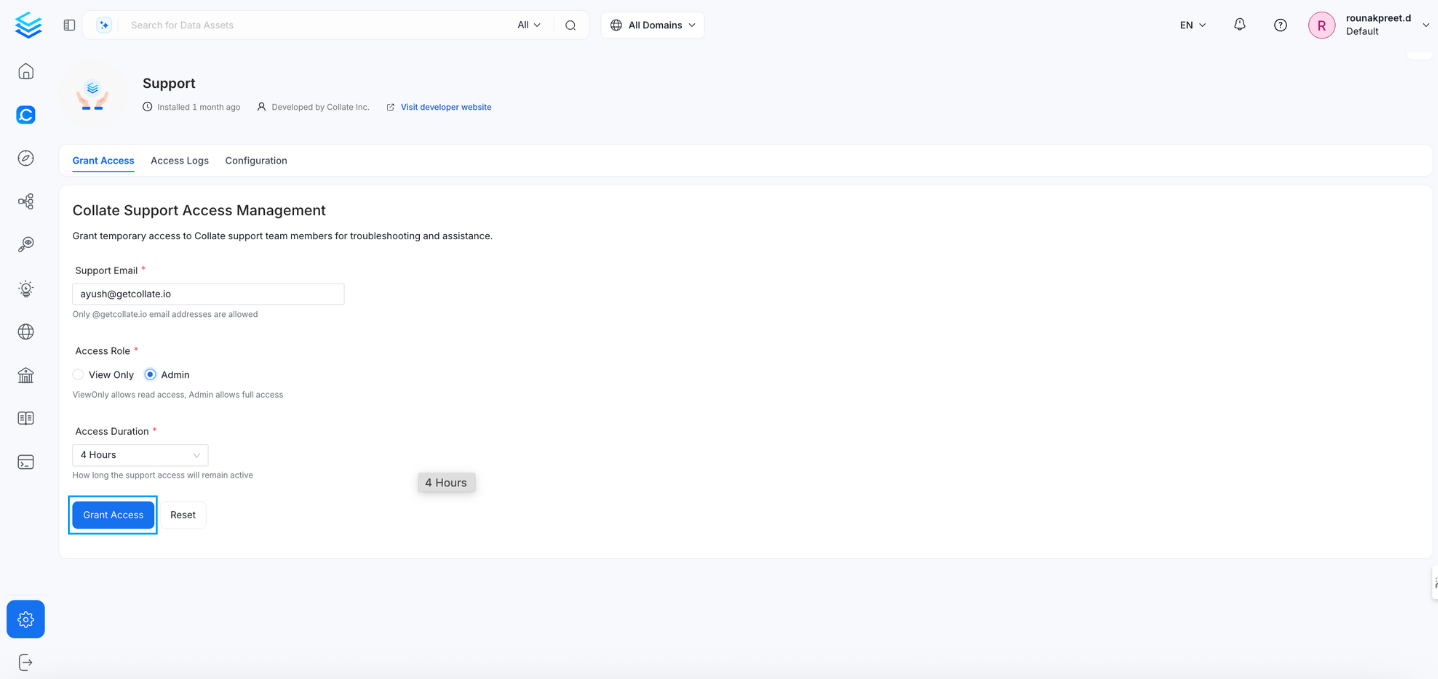
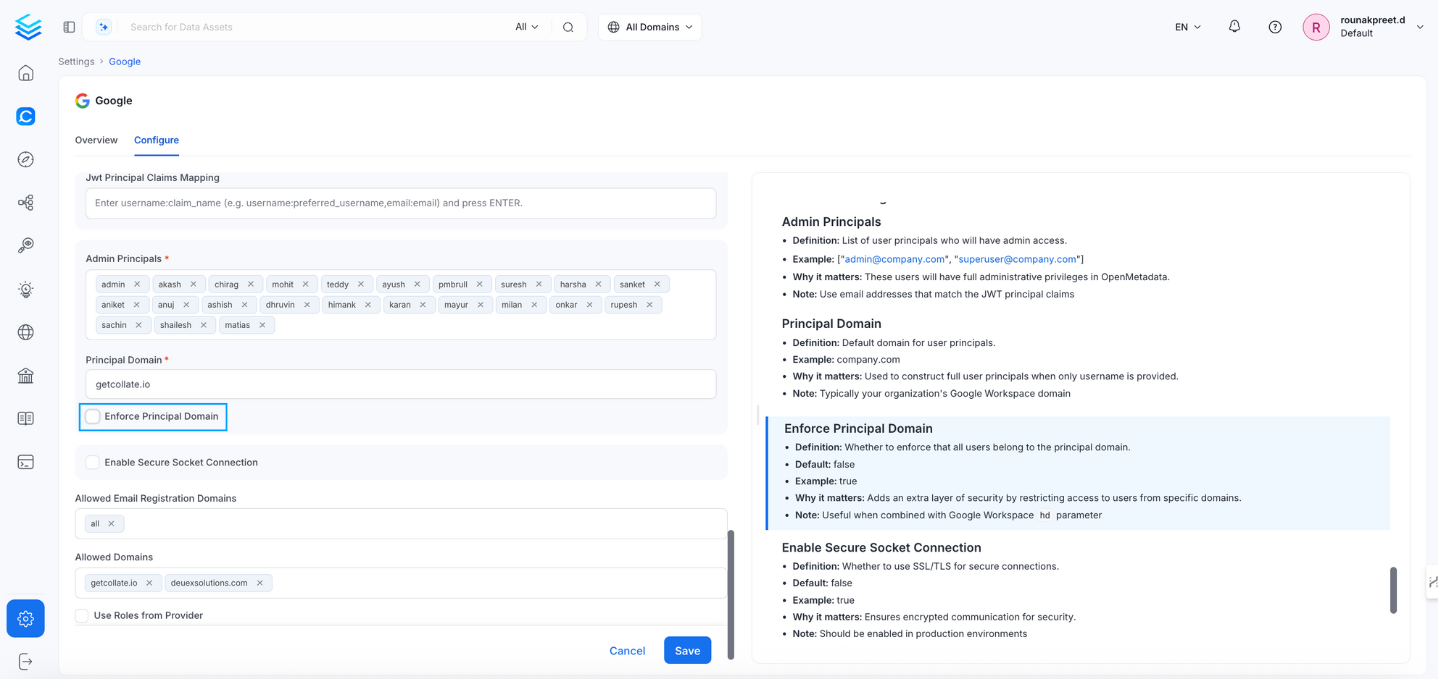
4. Disable Enforce Principal Domain for SSO Organizations
If your organization uses Single Sign-On (SSO), disable Enforce Principal Domain to allow access for emails from other domains (for example,gmail.com). Navigate to Settings > SSO > Configure to disable the Enforce Principal Domain setting.