
Admin Configuration
After installing the Query Runner application, administrators must configure SQL Studio for each database service. This configuration determines which authentication methods are available to users and what connection settings they can override.Configuration Overview
Prerequisites
Before configuring SQL Studio for any database service:- Ensure the database service is already configured in Collate.
- Service connection should be working (metadata ingestion successful).
- For Collate SSO: Google OIDC SSO must be configured in Collate (Settings > Security > SSO).
- For OAuth: You must have OAuth credentials (Client ID and Client Secret) from your OAuth provider.
Accessing Service Configuration
- Navigate to Settings > Services > Database Services.
- Select the database service you want to configure.
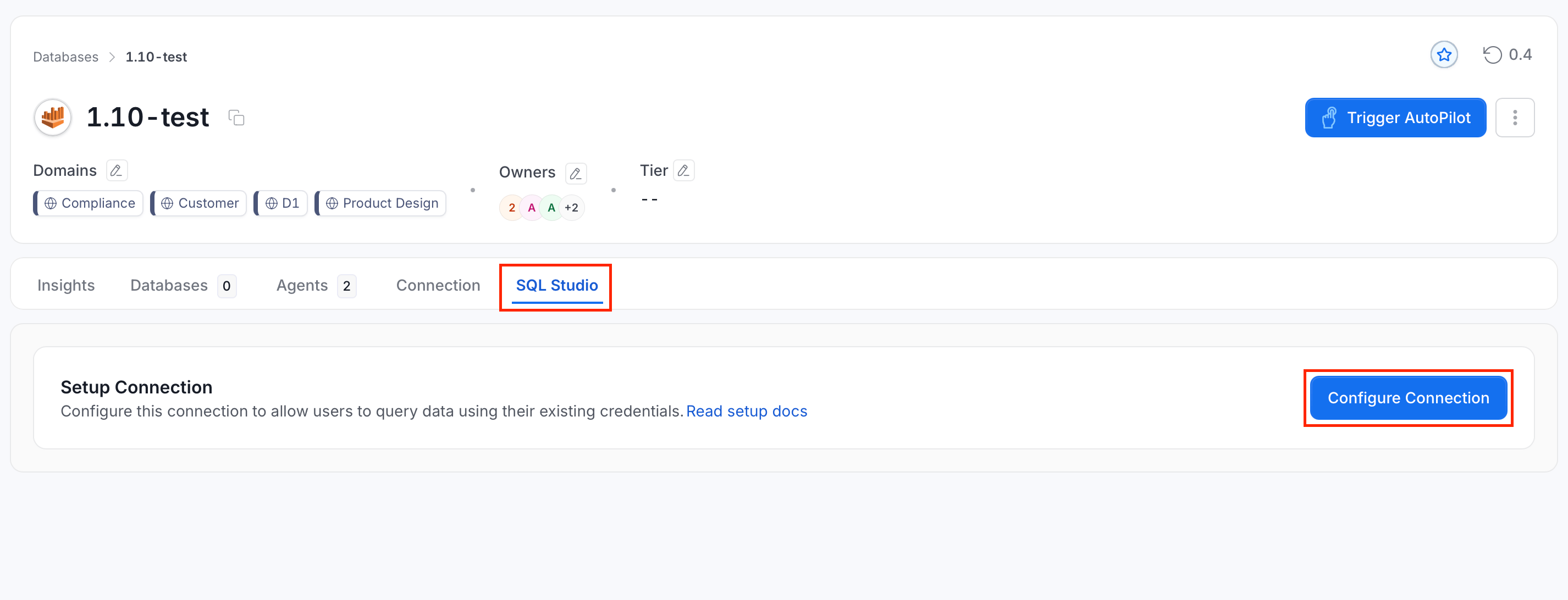
- Click the SQL Studio tab.
-
Click Configure Connection to begin setup.
Common Configuration Settings
All services share these configuration options. In the table, AWS IAM is AWS Identity and Access Management.BigQuery Configuration
BigQuery supports three authentication methods: Collate SSO, OAuth, and Basic Authentication.Authentication Method 1: Collate SSO
Collate SSO leverages your existing Google SSO configuration in Collate to authenticate with database services. Instead of configuring separate OAuth credentials, SQL Studio automatically uses already configured fields from Collate login. Prerequisites:- Google OIDC SSO must be configured in Collate (Settings > Security > SSO).
- SSO OAuth app must have BigQuery API scope enabled.
- Users must have BigQuery permissions in their Google Cloud projects.
- In the Configure Shared Connection form, select Collate SSO as Authentication Type.
-
OAuth Credentials (auto-populated):
- Client ID: (automatically fetched from Google OIDC SSO configuration)
- Client Secret: (automatically fetched from Google OIDC SSO configuration)
- Scope: (automatically set to include BigQuery scope:
https://www.googleapis.com/auth/bigquery) - Redirect URL: (auto-generated based on your Collate domain)
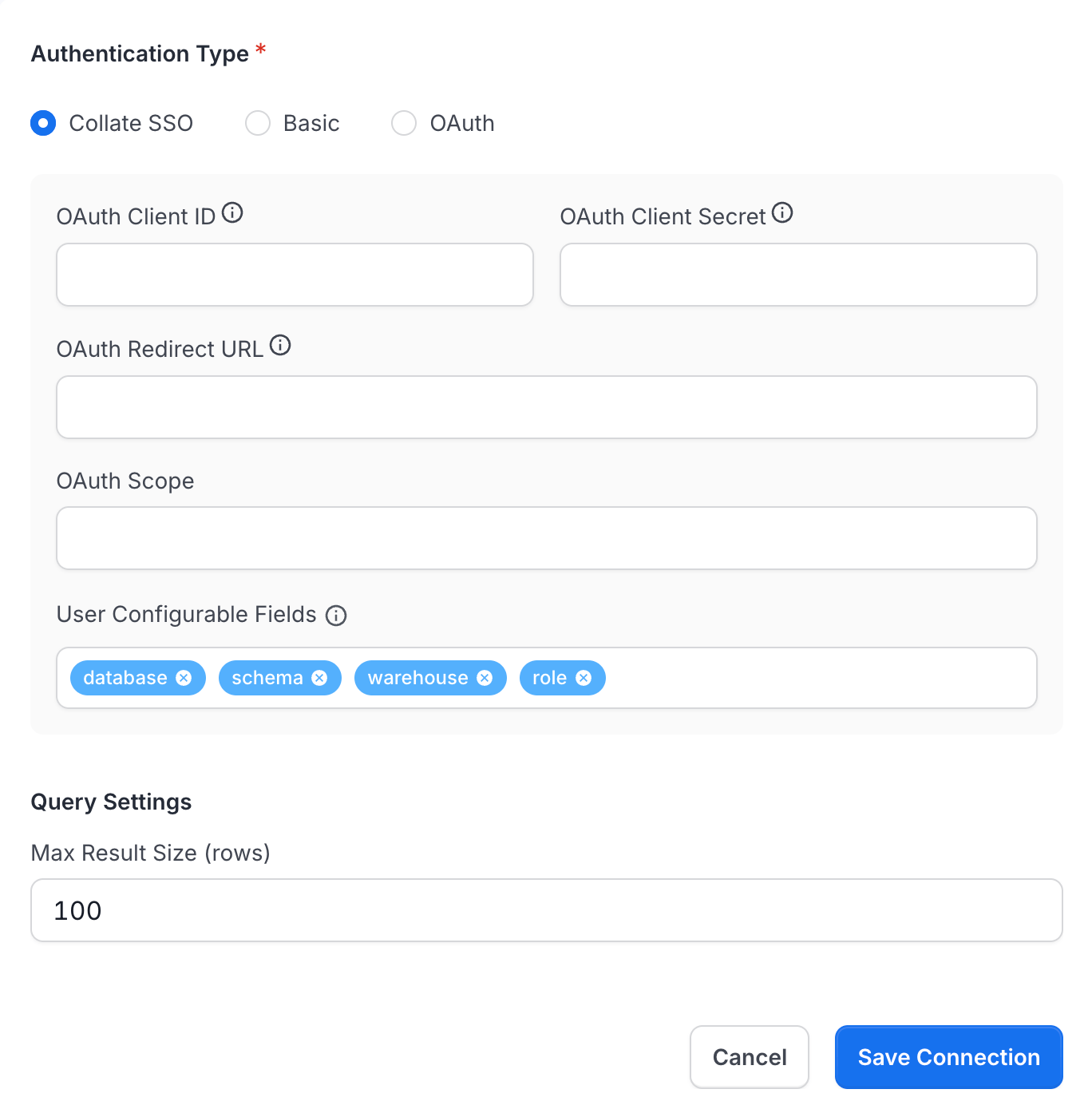
- Click Save Connection. Collate automatically prefetches the OAuth credentials from your Google SSO settings.
- Review the auto-enriched values in the configuration.
-
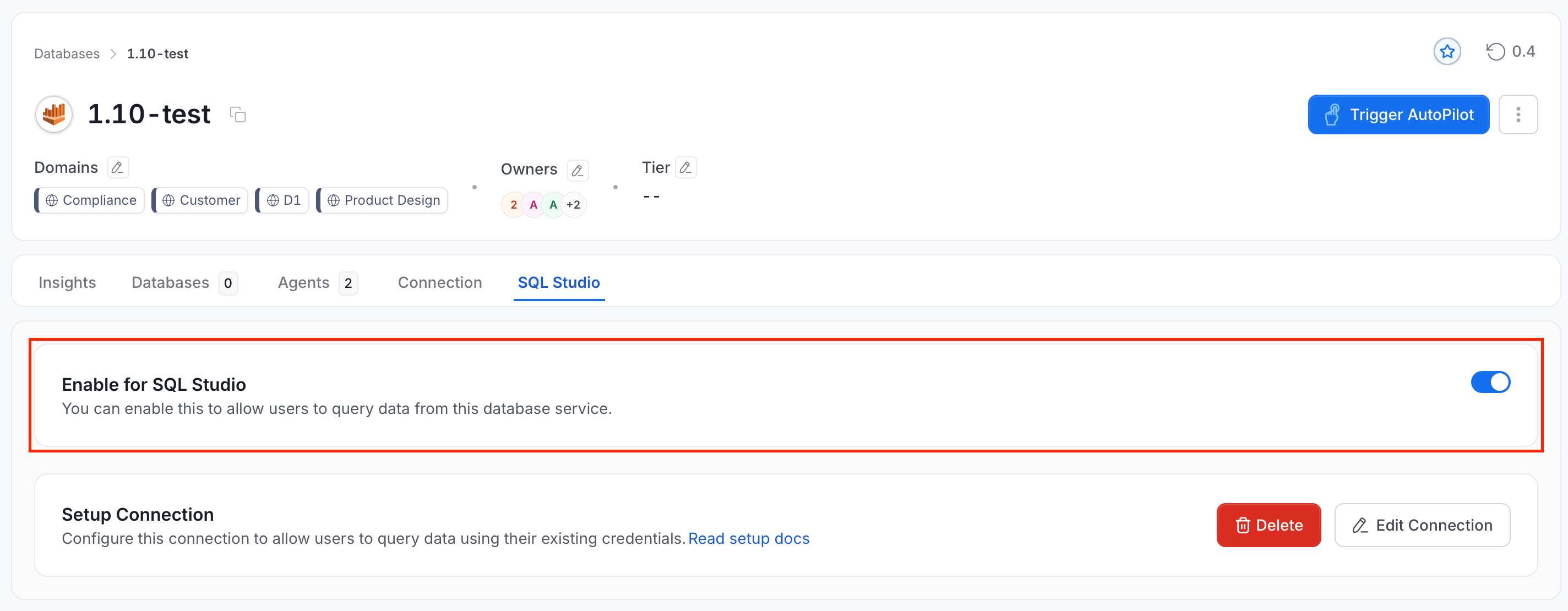
Confirm Enable for SQL Studio is ON to keep SQL Studio active for this service.
Authentication Method 2: OAuth
OAuth allows users to authenticate directly with Google OAuth 2.0, separate from their Collate login. Configure: Step 1: Create Google OAuth App (if not already created)- Go to the Google Cloud Console.
- Navigate to APIs & Services > Credentials.
- Click Create Credentials > OAuth 2.0 Client ID.
- Set the application type to Web application.
- Enter the name
Collate SQL Studio - BigQuery. - Add the authorized redirect URI
https://your-collate-domain.com/api/v1/queryRunner/oauth/callback:- Replace
your-collate-domain.comwith your actual Collate domain. - Ensure the URL is exactly
https://(nothttp://) for production.
- Replace
- Click Create.
- Copy the Client ID and Client Secret (you’ll need these in Step 2).
- In the Configure Shared Connection form, select OAuth as Authentication Type.
-
Enter OAuth Client Credentials:
- Client ID: Paste from Google Cloud Console
- Client Secret: Paste from Google Cloud Console
- Redirect URL:
https://your-collate-domain.com/api/v1/queryRunner/oauth/callback(verify exact match) - Scope:
https://www.googleapis.com/auth/bigquery(default)
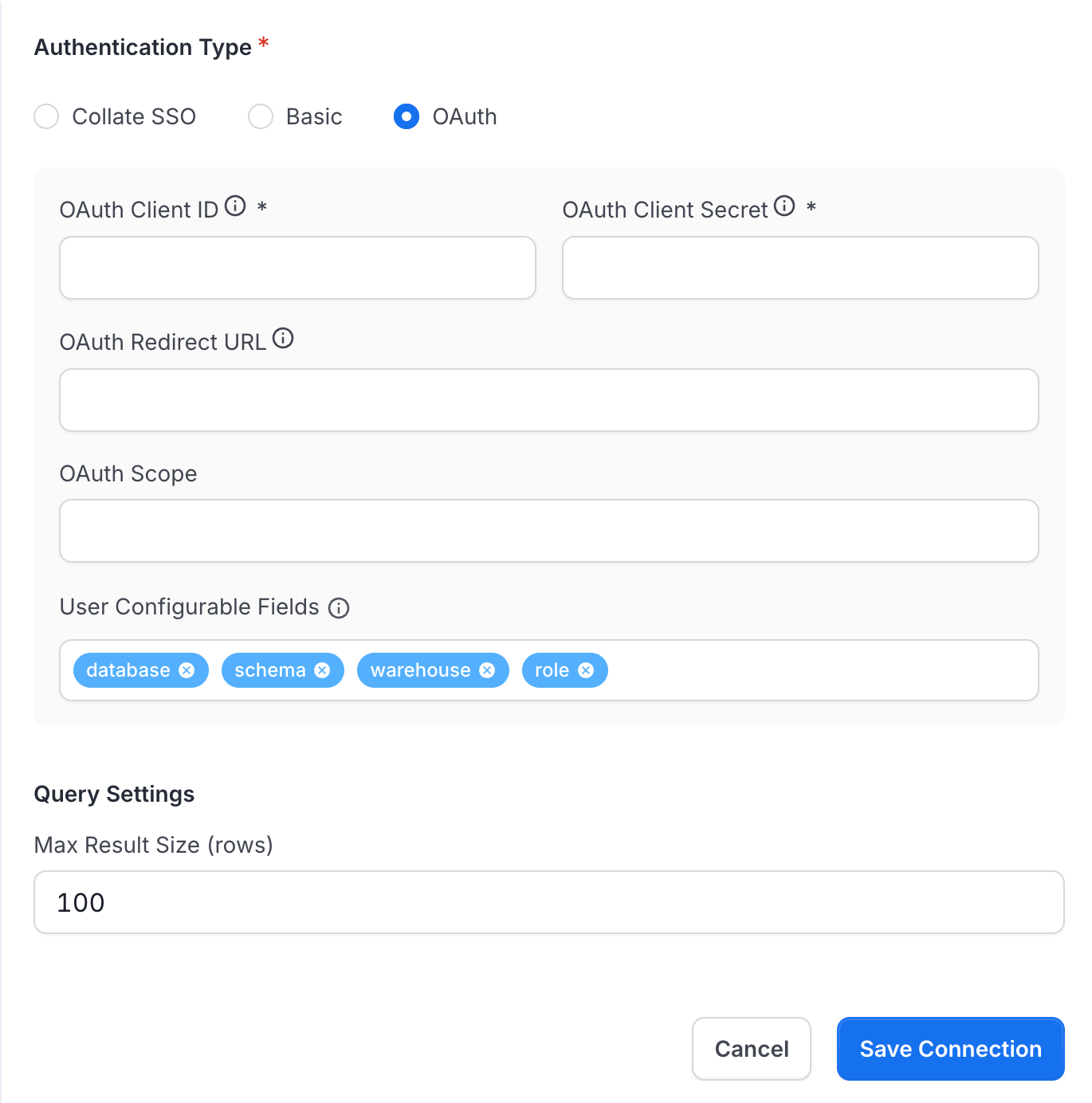
- Click Save Connection.
- Confirm Enable for SQL Studio is ON to keep SQL Studio active for this service.
Authentication Method 3: Basic Authentication (Service Account)
Basic Authentication allows users to provide their own GCP Service Account credentials. Prerequisites:- Each user must have a GCP Service Account with BigQuery permissions.
- Service Account must have
bigquery.jobs.createpermission. - Users enter the Private Key ID, Private Key, Client Email, and Client ID from their Service Account JSON file.
-
In the Configure Shared Connection form, select Basic as Authentication Type.
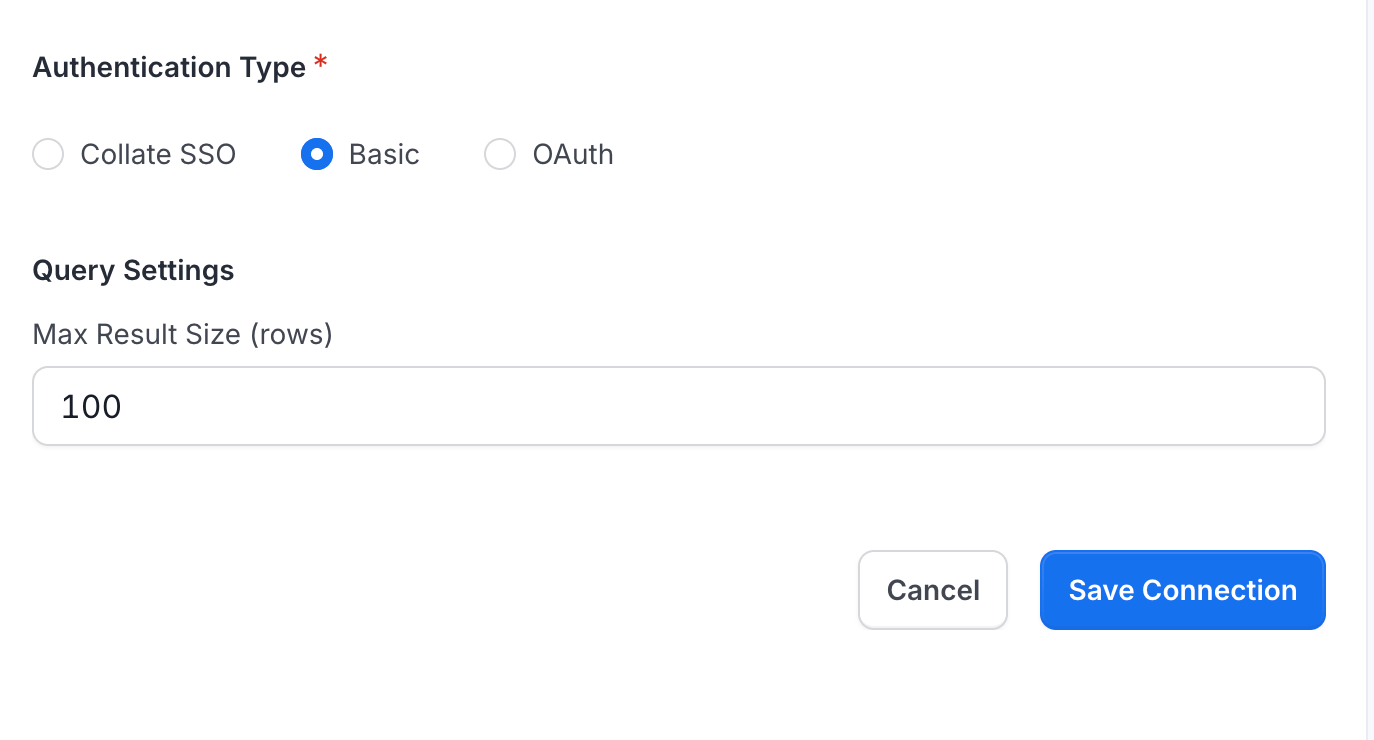
- Click Save Connection.
- Confirm Enable for SQL Studio is ON to keep SQL Studio active for this service.
Snowflake Configuration
Snowflake supports OAuth and Basic Authentication.Authentication Method 1: OAuth
Prerequisites:- Snowflake OAuth Security Integration must be created (see setup below).
OAUTH_CLIENT_ID and OAUTH_CLIENT_SECRET.
Step 3: Configure in Collate
- In the Configure Shared Connection form, select OAuth as Authentication Type.
- Enter OAuth Client Credentials:
- Client ID: From Step 2
- Client Secret: From Step 2
- Redirect URL:
https://your-collate-domain.com/api/v1/queryRunner/oauth/callback - Scope:
session:role-any(or specific role scope likesession:role:ANALYST)
- Optional: Enable User Configurable Fields:
- Warehouse: Allow users to override the warehouse.
- Database: Allow users to override the database.
- Schema: Allow users to override the schema.
- Role: Allow users to select their Snowflake role.
- Click Save Connection.
- Confirm Enable for SQL Studio is ON to keep SQL Studio active for this service.
Authentication Method 2: Basic Authentication
Prerequisites:- Users must have Snowflake credentials (Username + Password or Username + Key Pair).
- For Key Pair auth, users must upload their public key to Snowflake.
- In the Configure Shared Connection form, select Basic as Authentication Type.
- Optional: Enable User Configurable Fields:
- Warehouse: Allow users to override the warehouse.
- Database: Allow users to override the database.
- Schema: Allow users to override the schema.
- Role: Allow users to override the role.
- Click Save Connection.
- Confirm Enable for SQL Studio is ON to keep SQL Studio active for this service.
Trino Configuration
Trino (Starburst) supports OAuth and Basic Authentication.Authentication Method 1: OAuth
Prerequisites:- Trino/Starburst cluster must have OAuth authentication enabled.
- OAuth provider (for example, Azure AD, Okta) must be configured.
- Go to Azure Portal > Azure Active Directory > App registrations.
- Click New registration.
- Enter the name
Collate SQL Studio - Trino. - Enter the Redirect URI
https://your-collate-domain.com/api/v1/queryRunner/oauth/callback. - Click Register.
- Go to Certificates & secrets > New client secret.
- Copy the Application (client) ID and Client secret value.
- In the Configure Shared Connection form, select OAuth as Authentication Type.
- Confirm the Host Port is auto-populated from the database service connection (for example,
ometa.galaxy.starburst.io:443). - Enter OAuth Client Credentials:
- Client ID: From Azure AD
- Client Secret: From Azure AD
- Redirect URL:
https://your-collate-domain.com/api/v1/queryRunner/oauth/callback - Scope:
openid profile email(or custom scope)
- Click Save Connection.
- Confirm Enable for SQL Studio is ON to keep SQL Studio active for this service.
Authentication Method 2: Basic Authentication
Prerequisites:- Users must have Trino credentials (Username + Password).
- In the Configure Shared Connection form, select Basic as Authentication Type.
- Click Save Connection.
- Confirm Enable for SQL Studio is ON to keep SQL Studio active for this service.
Redshift / PostgreSQL / MSSQL / MySQL Configuration
Redshift and PostgreSQL support Basic Authentication and AWS IAM. MSSQL and MySQL support Basic Authentication only.Authentication Method: Basic Authentication
Prerequisites:- Users must have valid credentials (Username + Password) for the respective database service.
- Users must have appropriate permissions on the database.
- In the Configure Shared Connection form, select Basic as Authentication Type.
- Click Save Connection.
- Confirm Enable for SQL Studio is ON to keep SQL Studio active for this service.
Authentication Method: AWS IAM (Redshift and PostgreSQL)
Best for: Teams that map each user’s AWS identity to a database user instead of storing database passwords. With AWS IAM, each user connects with their own AWS identity and the name of the database user that identity authenticates as. Collate requests a temporary database token for that user, so no database password is stored. Prerequisites:- The AWS identity must be allowed to get a database credential for the database user. For example, PostgreSQL on Amazon RDS needs
rds-db:connect, and Redshift Serverless needsredshift-serverless:GetCredentials. Enable the database user for IAM authentication where the engine requires it. - For assumed roles, the Collate worker must have
sts:AssumeRolepermission for the target role. The target role’s trust policy must also allow the worker to assume it. The Collate worker is the AWS identity that runs your queries, such as your Hybrid Runner’s IAM role. - Collate doesn’t ask users for an AWS region. Collate reads it from the service connection’s host name. The host name must be a standard Amazon endpoint. Examples include
*.<region>.redshift.amazonaws.com,*.<region>.redshift-serverless.amazonaws.com, and*.<region>.rds.amazonaws.com. - If the host is a PrivateLink or custom DNS name and the admin connection uses Basic Authentication, the connection fails with an error that states the region is required.
- PostgreSQL: Amazon RDS refuses IAM logins without Transport Layer Security (TLS). The Secure Sockets Layer (SSL) mode controls TLS. Collate changes
disable,allow, andprefertorequirefor AWS IAM connections. It also usesrequirewhen the mode is unset. It leavesverify-caandverify-fullunchanged. - Redshift Serverless: Redshift Serverless refuses any connection without TLS, so set the service connection’s SSL mode to
require.
- On the service page, open the SQL Studio tab.
- Click Configure Connection.
-
In the Configure Shared Connection form, select Basic or AWS IAM as Authentication Type. The form has no other IAM fields, because each user supplies their own AWS identity.
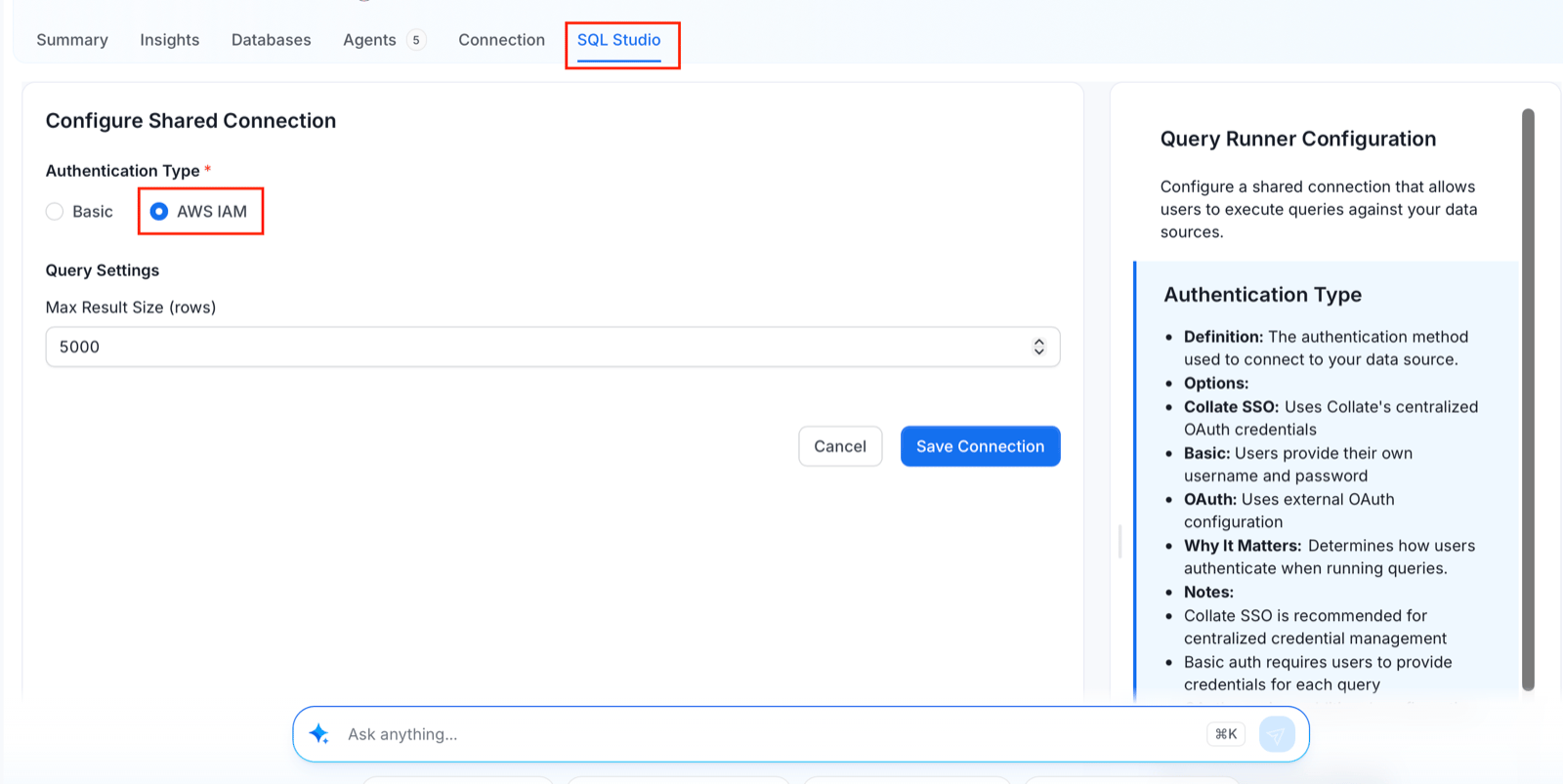
- Optional: Under Query Settings, set Max Result Size (rows).
- Click Save Connection.
- Confirm Enable for SQL Studio is ON to keep SQL Studio active for this service.
Athena Configuration
Athena authenticates with AWS Identity and Access Management (IAM) only. It has no database account, so no Basic or OAuth option exists. The AWS principal itself is the querying identity, and every request is signed with Signature Version 4 (SigV4). The AWS region, workgroup, and catalog come from the Athena service connection.Authentication Method: AWS IAM
Prerequisites: The AWS principal that runs queries must have, at minimum:- Write access to the S3 staging directory, plus read access to the S3 location that holds the query results and the underlying table data.
athena:StartQueryExecution,athena:GetQueryExecution, andathena:GetQueryResultson the workgroup.- Read access to the AWS Glue Data Catalog.
- Any required AWS Lake Formation grants.
sts:AssumeRole permission for the target role. The target role’s trust policy must also allow the worker to assume it. The Collate worker is the AWS identity that runs your queries, such as your Hybrid Runner’s IAM role.
Configure:
- On the Athena service page, open the SQL Studio tab.
-
Click Configure Connection.
-
In the Configure Shared Connection form, select AWS IAM as Authentication Type. It’s the only option for Athena.
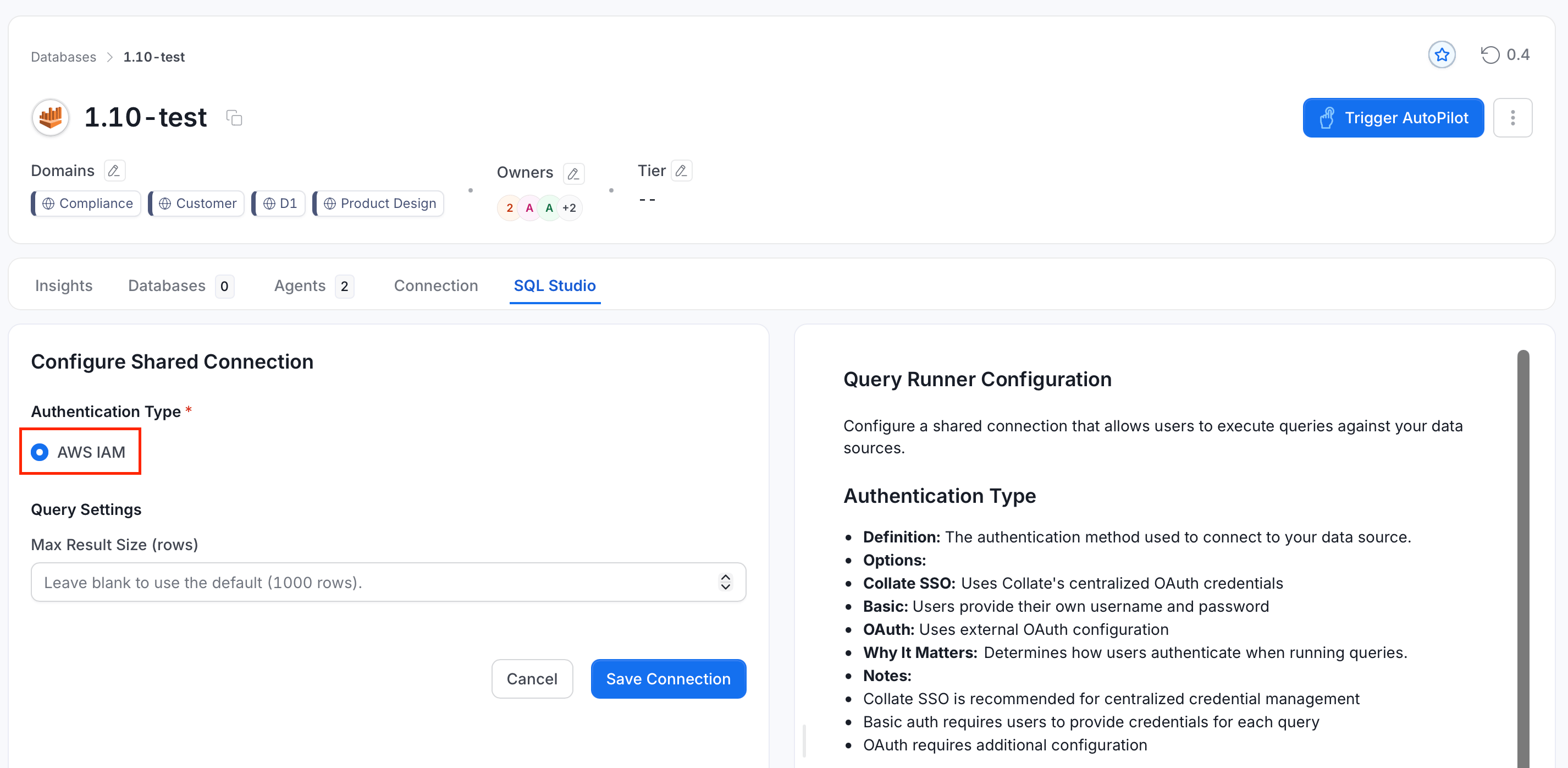
- Optional: Under Query Settings, set Max Result Size (rows).
- Click Save Connection.
- Confirm Enable for SQL Studio is ON to keep SQL Studio active for this service.
- AWS Credentials:
- AWS Access Key ID and AWS Secret Access Key: Static credentials for the connection. Provide both, or leave both blank and set Role Arn for Assume Role instead. The Collate worker’s AWS identity then assumes that role.
- Optional: AWS Session Token for temporary credentials.
- Role Arn for Assume Role: The role to assume when you don’t provide access keys.
- Optional: Role Session Name for Assume Role for the assumed role session.
- Optional: S3 Staging Directory, the location where Athena saves this user’s query results. Collate uses the service connection’s staging directory when you leave this blank. Athena writes every result set to this directory before reading it, including for a plain SELECT. A principal without write access to the admin’s bucket must set its own directory.
Configuration Best Practices
Choosing Authentication Methods
User Configurable Fields
Enable user-configurable fields to give users flexibility while maintaining security:Security Recommendations
- Use OAuth when possible: OAuth provides better security with token-based authentication
- Rotate OAuth credentials: Regularly rotate Client Secrets for OAuth apps
- Limit Max Result Size: Set to 100 or lower to prevent excessive data retrieval
- Audit configuration changes: Monitor who changes Query Runner configurations
- Test connections: Always test connections after configuration changes
Max Result Size Guidelines
Users should use
LIMIT clauses in their queries to control result size further.
Updating Configuration
To update an existing SQL Studio configuration:- Navigate to the service’s SQL Studio tab.
- Click Edit Connection.
- Modify settings as needed.
- Click Save Connection.
Enabling/Disabling SQL Studio
Enabling SQL Studio
After configuring authentication, confirm SQL Studio is enabled for users:- Navigate to the service’s SQL Studio tab.
- Confirm Enable for SQL Studio is ON. Saving a new configuration turns it on by default.
Disabling SQL Studio
To temporarily disable SQL Studio for a service:- Navigate to the service’s SQL Studio tab.
- Toggle Enable for SQL Studio to OFF.
Connection Status Indicators
Understanding connection status helps you troubleshoot user issues:Connection Flow
- After initial authentication, SQL Studio runs a test query (
SELECT 1) - This verifies credentials, permissions, and network connectivity
- If successful, status changes to Connected (green)
- If failed, error message displayed with details
Managing User Access
Who Can Use SQL Studio?
Users can access SQL Studio if they have:- View Basic permission on the database service in Collate
- Trigger permission on the
appresource - SQL Studio is enabled by administrator for that service
- They have successfully authenticated their connection
QueryRunner app, so query execution is authorized as an app trigger rather than a database service trigger. The built-in Data Consumer policy doesn’t include Trigger, but Data Steward does, so consumers can’t run queries by default.
Controlling Access
Use Collate’s role-based access control (RBAC):- Assign users to teams with appropriate policies
- Grant View Basic permission on database services. Without it, the service won’t show up in SQL Studio.
- Grant Trigger permission on the
appresource or onAll. Without it, the service is visible, but running a query is rejected.
Sharing One Connection Across a Team
Instead of asking every user to enter their own credentials, a team owner or admin configures one shared connection on a team, and members inherit it. Configuring it on the Organization team shares it with every user in Collate. See Team Connections.Deleting Configuration
To completely remove the SQL Studio configuration:- Navigate to the service’s SQL Studio tab.
- Click Delete.
- Warning: This permanently deletes the admin configuration and all user and team connections (including their stored secrets) for this service. Saved queries aren’t deleted.
- Confirm the deletion in the modal.
Troubleshooting Configuration
OAuth Callback URL Mismatch
Problem: “Redirect URI mismatch” error during OAuth setup Solution:- Verify the redirect URL in Collate matches exactly:
https://your-collate-domain.com/api/v1/queryRunner/oauth/callback - Check for trailing slashes (shouldn’t have any)
- Ensure protocol is
https(nothttpin production) - Update the OAuth app configuration in the provider
Collate SSO Credentials Not Auto-Populating
Problem: Collate SSO option doesn’t show OAuth credentials Solution:- Verify Google OIDC SSO is configured correctly (Settings > Security > SSO)
- Collate SSO currently only supports Google OIDC
- Check that the SSO provider is Google:
- Google OIDC to BigQuery
- Ensure Google SSO OAuth app has required scopes (for example, BigQuery API scope)
Users Cannot Connect After Configuration
Problem: Configuration saved successfully but users see “Service not available” Solution:- Verify Enable for SQL Studio is ON
- Check that users are accessing the correct service in SQL Studio
- Review backend logs for configuration errors
- Test the connection using test credentials
Next Steps
After configuring SQL Studio:- Inform Users: Let users know SQL Studio is available for the configured services
- Share Authentication Guide: Direct users to User Authentication, or set up Team Connections so they don’t need their own credentials
- Monitor Usage: Review query logs and audit trails in Settings > Audit Logs
- Optimize Settings: Adjust Max Result Size and user-configurable fields based on usage patterns