
- Hypertable-Aware Profiling
- Requirements
- Metadata Ingestion
- Securing TimescaleDB Connection with SSL in Collate
- Troubleshooting
- Reverse Metadata
Hypertable-Aware Profiling
Starting from Collate version 1.12, the Data Profiler, Data Quality, and Auto-Classification workflows are optimized for TimescaleDB hypertables with compression enabled.How It Works
When a hypertable has both compressed and uncompressed chunks, Collate automatically restricts all profiling queries to uncompressed data only. This avoids the expensive decompression operations that would otherwise be required to scan compressed chunks, significantly reducing CPU usage and memory pressure on the database. For table-level metrics, the profiler uses TimescaleDB-specific functions:approximate_row_count()instead of scanningpg_catalogfor row countshypertable_size()instead ofpg_total_relation_size()for size metrics
Requirements
Usage and Lineage considerations
When extracting lineage and usage information from TimescaleDB, Collate bases its findings on thepg_stat_statements table.
You can find more information about it on the official docs.
Another interesting consideration here is explained in the following SO question.
As a summary:
- The
pg_stat_statementshas no time data embedded in it. - It will show all queries from the last reset (one can call
pg_stat_statements_reset()).
pg_read_all_stats permission.
IAM Authentication
To be able to connect via IAM, you need to have the following:- Database is configured to use IAM authentication Ensure that the RDS has IAM DB authentication enabled. In the RDS console, click Modify to enable it if it is not already enabled.
- The user has the necessary IAM permissions Even if you use IAM to connect to TimescaleDB, you need to specify a user to prepare the connection. You need to create a user as follows:
- The AWS Role has the necessary permissions The role that is going to be used to perform the ingestion, needs to have the following permissions:
Metadata Ingestion
To ingest metadata from TimescaleDB, you need to create a service connection. The service connects TimescaleDB with Collate. Once you create a service, Collate automatically starts ingesting metadata.Step 1: Add New Service
Open the Services page and start a new service.-
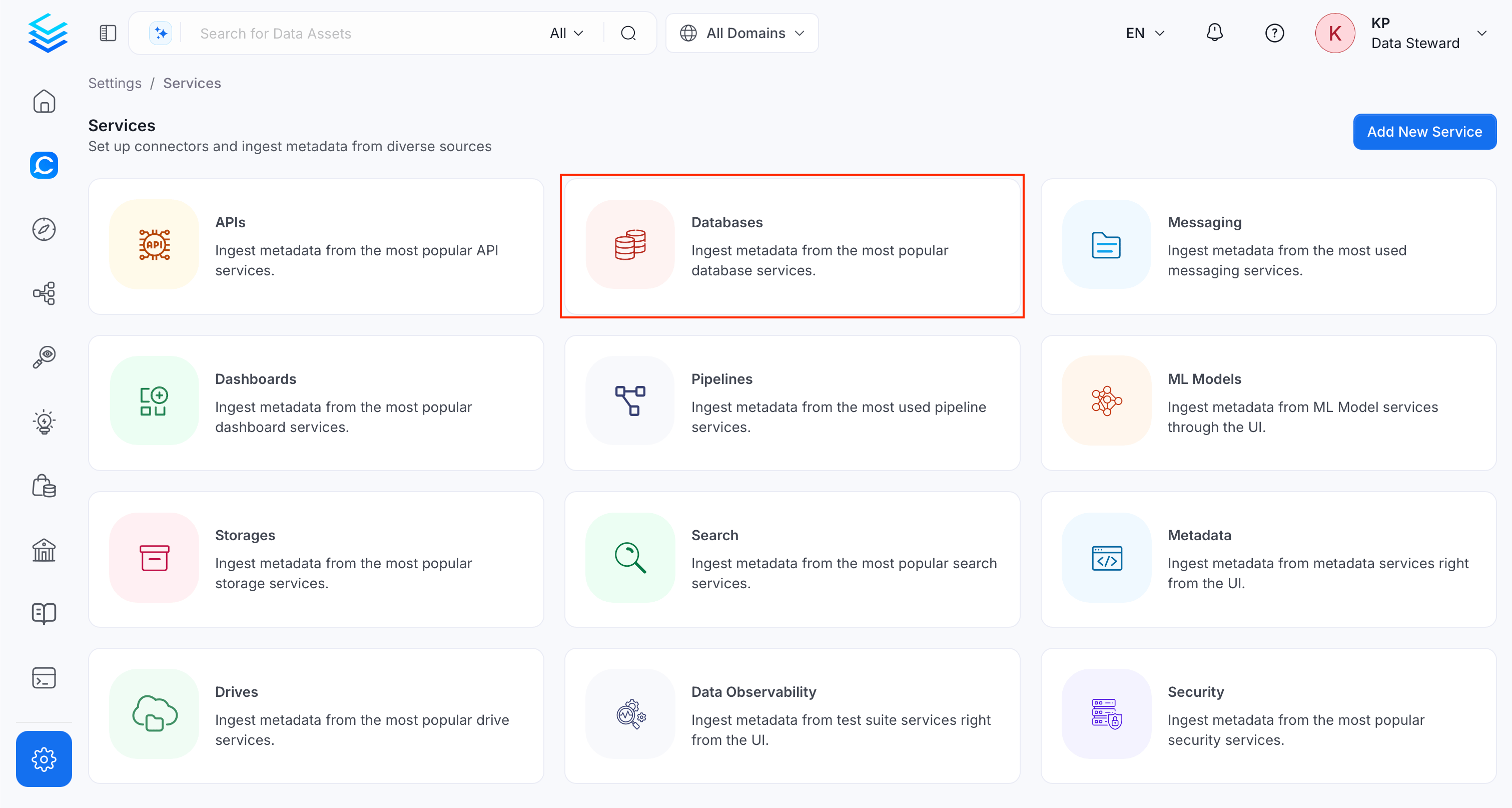
Navigate to Settings > Services and select Database Services.
-
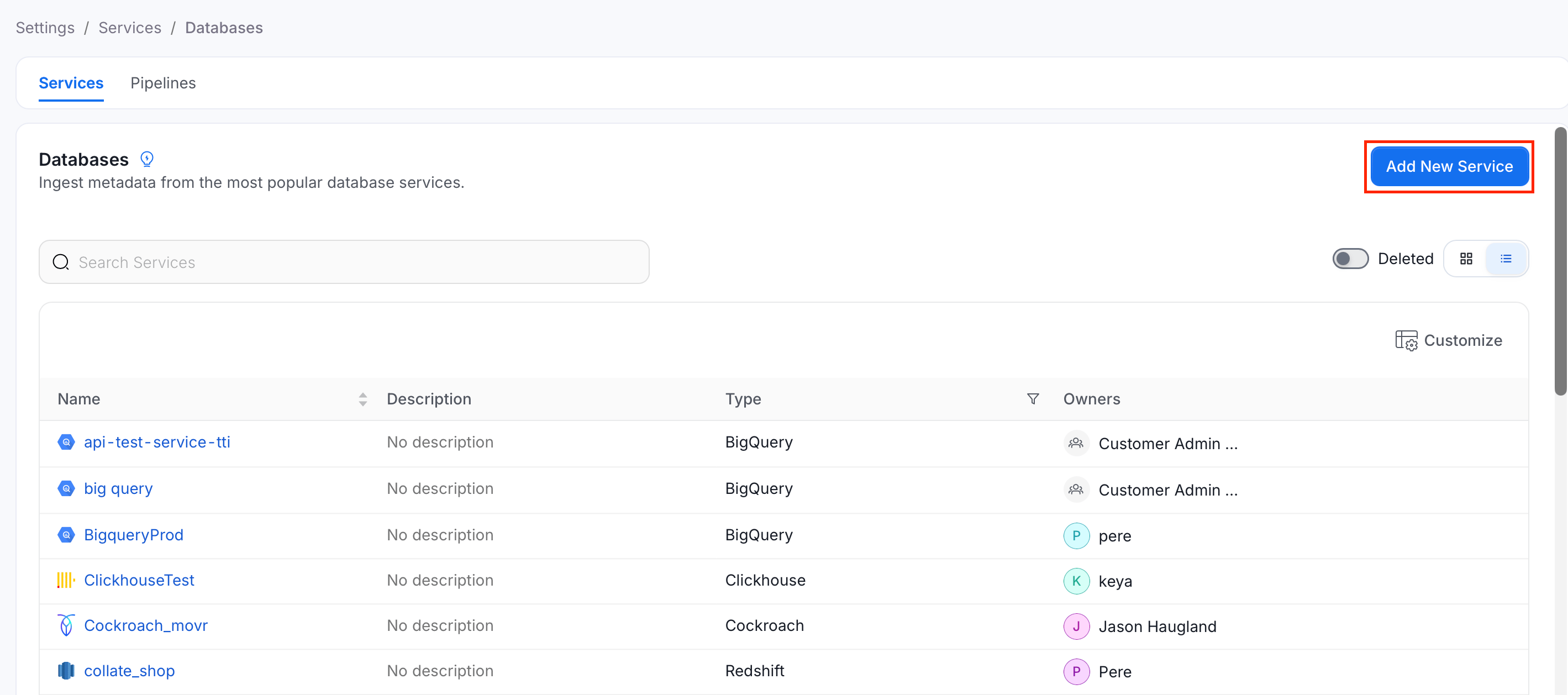
Click Add New Service.
Step 2: Select a Service and Connector
From the service type dropdown, select Database Services, then click the TimescaleDB connector tile.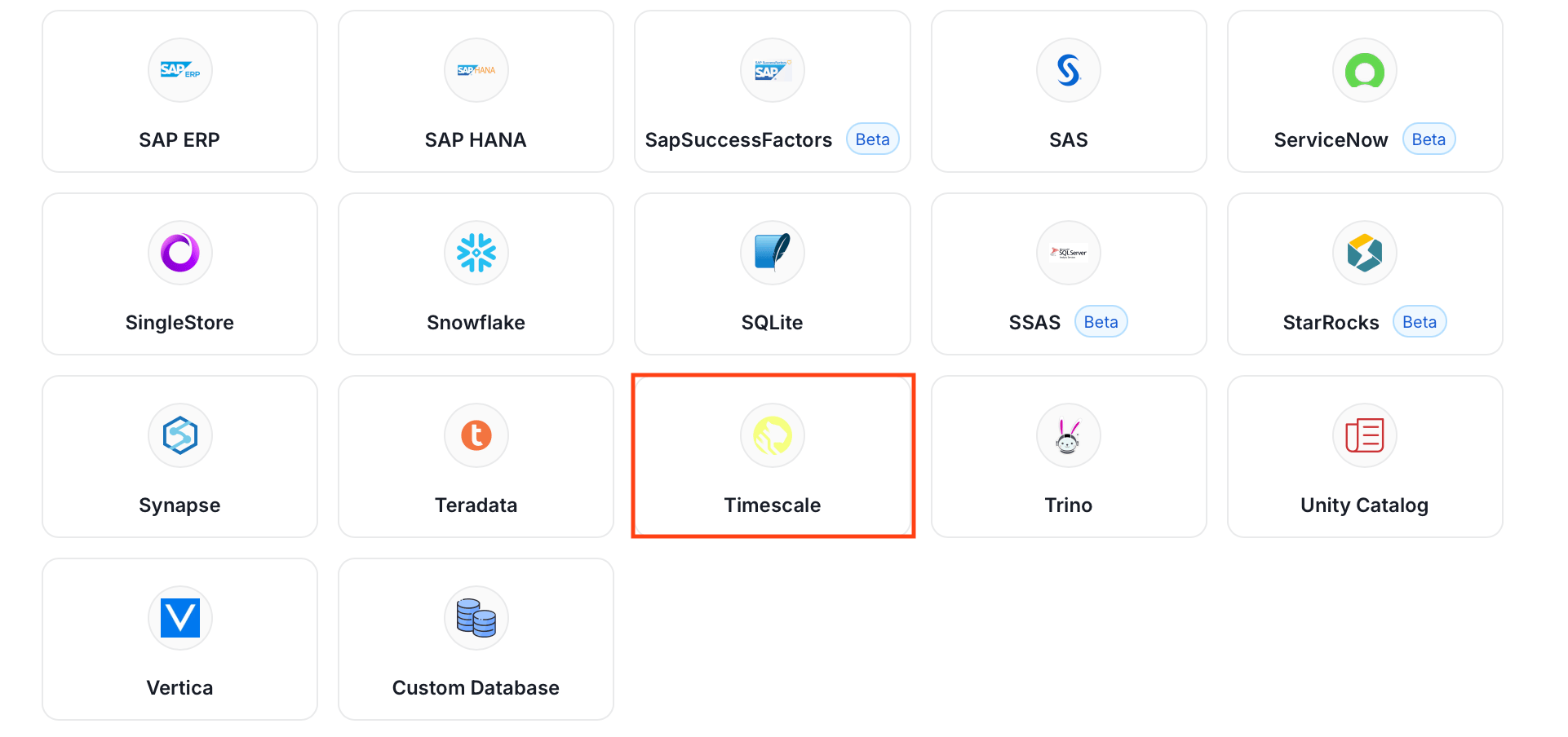
Step 3: Add Service Name and Description
- Enter a unique, descriptive Service Name. Collate identifies services by their service name. Enter a name that distinguishes this deployment from other TimescaleDB services you are ingesting metadata from.
- Optional: Enter a Description for the service.
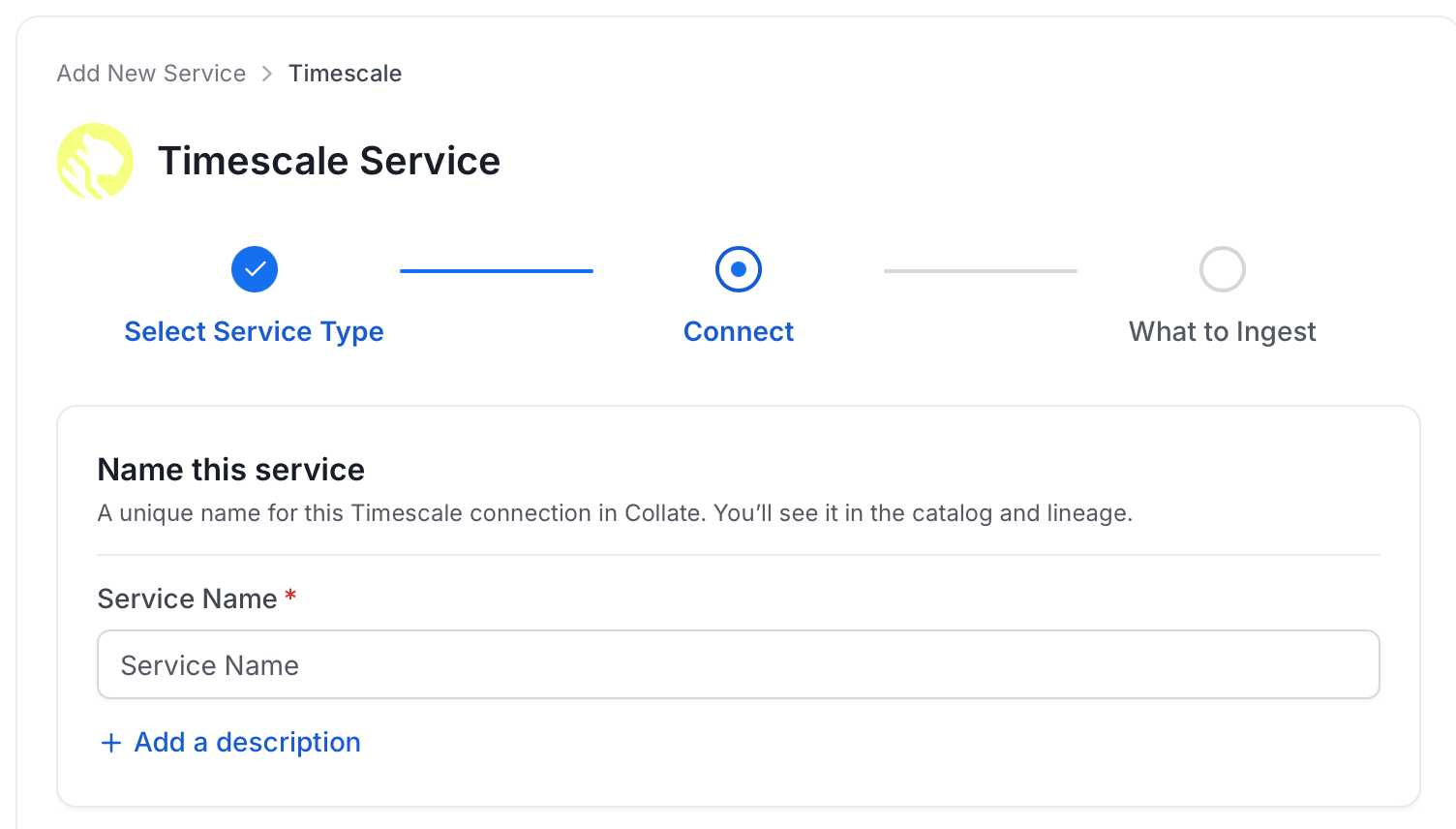
Note: The service name can’t be changed after you set it.
Step 4: Configure Connection Options
Specify where ingestion runs, provide your source credentials, and verify the connection.Select Ingestion Runner
Select an Ingestion Runner: the runner where the ingestion pipeline will execute.
Enter Connection Details
Enter the connection details for TimescaleDB. The right-hand panel in the UI displays inline help for each field.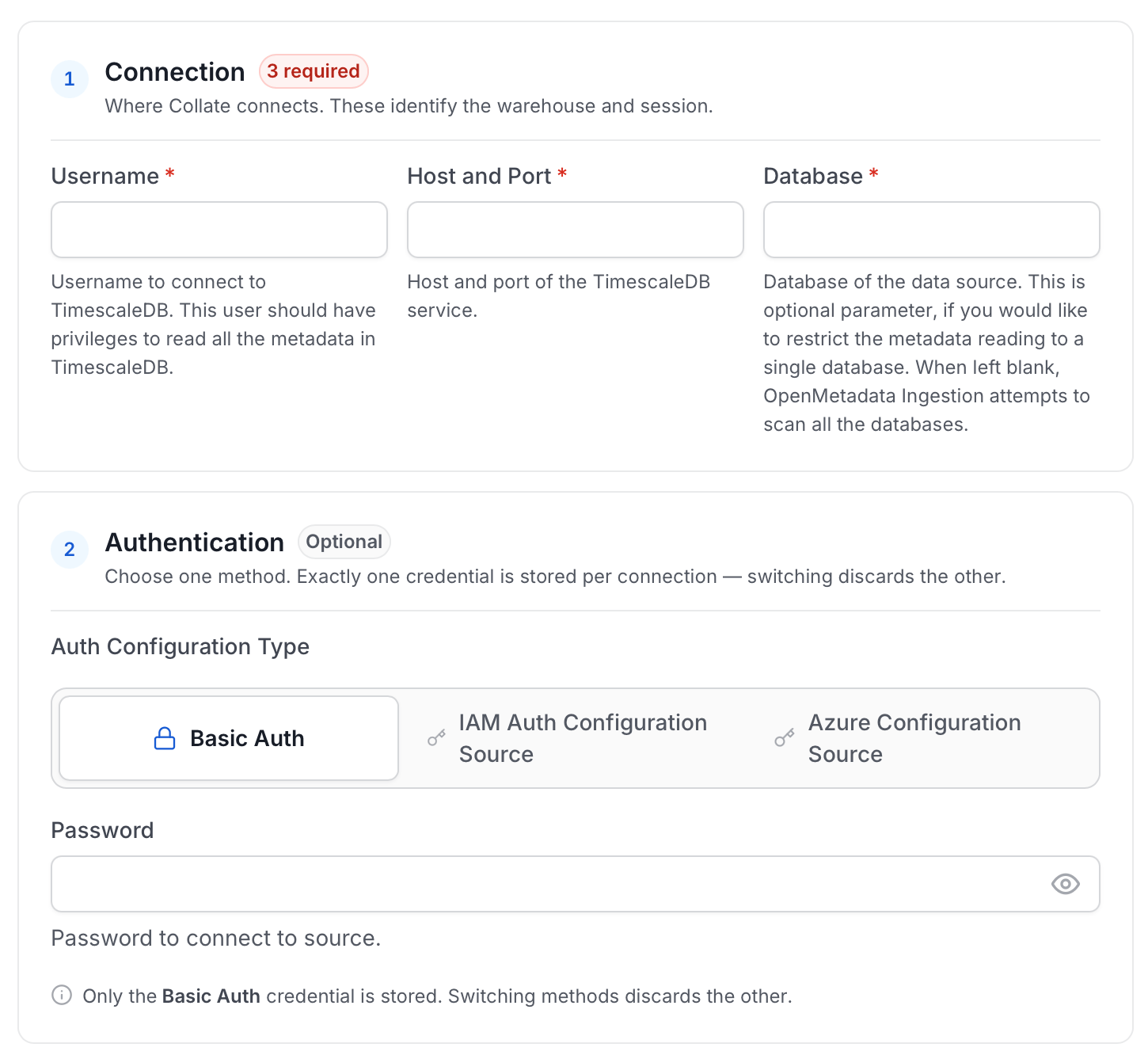
- Username: Specify the user to connect to TimescaleDB. It should have enough privileges to read all the metadata.
- Auth Type: Basic Auth or IAM based auth to connect to instances / cloud RDS.
- Basic Auth: Provide the password to connect to TimescaleDB.
- IAM Based Auth:
- AWS Access Key ID and AWS Secret Access Key: Required when interacting with AWS programmatically (docs).
- AWS Region: Required to resolve service endpoints (docs).
- AWS Session Token (optional): Needed when using temporary credentials (docs).
- Endpoint URL (optional): Override the default AWS endpoint if needed (docs).
- Profile Name: Use a named profile other than
defaultif desired (docs). - Assume Role Arn: ARN of the role to assume for cross-account access (docs).
- Assume Role Session Name: Identifier for the assumed role session (docs).
- Assume Role Source Identity: Source identity for CloudTrail attribution (docs).
- Host and Port: Enter the fully qualified hostname and port number for your TimescaleDB deployment.
Test Connection
- Click Test Connection to verify the credentials.
- After the test succeeds, click Save.

Step 5: Configure Ingestion Options
In the What to Ingest step, use filter patterns to control which assets Collate ingests from your database service. Filter rules match asset names using the following match types.How Filter Patterns Work
- Include: Add one or more comma-separated values. Each value uses one of the following match types. Collate ingests only assets whose names match at least one rule. Leave blank to include all assets.
- Exclude: Add one or more comma-separated values. Each value uses one of the following match types. Collate skips any asset whose name matches a rule. Leave blank to exclude nothing.
- contains: matches any name containing the value. For example,
salesmatchesmy_sales_dataandsales_2024. - starts with: matches names beginning with the value. For example,
prod_matchesprod_dbandprod_schema. - ends with: matches names ending with the value. For example,
_rawmatchesevents_rawandlogs_raw. - is exactly: matches the exact name only. For example,
analyticsmatches onlyanalytics. - matches regex: matches names using a regular expression. For example,
^prod_.*_v\d+$matchesprod_events_v1.
Filter Options
The Database, Schema, Table, and Stored Procedure sections each include the following filter options:- Database: Controls which databases Collate ingests from the source.
- Schema: Controls which schemas within the ingested databases are included.
- Table: Controls which tables and views within the ingested schemas are included.
- Stored Procedure: Controls which stored procedures are included in metadata ingestion.
- Scan Mode: Choose between the following scan modes:
- Scan all: Ingests every asset of that type the connector can access. This is the default.
- Only specific: Enables include rules so only assets matching at least one rule are ingested.
- Exclude system toggle: Use this toggle to filter out system-reserved names defined by the connector for that asset type.
- Always exclude: Add permanent exclusion rules (shown in red). Assets matching these rules are never ingested, regardless of include rules.
- Preview: Shows a real-time summary of what will be in scope based on your current rules.
- Include rules: In Only specific mode, click + Add to define a rule. Added rules appear as chips. An asset is included if it matches any rule.
Step 6: Create & Deploy
Click Create & Deploy to deploy the agent and start the first metadata ingestion run. Collate saves the service configuration and immediately begins pulling metadata from the source. To monitor ingestion progress or view the service you just added, go to Settings > Services and select your service.Configure Metadata Agent and Schedule Ingestion
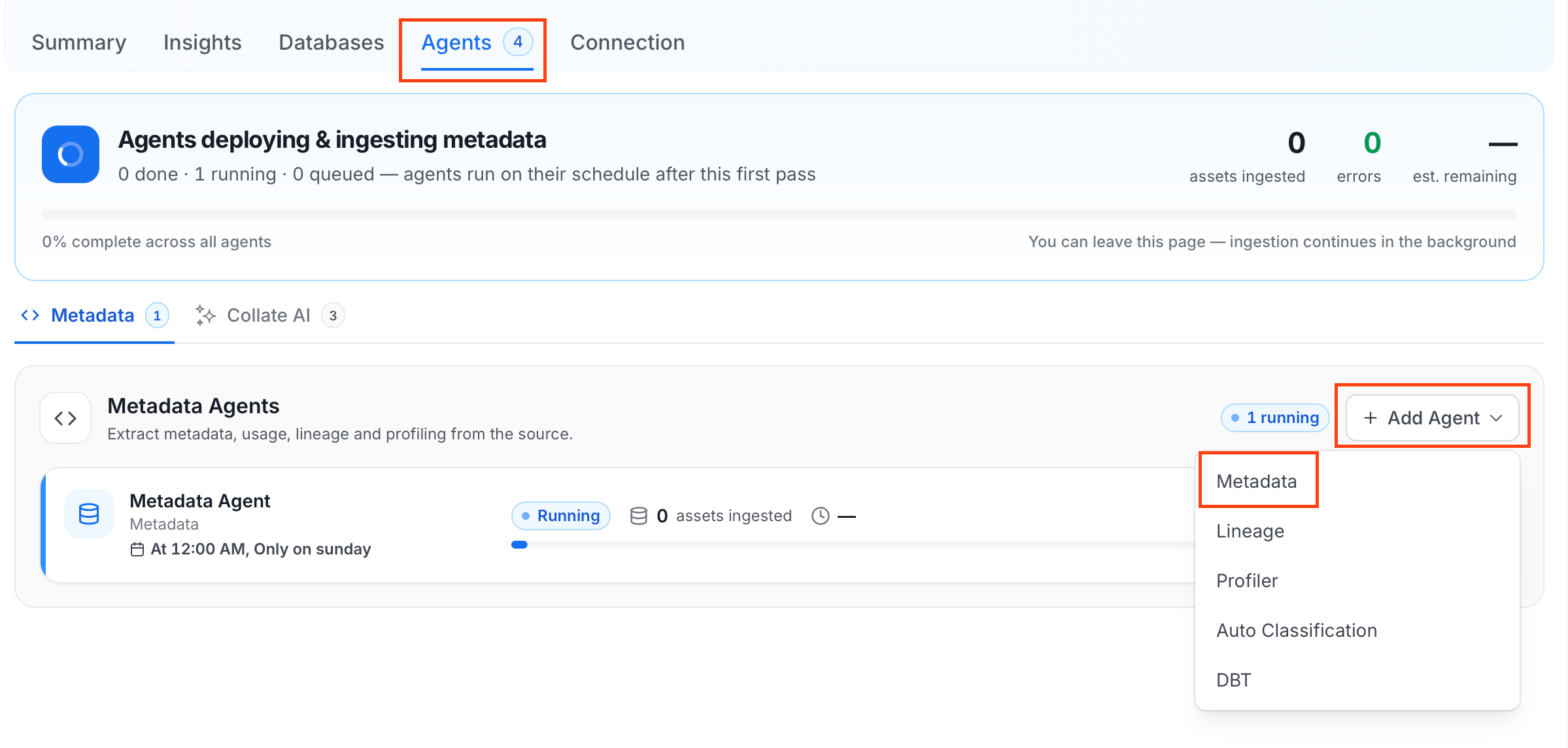
The Metadata Agent extracts schemas, tables, columns, and other structural metadata from your source and keeps your Collate catalog in sync. It powers discovery, lineage, and governance across your data assets. When you click Create & Deploy, Collate automatically deploys a Metadata Agent for this service and triggers the first ingestion run. View its status and run history from the Agents tab on the service detail page. To configure the additional Metadata Agent and schedule ingestion, follow these steps:- Navigate to Settings > Services and select the Databases service.
- Select your service and click the Agents tab.
-
Click Add Agent and select Metadata from the dropdown.
-
On the Configure Ingestion page, do the following and click Next.
-
Name this Ingestion: Enter a unique, recognizable name for this ingestion pipeline.

-
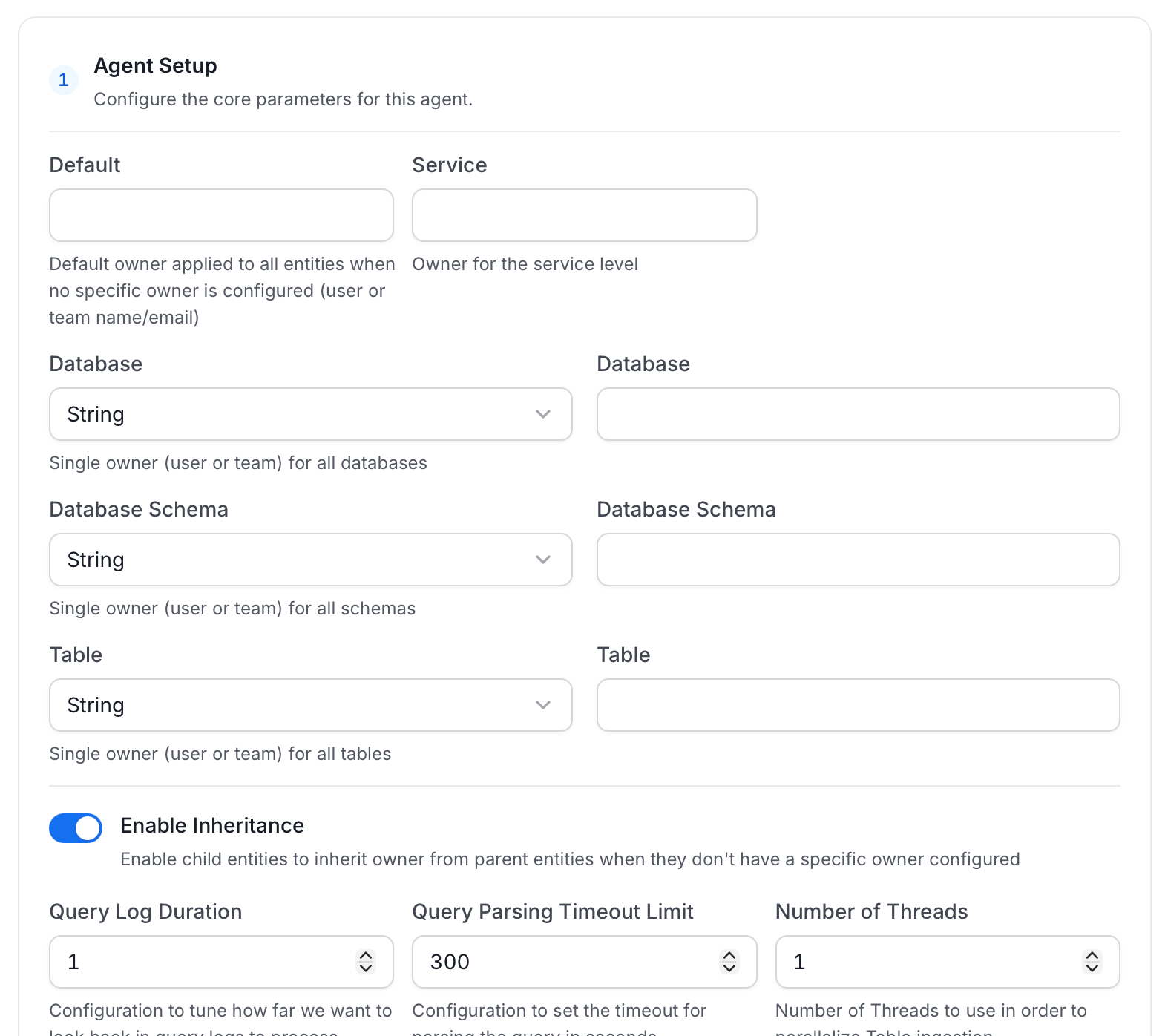
Agent Setup: Configure core parameters for metadata extraction. The following fields are available:
For more information, see Hierarchical Owner Configuration.
-
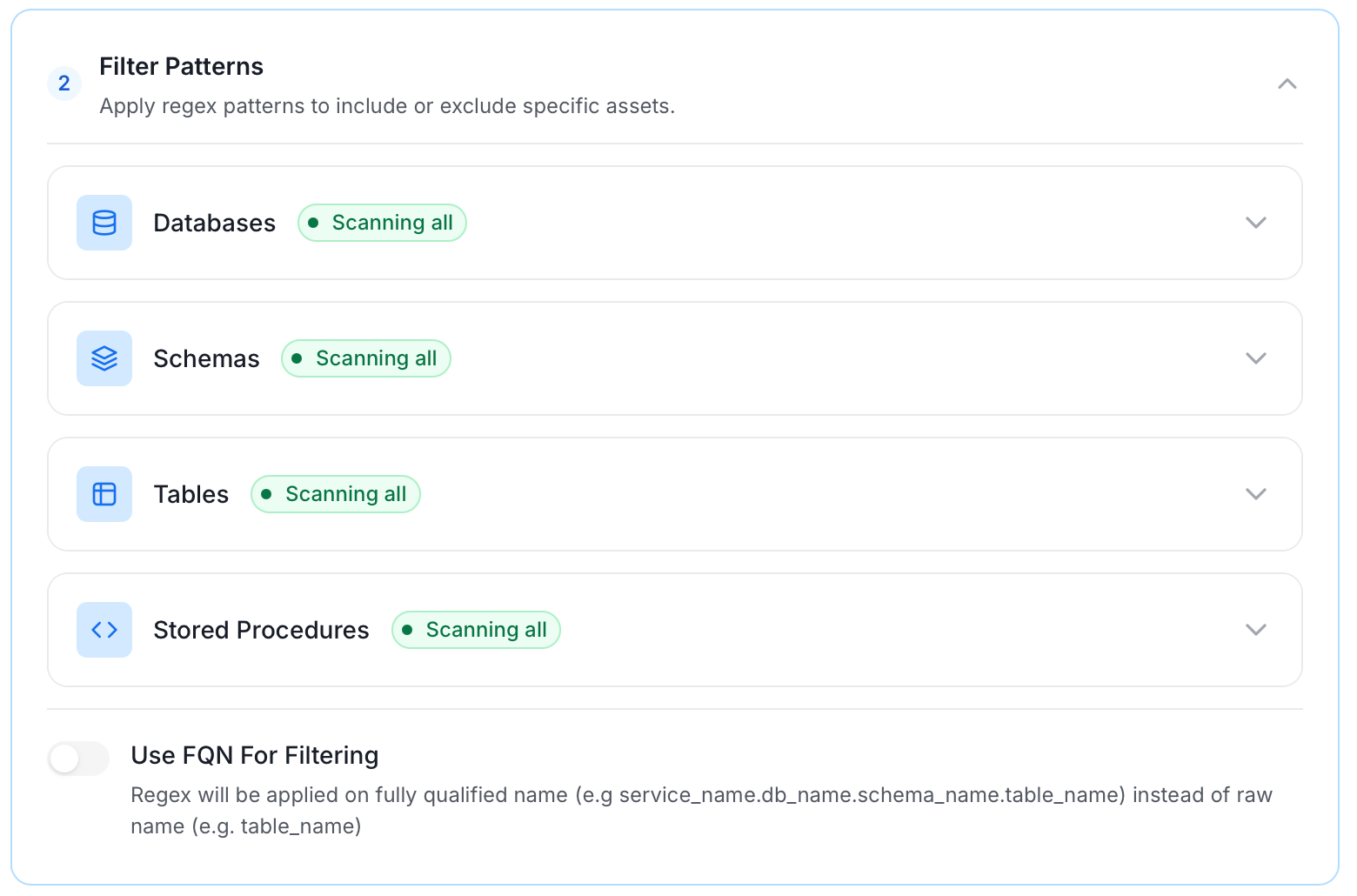
Filter Patterns: Apply include or exclude rules to scope which databases, schemas, tables, and stored procedures this agent ingests. These follow the same filter options described in Step 5.
-
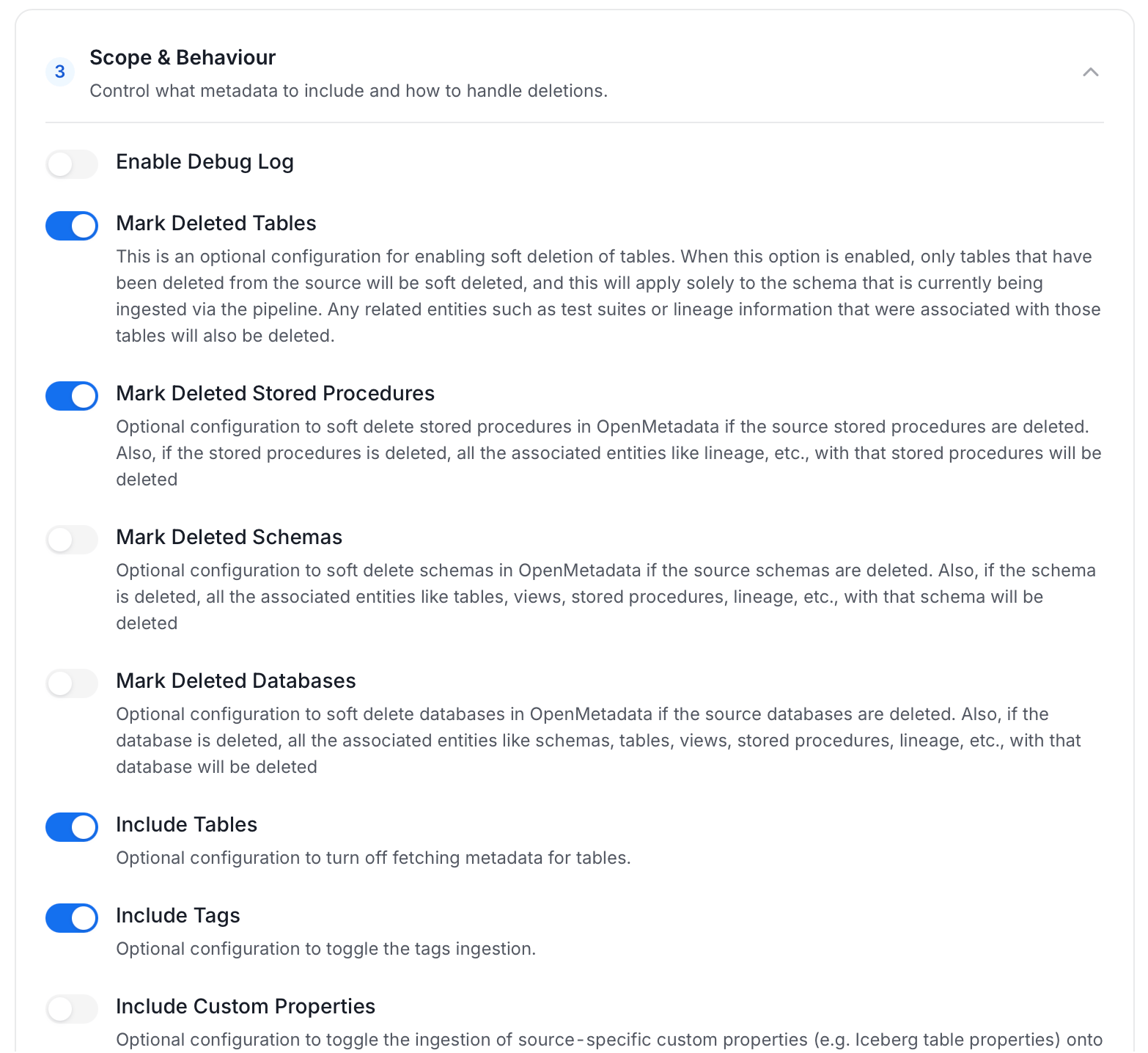
Scope & Behaviour: Control how the agent handles metadata during ingestion. Toggle each option on or off based on your needs:
Note: Available toggles vary by connector. Stored procedure options only appear for connectors that support stored procedures.
-
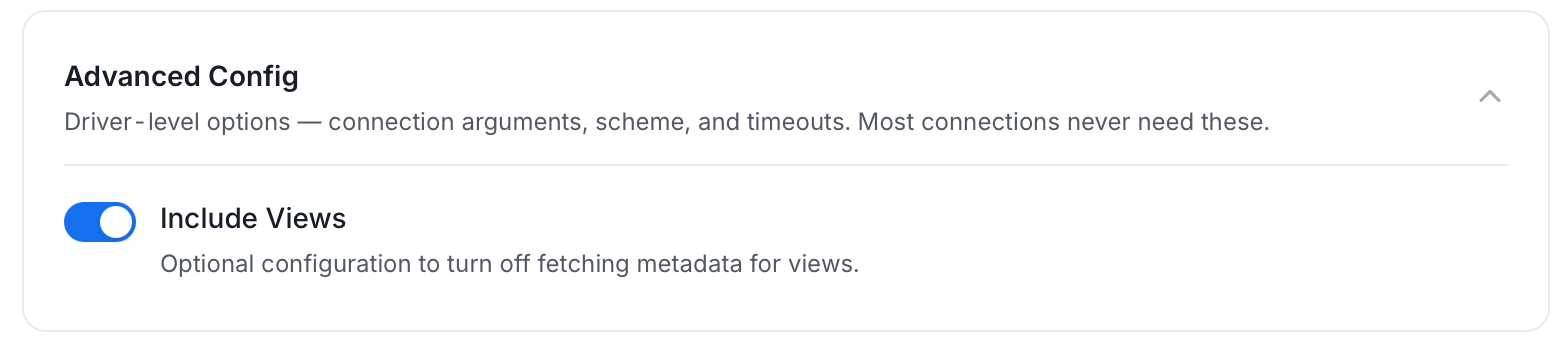
Advanced Config: Driver-level options (connection arguments, scheme, and timeouts). Most connections never need these, and they vary by connector. This section also has one ingestion-scope toggle:
-
Name this Ingestion: Enter a unique, recognizable name for this ingestion pipeline.
-
On the Schedule Interval page, set when the agent runs:
- Schedule: Choose a preset interval (Hourly, Daily, Weekly, Monthly) or enter a custom cron expression.
- On-Demand: No automatic schedule. Trigger the agent manually when needed.
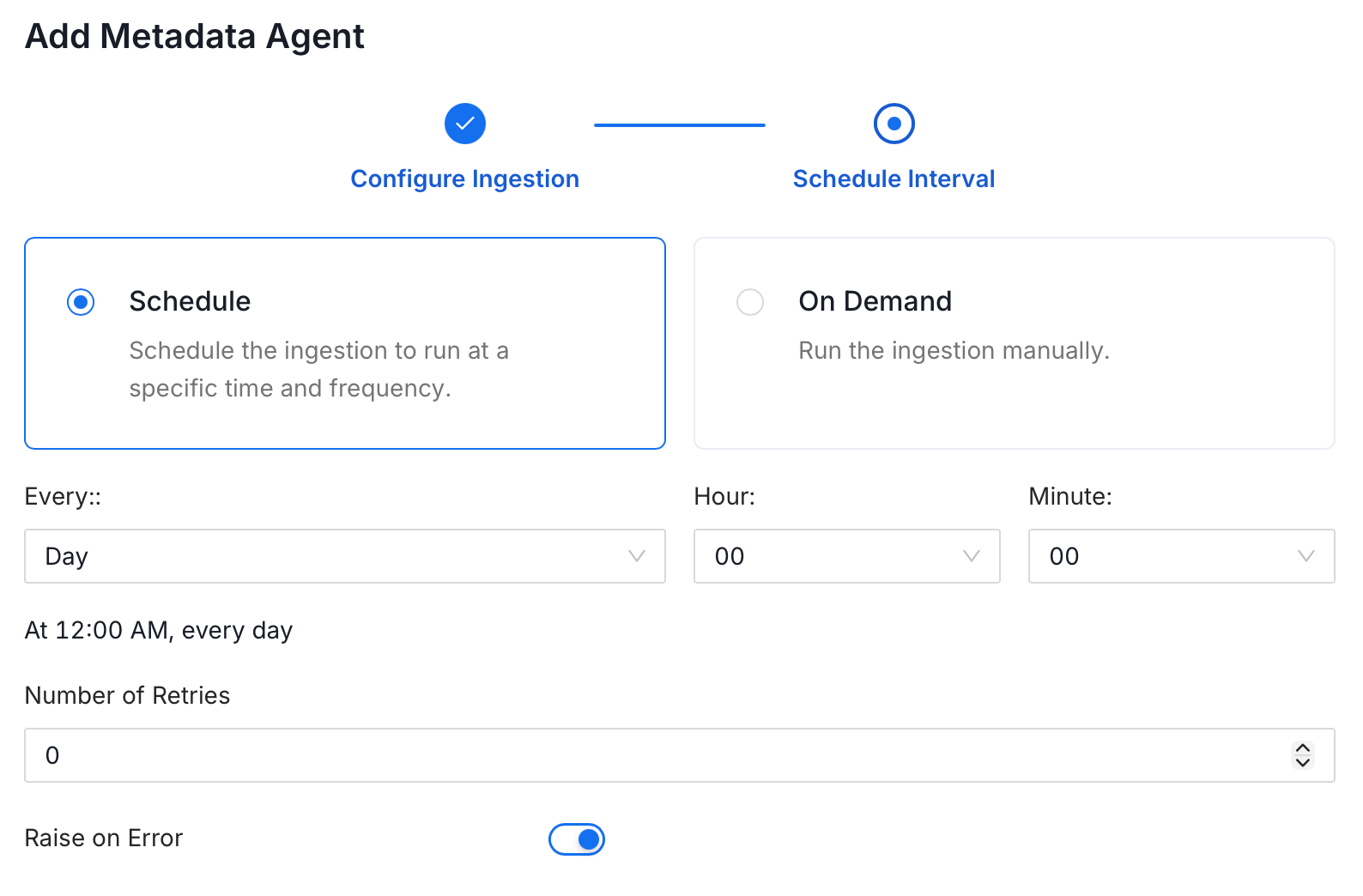
- Click Add to deploy the agent.
Securing TimescaleDB Connection with SSL in Collate
To establish secure connections between Collate and a TimescaleDB database, you can configure SSL using different SSL modes provided by PostgreSQL, each offering varying levels of security. UnderAdvanced Config, specify the SSL mode appropriate for your connection, such as prefer, verify-ca, allow, and others. After selecting the SSL mode, provide the CA certificate used for SSL validation (caCertificate). Note that TimescaleDB (PostgreSQL) requires only the CA certificate for SSL validation.
1
Advanced Configuration
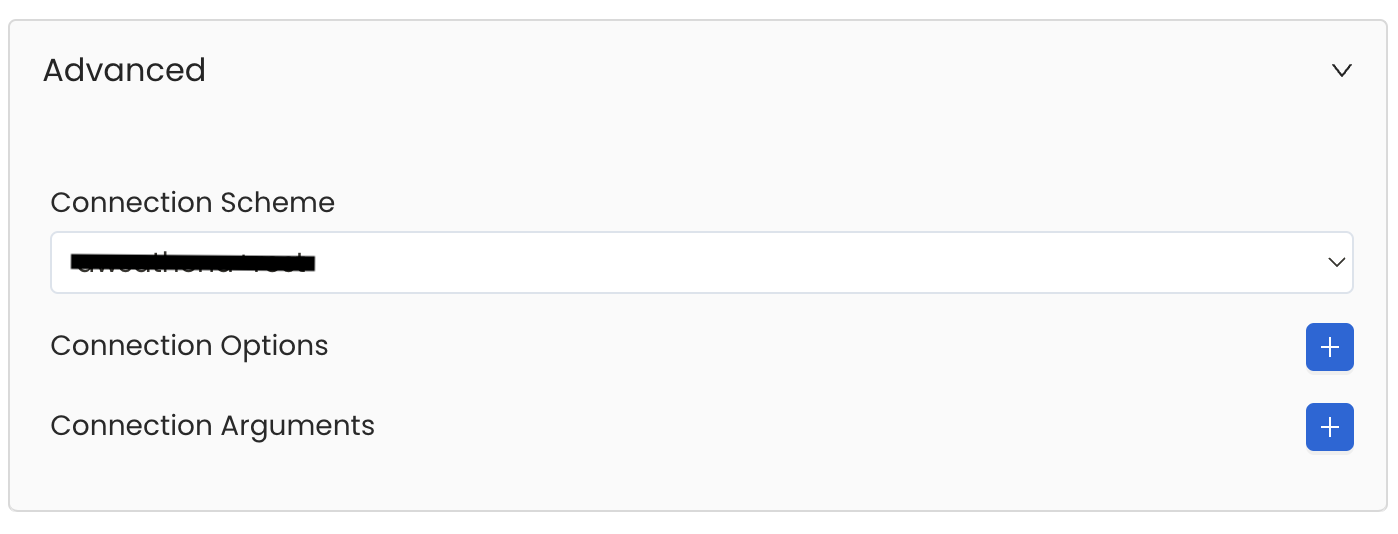
Database Services have an Advanced Configuration section, where you can pass extra arguments to the connector
and, if needed, change the connection Scheme.This would only be required to handle advanced connectivity scenarios or customizations.
- Connection Options (Optional): Enter the details for any additional connection options that can be sent to database during the connection. These details must be added as Key-Value pairs.
-
Connection Arguments (Optional): Enter the details for any additional connection arguments such as security or protocol configs that can be sent during the connection. These details must be added as Key-Value pairs.
Reverse Metadata
1
Reverse Metadata
Description Management
TimescaleDB supports description updates at all levels:- Database level
- Schema level
- Table level
- Column level
Owner Management
TimescaleDB supports owner management at the following levels:- Database level
- Schema level
- Table level
Tag Management
❌ Tag management is not supported for TimescaleDB.Custom SQL Template
TimescaleDB supports custom SQL templates for metadata changes. The template is interpreted using python f-strings.Here are examples of custom SQL queries for metadata changes:Requirements for Reverse Metadata
In addition to the basic ingestion requirements, for reverse metadata ingestion the user needs:SUPERUSERprivilege to the user
Troubleshooting
TimescaleDB Troubleshooting
Learn more about how to troubleshoot common TimescaleDB connector issues and resolve configuration or ingestion errors.