Query Runner Application
The Query Runner application enables SQL Studio functionality in Collate, allowing users to execute SQL queries directly against configured database services from within the platform. This eliminates the need to switch between different database clients and provides a unified query execution experience.
Overview
Query Runner powers SQL Studio, Collate’s integrated query execution environment. Once installed and configured, users can:
- Unified Query Interface: Write, Save & Execute SELECT queries to explore data across multiple database services without switching tools
- Flexible Authentication: Support for SSO-based, OAuth, and credential-based authentication methods
Prerequisites
- Admin Access: You must have administrator privileges in Collate
Installation
Step 1: Access the App Marketplace
- Log in to Collate with your administrator account
- Navigate to Settings from the main navigation menu
- Click on Applications card in settings.
- Click on Add Apps button on top right to visit
Marketplace
Step 2: Find the Query Runner Application
- In the App Marketplace, browse or search for “Query Runner”
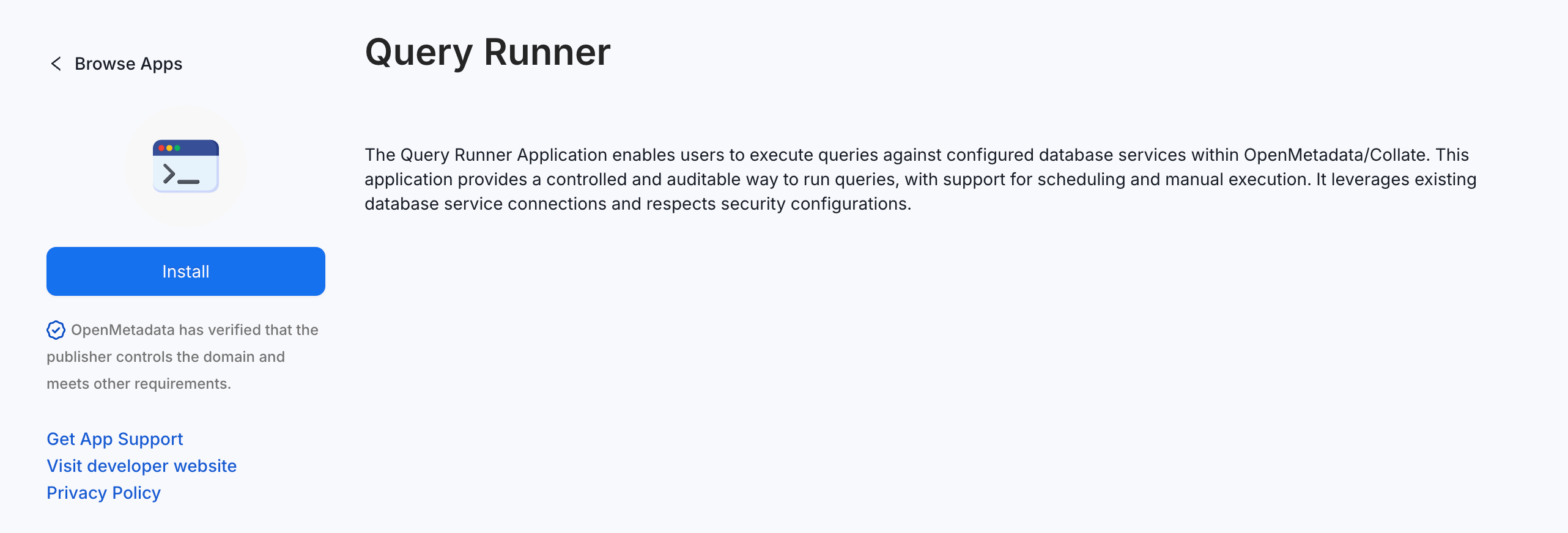
- The Query Runner application enables SQL Studio functionality
- Click on the Query Runner application card to view details

Step 3: Install the Application
- Review the application details:
- Description: The Query Runner Application enables users to execute queries against configured database services
- Click the Install button
- Click Schedule button → Select On Demand option

- Click Create to proceed with installation
Step 4: Verify Installation
- After installation completes, you’ll see a success message

- The Query Runner application will appear in your Installed Applications list
- The application status should show as Active
Installation typically takes a few seconds. If the installation fails, check the application logs in Settings → Applications → Query Runner → Logs.
Post-Installation
Once the Query Runner application is installed, SQL Studio will appear in the main navigation menu for all users
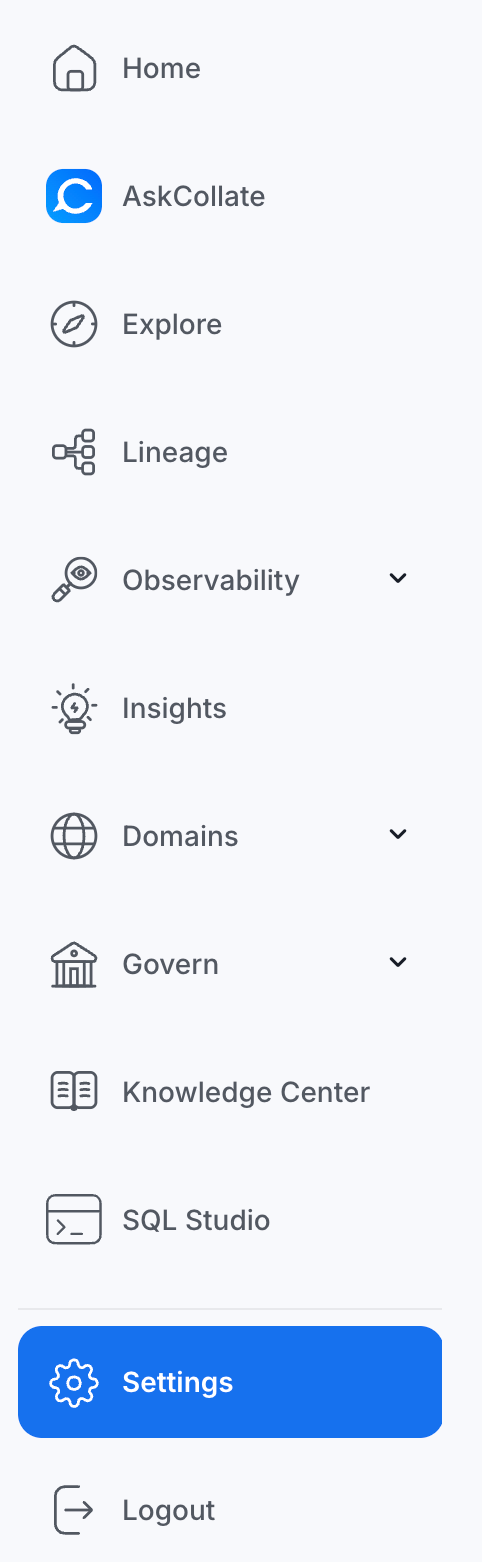
Next Steps: After installation, administrators must configure SQL Studio for supported database service. See the SQL Studio Admin Configuration guide for detailed setup instructions. Application Management
Viewing Application Logs
If you need to troubleshoot issues:
- Go to Settings → Applications → Query Runner
- Click on the Logs tab
- Review recent logs for errors or warnings
- Filter logs by date or severity level
Uninstalling the Application
If you need to remove SQL Studio:
- Go to Settings → Applications → Query Runner
- Click the Uninstall button
- Type the application name to confirm
- Click Confirm Uninstall
Troubleshooting
Installation Fails
Problem: Installation fails with “Application cannot be installed”
Solutions:
- Verify you have admin privileges
- Check that your Collate instance meets minimum requirements
- Review application logs for specific error messages
- Contact support if the issue persists
Application Not Appearing
Problem: After installation, SQL Studio doesn’t appear in the navigation
Solutions:
- Refresh your browser (Cmd/Ctrl + R)
- Clear browser cache and cookies
- Log out and log back in
- Verify the application status is “Active” in Settings → Applications
Next Steps
After installing the Query Runner application, follow the SQL Studio to get started.