
Requirements
Apache Ranger Setup
Apache Ranger 2.0 or greater is required. The user should have access to the Apache Ranger Admin API with appropriate privileges to manage policies and tags.Permissions
The user connecting to Apache Ranger should have the following permissions:- Access to Apache Ranger Admin API endpoints
- Write access to policies and tag definitions
- Write access to tag management
- Read access to service definitions for verification
Connection Details
Collate supports Apache Ranger with Basic Authentication using username and password.Reverse Metadata
The Apache Ranger connector is designed specifically for reverse metadata ingestion. This means that Collate will sync metadata information (primarily tags) from your data sources back to Apache Ranger.How Reverse Metadata Works
- Configure Ranger as Sink Service: Set up Apache Ranger as a sink service in your reverse metadata configuration
- Source Service Integration: When you ingest metadata from source services like Snowflake, Trino, or other databases, Collate can sync this metadata back to Ranger
- Tag Synchronization: Currently, Collate syncs tag information to Apache Ranger, allowing you to manage security policies based on discovered metadata
- Policy Management: While Collate syncs tags to Ranger, the communication between Ranger and your specific data sources needs to be configured separately
Important Considerations
- Service Name Matching: The service name configured in Apache Ranger must match exactly with the service name in Collate for reverse metadata synchronization to work properly
- Tag Synchronization: Currently, Collate only syncs tag information to Ranger.
- Source-Ranger Communication: You are responsible for configuring the communication between Apache Ranger and your actual data sources. Collate only handles the metadata synchronization to Ranger
- Bidirectional Sync: This is currently a one-way sync from Collate to Ranger
Tag Synchronization Details
Understanding how tag synchronization works between Collate and Apache Ranger is crucial for proper implementation.What Gets Created During Reverse Metadata Ingestion
During reverse metadata ingestion, Collate creates only the mapping between:- Ranger Resources: The specific entity (database, schema, table, or column)
- Tags: The tag name and tag value
Policy Management
The actual application of tag-based policies—such as access control, data masking, or row-level filtering—is handled entirely by Apache Ranger. Collate’s role is limited to:- Syncing tag metadata from Collate to actual data sources
- Creating tag-to-resource mappings in Ranger
- Keeping these mappings synchronized as tags change in Collate
Supported Tag Levels
Collate provides comprehensive tag support at multiple levels:- Database level: Tags applied to entire databases
- Schema level: Tags applied to schemas
- Table level: Tags applied to tables
- Column level: Tags applied to individual columns
Tag Naming Convention
Collate uses a clear and consistent tag naming convention when syncing to Ranger. Tags are formatted as:- A tag named
Sensitiveunder thePIIclassification in Collate - Will be synced to Ranger as:
PII.Sensitive
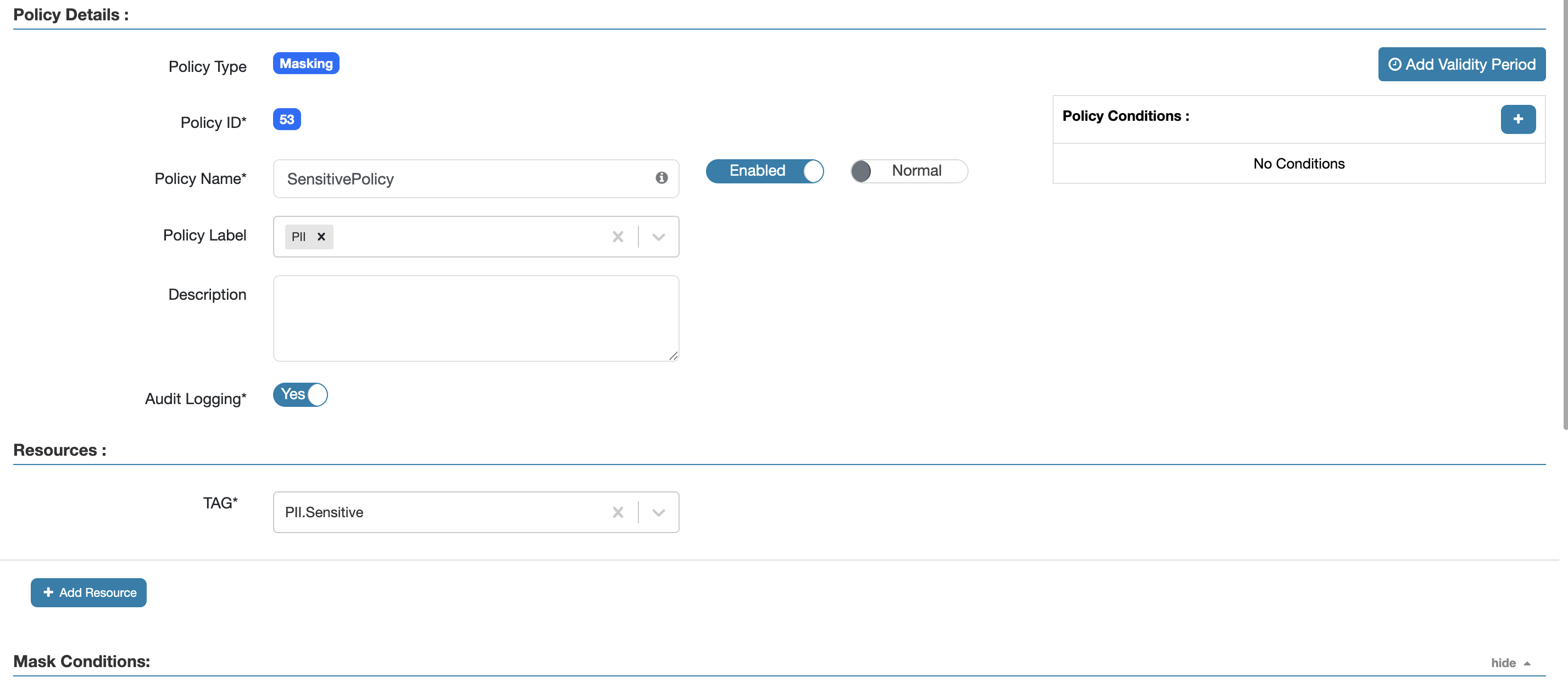
Example showing PII.Sensitive tag in Collate and Ranger
Complete Workflow Example
- In Collate: You apply the tag
PII.Sensitiveto a columncustomer_emailin tableusers - Reverse Metadata Sync: Collate creates a mapping in Ranger linking the resource
database.schema.users.customer_emailto tagPII.Sensitive - In Apache Ranger: You create a policy that applies masking to all resources tagged with
PII.Sensitive - Result: The policy automatically applies to
customer_emailand any other resources tagged asPII.Sensitive
Metadata Ingestion
To ingest metadata from Apache Ranger, you need to create a service connection. The service connects Apache Ranger with Collate. Once you create a service, Collate automatically starts ingesting metadata.Step 1: Add New Service
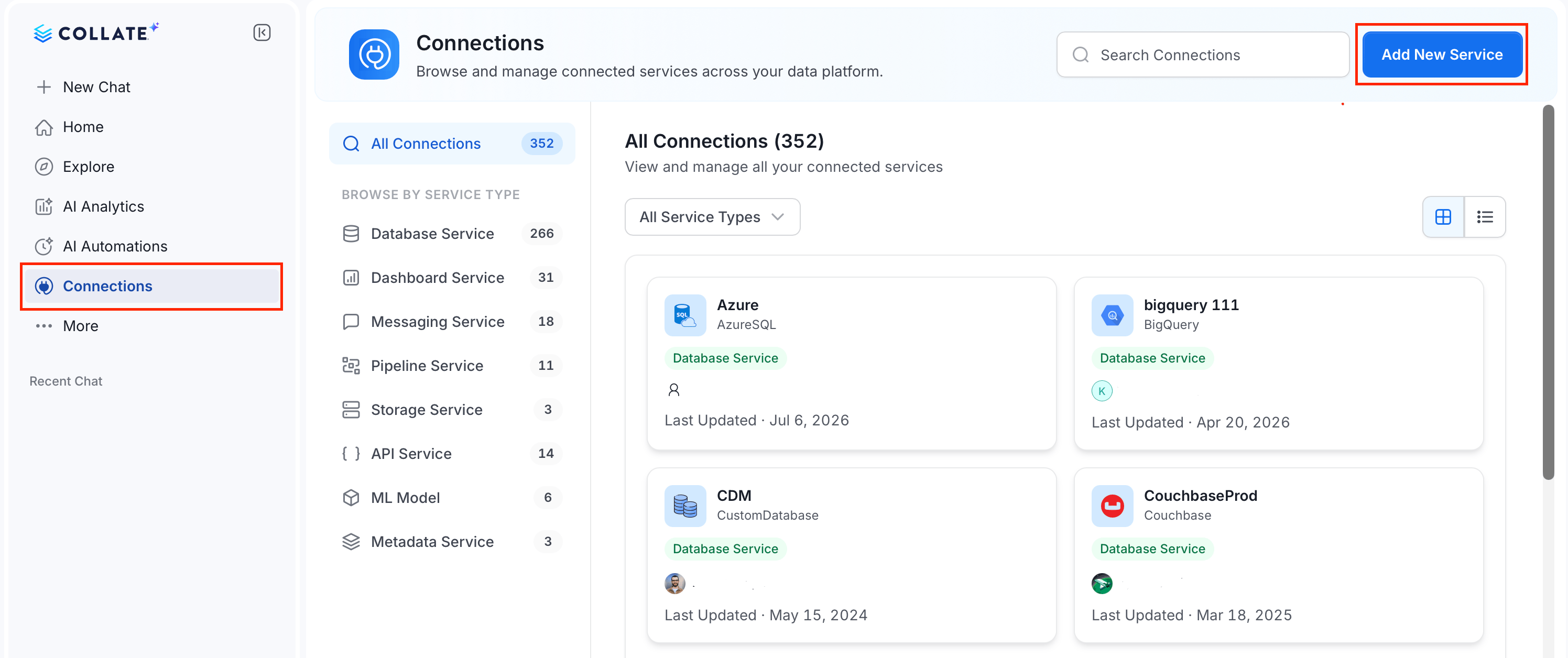
- In the left navigation, click Connections.
- On the Connections page, click Add New Service.
Step 2: Select a Service and Connector
From the service type dropdown, select Security Services, then click the Ranger connector tile.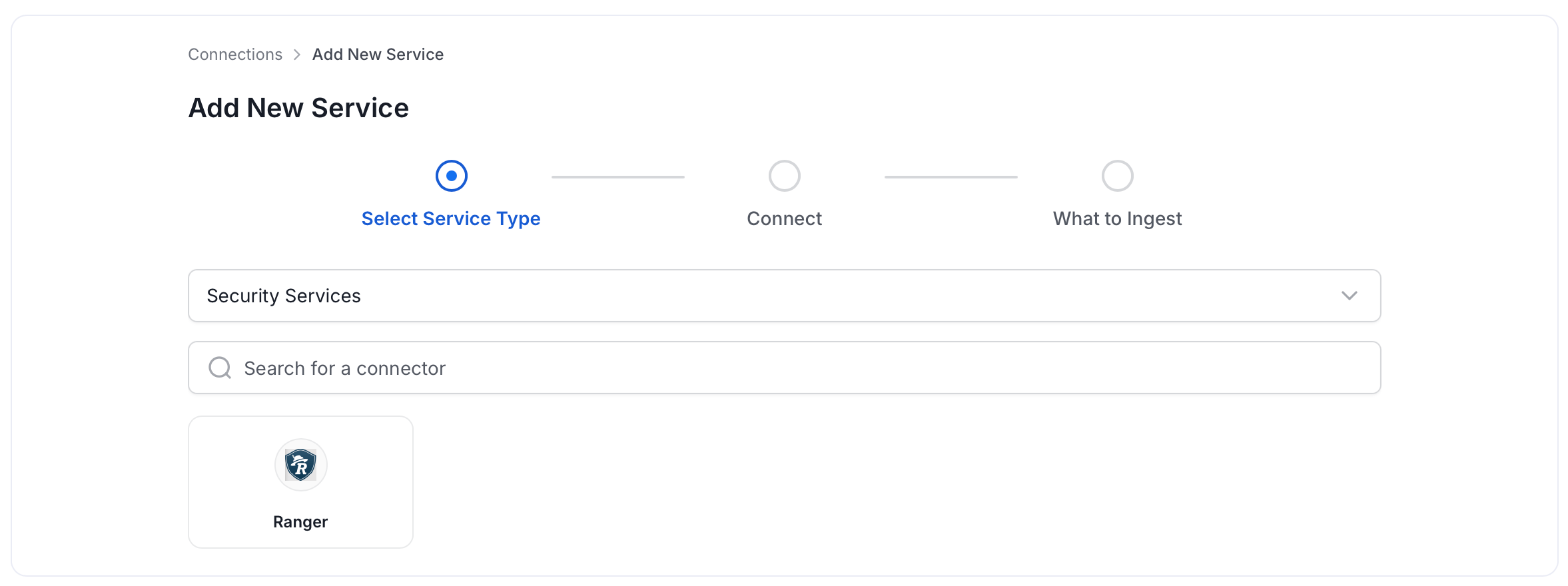
Step 3: Add Service Name and Description
- Enter a unique, descriptive Service Name. Collate identifies services by their service name. Enter a name that distinguishes this deployment from other Ranger services you are ingesting metadata from.
- Optional: Enter a Description for the service.
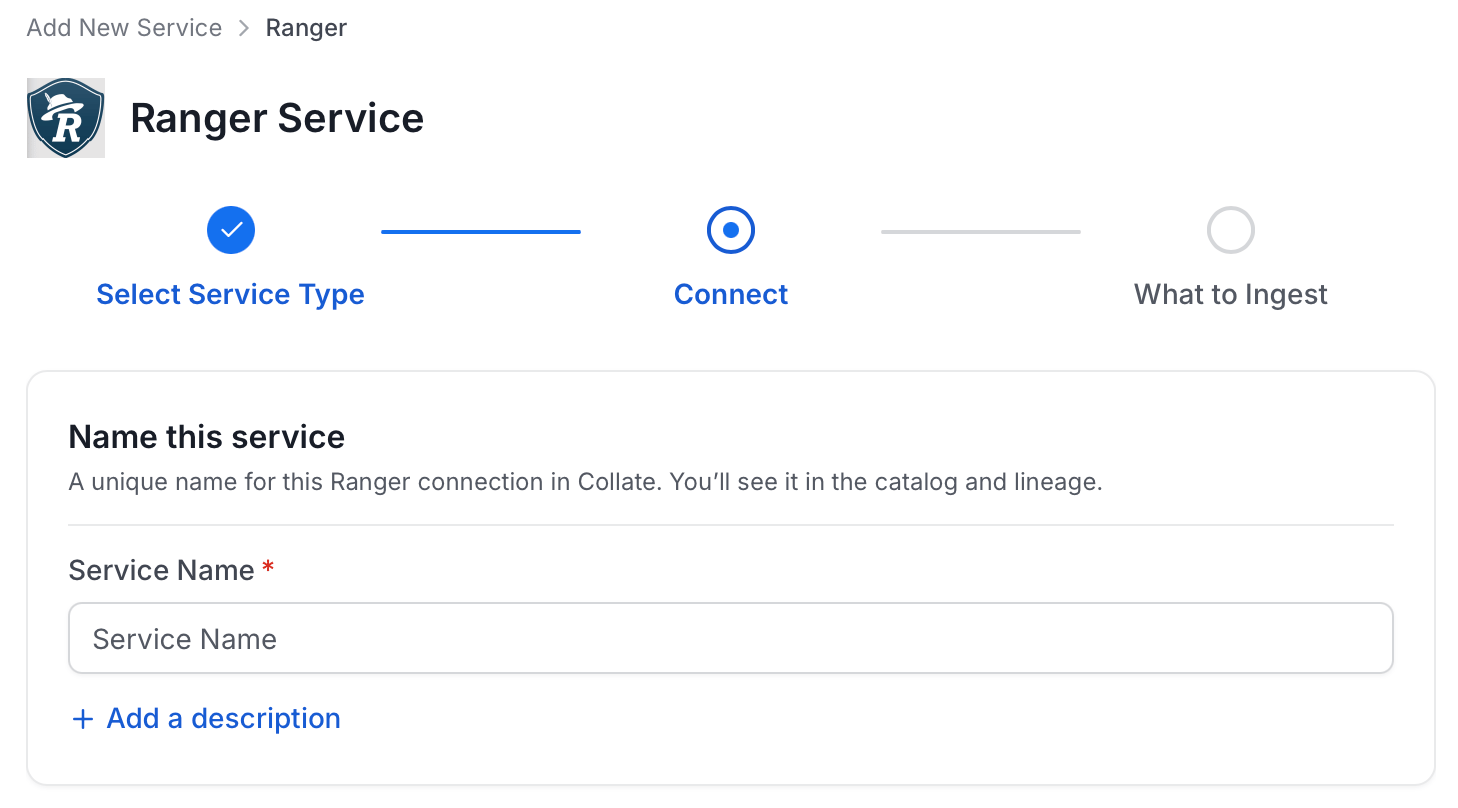
Note: The service name cannot be changed after it is set.
Step 4: Configure Connection Options
Specify where ingestion runs, provide your source credentials, and verify the connection.Select Ingestion Runner
Select an Ingestion Runner: the runner where the ingestion pipeline will execute.
Enter Connection Details
Enter the connection details for Apache Ranger. The right-hand panel in the UI displays inline help for each field.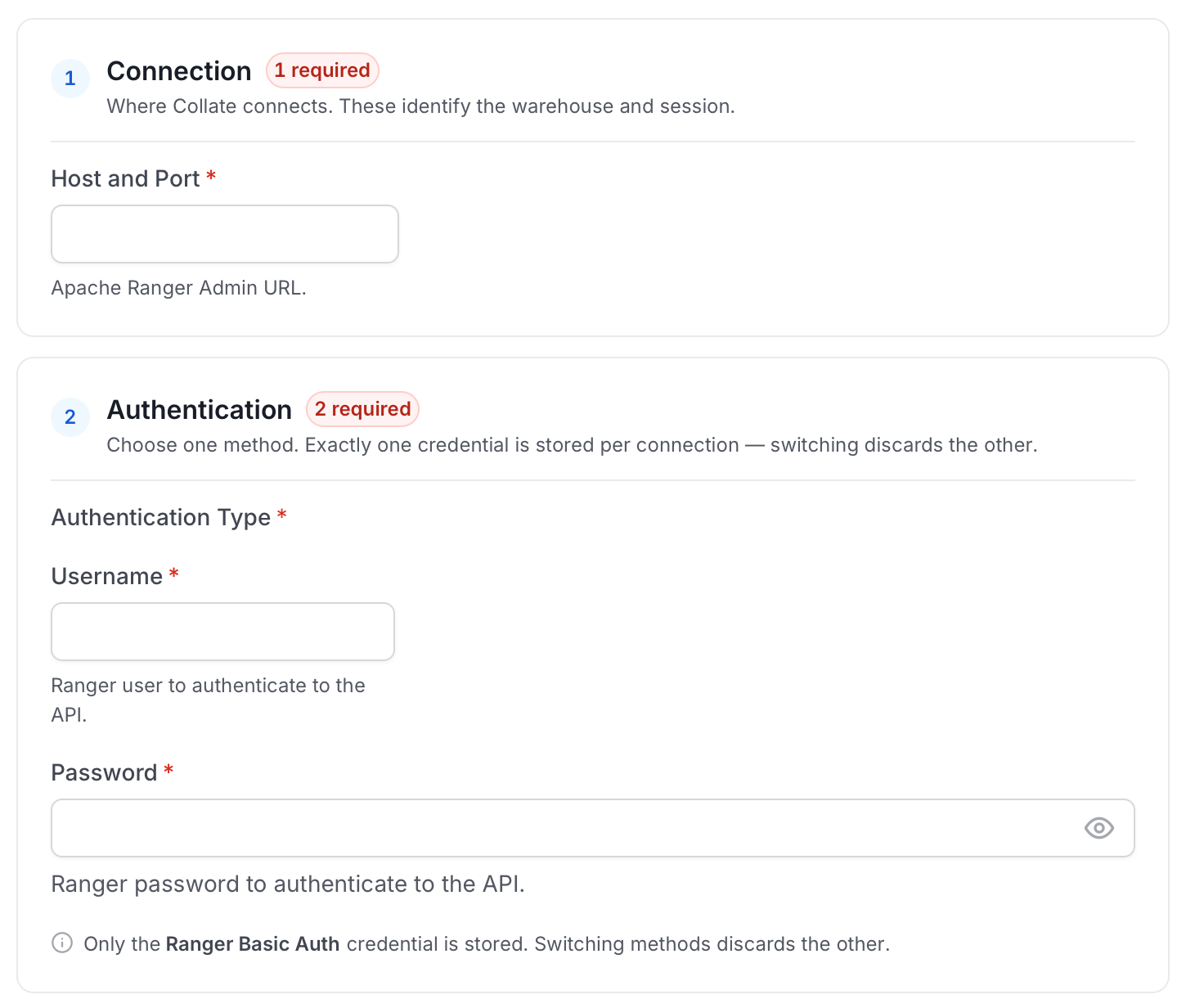
-
Host and Port: The URL of your Apache Ranger Admin instance (e.g.,
http://ranger-host:6080). - Username: The username of the Ranger Admin user. The specified user should have access to the Apache Ranger Admin API with privileges to manage policies and tags.
- Password: The password for the Ranger Admin user.
Test Connection
Once the credentials have been added, click on Test Connection and Save the changes.
Step 5: Configure Ingestion Options
In the What to Ingest step, use filter patterns to control which assets Collate ingests from Apache Ranger. Filter patterns use regular expressions applied to asset names.How Filter Patterns Work
- Include: Add one or more comma-separated regular expressions. Collate ingests only assets whose names match at least one expression. Leave blank to include all assets.
- Exclude: Add one or more comma-separated regular expressions. Collate skips any asset whose name matches an expression. Leave blank to exclude nothing.
- contains: matches any name containing the value. For example,
salesmatchesmy_sales_dataandsales_2024. - starts with: matches names beginning with the value. For example,
prod_matchesprod_dbandprod_schema. - ends with: matches names ending with the value. For example,
_rawmatchesevents_rawandlogs_raw. - is exactly: matches the exact name only. For example,
analyticsmatches onlyanalytics. - matches regex: matches names using a regular expression. For example,
^prod_.*_v\d+$matchesprod_events_v1.
Step 6: Create & Deploy
Click Create & Deploy to deploy the agent and start the first metadata ingestion run. Collate saves the service configuration and immediately begins pulling metadata from the source. To monitor ingestion progress or view the service you just added, go to Connections in the left navigation and select your service.Troubleshooting
Ranger Troubleshooting
Learn more about how to troubleshoot common Ranger connector issues and resolve configuration or ingestion errors.