
Metadata Services
This is the supported list of connectors for Metadata Services:
Alation

PROD
AlationSink
PROD

Amundsen
PROD

Atlas
PROD

Collibra
BETA
Configure Metadata Agent and Schedule Ingestion
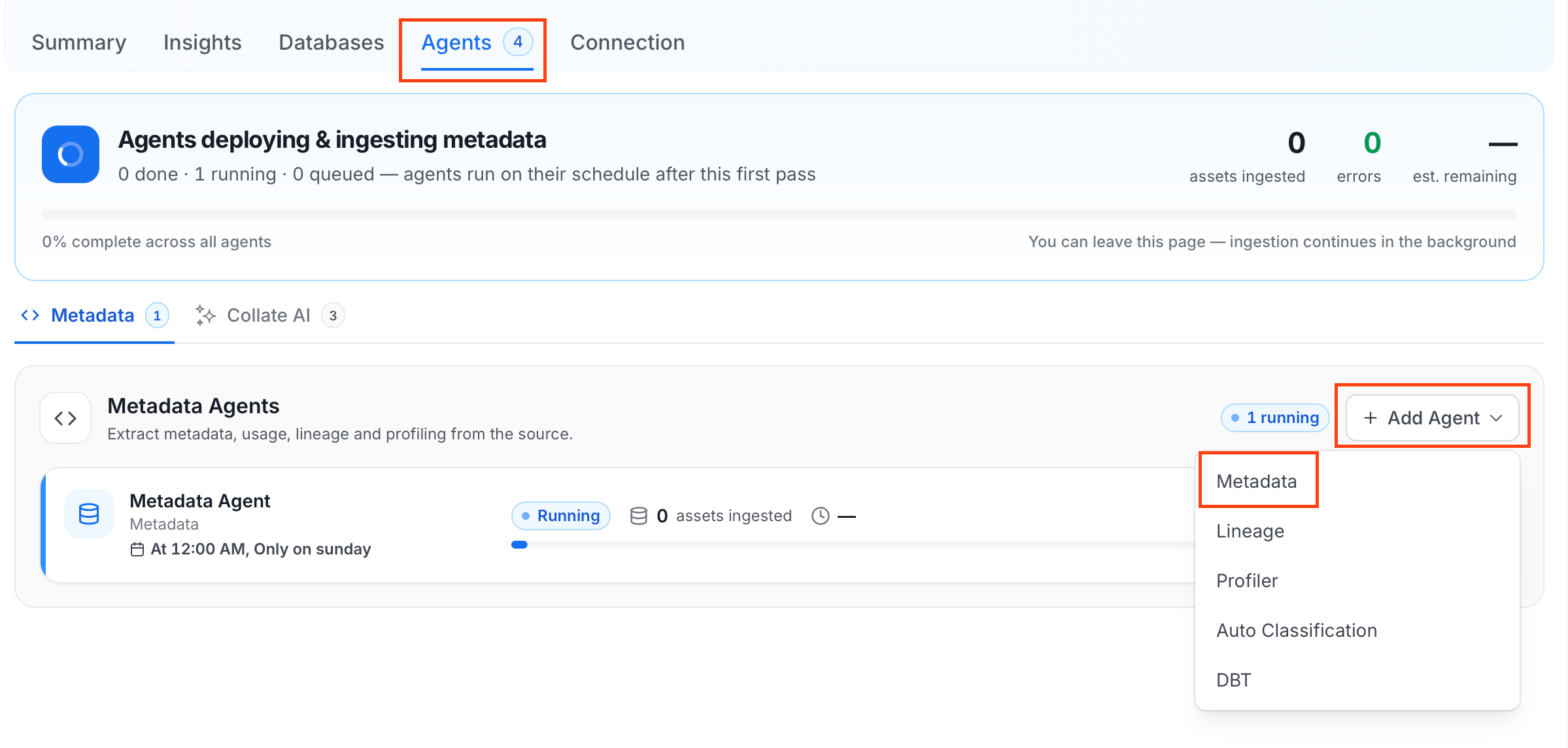
The Metadata Agent extracts databases, schemas, tables, stored procedures, and other structural metadata from your connected data source and keeps your Collate catalog in sync. It powers discovery, lineage, and governance across your data assets. When you click Create & Deploy, Collate automatically deploys a Metadata Agent for this service and triggers the first ingestion run. View its status and run history from the Agents tab on the service detail page. To configure the additional Metadata Agent and schedule ingestion, follow these steps:- In the left navigation, click Connections and select your service.
- Click the Agents tab.
-
Click Add Agent and select Metadata from the dropdown.
-
On the Configure Ingestion page, do the following and click Next.
-
Name this Ingestion: Enter a unique recognizable name for this ingestion pipeline.

-
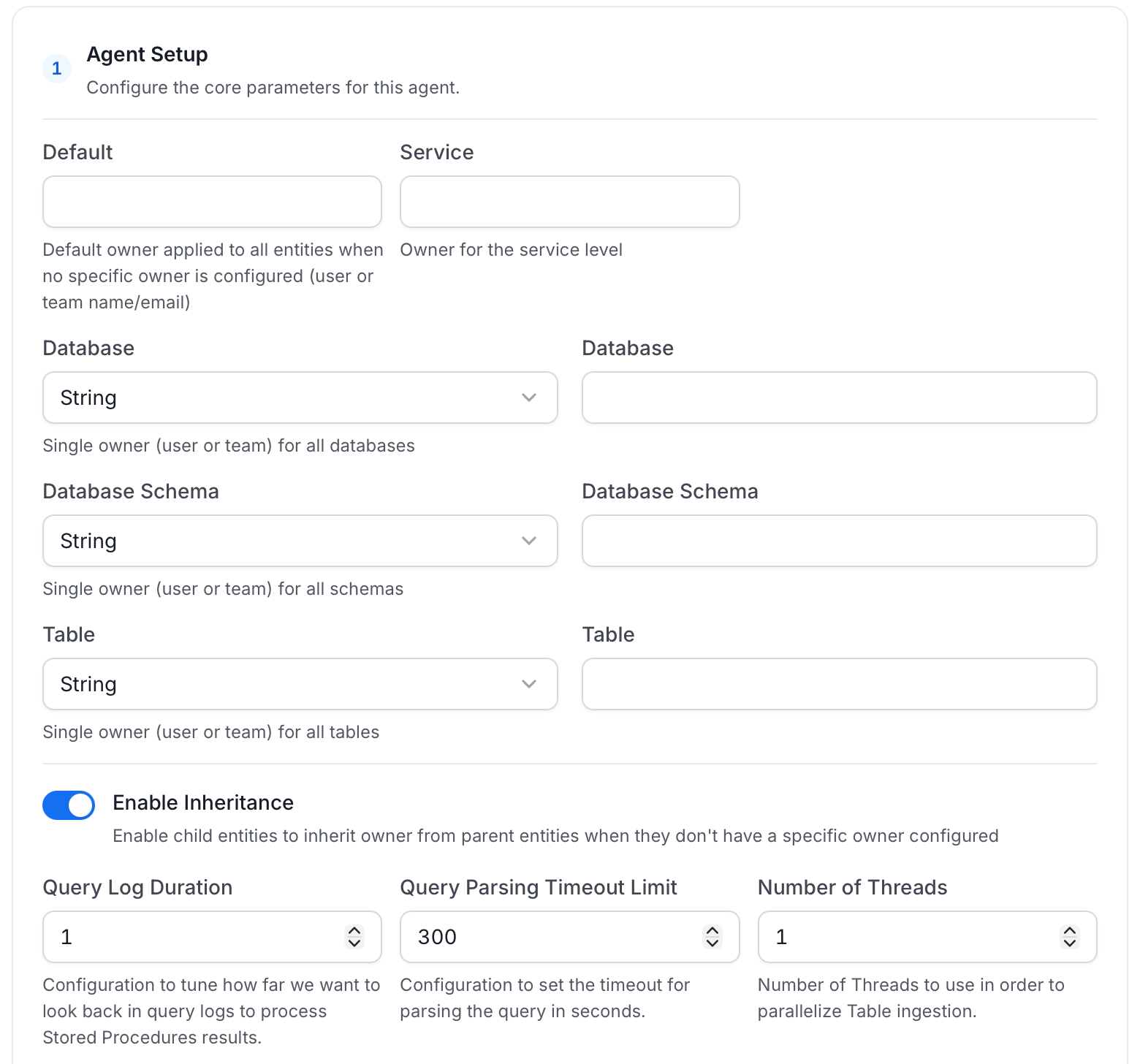
Agent Setup: Configure the core parameters for this agent. The following fields are available:
-
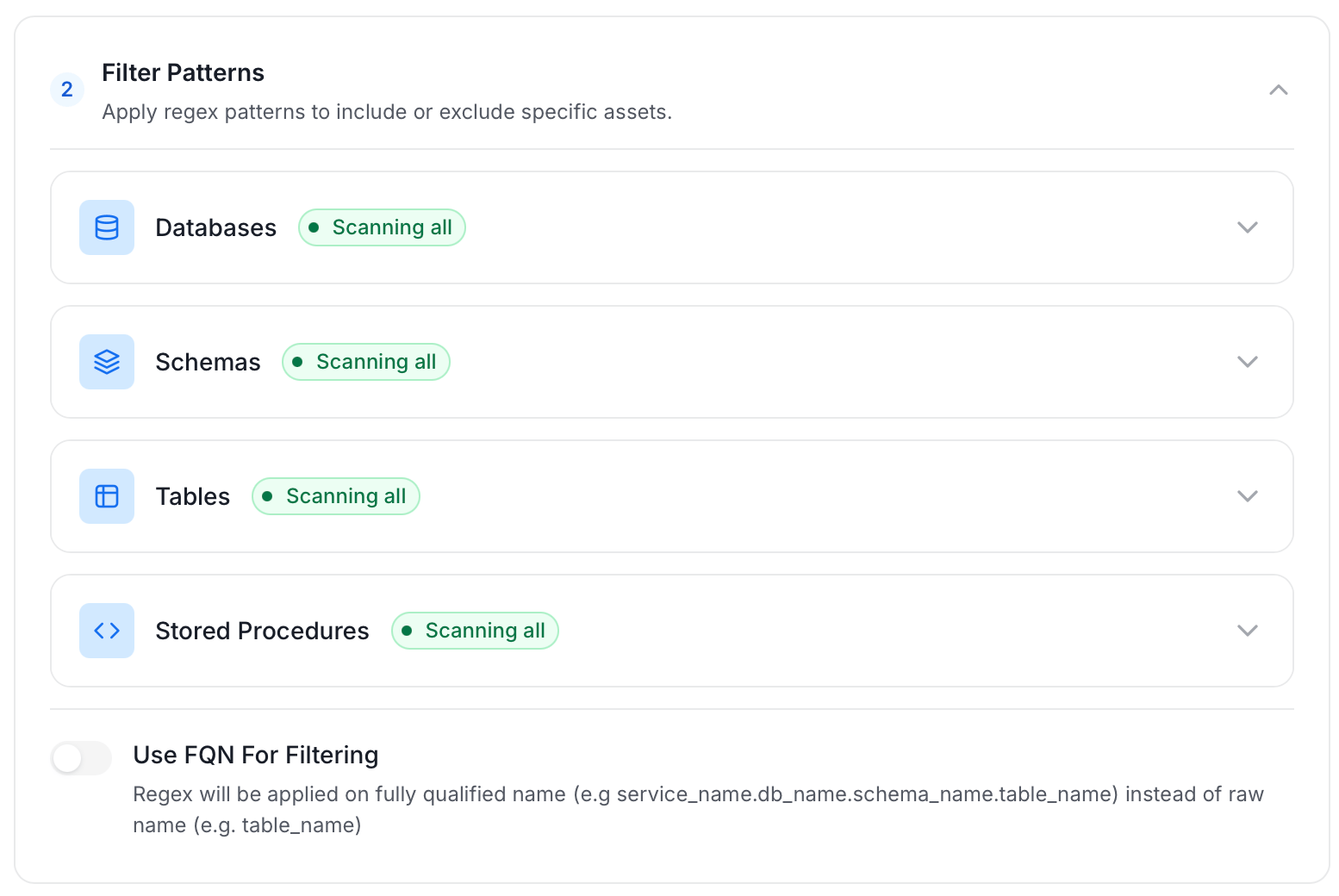
Filter Patterns: Apply include or exclude rules to scope which databases, schemas, tables, and stored procedures this agent ingests. These follow the same filter options described in Step 5.
-
Scope & Behaviour: Control what metadata to include and how to handle deletions. Toggle each option on or off based on your needs:

-
Name this Ingestion: Enter a unique recognizable name for this ingestion pipeline.
-
On the Schedule Interval page, set when the agent runs:
- Schedule: Choose a preset interval (Hourly, Daily, Weekly, Monthly) or enter a custom cron expression.
- On-Demand: No automatic schedule; trigger the agent manually when needed.
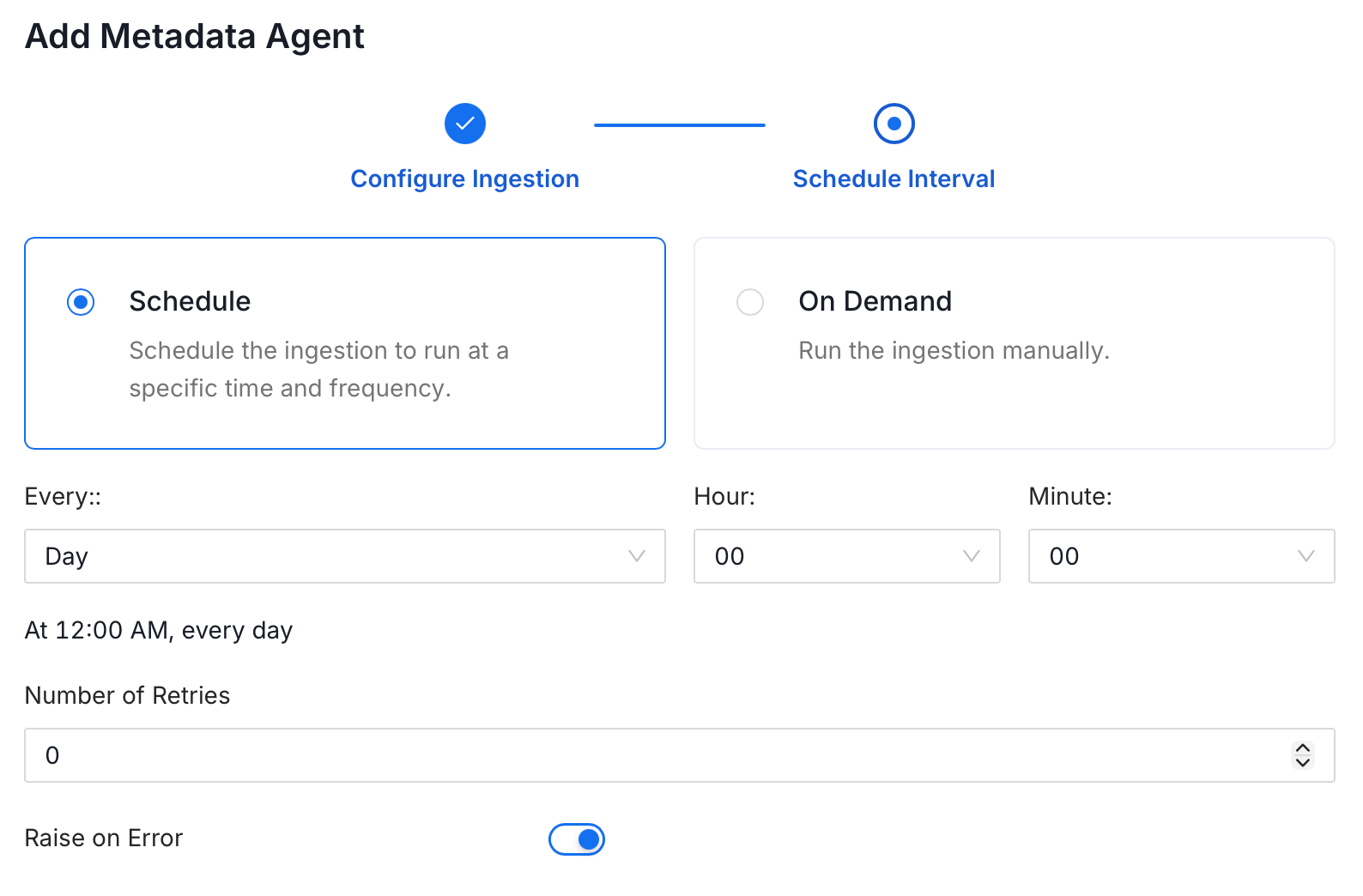
- Click Add to deploy the agent.