
Requirements
To connect to Amundsen, you will need:- Username: A user account with privileges to read metadata from Amundsen
- Password: The password for the user account
- Host and Port: The URI of your Amundsen Neo4j Connection (e.g., bolt://localhost:7687)
Metadata Ingestion
To ingest metadata from Amundsen, you need to create a service connection. The service connects Amundsen with Collate. Once you create a service, Collate automatically starts ingesting metadata.Step 1: Add New Service
Create the service as follows:- In the left navigation, click Connections.
- On the Connections page, click Add New Service.
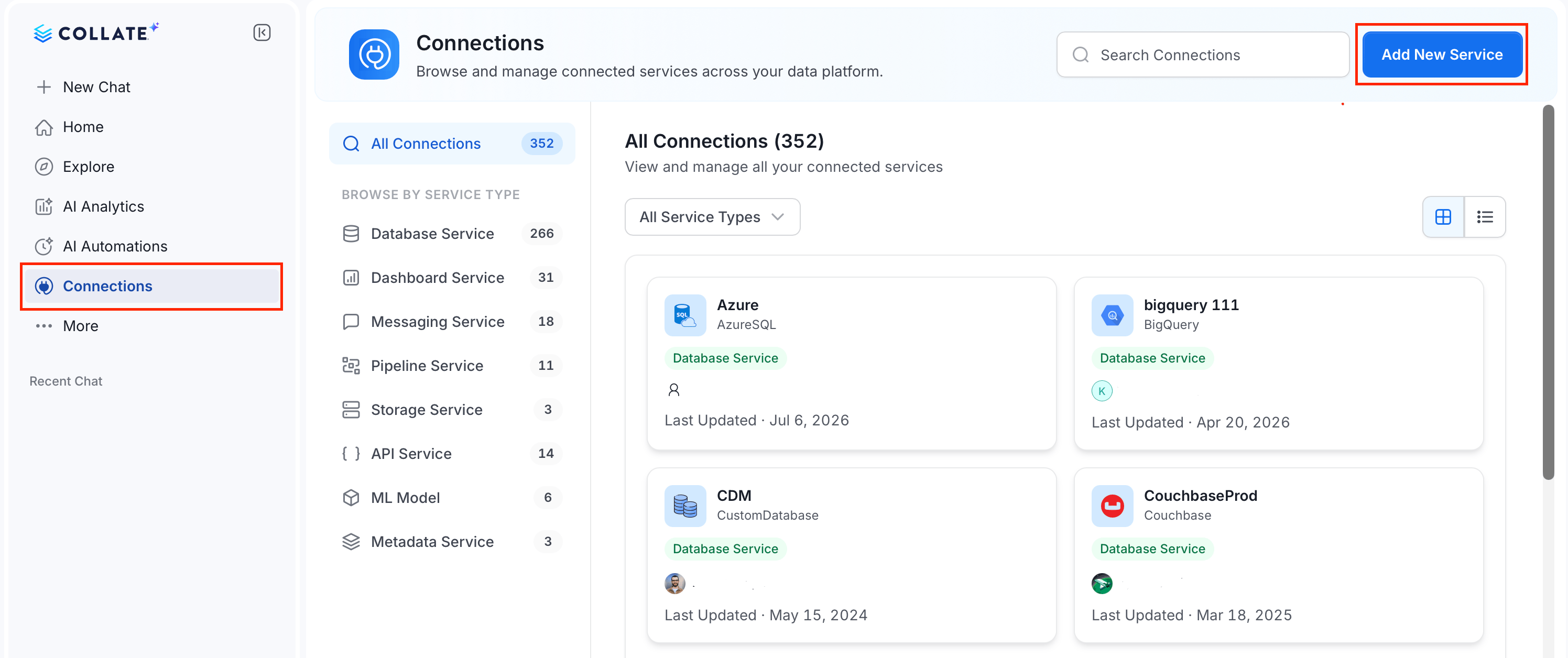
Step 2: Select a Service and Connector
From the service type dropdown, select Metadata Services, then click the Amundsen connector tile.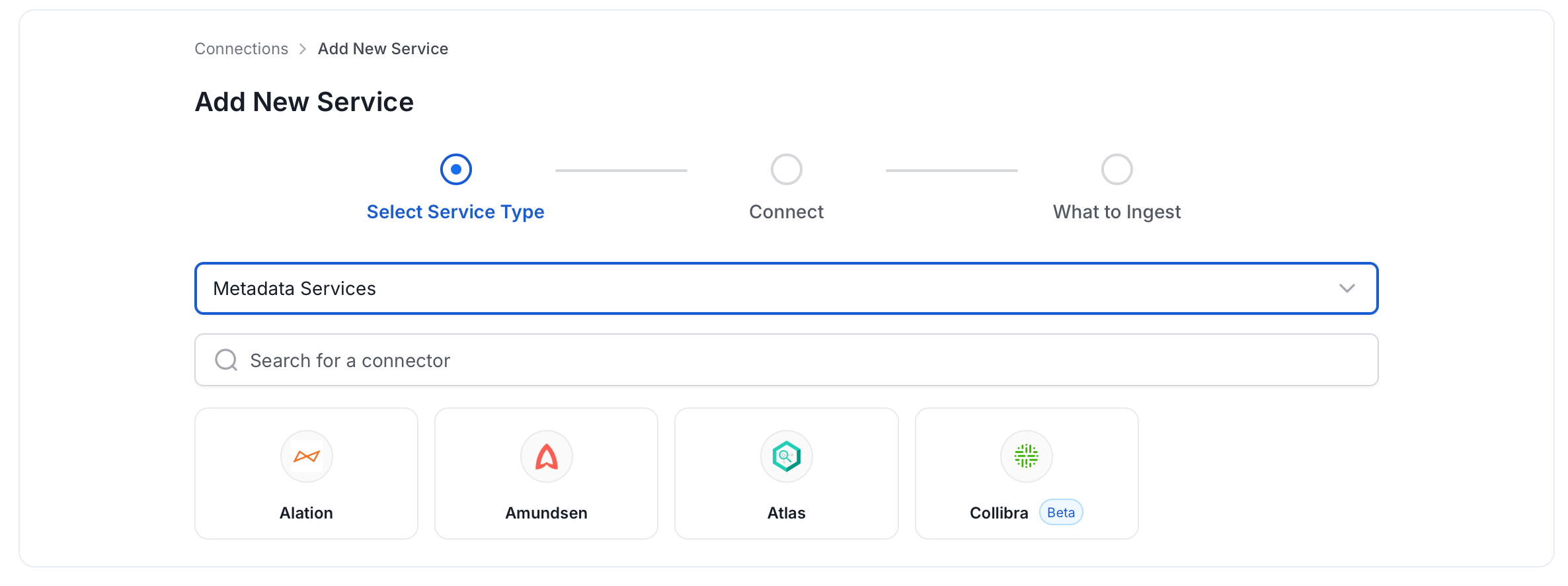
Step 3: Add Service Name and Description
- Enter a unique, descriptive Service Name. Collate identifies services by their service name. Enter a name that distinguishes this deployment from other Amundsen services you are ingesting metadata from.
- Optional: Enter a Description for the service.
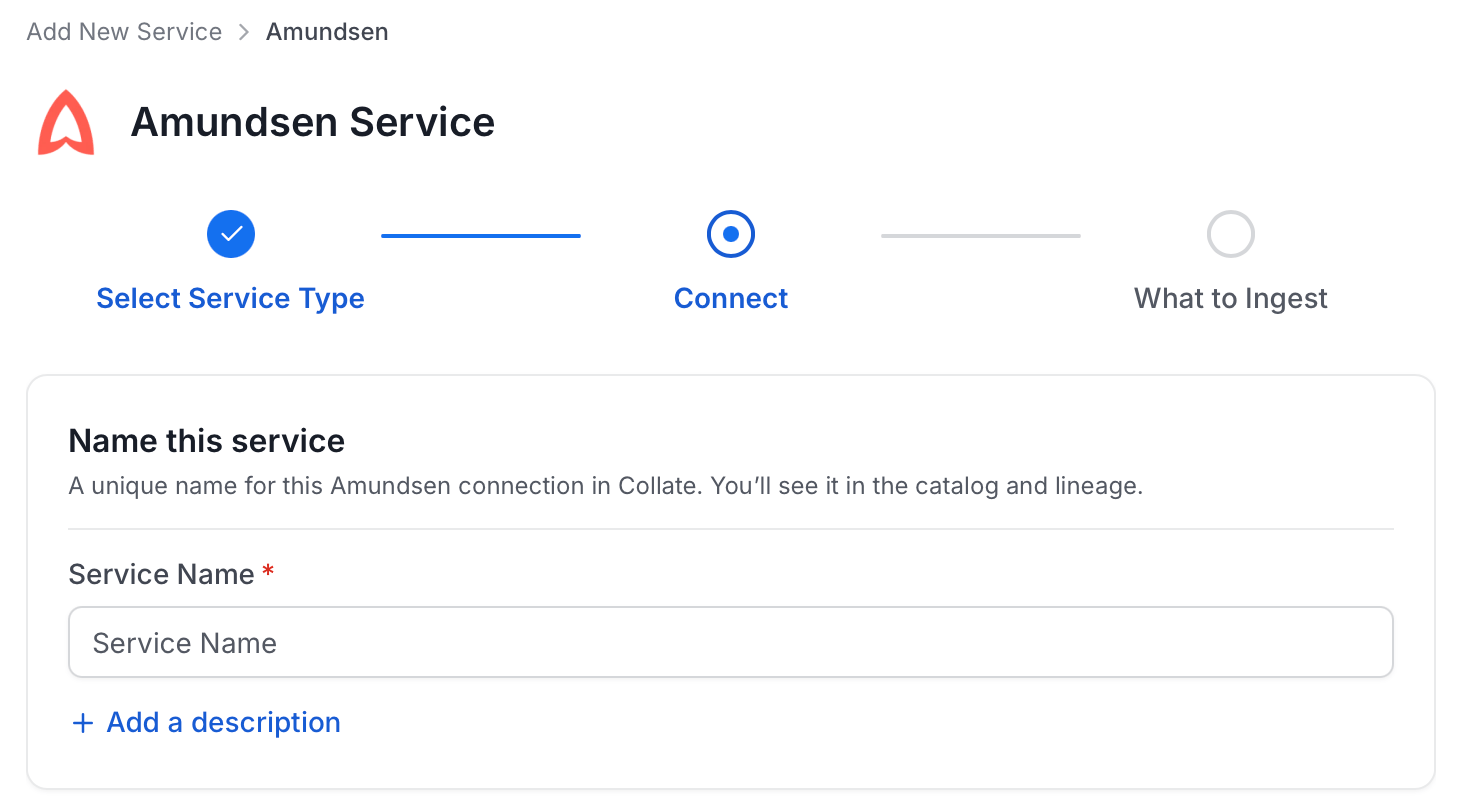
Note: The service name can’t be changed after you set it.
Step 4: Configure Connection Options
Specify where ingestion runs, provide your source credentials, and verify the connection.Select Ingestion Runner
Select an Ingestion Runner: the runner where the ingestion pipeline will execute.
Enter Connection Details
Enter the connection details for Amundsen. The right-hand panel in the UI displays inline help for each field.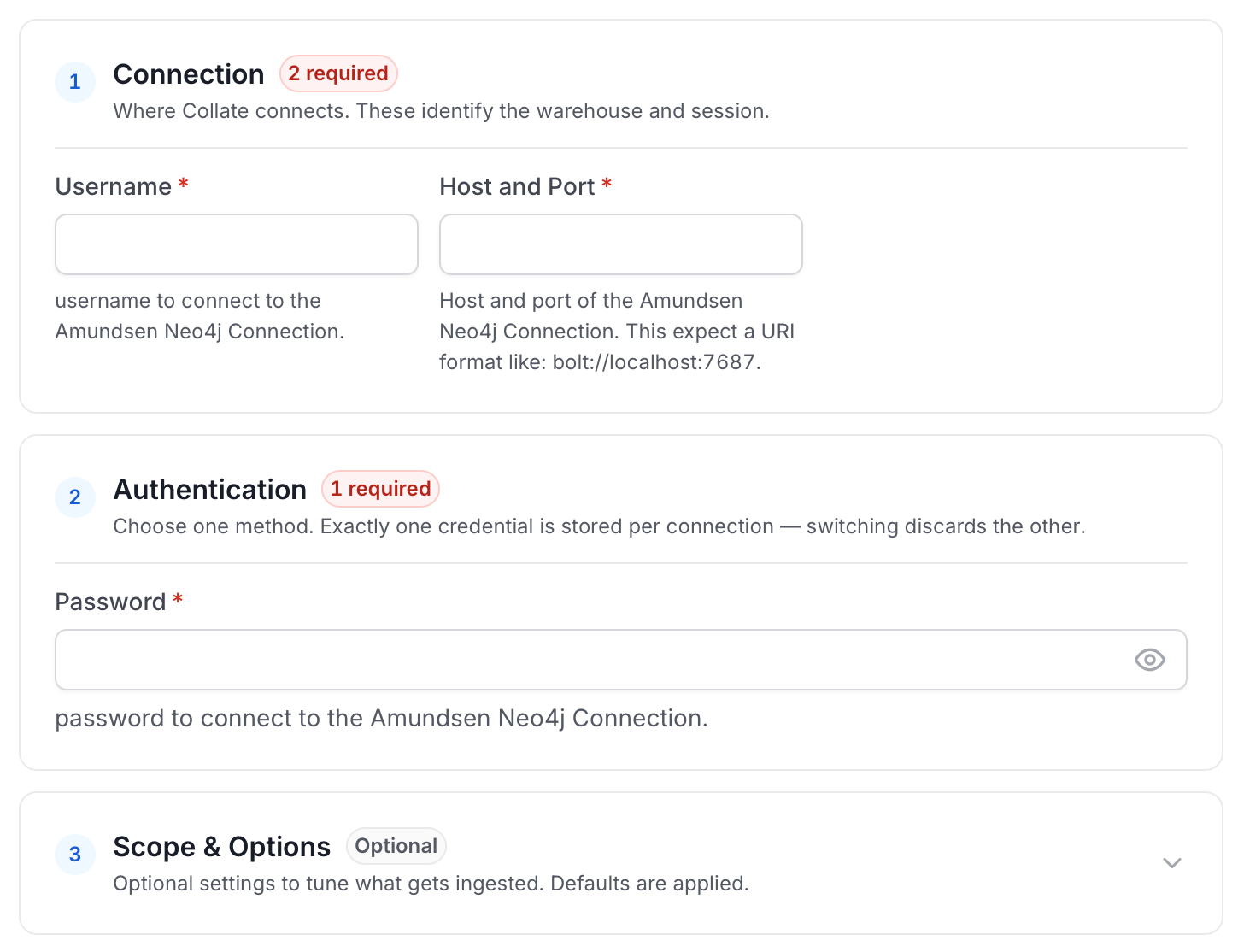
- username: Enter the username of your Amundsen user in the Username field. The specified user should be authorized to read all databases you want to include in the metadata ingestion workflow.
- password: Enter the password for your Amundsen user in the Password field.
- hostPort: Host and port of the Amundsen Neo4j Connection. This expects a URI format like: bolt://localhost:7687.
- maxConnectionLifeTime (optional): Maximum connection lifetime for the Amundsen Neo4j Connection
- validateSSL (optional): Enable SSL validation for the Amundsen Neo4j Connection.
- encrypted (Optional): Enable encryption for the Amundsen Neo4j Connection.
Test Connection
- Click Test Connection to verify the credentials.
- After the test succeeds, click Save.

Step 5: Configure Ingestion Options
In the What to Ingest step, configure the metadata ingestion pipeline settings, then click Create & Deploy. Collate creates the service connection and automatically triggers the first metadata ingestion run. To schedule recurring runs, see the next section. After deployment, you can monitor the ingestion status by navigating to Connections, selecting your service, and viewing the ingestion pipeline.Configure Metadata Agent and Schedule Ingestion
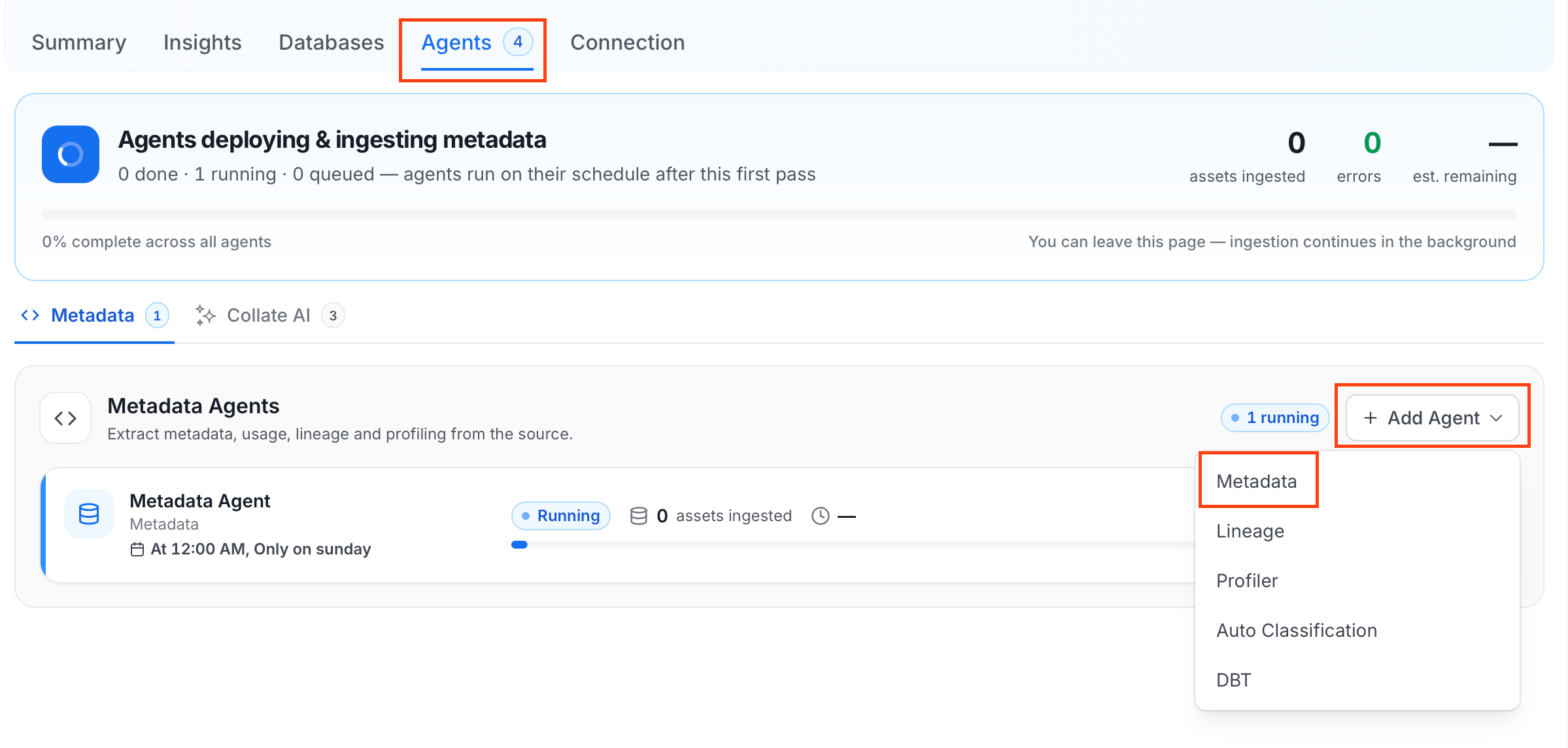
The Metadata Agent extracts databases, schemas, tables, stored procedures, and other structural metadata from your connected data source and keeps your Collate catalog in sync. It powers discovery, lineage, and governance across your data assets. When you click Create & Deploy, Collate automatically deploys a Metadata Agent for this service and triggers the first ingestion run. View its status and run history from the Agents tab on the service detail page. To configure the additional Metadata Agent and schedule ingestion, follow these steps:- In the left navigation, click Connections and select your service.
- Click the Agents tab.
-
Click Add Agent and select Metadata from the dropdown.
-
On the Configure Ingestion page, do the following and click Next.
-
Name this Ingestion: Enter a unique, recognizable name for this ingestion pipeline.

-
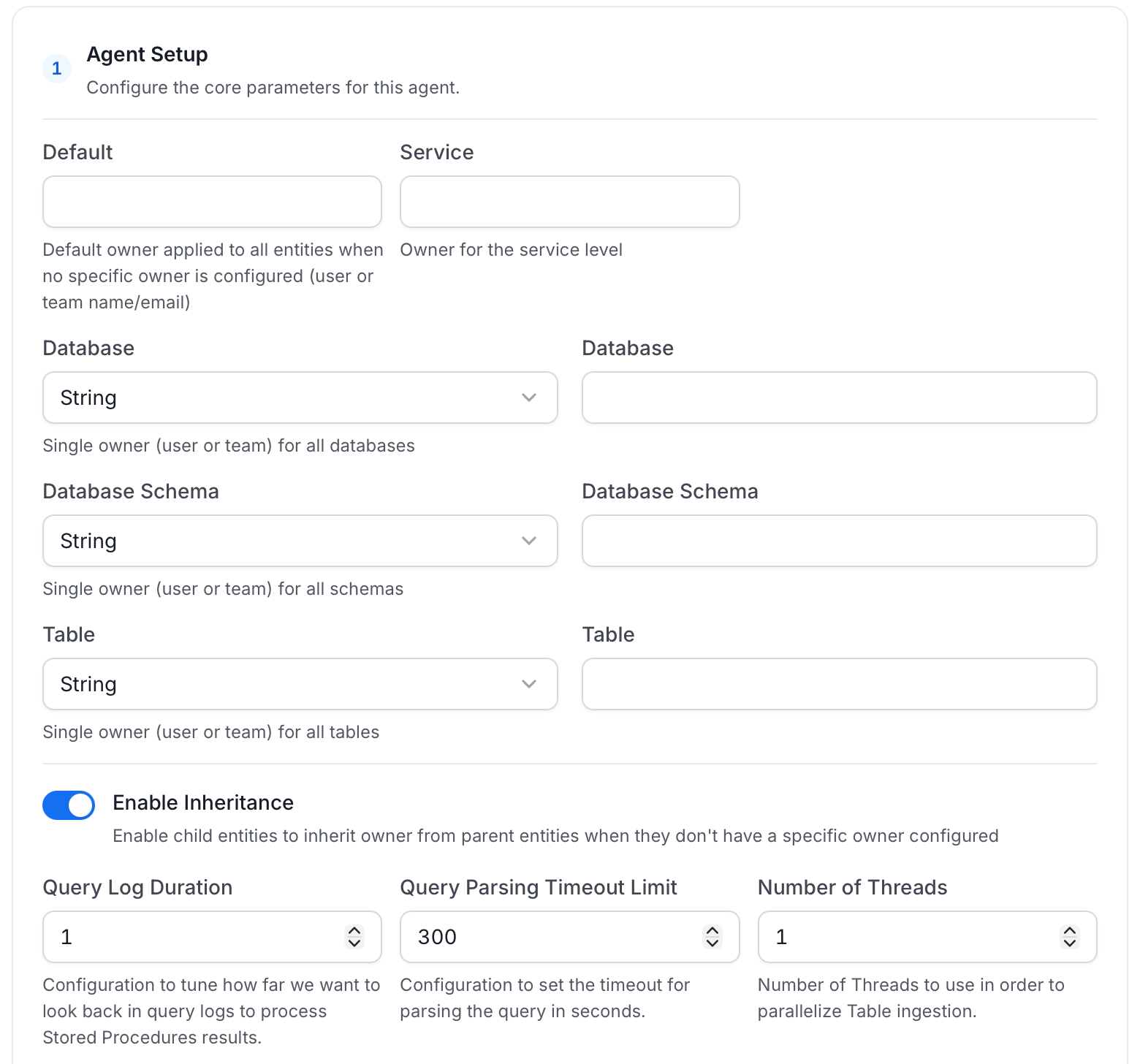
Agent Setup: Configure the core parameters for this agent. The following fields are available:
-
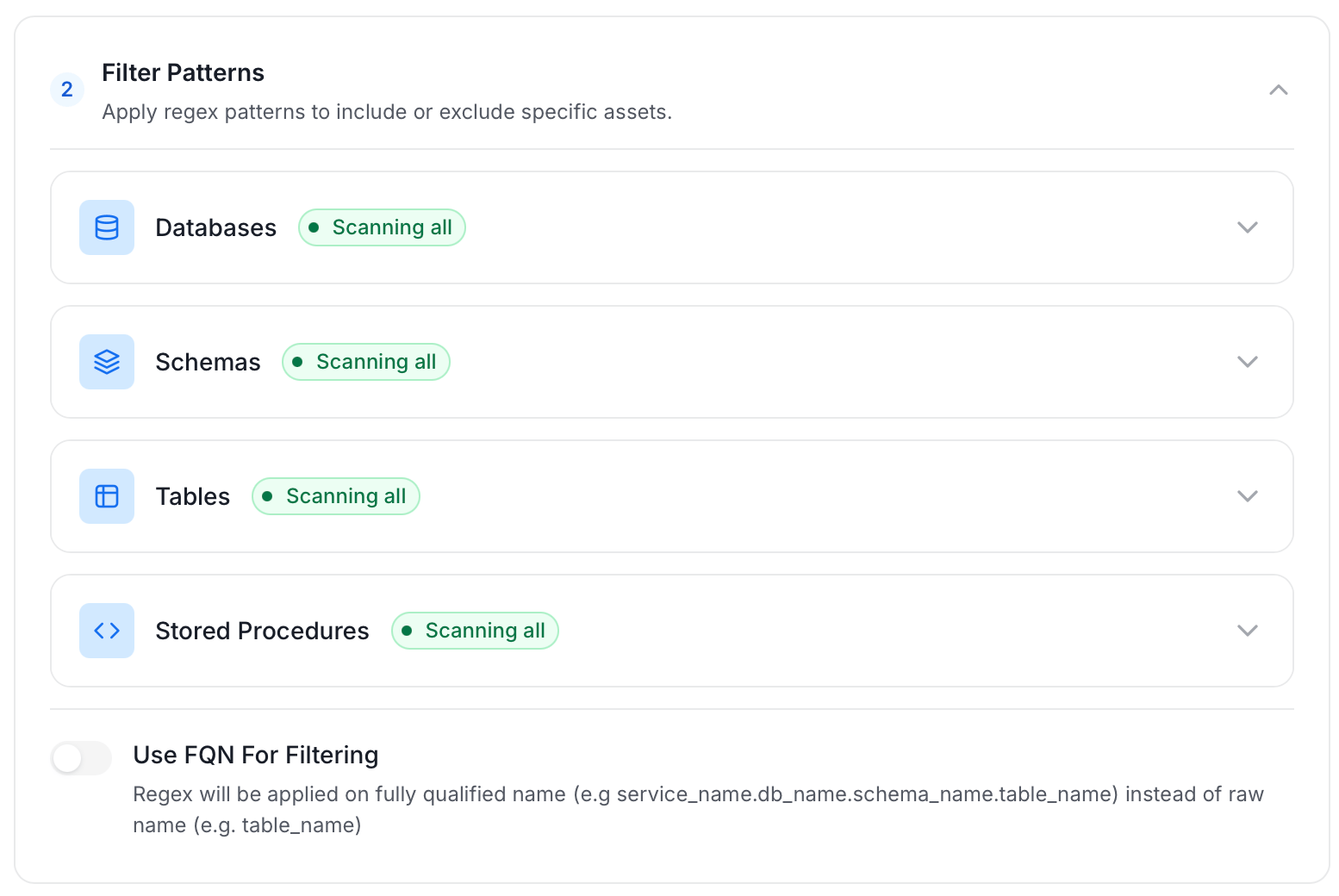
Filter Patterns: Apply include or exclude rules to scope which databases, schemas, tables, and stored procedures this agent ingests. These follow the same filter options described in Step 5.
-
Scope & Behaviour: Control what metadata to include and how to handle deletions. Toggle each option on or off based on your needs:

-
Name this Ingestion: Enter a unique, recognizable name for this ingestion pipeline.
-
On the Schedule Interval page, set when the agent runs:
- Schedule: Choose a preset interval (Hourly, Daily, Weekly, Monthly) or enter a custom cron expression.
- On-Demand: No automatic schedule; trigger the agent manually when needed.
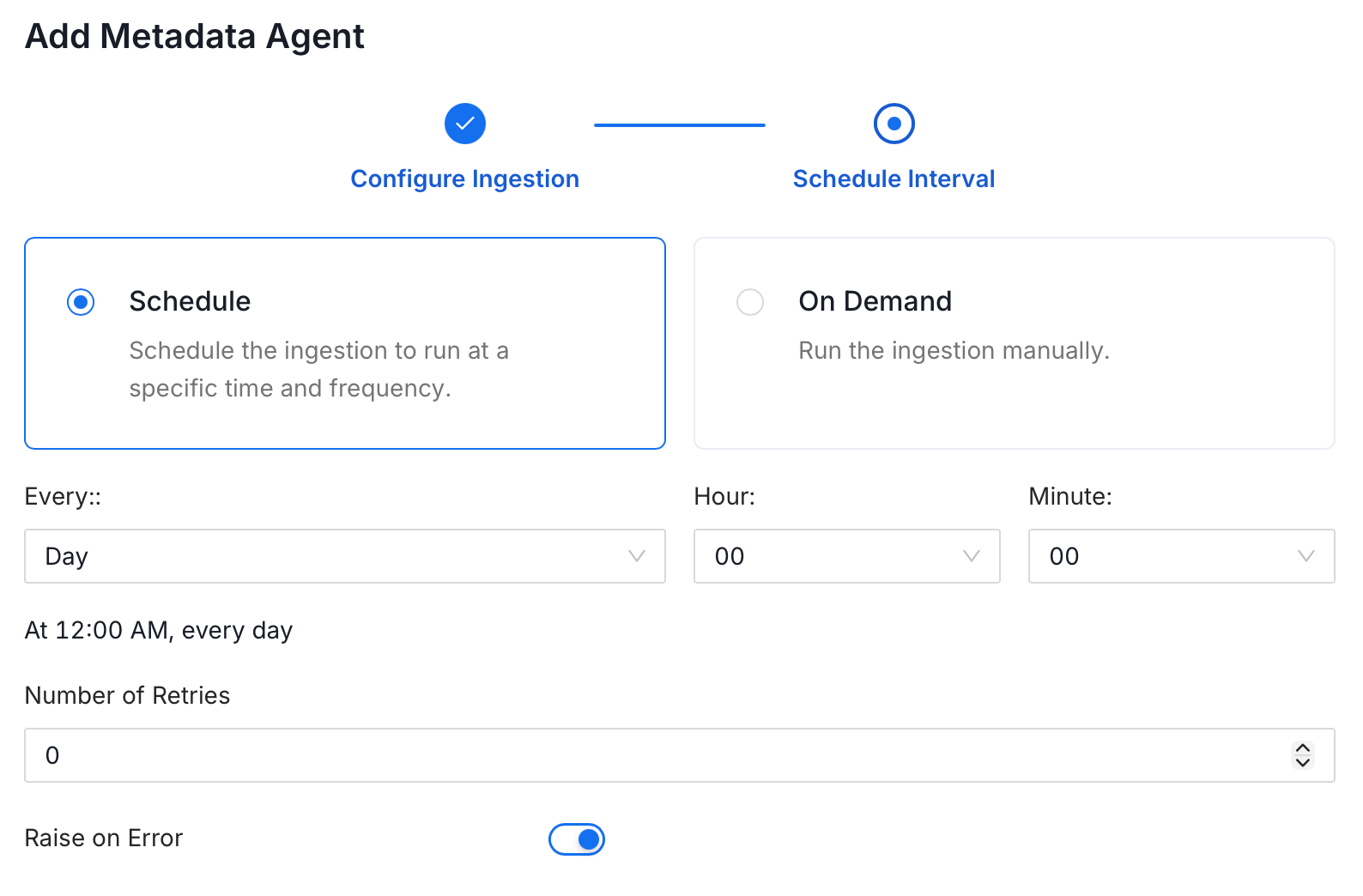
- Click Add to deploy the agent.
Troubleshooting
Amundsen Troubleshooting
Learn more about how to troubleshoot common Amundsen connector issues and resolve configuration or ingestion errors.