
AI Mode
Collate 2.0 introduces AI Mode: a second, AI-native interface for the whole platform. Classic Mode is the Collate you already know: the catalog-first navigation with Explore, Govern, Observability and Settings. AI Mode puts an assistant at the centre and rebuilds the same estate around conversation, agents and automations. Both modes run against the same data, the same permissions and the same APIs. Switching modes changes the interface, never the content or what you are allowed to see.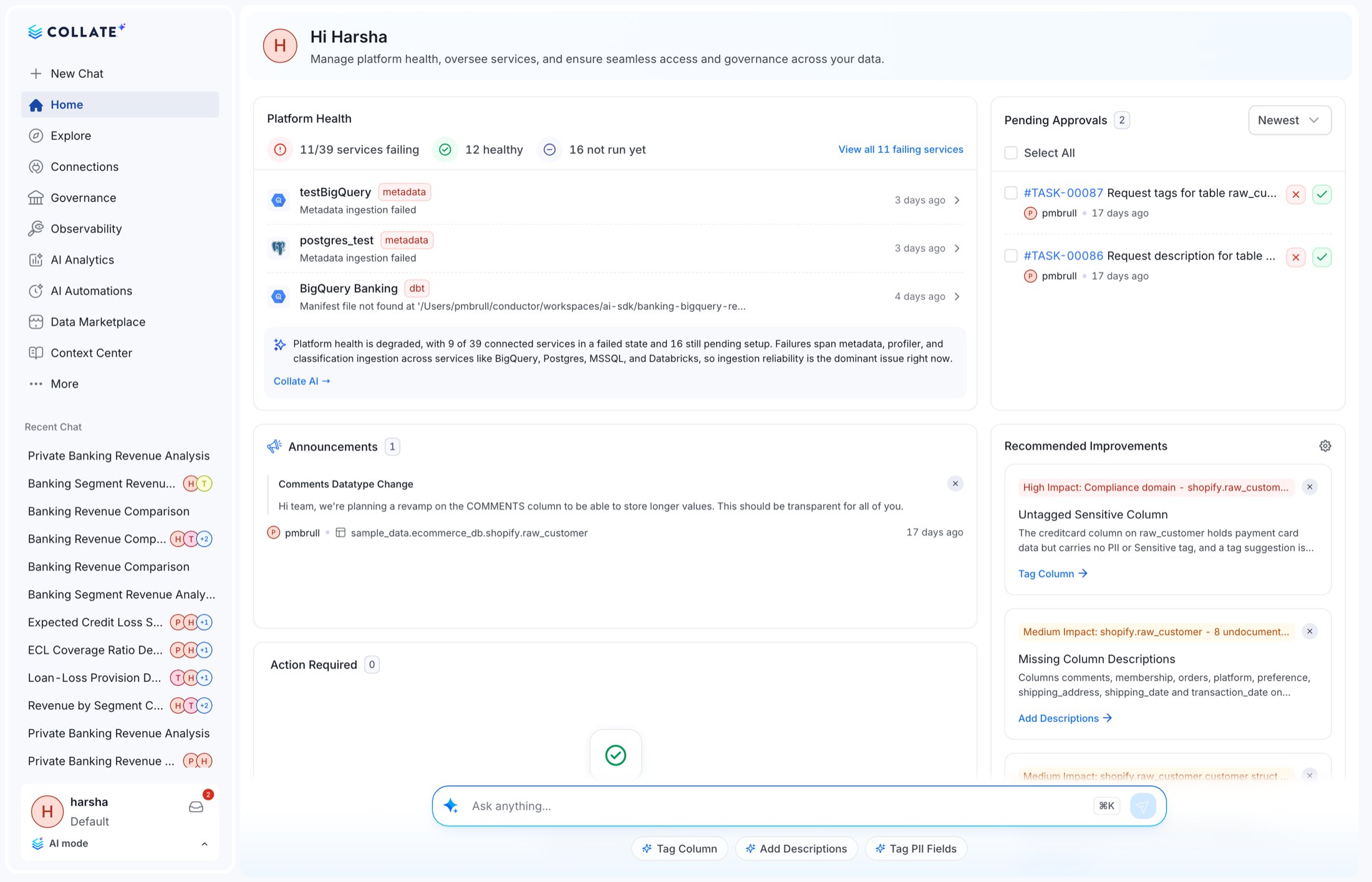
What is in AI Mode
The AI sidebar is the entry point to every module in the mode. Every item is a full module, not a shortcut.
Two things sit outside the sidebar and are worth knowing:
Cmd/Ctrl+Kopens the Ask box from anywhere in AI Mode.- The prompt input carries persona-aware suggestions and quick actions such as Tag Column, Add Descriptions and Tag PII Fields.
How to turn AI Mode on
Three levers control this. They resolve in a strict order, highest priority first:1
Per user: the interface switcher
Any user can switch themselves, at any time, from the profile card at the bottom of the sidebar
(AI Mode) or from the profile dropdown in the navbar (Classic Mode).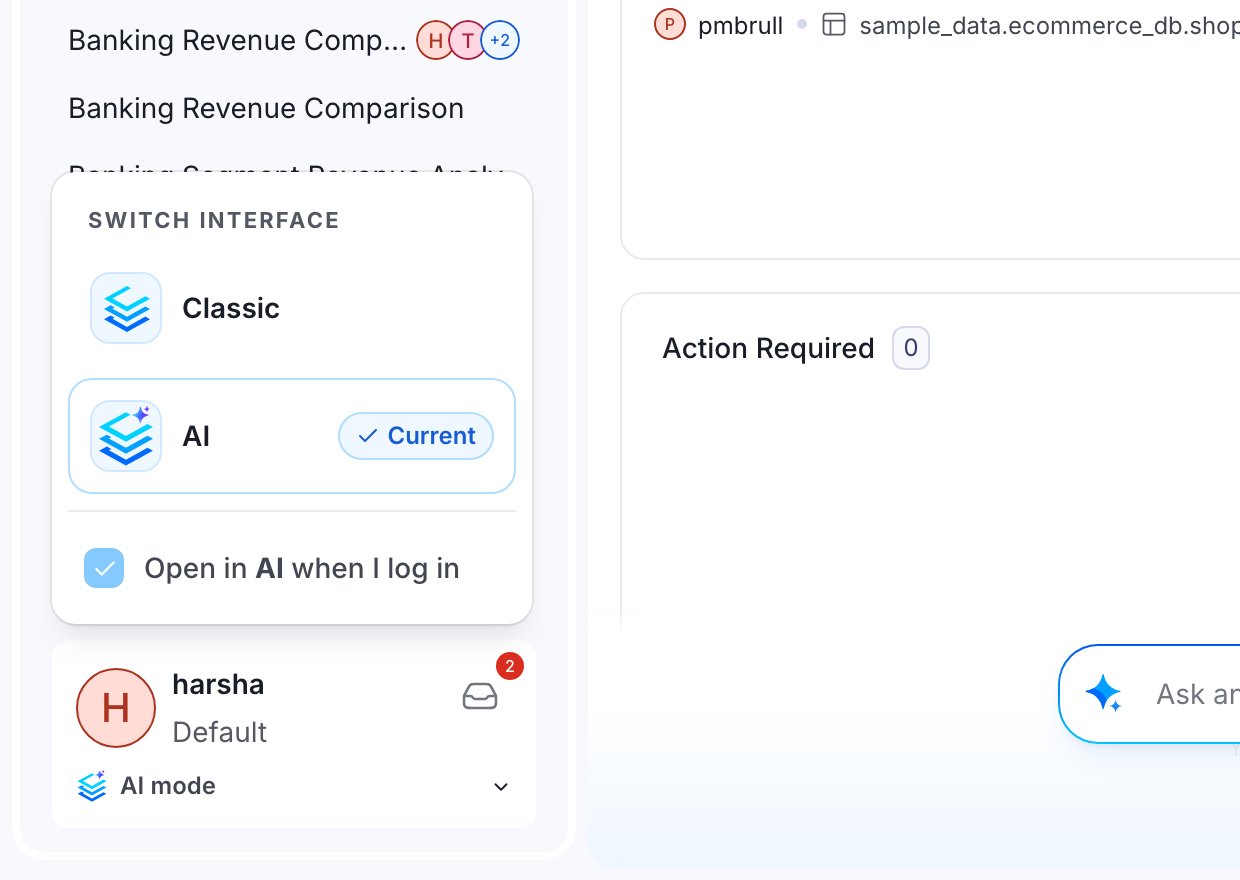
- Classic / AI switches the current session immediately.
- Open in AI when I log in persists the choice. This is the per-user preference and it wins over everything else.
2
Per persona: force a mode on login
A persona can pin the interface for everyone assigned to it. Set
appMode on the persona to
AI or classic (default classic).Use this to roll AI Mode out to a pilot group (for example a Data Analyst persona) without
touching anyone else. A user’s own preference still overrides the persona.3
Per tenant: set a default for new users
Admins can set a tenant-wide default under Settings > Preferences > App Mode. Three options:
The same value can be seeded at first boot with
APP_DEFAULT_MODE=ai (or classic) in
openmetadata.yaml. After first boot the database row wins and the YAML value is ignored. The
setting is admin-mutable at runtime.The switcher only appears when the AI application is installed. On a deployment without it, users
stay in Classic Mode and the toggle is hidden rather than shown in a broken state. It is also hidden in the
Collate desktop app, which manages its own shell.
Recommended rollout
Evaluating 2.0
Evaluating 2.0
Leave the tenant default at No default. Switch yourself with the interface switcher and tick
Open in AI when I log in. Nobody else is affected.
Piloting with a team
Piloting with a team
Create or reuse a persona for the pilot group and set its
appMode to AI. Members land in AI
Mode on login, and any individual can still switch back to Classic for themselves.Rolling out to everyone
Rolling out to everyone
Set Settings > Preferences > App Mode to AI. Existing users who have already expressed a
preference keep it. The tenant default only decides for users who haven’t chosen.
AI Mode URLs changed
Legacy
/askCollate/* links are redirected, but anything that parses or constructs those paths
(bookmarks in a team wiki, deep links in a Slack workflow, browser extensions) should be updated.
AI Mode also no longer auto-engages from a URL. In 1.13, visiting certain paths would silently
flip you into the AI experience. In 2.0 the mode is explicit: it comes from your preference, your
persona or the tenant default, and navigating to an AI-only route while in Classic Mode doesn’t
change it.
What this means for existing users
Nobody is moved automatically. The 2.0 upgrade doesn’t set anyone’s app mode. Every user stays
in Classic Mode until they switch, are assigned a persona that pins AI, or an admin sets the tenant
default.
- Training and screenshots: if you maintain internal enablement material, it now needs to cover two interfaces, or state which one your organisation standardises on.
- Support: “where is X” questions now depend on the user’s mode. The mode is visible on the profile card, so ask for that first.
- Automation: nothing changes. Both modes call the same REST APIs. App mode is purely a UI concern and is never sent to the server as part of a data request.
Related
AI Agents & Automations
The agent apps are gone. What replaced them and what you must do after upgrading.
Collate AI & Credits
Conversation sharing, collaborators, and the reworked credit model.
Discovery & Search
The redesigned Explore experience, shared by both modes.
All breaking changes
The full 1.13 → 2.0 breakdown, component by component.