
Prerequisites
Your team must include individuals with strong expertise in Kubernetes and your chosen cloud provider. Before deploying the Collate AI Proxy, ensure you have the following requirements in place.Required software
Kubernetes cluster
A running Kubernetes cluster, version1.19 or later.
Verify your cluster version with:
Helm 3
The Helm package manager for Kubernetes. Download from the Helm installation guide. Verify the installation:kubectl
The Kubernetes command-line tool. Download from the kubectl installation guide. Verify the installation:Existing Collate installation
An existing Collate deployment must already be running in your cluster.- CAIP communicates with the Collate server over gRPC.
- Any communication from CAIP to Collate uses the user’s PAT to authenticate to Collate. This means CAIP agents only have as many permissions as the user, thanks to RBAC integration.
- CAIP provides the backend for applications such as Collate AI, Documentation Agent, Tier Agent, and DQ Generation Agent.
- Identify the service account used by the Collate server, since it will be needed for the Collate AI Proxy installation.
Required access
- Docker images: Since you already have a Collate installation in place, use the same image-pulling strategy for the Collate AI Proxy Docker images. You can reuse the same credentials, whether you are pulling the images from Collate’s ECR or from your own container registry.
- Kubernetes access: Permissions to create and manage resources in your cluster.
<collate-namespace> with the namespace where Collate is deployed:
- LLM provider credentials: Depending on your chosen LLM provider, such as AWS Bedrock, OpenAI, Anthropic, Google, or Ollama.
- AWS Bedrock: AWS access key ID and secret access key, or an IAM role with Bedrock permissions, plus an active Anthropic model subscription.
- OpenAI: OpenAI API key.
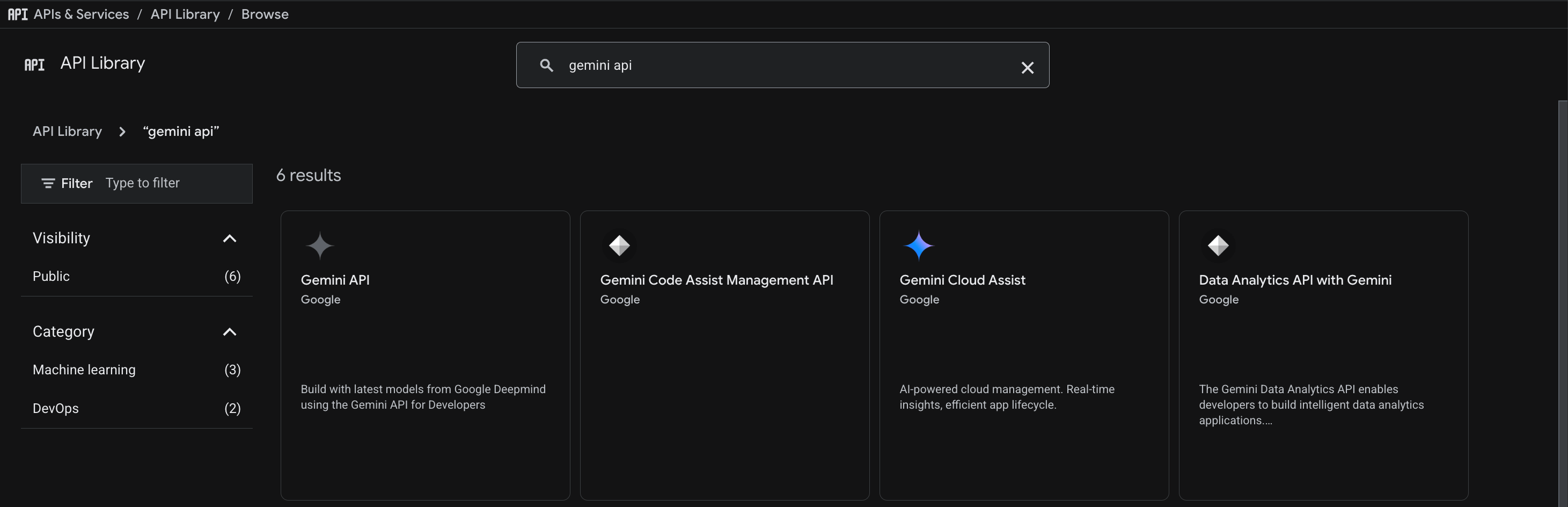
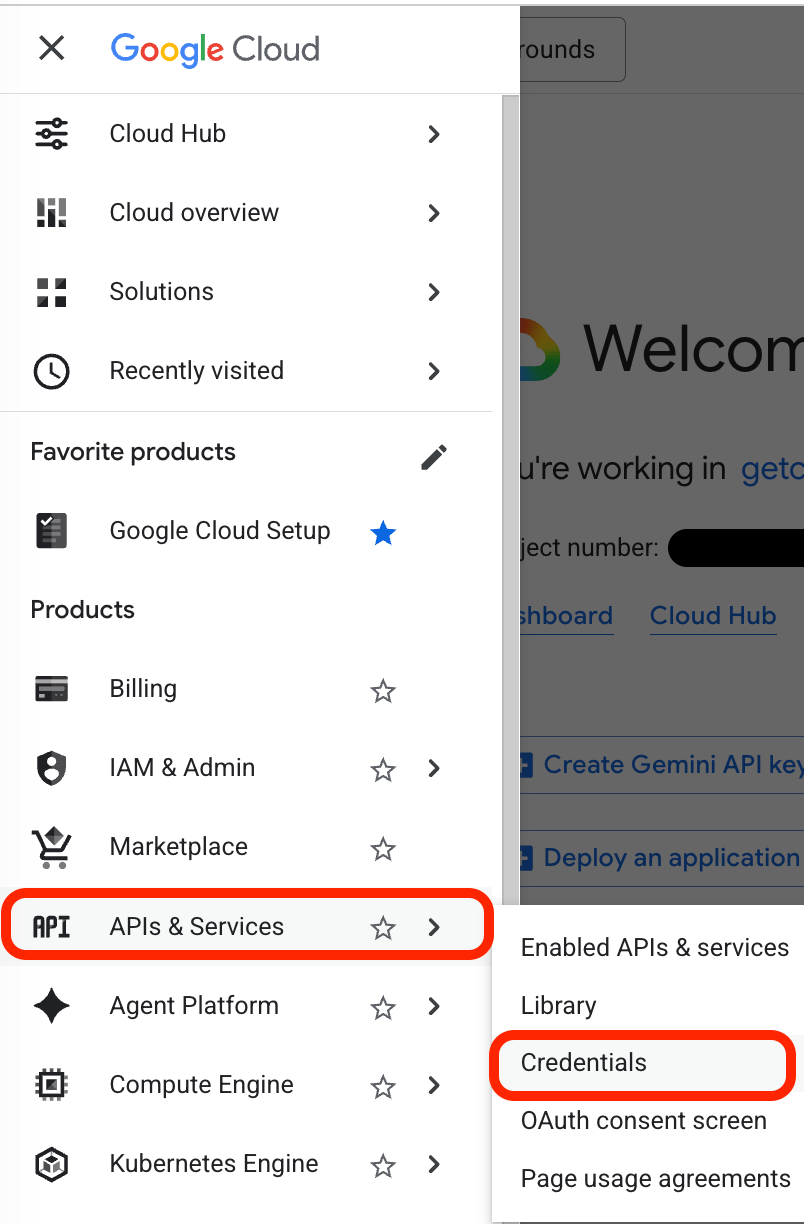
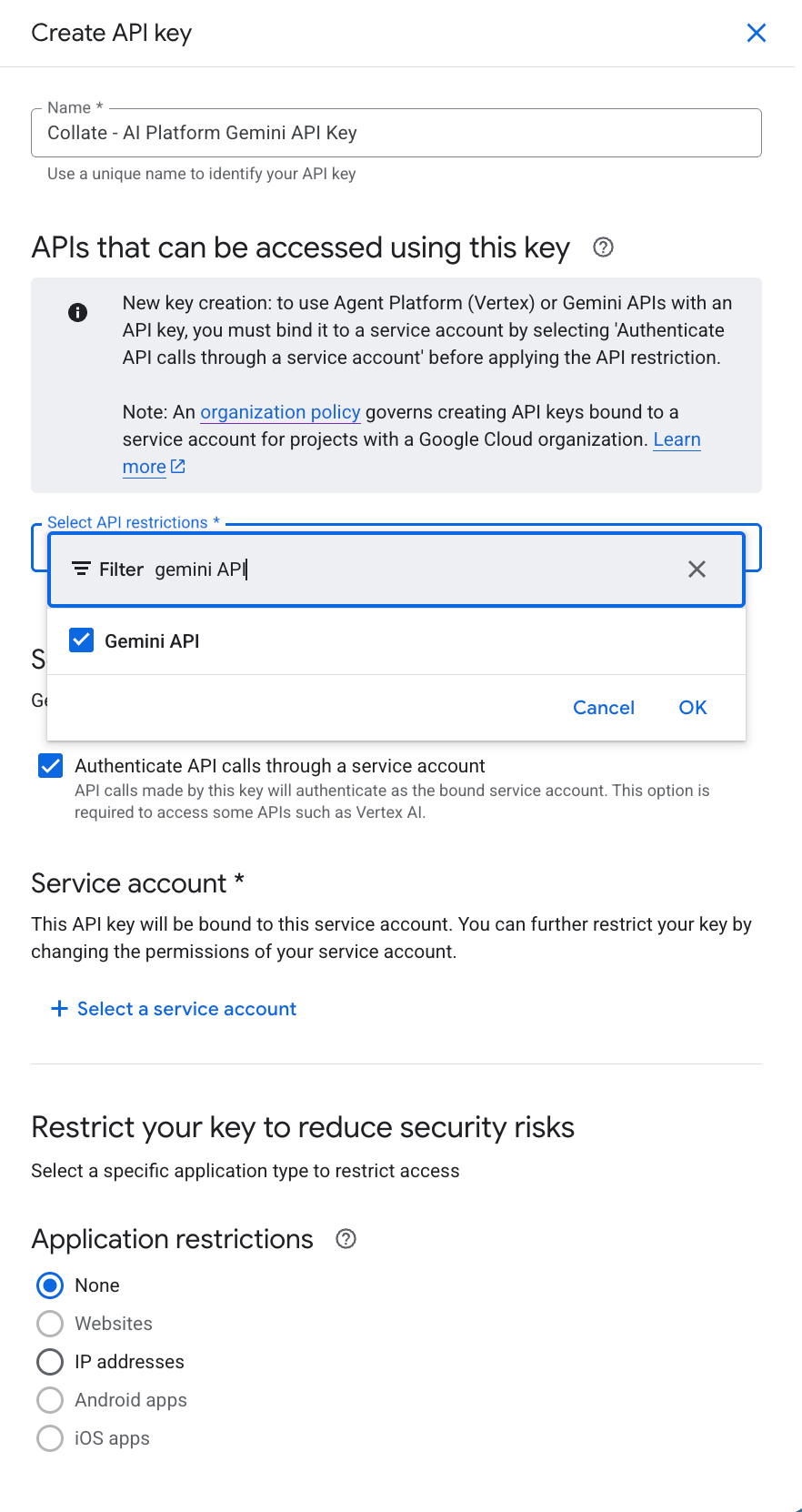
- Google Gemini: Google Generative AI API key for the GCP project that will be used by your GKE deployment.
Hardware requirements
The Collate AI Proxy pod requires at least the following resources:- CPU:
300m - Memory:
2Gi - Storage: No persistent storage required; the service is stateless.
Provider setup
Use the following provider-specific setup guidance before deployment.- AWS
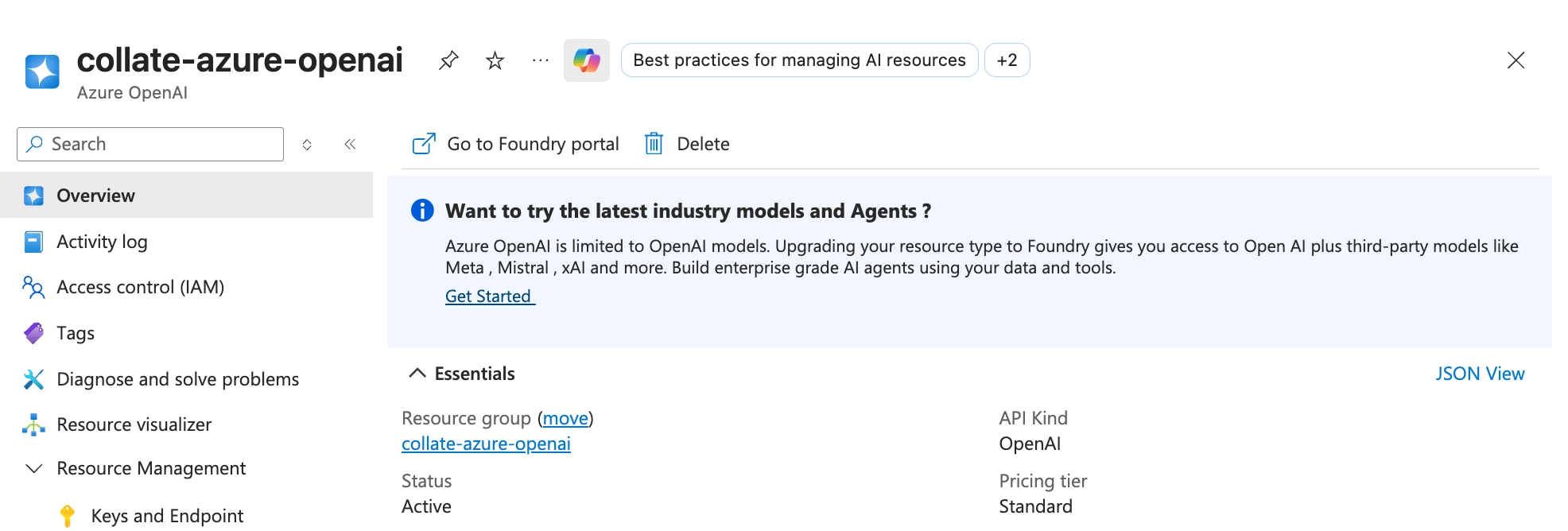
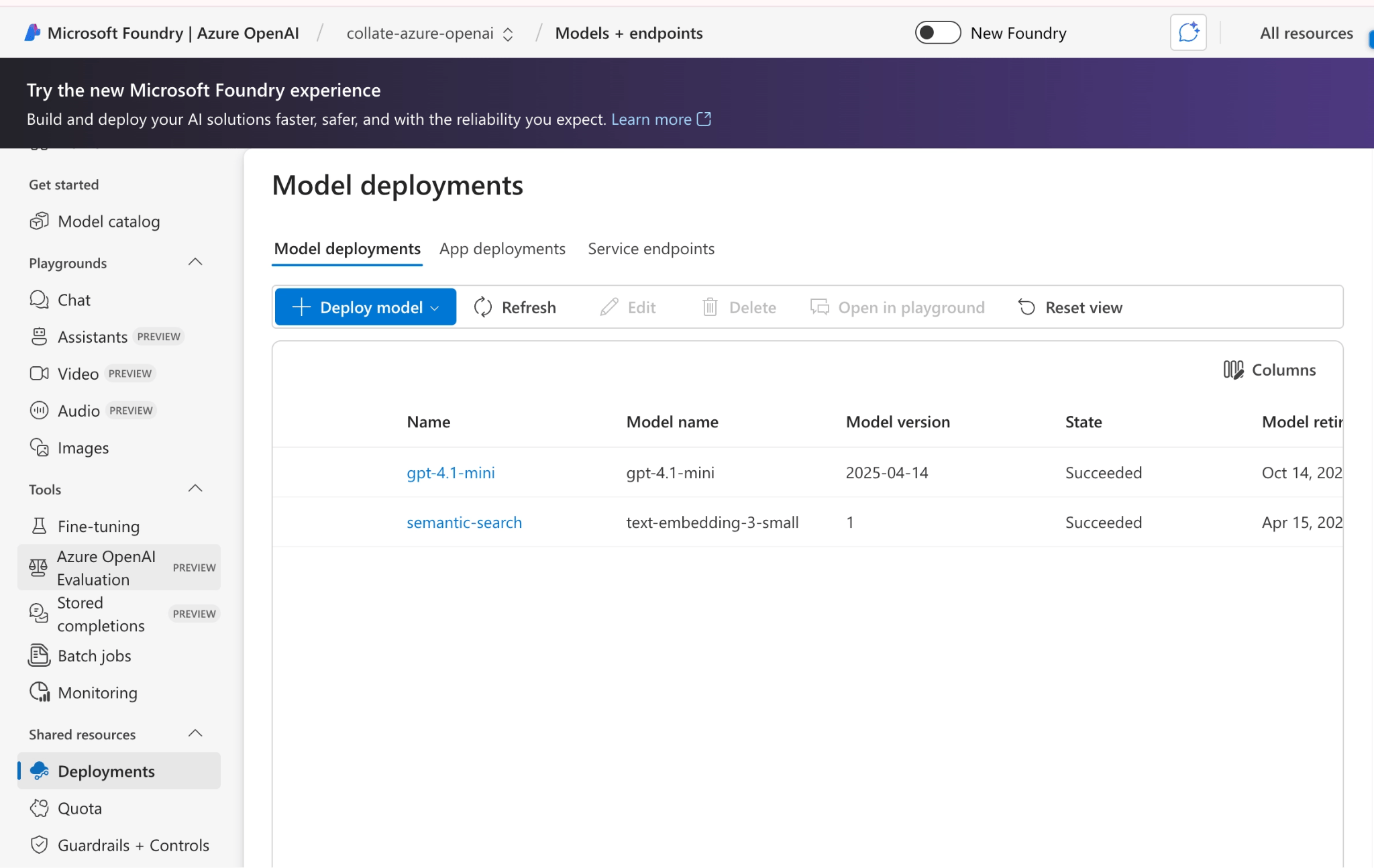
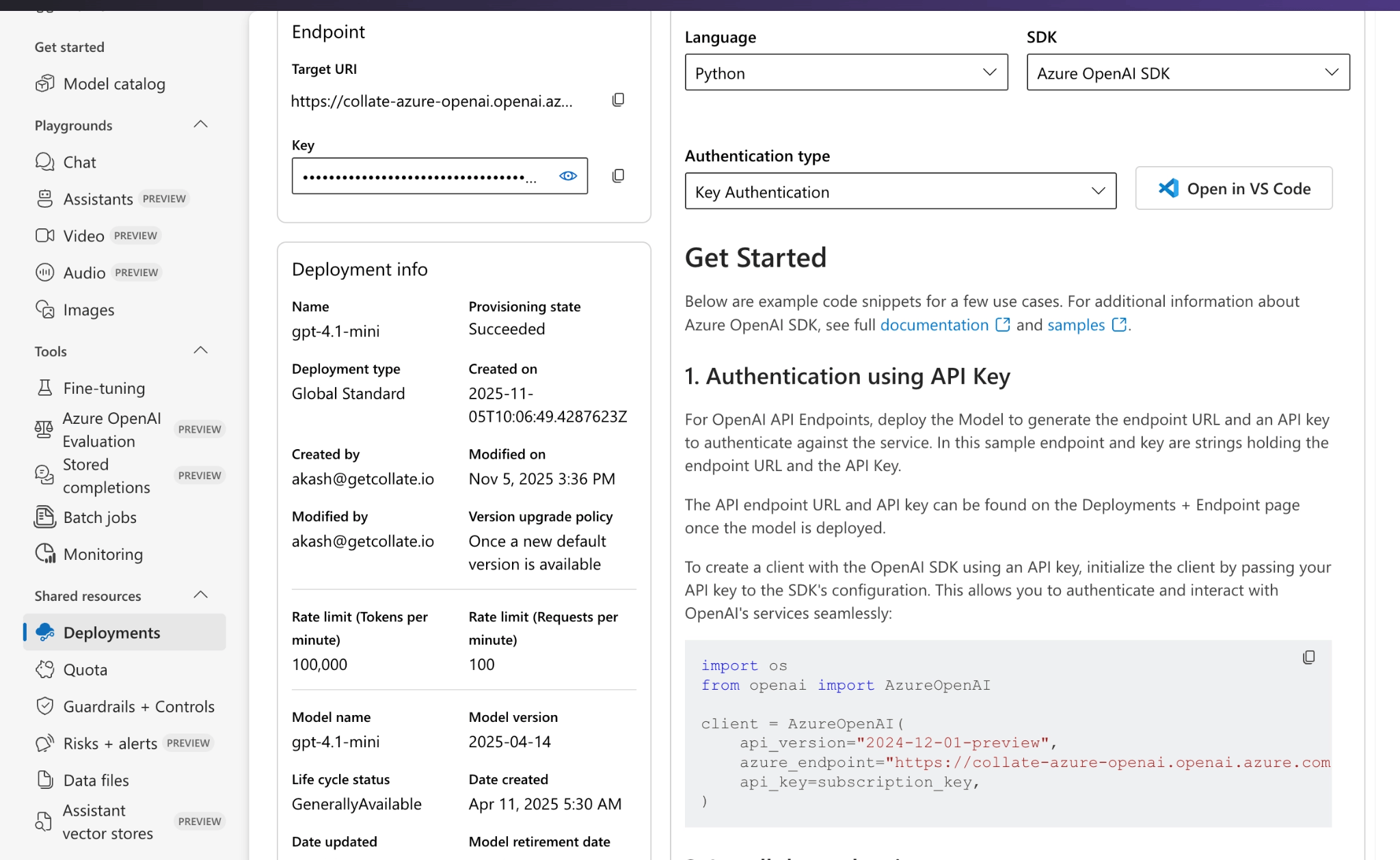
- Azure
- GCP
Set up Amazon Bedrock
- Sign in to the AWS console and open Amazon Bedrock in a supported commercial region.
- Ensure the IAM role or user used for setup has the required AWS Marketplace permissions to enable third-party models.
- Confirm that your AWS account has a valid payment method configured for AWS Marketplace purchases.
- Open the model catalog in Amazon Bedrock and select the model you want to use.
- For Anthropic models, complete the first-time use case form the first time you enable them in the account.
- If your team prefers explicit approval before first use, review the model license terms and control access with IAM or SCP policies before invoking the model.
Bedrock access notes
- Access to foundation models is enabled by default in commercial AWS regions when the required AWS Marketplace permissions are present.
- The first invocation of a third-party model can trigger an automatic subscription flow in the background.
- During the initial setup period, Bedrock access can take a few minutes to become fully available.
- If prerequisites are missing, subsequent calls can fail with
AccessDeniedException.
Recommended model setup
For Collate AI Platform, use Anthropic chat models through Bedrock and ensure your chosen AWS region supports the model and inference option you plan to use.For semantic search or embeddings, confirm that the embedding model you plan to use is available in the same or intended Bedrock region.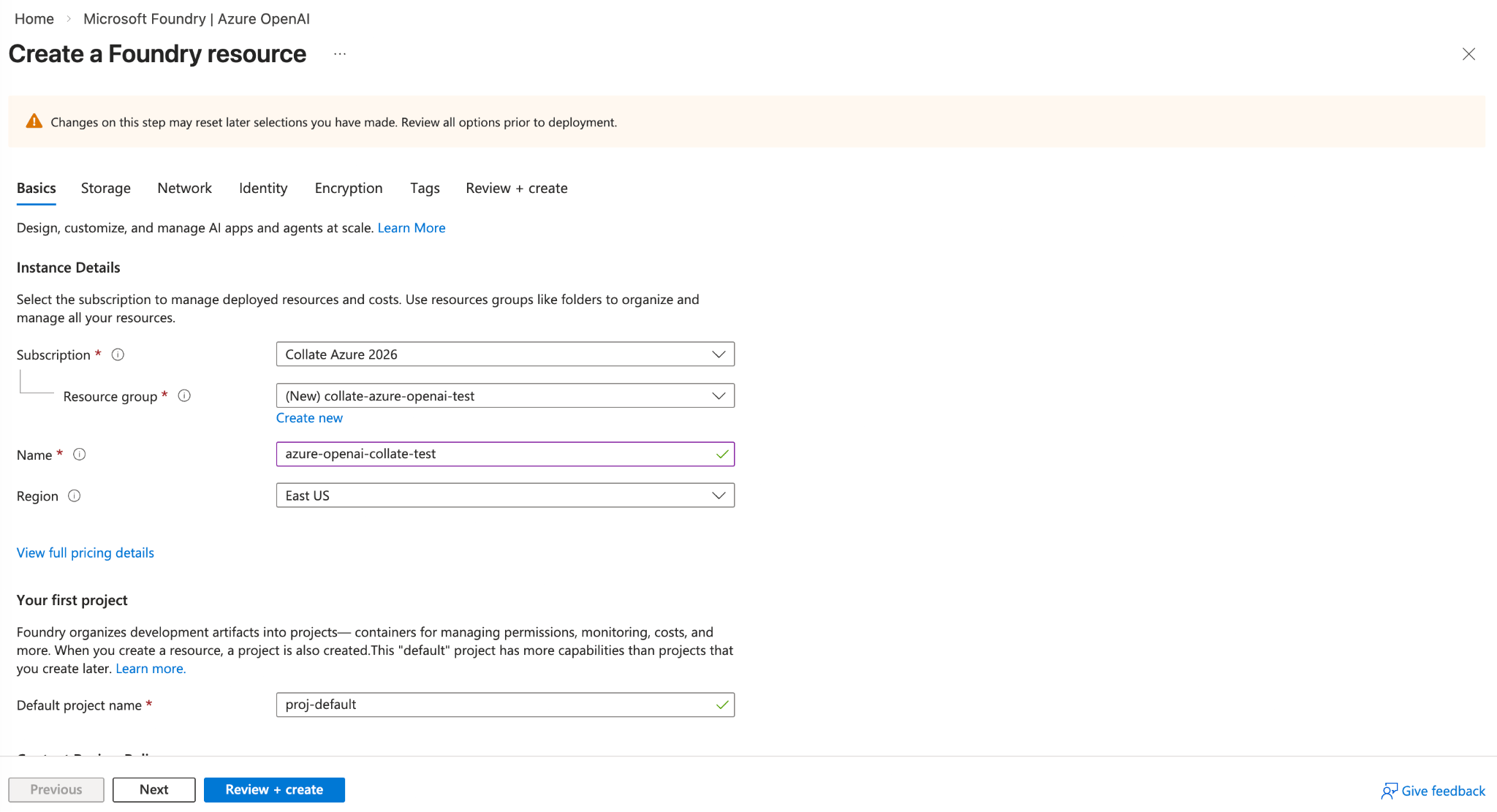
Navigation
Overview
< Previous
Deployment
Next >