Test Library
The Test Library allows administrators to create custom, reusable data quality test definitions using SQL queries. You can define SQL-based validation rules with dynamic parameters that are resolved at runtime. This provides a flexible way to implement organization-specific data quality checks without writing custom code.
Key Features
- SQL-Based Test Definitions: Write custom validation logic using SQL queries
- Dynamic Parameters: Use reserved and user-defined parameters that are resolved at runtime
- Reusable Tests: Create test definitions once and apply them across multiple tables and columns
- Table and Column Level: Support for both table-level and column-level validations
- Enable/Disable Tests: Control which test definitions are available for use
Accessing the Test Library
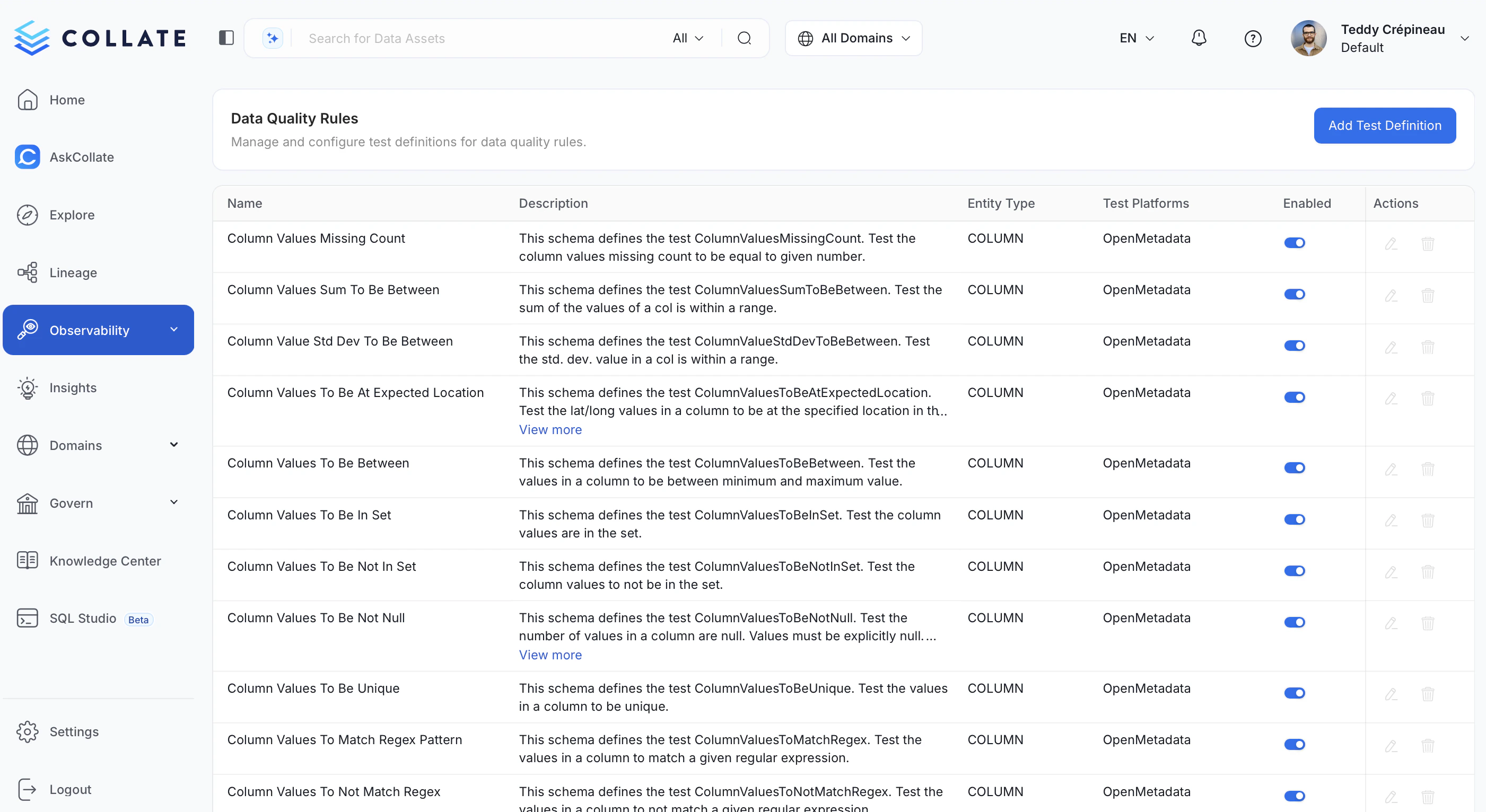
The Test Library is accessible to administrators through the Observability menu. Navigate to Observability > Test Library to manage your custom test definitions.
Creating a Custom Test Definition
From the Test Library page, click Add Test Definition to open the creation form.
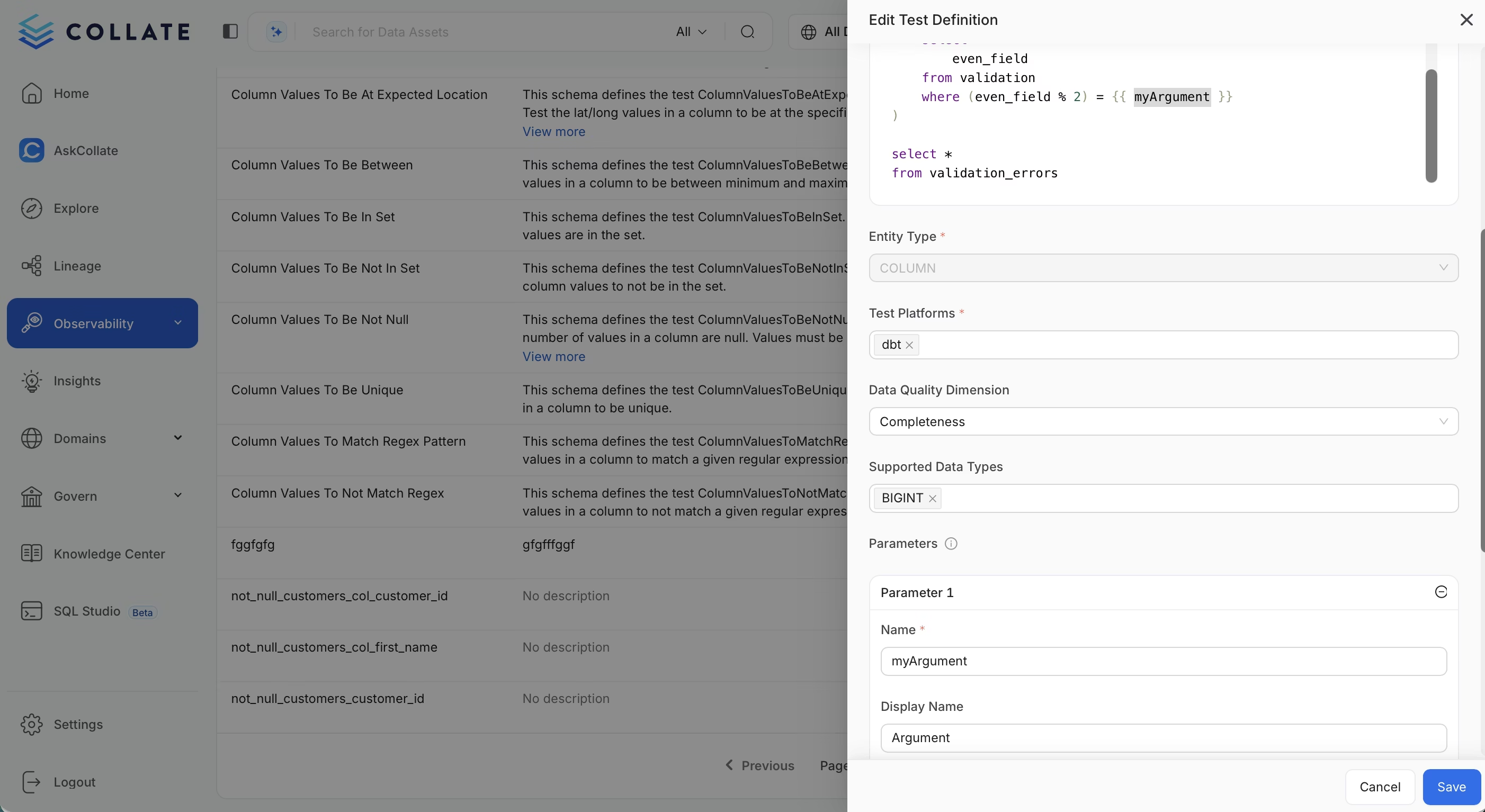 Fill in the following fields:
| Field | Description | Required |
|---|
| Name | A unique identifier for the test definition | Yes |
| Description | A clear description of what the test validates | Yes |
| Entity Type | Whether the test applies to TABLE or COLUMN | Yes |
| SQL Expression | The SQL query that defines the validation logic | Yes |
| Supported Data Sources | The database services where this test can run | Yes |
| Test Platforms | The platforms that can execute this test (e.g., Collate, dbt, Soda) | Yes |
| Parameters | User-defined arguments for the SQL expression | No |
Important: If you want the test to run natively within Collate, the Test Platforms field must include Collate. Tests configured with other platforms (e.g., dbt, Soda, GreatExpectations) are intended for tracking results from external test frameworks and will not be executed by Collate’s data quality engine.
Step 3: Write the SQL Expression
The SQL expression defines your validation logic. The test fails if the query returns one or more rows.
Reserved Parameters
The following parameters are automatically resolved at runtime:
| Parameter | Description |
|---|
{{ table_name }} | The fully qualified name of the table being tested |
{{ column_name }} | The name of the column being tested (for column-level tests) |
User-Defined Parameters
You can define custom parameters that users will provide values for when creating test cases. Use the {{ parameter_name }} syntax in your SQL expression.
SQL Expression Examples
Example 1: Column Values Greater Than Threshold
This test validates that all values in a column are greater than or equal to a specified minimum value.
SELECT {{ column_name }} AS col
FROM {{ table_name }}
WHERE {{ column_name }} < {{ min_value }}
min_value: The minimum acceptable value
Usage: When creating a test case, the user specifies min_value = 0 to ensure no negative values exist in the column.
Example 2: Column Values Within Range
This test validates that column values fall within a specified range.
SELECT {{ column_name }} AS col
FROM {{ table_name }}
WHERE {{ column_name }} < {{ min_value }} OR {{ column_name }} > {{ max_value }}
min_value: The minimum acceptable valuemax_value: The maximum acceptable value
Example 3: No Null Values in Required Columns
This test ensures a column contains no NULL values.
SELECT {{ column_name }}
FROM {{ table_name }}
WHERE {{ column_name }} IS NULL
Example 4: Table Row Count Within Expected Range
This table-level test validates that the row count is within expected bounds.
SELECT COUNT(*) AS row_count
FROM {{ table_name }}
HAVING COUNT(*) < {{ min_rows }} OR COUNT(*) > {{ max_rows }}
min_rows: The minimum expected row countmax_rows: The maximum expected row count
Example 5: Referential Integrity Check
This test validates that all values in a column exist in a reference table.
SELECT t.{{ column_name }}
FROM {{ table_name }} t
LEFT JOIN {{ reference_table }} r ON t.{{ column_name }} = r.{{ reference_column }}
WHERE r.{{ reference_column }} IS NULL
  AND t.{{ column_name }} IS NOT NULL
reference_table: The fully qualified name of the reference tablereference_column: The column in the reference table to match against
Example 6: Date Freshness Check
This table-level test ensures that recent data exists in a date column.
SELECT MAX({{ date_column }}) AS latest_date
FROM {{ table_name }}
HAVING MAX({{ date_column }}) < CURRENT_DATE - INTERVAL '{{ max_age_days }}' DAY
date_column: The date/timestamp column to checkmax_age_days: Maximum age of the most recent record in days
The date interval syntax may vary depending on your database. Adjust the SQL accordingly for your supported data sources.
Step 4: Define Parameters
For each user-defined parameter in your SQL expression, add a parameter definition:
- Click Add Parameter
- Enter the parameter Name (must match the placeholder in your SQL, e.g.,
min_value)
- Optionally add a Description to help users understand what value to provide
Step 5: Select Supported Data Sources
Choose which database services can execute this test. This ensures the SQL syntax is compatible with the selected platforms.
Step 6: Save the Test Definition
Click Save to create the test definition. It will now appear in the Test Library and be available for creating test cases.
Managing Test Definitions
Editing a Test Definition
Click on a test definition row to open the edit form. Modify the fields as needed and click Save.
Enabling/Disabling Test Definitions
You can enable or disable test definitions to control their availability:
- Enabled: The test definition can be used to create new test cases
- Disabled: The test definition is hidden from the test case creation flow, but existing test cases using it will continue to work
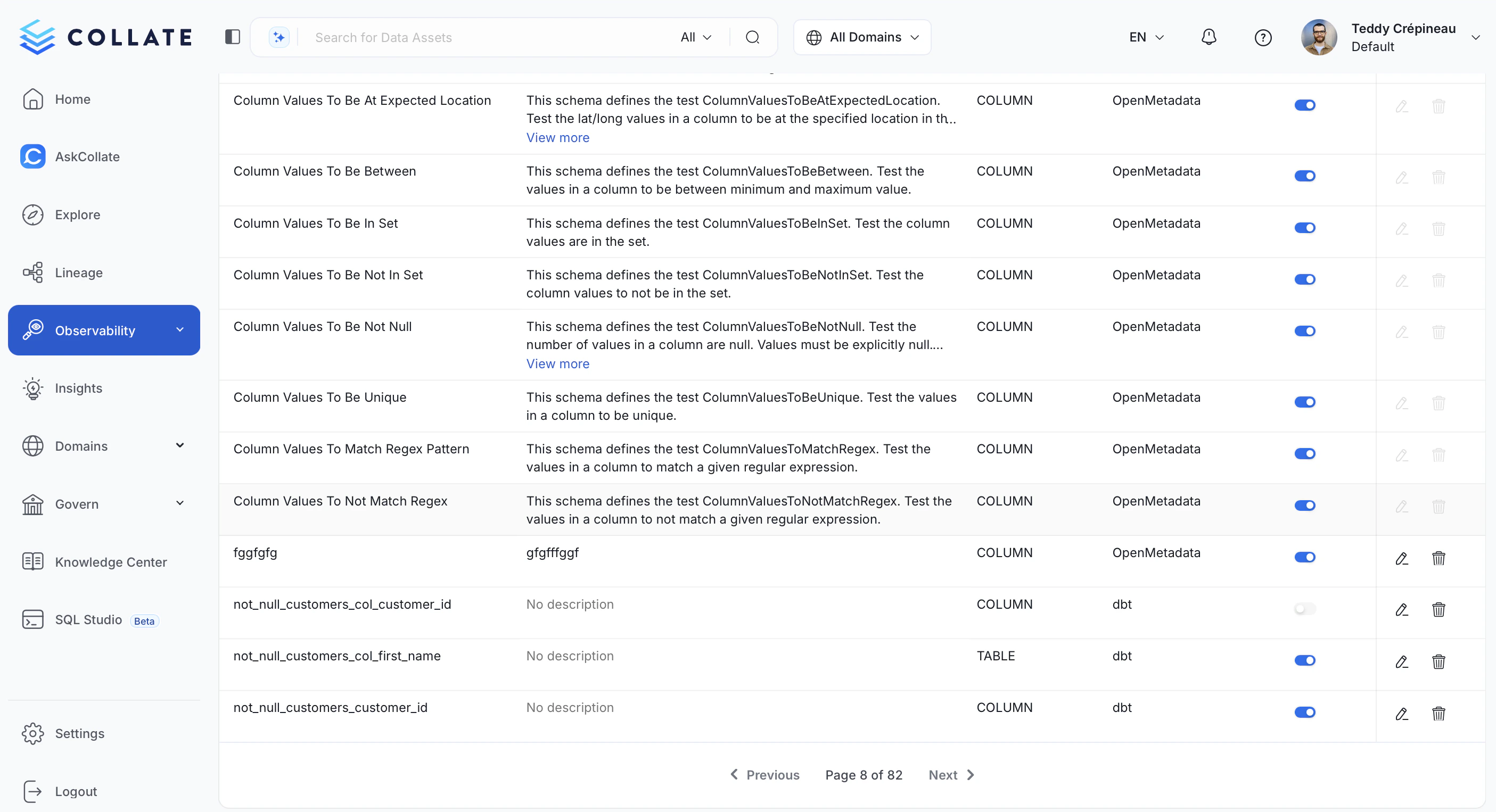 To toggle the status, use the enable/disable switch in the test definition list or edit form.
Deleting a Test Definition
Click the delete icon on a test definition row to remove it. Note that you cannot delete a test definition that has associated test cases.
Using Custom Test Definitions
Once you have created a test definition in the Test Library, it becomes available when creating test cases.
Creating a Test Case from a Custom Definition
- Navigate to the table or column where you want to add a test
- Go to the Data Quality tab
- Click Add Test
- Select your custom test definition from the list
- Provide values for any user-defined parameters
- Save the test case
The test will execute as part of your data quality workflow, and the SQL expression will be evaluated with the actual table/column names and parameter values substituted.
Best Practices
Writing Effective SQL Expressions
- Return failing rows: Structure your query to return rows that fail the validation. An empty result set means the test passes.
- Be specific: Write targeted queries that check one specific condition.
- Consider performance: Use appropriate WHERE clauses and avoid full table scans when possible.
- Test your SQL: Validate your SQL expression manually before creating the test definition.
Naming Conventions
- Use descriptive names that indicate what the test validates (e.g.,
columnValuesInRange, noOrphanedRecords)
- Follow a consistent naming pattern across your organization
Documentation
- Provide clear descriptions for test definitions and parameters
- Include examples of expected parameter values in descriptions
- Document any database-specific syntax requirements
Permissions
The Test Library is restricted to administrators. The following permissions apply:
| Action | Required Role |
|---|
| View Test Library | Admin |
| Create Test Definition | Admin |
| Edit Test Definition | Admin |
| Delete Test Definition | Admin |
| Enable/Disable Test Definition | Admin |
