
Requirements
Collate needs the following permissions in AWS:S3 Permissions
For all the buckets to ingest, provide the following:s3:ListBuckets3:GetObjects3:GetBucketLocations3:ListAllMyBucketsNote that theResourcesshould be all the buckets that you’d like to scan. A possible policy could be:
CloudWatch Permissions
Which is used to fetch the total size in bytes for a bucket and the total number of files. It requires:cloudwatch:GetMetricDatacloudwatch:ListMetricsThe policy would look like:
Collate Manifest
In any other connector, extracting metadata happens automatically. In this case, Collate can extract high-level metadata from buckets, but to understand their internal structure you must provide anopenmetadata.json
file at the bucket root.
Supported File Formats: [ "csv", "tsv", "avro", "parquet", "json", "json.gz", "json.zip" ]
For more information, see Storage Connectors. Keep reading for an example on the shape of the manifest file.
Collate Manifest
Our manifest file is defined as a JSON Schema, and can look like this:Global Manifest
You can also manage a single manifest file to centralize the ingestion process for any container, namedopenmetadata_storage_manifest.json.
You can also keep local manifests openmetadata.json in each container, but if possible, we will always try to pick up the global manifest during the ingestion.
Metadata Ingestion
To ingest metadata from S3, you need to create a service connection. The service connects S3 with Collate. Once you create a service, Collate automatically starts ingesting metadata.Step 1: Add New Service
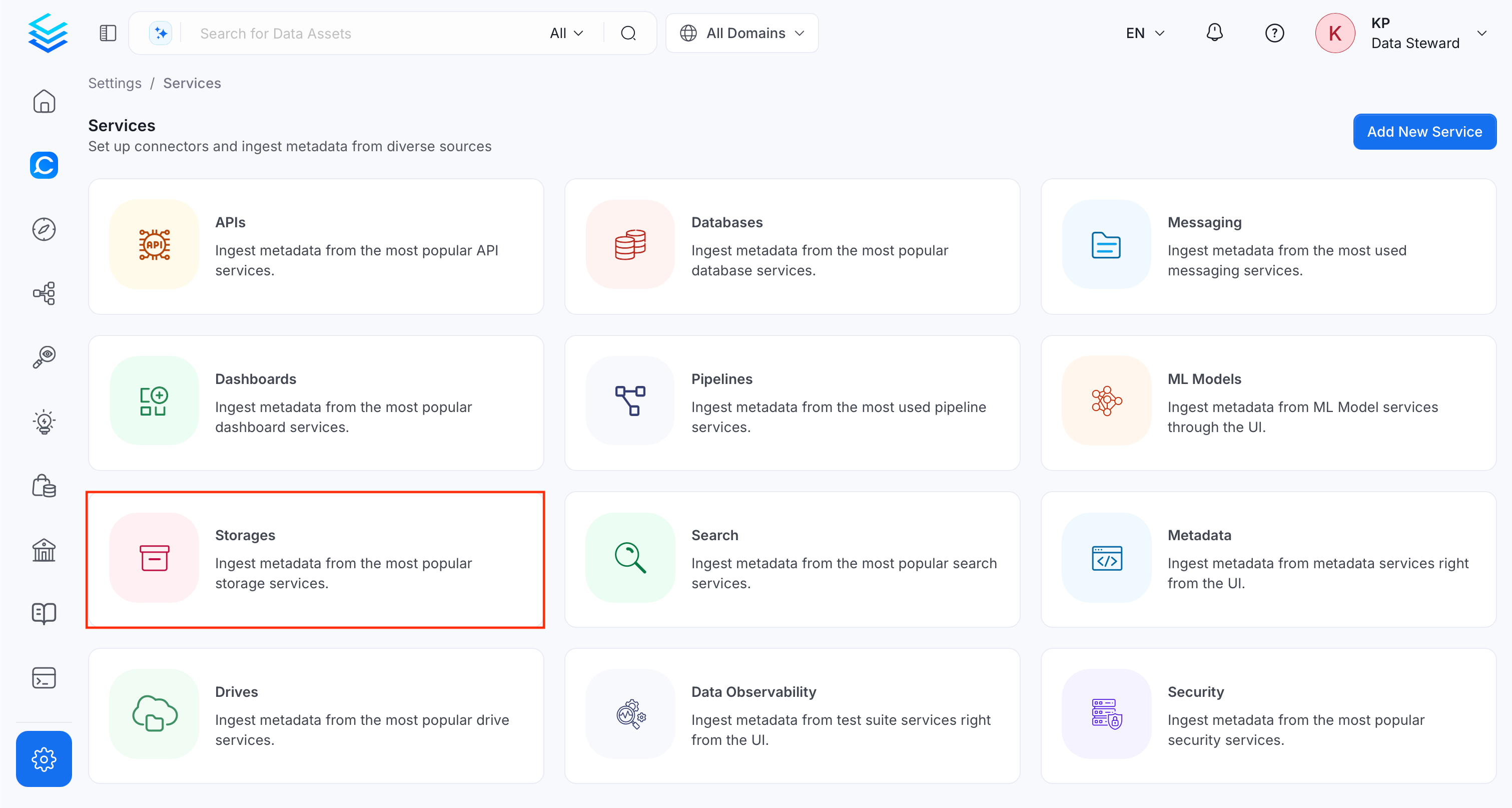
Open the Services page and start a new service.-
Navigate to Settings > Services and select the Storage service.
-
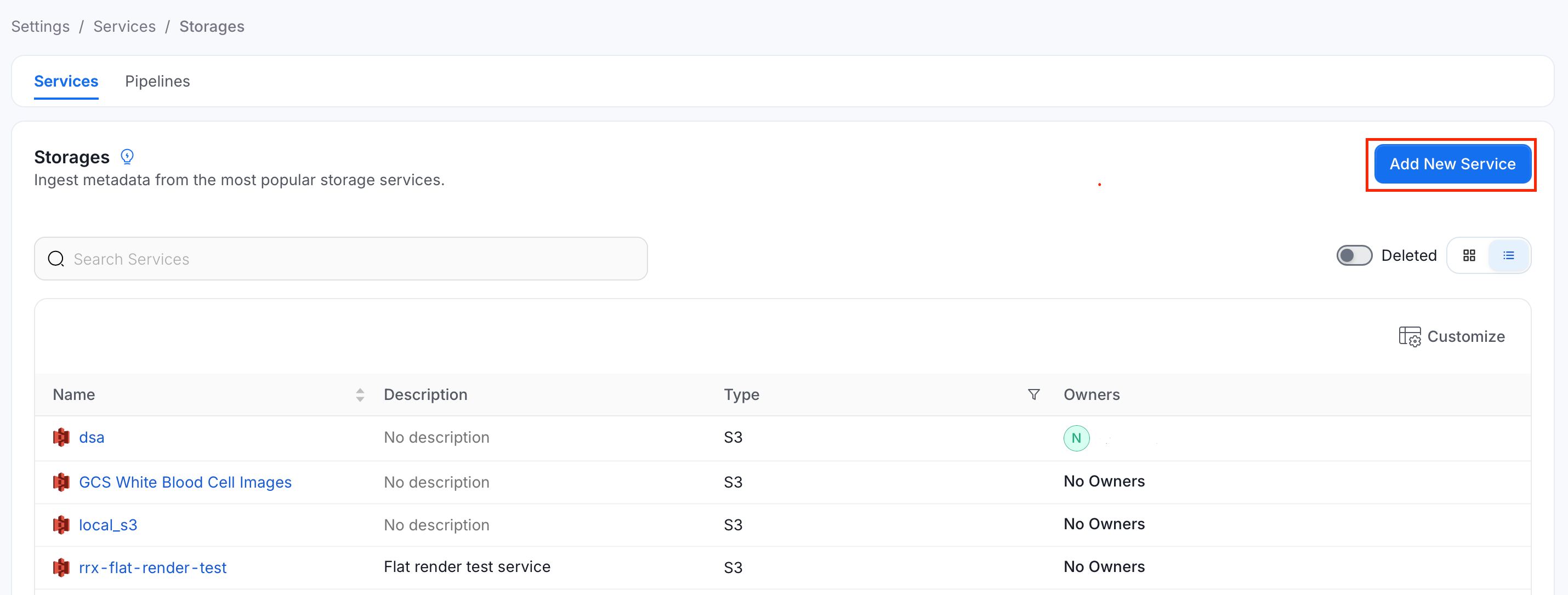
Click Add New Service.
Step 2: Select a Service and Connector
From the service type dropdown, select Storage Services, then click the S3 connector tile.
Step 3: Add Service Name and Description
- Enter a unique, descriptive Service Name. Collate identifies services by their service name. Enter a name that distinguishes this deployment from other S3 services you are ingesting metadata from.
- Optional: Enter a Description for the service.
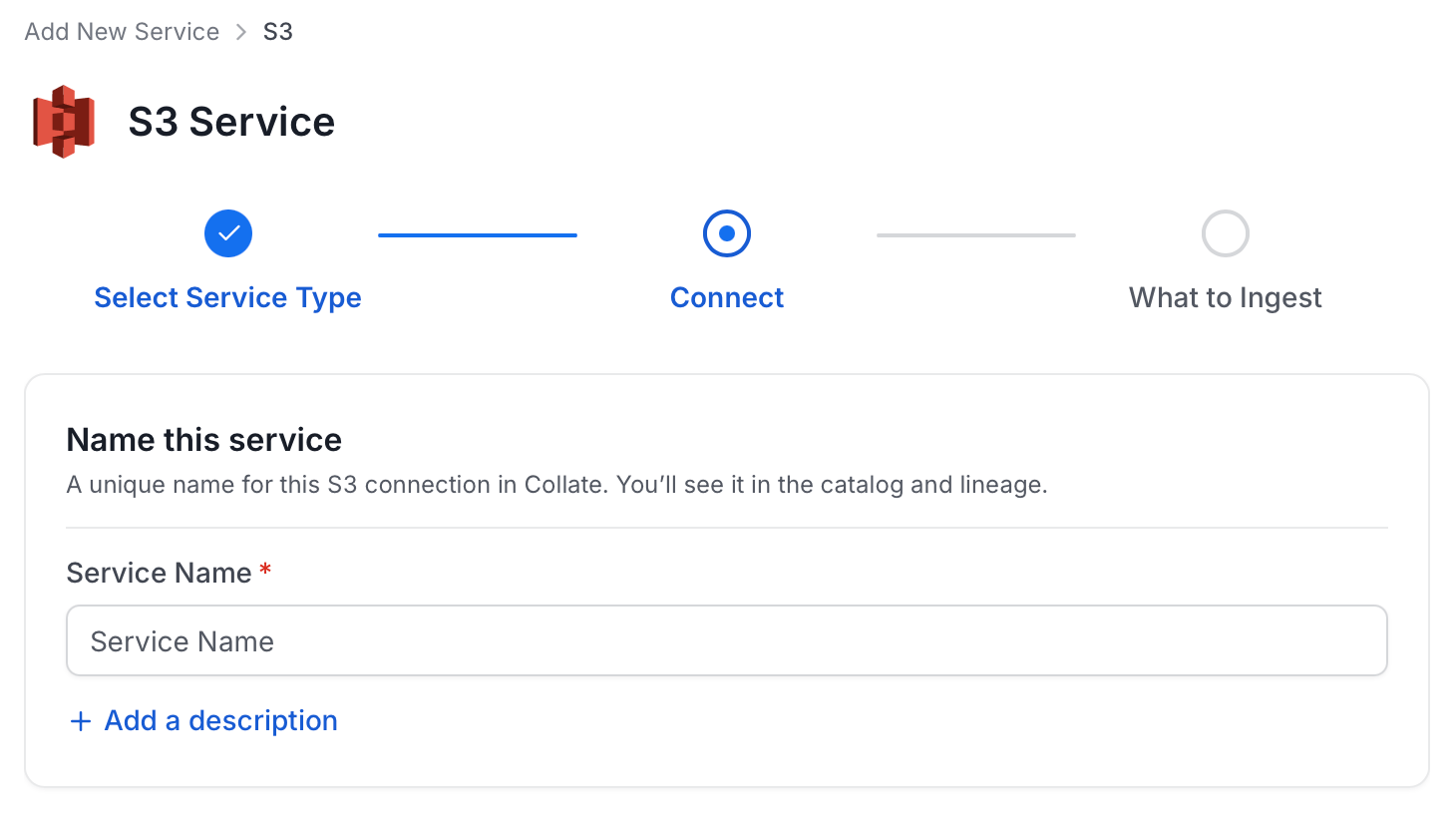
Note: The service name can’t be changed after you set it.
Step 4: Configure Connection Options
Specify where ingestion runs, provide your source credentials, and verify the connection.Select Ingestion Runner
Select an Ingestion Runner: the runner where the ingestion pipeline will execute.
Enter Connection Details
Enter the connection details for S3. The right-hand panel in the UI displays inline help for each field.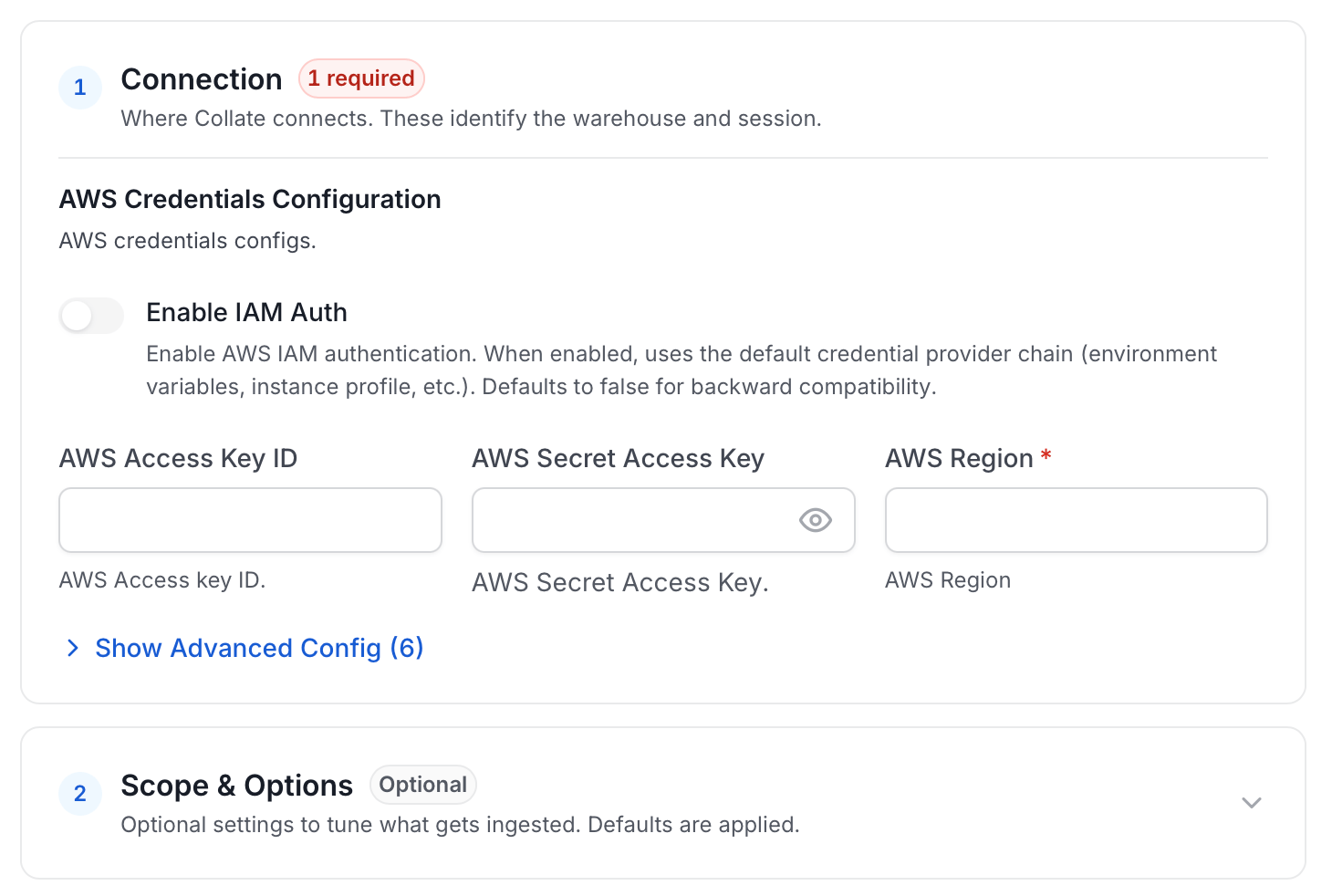
- AWS Access Key ID and AWS Secret Access Key: When you interact with AWS, you specify your AWS security credentials to verify who you are and whether you have
permission to access the resources that you are requesting. AWS uses the security credentials to authenticate and
authorize your requests (docs).
Access keys consist of two parts: An access key ID (for example,
AKIAIOSFODNN7EXAMPLE), and a secret access key (for example,wJalrXUtnFEMI/K7MDENG/bPxRfiCYEXAMPLEKEY). You must use both the access key ID and secret access key together to authenticate your requests. You can find further information on how to manage your access keys. - AWS Region: Each AWS Region is a separate geographic area in which AWS clusters data centers (docs). AWS can have instances in multiple regions. Specify the region where the service you want to reach is located. Note that the AWS Region is the only required parameter when configuring a connection. When connecting to the services programmatically, you can extract and use the rest of the AWS configurations in different ways. You can find further information about configuring your credentials.
- AWS Session Token (optional): If you are using temporary credentials to access your services, you will need to provide the AWS Access Key ID and AWS Secret Access Key. Also, these will include an AWS Session Token. You can find more information on Using temporary credentials with AWS resources.
- Endpoint URL (optional): To connect programmatically to an AWS service, you use an endpoint. An endpoint is the URL of the entry point for an AWS web service. The AWS SDKs and the AWS Command Line Interface (AWS CLI) automatically use the default endpoint for each service in an AWS Region. But you can specify an alternate endpoint for your API requests. Find more information on AWS service endpoints.
- Profile Name: A named profile is a collection of settings and credentials that you can apply to an AWS CLI command.
When you specify a profile to run a command, the settings and credentials are used to run that command.
Multiple named profiles can be stored in the config and credentials files.
You can inform this field if you’d like to use a profile other than
default. Find more information about Named profiles for the AWS CLI. - Assume Role Arn: Typically, you use
AssumeRolewithin your account or for cross-account access. In this field you’ll set theARN(Amazon Resource Name) of the policy of the other account. A user who wants to access a role in a different account must also have permissions that are delegated from the account administrator. The administrator must attach a policy that allows the user to callAssumeRolefor theARNof the role in the other account. This is a required field if you’d like toAssumeRole. Find more information on AssumeRole.
- Assume Role Session Name: An identifier for the assumed role session. Use the role session name to uniquely identify a session when the same role
is assumed by different principals or for different reasons.
By default, Collate uses the name
OpenMetadataSession. Find more information about the Role Session Name. - Assume Role Source Identity: The source identity specified by the principal that is calling the
AssumeRoleoperation. You can use source identity information in AWS CloudTrail logs to determine who took actions with a role. Find more information about Source Identity. - Bucket Names (Optional): Provide the names of buckets that you would want to ingest, if you want to ingest metadata from all buckets or apply a filter to ingest buckets then leave this field empty.
Test Connection
- Click Test Connection to verify the credentials.
- After the test succeeds, click Save.

Step 5: Configure Ingestion Options
In the What to Ingest step, use filter patterns to control which assets Collate ingests from your storage service. Filter rules match container names using the following match types.How Filter Patterns Work
- Include: Add one or more comma-separated values. Each value uses one of the following match types. Collate ingests only containers whose names match at least one rule. Leave blank to include all containers.
- Exclude: Add one or more comma-separated values. Each value uses one of the following match types. Collate skips any container whose name matches a rule. Leave blank to exclude nothing.
- contains: matches any name containing the value. For example,
salesmatchesmy_sales_dataandsales_2024. - starts with: matches names beginning with the value. For example,
prod_matchesprod_dbandprod_schema. - ends with: matches names ending with the value. For example,
_rawmatchesevents_rawandlogs_raw. - is exactly: matches the exact name only. For example,
analyticsmatches onlyanalytics. - matches regex: matches names using a regular expression. For example,
^prod_.*_v\d+$matchesprod_events_v1.
Filter Options
The Container section includes the following filter options:- Container: Controls which top-level storage containers (S3 buckets, ADLS containers, or GCS buckets) Collate ingests from the source.
- Scan Mode: Choose between the following scan modes:
- Scan all: Ingests every asset of that type the connector can access. This is the default.
- Only specific: Enables include rules so only assets matching at least one rule are ingested.
- Exclude system toggle: Use this toggle to filter out system-reserved names defined by the connector for that asset type.
- Always exclude: Add permanent exclusion rules (shown in red). Assets matching these rules are never ingested, regardless of include rules.
- Preview: Shows a real-time summary of what will be in scope based on your current rules.
- Include rules: In Only specific mode, click + Add to define a rule. Added rules appear as chips. An asset is included if it matches any rule.
Step 6: Create & Deploy
Click Create & Deploy to deploy the agent and start the first metadata ingestion run. Collate saves the service configuration and immediately begins pulling metadata from the source. To monitor ingestion progress or view the service you just added, go to Settings > Services and select your service.Configure Metadata Agent and Schedule Ingestion
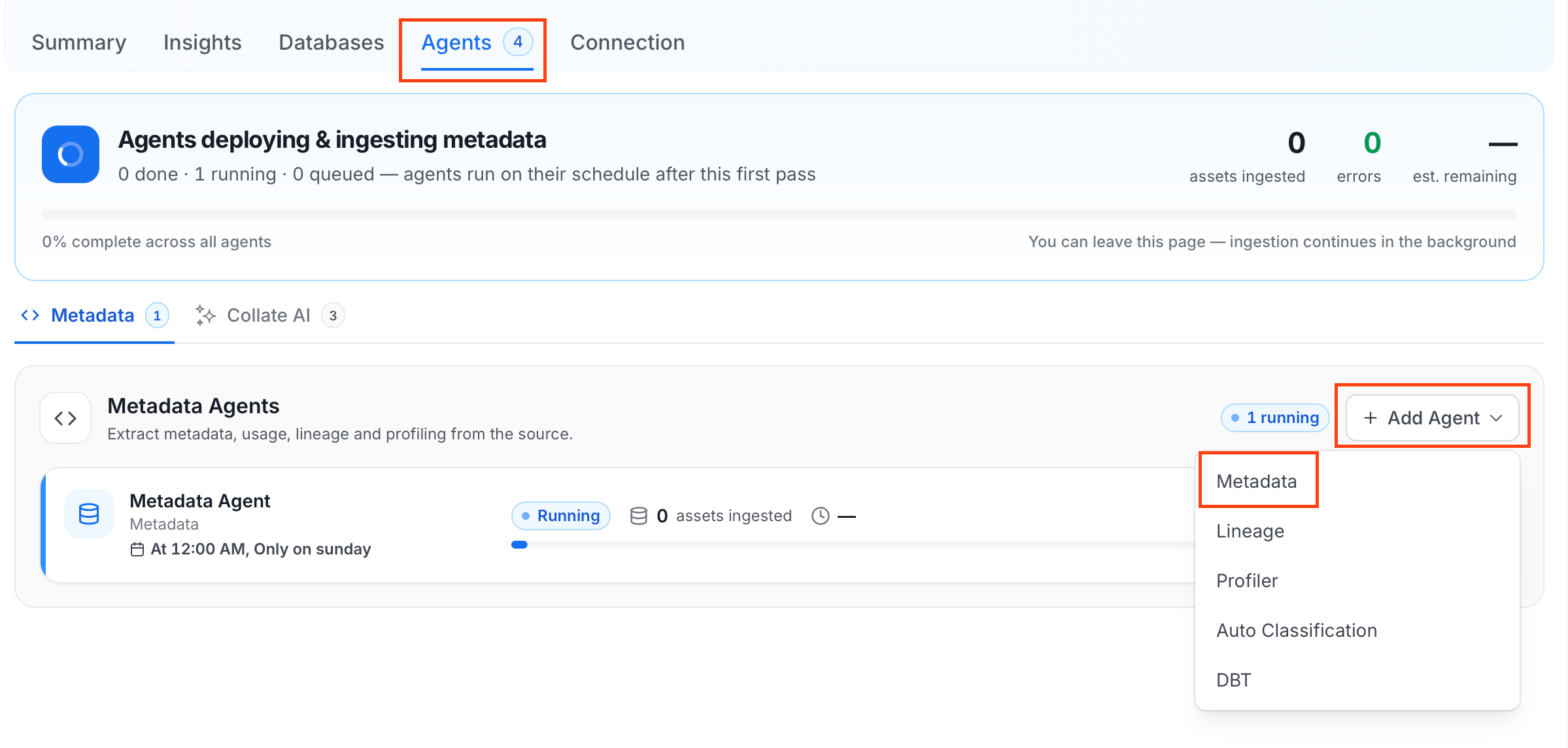
The Metadata Agent extracts containers, objects, and other structural metadata from your source and keeps your Collate catalog in sync. It powers discovery, lineage, and governance across your data assets. When you click Create & Deploy, Collate automatically deploys a Metadata Agent for this service and triggers the first ingestion run. View its status and run history from the Agents tab on the service detail page. To configure the additional Metadata Agent and schedule ingestion, follow these steps:- Navigate to Settings > Services and select the Storage service.
- Select your service and click the Agents tab.
-
Click Add Agent and select Metadata from the dropdown.
-
On the Configure Ingestion page, do the following and click Next.
-
Name this Ingestion: Enter a unique, recognizable name for this ingestion pipeline.

- Filter Patterns: Apply include or exclude rules to scope which containers this agent ingests. These follow the same filter options described in Step 5.
-
Scope & Behaviour: Control how the agent handles metadata during ingestion. Toggle each option on or off based on your needs:
-
Name this Ingestion: Enter a unique, recognizable name for this ingestion pipeline.
-
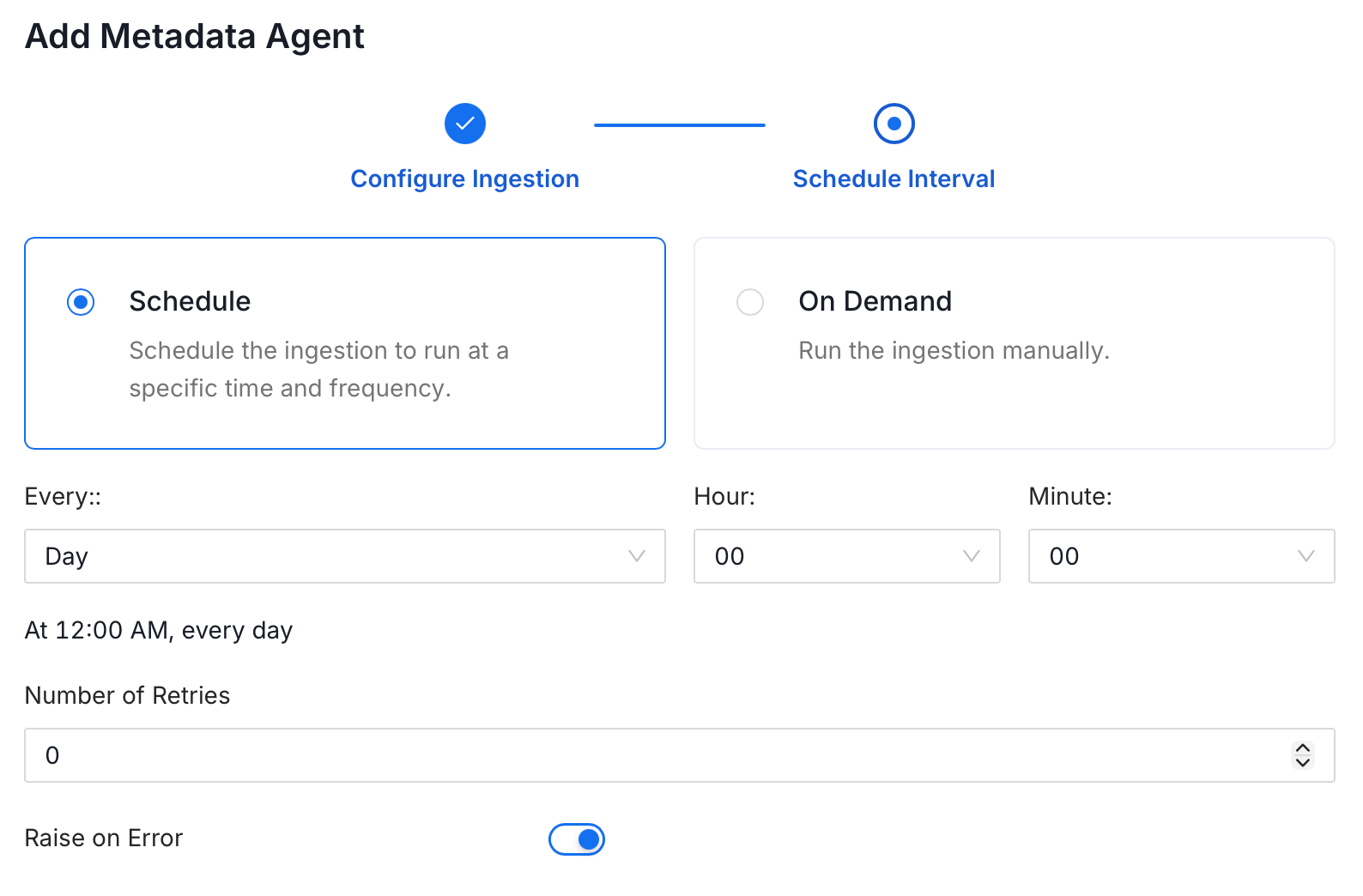
On the Schedule Interval page, set when the agent runs:
- Schedule: Choose a preset interval (Hourly, Daily, Weekly, Monthly) or enter a custom cron expression.
- On-Demand: No automatic schedule. Trigger the agent manually when needed.
- Click Add to deploy the agent.
Troubleshooting
S3 Troubleshooting
Learn more about how to troubleshoot common S3 connector issues and resolve configuration or ingestion errors.