
Requirements
The Snowplow connector supports two deployment types:BDP (Business Data Platform) Deployment
For Snowplow BDP managed deployments, you need:- Access to the Snowplow Console
- An API Key with read permissions for accessing pipeline configurations
- Your Organization ID from the Snowplow Console
Community Deployment
For self-hosted Snowplow Community deployments, you need:- Access to your Snowplow pipeline configuration files
- Read permissions on the configuration directory
- The file system path to your configuration files
Metadata Ingestion
Connection Details
1
Connection Details
- Deployment Type: Select your Snowplow deployment type:
- BDP: For Snowplow’s managed Business Data Platform
- Community: For self-hosted Snowplow deployments The required configuration fields will change based on your deployment type selection.
BDP Deployment Configuration
For BDP deployments, provide the following:- Console URL: The base URL of your Snowplow Console where you access the UI (e.g.,
https://console.snowplow.io) - API Key: Your Snowplow Console API Key with appropriate read permissions. To generate an API key:
- Log into your Snowplow Console
- Navigate to Account Settings
- Select the API Keys section
- Create a new API key with read permissions for pipeline configurations
- Organization ID: Your unique Snowplow BDP Organization ID. You can find this in:
- Snowplow Console Account Settings
- The URL when accessing your console (e.g.,
https://console.snowplow.io/organizations/{org-id})
Community Deployment Configuration
For Community deployments, provide:-
Configuration Path: The file system path to your Snowplow pipeline configuration files. This should point to the directory containing your Snowplow configuration files such as:
- Collector configurations
- Enrichment configurations
- Storage loader configurations
- Pipeline orchestration files
/opt/snowplow/configs
Important: If you are using the Configuration Path option for Community deployments, you must run the ingestion workflow through the CLI instead of the UI. This is because the ingestion process needs direct access to your local filesystem, which is not available when running ingestion jobs from the UI or server.
Additional Configuration
-
Cloud Provider: Select the cloud provider where your Snowplow infrastructure is deployed:
- AWS: Amazon Web Services (default)
- GCP: Google Cloud Platform
- Azure: Microsoft Azure
-
Pipeline Filter Pattern: Optionally provide a regular expression pattern to exclude certain pipelines from ingestion. Examples:
- Exclude test pipelines:
.*test.* - Exclude development pipelines:
^dev-.* - Exclude multiple patterns:
(.*test.*|.*dev.*|.*staging.*)
- Exclude test pipelines:
2
Test the Connection
Once the credentials have been added, click on Test Connection and Save the changes.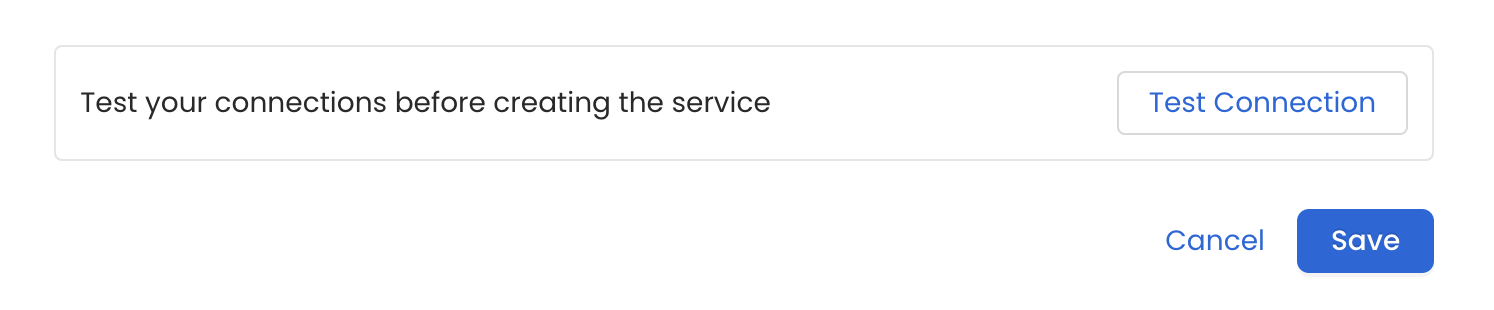
3
Configure Metadata Ingestion
In this step we will configure the metadata ingestion pipeline,
Please follow the instructions below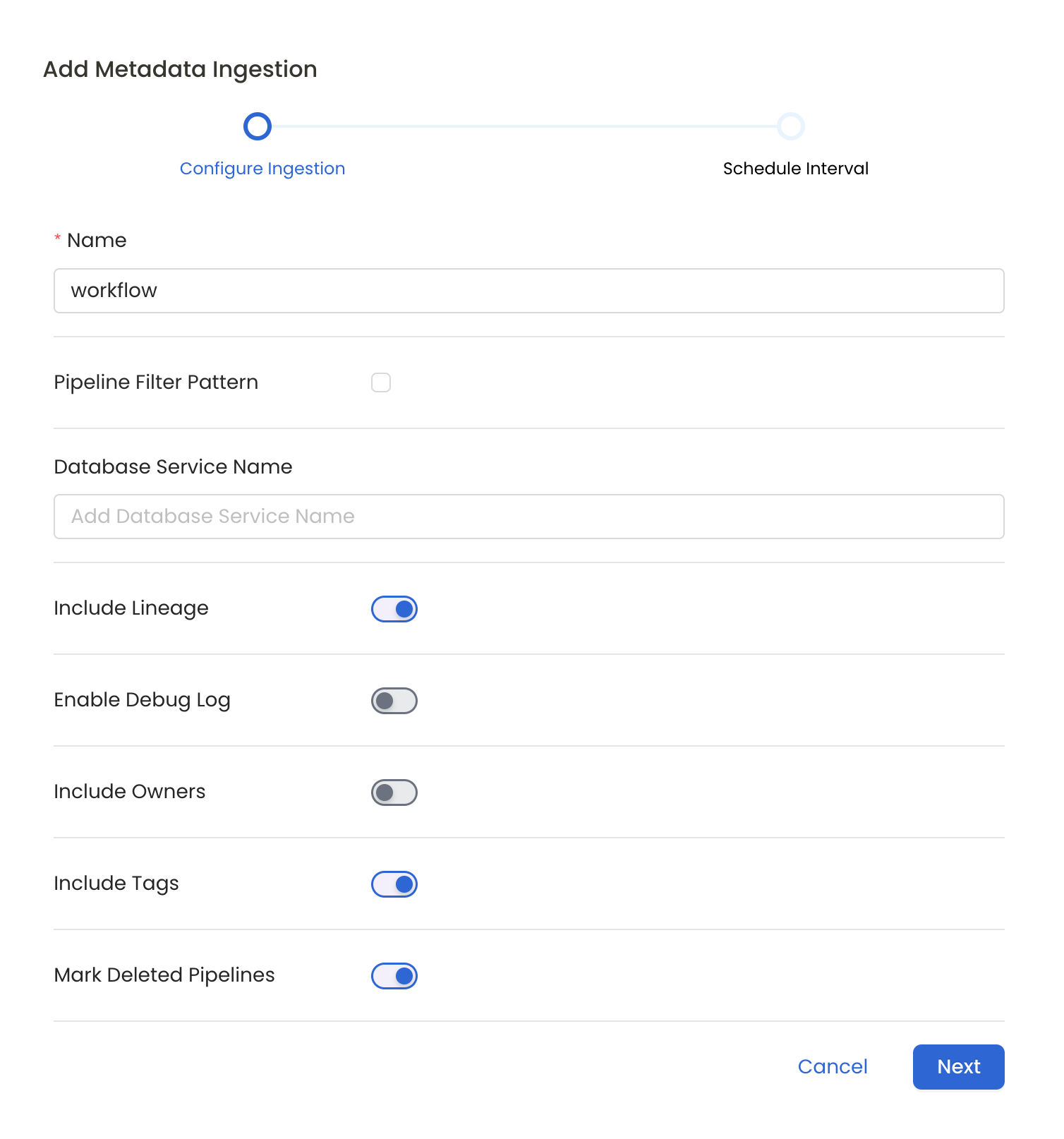
Metadata Ingestion Options
- Name: This field refers to the name of ingestion pipeline, you can customize the name or use the generated name.
- Pipeline Filter Pattern (Optional): Use to pipeline filter patterns to control whether or not to include pipeline as part of metadata ingestion.
- Include: Explicitly include pipeline by adding a list of comma-separated regular expressions to the Include field. OpenMetadata will include all pipeline with names matching one or more of the supplied regular expressions. All other schemas will be excluded.
- Exclude: Explicitly exclude pipeline by adding a list of comma-separated regular expressions to the Exclude field. OpenMetadata will exclude all pipeline with names matching one or more of the supplied regular expressions. All other schemas will be included.
- Include lineage (toggle): Set the Include lineage toggle to control whether to include lineage between pipelines and data sources as part of metadata ingestion.
- Enable Debug Log (toggle): Set the Enable Debug Log toggle to set the default log level to debug.
- Mark Deleted Pipelines (toggle): Set the Mark Deleted Pipelines toggle to flag pipelines as soft-deleted if they are not present anymore in the source system.
4
Schedule the Ingestion and Deploy
Scheduling can be set up at an hourly, daily, weekly, or manual cadence. The
timezone is in UTC. Select a Start Date to schedule for ingestion. It is
optional to add an End Date.Review your configuration settings. If they match what you intended,
click Deploy to create the service and schedule metadata ingestion.If something doesn’t look right, click the Back button to return to the
appropriate step and change the settings as needed.After configuring the workflow, you can click on Deploy to create the
pipeline.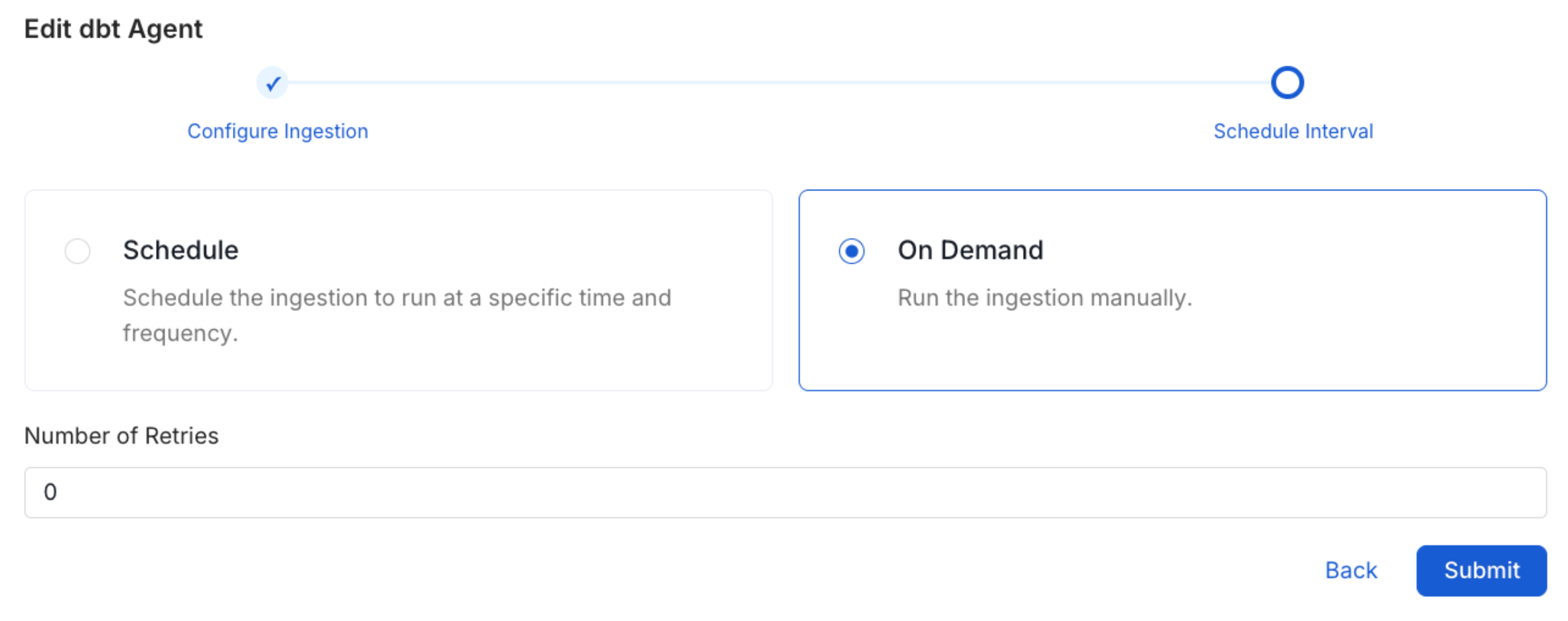
5
View the Ingestion Pipeline
Once the workflow has been successfully deployed, you can view the
Ingestion Pipeline running from the Service Page.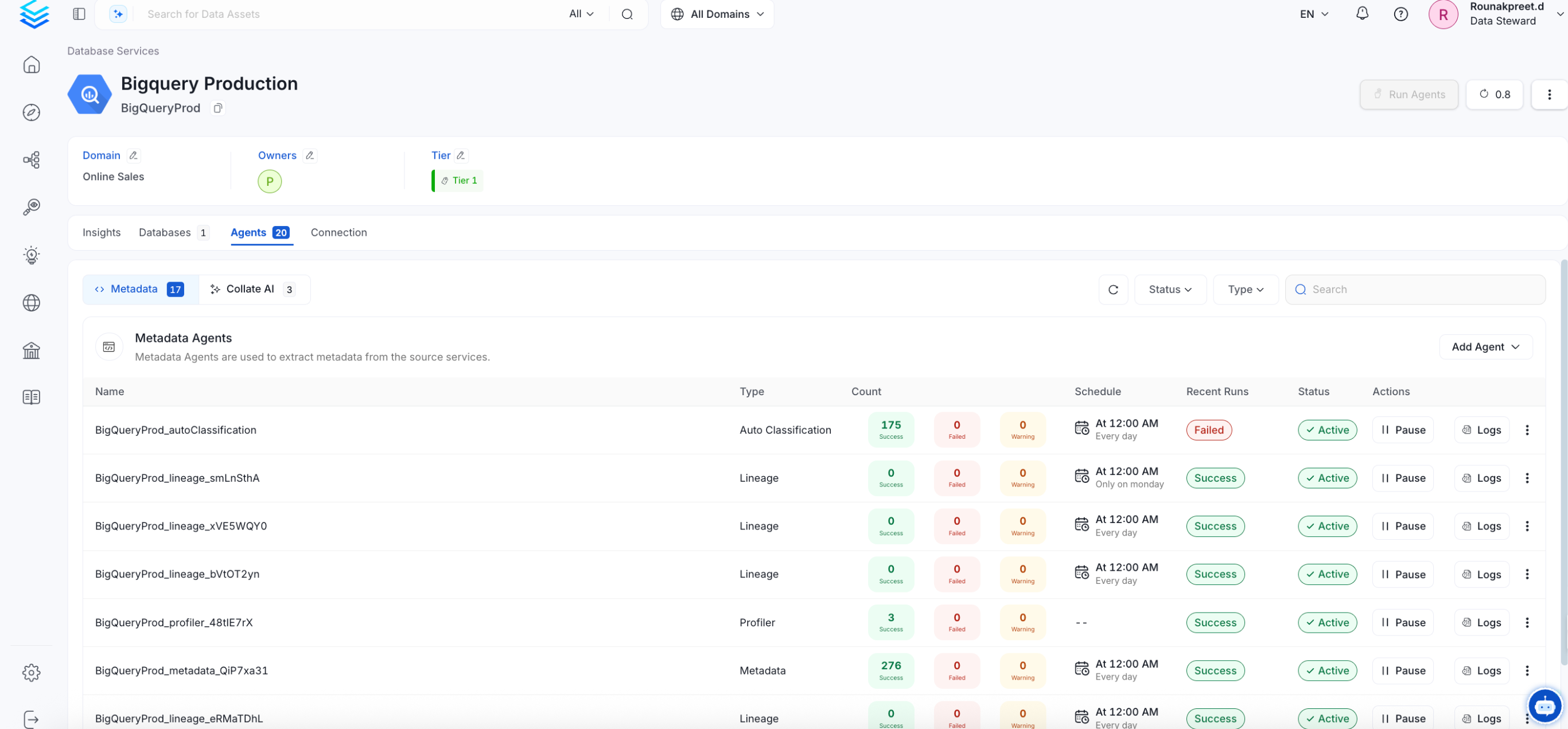
Troubleshooting
Snowplow Troubleshooting
Learn more about how to troubleshoot common Snowplow connector issues and resolve configuration or ingestion errors.