
Requirements
The Google Cloud service account used for ingestion needs the following identity and access management (IAM) permissions:Metadata Ingestion
Schema Registry
The built-in Google Cloud Platform (GCP) role
roles/pubsub.viewer grants all of the above permissions and is the recommended role for Collate ingestion.
Metadata Ingestion
Connection Details
1
Connection Details
- GCP Credentials: Google Cloud service account credentials used to authenticate with Pub/Sub. Provide a service account key JSON containing
type,projectId,privateKeyId,privateKey,clientEmail, andclientId. For more information, see Creating and managing service account keys. - Project ID (optional if using inline GCP credentials): GCP Project ID where Pub/Sub topics are located. The project ID is only derived automatically when using inline service account credentials. If you’re using a credentials file path, Application Default Credentials, an external account, or the Pub/Sub emulator, you must set this field explicitly, or ingestion fails with
Project ID is required. - Host and Port (optional): Pub/Sub API endpoint. Defaults to
pubsub.googleapis.com. Set to the emulator address (for example,localhost:8085) when using a local emulator. - Use Emulator (optional): Set to
trueto connect to a local Pub/Sub emulator instead of the production service. - Schema Registry Enabled (optional, default:
true): Fetch topic schemas from the Pub/Sub Schema Registry. Supports Avro and Protocol Buffer schema types. Set tofalseif your project does not use the Schema Registry. - Include Subscriptions (optional, default:
true): Fetch subscription details for each topic. Only subscription names are persisted to topic metadata; acknowledgment deadlines, retention durations, push endpoints, and dead letter policies are read but not stored. When a subscription has a BigQuery export configuration, Collate uses it to extract lineage from the Pub/Sub topic to the target BigQuery table, though the export configuration itself is not persisted. - Include Dead Letter Topics (optional, default:
false): Include dead letter topics in metadata extraction. By default, dead letter topics are excluded to keep the topic list focused on primary business topics.
2
Test the Connection
Once the credentials have been added, click on Test Connection and Save the changes.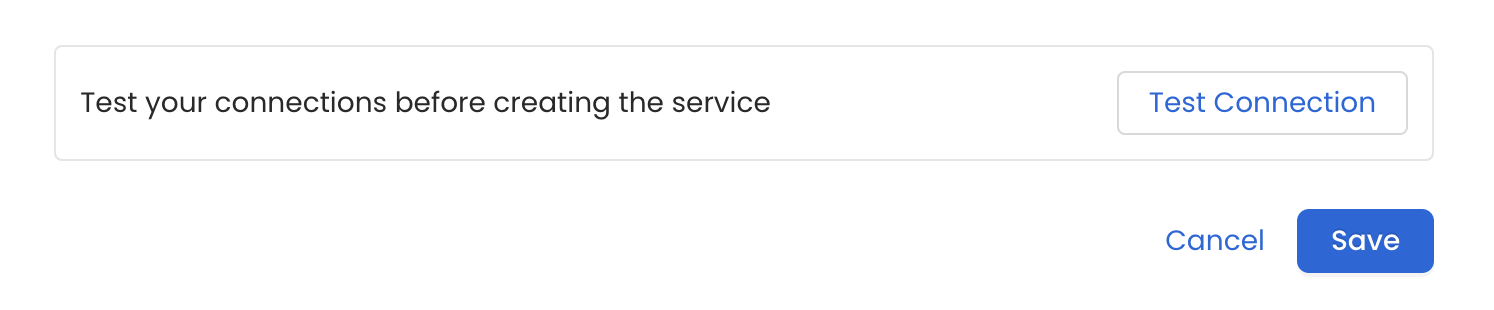
3
Configure Metadata Ingestion
In this step we will configure the metadata ingestion pipeline,
Please follow the instructions below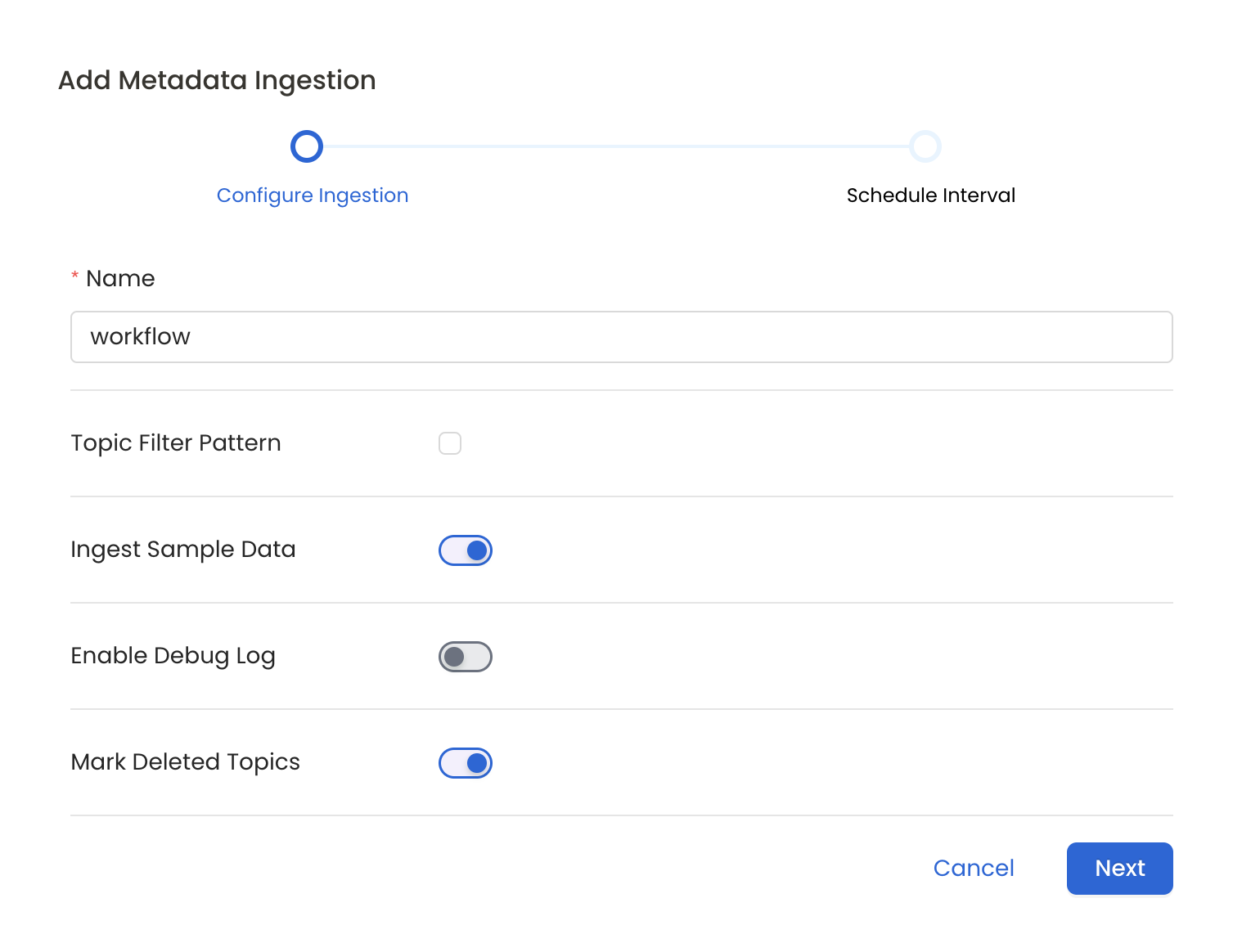
Metadata Ingestion Options
- Name: This field refers to the name of ingestion pipeline, you can customize the name or use the generated name.
- Topic Filter Pattern (Optional): Use it to control whether to include topics as part of metadata ingestion.
- Include: Explicitly include topics by adding a list of comma-separated regular expressions to the ‘Include’ field. OpenMetadata will include all topics with names matching one or more of the supplied regular expressions. All other topics will be excluded.
- Exclude: Explicitly exclude topics by adding a list of comma-separated regular expressions to the ‘Exclude’ field. OpenMetadata will exclude all topics with names matching one or more of the supplied regular expressions. All other topics will be included.
- Ingest Sample Data (toggle): Set the ‘Ingest Sample Data’ toggle to ingest sample data from the topics.
- Enable Debug Log (toggle): Set the ‘Enable Debug Log’ toggle to set the default log level to debug.
- Mark Deleted Topics (toggle): Set the ‘Mark Deleted Topics’ toggle to flag topics as soft-deleted if they are not present anymore in the source system.
4
Schedule the Ingestion and Deploy
Scheduling can be set up at an hourly, daily, weekly, or manual cadence. The
timezone is in UTC. Select a Start Date to schedule for ingestion. It is
optional to add an End Date.Review your configuration settings. If they match what you intended,
click Deploy to create the service and schedule metadata ingestion.If something doesn’t look right, click the Back button to return to the
appropriate step and change the settings as needed.After configuring the workflow, you can click on Deploy to create the
pipeline.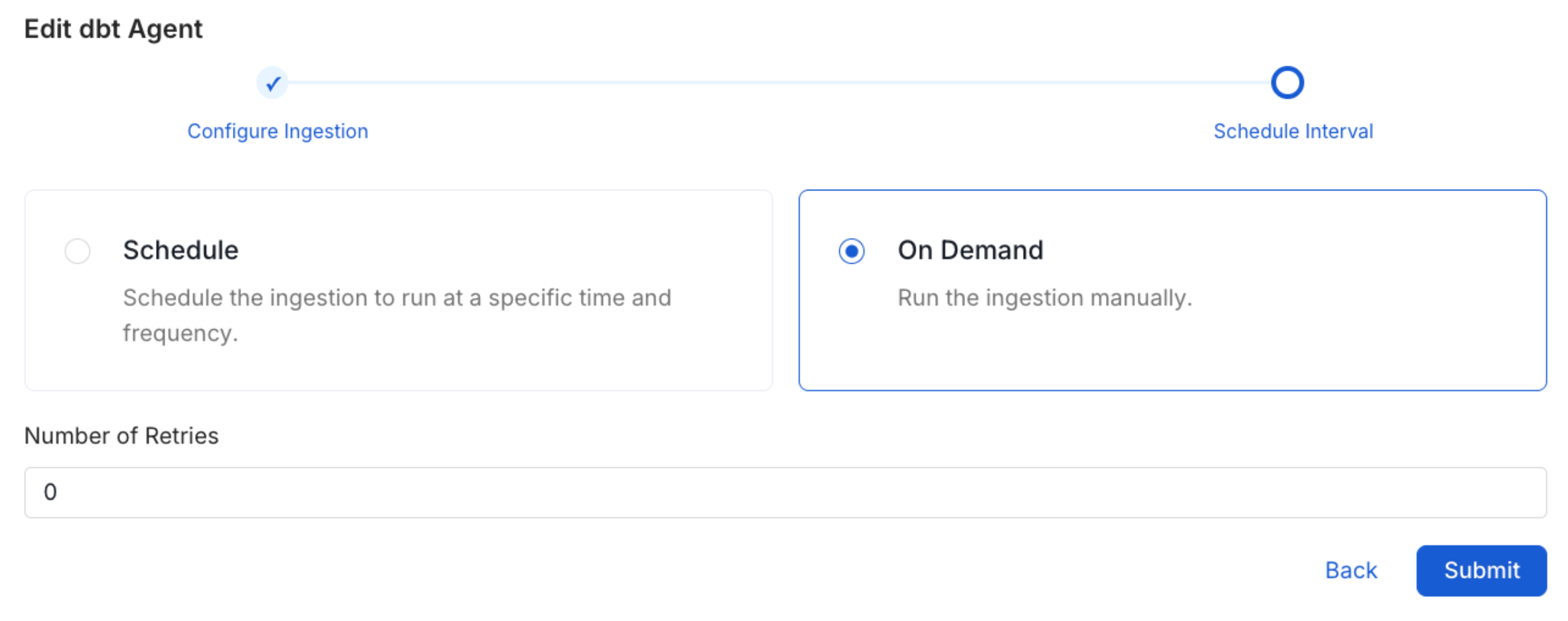
5
View the Ingestion Pipeline
Once the workflow has been successfully deployed, you can view the
Ingestion Pipeline running from the Service Page.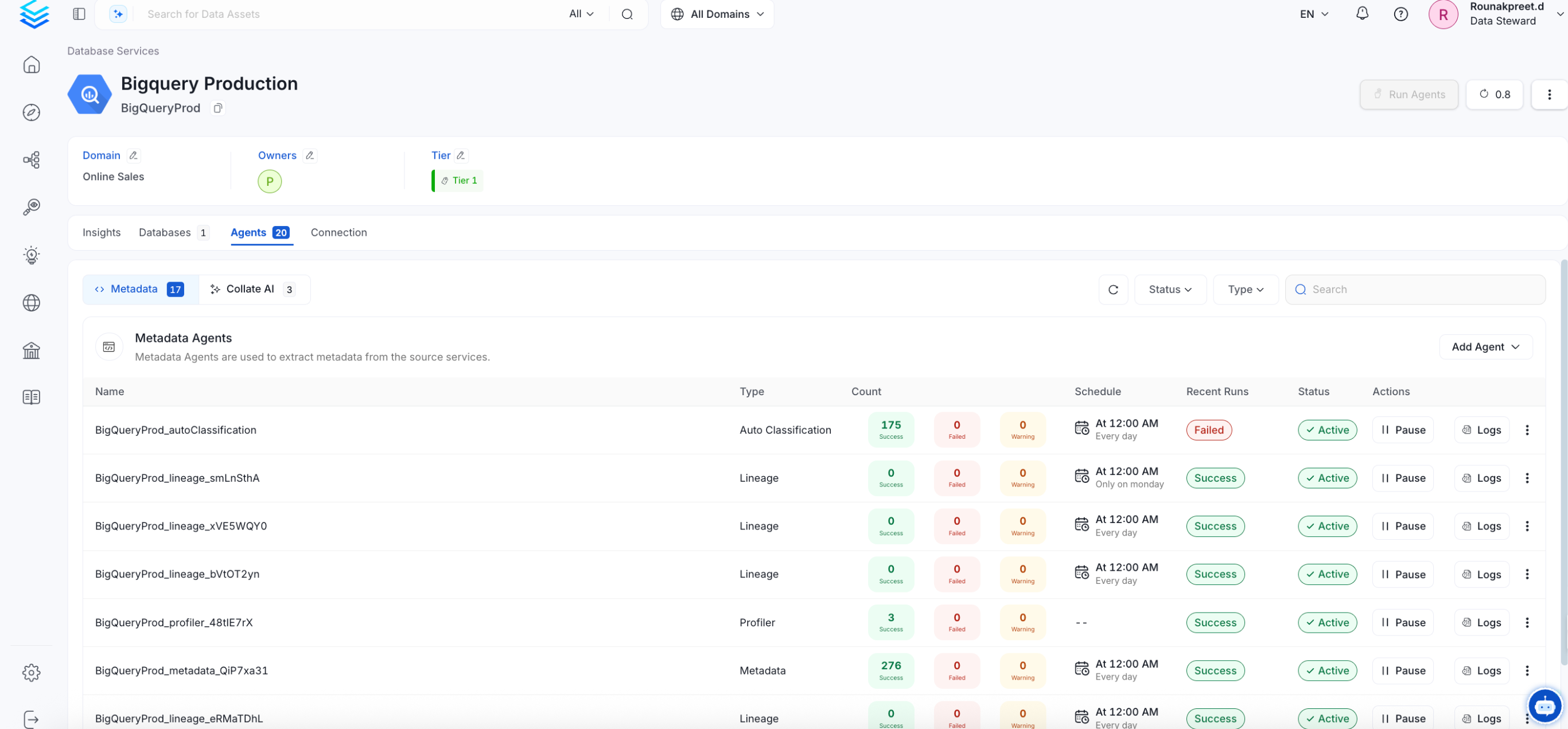
Troubleshooting
Google Pub/Sub Troubleshooting
Learn more about how to troubleshoot common Google Pub/Sub connector issues and resolve authentication or ingestion errors.