
Requirements
To ingest the SAP ERP metadata, CDS Views and OData services need to be set up to efficiently expose SAP data. To achieve this, data must be exposed via RESTful interfaces. Follow Set Up SAP APIs to set up the APIs.Metadata Ingestion
To ingest metadata from SAP ERP, you need to create a service connection. The service connects SAP ERP with Collate. Once you create a service, Collate automatically starts ingesting metadata.Step 1: Add New Service
Open the Services page and start a new service.-
Navigate to Settings > Services and select Database Services.
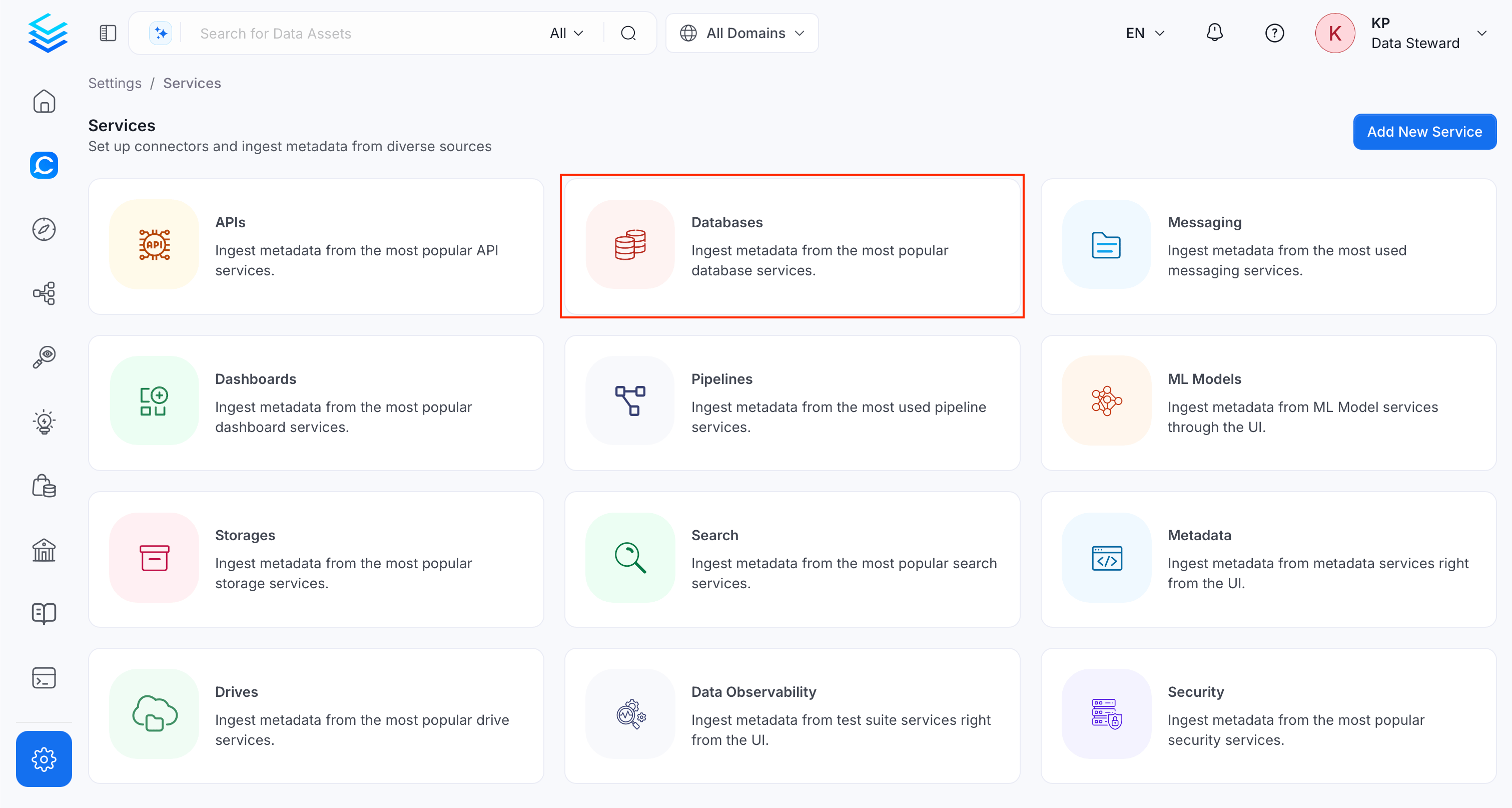
-
Click Add New Service.
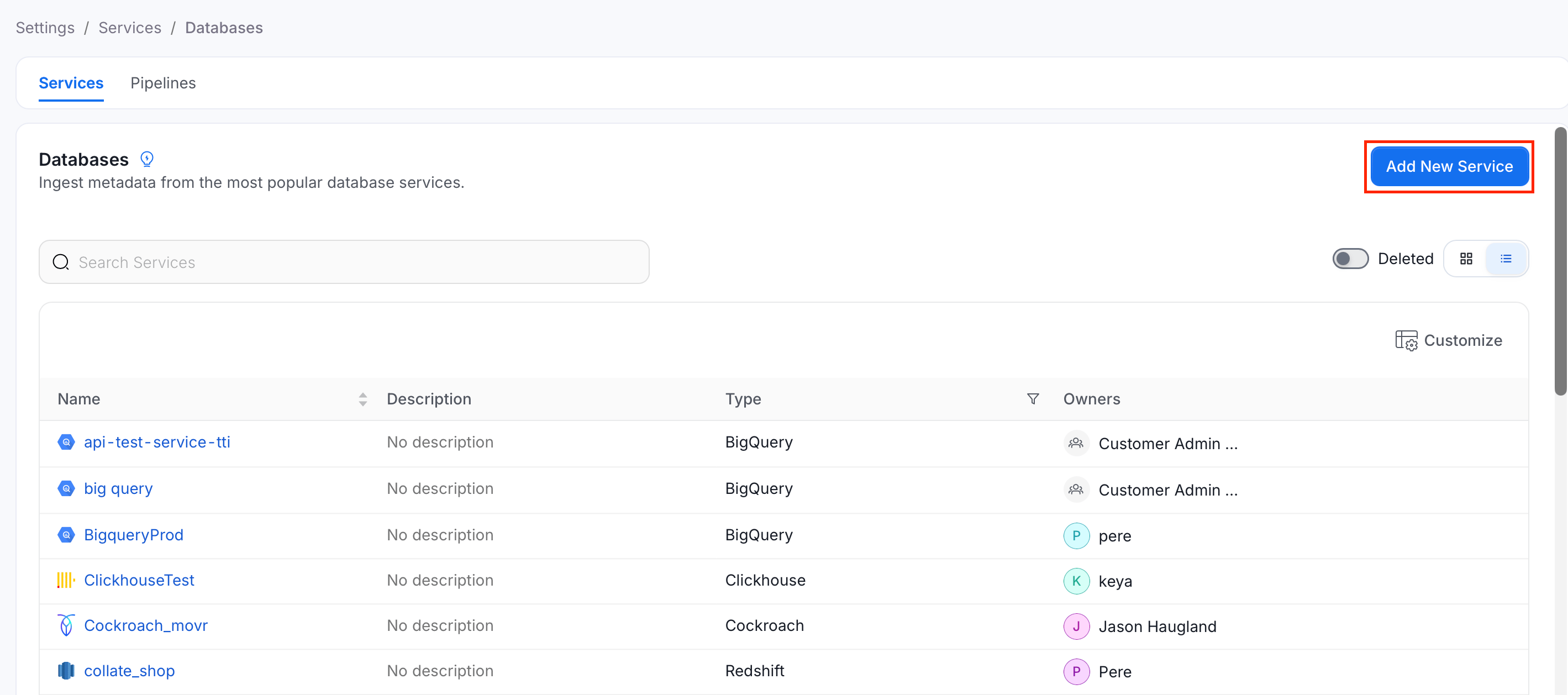
Step 2: Select a Service and Connector
From the service type dropdown, select Database Services, then click the SAP ERP connector tile.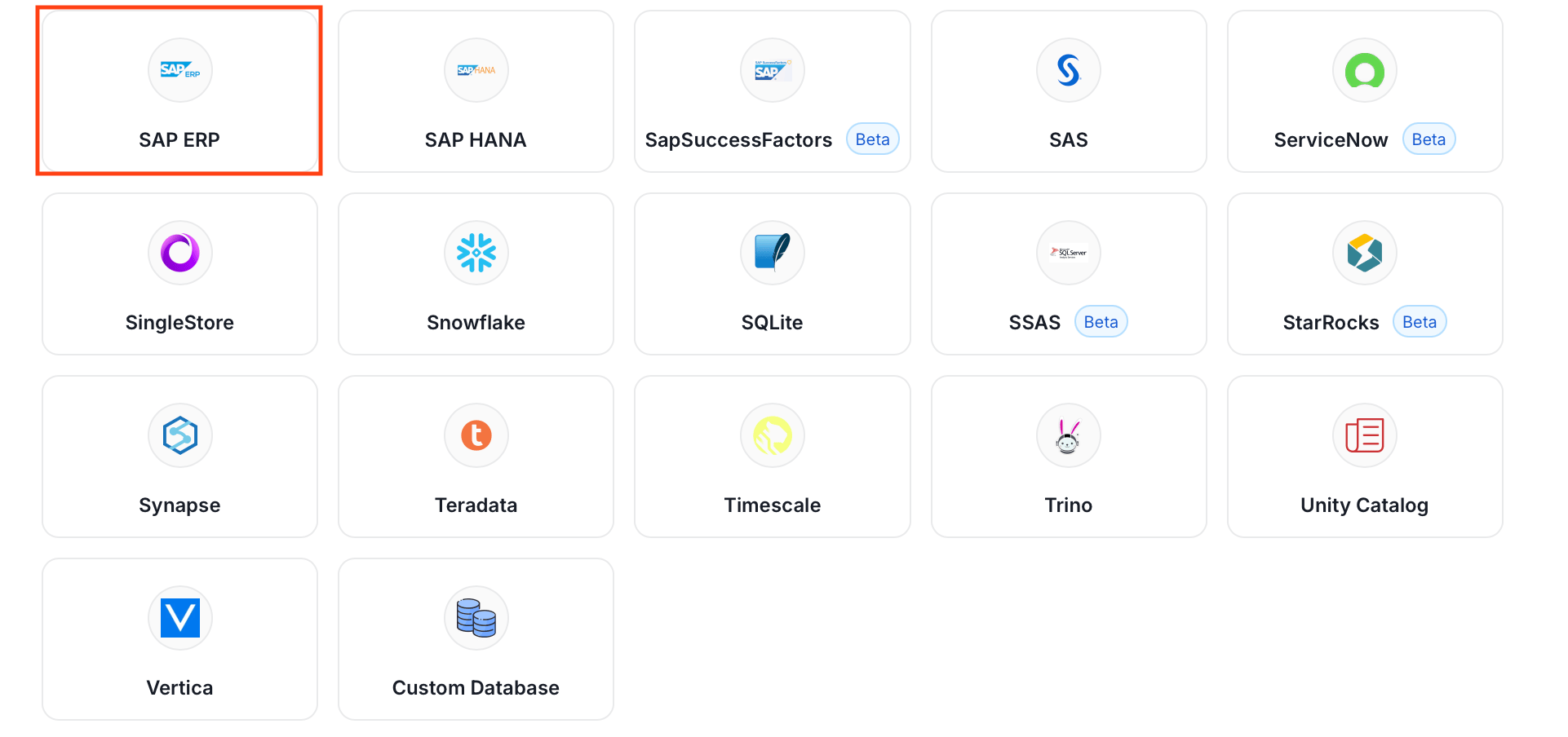
Step 3: Add Service Name and Description
- Enter a unique, descriptive Service Name. Collate identifies services by their service name. Enter a name that distinguishes this deployment from other SAP ERP services you are ingesting metadata from.
- Optional: Enter a Description for the service.
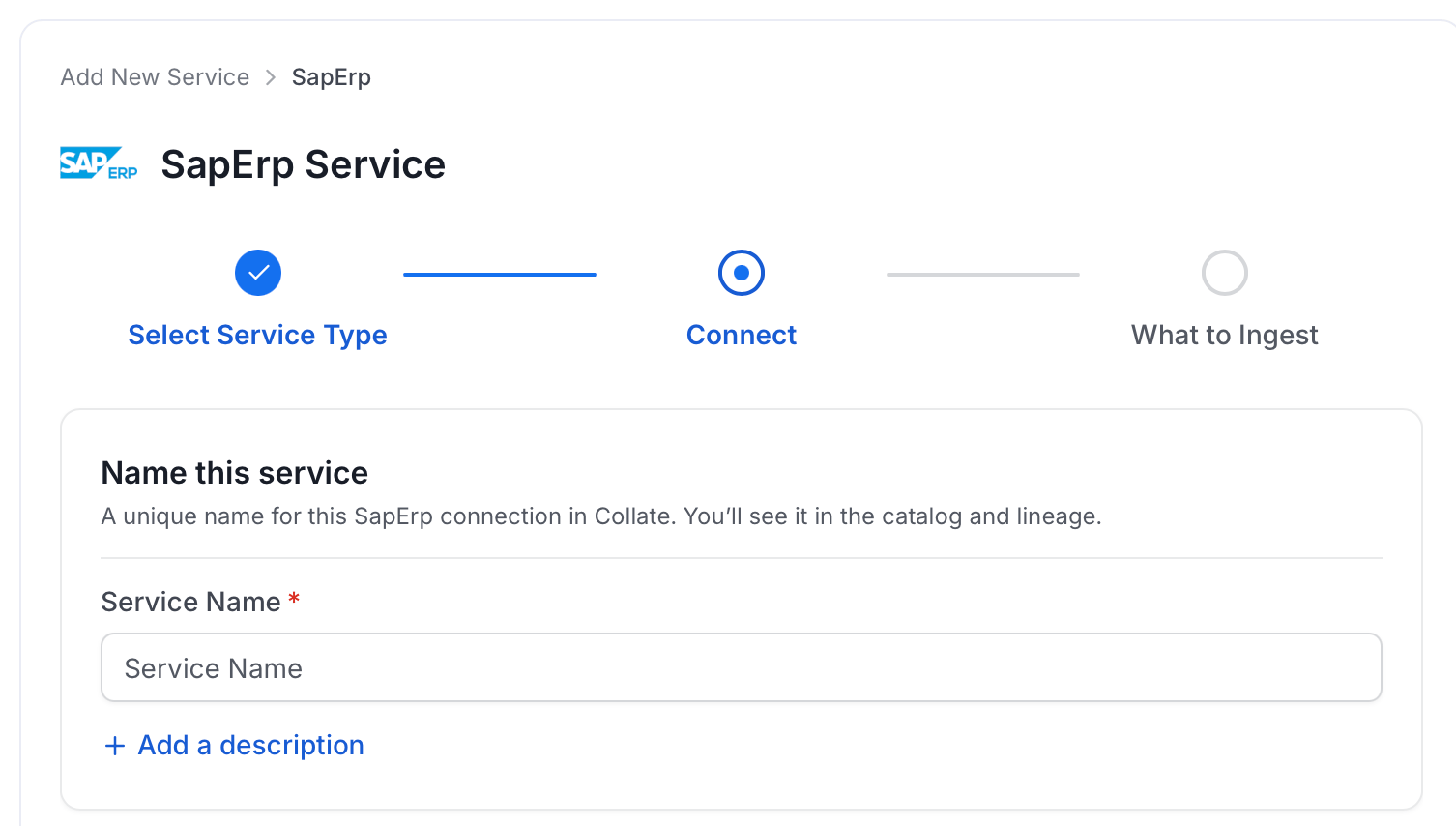
Note: The service name can’t be changed after you set it.
Step 4: Configure Connection Options
Specify where ingestion runs, provide your source credentials, and verify the connection.Select Ingestion Runner
Select an Ingestion Runner: the runner where the ingestion pipeline will execute.
Enter Connection Details
Enter the connection details for SAP ERP. The right-hand panel in the UI displays inline help for each field.
- Host and Port: This parameter specifies the host and port of the SAP ERP instance. This should be specified as a string in the format
https://hostname.com. - API Key: API Key to authenticate the SAP ERP APIs.
- database: Optional name to give to the database in Collate. If left blank, Collate uses
defaultas the database name. - databaseSchema: Optional name to give to the database schema in Collate. If left blank, Collate uses
defaultas the database schema name. - paginationLimit: Pagination limit used while querying the SAP ERP APIs for fetching the entities.
Advanced Configuration
Database Services include an Advanced Configuration section for passing extra arguments to the connector and, if needed, changing the connection scheme. You need this only for advanced connectivity scenarios or customizations.- Connection Options (Optional): Enter the details for any additional connection options that can be sent to the database during the connection. These details must be added as key-value pairs.
- Connection Arguments (Optional): Enter the details for any additional connection arguments such as security or protocol configs that can be sent during the connection. These details must be added as key-value pairs.
Test Connection
- Click Test Connection to verify the credentials.
- After the test succeeds, click Save.

Step 5: Configure Ingestion Options
In the What to Ingest step, use filter patterns to control which assets Collate ingests from your database service. Filter rules match asset names using the following match types.How Filter Patterns Work
- Include: Add one or more comma-separated values. Each value uses one of the following match types. Collate ingests only assets whose names match at least one rule. Leave blank to include all assets.
- Exclude: Add one or more comma-separated values. Each value uses one of the following match types. Collate skips any asset whose name matches a rule. Leave blank to exclude nothing.
- contains: matches any name containing the value. For example,
salesmatchesmy_sales_dataandsales_2024. - starts with: matches names beginning with the value. For example,
prod_matchesprod_dbandprod_schema. - ends with: matches names ending with the value. For example,
_rawmatchesevents_rawandlogs_raw. - is exactly: matches the exact name only. For example,
analyticsmatches onlyanalytics. - matches regex: matches names using a regular expression. For example,
^prod_.*_v\d+$matchesprod_events_v1.
Filter Options
The Database, Schema, and Table sections each include the following filter options:- Database: Controls which databases Collate ingests from the source.
- Schema: Controls which schemas within the ingested databases are included.
- Table: Controls which tables and views within the ingested schemas are included.
- Scan Mode: Choose between the following scan modes:
- Scan all: Ingests every asset of that type the connector can access. This is the default.
- Only specific: Enables include rules so only assets matching at least one rule are ingested.
- Exclude system toggle: Use this toggle to filter out system-reserved names defined by the connector for that asset type.
- Always exclude: Add permanent exclusion rules (shown in red). Assets matching these rules are never ingested, regardless of include rules.
- Preview: Shows a real-time summary of what will be in scope based on your current rules.
- Include rules: In Only specific mode, click + Add to define a rule. Added rules appear as chips. An asset is included if it matches any rule.
Step 6: Create & Deploy
Click Create & Deploy to deploy the agent and start the first metadata ingestion run. Collate saves the service configuration and immediately begins pulling metadata from the source. To monitor ingestion progress or view the service you just added, go to Settings > Services and select your service.Configure Metadata Agent and Schedule Ingestion
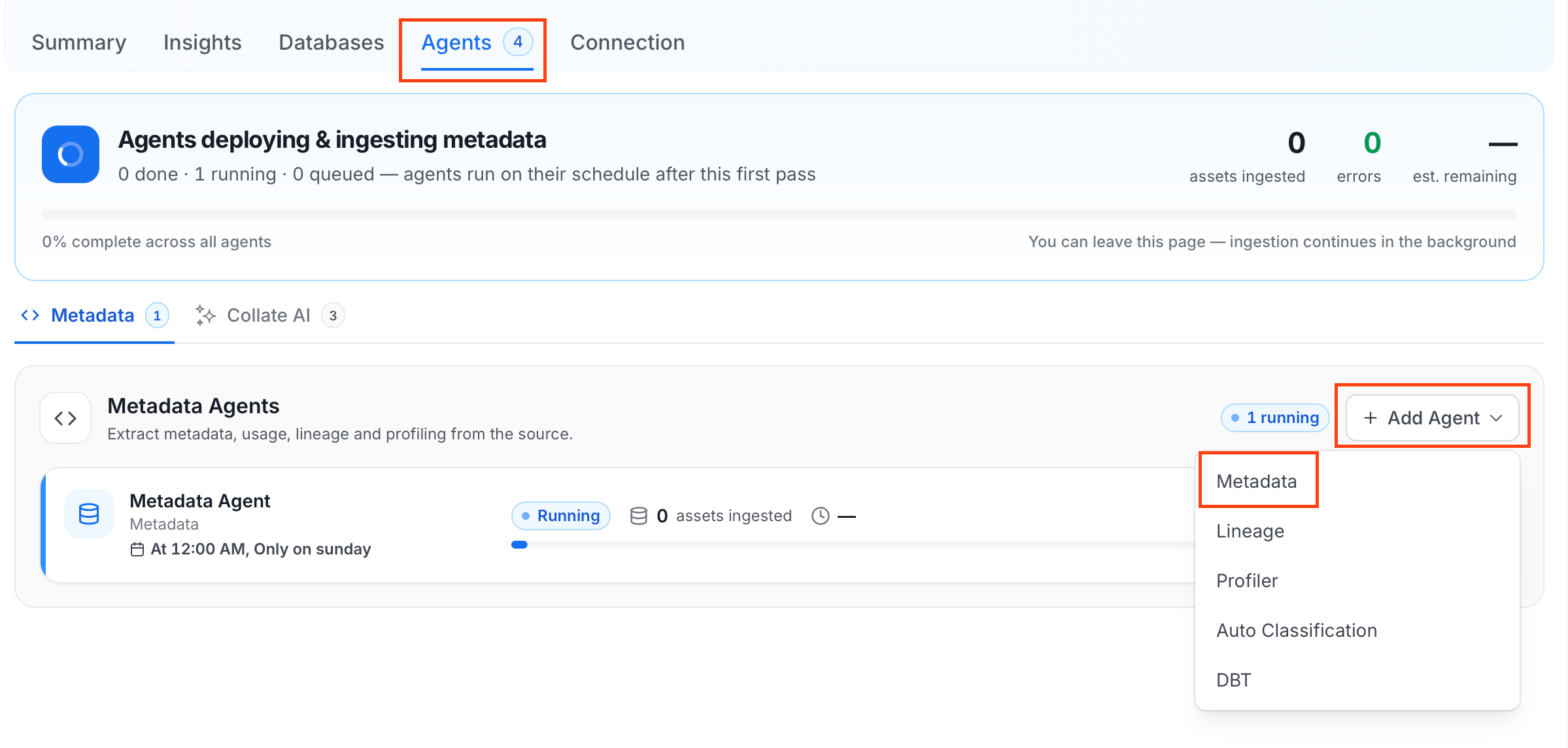
The Metadata Agent extracts schemas, tables, columns, and other structural metadata from your source and keeps your Collate catalog in sync. It powers discovery, lineage, and governance across your data assets. When you click Create & Deploy, Collate automatically deploys a Metadata Agent for this service and triggers the first ingestion run. View its status and run history from the Agents tab on the service detail page. To configure the additional Metadata Agent and schedule ingestion, follow these steps:- Navigate to Settings > Services and select the Databases service.
- Select your service and click the Agents tab.
-
Click Add Agent and select Metadata from the dropdown.
-
On the Configure Ingestion page, do the following and click Next.
-
Name this Ingestion: Enter a unique, recognizable name for this ingestion pipeline.

-
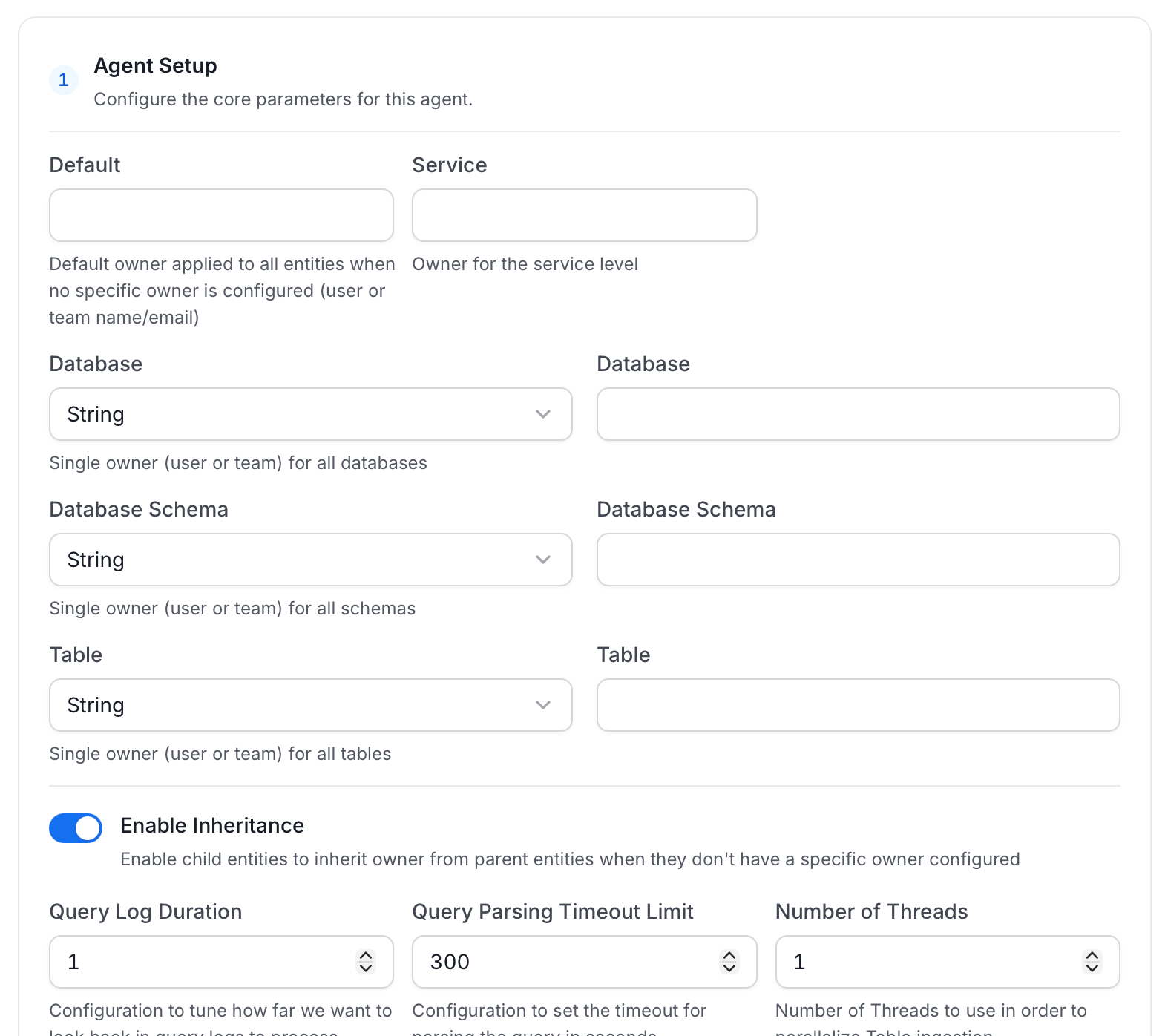
Agent Setup: Configure core parameters for metadata extraction. The following fields are available:
For more information, see Hierarchical Owner Configuration.
-
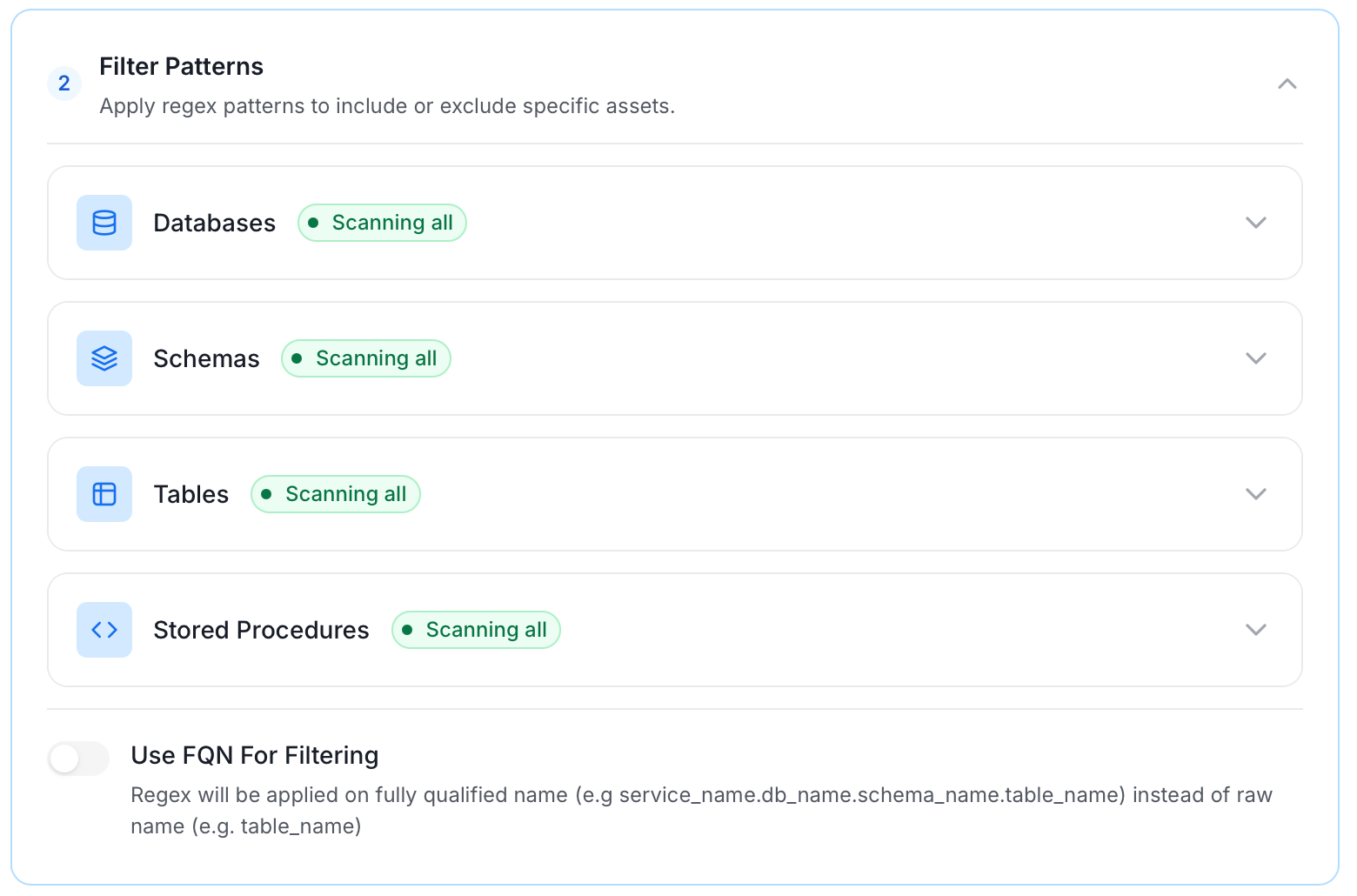
Filter Patterns: Apply include or exclude rules to scope which databases, schemas, tables, and stored procedures this agent ingests. These follow the same filter options described in Step 5.
-
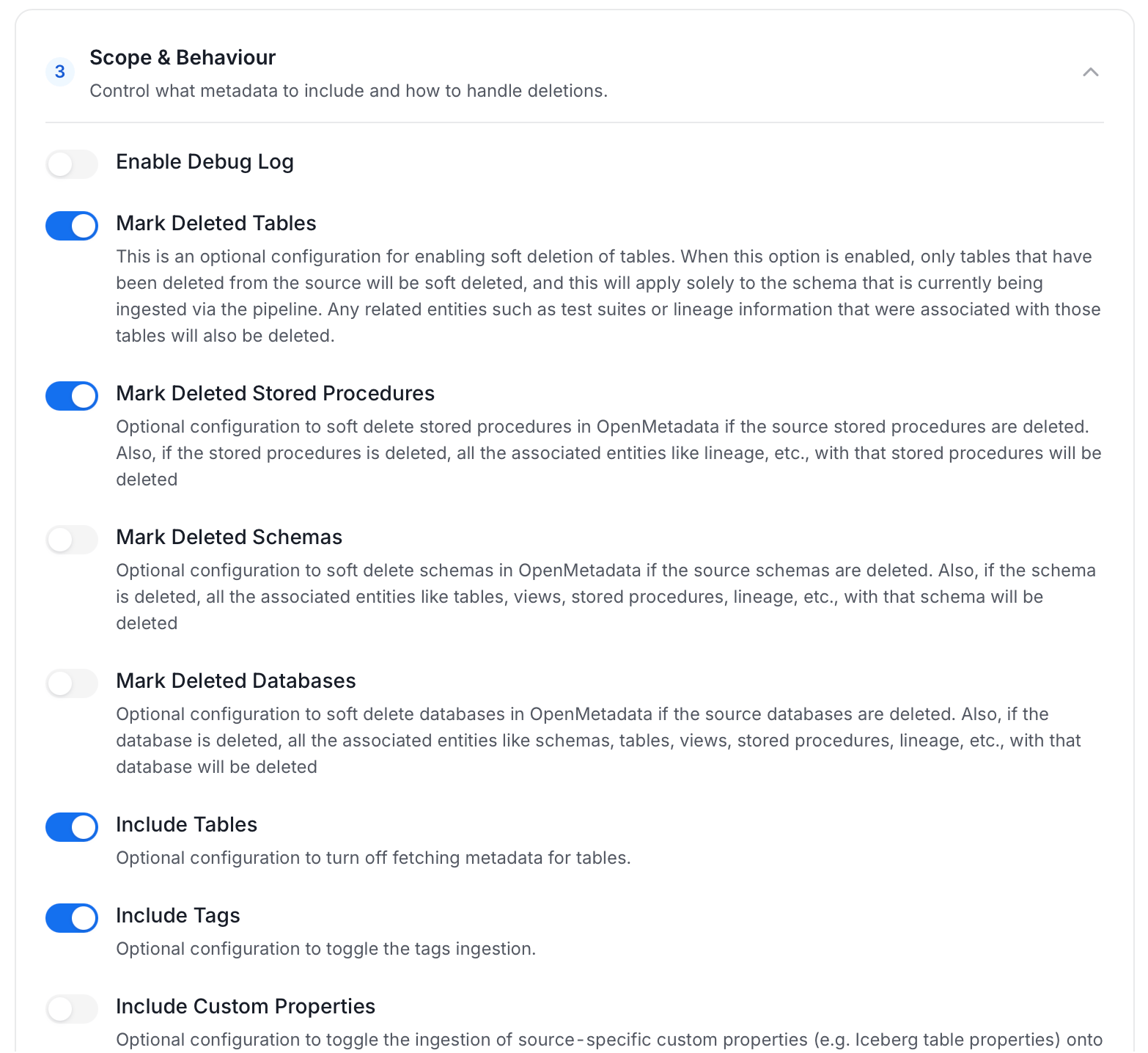
Scope & Behaviour: Control how the agent handles metadata during ingestion. Toggle each option on or off based on your needs:
Note: Available toggles vary by connector. Stored procedure options only appear for connectors that support stored procedures.
-
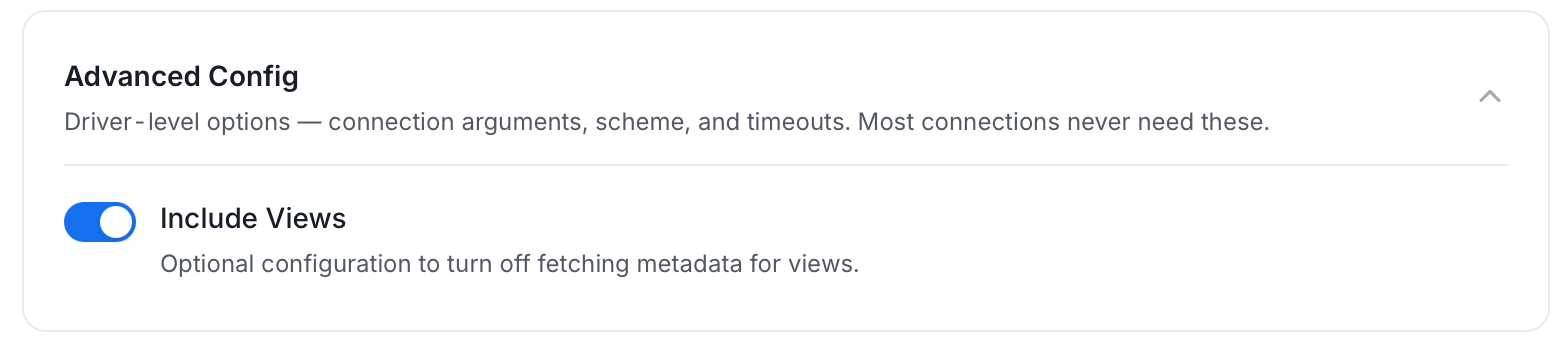
Advanced Config: Driver-level options (connection arguments, scheme, and timeouts). Most connections never need these, and they vary by connector. This section also has one ingestion-scope toggle:
-
Name this Ingestion: Enter a unique, recognizable name for this ingestion pipeline.
-
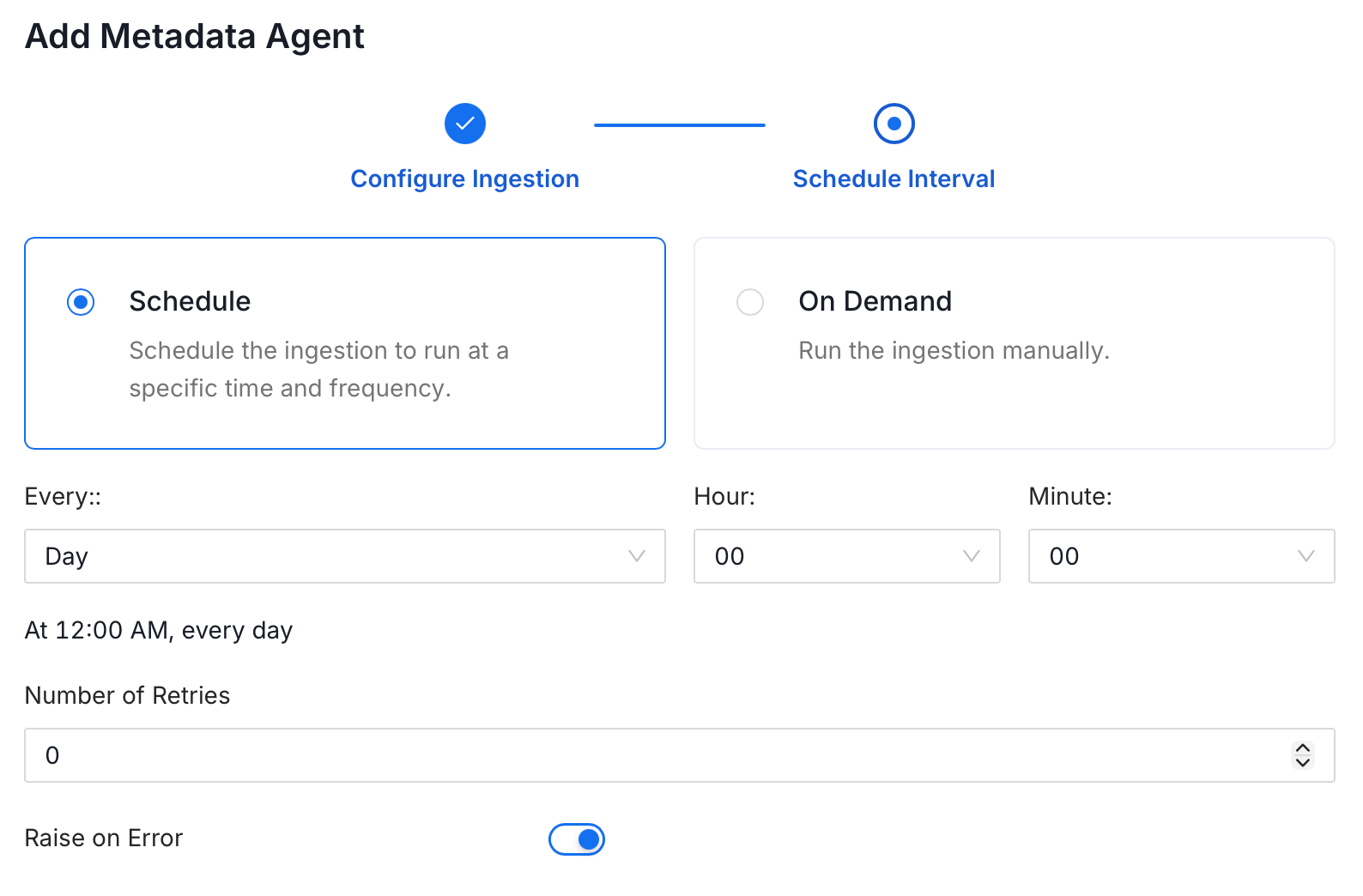
On the Schedule Interval page, set when the agent runs:
- Schedule: Choose a preset interval (Hourly, Daily, Weekly, Monthly) or enter a custom cron expression.
- On-Demand: No automatic schedule. Trigger the agent manually when needed.
- Click Add to deploy the agent.
Troubleshooting
SAP ERP Troubleshooting
Learn more about how to troubleshoot common SAP ERP connector issues and resolve configuration or ingestion errors.