Create custom role in GCP

This documentation will guide you on how to create a custom role in GCP with the necessary permissions to ingest BigTable in OpenMetadata.

Step 1: Navigate to Roles

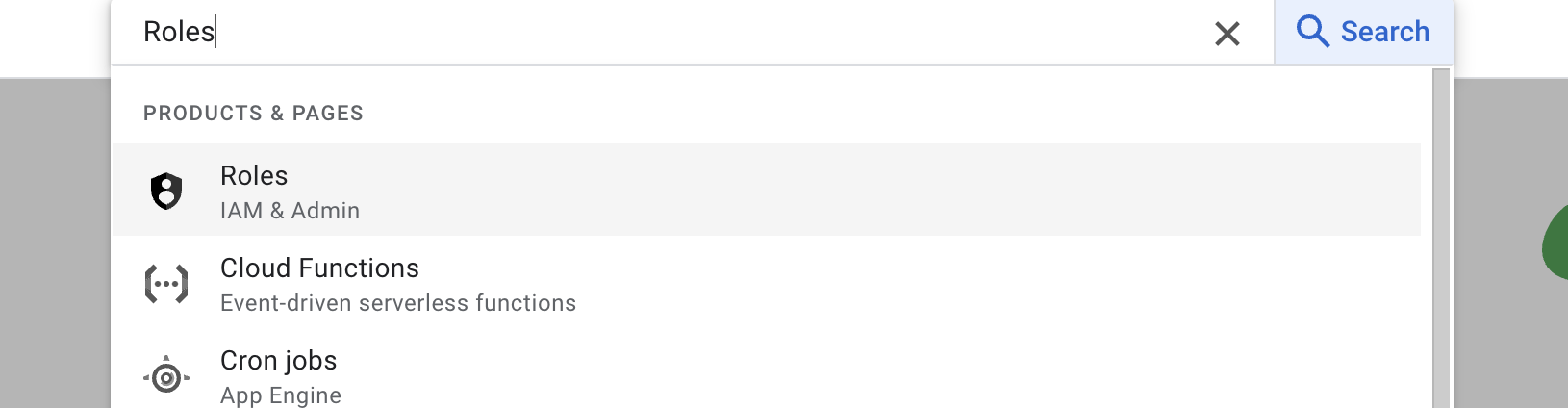
Search for Roles in your GCP console and select the first result under IAM & Roles section. Navigate to Roles
Step 2: Create Role & Add Permissions

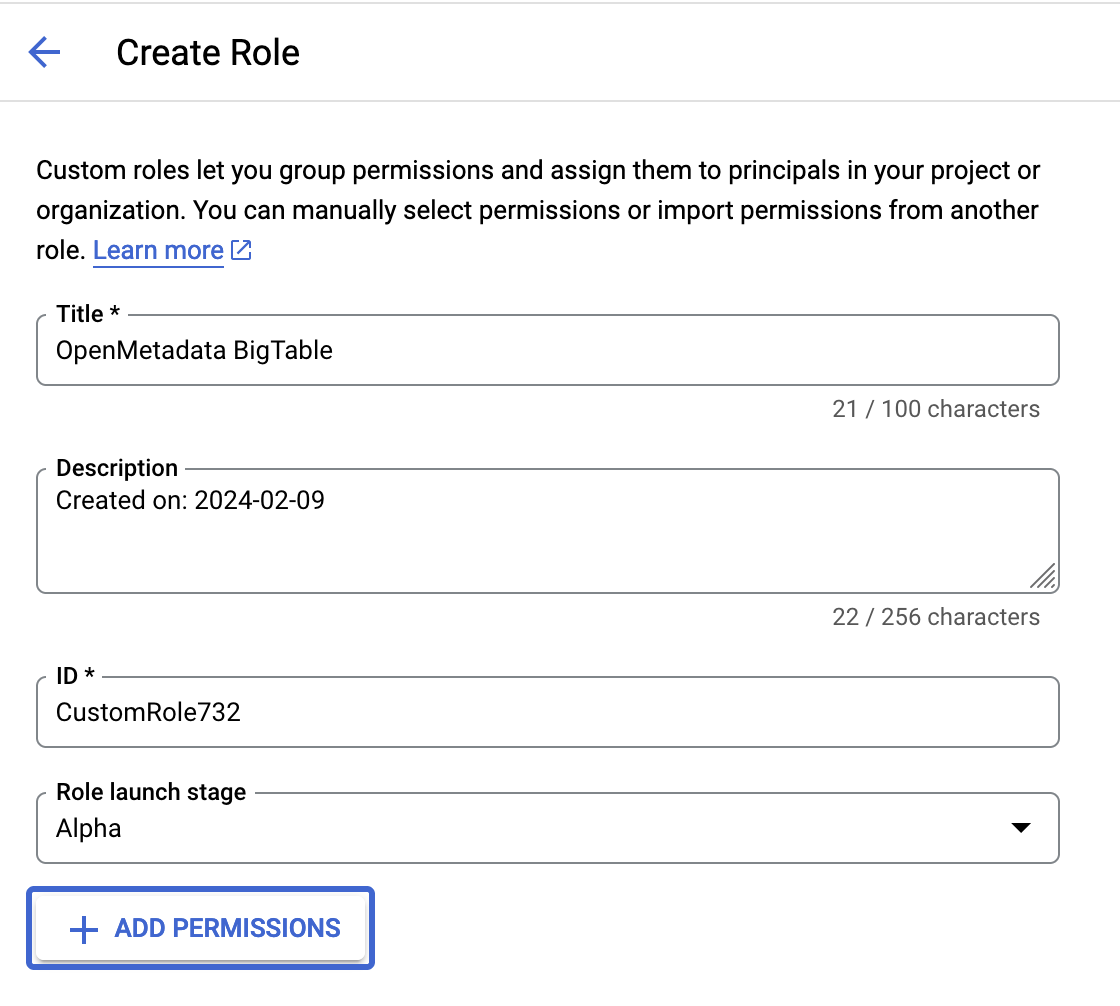
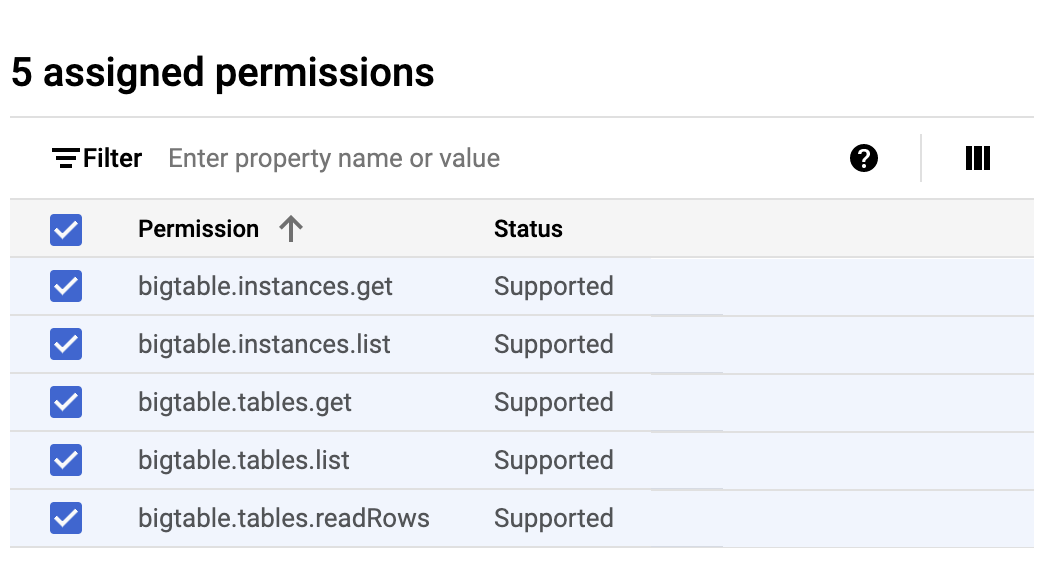
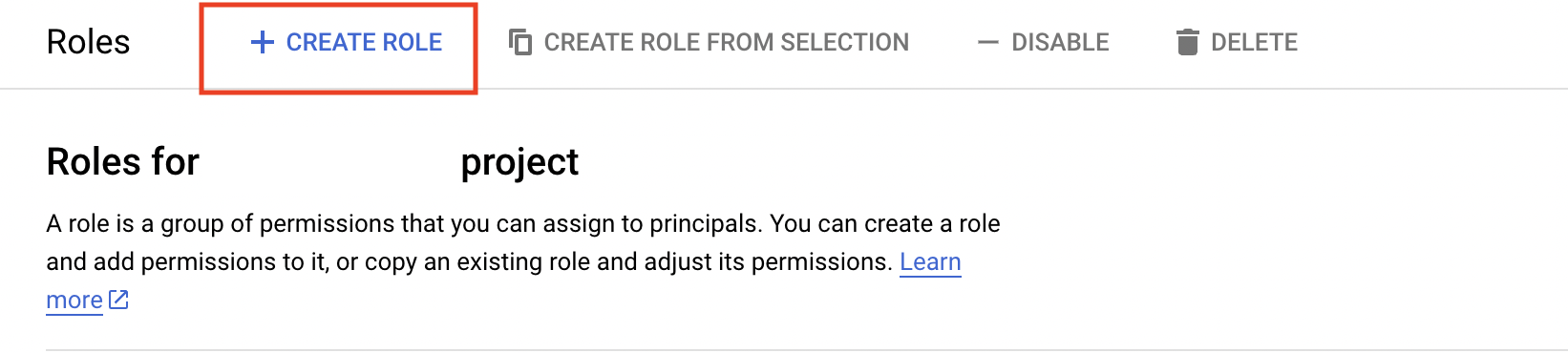
Below the search bar you should see a Create Role button click on that & navigate to create role page. Create Role Button Once You are on the create role page, you can edit the description & title of the role and finally you can click on add permissions to grant permissions to role. Create Role You can search for the required permissions in the filter box and add them accordingly. To ingest metadata from BigTable you need to grant the following permissions to the user.
#GCP PermissionRequired For
1bigtable.instances.getMetadata Ingestion
2bigtable.instances.listMetadata Ingestion
3bigtable.tables.getMetadata Ingestion
4bigtable.tables.listMetadata Ingestion
5bigtable.tables.readRowsMetadata Ingestion
Add Permissions Once you have added all the required permissions, you can create the role by clicking on the create button.

Step 3: Assign Role to Service Account

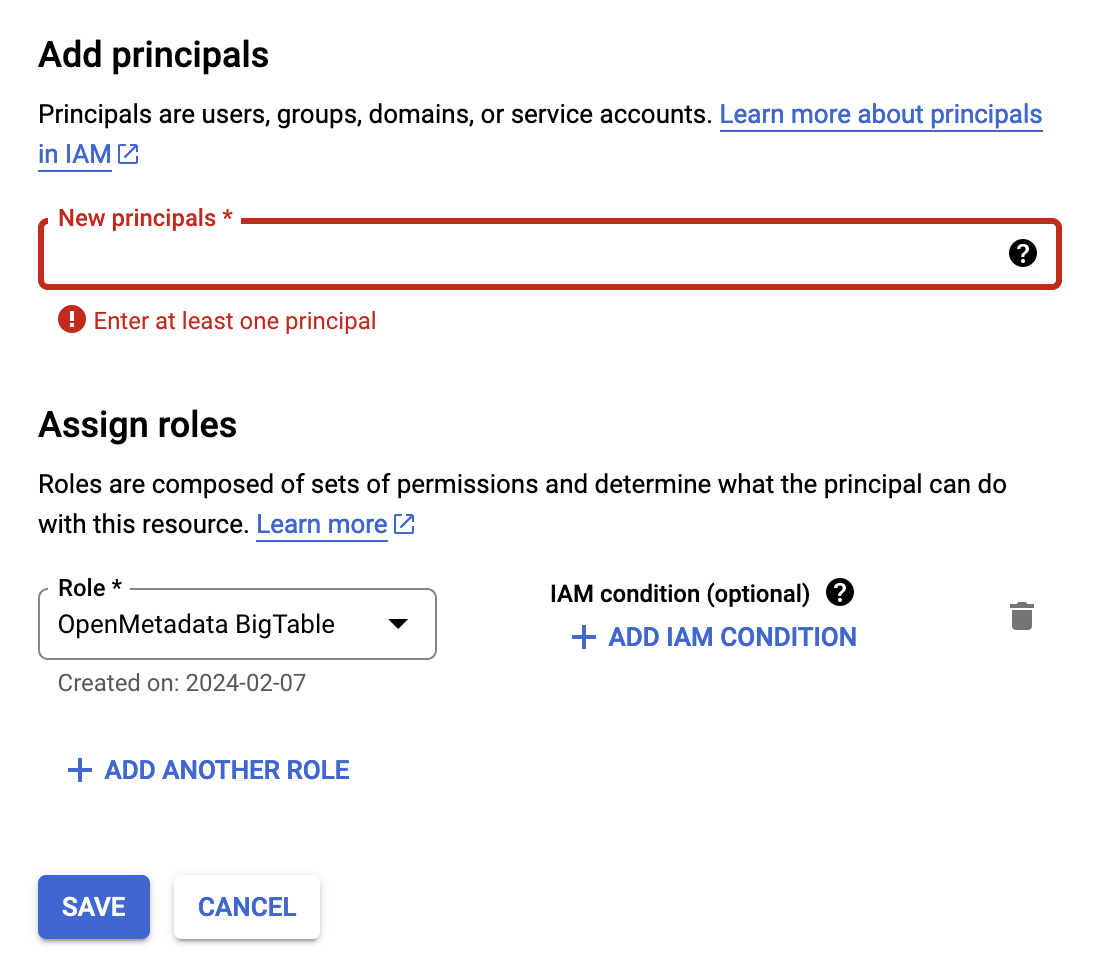
To assign the created role, you can navigate to IAM and click on Grant Access and you can search your service account in the Add Principals section & Assign the created role to the service account. Add Permissions