
Requirements
Configure the schema source and file format before creating the REST service.Configure the OpenAPI Schema URL
- Generate an OpenAPI specification for the service.
- In the REST service connection form, select OpenAPI Schema URL.
- In OpenAPI Schema URL, enter an HTTP or HTTPS URL that is reachable from the configured ingestion runner and points directly to the schema file.
- Optional: In Token, enter a bearer token if the URL requires authentication.
Supported Formats
The connector supports these schema formats:- JSON (
.json) - YAML (
.yamlor.yml)
Configure an S3-Hosted Schema
- In the REST service connection form, select OpenAPI Schema S3 URL when the OpenAPI schema is stored in Amazon S3, including when the object is private.
-
In OpenAPI Schema S3 URL, enter the HTTPS object URL in the following format:
- In AWS Region, enter the bucket’s Amazon Web Services (AWS) Region.
-
In the AWS credential configuration, choose the credential method used by the ingestion runner:
- Enable AWS Identity and Access Management (IAM) authentication with IAM Auth to use the runner’s default AWS credential provider chain, including a workload or instance role.
- Configure an access key and secret. Include the session token when using temporary credentials.
- Select a named AWS profile that is available in the runner environment.
-
Optional: In
assumeRoleArn, enter the target role Amazon Resource Name (ARN) after selecting a source credential method. The target role’s trust policy must allow the source principal. For cross-account role assumption, the source principal’s identity policy must also allowsts:AssumeRole. For same-account role assumption, an identity policy is required unless the trust policy grants the source principal permission directly.
.json, .yaml, and .yml extensions and detects the format of extensionless objects. Avoid percent-encoded characters in the object key because the connector passes the URL path to S3 without decoding it. The S3 source doesn’t accept an s3:// URI.
The REST connector retrieves the object with the configured AWS credentials. For more information about the URL structure, see Virtual Hosting of General Purpose Buckets.
Metadata Ingestion
Connection Options
1
Configure the Schema Source
Configure one schema source:
- OpenAPI Schema URL: Enter the HTTP or HTTPS location of the OpenAPI schema, such as
https://petstore3.swagger.io/api/v3/openapi.json. - OpenAPI Schema S3 URL: Enter the HTTPS S3 object URL and configure the AWS Region and credentials described in the S3-hosted schema configuration section below.
2
Test the Connection
Once the credentials have been added, click on Test Connection and Save the changes.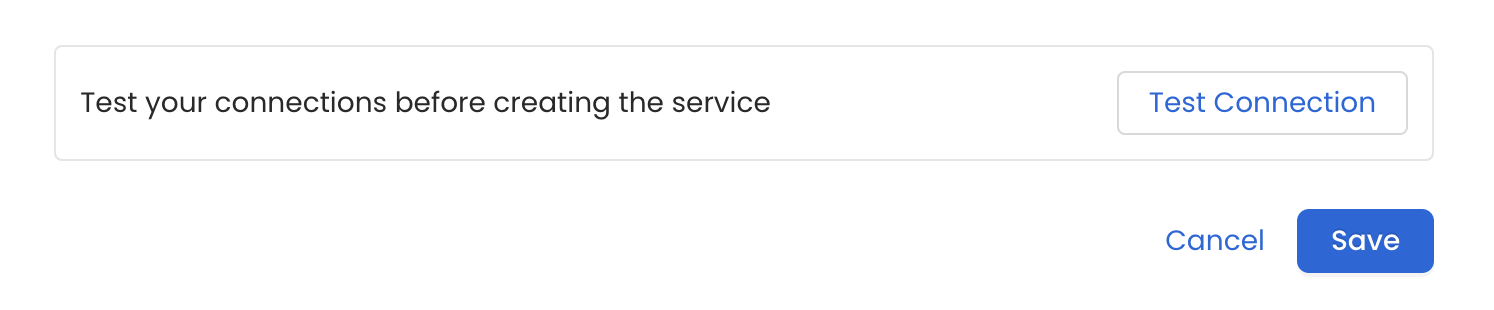
3
Schedule the Ingestion and Deploy
Scheduling can be set up at an hourly, daily, weekly, or manual cadence. The
timezone is in UTC. Select a Start Date to schedule for ingestion. It is
optional to add an End Date.Review your configuration settings. If they match what you intended,
click Deploy to create the service and schedule metadata ingestion.If something doesn’t look right, click the Back button to return to the
appropriate step and change the settings as needed.After configuring the workflow, you can click on Deploy to create the
pipeline.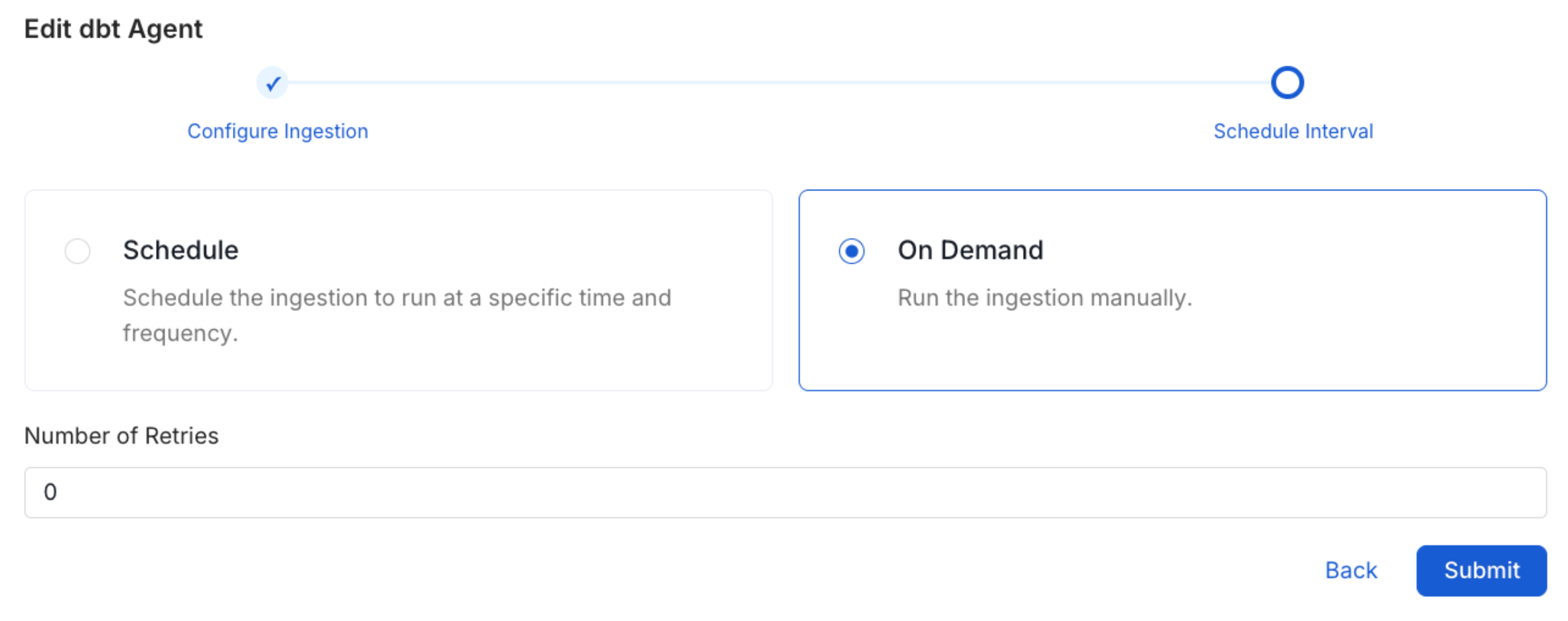
4
View the Ingestion Pipeline
Once the workflow has been successfully deployed, you can view the
Ingestion Pipeline running from the Service Page.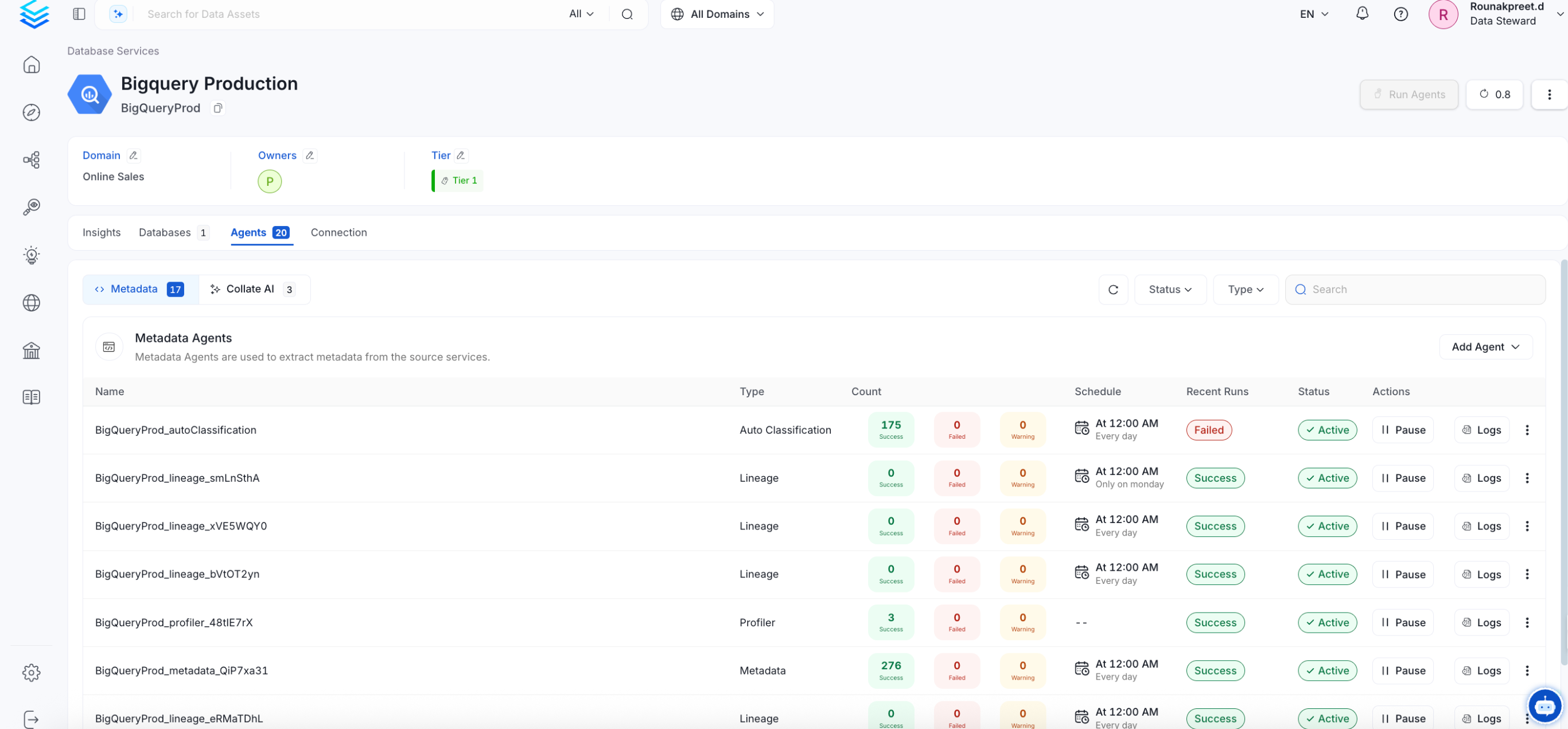
Troubleshooting
REST Troubleshooting
Learn more about how to troubleshoot common REST connector issues and resolve configuration or ingestion errors.