> ## Documentation Index
> Fetch the complete documentation index at: https://docs.getcollate.io/llms.txt
> Use this file to discover all available pages before exploring further.
# Team and Organization Connections | Collate SQL Studio Guide
> Share one set of SQL Studio credentials across a team or the whole organization so members can run queries without configuring their own.
# Team and Organization Connections
A team connection is one set of SQL Studio credentials that every member of a team inherits. Instead of asking each user to enter their own username and password for a database service, a team owner configures the credentials once on the team, and members run queries with them straight away.
Organization-wide access uses the same mechanism. **Organization** is the root team in Collate, so a connection configured there is inherited by every user in the platform. No separate organization-level setting exists.
## How Team Connections Fit Together
SQL Studio resolves credentials at three levels:
| Level | Configured by | Applies to |
| --------------------- | ---------------------------- | ------------------------------------------------------------------------------------ |
| Service configuration | Platform admin | Which services are available in SQL Studio, and which authentication method they use |
| Team connection | Team owner or platform admin | Every member of that team and its child teams |
| Personal connection | Each user | That user only |
The service configuration comes first. A team connection extends it, it does not replace it: the admin still decides whether SQL Studio is enabled for the service and which authentication type is used. See [Admin Configuration](/how-to-guides/sql-studio/admin-configuration) for that step.
## Prerequisites
Before configuring a team connection, confirm the following.
* The database service is configured for SQL Studio and **Enabled**. Team connections aren't offered for services that an admin hasn't set up.
* You are a **platform admin**, or an **owner of the team** you want to configure.
* You have credentials to share, typically a service account rather than a personal login.
Use a dedicated service account for team connections. Every member of the team queries with these credentials, so a personal login makes the query history harder to attribute and breaks when that person leaves.
## Who Can Configure and View
The following permissions apply to a team connection.
| Action | Platform admin | Team owner | Team member |
| --------------------------------------------- | -------------- | ----------------------- | ------------------------ |
| Configure or update a team connection | Yes | Yes, for teams they own | No |
| Test a team connection | Yes | Yes, for teams they own | No |
| Delete a team connection | Yes | Yes, for teams they own | No |
| See that the connection exists and its status | Yes | Yes | Yes, for their own teams |
| Run queries with the connection | Yes | Yes | Yes |
Nobody reads the stored credentials back, including admins. Collate masks passwords, private keys, and client secrets in every response, and the encrypted values never leave the server.
## Configuring a Team Connection
Follow these steps to share credentials with a team.
1. Navigate to **Settings** > **Team & User Management** > **Teams**.
2. Select the team you want to configure.
3. Click the **SQL Studio** tab.
The tab lists every database service that an admin has enabled for SQL Studio, with the authentication type and the current status of the team's connection.
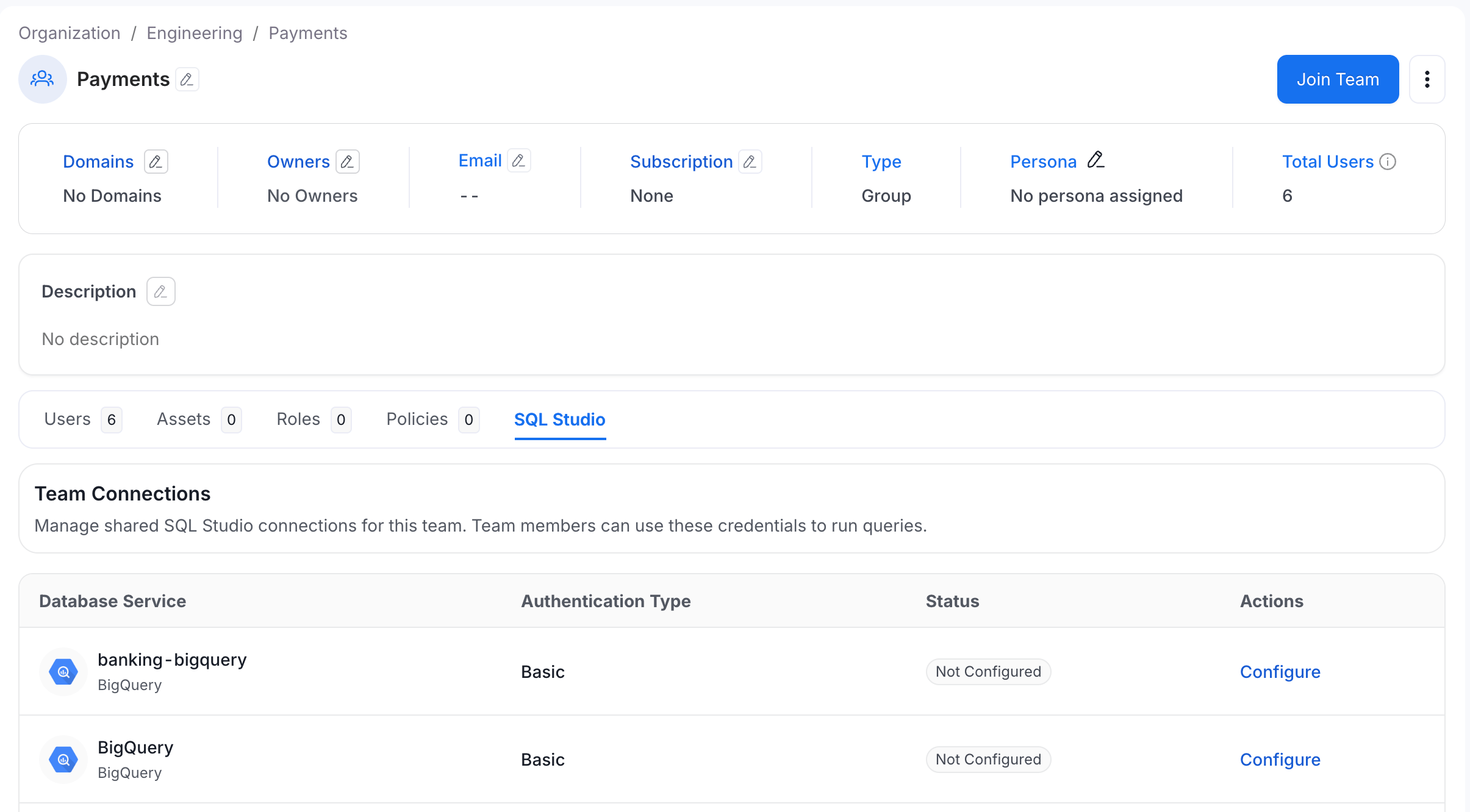 4. Click **Configure** on the service you want to share.
5. Enter the credentials for the service:
* **BigQuery**: Private Key ID, Private Key, Client Email, and Client ID, all taken from the Service Account.
* **Snowflake**: Username + Password, or Username + Private Key + Passphrase.
* **Trino, Redshift, PostgreSQL, and MSSQL**: Username + Password.
4. Click **Configure** on the service you want to share.
5. Enter the credentials for the service:
* **BigQuery**: Private Key ID, Private Key, Client Email, and Client ID, all taken from the Service Account.
* **Snowflake**: Username + Password, or Username + Private Key + Passphrase.
* **Trino, Redshift, PostgreSQL, and MSSQL**: Username + Password.
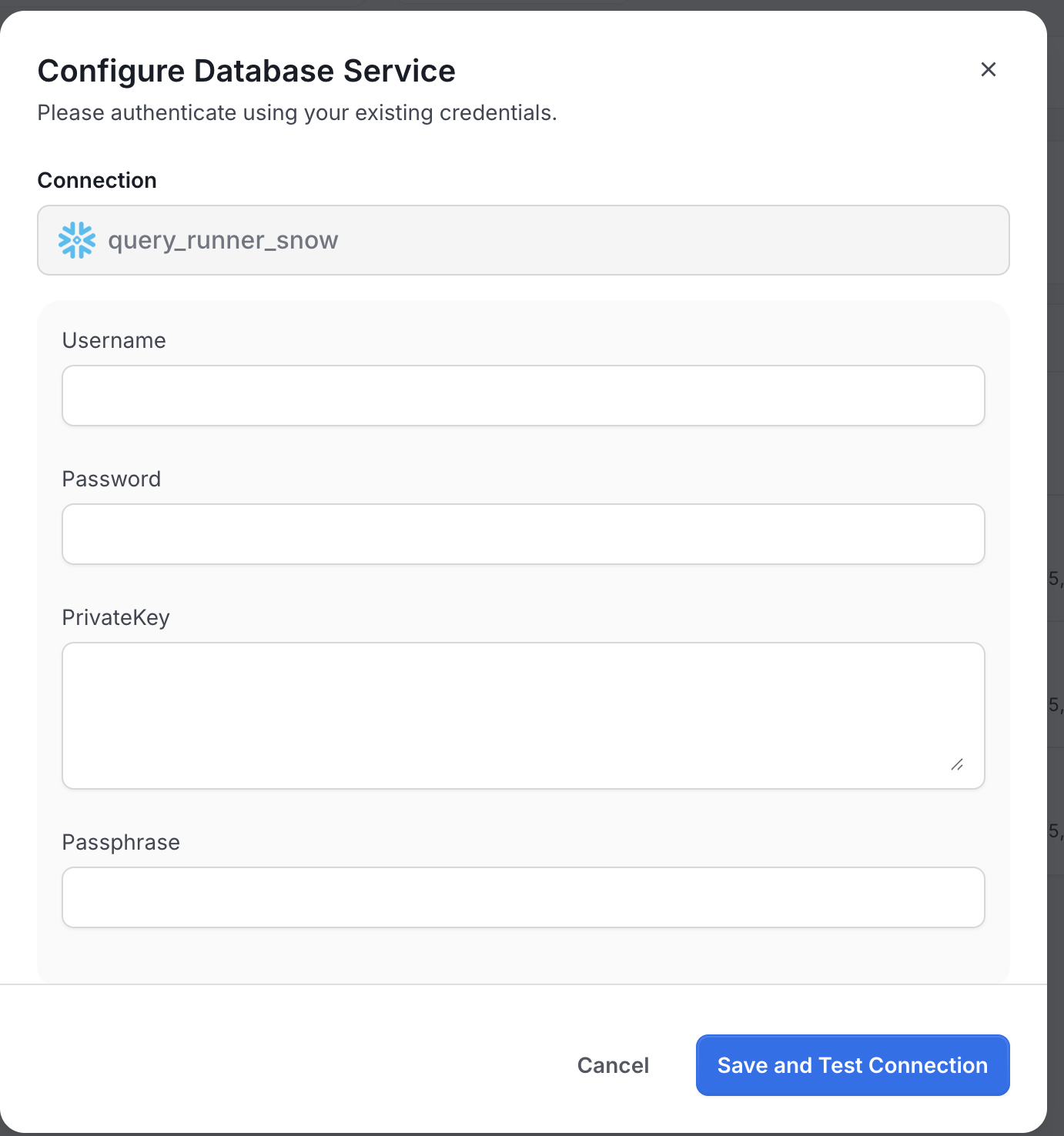 6. Click **Save**.
7. Click **Test Connection** and wait for the status to become **Active**.
A new team connection starts in **Pending** status, and members do not inherit it until it reports **Active**. If members tell you they still can't query the service, run **Test Connection** on the team connection first.
Each team has one connection per service. Configuring the same service again updates the existing credentials rather than creating a second connection.
## Configuring an Organization-Wide Connection
To give every user in Collate access to a service with one shared set of credentials, configure the connection on the **Organization** team:
1. Navigate to **Settings** > **Team & User Management** > **Teams**.
2. Open the **Organization** team, the root of the team hierarchy.
3. Follow the same steps as [Configuring a Team Connection](#configuring-a-team-connection).
6. Click **Save**.
7. Click **Test Connection** and wait for the status to become **Active**.
A new team connection starts in **Pending** status, and members do not inherit it until it reports **Active**. If members tell you they still can't query the service, run **Test Connection** on the team connection first.
Each team has one connection per service. Configuring the same service again updates the existing credentials rather than creating a second connection.
## Configuring an Organization-Wide Connection
To give every user in Collate access to a service with one shared set of credentials, configure the connection on the **Organization** team:
1. Navigate to **Settings** > **Team & User Management** > **Teams**.
2. Open the **Organization** team, the root of the team hierarchy.
3. Follow the same steps as [Configuring a Team Connection](#configuring-a-team-connection).
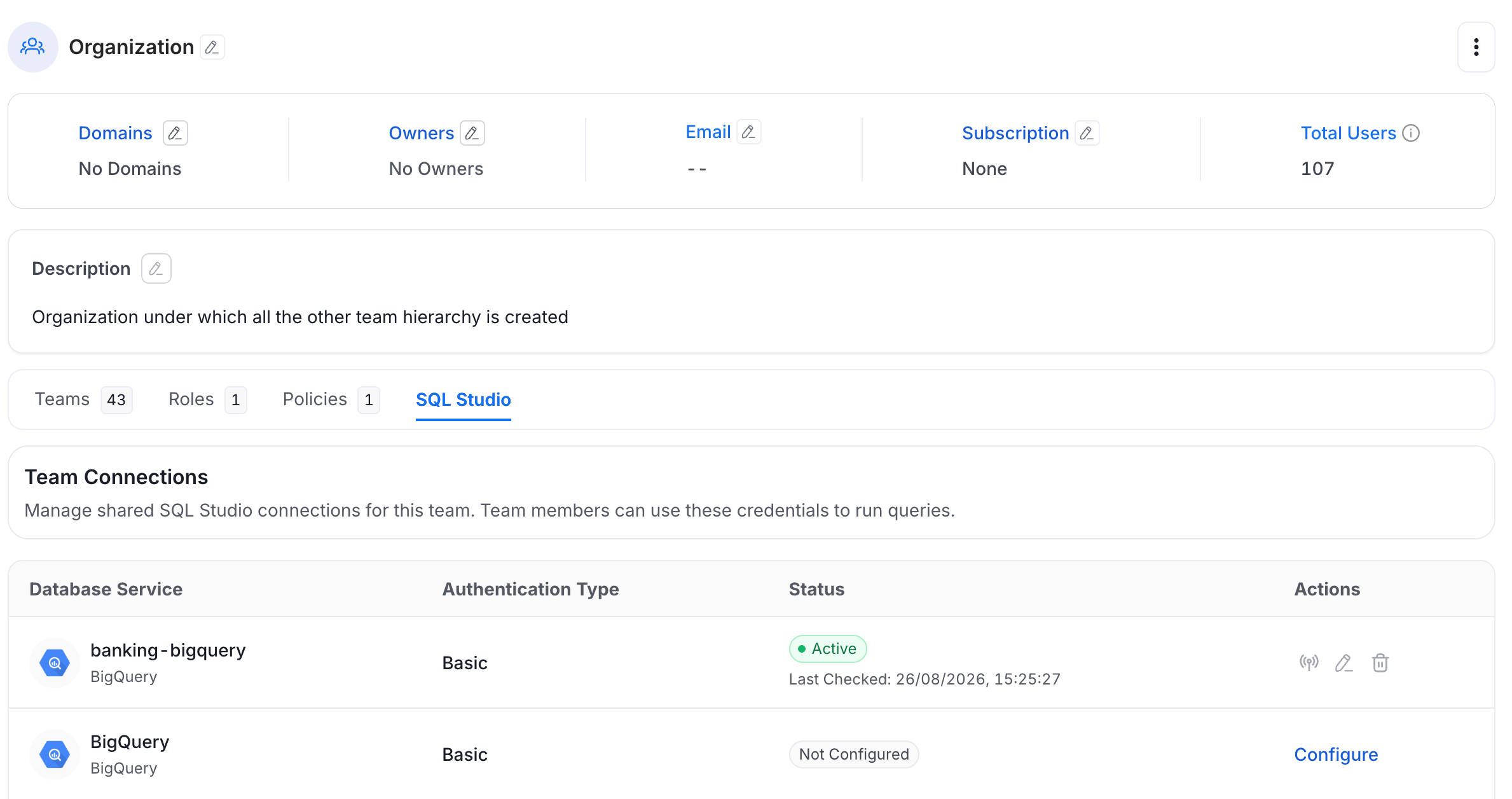 Every user belongs to Organization, directly or through a team, so this connection reaches everyone. It is also the broadest level, so a connection on any team closer to the user is used instead. That makes Organization a good default: a low-privilege connection for everyone, with narrower connections on the teams that need more access.
## How Collate Chooses Which Credentials To Use
Credentials live at three levels: your own, your team's, and the Organization's. Only **Active** connections are used, so SQL Studio skips one that is pending, expired, or not configured and looks at the next level.
When you open a new query tab:
* If only one connection is active, SQL Studio uses it.
* If both a team connection and your own credentials are active, SQL Studio asks which to use, except from the landing page, where it selects the team connection.
Among teams, the team closest to you wins: Group, then Department, then Division, then BusinessUnit, then Organization. You inherit connections from your own teams and from every team above them, so an Organization connection reaches you even when your own team has none. For more information, see [Team Structure in Collate](/how-to-guides/admin-guide/teams-and-users/team-structure-openmetadata).
An expired personal connection doesn't block you. If your own credentials have expired and your team's connection is active, a new query tab opens on the team connection. Reconnect your own credentials when you want to use them again.
## Switching Between Connections
When more than one connection is available for a service, choose which one a query tab uses:
* **From the SQL Studio landing page**: open the service card's menu and click **Choose Connection**.
* **From an open query tab**: select the current connection in the toolbar, then pick a different one.
Every user belongs to Organization, directly or through a team, so this connection reaches everyone. It is also the broadest level, so a connection on any team closer to the user is used instead. That makes Organization a good default: a low-privilege connection for everyone, with narrower connections on the teams that need more access.
## How Collate Chooses Which Credentials To Use
Credentials live at three levels: your own, your team's, and the Organization's. Only **Active** connections are used, so SQL Studio skips one that is pending, expired, or not configured and looks at the next level.
When you open a new query tab:
* If only one connection is active, SQL Studio uses it.
* If both a team connection and your own credentials are active, SQL Studio asks which to use, except from the landing page, where it selects the team connection.
Among teams, the team closest to you wins: Group, then Department, then Division, then BusinessUnit, then Organization. You inherit connections from your own teams and from every team above them, so an Organization connection reaches you even when your own team has none. For more information, see [Team Structure in Collate](/how-to-guides/admin-guide/teams-and-users/team-structure-openmetadata).
An expired personal connection doesn't block you. If your own credentials have expired and your team's connection is active, a new query tab opens on the team connection. Reconnect your own credentials when you want to use them again.
## Switching Between Connections
When more than one connection is available for a service, choose which one a query tab uses:
* **From the SQL Studio landing page**: open the service card's menu and click **Choose Connection**.
* **From an open query tab**: select the current connection in the toolbar, then pick a different one.
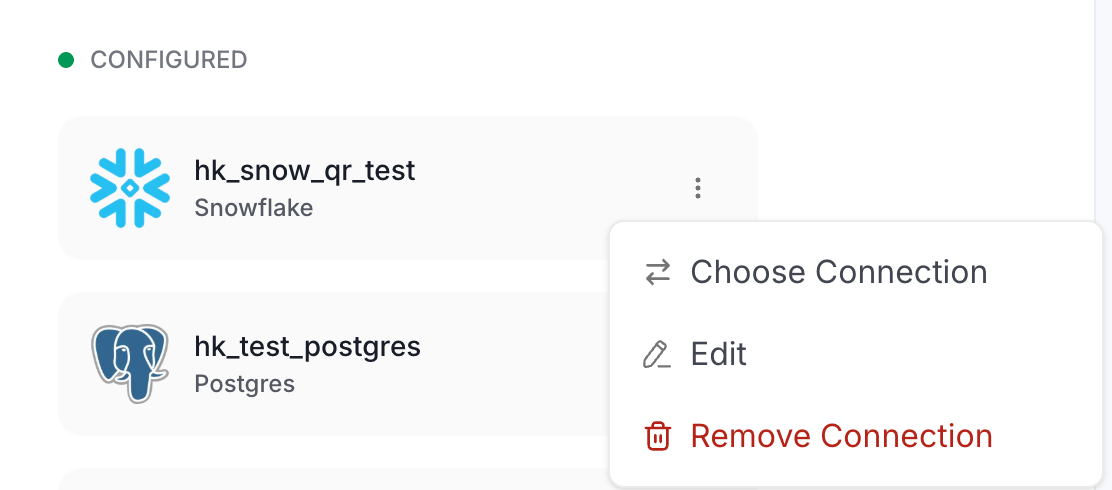 The dialog lists every team connection available to you, then your own credentials. Select one and click **Start New Session**.
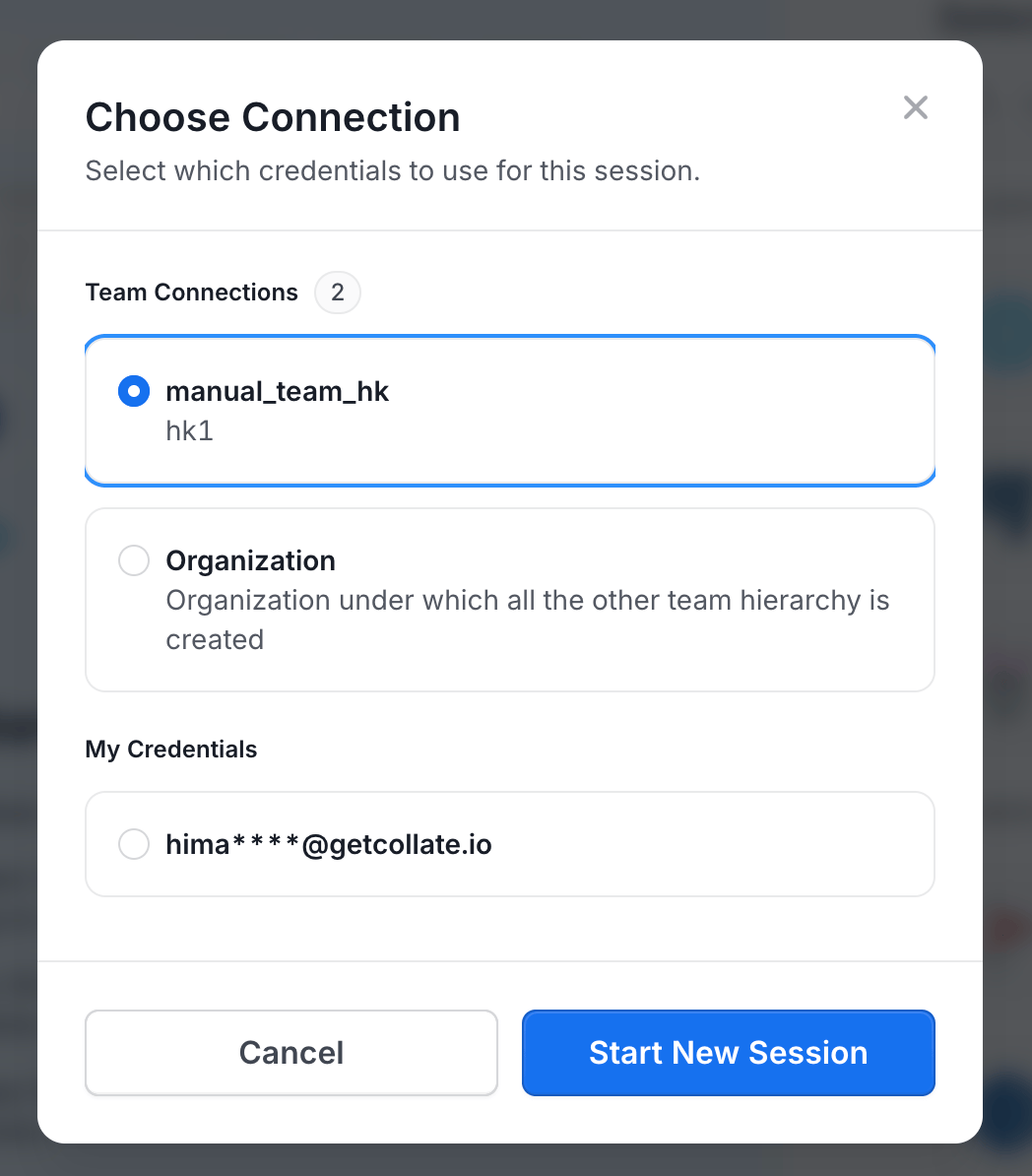 The choice applies to that query tab, so different tabs query the same service through different credentials. The toolbar shows which connection the active tab is using.
### When Two Teams Are Equally Specific
If you belong to two teams of the same type that both have a connection for the same service, for example two Groups, neither is more specific than the other, and Collate won't guess. The **Choose Connection** dialog lists the tied teams so you pick one. Calls made directly to the API get an `AMBIGUOUS_CREDENTIALS` error listing the candidate teams, and you resolve it by passing the `teamId` of the team you want.
## Team Connections and Authentication Types
The admin fixes the authentication type on the service, which determines whether sharing makes sense:
* **Basic authentication** is what team connections are built for. The team owner enters the shared credentials once, and members inherit them.
* **Collate SSO** and **OAuth** authenticate each user individually against the database provider, so every member authorizes with their own identity from SQL Studio. See [User Authentication](/how-to-guides/sql-studio/user-authentication) for that flow.
If a service should be shared through a team, ask your admin to configure it with **Basic** authentication and use a service account. Choosing between shared and per-user access is an admin decision made on the service, not on the team.
## Updating, Testing, and Removing a Team Connection
All three actions live on the team's **SQL Studio** tab:
* **Update credentials**: click **Edit** on the connection, enter the new values, and save. Run **Test Connection** afterwards so the status returns to **Active**.
* **Test the connection**: click **Test** to check the credentials against the service. Use this after a password rotation, or whenever members report failures. The SQL Studio tab shows the time of the last check.
* **Delete the connection**: click **Delete**. The credentials are removed and members lose access through this team. New query tabs fall back to a connection from a parent team, or to the member's own credentials. Saved queries aren't affected.
## Troubleshooting
Use the following solutions to resolve common team connection problems.
### Members Can't Query the Service
Check these in order:
1. The team connection status is **Active**, not **Not Configured**, **Pending**, or **Expired**. Run **Test Connection**.
2. The service is still **Enabled** in the admin configuration.
3. The user is a member of the team, or of one of its child teams.
### A Member Sees Their Own Credentials Being Used Instead of the Team's
A query tab keeps the connection it was opened with, so a tab opened before the team connection existed still uses the member's own credentials. The member switches that tab through **Choose Connection**, or deletes their personal connection from **My Connections** on their profile so new tabs use the team connection.
### Multiple Team Credentials Available
Two teams of the same type both have a connection for this service. Select one through **Choose Connection**. To remove the choice permanently, delete the connection from one of the teams, or configure a connection on a more specific team.
### The Service Isn't Listed on the Team's SQL Studio Tab
The tab only lists services that an admin has configured and enabled for SQL Studio. Ask your admin to complete [Admin Configuration](/how-to-guides/sql-studio/admin-configuration) for the service.
## Next Steps
* **[User Authentication](/how-to-guides/sql-studio/user-authentication)**: connect with your own credentials, and manage personal connections.
* **[Query Execution](/how-to-guides/sql-studio/query-execution)**: write and run queries in SQL Studio.
* **[Admin Configuration](/how-to-guides/sql-studio/admin-configuration)**: configure SQL Studio and choose the authentication type for a service.
**Setting up a new team?** Configure a low-privilege connection on **Organization** first so everyone has a baseline, then add narrower connections on the teams that need wider access.
The choice applies to that query tab, so different tabs query the same service through different credentials. The toolbar shows which connection the active tab is using.
### When Two Teams Are Equally Specific
If you belong to two teams of the same type that both have a connection for the same service, for example two Groups, neither is more specific than the other, and Collate won't guess. The **Choose Connection** dialog lists the tied teams so you pick one. Calls made directly to the API get an `AMBIGUOUS_CREDENTIALS` error listing the candidate teams, and you resolve it by passing the `teamId` of the team you want.
## Team Connections and Authentication Types
The admin fixes the authentication type on the service, which determines whether sharing makes sense:
* **Basic authentication** is what team connections are built for. The team owner enters the shared credentials once, and members inherit them.
* **Collate SSO** and **OAuth** authenticate each user individually against the database provider, so every member authorizes with their own identity from SQL Studio. See [User Authentication](/how-to-guides/sql-studio/user-authentication) for that flow.
If a service should be shared through a team, ask your admin to configure it with **Basic** authentication and use a service account. Choosing between shared and per-user access is an admin decision made on the service, not on the team.
## Updating, Testing, and Removing a Team Connection
All three actions live on the team's **SQL Studio** tab:
* **Update credentials**: click **Edit** on the connection, enter the new values, and save. Run **Test Connection** afterwards so the status returns to **Active**.
* **Test the connection**: click **Test** to check the credentials against the service. Use this after a password rotation, or whenever members report failures. The SQL Studio tab shows the time of the last check.
* **Delete the connection**: click **Delete**. The credentials are removed and members lose access through this team. New query tabs fall back to a connection from a parent team, or to the member's own credentials. Saved queries aren't affected.
## Troubleshooting
Use the following solutions to resolve common team connection problems.
### Members Can't Query the Service
Check these in order:
1. The team connection status is **Active**, not **Not Configured**, **Pending**, or **Expired**. Run **Test Connection**.
2. The service is still **Enabled** in the admin configuration.
3. The user is a member of the team, or of one of its child teams.
### A Member Sees Their Own Credentials Being Used Instead of the Team's
A query tab keeps the connection it was opened with, so a tab opened before the team connection existed still uses the member's own credentials. The member switches that tab through **Choose Connection**, or deletes their personal connection from **My Connections** on their profile so new tabs use the team connection.
### Multiple Team Credentials Available
Two teams of the same type both have a connection for this service. Select one through **Choose Connection**. To remove the choice permanently, delete the connection from one of the teams, or configure a connection on a more specific team.
### The Service Isn't Listed on the Team's SQL Studio Tab
The tab only lists services that an admin has configured and enabled for SQL Studio. Ask your admin to complete [Admin Configuration](/how-to-guides/sql-studio/admin-configuration) for the service.
## Next Steps
* **[User Authentication](/how-to-guides/sql-studio/user-authentication)**: connect with your own credentials, and manage personal connections.
* **[Query Execution](/how-to-guides/sql-studio/query-execution)**: write and run queries in SQL Studio.
* **[Admin Configuration](/how-to-guides/sql-studio/admin-configuration)**: configure SQL Studio and choose the authentication type for a service.
**Setting up a new team?** Configure a low-privilege connection on **Organization** first so everyone has a baseline, then add narrower connections on the teams that need wider access.