> ## Documentation Index
> Fetch the complete documentation index at: https://docs.getcollate.io/llms.txt
> Use this file to discover all available pages before exploring further.
# Query Execution | Collate SQL Studio Guide
> Learn how to write and execute SQL queries in SQL Studio, save queries, and view results.
# Query Execution
SQL Studio is an integrated SQL query interface that allows you to write, execute, and manage SQL queries directly against your configured database services (BigQuery, Snowflake, Trino, Redshift, PostgreSQL, MSSQL).
## Accessing SQL Studio
1. Navigate to **SQL Studio** from the main navigation menu
2. On first visit, you'll see a landing page with available database services
3. Services are grouped into:
* **Configured**: Services you've already connected to (ready to use)
* **Needs Configuration**: Services that require authentication
If you haven't connected to a service yet, see the [User Authentication](/how-to-guides/sql-studio/user-authentication) guide to get started.
## The SQL Studio Interface
The SQL Studio has three main areas:
* **Left Sidebar**: Database Explorer and saved queries
* **Top Panel**: SQL editor with tabs for multiple queries
* **Bottom Panel**: Query results
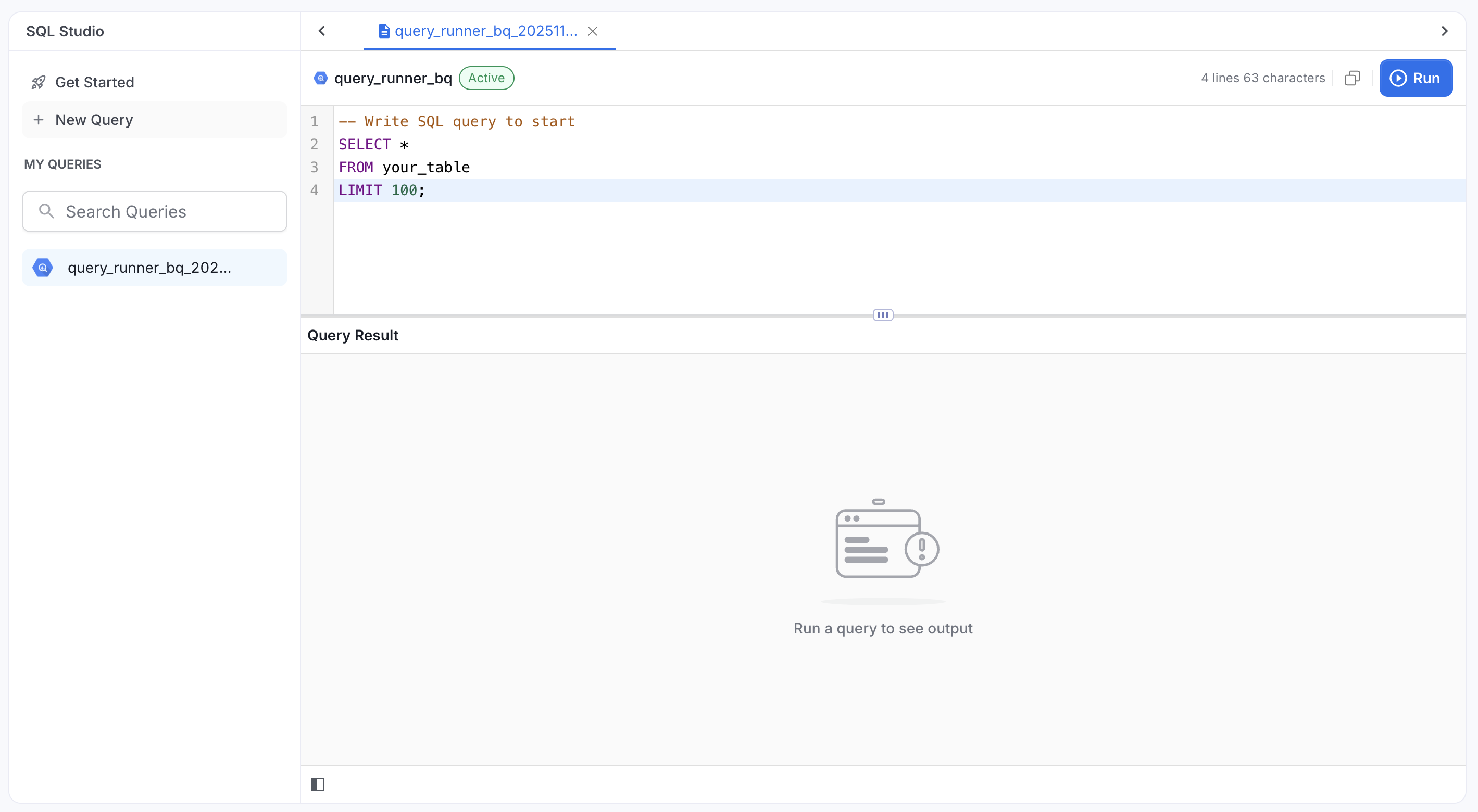 **Connection Status**: The toolbar shows your connection status:
* **Connected** (green): Ready to execute queries
* **Not Connected** (gray): Click to authenticate
## Writing Your First Query
### Creating a New Query
1. Click **New Query** from the sidebar (or click the **+** tab)
2. Select a database service from the dropdown
3. A new tab opens in the editor
### Writing SQL
Write your SQL query in the editor. SQL Studio supports:
* **Syntax highlighting** for SQL keywords
* **Auto-complete** for table names (type `FROM ` and start typing)
* **Multiple query tabs** for working on different queries
**Example Query**:
```sql theme={null}
-- BigQuery
SELECT * FROM `project.dataset.table` LIMIT 10;
-- Snowflake
SELECT * FROM database.schema.table LIMIT 10;
-- Trino
SELECT * FROM catalog.schema.table LIMIT 10;
```
### Using the Database Explorer
The left sidebar shows your database hierarchy. You can:
1. Click **▶** to expand projects/databases/schemas
2. Browse your tables
3. Double-click a table to insert its name into the editor
**Use fully qualified names** to avoid ambiguity: `project.dataset.table` or `` `project.dataset.table` `` (BigQuery)
## Executing Queries
### Running a Query
1. Write your SQL query in the editor
2. Click the **Run** button (▶), OR press `Cmd/Ctrl + Enter`
3. Results appear in the bottom panel within seconds
Query execution runs asynchronously, so you can continue working while waiting for results.
### What Happens When You Execute
1. SQL Studio validates your query
2. The query is sent to your database service
3. Results are returned and displayed in the results panel
4. You'll see:
* Column headers from your SELECT statement
* Row data (up to 100 rows by default)
* Execution time and row count
## Understanding Query Results
### Results Panel
Results are displayed in a table below the editor:
* **Column Headers**: Show column names from your SELECT statement
* **Data Rows**: Scrollable table with your query results
* **Footer**: Shows row count, execution time, and result limit status
### Result Limits
* **Default**: 100 rows per query (configured by your administrator)
* **Purpose**: Prevent overwhelming the UI with large datasets
**If your query returns more than 100 rows**:
* Only the first 100 rows are displayed
* Footer shows: "100 rows (limit reached)"
* Use `LIMIT` and `OFFSET` to paginate through results:
```sql theme={null}
-- Get first 100 rows
SELECT * FROM table LIMIT 100;
-- Get next 100 rows
SELECT * FROM table LIMIT 100 OFFSET 100;
```
## Saving and Managing Queries
### Auto-Save
Queries automatically save every 3 seconds as you type. You'll see:
* A dot indicator on the tab when there are unsaved changes
* The dot disappears after auto-save completes
### Saving a Query
1. Write your query in the editor
2. Click the tab name to rename (or double-click)
3. Enter a descriptive name
4. Press Enter to save
### Organizing Queries
**From the Sidebar**:
* **Search**: Type to filter your saved queries
* **My Queries**: Lists all your saved queries
**Query Actions** (right-click or click "..."):
* **Rename**: Change the query name
* **Duplicate**: Create a copy of the query
* **Delete**: Remove the query (with confirmation)
### Managing Multiple Tabs
* Open multiple queries in separate tabs
* Click the **X** on a tab to close
* Switch between tabs to work on different queries
* Each tab maintains its own execution state
## Tips and Best Practices
### Performance
* **Use LIMIT**: Prevent accidental retrieval of millions of rows
```sql theme={null}
SELECT * FROM large_table LIMIT 100;
```
* **Filter with WHERE**: Reduce data at the source
```sql theme={null}
SELECT * FROM orders WHERE order_date >= '2024-01-01' LIMIT 100;
```
* \*\*Avoid SELECT \*\*\*: Specify only needed columns
```sql theme={null}
SELECT name, email FROM users LIMIT 10;
```
### Productivity
* **Use auto-complete**: Type `FROM ` to see available tables
* **Keyboard shortcuts**: `Cmd/Ctrl + Enter` to run queries quickly
* **Rename queries**: Use descriptive names for easy finding
* **Organize with search**: Use the sidebar search to filter queries
### Query Writing
* **Fully qualified names**: Use `database.schema.table` format to avoid ambiguity
* **Service-specific syntax**: Refer to your database's SQL documentation
* **BigQuery**: Uses backticks for identifiers: `` `project.dataset.table` ``
* **Snowflake**: Case-sensitive without quotes: `DATABASE.SCHEMA.TABLE`
* **Trino**: Supports standard SQL: `catalog.schema.table`
## Troubleshooting
### "Query Failed"
**Cause**: SQL syntax error or permission issue
**Solution**:
* Check the error message in the results panel
* Verify your SQL syntax for your database service
* Ensure you have permissions to access the table
### "Connection Timeout"
**Cause**: Query took too long to execute
**Solution**:
* Optimize your query (add WHERE filters, use LIMIT)
* Break large queries into smaller queries
* Contact your administrator if timeouts persist
### "Service Not Available"
**Cause**: Service hasn't been configured by administrator
**Solution**:
* Contact your administrator to enable SQL Studio for the service
### No Tables in Auto-complete
**Cause**: Tables not ingested into Collate catalog
**Solution**:
* Ask your administrator to run metadata ingestion for the service
### Connection Expired
**Cause**: Your authentication session has expired
**Solution**:
* Click the connection status indicator to re-authenticate
***
## Next Steps
Now that you're familiar with SQL Studio:
* **Explore the Database Explorer**: Browse your databases and tables
* **Build your query library**: Save frequently-used queries for quick access
* **Learn your database syntax**: Refer to BigQuery, Snowflake, or Trino documentation
***
**Need help?** Contact your Collate administrator for configuration issues or refer to your database's SQL documentation for syntax questions.
**Connection Status**: The toolbar shows your connection status:
* **Connected** (green): Ready to execute queries
* **Not Connected** (gray): Click to authenticate
## Writing Your First Query
### Creating a New Query
1. Click **New Query** from the sidebar (or click the **+** tab)
2. Select a database service from the dropdown
3. A new tab opens in the editor
### Writing SQL
Write your SQL query in the editor. SQL Studio supports:
* **Syntax highlighting** for SQL keywords
* **Auto-complete** for table names (type `FROM ` and start typing)
* **Multiple query tabs** for working on different queries
**Example Query**:
```sql theme={null}
-- BigQuery
SELECT * FROM `project.dataset.table` LIMIT 10;
-- Snowflake
SELECT * FROM database.schema.table LIMIT 10;
-- Trino
SELECT * FROM catalog.schema.table LIMIT 10;
```
### Using the Database Explorer
The left sidebar shows your database hierarchy. You can:
1. Click **▶** to expand projects/databases/schemas
2. Browse your tables
3. Double-click a table to insert its name into the editor
**Use fully qualified names** to avoid ambiguity: `project.dataset.table` or `` `project.dataset.table` `` (BigQuery)
## Executing Queries
### Running a Query
1. Write your SQL query in the editor
2. Click the **Run** button (▶), OR press `Cmd/Ctrl + Enter`
3. Results appear in the bottom panel within seconds
Query execution runs asynchronously, so you can continue working while waiting for results.
### What Happens When You Execute
1. SQL Studio validates your query
2. The query is sent to your database service
3. Results are returned and displayed in the results panel
4. You'll see:
* Column headers from your SELECT statement
* Row data (up to 100 rows by default)
* Execution time and row count
## Understanding Query Results
### Results Panel
Results are displayed in a table below the editor:
* **Column Headers**: Show column names from your SELECT statement
* **Data Rows**: Scrollable table with your query results
* **Footer**: Shows row count, execution time, and result limit status
### Result Limits
* **Default**: 100 rows per query (configured by your administrator)
* **Purpose**: Prevent overwhelming the UI with large datasets
**If your query returns more than 100 rows**:
* Only the first 100 rows are displayed
* Footer shows: "100 rows (limit reached)"
* Use `LIMIT` and `OFFSET` to paginate through results:
```sql theme={null}
-- Get first 100 rows
SELECT * FROM table LIMIT 100;
-- Get next 100 rows
SELECT * FROM table LIMIT 100 OFFSET 100;
```
## Saving and Managing Queries
### Auto-Save
Queries automatically save every 3 seconds as you type. You'll see:
* A dot indicator on the tab when there are unsaved changes
* The dot disappears after auto-save completes
### Saving a Query
1. Write your query in the editor
2. Click the tab name to rename (or double-click)
3. Enter a descriptive name
4. Press Enter to save
### Organizing Queries
**From the Sidebar**:
* **Search**: Type to filter your saved queries
* **My Queries**: Lists all your saved queries
**Query Actions** (right-click or click "..."):
* **Rename**: Change the query name
* **Duplicate**: Create a copy of the query
* **Delete**: Remove the query (with confirmation)
### Managing Multiple Tabs
* Open multiple queries in separate tabs
* Click the **X** on a tab to close
* Switch between tabs to work on different queries
* Each tab maintains its own execution state
## Tips and Best Practices
### Performance
* **Use LIMIT**: Prevent accidental retrieval of millions of rows
```sql theme={null}
SELECT * FROM large_table LIMIT 100;
```
* **Filter with WHERE**: Reduce data at the source
```sql theme={null}
SELECT * FROM orders WHERE order_date >= '2024-01-01' LIMIT 100;
```
* \*\*Avoid SELECT \*\*\*: Specify only needed columns
```sql theme={null}
SELECT name, email FROM users LIMIT 10;
```
### Productivity
* **Use auto-complete**: Type `FROM ` to see available tables
* **Keyboard shortcuts**: `Cmd/Ctrl + Enter` to run queries quickly
* **Rename queries**: Use descriptive names for easy finding
* **Organize with search**: Use the sidebar search to filter queries
### Query Writing
* **Fully qualified names**: Use `database.schema.table` format to avoid ambiguity
* **Service-specific syntax**: Refer to your database's SQL documentation
* **BigQuery**: Uses backticks for identifiers: `` `project.dataset.table` ``
* **Snowflake**: Case-sensitive without quotes: `DATABASE.SCHEMA.TABLE`
* **Trino**: Supports standard SQL: `catalog.schema.table`
## Troubleshooting
### "Query Failed"
**Cause**: SQL syntax error or permission issue
**Solution**:
* Check the error message in the results panel
* Verify your SQL syntax for your database service
* Ensure you have permissions to access the table
### "Connection Timeout"
**Cause**: Query took too long to execute
**Solution**:
* Optimize your query (add WHERE filters, use LIMIT)
* Break large queries into smaller queries
* Contact your administrator if timeouts persist
### "Service Not Available"
**Cause**: Service hasn't been configured by administrator
**Solution**:
* Contact your administrator to enable SQL Studio for the service
### No Tables in Auto-complete
**Cause**: Tables not ingested into Collate catalog
**Solution**:
* Ask your administrator to run metadata ingestion for the service
### Connection Expired
**Cause**: Your authentication session has expired
**Solution**:
* Click the connection status indicator to re-authenticate
***
## Next Steps
Now that you're familiar with SQL Studio:
* **Explore the Database Explorer**: Browse your databases and tables
* **Build your query library**: Save frequently-used queries for quick access
* **Learn your database syntax**: Refer to BigQuery, Snowflake, or Trino documentation
***
**Need help?** Contact your Collate administrator for configuration issues or refer to your database's SQL documentation for syntax questions.