> ## Documentation Index
> Fetch the complete documentation index at: https://docs.getcollate.io/llms.txt
> Use this file to discover all available pages before exploring further.
# GKE Deployment | Collate
> Deploy Collate Binaries on Google Kubernetes Engine (GKE) using Argo Workflows for ingestion orchestration.
# Guide to deploy Collate binaries in GCP
This guide will help you start using Collate Docker Images to run the OpenMetadata Application in Kubernetes on Google Kubernetes Engine, connecting with Argo Workflows for running ingestion from the OpenMetadata Application itself.
## Architecture
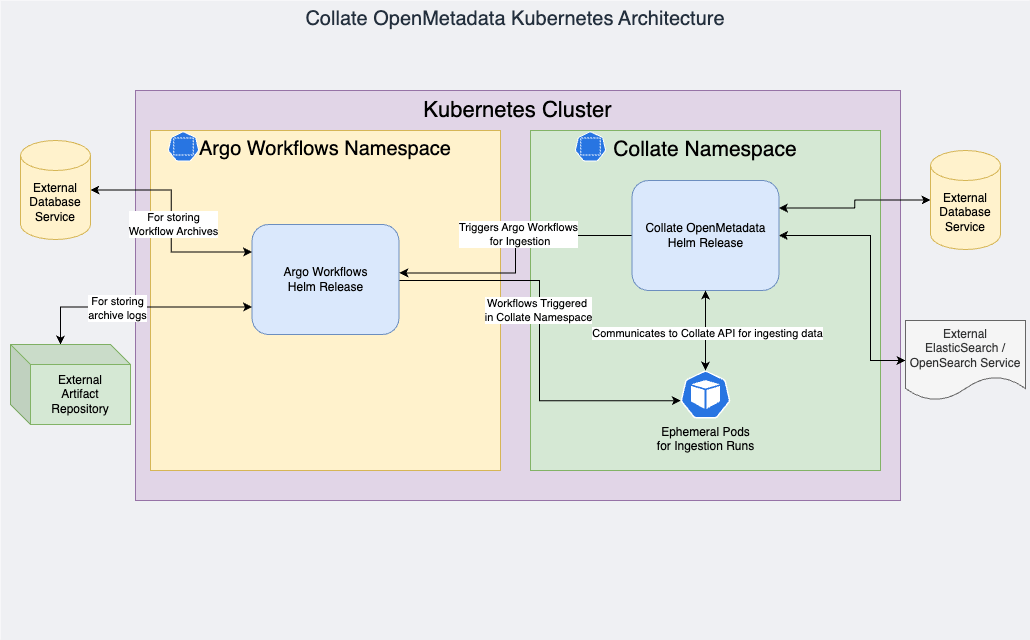 Collate OpenMetadata requires 4 components:
1. **Collate Server**
2. **Database** — Collate Server stores the metadata in a relational database. Collate supports PostgreSQL. GCP Cloud SQL is recommended for production.
* PostgreSQL version 17.6 or greater
3. **Search Engine** — **OpenSearch 3.4**. ElasticSearch is not supported in Collate BYOC because Collate AI relies on OpenSearch's vector capabilities for Semantic and Hybrid Search.
4. **Workflow Orchestration** — We use **Argo Workflows** as the orchestrator for ingestion pipelines.
GKE Autopilot mode restricts elevated permissions required by some workloads. Use **GKE Standard** mode for Collate deployments.
## Sizing requirements
### Hardware requirements
A GKE Standard cluster with a managed control plane and at least five worker nodes is the required configuration. Each worker node should have at least:
* 4 vCPUs
* 16 GiB Memory
* 128 GiB Storage capacity
### Software requirements
* Collate OpenMetadata supports Kubernetes cluster version 1.29 or greater.
* Collate Docker Images are available via private AWS Elastic Container Registry (ECR). The Collate Team will share credentials and steps to configure Kubernetes to pull Docker Images from AWS ECR.
* For Argo Workflows, Collate OpenMetadata is currently compatible with application version 3.4+.
### Recommended GKE instance types
| Component | Instance Type |
| -------------- | ------------------------------------------ |
| GKE Node Pools | t2a-standard-4 / t2d-standard-4 or similar |
### Database sizing and capacity
Our recommendation is to configure Cloud SQL PostgreSQL. For 100,000 Data Assets and 1,000 Users:
* 8 vCPUs
* 64 GiB Memory
* 256 GiB Storage Capacity
* High availability (multi-zone) recommended
| Component | Instance Type |
| -------------------- | ---------------------------- |
| Cloud SQL PostgreSQL | db-custom-8-65536 or similar |
Make sure to increase `work_mem` (for PostgreSQL) to 20 MB or more. This is especially important when running migrations to prevent Out of Sort Memory errors.
For more information about configuring PostgreSQL flags, see [Cloud SQL flags](https://cloud.google.com/sql/docs/postgres/flags).
Enable the following extensions in the database:
* `pg_stat_statements` (for query performance monitoring)
* `pg_trgm` (for faster search performance)
* `pgcrypto` (for encryption capabilities)
### Search client sizing and capacity
For 100,000 Data Assets and 1,000 Users:
* 8 vCPUs
* 64 GiB Memory
* 256 GiB Storage Capacity
A managed OpenSearch offering is the recommended search option for production.
You can also run OpenSearch directly inside Kubernetes.
The Collate team does not maintain OpenSearch when run inside Kubernetes.
### Argo Workflows ingestion runners
The recommended resources are **4 vCPUs and 16 GiB of Memory**.
Ingestion workloads can be scheduled on preemptible/spot instances to reduce costs.
## Prerequisites
### Enable the required GCP project APIs
Enable the following APIs in your GCP project:
* Backup for GKE API (gkebackup.googleapis.com)
* Certificate Manager API (certificatemanager.googleapis.com)
* Cloud Autoscaling API (autoscaling.googleapis.com)
* Cloud DNS API (dns.googleapis.com)
* Cloud Key Management Service (KMS) API (cloudkms.googleapis.com)
* Cloud Logging API (logging.googleapis.com)
* Cloud Monitoring API (monitoring.googleapis.com)
* Cloud Resource Manager API (cloudresourcemanager.googleapis.com)
* Cloud SQL (sql-component.googleapis.com)
* Cloud SQL Admin API (sqladmin.googleapis.com)
* Cloud Storage API (storage-component.googleapis.com)
* Compute Engine API (compute.googleapis.com)
* Container File System API (containerfilesystem.googleapis.com)
* Container Registry API (containerregistry.googleapis.com)
* Gemini API (generativelanguage.googleapis.com)
* Google Cloud Storage JSON API (storage-api.googleapis.com)
* IAM Service Account Credentials API (iamcredentials.googleapis.com)
* Identity and Access Management (IAM) API (iam.googleapis.com)
* Kubernetes Engine API (container.googleapis.com)
* Network Connectivity API (networkconnectivity.googleapis.com)
* Network Security API (networksecurity.googleapis.com)
* Network Services API (networkservices.googleapis.com)
* Secret Manager API (secretmanager.googleapis.com)
* Service Management API (servicemanagement.googleapis.com)
* Service Networking API (servicenetworking.googleapis.com)
* Service Usage API (serviceusage.googleapis.com)
### Enable GKE Workload Identity
Workload Identity allows Kubernetes service accounts to act as GCP service accounts, eliminating the need for static credentials. Check if Workload Identity is enabled on your cluster:
```bash theme={null}
gcloud container clusters describe \
--region \
--format="value(workloadIdentityConfig.workloadPool)"
```
If not enabled, update the cluster:
```bash theme={null}
gcloud container clusters update \
--region \
--workload-pool=.svc.id.goog
```
Also enable Workload Identity on the node pool:
```bash theme={null}
gcloud container node-pools update \
--cluster \
--region \
--workload-metadata=GKE_METADATA
```
### Create a GCS bucket for Argo Workflows artifacts
Argo Workflows archives ingestion logs to Google Cloud Storage:
```bash theme={null}
gcloud storage buckets create gs://collate-argo-artifacts- --location=
```
### Create GCP service accounts
We require 3 GCP service accounts for the Collate Server, Collate Ingestion, and Argo Workflows:
```bash theme={null}
# For Collate Server Application
gcloud iam service-accounts create collate-server-sa \
--display-name="Collate Server Application" \
--project="${PROJECT_ID}"
# For Collate Ingestion
gcloud iam service-accounts create collate-ingestion-sa \
--display-name="Collate Ingestion" \
--project="${PROJECT_ID}"
# For Argo Workflows
gcloud iam service-accounts create argo-workflows-sa \
--display-name="Argo Workflows Service Account" \
--project="${PROJECT_ID}"
```
### Grant GCS access to GCP service accounts
```bash theme={null}
# Argo Workflows — read/write for workflow logs
gcloud storage buckets add-iam-policy-binding gs://collate-argo-artifacts-${PROJECT_ID} \
--member="serviceAccount:argo-workflows-sa@${PROJECT_ID}.iam.gserviceaccount.com" \
--role="roles/storage.objectAdmin"
# Collate Server — read/write for asset uploads
gcloud storage buckets add-iam-policy-binding gs://collate-argo-artifacts-${PROJECT_ID} \
--member="serviceAccount:collate-server-sa@${PROJECT_ID}.iam.gserviceaccount.com" \
--role="roles/storage.objectAdmin"
# Collate Ingestion — read/write for artifact access
gcloud storage buckets add-iam-policy-binding gs://collate-argo-artifacts-${PROJECT_ID} \
--member="serviceAccount:collate-ingestion-sa@${PROJECT_ID}.iam.gserviceaccount.com" \
--role="roles/storage.objectAdmin"
```
### Bind GCP service accounts to Kubernetes service accounts with Workload Identity
Bind the GCP service accounts to Kubernetes service accounts using Workload Identity. This allows applications running in Kubernetes to authenticate with GCP services using the associated GCP service account without needing static credentials.
The following command assumes the Kubernetes service accounts are created in the `argo-workflows` and `collate` namespaces with the names `argo-workflows-controller-sa`, `argo-workflows-server-sa`, and `om-role` respectively. Adjust the service account names and namespaces based on your configuration.
```bash theme={null}
# Argo Workflows Controller
gcloud iam service-accounts add-iam-policy-binding \
argo-workflows-sa@${PROJECT_ID}.iam.gserviceaccount.com \
--role roles/iam.workloadIdentityUser \
--member "serviceAccount:${PROJECT_ID}.svc.id.goog[argo-workflows/argo-workflows-controller-sa]"
# Argo Workflows Server
gcloud iam service-accounts add-iam-policy-binding \
argo-workflows-sa@${PROJECT_ID}.iam.gserviceaccount.com \
--role roles/iam.workloadIdentityUser \
--member "serviceAccount:${PROJECT_ID}.svc.id.goog[argo-workflows/argo-workflows-server-sa]"
# Collate Server Application
gcloud iam service-accounts add-iam-policy-binding \
collate-server-sa@${PROJECT_ID}.iam.gserviceaccount.com \
--role roles/iam.workloadIdentityUser \
--member "serviceAccount:${PROJECT_ID}.svc.id.goog[collate/openmetadata]"
# Collate Ingestion
gcloud iam service-accounts add-iam-policy-binding \
collate-ingestion-sa@${PROJECT_ID}.iam.gserviceaccount.com \
--role roles/iam.workloadIdentityUser \
--member "serviceAccount:${PROJECT_ID}.svc.id.goog[collate/om-role]"
```
### Grant GCP service accounts access to Cloud SQL
The configuration in this guide is based on Cloud SQL for PostgreSQL as the database for Collate with IAM Authentication enabled.
For more information about how to set up IAM Authentication, see [IAM Authentication](https://cloud.google.com/sql/docs/postgres/authentication).
Collate recommends using a single Cloud SQL instance for both Collate Server and Argo Workflows. The instance should have IAM Authentication enabled, with separate databases created for Collate Server and Argo Workflows.
If you are using separate Cloud SQL instances for Collate Server and Argo Workflows, ensure you grant access to both instances for the respective service accounts.
IAM database users created for Cloud SQL PostgreSQL are regular PostgreSQL roles. They are not database owners and do not get `CREATE` privileges on existing databases by default. After creating the IAM users, connect as an admin user and grant `CREATE` on the respective databases, for example:
```sql theme={null}
GRANT CREATE ON DATABASE TO "";
GRANT CREATE ON DATABASE TO "";
```
```bash theme={null}
# Grant access to Collate Server Application Service Account
gcloud sql users create "collate-server-sa@${PROJECT_ID}.iam" \
--instance= \
--project=${PROJECT_ID} \
--host=% \
--type=cloud_iam_service_account
# Grant access to Argo Workflows Service Account
gcloud sql users create "argo-workflows-sa@${PROJECT_ID}.iam" \
--instance= \
--project=${PROJECT_ID} \
--host=% \
--type=cloud_iam_service_account
# Bind the service accounts to the Cloud SQL instance with appropriate roles
gcloud projects add-iam-policy-binding ${PROJECT_ID} \
--member="serviceAccount:collate-server-sa@${PROJECT_ID}.iam.gserviceaccount.com" \
--role="roles/cloudsql.client"
gcloud projects add-iam-policy-binding ${PROJECT_ID} \
--member="serviceAccount:collate-server-sa@${PROJECT_ID}.iam.gserviceaccount.com" \
--role="roles/cloudsql.instanceUser"
gcloud projects add-iam-policy-binding ${PROJECT_ID} \
--member="serviceAccount:argo-workflows-sa@${PROJECT_ID}.iam.gserviceaccount.com" \
--role="roles/cloudsql.client"
gcloud projects add-iam-policy-binding ${PROJECT_ID} \
--member="serviceAccount:argo-workflows-sa@${PROJECT_ID}.iam.gserviceaccount.com" \
--role="roles/cloudsql.instanceUser"
```
Replace `` with the name of your Cloud SQL instance.
These SQL users will be used by the Collate Server and Argo Workflows to authenticate with the Cloud SQL instance using IAM Authentication.
In Kubernetes, the configuration uses Cloud SQL Proxy to connect to the Cloud SQL instance securely without exposing the instance publicly.
## Set up AWS ECR
Collate will provide the credentials to pull Docker Images from a private registry located in AWS ECR.
### Install AWS CLI
Follow the [AWS CLI installation guide](https://docs.aws.amazon.com/cli/latest/userguide/getting-started-install.html) to install AWS CLI on your machine.
### Configure AWS credentials
```bash theme={null}
aws configure --profile ecr-collate
```
The command will prompt for credentials. The Collate team will securely share these via a 1Password link.
Confirm the credentials are correctly set:
```bash theme={null}
aws configure list --profile ecr-collate
```
### Kubernetes Docker registry secrets for AWS ECR
```bash theme={null}
kubectl create secret docker-registry ecr-registry-creds \
--docker-server=118146679784.dkr.ecr.eu-west-1.amazonaws.com \
--docker-username=AWS \
--docker-password=$(aws ecr get-login-password --profile ecr-collate) \
--namespace <>
```
Replace `<>` with the namespace where you want to deploy Collate OpenMetadata Server. If the namespace does not exist yet, create it with `kubectl create namespace <>`.
**AWS ECR Token Refresh**
ECR tokens expire after 12 hours. If a pod is rescheduled after 12 hours, you will get an `ImagePullBackOff` error. Delete the secret and recreate it using the command above.
## Install Argo Workflows
### Add Helm repository
```bash theme={null}
helm repo add argo https://argoproj.github.io/argo-helm
helm repo update
```
### Create the Argo namespace
```bash theme={null}
kubectl create namespace argo-workflows
```
### Kubernetes secret for Argo Workflows DB credentials
```bash theme={null}
kubectl create secret generic argo-db-credentials \
--from-literal=username= \
--from-literal=password="dummy-password" \
--namespace argo-workflows
```
### Create custom Helm values for Argo Workflows
Create a file named `argo-workflows.values.yml`:
```yaml theme={null}
# argo-workflows.values.yml
controller:
serviceAccount:
create: true
name: argo-workflows-controller-sa
annotations:
iam.gke.io/gcp-service-account: "argo-workflows-sa@.iam.gserviceaccount.com"
name: workflow-controller
resources:
requests:
memory: "2Gi"
cpu: "1"
limits:
memory: "4Gi"
cpu: "2"
persistence:
archive: true
connectionPool:
maxIdleConns: 40
maxOpenConns: 60
postgresql:
host: 127.0.0.1
database: argo-workflows
tableName: argo_workflows
userNameSecret:
name: argo-db-credentials
key: username
passwordSecret:
name: argo-db-credentials
key: password
extraContainers:
- name: cloud-sql-proxy
image: gcr.io/cloud-sql-connectors/cloud-sql-proxy:2.21.3
args:
- "--private-ip"
- "--auto-iam-authn"
- "--structured-logs"
- "--port=5432"
- "${DATABASE_INSTANCE_CONNECTION_NAME}"
securityContext:
runAsNonRoot: true
resources:
requests:
memory: "2Gi"
cpu: "1"
server:
serviceAccount:
create: true
name: argo-workflows-server-sa
annotations:
iam.gke.io/gcp-service-account: "argo-workflows-sa@.iam.gserviceaccount.com"
extraArgs:
- "--auth-mode=server"
- "--request-timeout=5m"
extraContainers:
- name: cloud-sql-proxy
image: gcr.io/cloud-sql-connectors/cloud-sql-proxy:2.21.3
args:
- "--private-ip"
- "--auto-iam-authn"
- "--structured-logs"
- "--port=5432"
- "${DATABASE_INSTANCE_CONNECTION_NAME}"
resources:
requests:
memory: "2Gi"
cpu: "1"
limits:
memory: "2Gi"
cpu: "1"
useDefaultArtifactRepo: true
artifactRepository:
archiveLogs: true
gcs:
bucket: "collate-argo-artifacts-"
keyFormat: "workflows/{{workflow.namespace}}/{{workflow.name}}/{{pod.name}}"
```
For further customisation, refer to the [community Helm chart values](https://github.com/argoproj/argo-helm/tree/main/charts/argo-workflows).
### Deploy Argo Workflows
We target application version 3.7.1 using Helm chart version 0.45.23 ([Artifact Hub](https://artifacthub.io/packages/helm/argo/argo-workflows/0.45.23)):
```bash theme={null}
helm upgrade --install argo-workflows argo/argo-workflows \
--version 0.45.23 \
--namespace argo-workflows \
--values argo-workflows.values.yml
```
### Optional: Enable Prometheus metrics
```yaml theme={null}
controller:
serviceMonitor:
enabled: true
server:
serviceMonitor:
enabled: true
```
Refer to the [official Argo Workflows documentation](https://argoproj.github.io/argo-workflows/metrics/) for further configuration.
## Install OpenMetadata/Collate
### Create the Collate namespace
```bash theme={null}
kubectl create namespace collate
```
### Kubernetes service account for ingestion
```bash theme={null}
kubectl create serviceaccount om-role -n collate
```
### Annotate service account with Workload Identity
```bash theme={null}
kubectl annotate serviceaccount -n collate om-role \
iam.gke.io/gcp-service-account=collate-ingestion-sa@${PROJECT_ID}.iam.gserviceaccount.com
```
### Create long-lived API token for the service account
```bash theme={null}
kubectl apply -n collate -f - <
If you plan to use the **DeltaLake connector**, the `ARGO_INGESTION_IMAGE` value should be:
`118146679784.dkr.ecr.eu-west-1.amazonaws.com/collate-customers-ingestion-eu-west-1:om-1.13.0-cl-1.13.0`
Create a file `openmetadata.values.yml`:
```yaml theme={null}
# openmetadata.values.yml
replicaCount: 1
openmetadata:
config:
elasticsearch:
host: ${es_host}
port: ${es_port}
scheme: ${es_scheme}
searchType: opensearch
auth:
enabled: true
username: ${es_username}
password:
secretRef: es-credentials
secretKey: password
database:
host: 127.0.0.1
port: 5432
driverClass: org.postgresql.Driver
dbScheme: postgresql
maxSize: 100
minSize: 40
initialSize: 20
auth:
username: ${db_user}
password:
secretRef: db-credentials
secretKey: password
dbParams: "sslmode=require"
pipelineServiceClientConfig:
enabled: true
type: "argoWorkflows"
metadataApiEndpoint: "http://openmetadata:8585/api"
argoWorkflows:
namespace: collate
serviceAccountName: om-role
ingestionImage: "118146679784.dkr.ecr.eu-west-1.amazonaws.com/collate-customers-ingestion-slim-eu-west-1:om-1.13.0-cl-1.13.0"
imagePullPolicy: "IfNotPresent"
imagePullSecrets: "ecr-registry-creds"
apiEndpoint: "http://argo-workflows-server.argo-workflows:2746"
image:
repository: 118146679784.dkr.ecr.eu-west-1.amazonaws.com/collate-customers-eu-west-1
tag: om-1.13.0-cl-1.13.0
imagePullPolicy: IfNotPresent
imagePullSecrets:
- name: ecr-registry-creds
resources:
limits:
cpu: 3000m
memory: 12Gi
requests:
cpu: 1000m
memory: 10Gi
extraEnvs:
- name: ARGO_TOKEN
valueFrom:
secretKeyRef:
name: "om-role.service-account-token"
key: "token"
- name: OPENMETADATA_HEAP_OPTS
value: "-Xmx8G -Xms8G"
preMigrateInitContainers:
- name: cloud-sql-proxy
image: gcr.io/cloud-sql-connectors/cloud-sql-proxy:2.21.3
restartPolicy: Always
args:
- "--private-ip"
- "--auto-iam-authn"
- "--structured-logs"
- "--port=5432"
- "${DATABASE_INSTANCE_CONNECTION_NAME}"
securityContext:
runAsNonRoot: true
resources:
requests:
memory: "2Gi"
cpu: "1"
serviceAccount:
name: "openmetadata"
create: true
annotations:
iam.gke.io/gcp-service-account: "collate-server-sa@.iam.gserviceaccount.com"
```
Install the Collate OpenMetadata Application:
```bash theme={null}
helm upgrade --install openmetadata open-metadata/openmetadata \
--values openmetadata.values.yml \
--namespace collate
```
### Optional: Enable Prometheus metrics
```yaml theme={null}
serviceMonitor:
enabled: true
```
## Post-installation and upgrade steps
### Configure reindexing
After installation or upgrade, configure ReIndexing from the OpenMetadata UI. For detailed steps, refer to the [OpenMetadata upgrade documentation](https://docs.open-metadata.org/v1.4.x/deployment/upgrade#reindex).
## Appendix: List of AWS ECR public IPs
If your company policy blocks access to external resources, ensure the public IPs of AWS ECR are reachable from your cluster.
### Using curl and jq
```bash theme={null}
curl -s https://ip-ranges.amazonaws.com/ip-ranges.json | jq '.prefixes[] | select(.region=="eu-west-1") | select(.service=="AMAZON")'
```
Collate OpenMetadata requires 4 components:
1. **Collate Server**
2. **Database** — Collate Server stores the metadata in a relational database. Collate supports PostgreSQL. GCP Cloud SQL is recommended for production.
* PostgreSQL version 17.6 or greater
3. **Search Engine** — **OpenSearch 3.4**. ElasticSearch is not supported in Collate BYOC because Collate AI relies on OpenSearch's vector capabilities for Semantic and Hybrid Search.
4. **Workflow Orchestration** — We use **Argo Workflows** as the orchestrator for ingestion pipelines.
GKE Autopilot mode restricts elevated permissions required by some workloads. Use **GKE Standard** mode for Collate deployments.
## Sizing requirements
### Hardware requirements
A GKE Standard cluster with a managed control plane and at least five worker nodes is the required configuration. Each worker node should have at least:
* 4 vCPUs
* 16 GiB Memory
* 128 GiB Storage capacity
### Software requirements
* Collate OpenMetadata supports Kubernetes cluster version 1.29 or greater.
* Collate Docker Images are available via private AWS Elastic Container Registry (ECR). The Collate Team will share credentials and steps to configure Kubernetes to pull Docker Images from AWS ECR.
* For Argo Workflows, Collate OpenMetadata is currently compatible with application version 3.4+.
### Recommended GKE instance types
| Component | Instance Type |
| -------------- | ------------------------------------------ |
| GKE Node Pools | t2a-standard-4 / t2d-standard-4 or similar |
### Database sizing and capacity
Our recommendation is to configure Cloud SQL PostgreSQL. For 100,000 Data Assets and 1,000 Users:
* 8 vCPUs
* 64 GiB Memory
* 256 GiB Storage Capacity
* High availability (multi-zone) recommended
| Component | Instance Type |
| -------------------- | ---------------------------- |
| Cloud SQL PostgreSQL | db-custom-8-65536 or similar |
Make sure to increase `work_mem` (for PostgreSQL) to 20 MB or more. This is especially important when running migrations to prevent Out of Sort Memory errors.
For more information about configuring PostgreSQL flags, see [Cloud SQL flags](https://cloud.google.com/sql/docs/postgres/flags).
Enable the following extensions in the database:
* `pg_stat_statements` (for query performance monitoring)
* `pg_trgm` (for faster search performance)
* `pgcrypto` (for encryption capabilities)
### Search client sizing and capacity
For 100,000 Data Assets and 1,000 Users:
* 8 vCPUs
* 64 GiB Memory
* 256 GiB Storage Capacity
A managed OpenSearch offering is the recommended search option for production.
You can also run OpenSearch directly inside Kubernetes.
The Collate team does not maintain OpenSearch when run inside Kubernetes.
### Argo Workflows ingestion runners
The recommended resources are **4 vCPUs and 16 GiB of Memory**.
Ingestion workloads can be scheduled on preemptible/spot instances to reduce costs.
## Prerequisites
### Enable the required GCP project APIs
Enable the following APIs in your GCP project:
* Backup for GKE API (gkebackup.googleapis.com)
* Certificate Manager API (certificatemanager.googleapis.com)
* Cloud Autoscaling API (autoscaling.googleapis.com)
* Cloud DNS API (dns.googleapis.com)
* Cloud Key Management Service (KMS) API (cloudkms.googleapis.com)
* Cloud Logging API (logging.googleapis.com)
* Cloud Monitoring API (monitoring.googleapis.com)
* Cloud Resource Manager API (cloudresourcemanager.googleapis.com)
* Cloud SQL (sql-component.googleapis.com)
* Cloud SQL Admin API (sqladmin.googleapis.com)
* Cloud Storage API (storage-component.googleapis.com)
* Compute Engine API (compute.googleapis.com)
* Container File System API (containerfilesystem.googleapis.com)
* Container Registry API (containerregistry.googleapis.com)
* Gemini API (generativelanguage.googleapis.com)
* Google Cloud Storage JSON API (storage-api.googleapis.com)
* IAM Service Account Credentials API (iamcredentials.googleapis.com)
* Identity and Access Management (IAM) API (iam.googleapis.com)
* Kubernetes Engine API (container.googleapis.com)
* Network Connectivity API (networkconnectivity.googleapis.com)
* Network Security API (networksecurity.googleapis.com)
* Network Services API (networkservices.googleapis.com)
* Secret Manager API (secretmanager.googleapis.com)
* Service Management API (servicemanagement.googleapis.com)
* Service Networking API (servicenetworking.googleapis.com)
* Service Usage API (serviceusage.googleapis.com)
### Enable GKE Workload Identity
Workload Identity allows Kubernetes service accounts to act as GCP service accounts, eliminating the need for static credentials. Check if Workload Identity is enabled on your cluster:
```bash theme={null}
gcloud container clusters describe \
--region \
--format="value(workloadIdentityConfig.workloadPool)"
```
If not enabled, update the cluster:
```bash theme={null}
gcloud container clusters update \
--region \
--workload-pool=.svc.id.goog
```
Also enable Workload Identity on the node pool:
```bash theme={null}
gcloud container node-pools update \
--cluster \
--region \
--workload-metadata=GKE_METADATA
```
### Create a GCS bucket for Argo Workflows artifacts
Argo Workflows archives ingestion logs to Google Cloud Storage:
```bash theme={null}
gcloud storage buckets create gs://collate-argo-artifacts- --location=
```
### Create GCP service accounts
We require 3 GCP service accounts for the Collate Server, Collate Ingestion, and Argo Workflows:
```bash theme={null}
# For Collate Server Application
gcloud iam service-accounts create collate-server-sa \
--display-name="Collate Server Application" \
--project="${PROJECT_ID}"
# For Collate Ingestion
gcloud iam service-accounts create collate-ingestion-sa \
--display-name="Collate Ingestion" \
--project="${PROJECT_ID}"
# For Argo Workflows
gcloud iam service-accounts create argo-workflows-sa \
--display-name="Argo Workflows Service Account" \
--project="${PROJECT_ID}"
```
### Grant GCS access to GCP service accounts
```bash theme={null}
# Argo Workflows — read/write for workflow logs
gcloud storage buckets add-iam-policy-binding gs://collate-argo-artifacts-${PROJECT_ID} \
--member="serviceAccount:argo-workflows-sa@${PROJECT_ID}.iam.gserviceaccount.com" \
--role="roles/storage.objectAdmin"
# Collate Server — read/write for asset uploads
gcloud storage buckets add-iam-policy-binding gs://collate-argo-artifacts-${PROJECT_ID} \
--member="serviceAccount:collate-server-sa@${PROJECT_ID}.iam.gserviceaccount.com" \
--role="roles/storage.objectAdmin"
# Collate Ingestion — read/write for artifact access
gcloud storage buckets add-iam-policy-binding gs://collate-argo-artifacts-${PROJECT_ID} \
--member="serviceAccount:collate-ingestion-sa@${PROJECT_ID}.iam.gserviceaccount.com" \
--role="roles/storage.objectAdmin"
```
### Bind GCP service accounts to Kubernetes service accounts with Workload Identity
Bind the GCP service accounts to Kubernetes service accounts using Workload Identity. This allows applications running in Kubernetes to authenticate with GCP services using the associated GCP service account without needing static credentials.
The following command assumes the Kubernetes service accounts are created in the `argo-workflows` and `collate` namespaces with the names `argo-workflows-controller-sa`, `argo-workflows-server-sa`, and `om-role` respectively. Adjust the service account names and namespaces based on your configuration.
```bash theme={null}
# Argo Workflows Controller
gcloud iam service-accounts add-iam-policy-binding \
argo-workflows-sa@${PROJECT_ID}.iam.gserviceaccount.com \
--role roles/iam.workloadIdentityUser \
--member "serviceAccount:${PROJECT_ID}.svc.id.goog[argo-workflows/argo-workflows-controller-sa]"
# Argo Workflows Server
gcloud iam service-accounts add-iam-policy-binding \
argo-workflows-sa@${PROJECT_ID}.iam.gserviceaccount.com \
--role roles/iam.workloadIdentityUser \
--member "serviceAccount:${PROJECT_ID}.svc.id.goog[argo-workflows/argo-workflows-server-sa]"
# Collate Server Application
gcloud iam service-accounts add-iam-policy-binding \
collate-server-sa@${PROJECT_ID}.iam.gserviceaccount.com \
--role roles/iam.workloadIdentityUser \
--member "serviceAccount:${PROJECT_ID}.svc.id.goog[collate/openmetadata]"
# Collate Ingestion
gcloud iam service-accounts add-iam-policy-binding \
collate-ingestion-sa@${PROJECT_ID}.iam.gserviceaccount.com \
--role roles/iam.workloadIdentityUser \
--member "serviceAccount:${PROJECT_ID}.svc.id.goog[collate/om-role]"
```
### Grant GCP service accounts access to Cloud SQL
The configuration in this guide is based on Cloud SQL for PostgreSQL as the database for Collate with IAM Authentication enabled.
For more information about how to set up IAM Authentication, see [IAM Authentication](https://cloud.google.com/sql/docs/postgres/authentication).
Collate recommends using a single Cloud SQL instance for both Collate Server and Argo Workflows. The instance should have IAM Authentication enabled, with separate databases created for Collate Server and Argo Workflows.
If you are using separate Cloud SQL instances for Collate Server and Argo Workflows, ensure you grant access to both instances for the respective service accounts.
IAM database users created for Cloud SQL PostgreSQL are regular PostgreSQL roles. They are not database owners and do not get `CREATE` privileges on existing databases by default. After creating the IAM users, connect as an admin user and grant `CREATE` on the respective databases, for example:
```sql theme={null}
GRANT CREATE ON DATABASE TO "";
GRANT CREATE ON DATABASE TO "";
```
```bash theme={null}
# Grant access to Collate Server Application Service Account
gcloud sql users create "collate-server-sa@${PROJECT_ID}.iam" \
--instance= \
--project=${PROJECT_ID} \
--host=% \
--type=cloud_iam_service_account
# Grant access to Argo Workflows Service Account
gcloud sql users create "argo-workflows-sa@${PROJECT_ID}.iam" \
--instance= \
--project=${PROJECT_ID} \
--host=% \
--type=cloud_iam_service_account
# Bind the service accounts to the Cloud SQL instance with appropriate roles
gcloud projects add-iam-policy-binding ${PROJECT_ID} \
--member="serviceAccount:collate-server-sa@${PROJECT_ID}.iam.gserviceaccount.com" \
--role="roles/cloudsql.client"
gcloud projects add-iam-policy-binding ${PROJECT_ID} \
--member="serviceAccount:collate-server-sa@${PROJECT_ID}.iam.gserviceaccount.com" \
--role="roles/cloudsql.instanceUser"
gcloud projects add-iam-policy-binding ${PROJECT_ID} \
--member="serviceAccount:argo-workflows-sa@${PROJECT_ID}.iam.gserviceaccount.com" \
--role="roles/cloudsql.client"
gcloud projects add-iam-policy-binding ${PROJECT_ID} \
--member="serviceAccount:argo-workflows-sa@${PROJECT_ID}.iam.gserviceaccount.com" \
--role="roles/cloudsql.instanceUser"
```
Replace `` with the name of your Cloud SQL instance.
These SQL users will be used by the Collate Server and Argo Workflows to authenticate with the Cloud SQL instance using IAM Authentication.
In Kubernetes, the configuration uses Cloud SQL Proxy to connect to the Cloud SQL instance securely without exposing the instance publicly.
## Set up AWS ECR
Collate will provide the credentials to pull Docker Images from a private registry located in AWS ECR.
### Install AWS CLI
Follow the [AWS CLI installation guide](https://docs.aws.amazon.com/cli/latest/userguide/getting-started-install.html) to install AWS CLI on your machine.
### Configure AWS credentials
```bash theme={null}
aws configure --profile ecr-collate
```
The command will prompt for credentials. The Collate team will securely share these via a 1Password link.
Confirm the credentials are correctly set:
```bash theme={null}
aws configure list --profile ecr-collate
```
### Kubernetes Docker registry secrets for AWS ECR
```bash theme={null}
kubectl create secret docker-registry ecr-registry-creds \
--docker-server=118146679784.dkr.ecr.eu-west-1.amazonaws.com \
--docker-username=AWS \
--docker-password=$(aws ecr get-login-password --profile ecr-collate) \
--namespace <>
```
Replace `<>` with the namespace where you want to deploy Collate OpenMetadata Server. If the namespace does not exist yet, create it with `kubectl create namespace <>`.
**AWS ECR Token Refresh**
ECR tokens expire after 12 hours. If a pod is rescheduled after 12 hours, you will get an `ImagePullBackOff` error. Delete the secret and recreate it using the command above.
## Install Argo Workflows
### Add Helm repository
```bash theme={null}
helm repo add argo https://argoproj.github.io/argo-helm
helm repo update
```
### Create the Argo namespace
```bash theme={null}
kubectl create namespace argo-workflows
```
### Kubernetes secret for Argo Workflows DB credentials
```bash theme={null}
kubectl create secret generic argo-db-credentials \
--from-literal=username= \
--from-literal=password="dummy-password" \
--namespace argo-workflows
```
### Create custom Helm values for Argo Workflows
Create a file named `argo-workflows.values.yml`:
```yaml theme={null}
# argo-workflows.values.yml
controller:
serviceAccount:
create: true
name: argo-workflows-controller-sa
annotations:
iam.gke.io/gcp-service-account: "argo-workflows-sa@.iam.gserviceaccount.com"
name: workflow-controller
resources:
requests:
memory: "2Gi"
cpu: "1"
limits:
memory: "4Gi"
cpu: "2"
persistence:
archive: true
connectionPool:
maxIdleConns: 40
maxOpenConns: 60
postgresql:
host: 127.0.0.1
database: argo-workflows
tableName: argo_workflows
userNameSecret:
name: argo-db-credentials
key: username
passwordSecret:
name: argo-db-credentials
key: password
extraContainers:
- name: cloud-sql-proxy
image: gcr.io/cloud-sql-connectors/cloud-sql-proxy:2.21.3
args:
- "--private-ip"
- "--auto-iam-authn"
- "--structured-logs"
- "--port=5432"
- "${DATABASE_INSTANCE_CONNECTION_NAME}"
securityContext:
runAsNonRoot: true
resources:
requests:
memory: "2Gi"
cpu: "1"
server:
serviceAccount:
create: true
name: argo-workflows-server-sa
annotations:
iam.gke.io/gcp-service-account: "argo-workflows-sa@.iam.gserviceaccount.com"
extraArgs:
- "--auth-mode=server"
- "--request-timeout=5m"
extraContainers:
- name: cloud-sql-proxy
image: gcr.io/cloud-sql-connectors/cloud-sql-proxy:2.21.3
args:
- "--private-ip"
- "--auto-iam-authn"
- "--structured-logs"
- "--port=5432"
- "${DATABASE_INSTANCE_CONNECTION_NAME}"
resources:
requests:
memory: "2Gi"
cpu: "1"
limits:
memory: "2Gi"
cpu: "1"
useDefaultArtifactRepo: true
artifactRepository:
archiveLogs: true
gcs:
bucket: "collate-argo-artifacts-"
keyFormat: "workflows/{{workflow.namespace}}/{{workflow.name}}/{{pod.name}}"
```
For further customisation, refer to the [community Helm chart values](https://github.com/argoproj/argo-helm/tree/main/charts/argo-workflows).
### Deploy Argo Workflows
We target application version 3.7.1 using Helm chart version 0.45.23 ([Artifact Hub](https://artifacthub.io/packages/helm/argo/argo-workflows/0.45.23)):
```bash theme={null}
helm upgrade --install argo-workflows argo/argo-workflows \
--version 0.45.23 \
--namespace argo-workflows \
--values argo-workflows.values.yml
```
### Optional: Enable Prometheus metrics
```yaml theme={null}
controller:
serviceMonitor:
enabled: true
server:
serviceMonitor:
enabled: true
```
Refer to the [official Argo Workflows documentation](https://argoproj.github.io/argo-workflows/metrics/) for further configuration.
## Install OpenMetadata/Collate
### Create the Collate namespace
```bash theme={null}
kubectl create namespace collate
```
### Kubernetes service account for ingestion
```bash theme={null}
kubectl create serviceaccount om-role -n collate
```
### Annotate service account with Workload Identity
```bash theme={null}
kubectl annotate serviceaccount -n collate om-role \
iam.gke.io/gcp-service-account=collate-ingestion-sa@${PROJECT_ID}.iam.gserviceaccount.com
```
### Create long-lived API token for the service account
```bash theme={null}
kubectl apply -n collate -f - <
If you plan to use the **DeltaLake connector**, the `ARGO_INGESTION_IMAGE` value should be:
`118146679784.dkr.ecr.eu-west-1.amazonaws.com/collate-customers-ingestion-eu-west-1:om-1.13.0-cl-1.13.0`
Create a file `openmetadata.values.yml`:
```yaml theme={null}
# openmetadata.values.yml
replicaCount: 1
openmetadata:
config:
elasticsearch:
host: ${es_host}
port: ${es_port}
scheme: ${es_scheme}
searchType: opensearch
auth:
enabled: true
username: ${es_username}
password:
secretRef: es-credentials
secretKey: password
database:
host: 127.0.0.1
port: 5432
driverClass: org.postgresql.Driver
dbScheme: postgresql
maxSize: 100
minSize: 40
initialSize: 20
auth:
username: ${db_user}
password:
secretRef: db-credentials
secretKey: password
dbParams: "sslmode=require"
pipelineServiceClientConfig:
enabled: true
type: "argoWorkflows"
metadataApiEndpoint: "http://openmetadata:8585/api"
argoWorkflows:
namespace: collate
serviceAccountName: om-role
ingestionImage: "118146679784.dkr.ecr.eu-west-1.amazonaws.com/collate-customers-ingestion-slim-eu-west-1:om-1.13.0-cl-1.13.0"
imagePullPolicy: "IfNotPresent"
imagePullSecrets: "ecr-registry-creds"
apiEndpoint: "http://argo-workflows-server.argo-workflows:2746"
image:
repository: 118146679784.dkr.ecr.eu-west-1.amazonaws.com/collate-customers-eu-west-1
tag: om-1.13.0-cl-1.13.0
imagePullPolicy: IfNotPresent
imagePullSecrets:
- name: ecr-registry-creds
resources:
limits:
cpu: 3000m
memory: 12Gi
requests:
cpu: 1000m
memory: 10Gi
extraEnvs:
- name: ARGO_TOKEN
valueFrom:
secretKeyRef:
name: "om-role.service-account-token"
key: "token"
- name: OPENMETADATA_HEAP_OPTS
value: "-Xmx8G -Xms8G"
preMigrateInitContainers:
- name: cloud-sql-proxy
image: gcr.io/cloud-sql-connectors/cloud-sql-proxy:2.21.3
restartPolicy: Always
args:
- "--private-ip"
- "--auto-iam-authn"
- "--structured-logs"
- "--port=5432"
- "${DATABASE_INSTANCE_CONNECTION_NAME}"
securityContext:
runAsNonRoot: true
resources:
requests:
memory: "2Gi"
cpu: "1"
serviceAccount:
name: "openmetadata"
create: true
annotations:
iam.gke.io/gcp-service-account: "collate-server-sa@.iam.gserviceaccount.com"
```
Install the Collate OpenMetadata Application:
```bash theme={null}
helm upgrade --install openmetadata open-metadata/openmetadata \
--values openmetadata.values.yml \
--namespace collate
```
### Optional: Enable Prometheus metrics
```yaml theme={null}
serviceMonitor:
enabled: true
```
## Post-installation and upgrade steps
### Configure reindexing
After installation or upgrade, configure ReIndexing from the OpenMetadata UI. For detailed steps, refer to the [OpenMetadata upgrade documentation](https://docs.open-metadata.org/v1.4.x/deployment/upgrade#reindex).
## Appendix: List of AWS ECR public IPs
If your company policy blocks access to external resources, ensure the public IPs of AWS ECR are reachable from your cluster.
### Using curl and jq
```bash theme={null}
curl -s https://ip-ranges.amazonaws.com/ip-ranges.json | jq '.prefixes[] | select(.region=="eu-west-1") | select(.service=="AMAZON")'
```