> ## Documentation Index
> Fetch the complete documentation index at: https://docs.getcollate.io/llms.txt
> Use this file to discover all available pages before exploring further.
# Bulk Import Test Cases
> Learn to bulk import data quality test cases in Collate using CSV files, at the table, test suite, or platform-wide scope.
# Bulk Import Test Cases
Importing test cases from a CSV file lets you create or update several test cases at once, instead of adding them one at a time through the UI. You can import test cases for a single table, for a test suite, or across your entire platform.
For more information about what each column in the file means, see the [CSV Field Reference](/how-to-guides/data-quality-observability/quality/import-export-test-cases).
## Bulk Import Test Cases for a Table
To import test cases scoped to a single table:
1. In the left navigation menu, click **Explore**, and select the table whose test cases you want to import.
2. Navigate to the **Data Observability** tab.
3. In the **Data Quality** tab, click **Test Cases** if not selected.
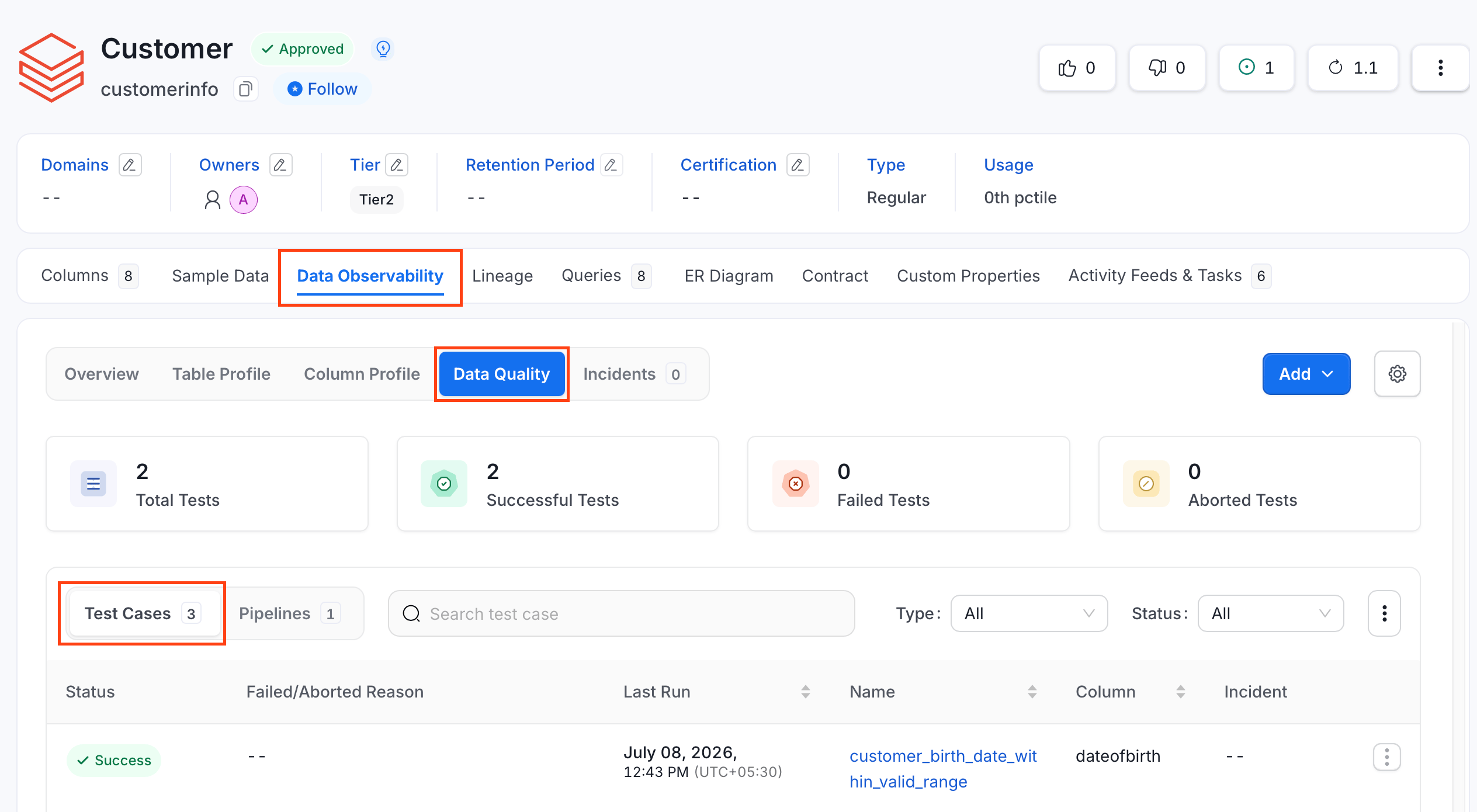 4. Click the **⋮** icon and click **Import**.
 5. Upload or drop the CSV file.
 6. Preview the uploaded file and add or modify rows using the inline editor.
 7. Validate your changes. A green or red tick in the **Status** column displays the success or failure of the test cases.
 8. Click **Update** to apply the changes.
## Bulk Import Test Cases in a Suite
To import test cases scoped to a single test suite:
1. Navigate to **Data Observability** > **Data Quality**.
2. Click the **Test Suites** tab and switch to **Bundle Suites**.
8. Click **Update** to apply the changes.
## Bulk Import Test Cases in a Suite
To import test cases scoped to a single test suite:
1. Navigate to **Data Observability** > **Data Quality**.
2. Click the **Test Suites** tab and switch to **Bundle Suites**.
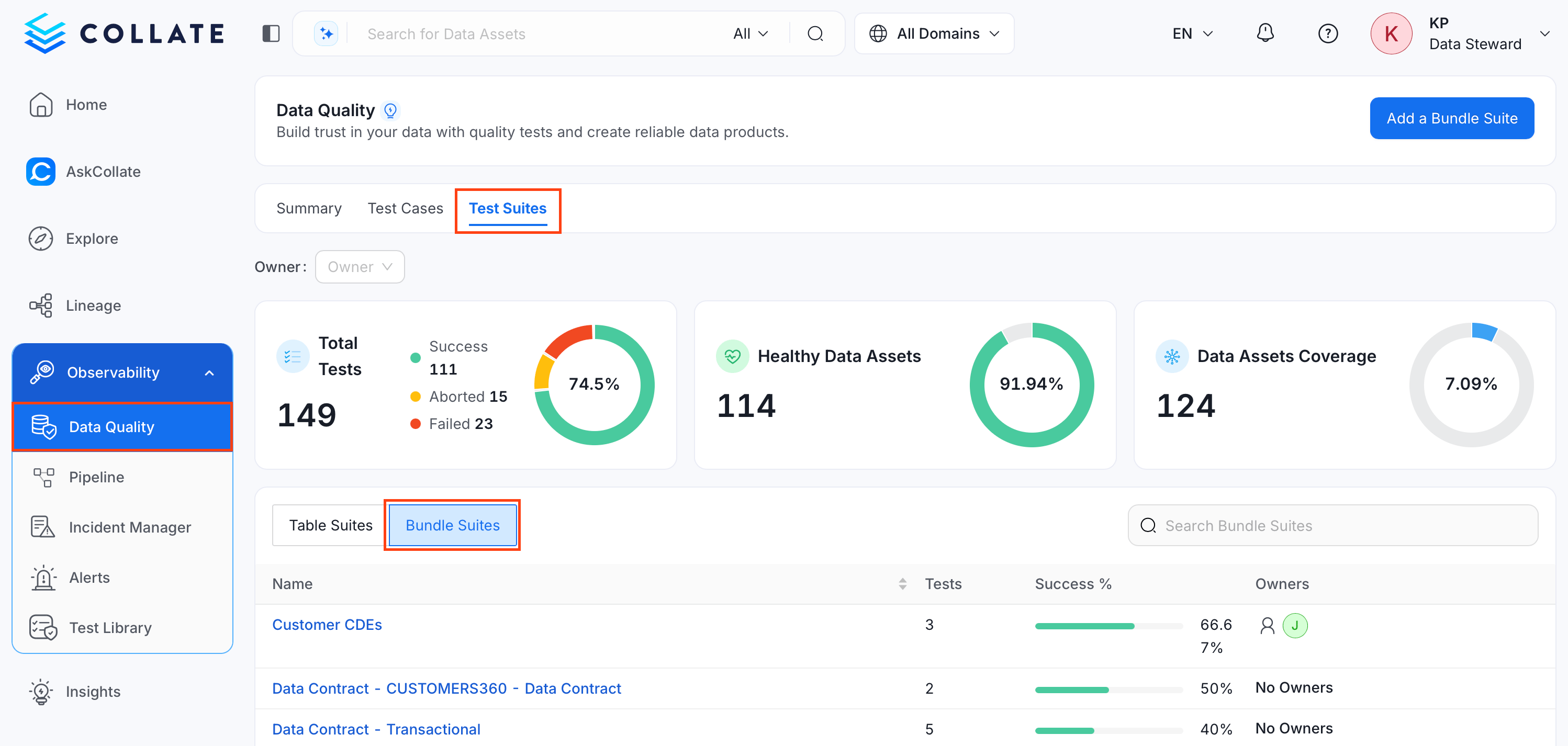 3. Search and select the bundle suite whose test cases you want to import.
4. Click the **⋮** icon and click **Import**.
3. Search and select the bundle suite whose test cases you want to import.
4. Click the **⋮** icon and click **Import**.
 5. Repeat steps 5 to 8 from [Bulk Import Test Cases for a Table](#bulk-import-test-cases-for-a-table).
## Bulk Import All Test Cases
To import test cases across your entire Collate instance:
1. Navigate to **Data Observability** > **Data Quality**, and click **Test Cases**.
5. Repeat steps 5 to 8 from [Bulk Import Test Cases for a Table](#bulk-import-test-cases-for-a-table).
## Bulk Import All Test Cases
To import test cases across your entire Collate instance:
1. Navigate to **Data Observability** > **Data Quality**, and click **Test Cases**.
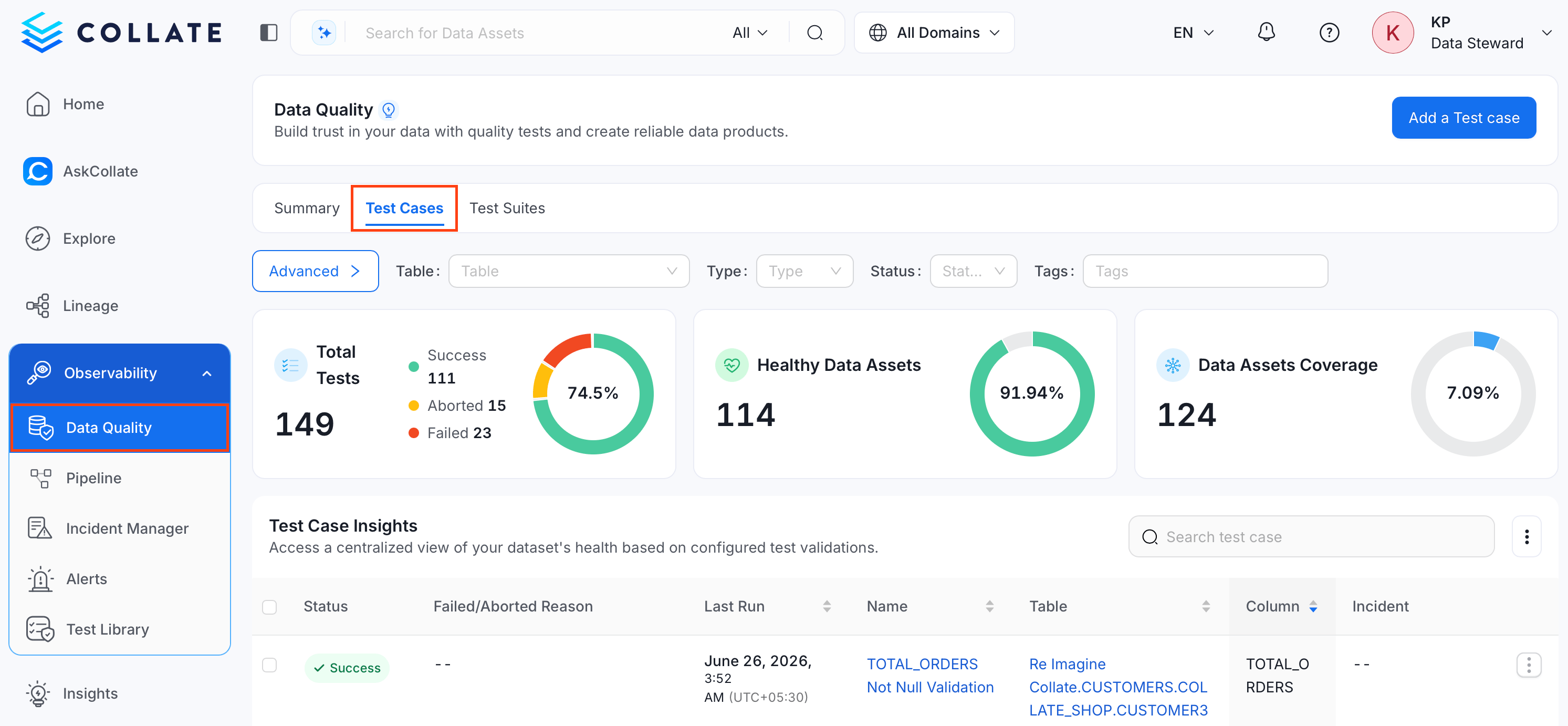 2. Click the **⋮** icon and select **Import**.
 3. Repeat steps 5 to 8 from [Bulk Import Test Cases for a Table](#bulk-import-test-cases-for-a-table).
## Import Using API
You can also import test cases using the API with the following endpoints:
`PUT /api/v1/dataQuality/testCases/name/{name}/import`
`PUT /api/v1/dataQuality/testCases/name/{name}/importAsync`
Replace `{name}` with the Fully Qualified Name (FQN) of the entity you're importing into, or with `*` for a platform-wide import. What `{name}` actually scopes depends on `targetEntityType`:
* When `targetEntityType=testSuite`, `{name}` is the FQN of the bundle test suite, and the import is scoped to that suite.
* For any other `targetEntityType` (including table-scoped and platform-wide imports), `{name}` does not restrict which entity each row applies to. The target for every test case is determined by that row's `entityFQN` column in the CSV instead.
Both endpoints take the CSV file as the raw request body and support two query parameters:
* **dryRun**: `true` or `false` (default `true`). Validates the file without making changes, matching the preview step in the UI.
* **targetEntityType**: The entity type the test cases are being added to, for example `table` or `testSuite`.
Outside of a test-suite-scoped import, `{name}` in the URL doesn't limit which entities are affected — double-check the `entityFQN` column in your CSV before importing to avoid updating the wrong table or column.
The `importAsync` endpoint runs the import as a background job and is what the UI uses. The `import` endpoint returns the result synchronously.
3. Repeat steps 5 to 8 from [Bulk Import Test Cases for a Table](#bulk-import-test-cases-for-a-table).
## Import Using API
You can also import test cases using the API with the following endpoints:
`PUT /api/v1/dataQuality/testCases/name/{name}/import`
`PUT /api/v1/dataQuality/testCases/name/{name}/importAsync`
Replace `{name}` with the Fully Qualified Name (FQN) of the entity you're importing into, or with `*` for a platform-wide import. What `{name}` actually scopes depends on `targetEntityType`:
* When `targetEntityType=testSuite`, `{name}` is the FQN of the bundle test suite, and the import is scoped to that suite.
* For any other `targetEntityType` (including table-scoped and platform-wide imports), `{name}` does not restrict which entity each row applies to. The target for every test case is determined by that row's `entityFQN` column in the CSV instead.
Both endpoints take the CSV file as the raw request body and support two query parameters:
* **dryRun**: `true` or `false` (default `true`). Validates the file without making changes, matching the preview step in the UI.
* **targetEntityType**: The entity type the test cases are being added to, for example `table` or `testSuite`.
Outside of a test-suite-scoped import, `{name}` in the URL doesn't limit which entities are affected — double-check the `entityFQN` column in your CSV before importing to avoid updating the wrong table or column.
The `importAsync` endpoint runs the import as a background job and is what the UI uses. The `import` endpoint returns the result synchronously.