
Adding Test Suites Through the UI
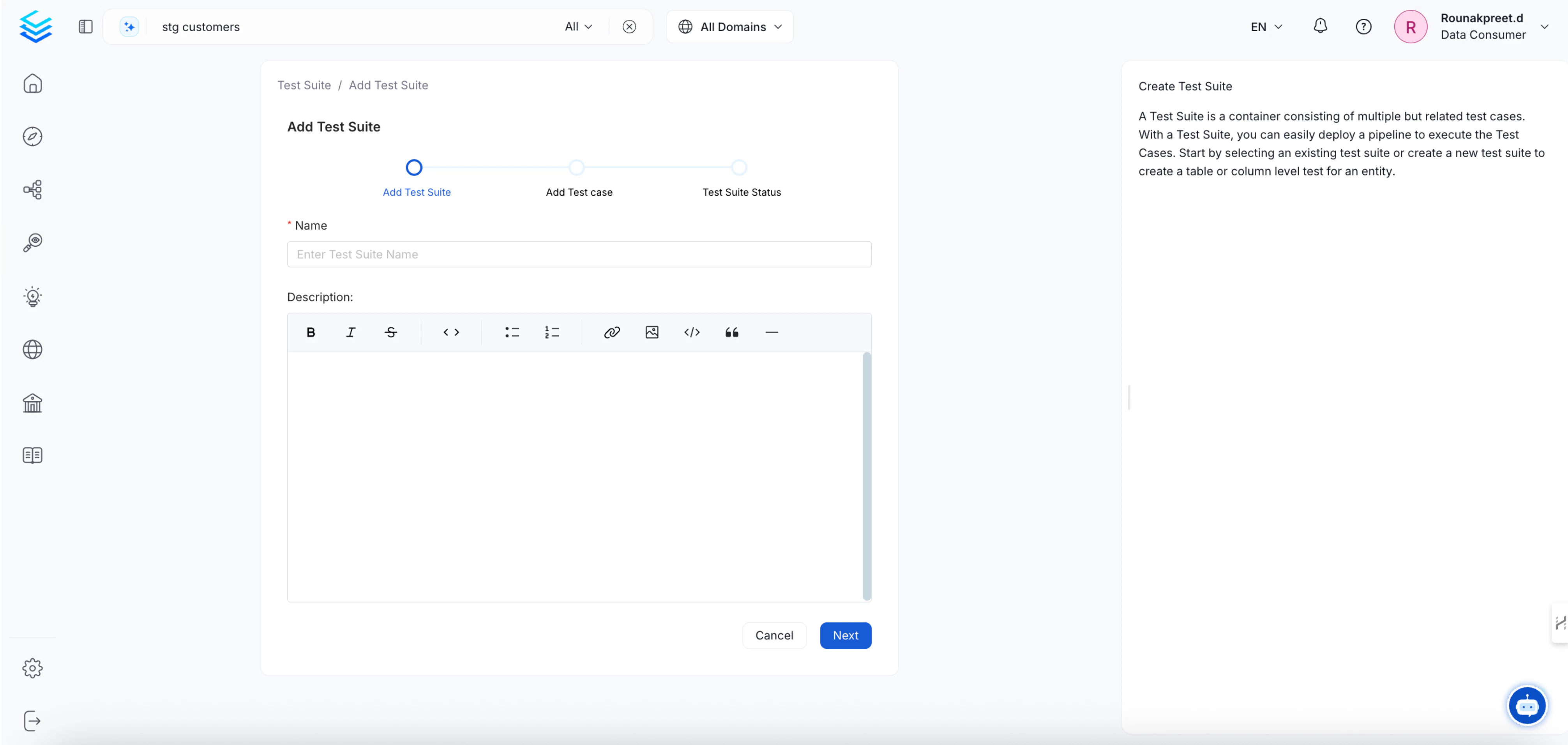
Test Suites are logical container allowing you to group related Test Cases together from different tables. This is a great way to group related test cases together and set a single alert for test case failure. Note: you will need to make sure you have the right permission in Collate to create a test.Step 1: Creating a Test Suite
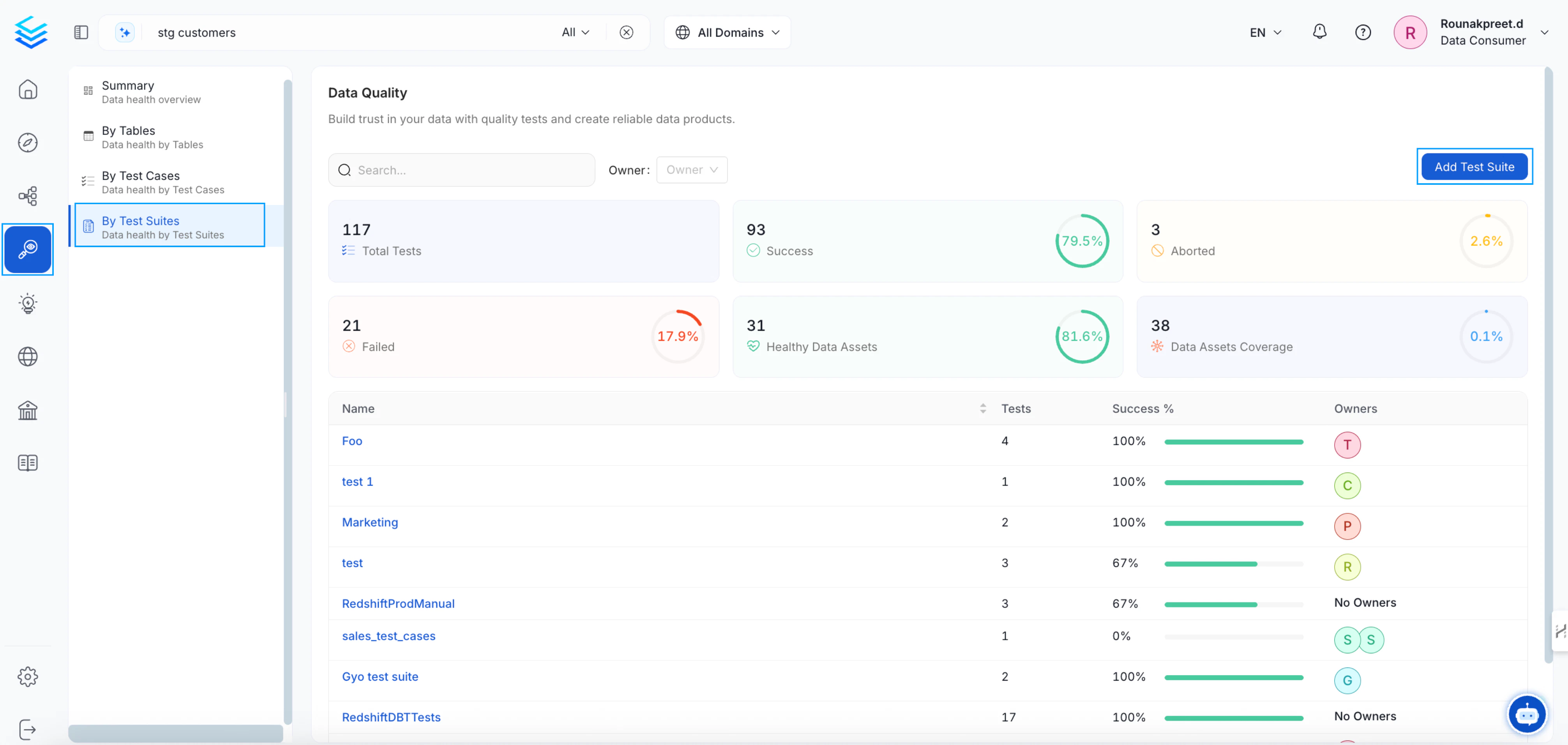
From the vertical navigation bar, click onQuality icon > Data Quality and navigate to the By Test Suites tab. From there click on Add Test Suite button on the top right corner.
Step 2: Add Test Cases
On the next page, you will be able to add existing test cases from different entity to your test suite. This allows you to group together test cases from different entities Note: Test Case name needs to be unique across the whole platform. A warning message will show if your Test Case name is not unique.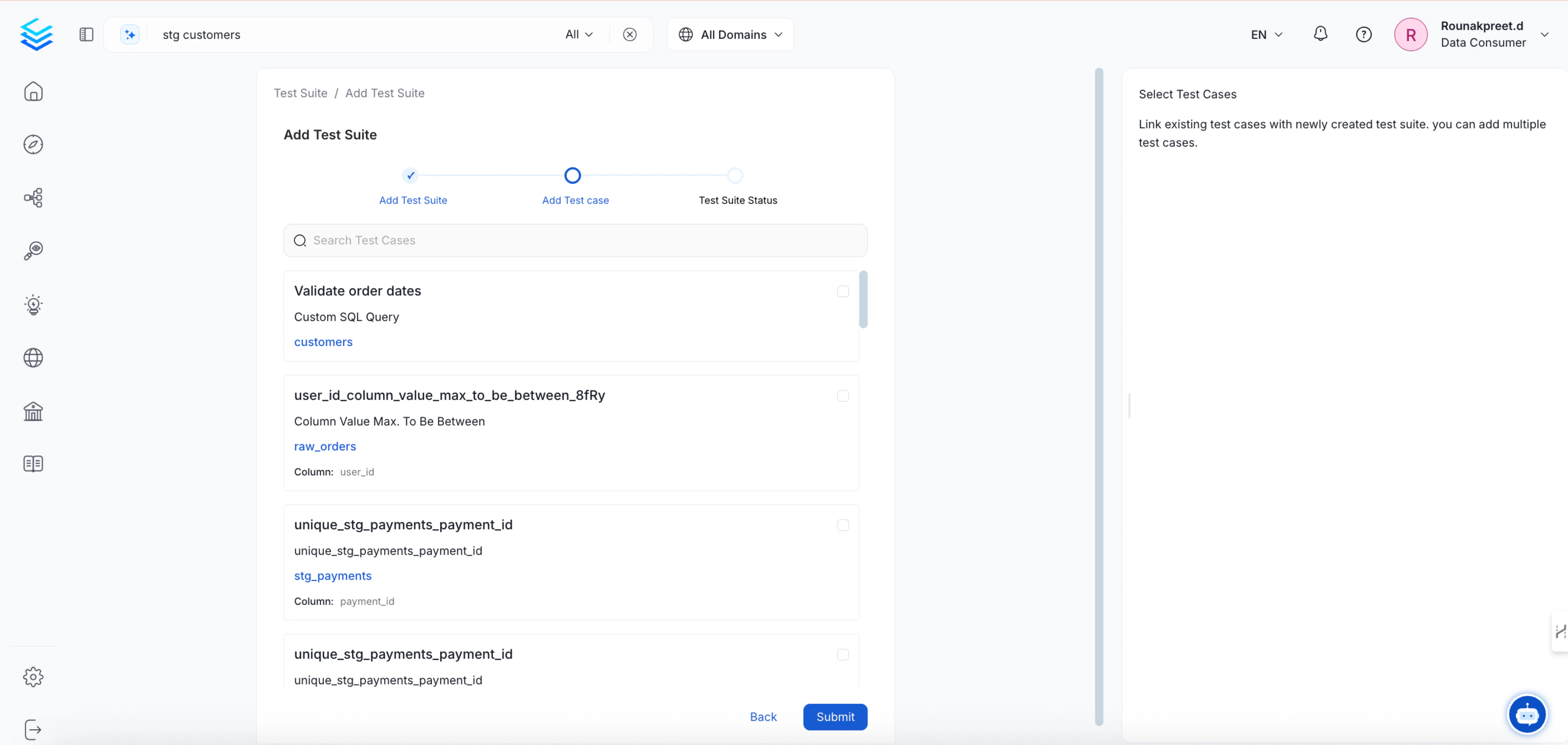
Data Quality
Adding Data Quality Test Cases from yaml config
When creating a JSON config for a test workflow the source configuration is very simple.serviceName (this name needs to be unique) and entityFullyQualifiedName (the entity for which we’ll be executing tests against) keys.
Once you have defined your source configuration you’ll need to define te processor configuration.
"orm-test-runner". For accepted test definition names and parameter value names refer to the tests page.
You can keep your YAML config as simple as follows if the table already has tests.
Key reference:
forceUpdate: if the test case exists (base on the test case name) for the entity, implements the strategy to follow when running the test (i.e. whether or not to update parameters)testCases: list of test cases to add to the entity referenced. Note that we will execute all the tests present in the Table.name: test case nametestDefinitionName: test definitioncolumnName: only applies to column test. The name of the column to run the test againstparameterValues: parameter values of the test
sink and workflowConfig will have the same settings as the ingestion and profiler workflow.