> ## Documentation Index
> Fetch the complete documentation index at: https://docs.getcollate.io/llms.txt
> Use this file to discover all available pages before exploring further.
# Governance Workflows - Creating a New Workflow
> Create a new governance workflow by setting basic details and running event-based or batch executions.
# Creating the “Set Tags to ML Model Workflow”
The following steps walk you through building the **SetTagsToMLModelWorkflow** from start to finish.
Each screenshot corresponds to a specific action you take while creating the workflow.
## Step 1: Create a New Workflow
Begin by navigating to:
**Govern → Workflows → New Workflow**
This opens the initial workflow creation screen.
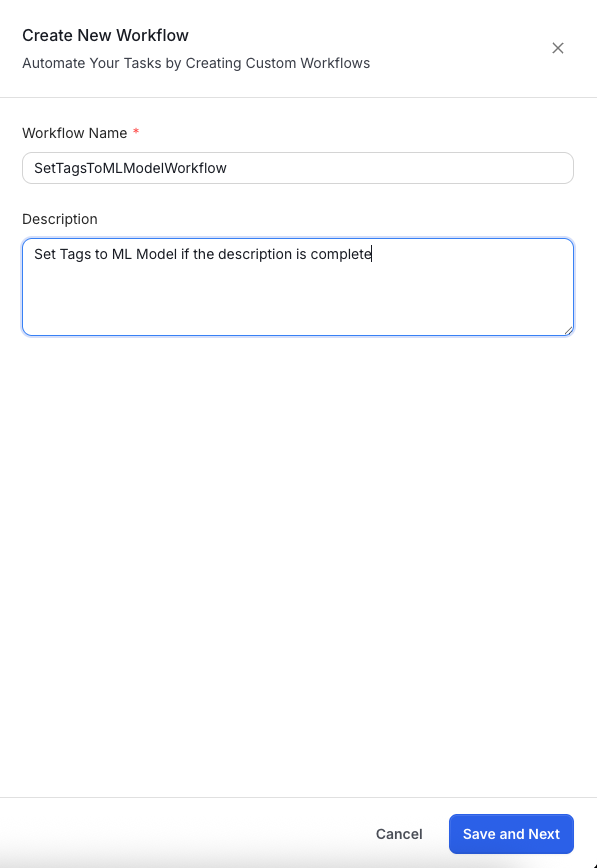 Here you provide:
* **Workflow Name** – A unique identifier without spaces (e.g., `SetTagsToMLModelWorkflow`)
* **Description** – A short summary of the workflow purpose
*Example: “Set Tags to ML Model if the description is complete.”*
Click **Save and Next** to continue.
## Step 2: Configure the Start Node
After creating the workflow, you must configure the **Start** node.
This determines *which assets* the workflow applies to and *when it runs*.
Here you provide:
* **Workflow Name** – A unique identifier without spaces (e.g., `SetTagsToMLModelWorkflow`)
* **Description** – A short summary of the workflow purpose
*Example: “Set Tags to ML Model if the description is complete.”*
Click **Save and Next** to continue.
## Step 2: Configure the Start Node
After creating the workflow, you must configure the **Start** node.
This determines *which assets* the workflow applies to and *when it runs*.
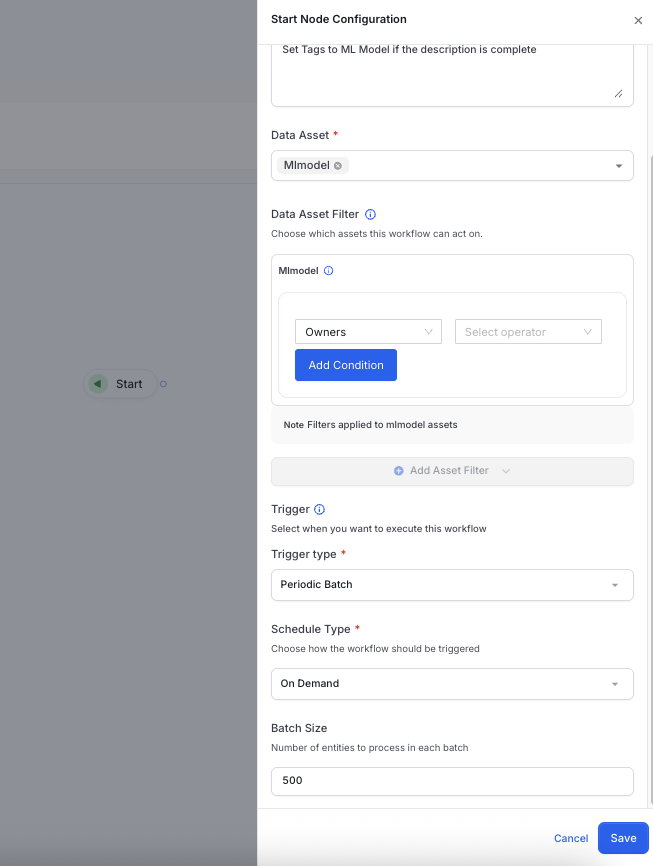 Configure the following:
* **Data Asset**: Select `Mlmodel`
* **Data Asset Filter**: (Optional) Add filters such as owner or domain
* **Trigger Type**: Choose *Periodic Batch* or *Event Based*
* **Schedule Type**: Choose *On Demand* or set a recurring schedule
* **Batch Size**: Number of ML models processed per run
Click **Save**.
## Step 3: Add a Condition Check
Next, add a **Check Condition** node to verify whether the ML model has a description.
Configure the following:
* **Data Asset**: Select `Mlmodel`
* **Data Asset Filter**: (Optional) Add filters such as owner or domain
* **Trigger Type**: Choose *Periodic Batch* or *Event Based*
* **Schedule Type**: Choose *On Demand* or set a recurring schedule
* **Batch Size**: Number of ML models processed per run
Click **Save**.
## Step 3: Add a Condition Check
Next, add a **Check Condition** node to verify whether the ML model has a description.
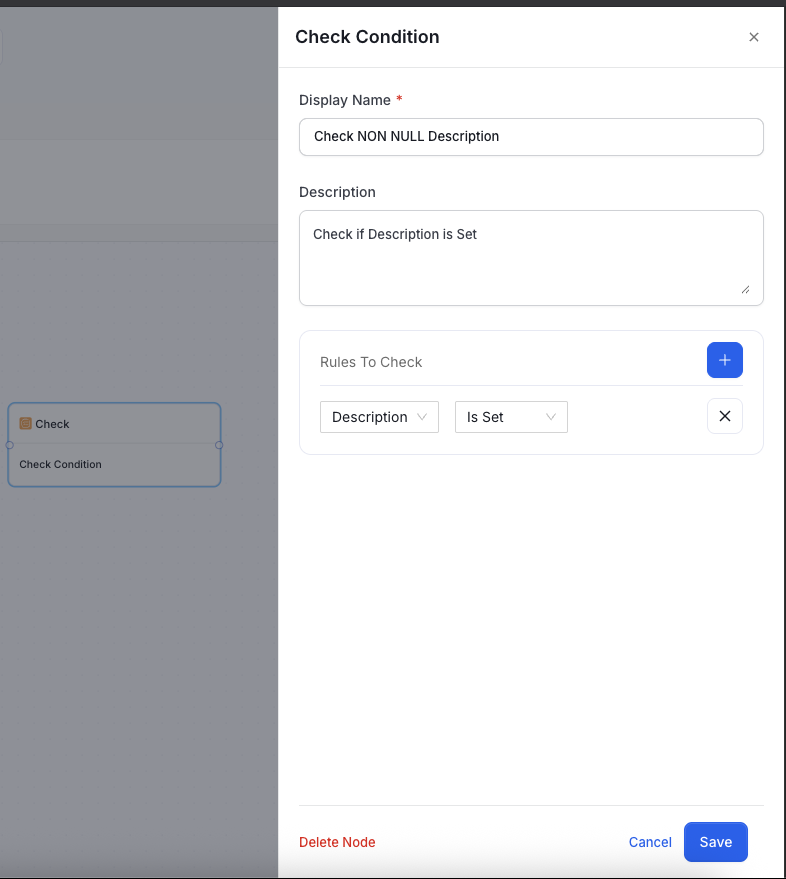 Fill in the details:
* **Display Name** – *Check NON NULL Description*
* **Description** – *Check if Description is Set*
* **Rules To Check** –
* Field: `Description`
* Operator: `Is Set`
Click **Save** to add the check.
## Step 4: Configure the TRUE Condition Path
If the description **is present**, the workflow should assign a **Complete** tag.
Connect the TRUE branch of the condition check to a Set Action node.
Fill in the details:
* **Display Name** – *Check NON NULL Description*
* **Description** – *Check if Description is Set*
* **Rules To Check** –
* Field: `Description`
* Operator: `Is Set`
Click **Save** to add the check.
## Step 4: Configure the TRUE Condition Path
If the description **is present**, the workflow should assign a **Complete** tag.
Connect the TRUE branch of the condition check to a Set Action node.
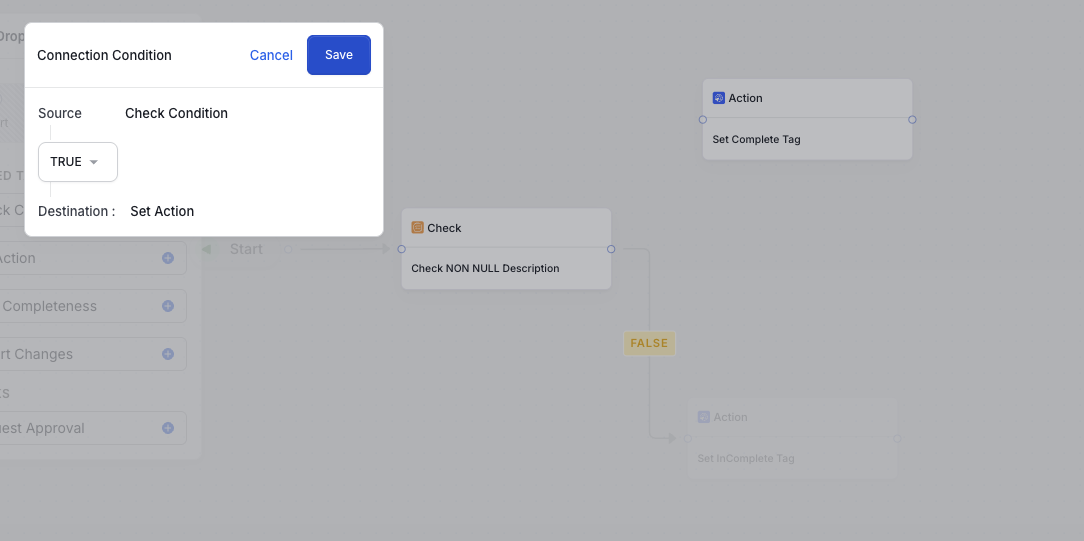 Set:
* **Source** – Check Condition
* **Result** – TRUE
* **Destination** – The “Set Complete Tag” action node
Click **Save**.
### TRUE Path Action: Set Complete Tag
Now configure the action that applies the `MachineLearning.Complete` tag.
Set:
* **Source** – Check Condition
* **Result** – TRUE
* **Destination** – The “Set Complete Tag” action node
Click **Save**.
### TRUE Path Action: Set Complete Tag
Now configure the action that applies the `MachineLearning.Complete` tag.
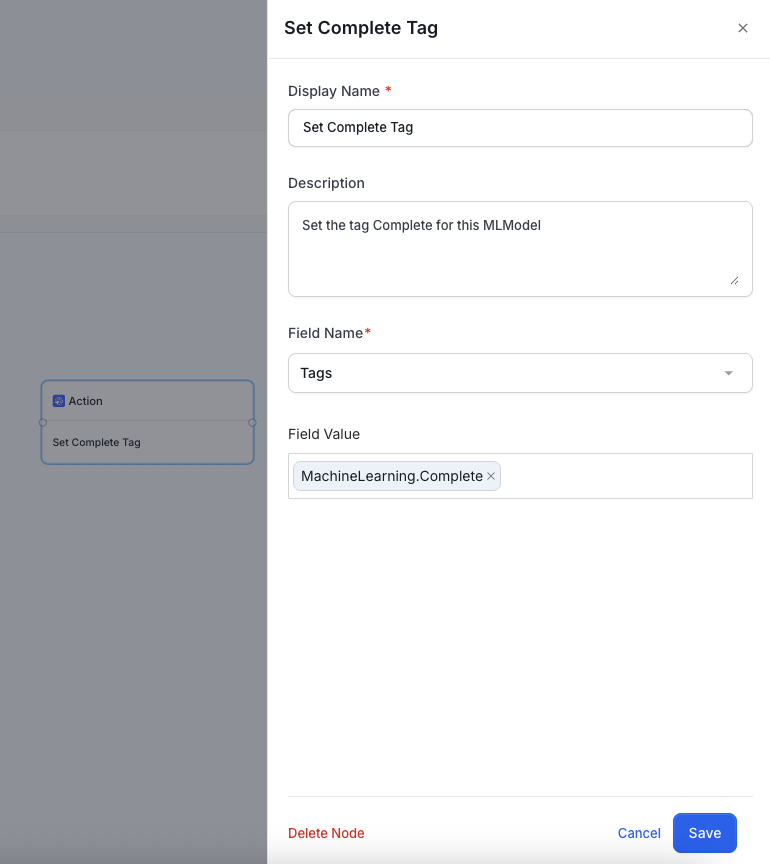 Provide:
* **Display Name** – *Set Complete Tag*
* **Description** – Explanation of the action
* **Field Name** – `Tags`
* **Field Value** – `MachineLearning.Complete`
Click **Save**.
## Step 5: Configure the FALSE Condition Path
If the description is **missing**, tag the ML model as **Incomplete**.
Provide:
* **Display Name** – *Set Complete Tag*
* **Description** – Explanation of the action
* **Field Name** – `Tags`
* **Field Value** – `MachineLearning.Complete`
Click **Save**.
## Step 5: Configure the FALSE Condition Path
If the description is **missing**, tag the ML model as **Incomplete**.
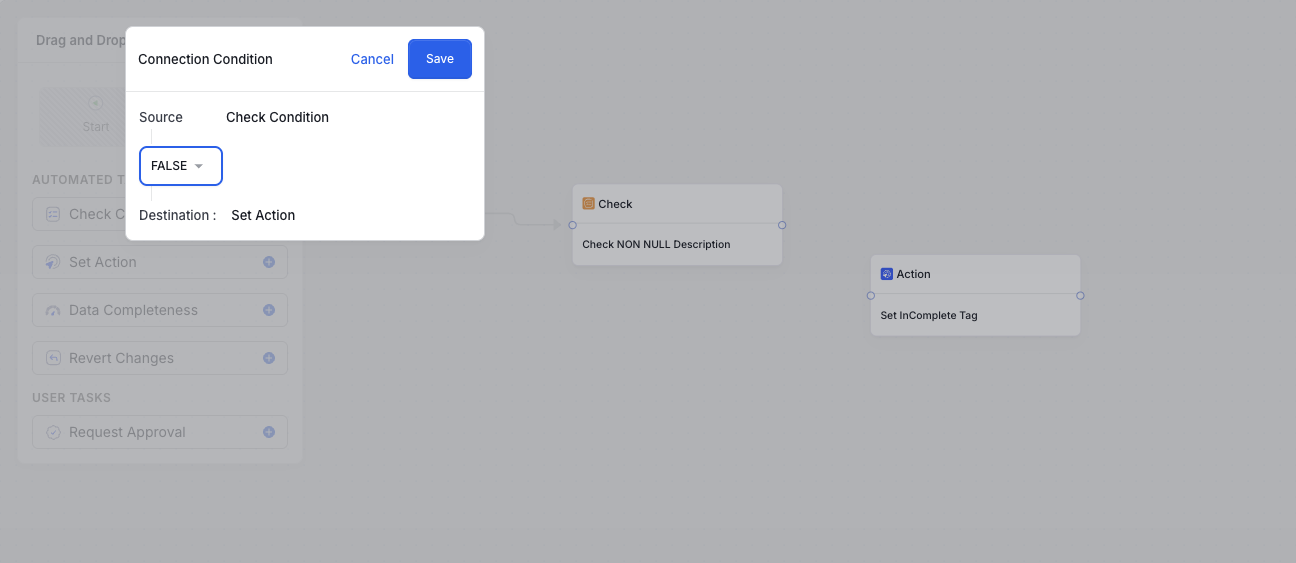 Here, set:
* **Result** – FALSE
* **Destination** – The “Set InComplete Tag” action node
Click **Save**.
### FALSE Path Action: Set Incomplete Tag
Configure the action to apply the `MachineLearning.InComplete` tag.
Here, set:
* **Result** – FALSE
* **Destination** – The “Set InComplete Tag” action node
Click **Save**.
### FALSE Path Action: Set Incomplete Tag
Configure the action to apply the `MachineLearning.InComplete` tag.
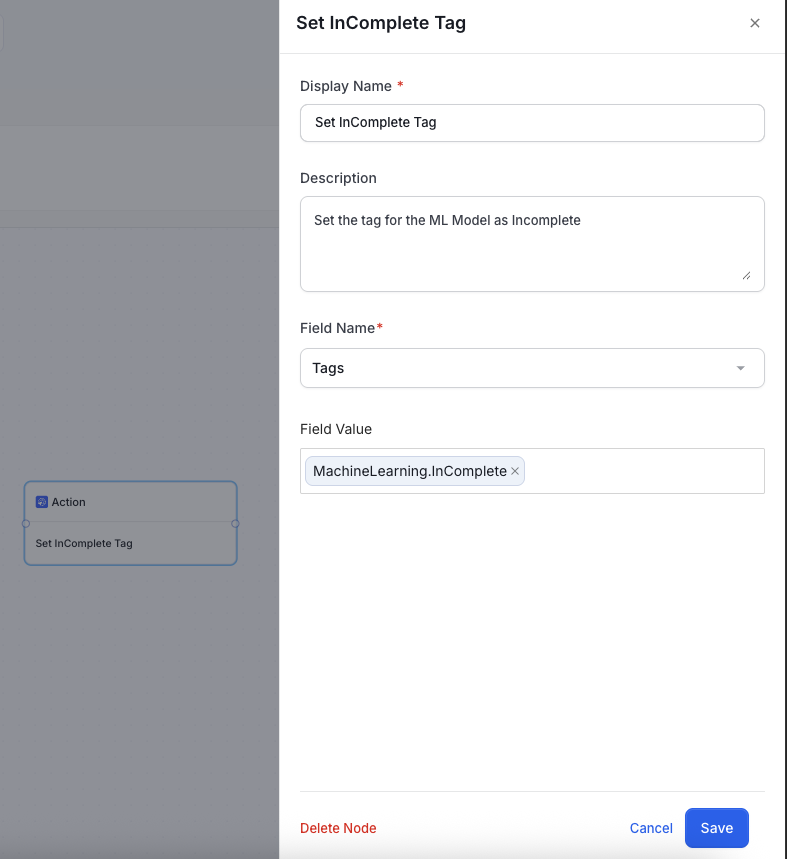 Set:
* **Display Name** – *Set InComplete Tag*
* **Description** – Explain why this tag is used
* **Field Name** – `Tags`
* **Field Value** – `MachineLearning.InComplete`
Click **Save**.
## Step 6: End the Workflow
Both the TRUE and FALSE action nodes should connect to an **End** node, marking workflow completion.
Set:
* **Display Name** – *Set InComplete Tag*
* **Description** – Explain why this tag is used
* **Field Name** – `Tags`
* **Field Value** – `MachineLearning.InComplete`
Click **Save**.
## Step 6: End the Workflow
Both the TRUE and FALSE action nodes should connect to an **End** node, marking workflow completion.
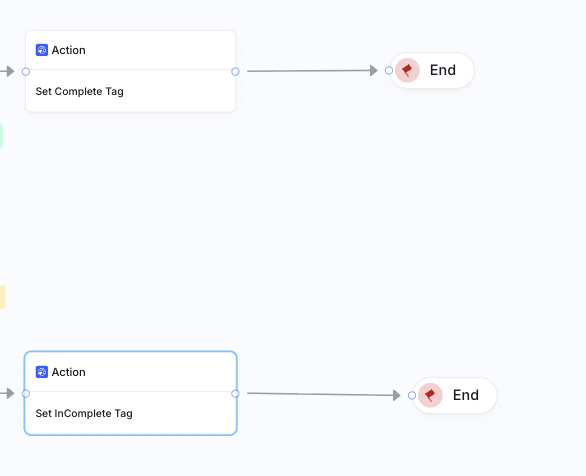 This ensures the workflow automatically stops after tagging the model appropriately.
## Final Workflow Overview
Once all nodes and connections are in place, your workflow should look like this:
This ensures the workflow automatically stops after tagging the model appropriately.
## Final Workflow Overview
Once all nodes and connections are in place, your workflow should look like this:
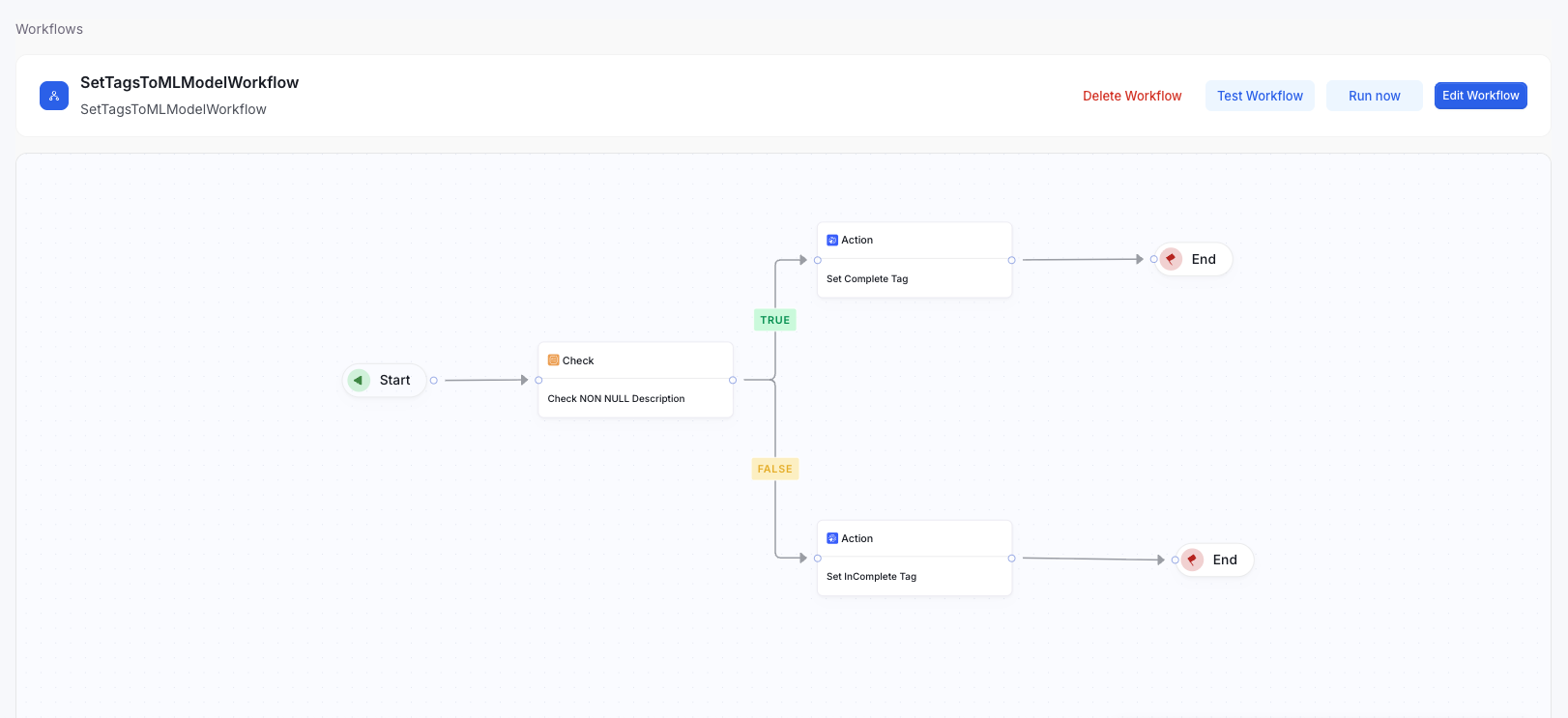 * **TRUE → Apply Complete Tag**
* **FALSE → Apply Incomplete Tag**
This workflow fully automates documentation completeness tagging for ML models.
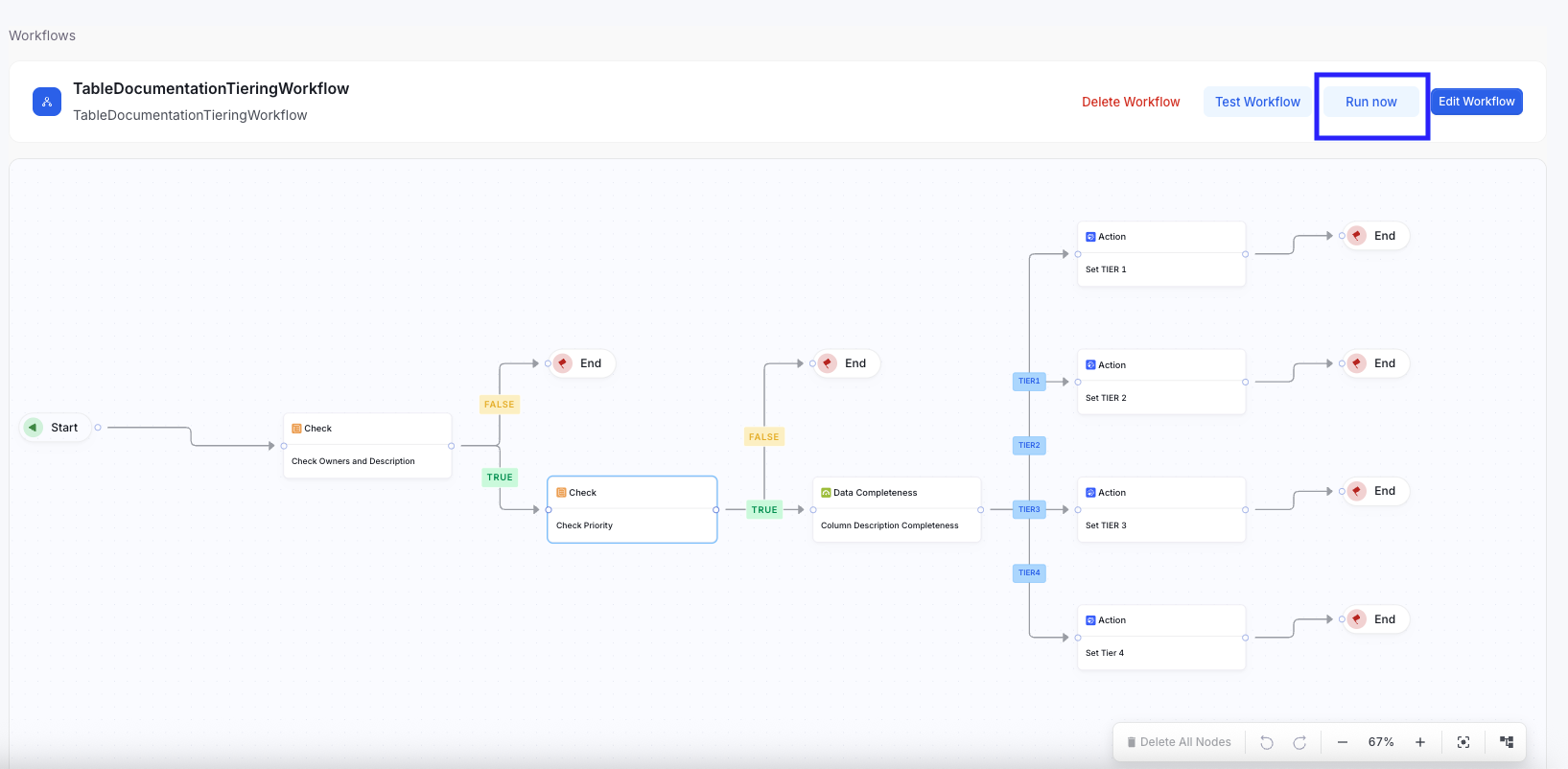
### **Running a Periodic Batch Workflow**
To execute an on-demand workflow, click **Run Now** This immediately triggers the workflow based on its configuration.
* **TRUE → Apply Complete Tag**
* **FALSE → Apply Incomplete Tag**
This workflow fully automates documentation completeness tagging for ML models.
### **Running a Periodic Batch Workflow**
To execute an on-demand workflow, click **Run Now** This immediately triggers the workflow based on its configuration.
 ## Best Practices
1. **Use the Right Type of Trigger**
* **Event-Based Entity Triggers** are ideal when specific fields must be automatically updated in response to a change.
*Example:* When any attribute of a Glossary Term is modified, its status should automatically update to **IN REVIEW**.
* **Periodic Batch Triggers** are best suited for bulk updates across many entities, especially for classification or enrichment workflows.
*Example:* Tables or Dashboards can be classified as Tier 1, Tier 2, or Tier 3 based on the completeness of their column descriptions.
2. **Use a Single Event-Based Workflow per Data Asset**
* Configure only one event-based entity workflow for each data asset.
Having multiple workflows attempting to update the same field (such as the status of a Glossary Term) can result in unpredictable behavior, as one workflow’s changes may override another’s.
3. **Optimize Batch Size for Periodic Workflows**
* Tune the batch size based on the number of data assets to ensure optimal performance.
* Avoid running periodic workflows across all entities without filtering. Instead, apply an inclusion filter to limit the result set and prevent performance degradation.
4. **Use User Approval Tasks Only in Event-Based Workflows**
* User Approval Tasks should be used exclusively in event-driven workflows.
Using them in periodic workflows would generate multiple approval tasks simultaneously, overloading system resources.
* If an approval step is needed in a periodic batch workflow, ensure the workflow scope is limited to a small, controlled set of entities.
## Limitations
1. **User Approval Tasks Are Limited to Assets with Reviewer Support**
* User Approval Tasks can only be used for data assets that support assigning reviewers.
Reviewer support for additional asset types will be introduced in future releases.
2. **Fallback Behavior for Entities Without Reviewers**
* For entities that do not have any reviewers configured, User Approval Tasks automatically follow the **TRUE** path as a graceful fallback.
*Example:* A Metric without a reviewer will automatically pass the approval step.
## Best Practices
1. **Use the Right Type of Trigger**
* **Event-Based Entity Triggers** are ideal when specific fields must be automatically updated in response to a change.
*Example:* When any attribute of a Glossary Term is modified, its status should automatically update to **IN REVIEW**.
* **Periodic Batch Triggers** are best suited for bulk updates across many entities, especially for classification or enrichment workflows.
*Example:* Tables or Dashboards can be classified as Tier 1, Tier 2, or Tier 3 based on the completeness of their column descriptions.
2. **Use a Single Event-Based Workflow per Data Asset**
* Configure only one event-based entity workflow for each data asset.
Having multiple workflows attempting to update the same field (such as the status of a Glossary Term) can result in unpredictable behavior, as one workflow’s changes may override another’s.
3. **Optimize Batch Size for Periodic Workflows**
* Tune the batch size based on the number of data assets to ensure optimal performance.
* Avoid running periodic workflows across all entities without filtering. Instead, apply an inclusion filter to limit the result set and prevent performance degradation.
4. **Use User Approval Tasks Only in Event-Based Workflows**
* User Approval Tasks should be used exclusively in event-driven workflows.
Using them in periodic workflows would generate multiple approval tasks simultaneously, overloading system resources.
* If an approval step is needed in a periodic batch workflow, ensure the workflow scope is limited to a small, controlled set of entities.
## Limitations
1. **User Approval Tasks Are Limited to Assets with Reviewer Support**
* User Approval Tasks can only be used for data assets that support assigning reviewers.
Reviewer support for additional asset types will be introduced in future releases.
2. **Fallback Behavior for Entities Without Reviewers**
* For entities that do not have any reviewers configured, User Approval Tasks automatically follow the **TRUE** path as a graceful fallback.
*Example:* A Metric without a reviewer will automatically pass the approval step.